Getting Started with the Kantiv Companion
Last updated: June 2, 2026
The Kantiv Companion for Adobe InDesign brings the power of Kantiv directly into your design workflow, making it easier to access, manage, and use your content without ever leaving InDesign. This article covers everything you need to get started—from system requirements and installation to logging in, optimizing the plugin window, and staying up to date—so you can streamline proposal creation and work more efficiently from day one.
Requirements
The InDesign Plugin is recommended for all users who use InDesign to generate proposals and other marketing material for their companies. The Kantiv Companion is compatible with Adobe InDesign Version 18.5.0 or later. Once downloaded, users must log in to their Kantiv account and complete setup in the Kantiv App before using the InDesign plugin.
Downloading the Kantiv Companion Plugin
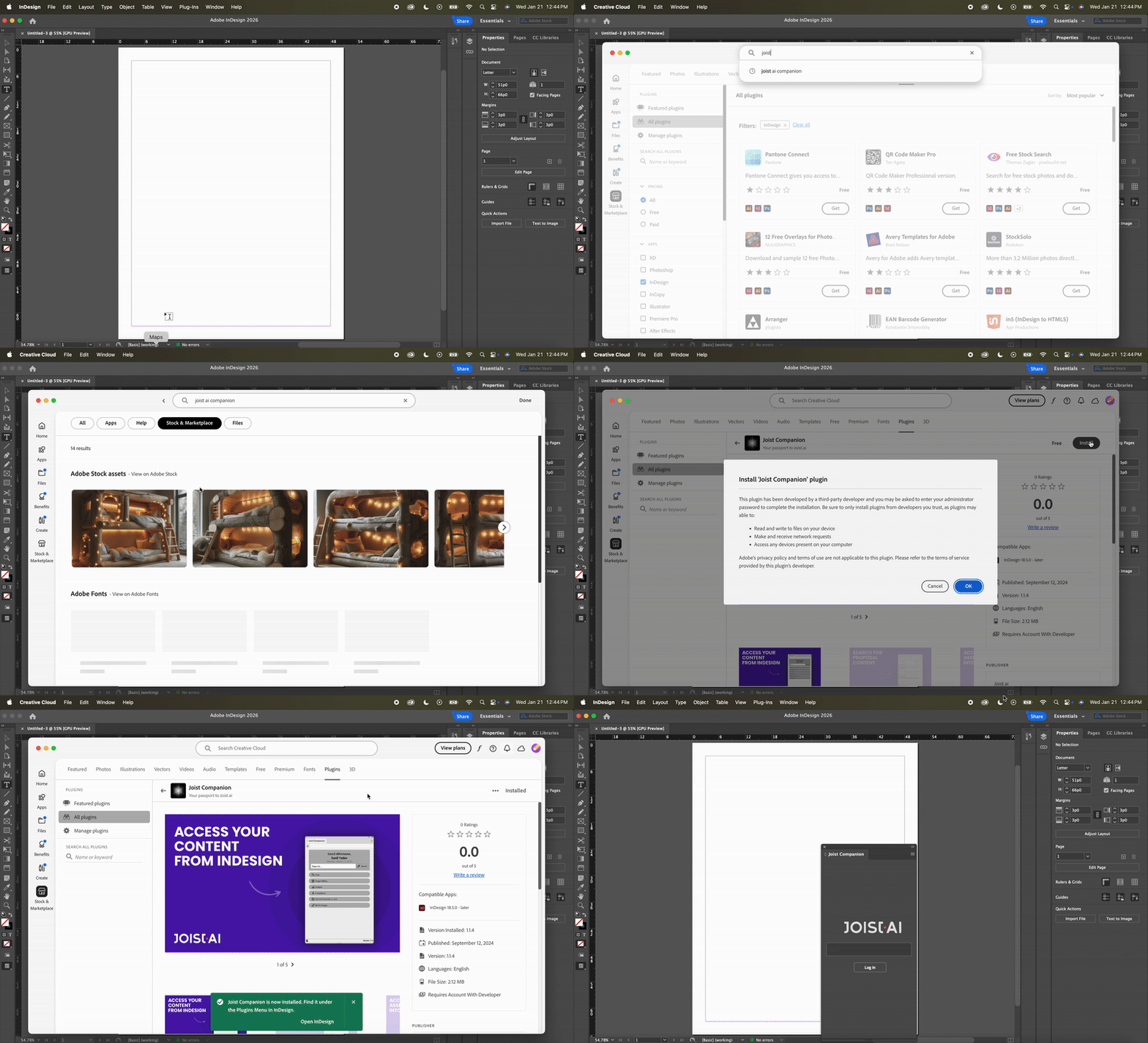
To find and download the Kantiv Companion:
In InDesign, click Plug-Ins at the top of the window.
Click Browse Plug-Ins to open the apps menu in Creative Cloud.
In the search bar, look up Kantiv Companion.
Locate the Kantiv Companion in the list of Plug-Ins below and click it to access the Plug-In page.
Click Install to download.
Depending on your organization's security settings, your IT team may need to provide access to download the plug-in.
Alternatively, you can use this link to access the web page for the plug-in and open Creative Cloud from there.
Once installed, you'll see the Kantiv Companion in InDesign. At any point, you can click Plug-Ins at the top of the window to access the plug-in.
Logging into your Account
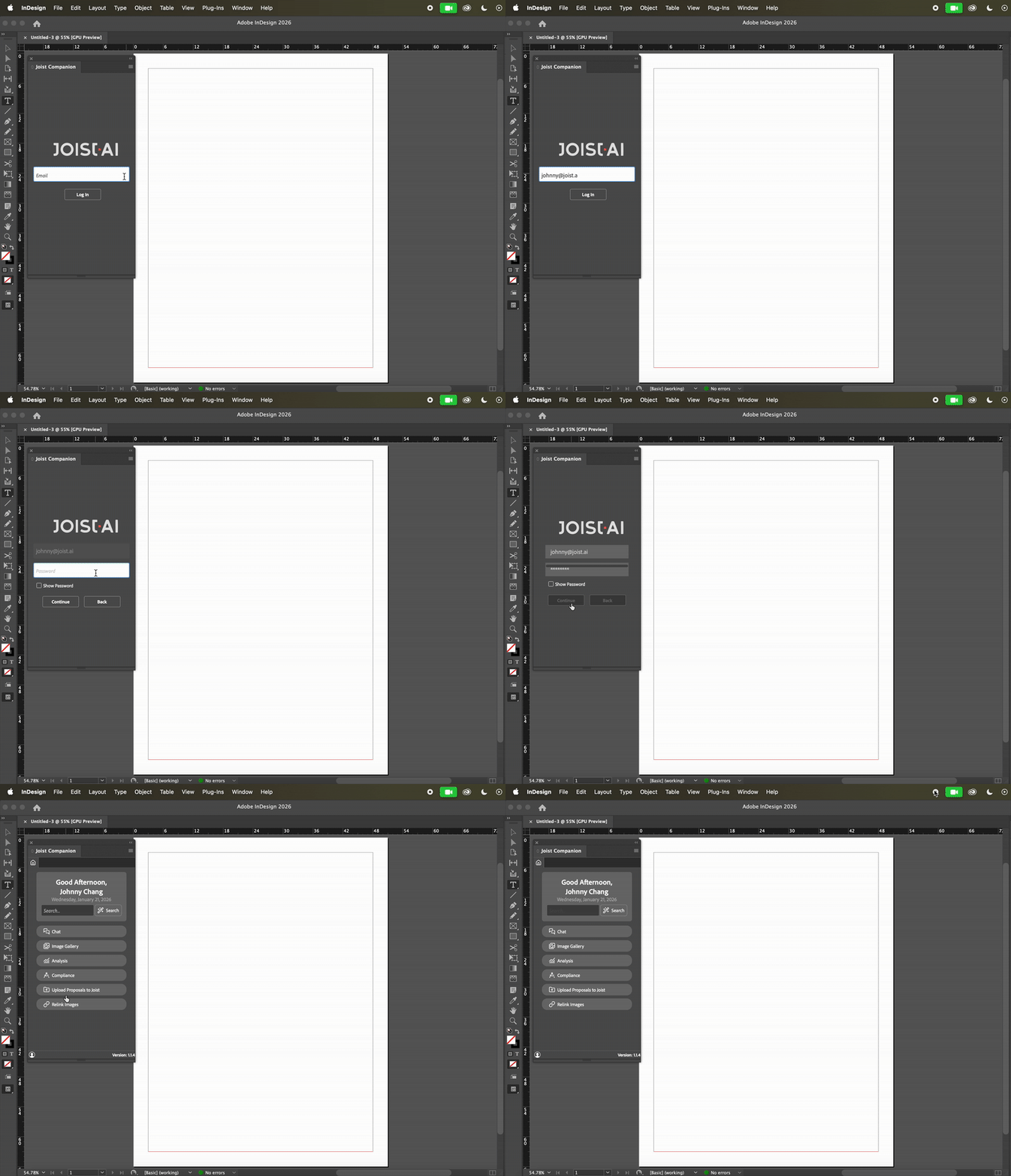
In the Kantiv Companion, log in with the same email and password that you use to access the Kantiv App. Once in, you'll have access to the files and images within your account.
For SSO users, after entering in your email, you'll be redirected to a website where you can log in with SSO. From there, you'll receive a code which you can enter into the plugin to proceed.
If you have access to multiple accounts, upon login, you'll have access to the files and images from the last account you were logged into. To fix this, log into the correct account in the Kantiv App, and then log into the Kantiv Companion in InDesign to access the correct library again.
Additional Setup and Troubleshooting
Adjusting Plug-In Window Size
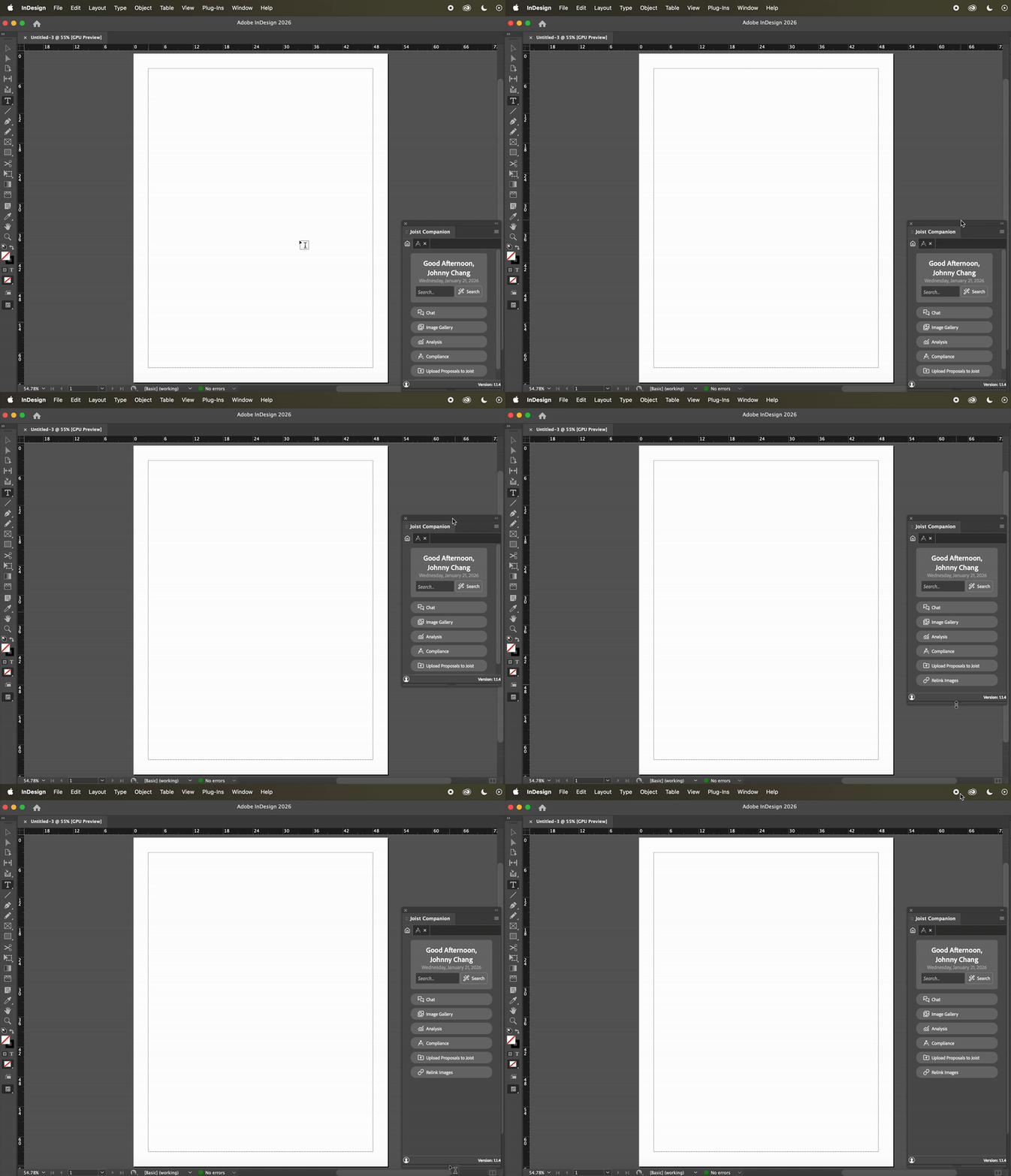
By default, the Kantiv Companion opens in a smaller window within InDesign. We highly recommend making the window larger for a better experience. By clicking the edge or corner of the window, you can drag and expand the Kantiv Companion to fit your preferences.
Updating the Kantiv Companion
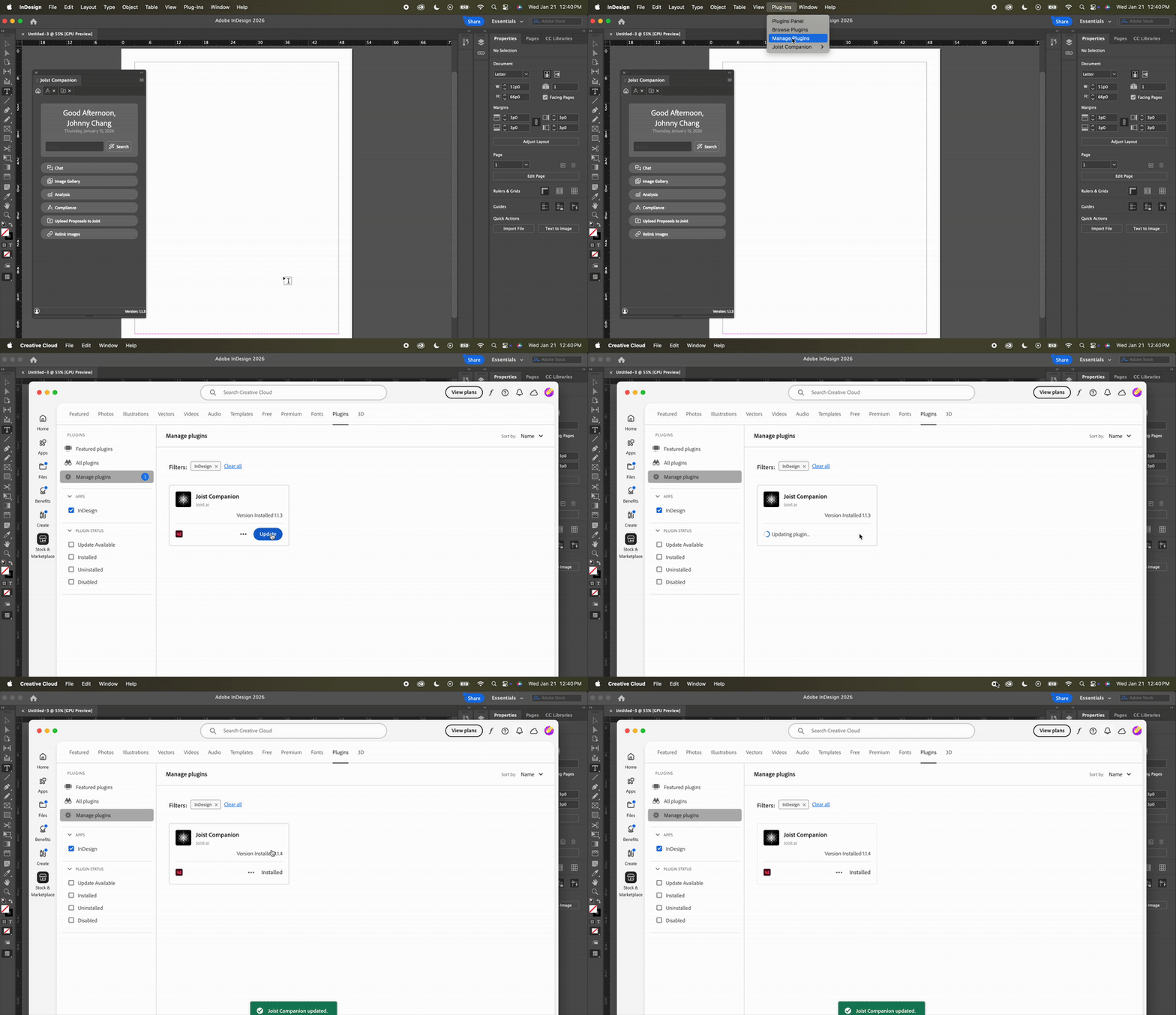
We regularly release updates on the Kantiv Companion to improve performance, add new features, and enhance security, ensuring you get the best experience. You can view the version of plug-in you're using on the bottom right of the Kantiv Companion window.
To update the Kantiv Companion:
Click Plug-Ins at the top of the window.
Click Manage Plugins to be redirected to Creative Cloud.
If an update is available, click Update to download the latest version of the plug-in.
Version 2.0.0 is the latest version of the Kantiv Companion.
If you're encountering issues or missing features in your instance, you may be using an outdated version of the Kantiv Companion.
You can access version updates in the Kantiv Companion to view new features. Click the icon on the bottom left and then click Version to see updates in the change log.
Refresh and Sign Out
Within the same icon on the bottom left, you can:
Refresh the Kantiv Companion to reload your files and library contents.
Sign out of your account and log back in if needed.
With the Kantiv Companion for InDesign, you can seamlessly access your Kantiv content directly within your design workflow—saving time and keeping your proposals consistent and up to date. By following this guide, you’ll be fully equipped to install, manage, and optimize the Companion for the best possible experience.
You can always find more information on Security and Integrations on our Support Center. Please send any questions or feedback to Support@Kantiv.com.