Dynamics: API Set-Up Guide
Last updated: June 2, 2026
Currently, our team at Kantiv manages the configuration and maintenance of your integration directly. To establish a new connection or adjust your existing setup, please reach out to Integrations@kantiv.com. These management tools are part of our roadmap and will be available for self-service in a future release.
This is a guide overviewing the setup process for a Dynamics API.
Step 1: Create an App Registration in Microsoft Entra ID
Instructions
Sign in to the Azure portal: Microsoft Entra ID (formerly Azure Active Directory).
Go to App registrations → New registration.
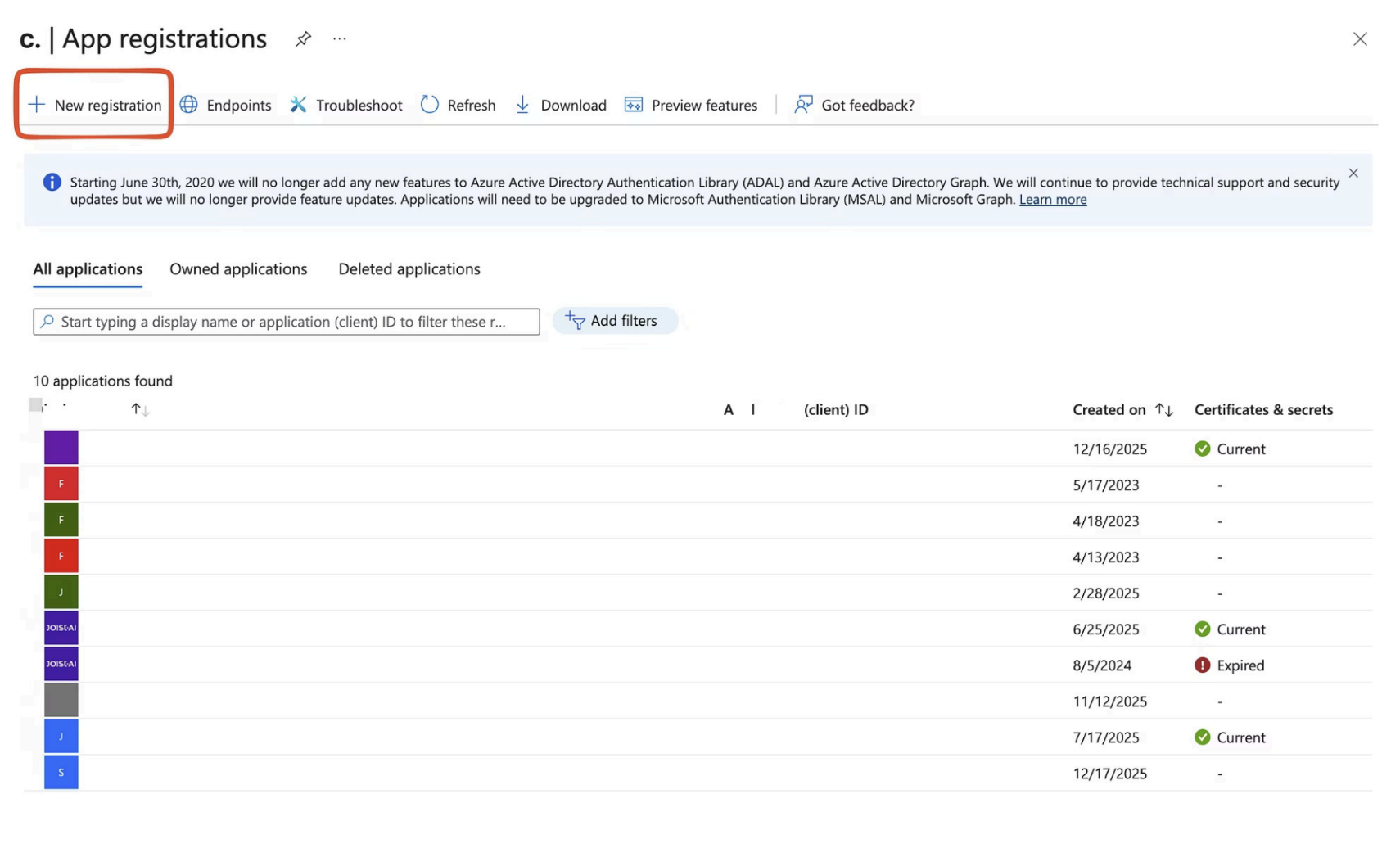
Registration Details
Enter the following when registering your application:
Name | Supported account types |
Kantiv SharePoint Integration | Accounts in this organizational directory only |
Supported Account Types | Accounts in this organizational directory only (Single Tenant) |
After Registration
Click Register. After registration, you will see:
Application (client) ID → this is your Client ID
Directory (tenant) ID → this is your Tenant ID
Please note both values. They will need to be shared with the Kantiv team.
Step 2: Create a Client Secret
Instructions
1. In the same App Registration, go to Certificates & secrets.
2. Under Client secrets, click New client secret.
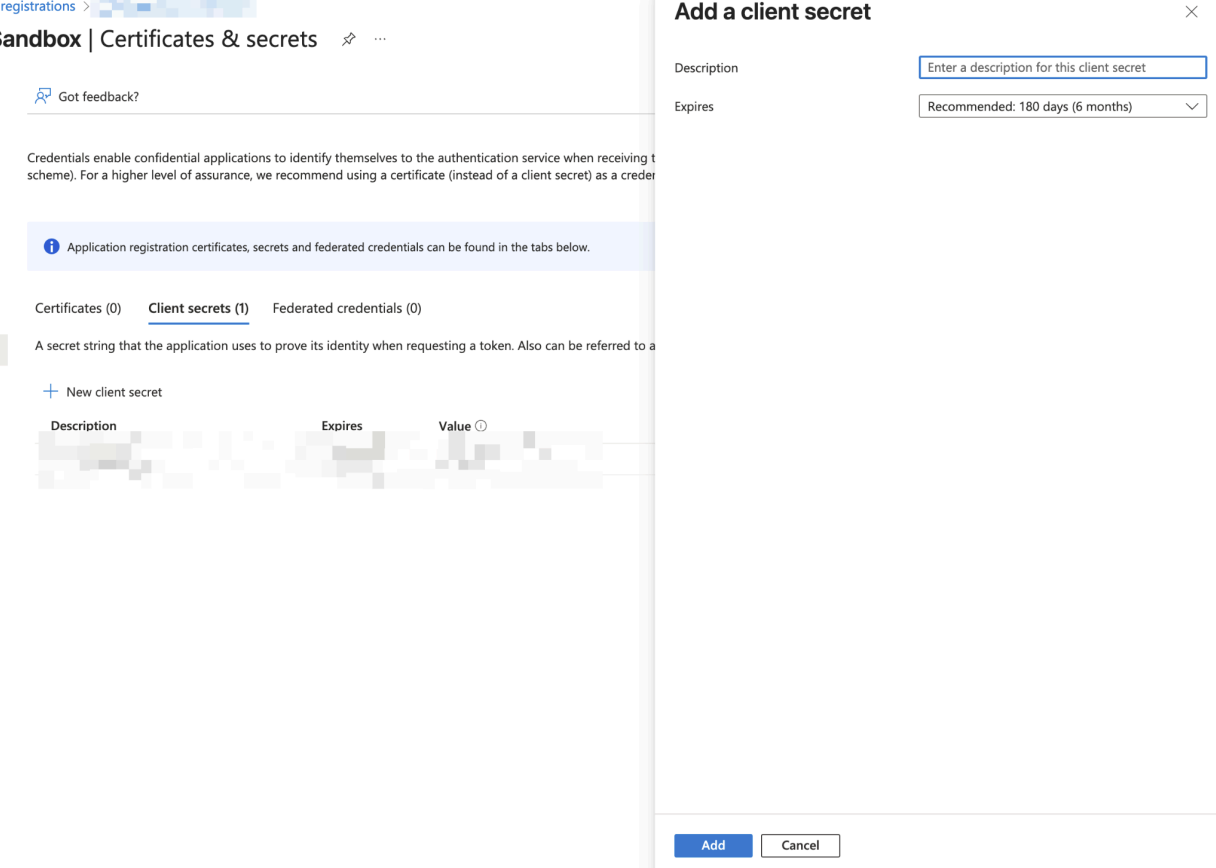
Client Secret Details
Field | Value |
Description | Kantiv secret |
Expiration | Choose per your policy (recommend 12–24 months) |
Click Add to create the secret.
Important: Copy the Value immediately. This is the Client Secret Kantiv needs. Microsoft will not show the secret value again after you leave the page.
Step 3: Configure API Permissions
In the App Registration, go to API permissions → Add a permission.
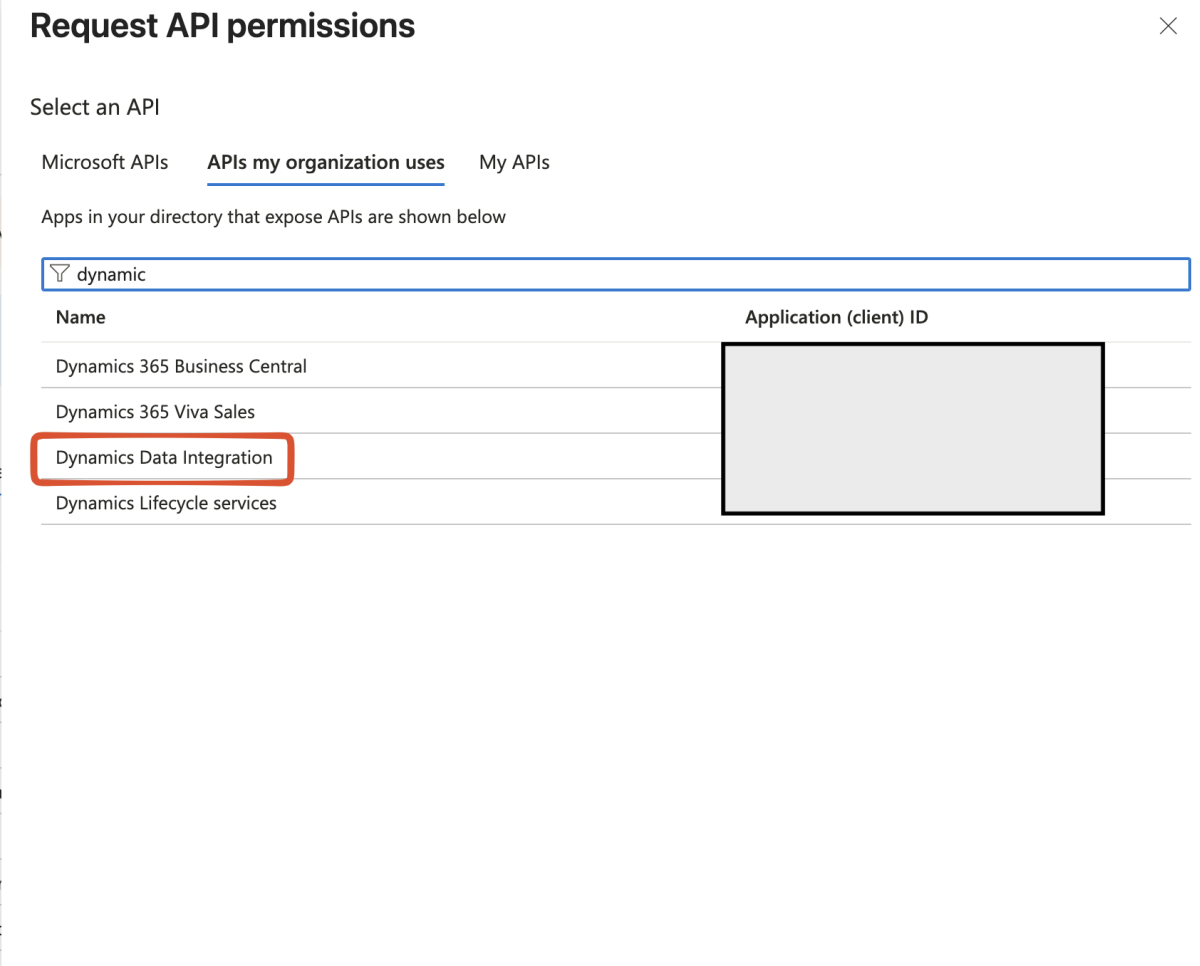
Add:
APIs my organization uses → search for Dynamics Data
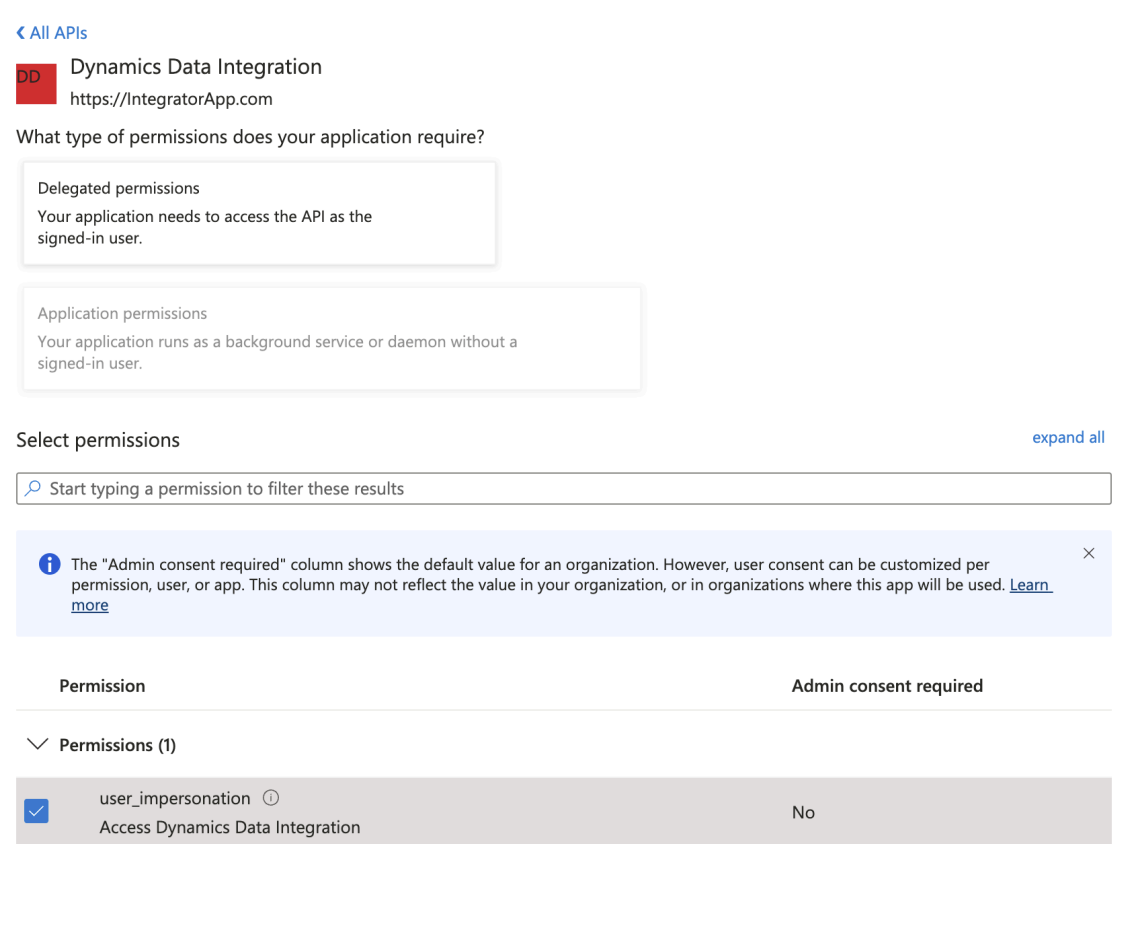
Add Application permission:
user_impersonation(this is the common delegated-style permission shown; actual access is controlled in Dataverse via Application User + Security Role — see next step)
Step 4: Create an Application User in Dynamics 365 / Dataverse
Dataverse environments require you to explicitly add the app as an Application User and assign a Security Role.
Open Power Platform Admin Center for your environment.
Go to Users (or Settings → Users + permissions).
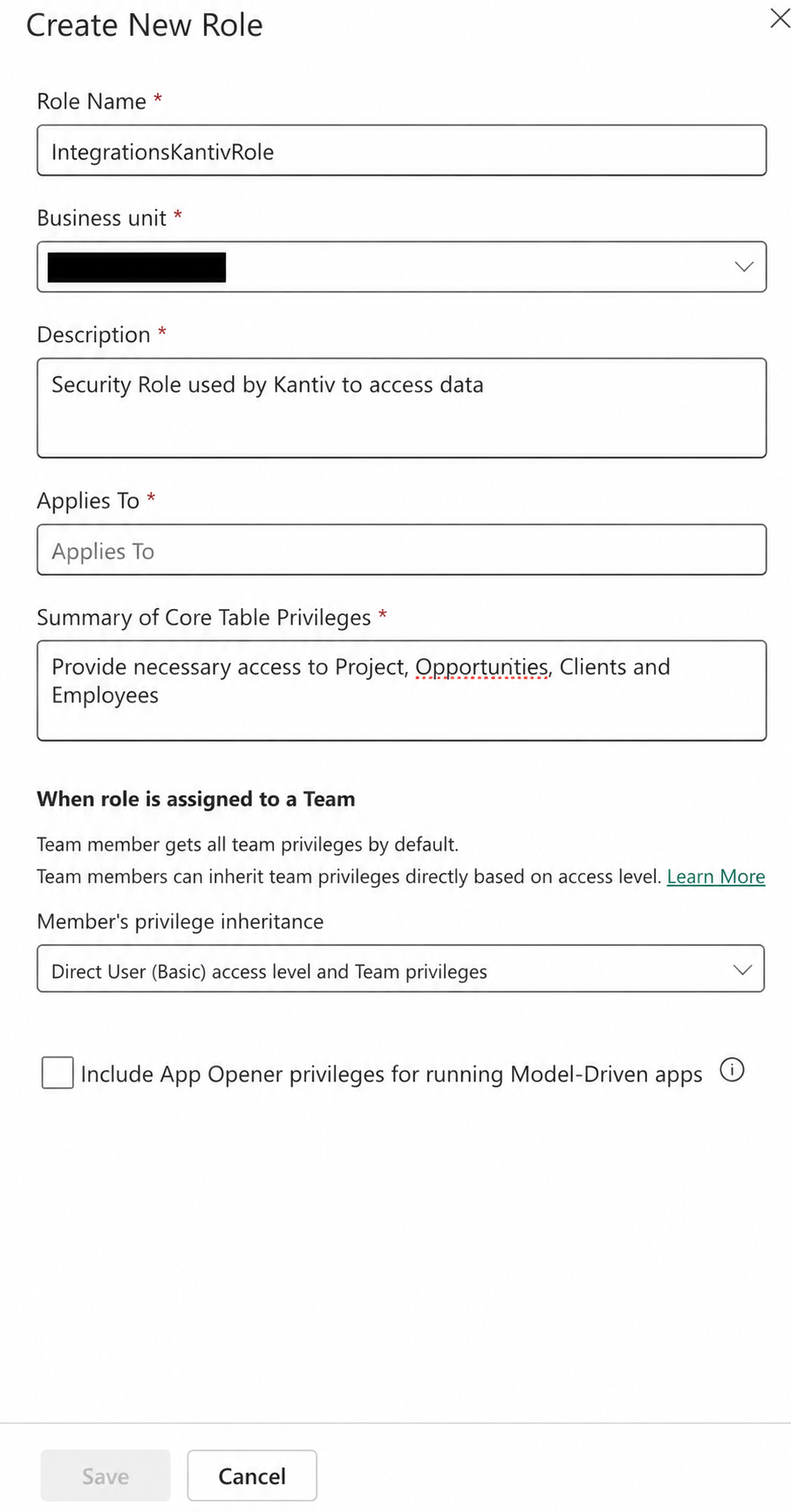
Create a Security Role to be assigned to the new user. This can be skipped if you have predefined roles set up. This role must give access to the necessary tables.
Add an Application User tied to the App Registration you created.
Assign the Role to the newly created Application User.
Step 5: Share the Required Details With Kantiv
Please send the following to the Kantiv team:
Credential | Value |
Tenant ID | xxxxxxxx-xxxx-xxxx-xxxx-xxxxxxxxxxxx |
Client ID | xxxxxxxx-xxxx-xxxx-xxxx-xxxxxxxxxxxx |
Client Secret | The value is copied immediately after creation in Step 2 |
You can always find more information on Security and Integrations on our Support Center. Please send any questions or feedback to Integrations@Kantiv.com.