FAQ: Admin Structured CRM Integrations
Last updated: June 3, 2026
Currently, our team at Kantiv manages the configuration and maintenance of your integration directly. To establish a new connection or adjust your existing setup, please reach out to Integrations@kantiv.com. These management tools are part of our roadmap and will be available for self-service in a future release.
Overview
Your structured CRM database connects one way directly to Kantiv, unifying your company's data, including people, projects, opportunities, and companies, into a single, searchable asset library. The core purpose is to ensure Kantiv always uses your freshest, most accurate data rather than relying on older documents such as legacy proposal narratives.
This document provides an overview of the Admin Side of our Integrations and the features and capabilities available to admins across the platforms.
Supported Databases
Note: Set-up Guide for Each is linked
Standard Integration Workflow
Admin Feature Overview
Sync Tab
Mapping Tab
Rules
Dynamic UI Tab
Logs Tab
Inline Editor
Data Handling in Kantiv
Integration Limitations
Note: Our Supported CRM's and Feature Overview's are Subject to Change upon customer facing launch of the system.
Supported Databases
Below is a list of supported databases that we can integrate with. Non-listed databases may require custom development. Reach out to integrations@kantiv.com to discuss feasibility and timeline.
Unanet Datalake
Note: Each database integration has its own API setup guide. Refer to the integration-specific documentation provided during your onboarding process.
Standard Integration Workflow
Most of our Integrations follow what is called Standard Integration Workflow which is a fully Custom Integration process at the expenses of it being a lengthy process that involves a lot communication between the Kantiv Team and your team.
Stage |
Pre-Integration Incubation |
Client: Integration Kick-Off and Pre-Integration Setup |
Client API Handoff |
Kantiv: Beta Environment Creation |
Client: Integration QA/QC |
Kantiv: Beta Environment Clean Up |
Client Final QA/QC |
Move to Production and Post Calls |
Unanet One Click Integration does not require this documentation, and avoids most of the QA/QC requirements
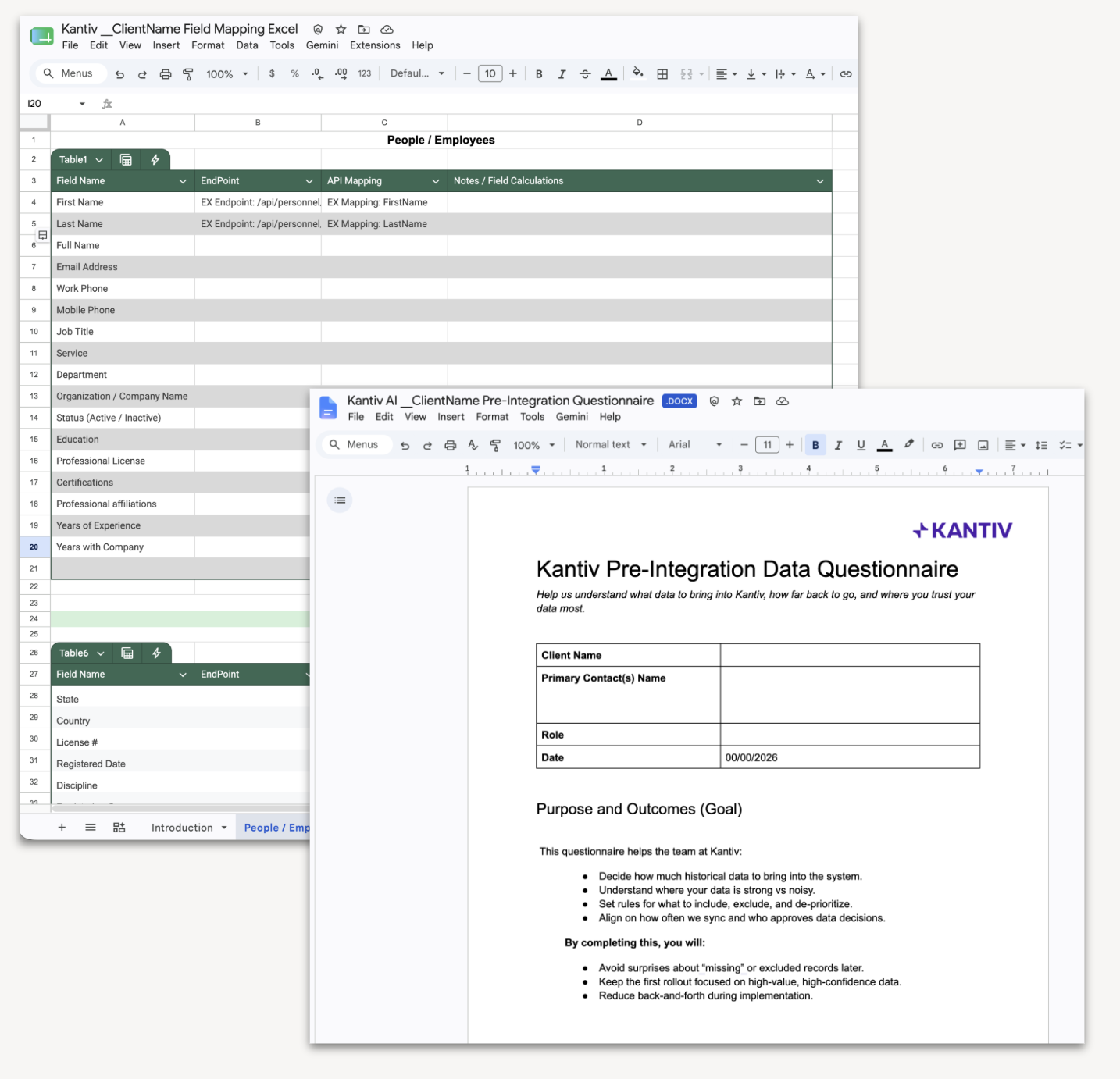
The Standard Custom Integration Documentation list is below
Questionnaire - This is a document giving information regarding data scope, filters, quality, etc.
Field Mapping - This is document that provides us with the fields you want and use along with the back-end name
Admin Feature Overview
As a domain Admin, you'll have access to a dedicated integrations section in Settings that includes numerous features and tabs related to your integrations, as well as additional integration features located in other parts of Kantiv.
Sync Tab
Mapping Tab
Dynamic UI Tab
Logs Tab
In-line Editor
Sync Tab
The Sync tab provides a quick overview of Sync History, divided into sections.
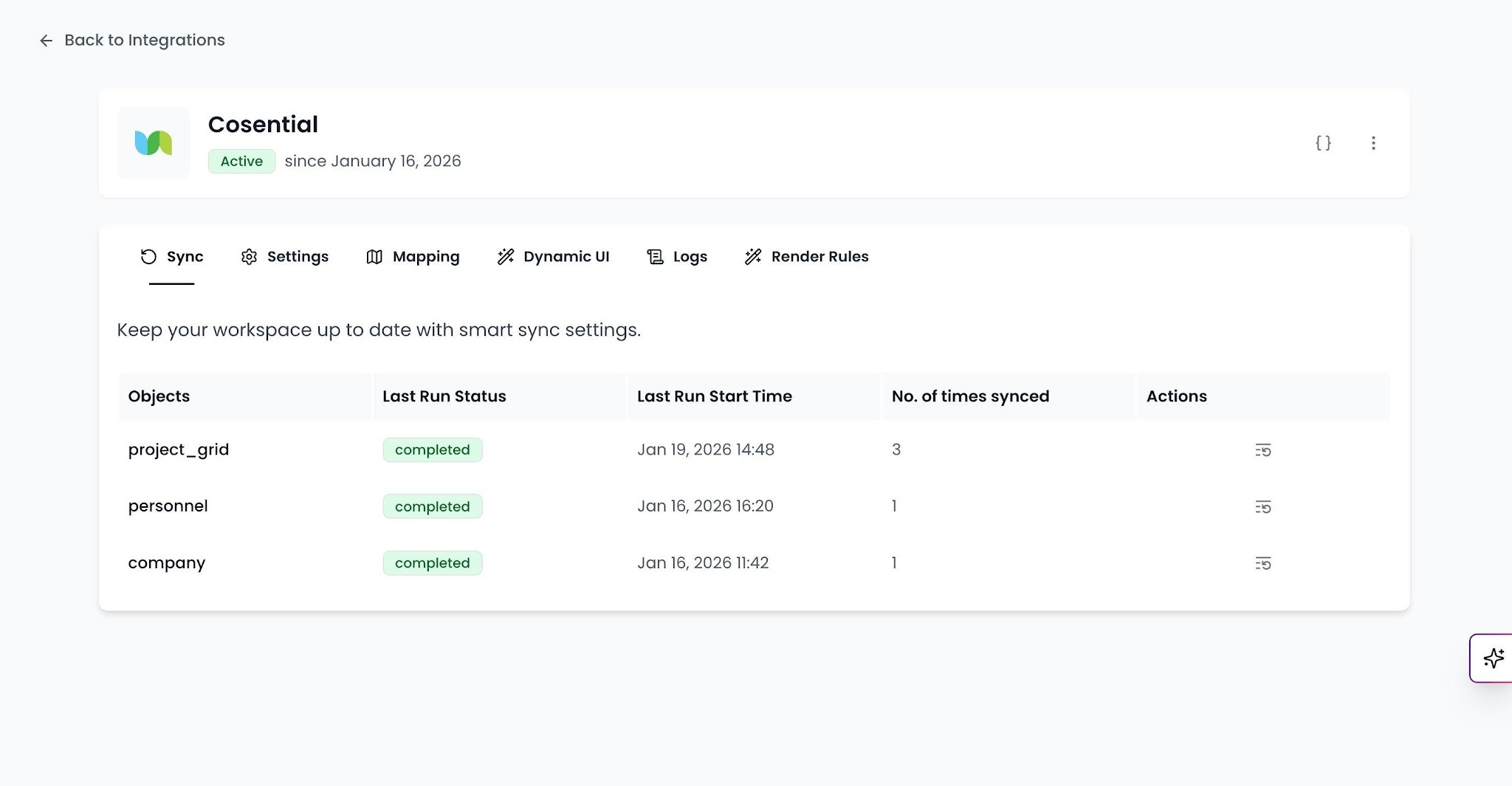
Call out: By default, syncs run on a weekly to bi-weekly schedule. The Kantiv team configures the sync frequency during setup. To change your sync frequency, contact integrations@kantiv.com.
Mapping Tab
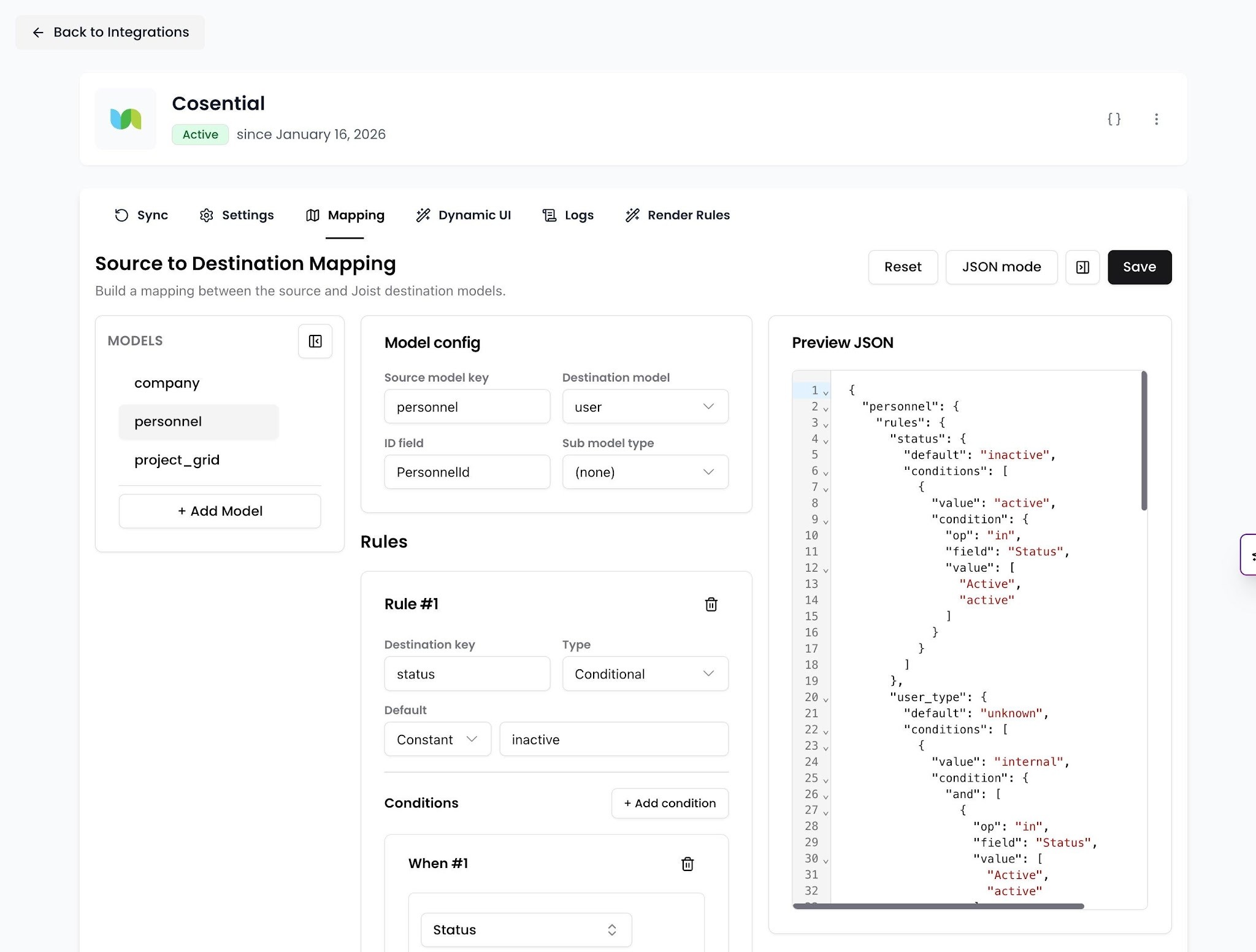
The Mapping tab allows admins to map destination models and create conditional rules for mapping items in Kantiv, such as Statuses. This section also has a unique feature: direct JSON editing for the Model and rule Configs.
Destination Models: Each source CRM model must be assigned a Kantiv destination model. The destination model determines where the data appears in Kantiv.
Rules
Filed Mapping: This helps map internal items, such as a client or project name, to a field from the API
Default: This gives a default value for a field
Conditional: This evaluates one or more conditions and assigns a field a value based on a fixed value or another field.
Transformation: This is used to combine things such as addresses to create one long string
Dynamic UI Tab
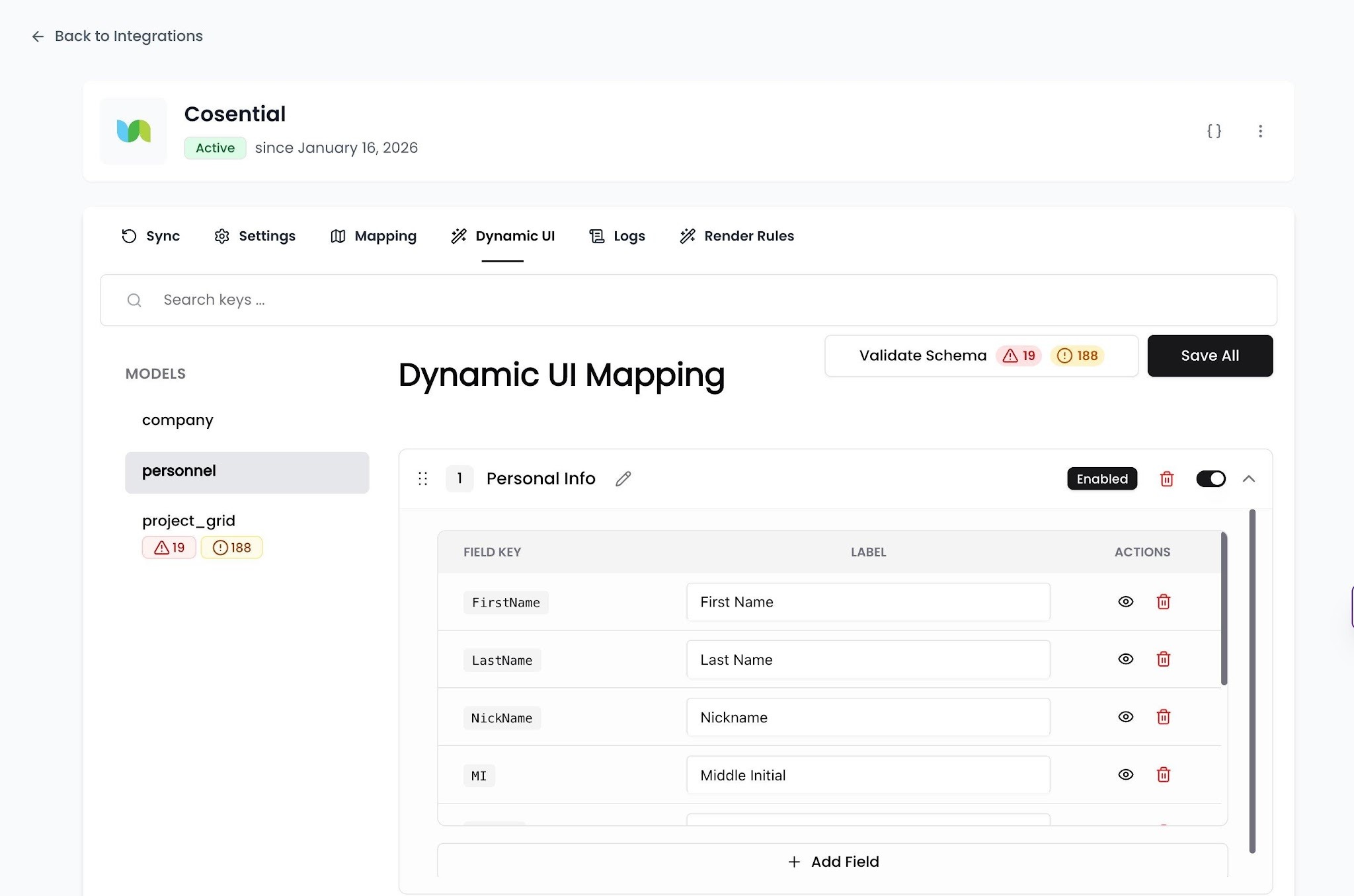
The Dynamic UI tab controls how integration data is presented on each record's Details tab inside Kantiv. Fields are organized into labeled sections, and allow the user to control which fields are visible and in what order. This allows the user to create Sections, add fields, rename fields and sections, and remove both fields and sections!
Callout: This section includes an additional tool called “Validate Schema,” which highlights unused fields and fields with unassigned names.
Logs Tab
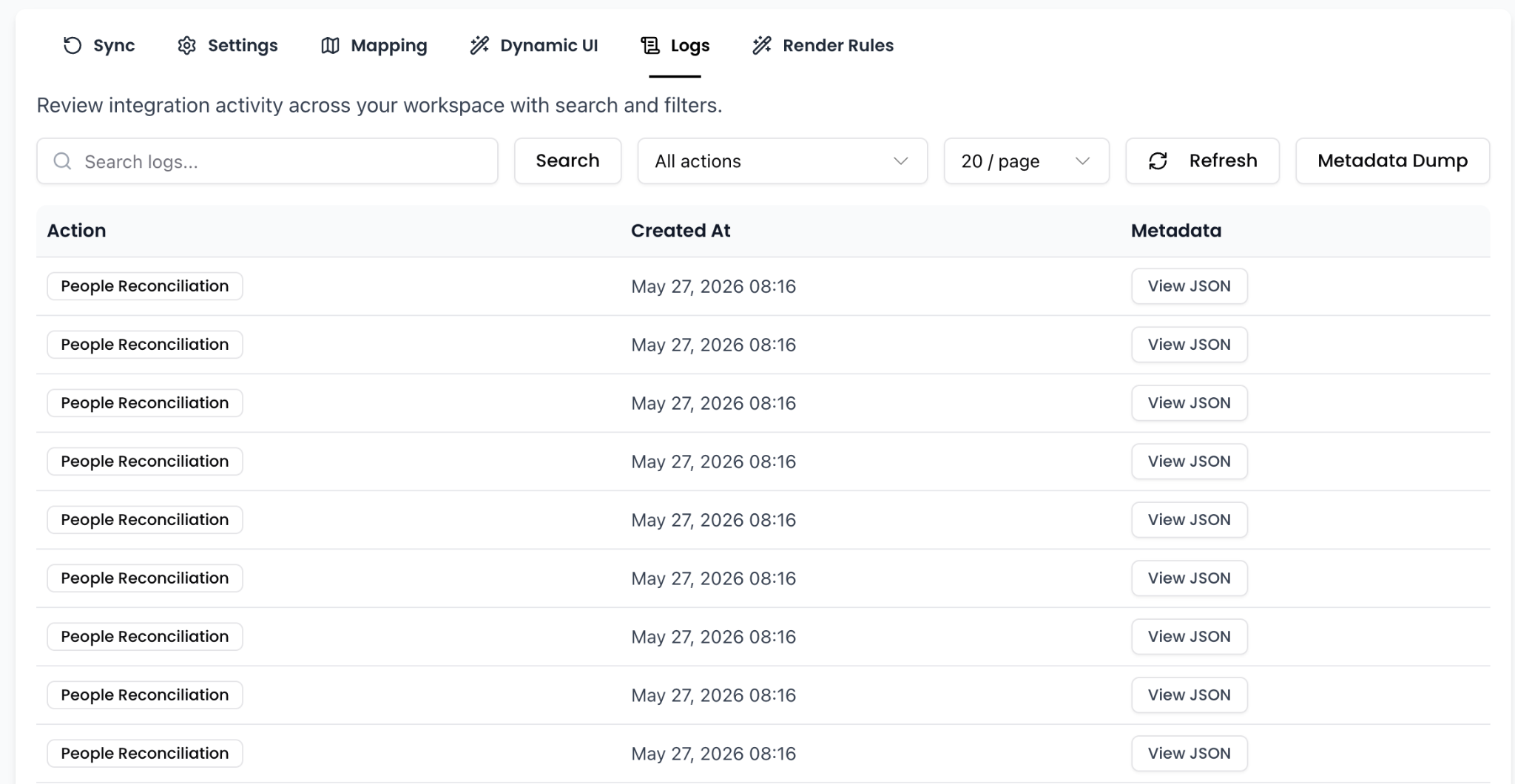
The logs tab provides users with information on all integration data for the domain, including reconciliations, deletions, updates, and additions. This tab contains filters and a search capability, providing a quick way to begin error correction and checking on the platform.
Inline Editor
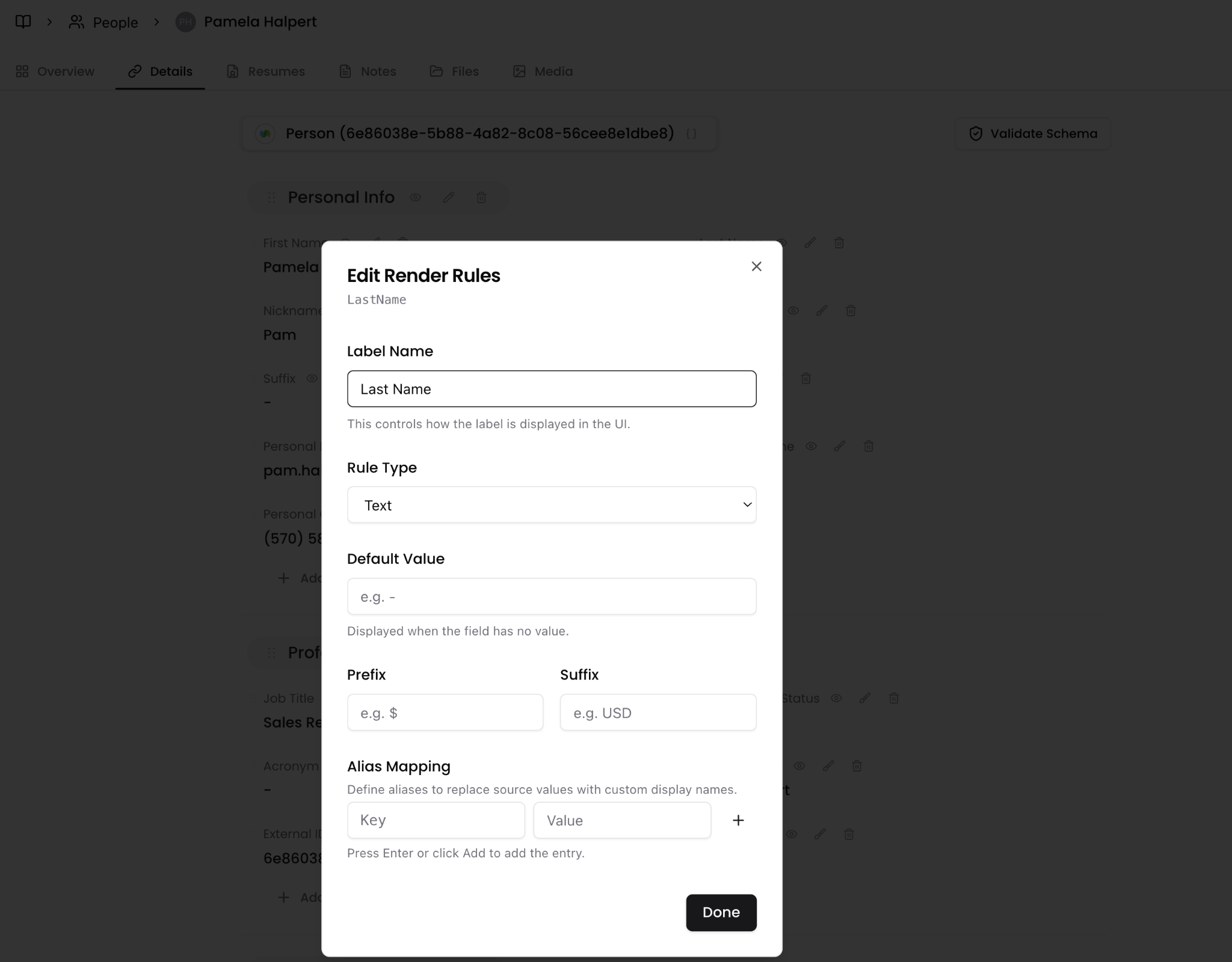
The inline editor is the primary point of customization for the integration's user-facing elements. It allows the user to move, delete, hide, and add fields and subsections under the details tab of the section we are integrating with.
Option | Description |
Label Name | Overrides the display label for this field in the UI. This is what users see next to the field value. |
Rule Type | Overrides the display label for this field in the UI. This is what users see next to the field value. |
Default Value | The value displayed when the field contains no data. Defaults to a dash ( — ) if left blank. |
Prefix | Text or symbol prepended to the field value (e.g., $ for a currency field). |
Suffix | Text appended to the field value (e.g., USD, sqft). |
Alias Mapping | Replaces raw CRM values with human-readable display names. Enter the raw source value as the Key and the desired display name as the Value. Supports multiple aliases per field. |
Data Handling in Kantiv
Kantiv handles all Additions, Updates, Deletions, and reconciliation natively in the platform without the need for external data processing. Below is how we handle each!
Additions
When a new record appears in your CRM within the integration's configured scope, it is picked up on the next sync and created as a new record in Kantiv. When a matching record already exists in Kantiv (e.g., a person or project created manually), Kantiv reconciles the two by linking the CRM record to the existing Kantiv record rather than creating a duplicate.
Updates
Kantiv uses a delta-based sync to manage integration data efficiently. Rather than re-importing your entire CRM dataset on every sync cycle, Kantiv compares the CRM's modified timestamp to the last sync run, pulling only records that have changed since then. Because Kantiv never modifies integration data directly, the CRM's own timestamp is always the authoritative source of truth for what has changed.
Deletions
When a record is removed from your CRM or falls outside the integration's configured filters, it is deleted in Kantiv on the next sync cycle.
Data Usage
Integration data is stored in Kantiv's data layer and surfaced on each record's Details tab. It is prioritized above other sources when Kantiv retrieves information for AI search and content generation.
Integration Limitations
Integrations provide a valuable resource for all teams using Kantiv; however, they come with limitations.
Read-only: Kantiv cannot write back to your CRM. No records can be created, updated, or deleted from within Kantiv.
No direct database querying: the integration does not support SQL-style queries or aggregate analytics (e.g., "How many projects in Texas?").
Limited Number of Fields: Kantiv supports a limited number of fields for each section
Projects: 40
People: 25
Opportunities: 30
Companies: 20
Data Modification: We cannot modify data in your CRM except for a small subset of data rules. This means that if the CRM returns a dozen or more numeric values from a lookup table, we cannot replace them with their string equivalents.
Field format changes: field layout and structure cannot be changed. Currency display, date format, and field labels can be adjusted; field type cannot.
Quick Sync Schedule: We cannot have a shorter sync schedule than one week due to the potential of API limits from CRM vendors.
Getting Support
Contact the Kantiv integrations team to:
Modify sync schedules or trigger a full refresh
Add or remove CRM objects from the integration
Update field mappings or add new destination models
Rename or hide fields
Investigate sync errors or data quality issues
Email: integrations@kantiv.com
Currently, our team at Kantiv manages the configuration and maintenance of your integration directly. To establish a new connection or adjust your existing setup, please reach out to integrations@kantiv.com. These management tools are part of our roadmap and will be available for self-service in a future release.
You can always find more information on Security and Integrations on our Support Center. Please send any questions or feedback to Integrations@Kantiv.com.