Salesforce: API Set-Up Guide
Last updated: June 2, 2026
Currently, our team at Kantiv manages the configuration and maintenance of your integration directly. To establish a new connection or adjust your existing setup, please reach out to Integrations@kantiv.com. These management tools are part of our roadmap and will be available for self-service in a future release.
This guide walks you through how to configure a Salesforce Connected App that supports the JWT OAuth 2.0 Bearer Token Flow to allow secure, token-based access to Salesforce without requiring interactive user login.
Prerequisite User
To enable our integration, you'll need to create a dedicated Salesforce user account. This ensures we can safely access the necessary objects and data without interfering with your existing users.
Sandbox Environments
We recommend creating a user with Administrator-level access. This allows our team to fully explore the available objects, configurations, and data models to help with setup and debugging.
Production Environments
For security reasons, create a user with the minimum required API permissions. We also recommend enabling login restrictions or disabling interactive login for this user, so that it can only be used for API-based access.
For sandbox environments, if you give us an administrator account, we can handle the following setup. But for production environments, you will need to provide us with the credentials using the steps detailed below.
1. Salesforce Setup
Log into Salesforce as a System Administrator.
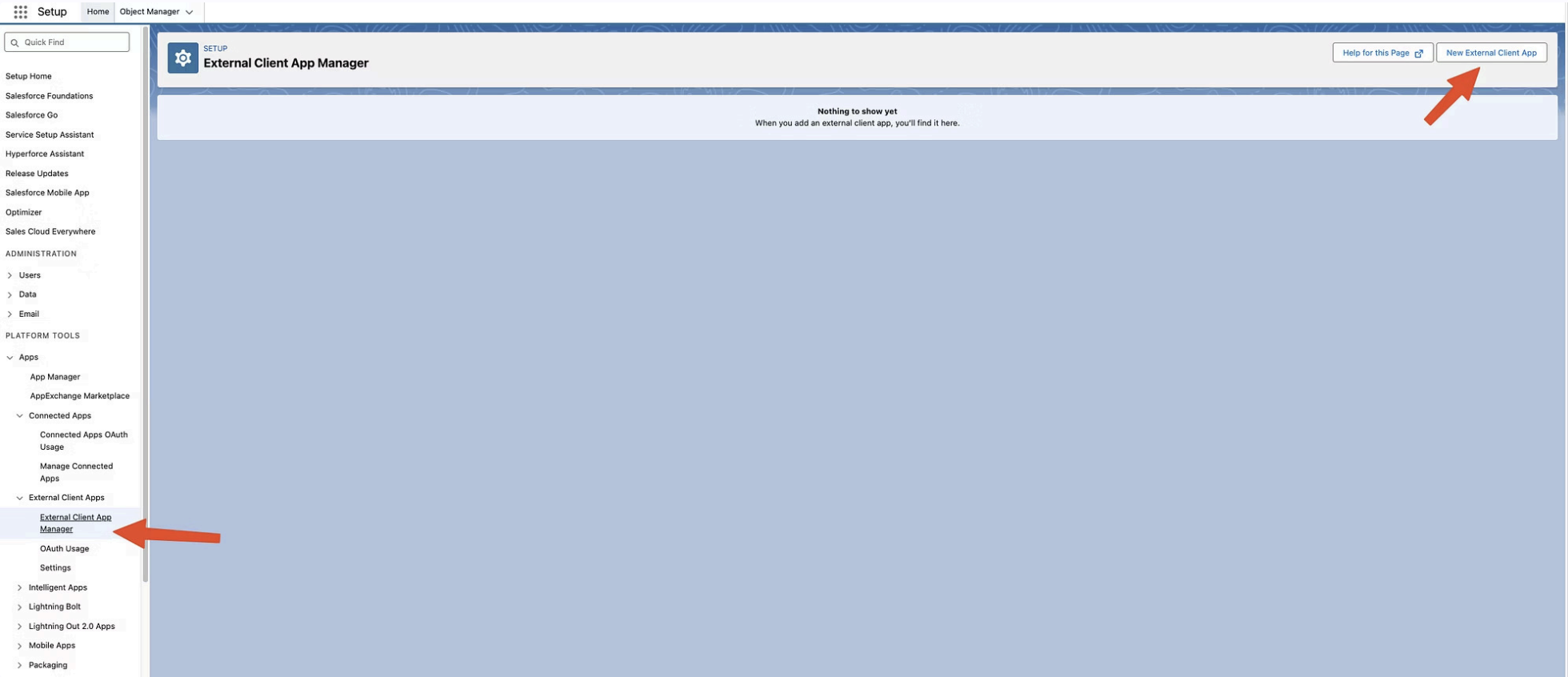
Go to Setup → "Apps" → "External Client App" → "Manage External Client App" → "New External Client App."
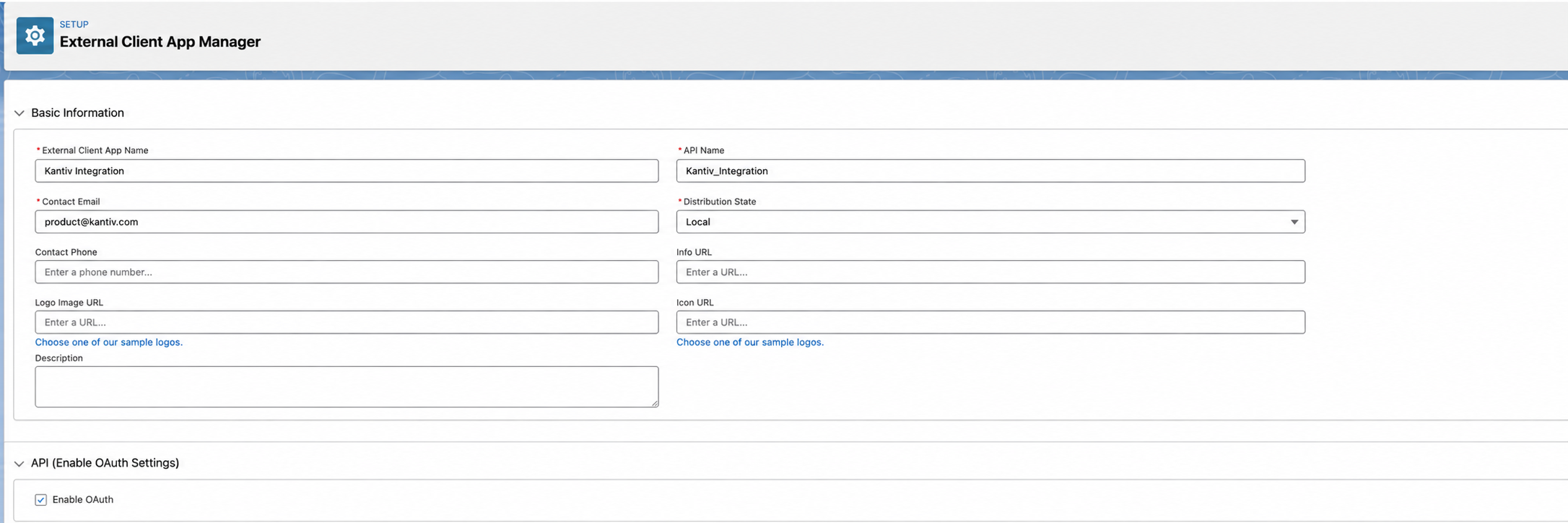
Name the app Kantiv Integration, set the contact email to Integrations@kantiv.com, and make sure to enable the OAuth checkbox, which will display a set of new configurations specific to OAuth.
2. OAuth Configuration
For the OAuth configuration, enable the following:
Set the callback URL as https://app.kantiv.com
The following scopes are mandatory:
Access the identity URL service (id, profile, email, address, phone)
Manage user data via APIs (api)
Access unique user identifiers (openid)
Perform requests at any time (refresh\_token, offline\_access)
Make sure to enable JWT Bearer Flow
Keep the rest of the options as the default
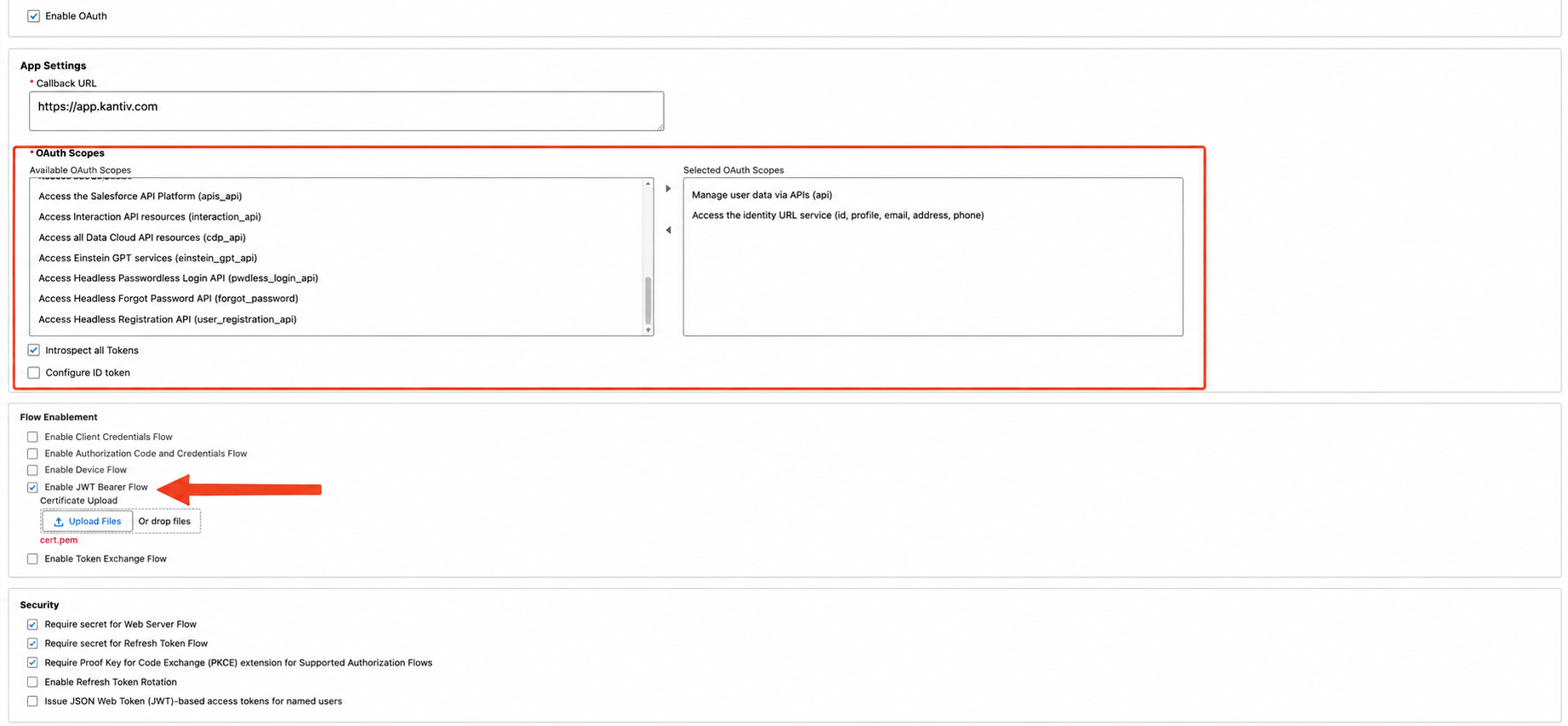
For the JWT Bearer Token Flow, Salesforce requires a public certificate to verify that all incoming requests originate from Kantiv. This certificate allows Salesforce to authenticate and trust the requests sent by our integration.
Please contact the Kantiv team to obtain this certificate file. Once received, you can upload it directly to your Salesforce Connected App configuration. This step can be skipped for now if you don't currently have this file, but is mandatory for the integration to work.
Once you verify the settings, clicking on Create will add a new external client app to the platform.
3. Policy Configuration
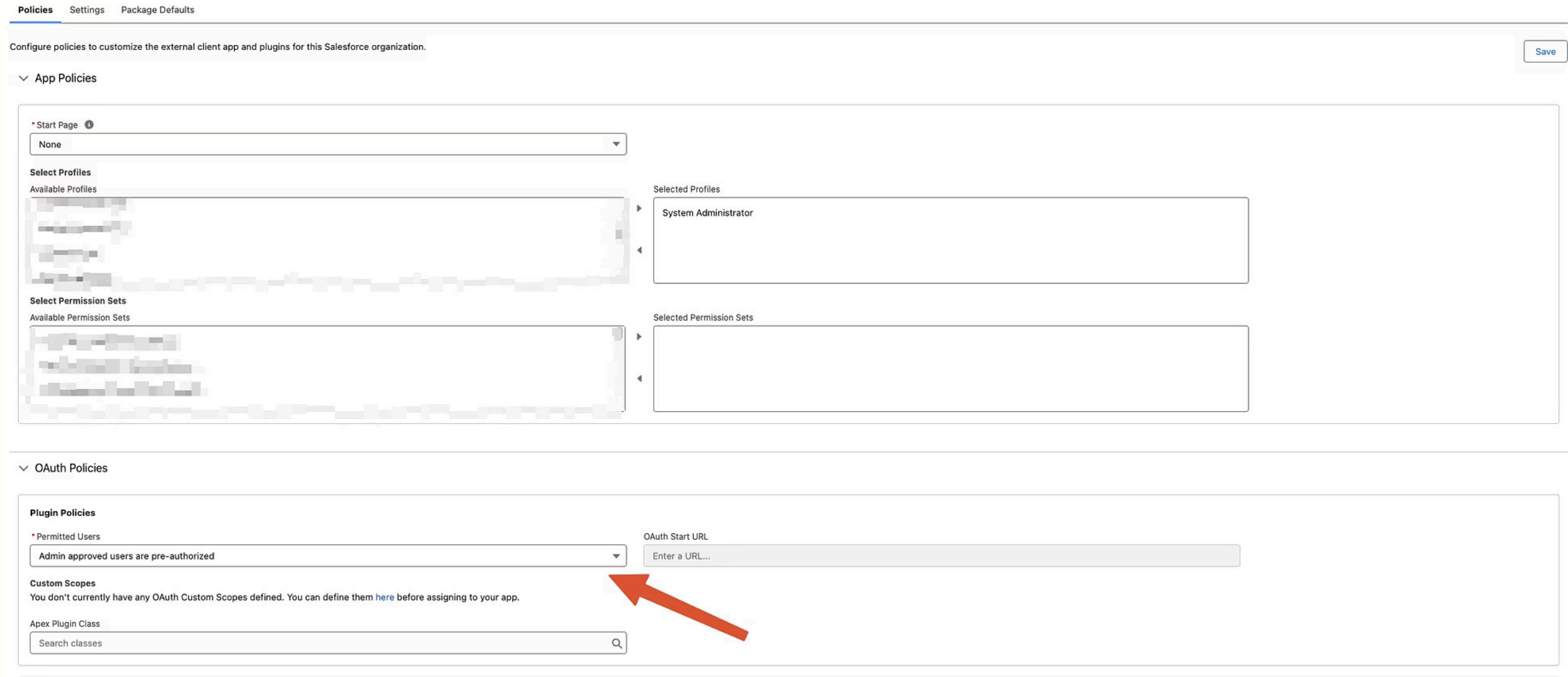
Edit the Policy for the newly created app, set it to "Admin approved users are pre-authorized," and press Save. This will enable another setting above the OAuth Policies dropdown. Use that to add a profile or permission set to the approved list of users to access this app.
The prerequisite user must be part of whichever permission set or profile is added. It is sufficient to add either a profile or a permission set, depending on what is being used to manage user permissions.
4. Retrieving Client Credentials
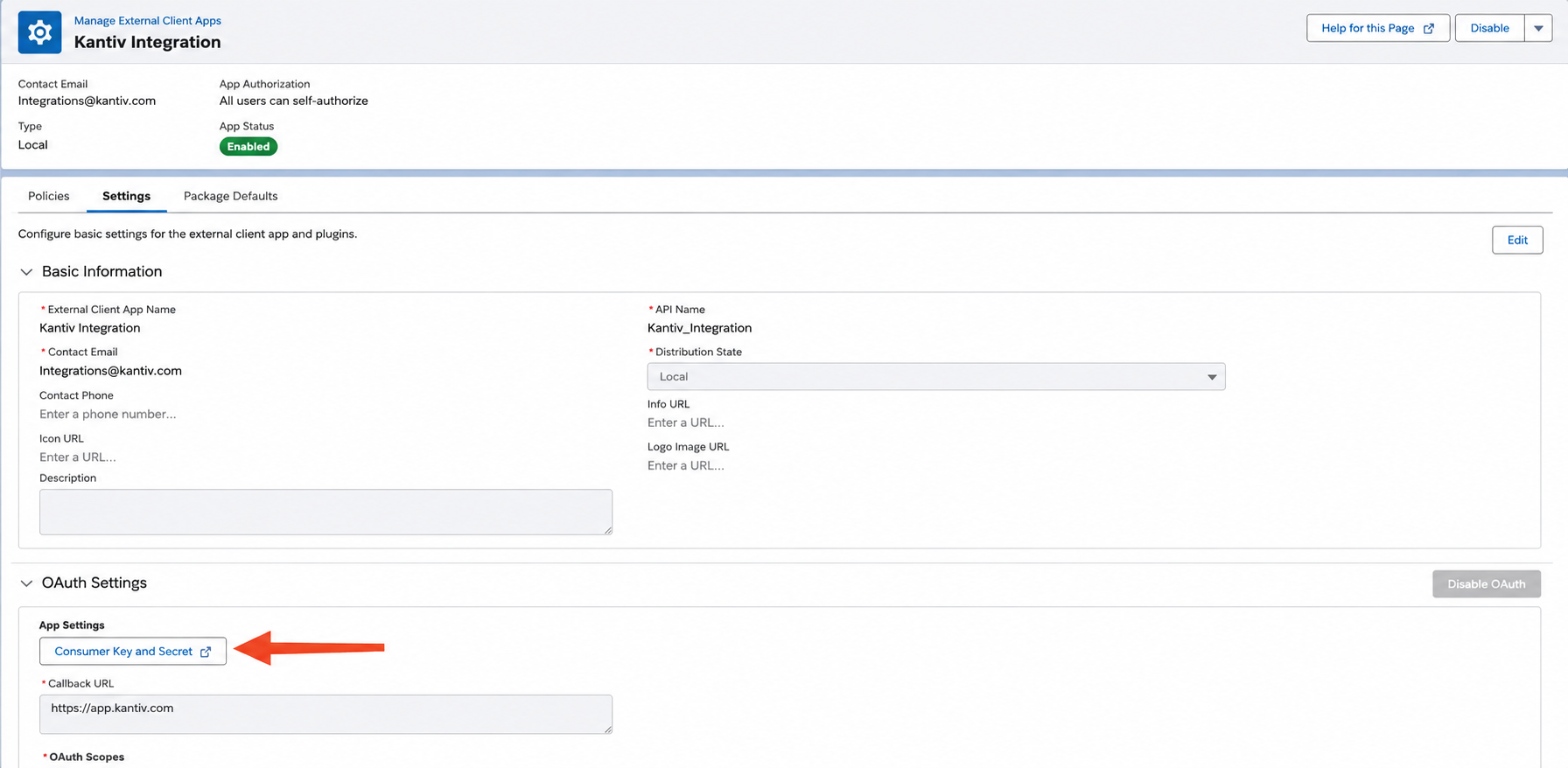
Next, go to the Settings tab to get the Client Credentials and Client Secret.
5. Required Information
Please send the following information to Integrations@Kantiv.com
Name | Integration Configuration Details |
Authentication Credentials |
|
URL for login in case of sandbox account (Optional) |
You can always find more information on Security and Integrations on our Support Center. Please send any questions or feedback to Integrations@Kantiv.com.