Style Guide: Setting Up and Customizing Your Style Preferences
Last updated: July 16, 2026
Kantiv's Style Guide feature enables you to maintain consistency and compliance in your content by automating language, grammar, and style rules across your documents. This guide will walk you through the key elements of the Style Guide, helping you set up your preferences for efficient content management.
Key Elements of the Style Guide
Brand Message
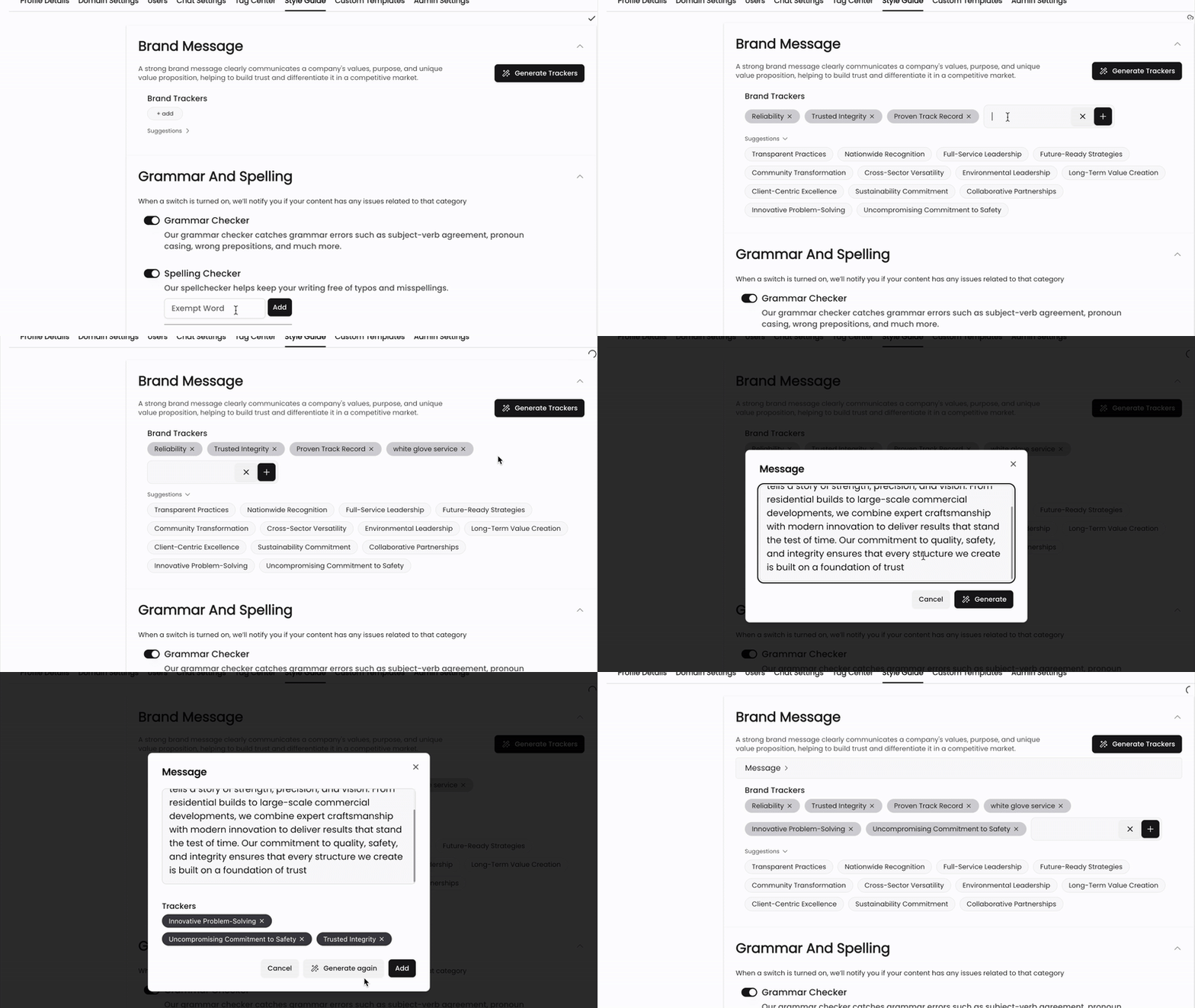
An effective brand message captures the heart of a company’s purpose and values, showcasing what makes it unique while building lasting trust in a crowded market. In the Kantiv platform, you can set up your brand message and generate brand trackers manually or with AI.
You can select from a list of pre-made suggestions, write in your own, or paste your brand message and have AI generate brand trackers from it.
Grammar and Spelling
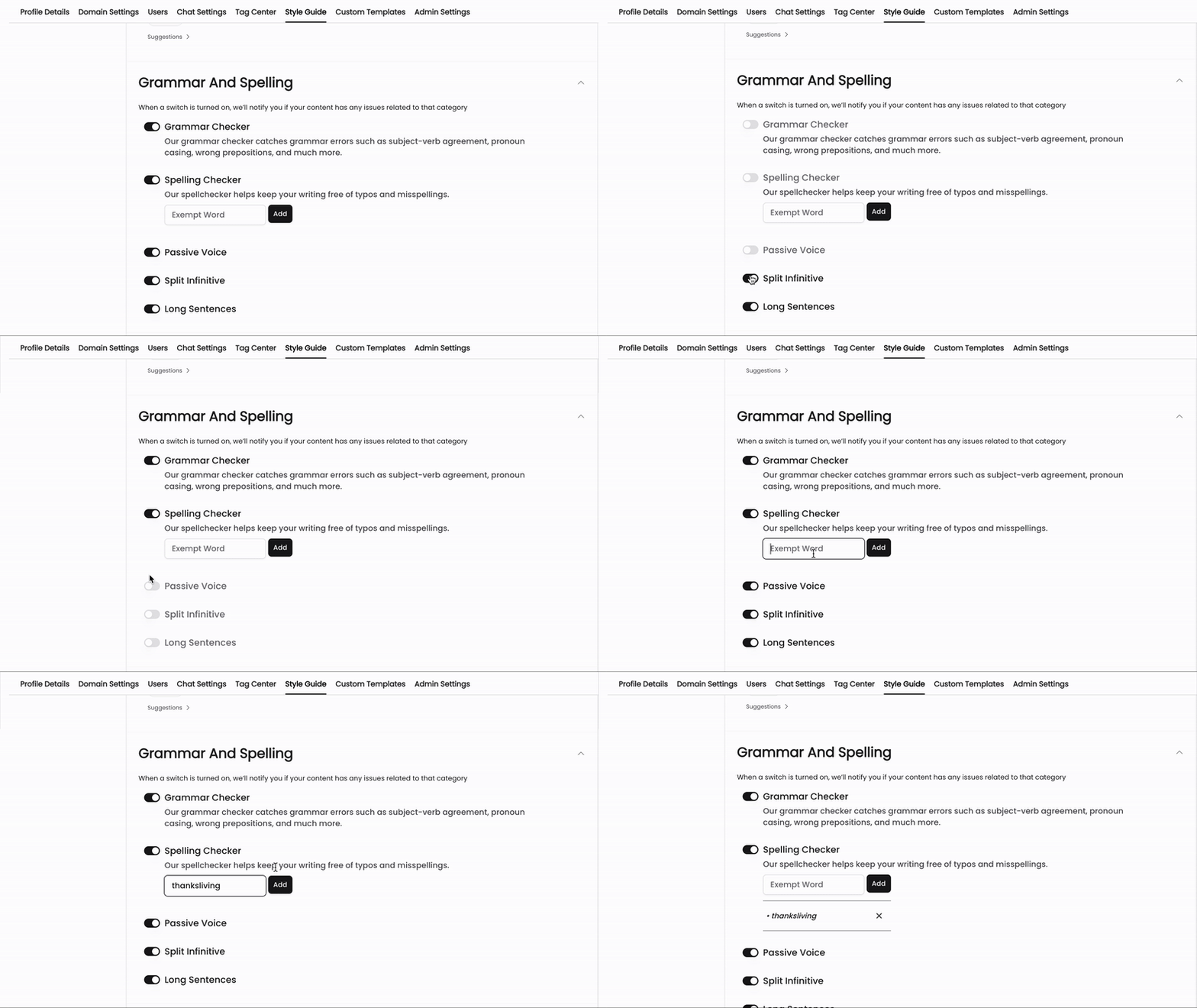
In this section, you can toggle on/off specific categories that our tools use to detect in your documents. If toggled on, you will see these sections show up in your document analysis with issues that pertain to each category.
Grammar Checker: Detects grammatical errors which include subject-verb agreement, pronoun casing, wrong prepositions, etc.
Spelling Checker: Detects typos and spelling errors. You can use the exempt box to add custom words or terms to your dictionary and prevent specific terms from being flagged as incorrect.
Passive Voice: Detect sentences or phrases that use Passive Voice in your documents and provides suggestions to help reader clarity.
Split Infinitive: A split infinitive is when an adverb or other word is placed between "to" and the verb in an infinitive phrase. Toggling this on detects cases where this takes place in your document.
Long Sentences: Detects when there are long sentences and provides suggestions to break it into shorter and more readable sentences.
Advanced Detection
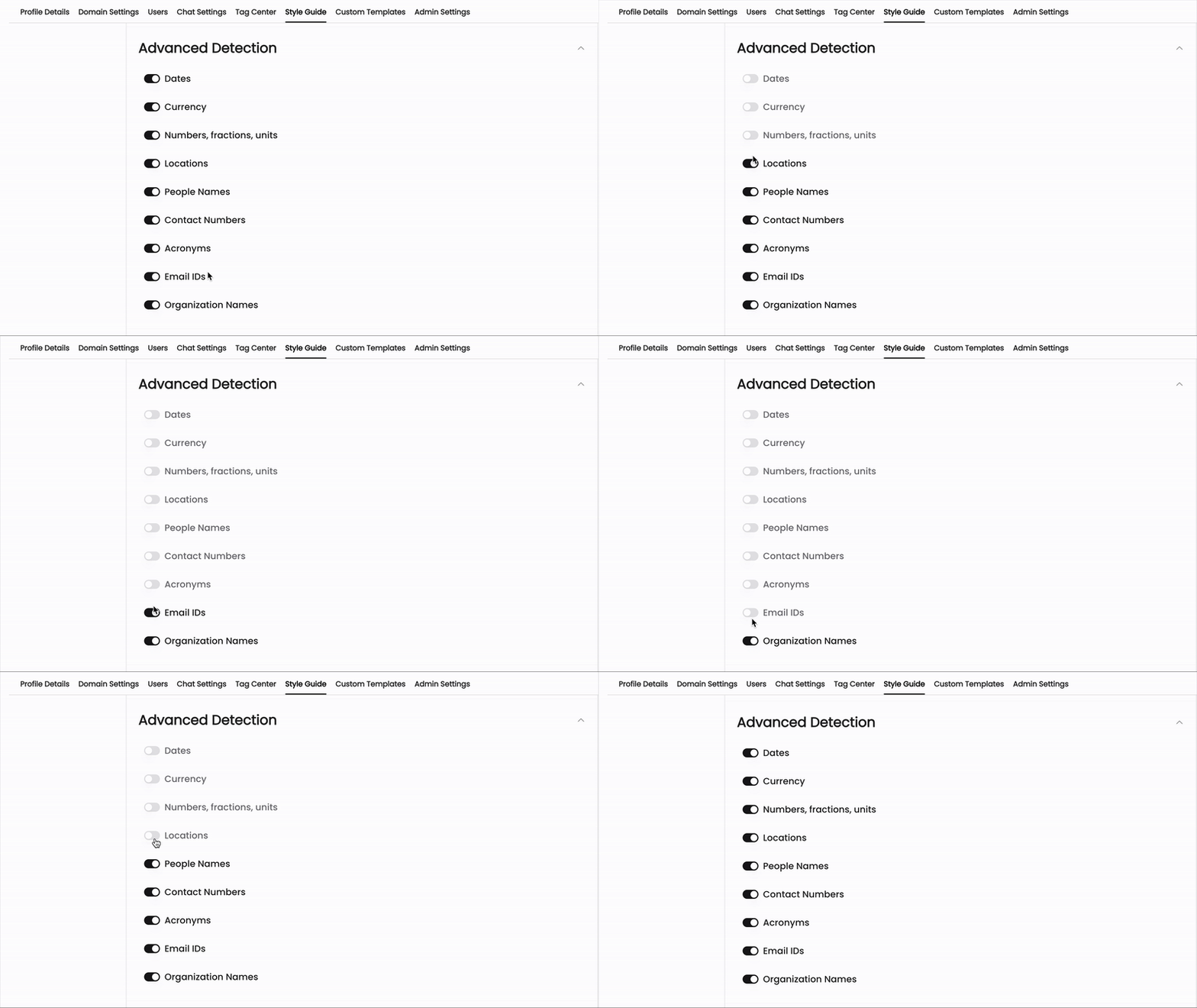
In Advanced Detection, you can toggle to detect and highlight specific entities, such as:
Dates
Currency
Numbers, Fractions, and Units
Locations
People Names
Contract Numbers
Company Names
Organization Names
Customize these rules to match your document requirements and organizational standards.
Wordy Phrases
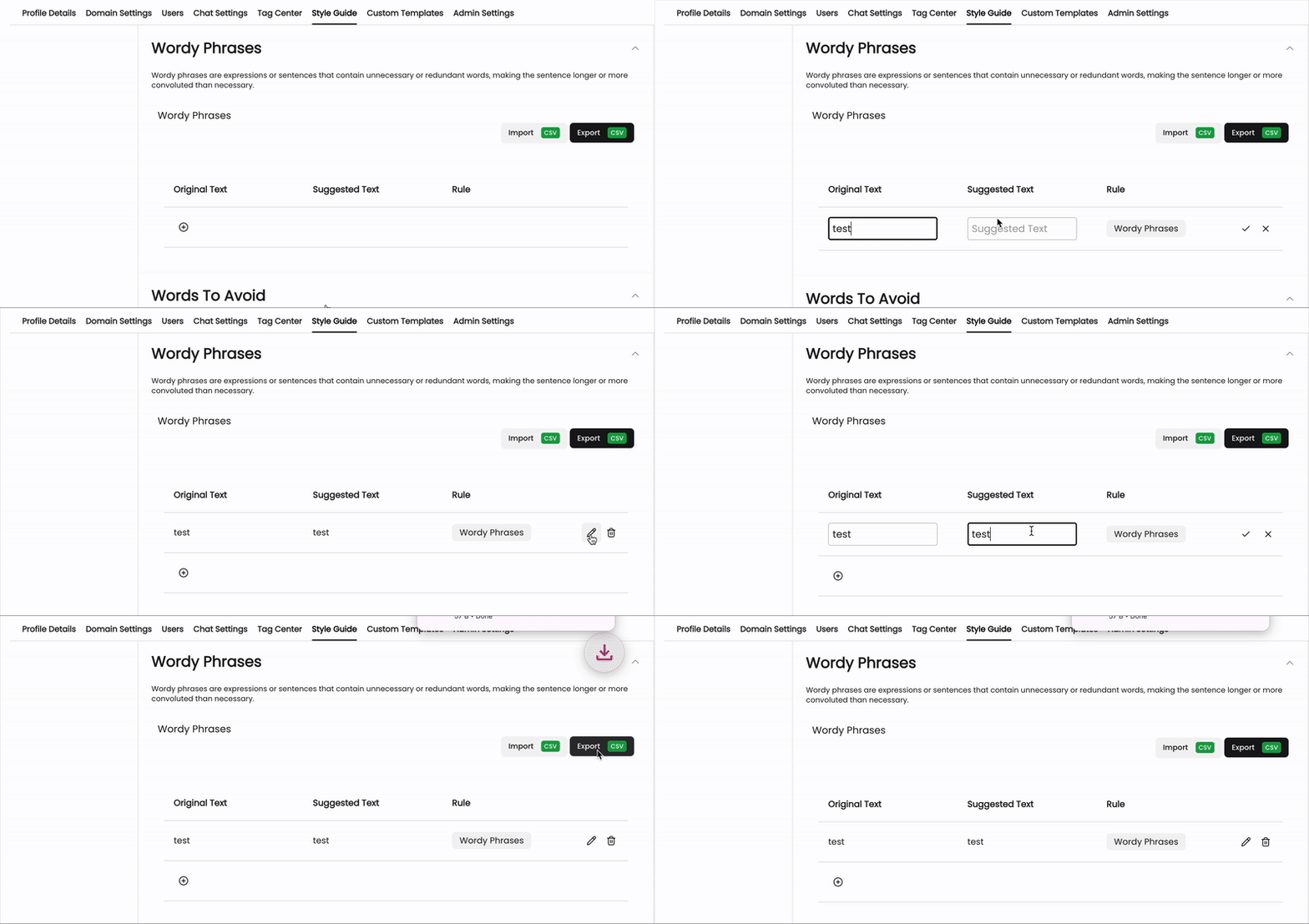
In this section, you can identify and replace redundant phrases with clearer alternatives. This can help you lower your word count and provide a more concise message in your documents. For example:
Kantiv suggests replacements for phrases like:
"In order to" → "To"
"At this point in time" → "Now"
You can customize these suggestions based on your organization's writing style and preferences.
You can manually add or remove wordy phrases for our platform to detect, or you can upload a CSV with a list of wordy phrases to detect. Click on the link below for a blank CSV you can add your wordy phrases onto.
Please note to keep column C listed with "Wordy Phrases" on each row you're uploading.
Words to Avoid
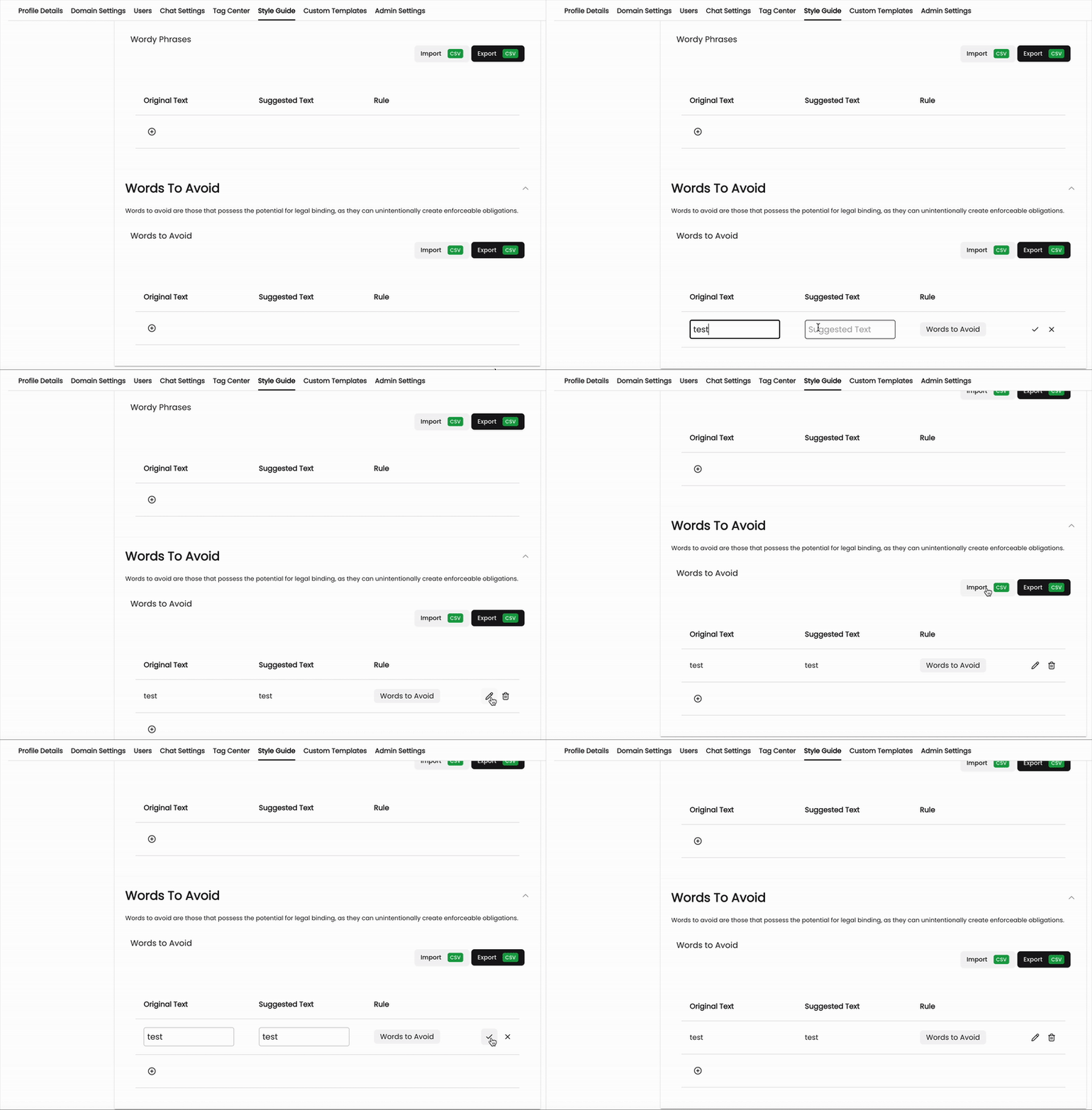
In this section, you can create a list of words or terms to avoid in your content. Kantiv will flag these words and suggest replacements, ensuring your content adheres to your style guide. Examples include:
"Utilize" → "Use"
"Parameter" → "Criteria"
"As per" → "According to"
Similarly to wordy phrases, you can manually add or remove words to avoid for our platform to detect, or you can upload a CSV with a list of words to avoid for our system to detect. Click on the link below for a blank CSV you can add your words to avoid onto.
Please note to keep column C listed with "Words to Avoid" on each row you're uploading.
Setting Up Your Style Guide
Click on this link or navigate to the Analytics > Style Guide section from your Kantiv dashboard.
Add your Brand Message with unique brand trackers.
Toggle the desired options under the Grammar and Spelling and Advanced Detection sections.
Add text suggestions to your Wordy Phrases and Words to Avoid sections.
Please note that all changes made in the Style Guide will automatically sync and save once entered in.
Best Practices for Effective Style Guide Setup
Regularly review and update your Wordy Phrases and Words to Avoid lists based on feedback and evolving company standards.
Enable only the necessary grammar and detection rules to avoid overwhelming users with suggestions.
Use the Preview feature to test your style settings on sample documents before applying them company-wide.
By configuring the Style Guide, you ensure all your content remains consistent, professional, and aligned with your organization’s standards, reducing editing time and improving overall content quality.
You can always find more information on Settings and Customization in our Support Center. Please send any questions or feedback to Support@Kantiv.com