Domain Settings: Configure and Personalize your Account
Last updated: June 2, 2026
Admins have full control over how their organization operates within the Kantiv platform. By adjusting their Domain Setttings, Admins can toggle user access policies and security settings, customize branding, and configure content deletion and visibility. You can tailor the Kantiv experience to fit your organization’s needs and maintain a consistent, secure environment for all users.
Accessing Domain Settings
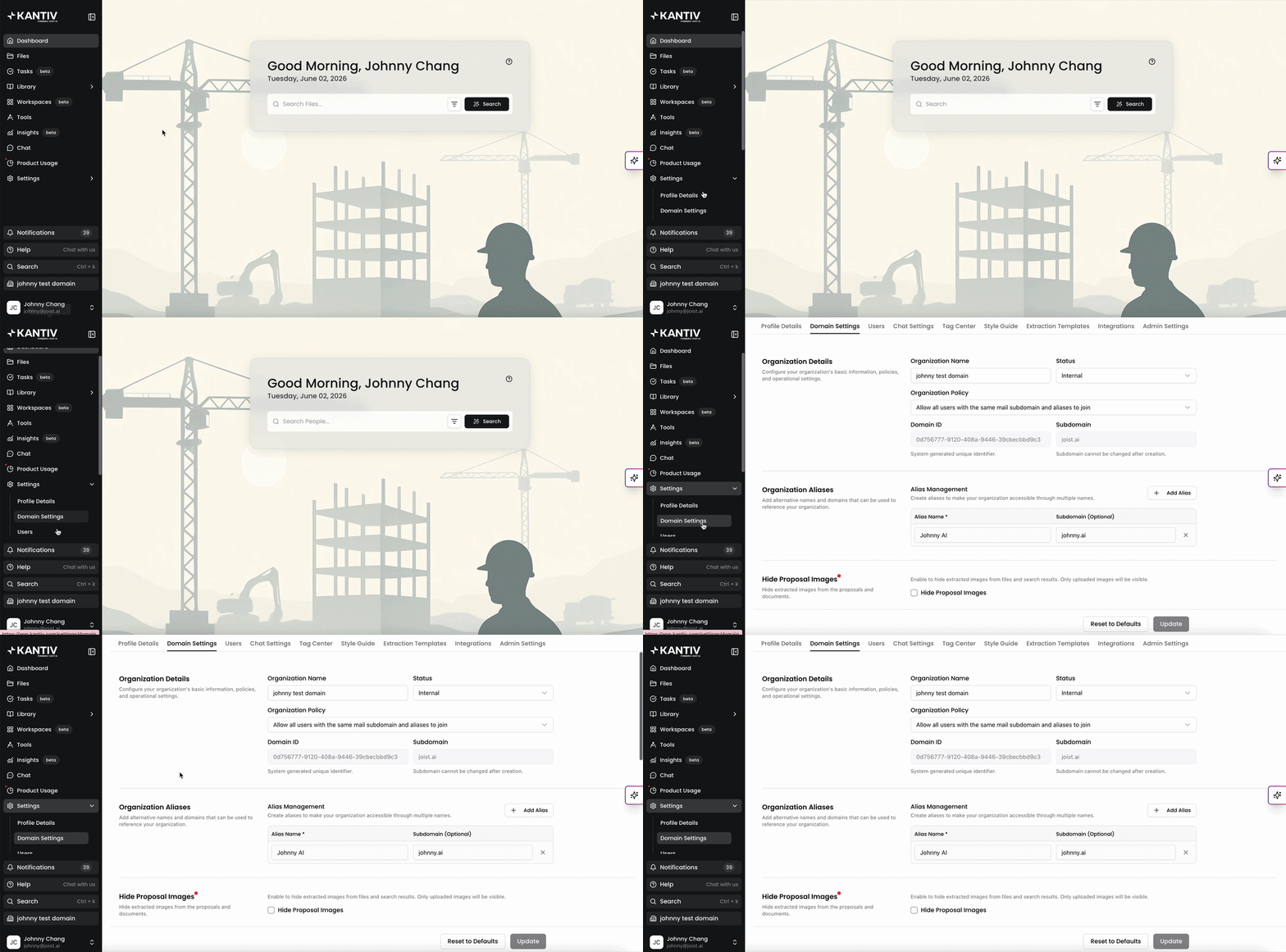
Please note that Domain Settings are only accessible by Admins
You can access Domain Settings by clicking on Domain Settings under settings in the main menu. Alternatively click this link to navigate directly.
Organizational Details
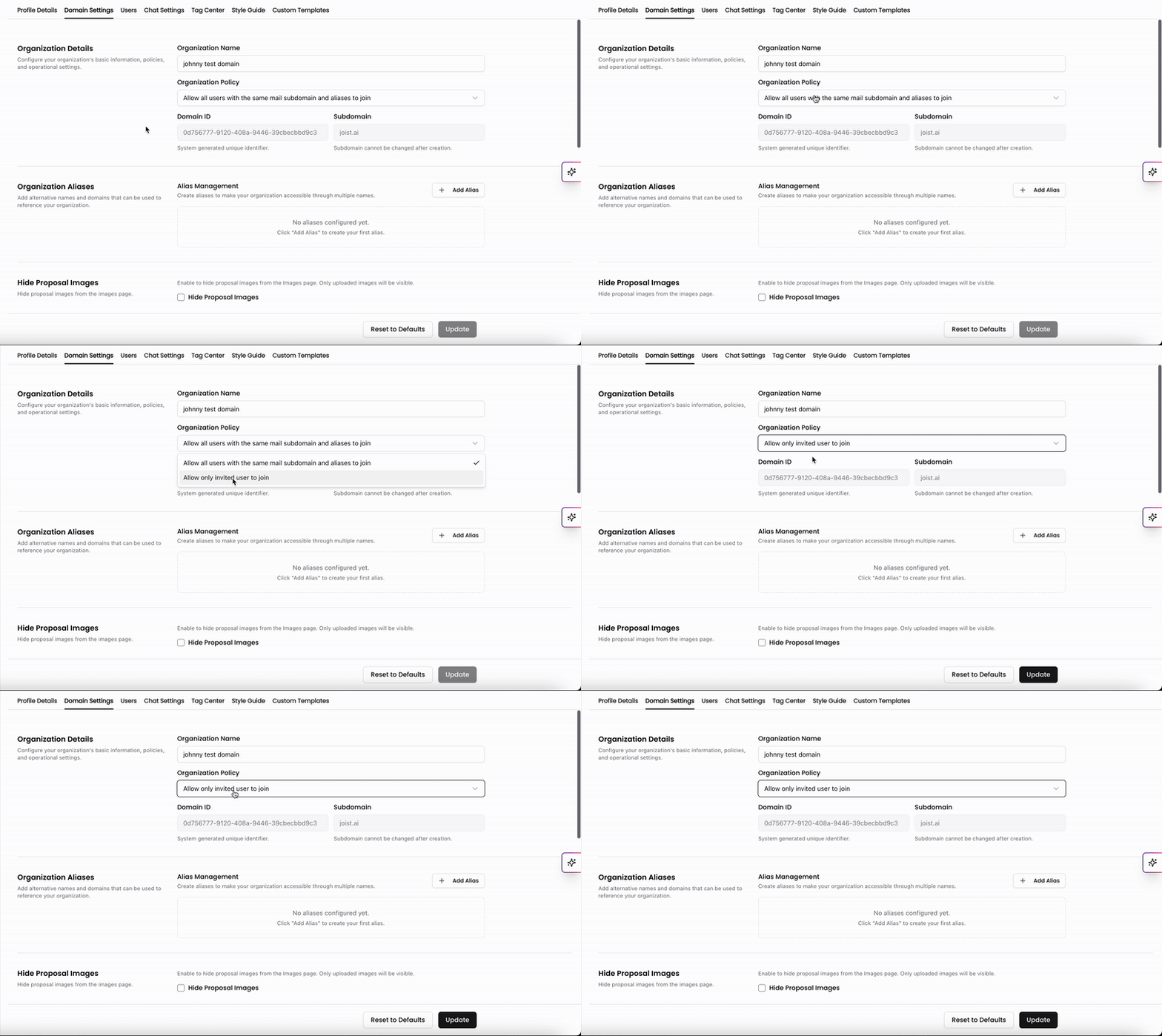
In the Organizational Details section, you can configure basic information about your organization, such as your domain name and ID. Here you can also set your organization policy which controls who can how users can join your account.
In organization policy, you have two options to select from:
Allow all users with the same email subdomain to join - Anyone from your organization can join without an invite as long as the subdomain in their email matches your account's subdomain.
Allow only invited users to join - Users with join and access the account via invitation email. If you're inviting external users, toggle on this option.
For more information on inviting users into your Kantiv domain, check out this article.
Organization Aliases
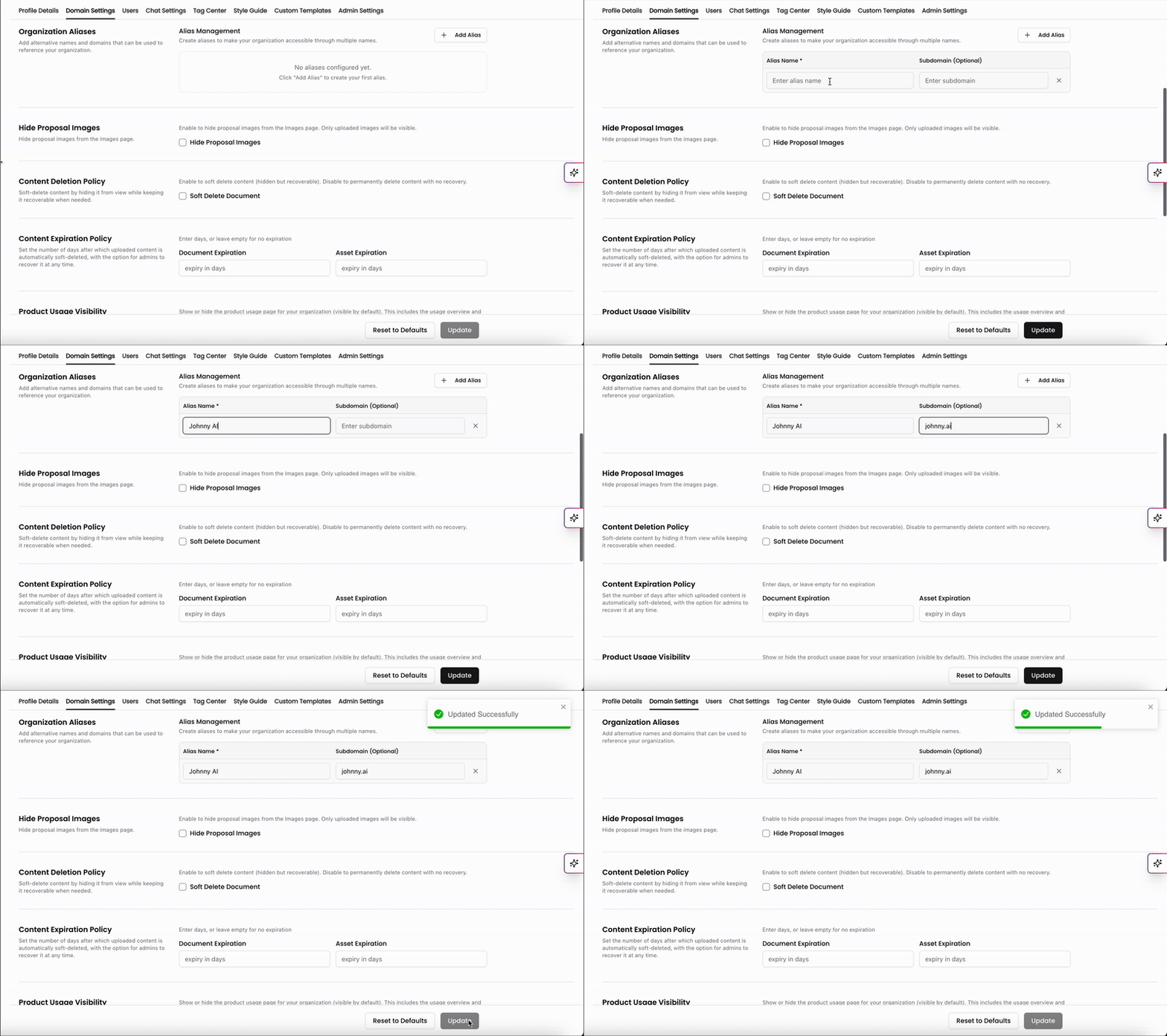
By default, your domain will have one domain name and one subdomain that users can use to join your account if their email matches the subdomain. If your organization has an additional subdomain, you can add this in the Organization Aliases section.
Click +Add Alias.
Enter your Alias Name.
If you also have a subdomain associated with this alias, you can add that under Subdomain.
Click Update at the bottom.
Content Deletion and Expiration Policy
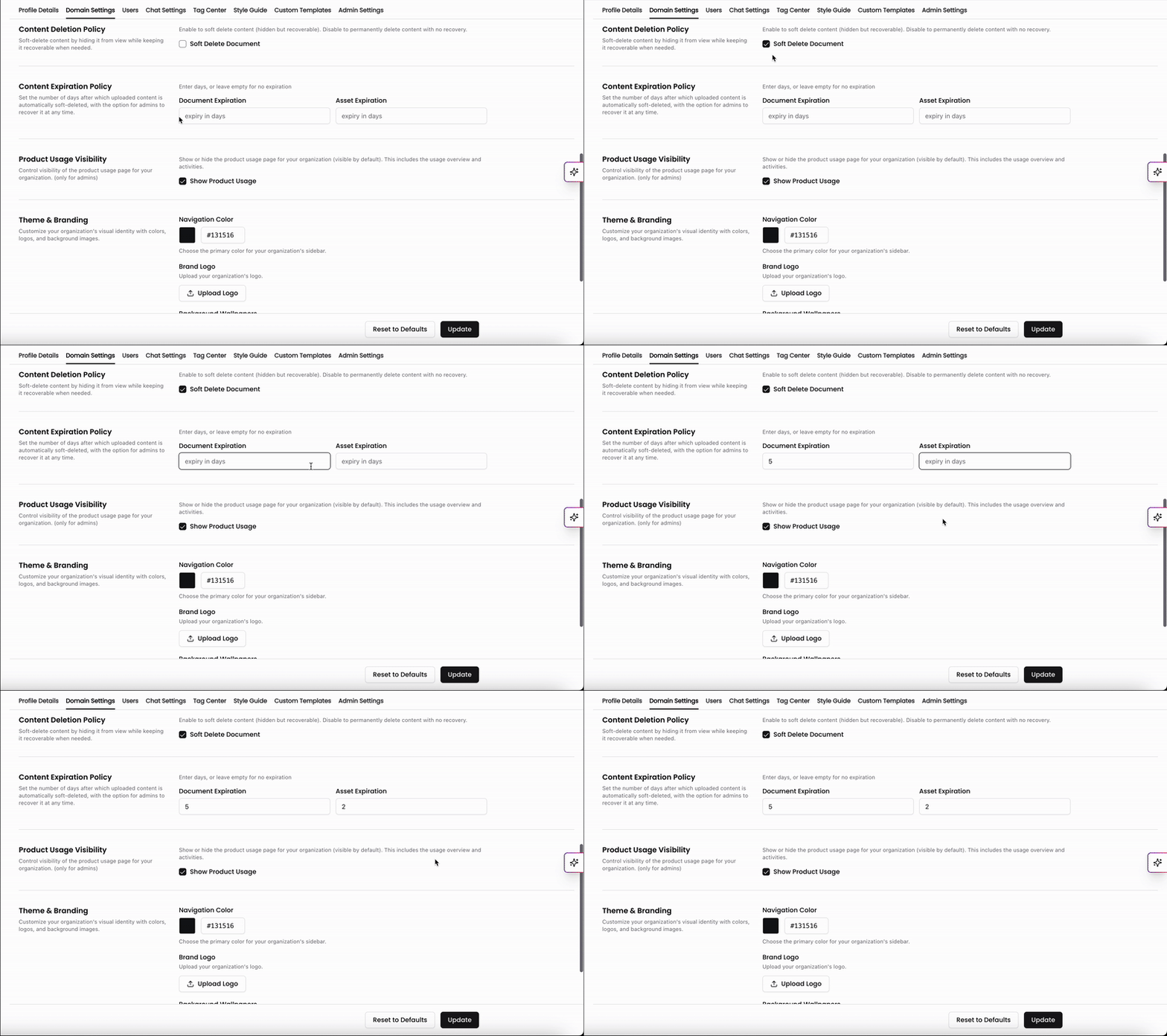
Content Deletion Policy
Soft deleting is when files get deleted but can be recovered. This is similar to how a computer has a "trash can" that collects all the deleted files, which can be recovered or emptied altogether. Admins can toggle soft deleting for their account for their files here.
When Soft Delete Document is turned on, deleted files are recoverable if needed.
When Soft Delete Documents is turned off, deleted files are permanently removed from the account with no recovery.
Content Expiration Policy
You can configure Kantiv to automatically soft-delete uploaded content from your library after a specified number of days. This can help maintain your library with clean and up to date files and assets.
In this section, you can enter the number of days a document or asset should stay in your library before it expires and gets deleted automatically. If you would like to opt out of this and have your files never expire, you can leave both fields blank.
Product Usage Visibility
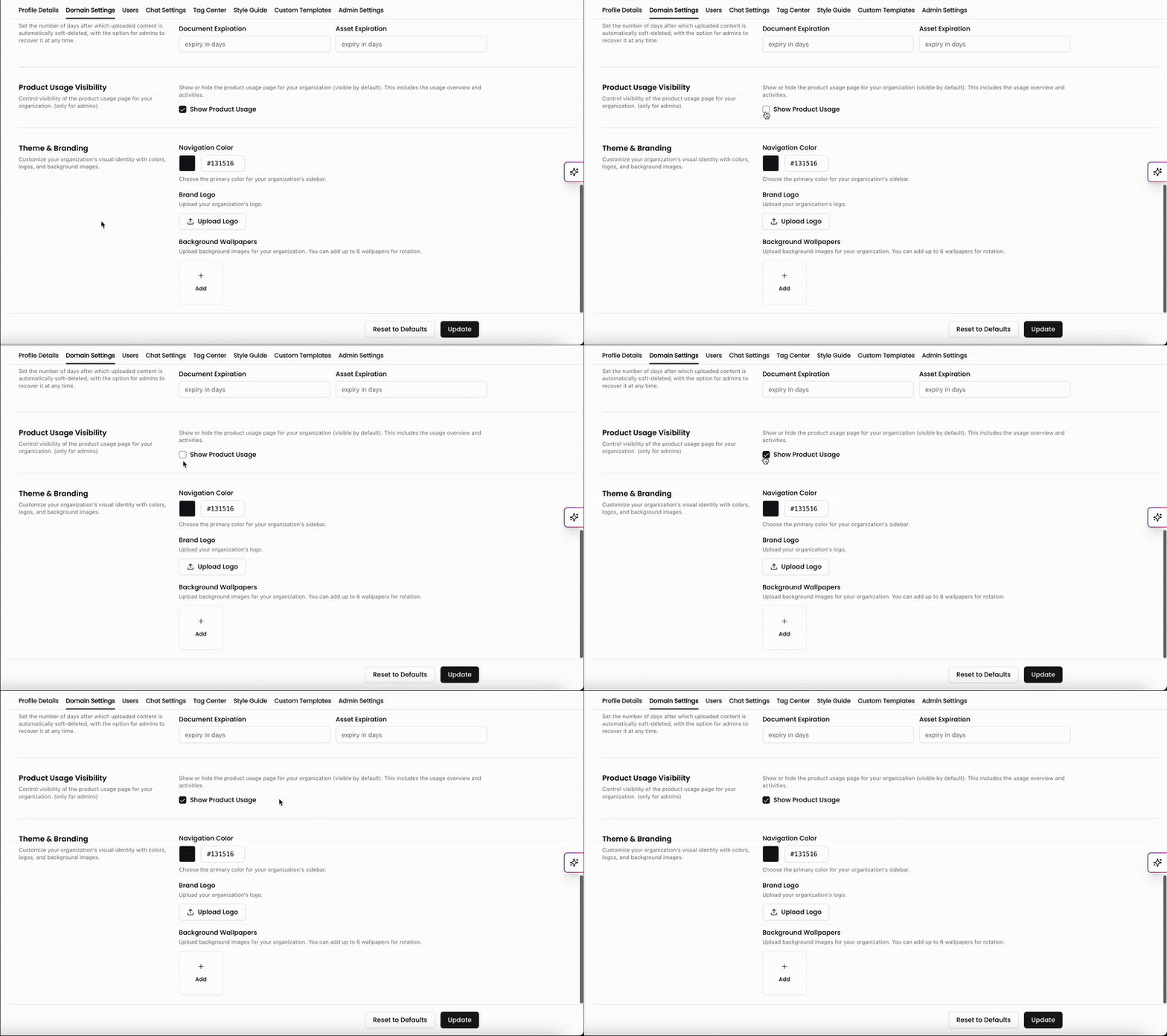
Product Usage is a tab in the main menu that shows data on usage across all users within your domain on the Kantiv platform. Admins have access to toggle visibility for this tab.
When Show Product Usage is toggled on, all users have access to the Product Usage tab in the main menu.
When Show Product Usage is toggled off, the tab will not populate for any users. However, admins can reactivate it by toggling it back on in the settings.
Theme and Branding
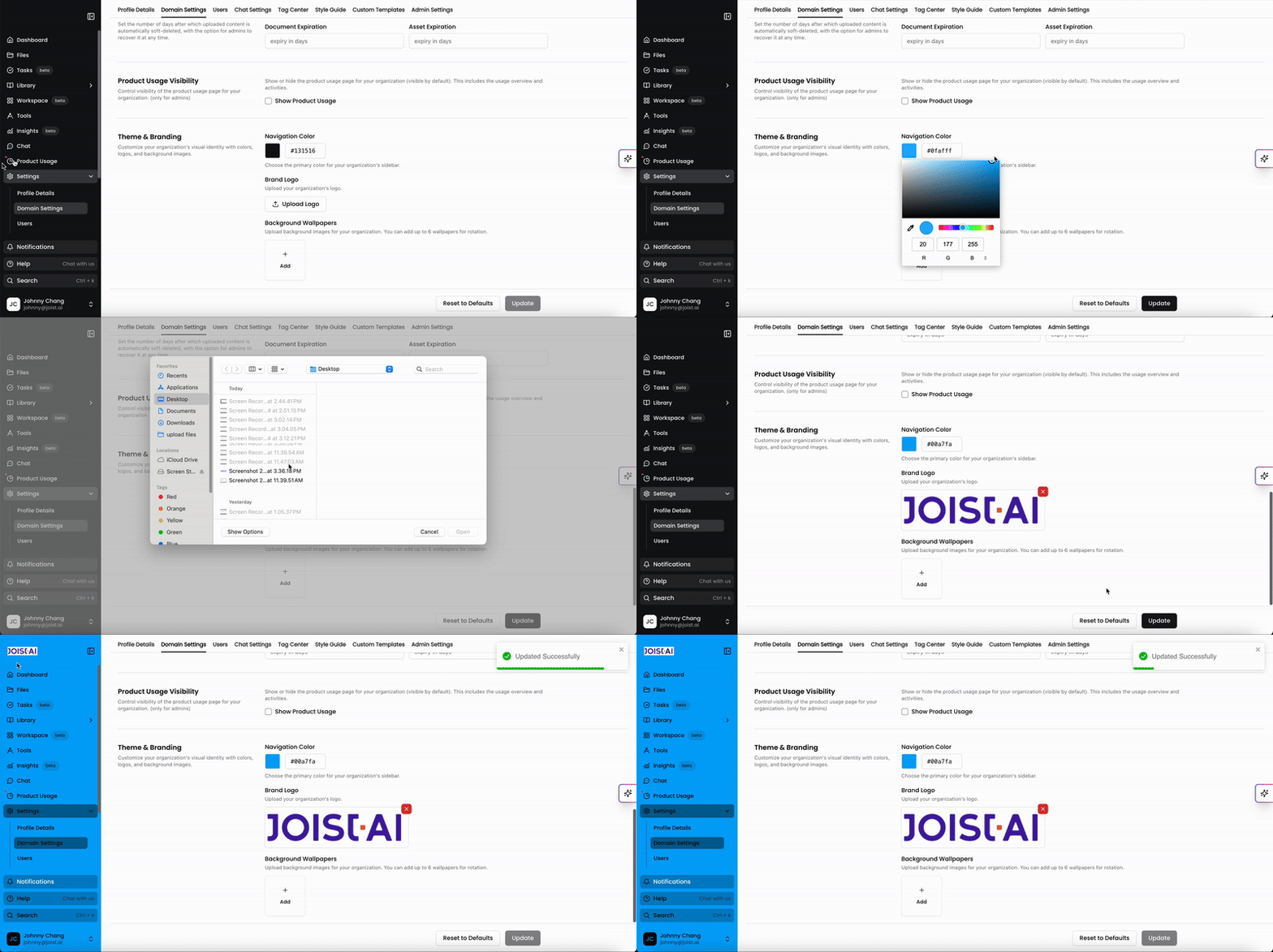
Admins can adjust the theme and branding for their Kantiv platform for all users. This includes setting navigation color, adding brand logos, and brand wallpapers.
Navigation Color
Set the color scheme within the platform to match your branding. You can input an HTML color hex codes or select within the color wheel to set the color. Click Update and your new selection will apply immediately.
Brand Logo
Brand logos can be uploaded and will display on the top left of the page for all users. You can add a Square (1:1) or Wide (3:1) logo.
Suggested brand logo specifications:
Wide logo (3:1): Minimum: 288 px × 96 px
Square logo (1:1): Minimum: 96 px × 96 px
Maximum file size: 6 MB
Supported formats: JPG, PNG, JPEG
Background Wallpapers
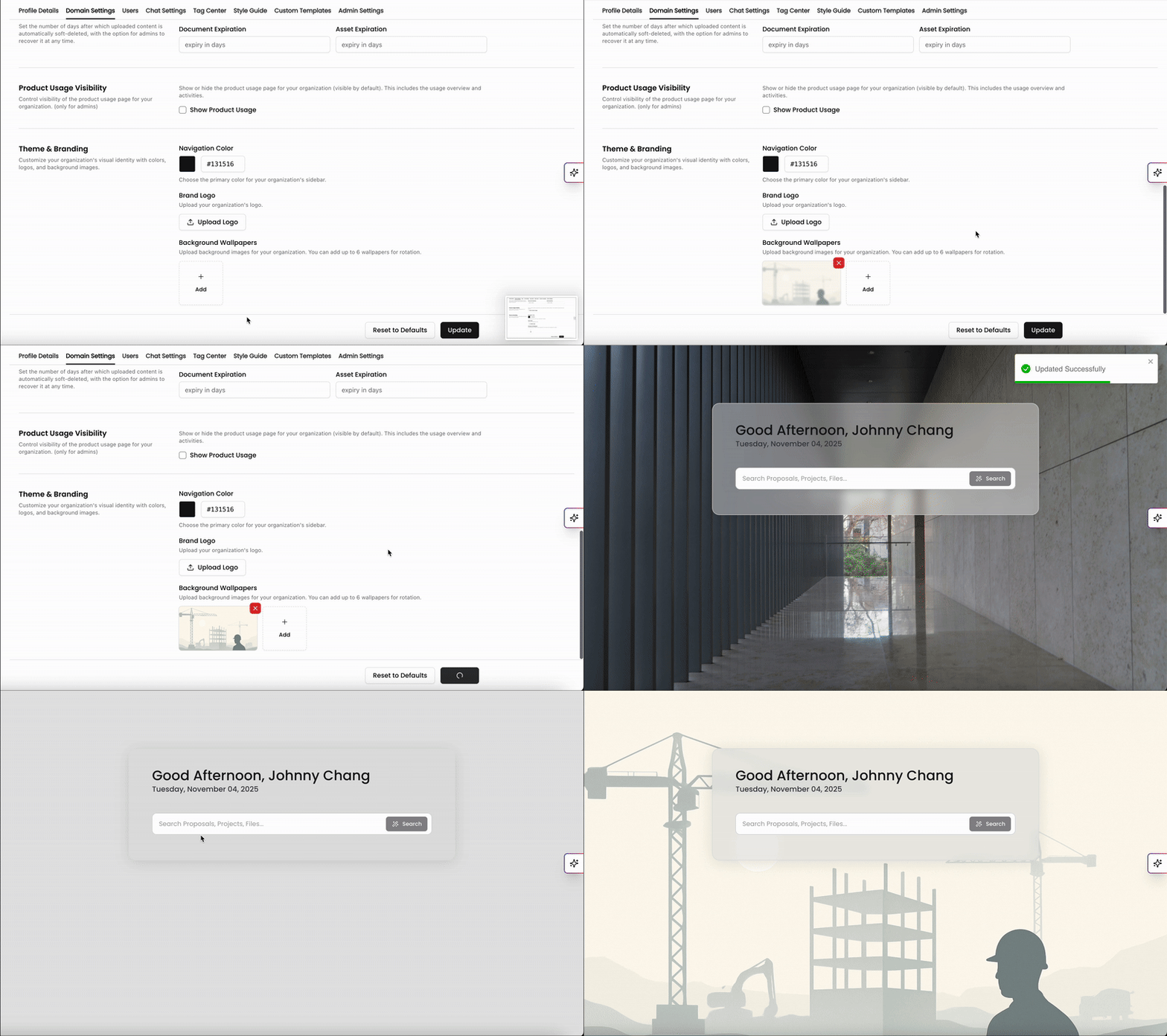
Have photos of a completed project or your team at a jobsite? Admins can set these photos as your background wallpaper in Kantiv. You can upload up to 6 background wallpapers which will play on rotation on the Dashboard page.
Suggested background wallpaper specifications:
Width: 1920–3840 px
Height: 1080–2160 px
Suggested aspect ratio: 16:9
Maximum file size: 6 MB per image
Supported formats: JPG, PNG, JPEG
Images will scale and crop as needed. To avoid cropping, match the container’s aspect ratio of the device being used exactly.
Domain Settings empower Admins to manage every aspect of their organization’s Kantiv environment—from user access policies and content management to branding and visibility preferences. By customizing these settings, Admins can create a secure, organized, and branded workspace that aligns with their team’s workflows and ensures consistent control across the platform.
You can always find more information on Settings and Customization in our Support Center. Please send any questions or feedback to Support@Kantiv.com.