Entra ID Cognito Integration using SAML
Last updated: June 2, 2026
This guide walks you through how to configure SAML-based Single Sign-On (SSO) for Kantiv using Microsoft Entra ID (formerly Azure Active Directory). You’ll learn how to create a custom Enterprise application, configure SAML settings, map required attributes, and assign users.
Prerequisites
Before you begin, make sure you have:
Admin access to your Microsoft Entra ID tenant
Your organization’s Kantiv subdomain
Permission to create and manage Enterprise applications
1. Access the Entra ID Admin Center
Open the Entra ID Directory admin center by navigating to the following website: https://entra.microsoft.com.
Log in using your admin credentials.
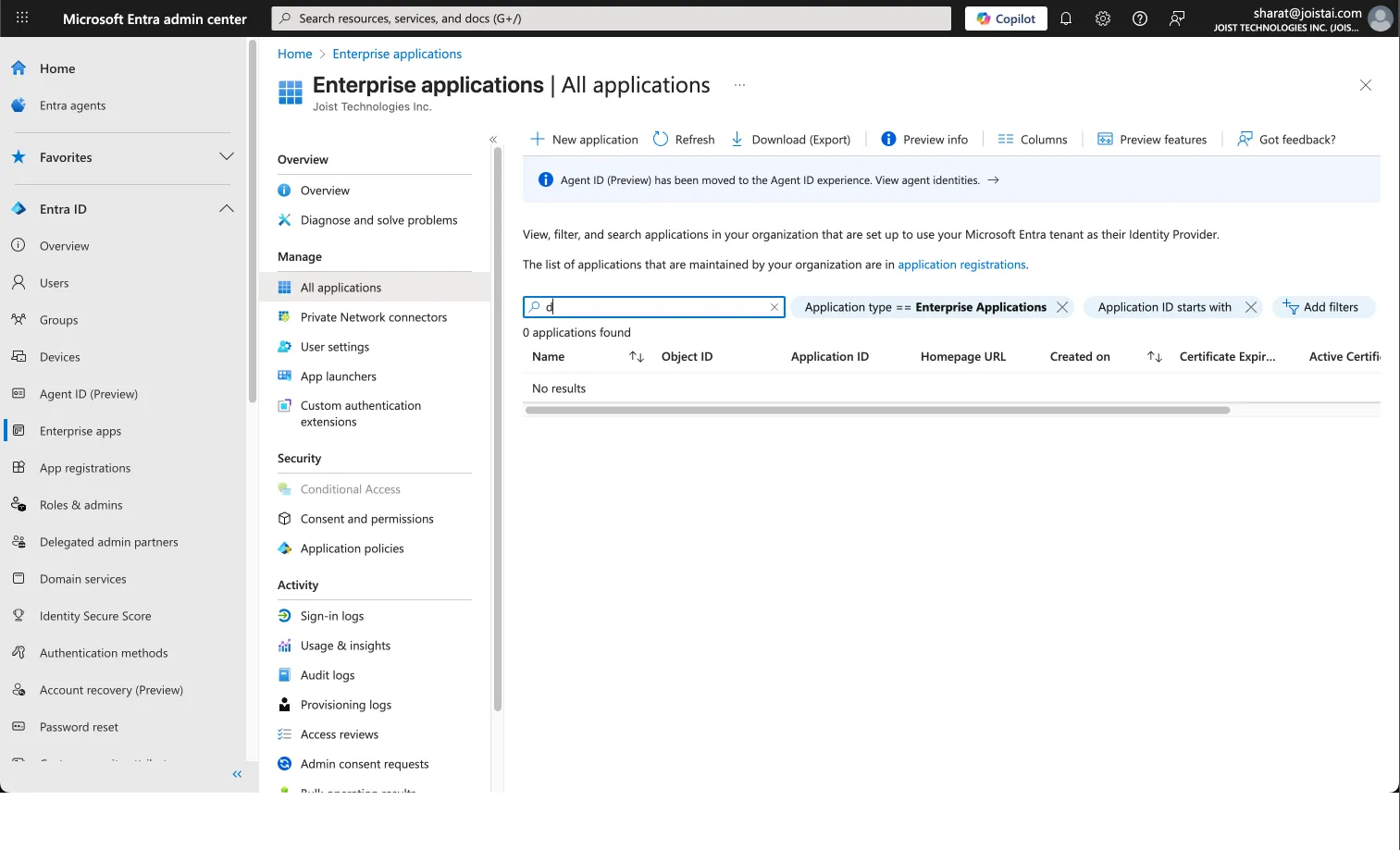
Click "Entra ID" and select "Enterprise applications" from the sidebar.
2. Create a New Enterprise Application
Click "New application → Create your own application" to create a new custom Enterprise application.
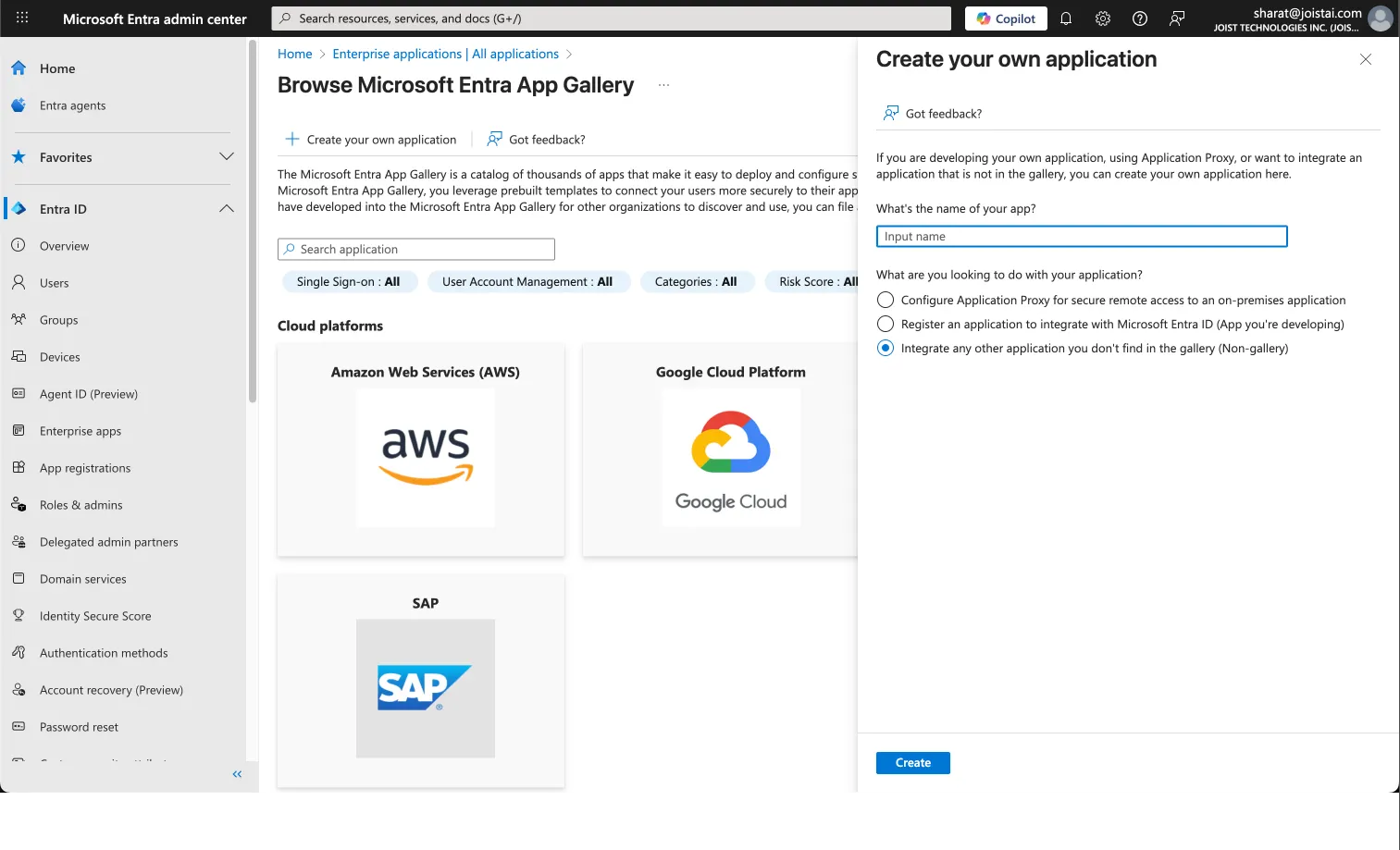
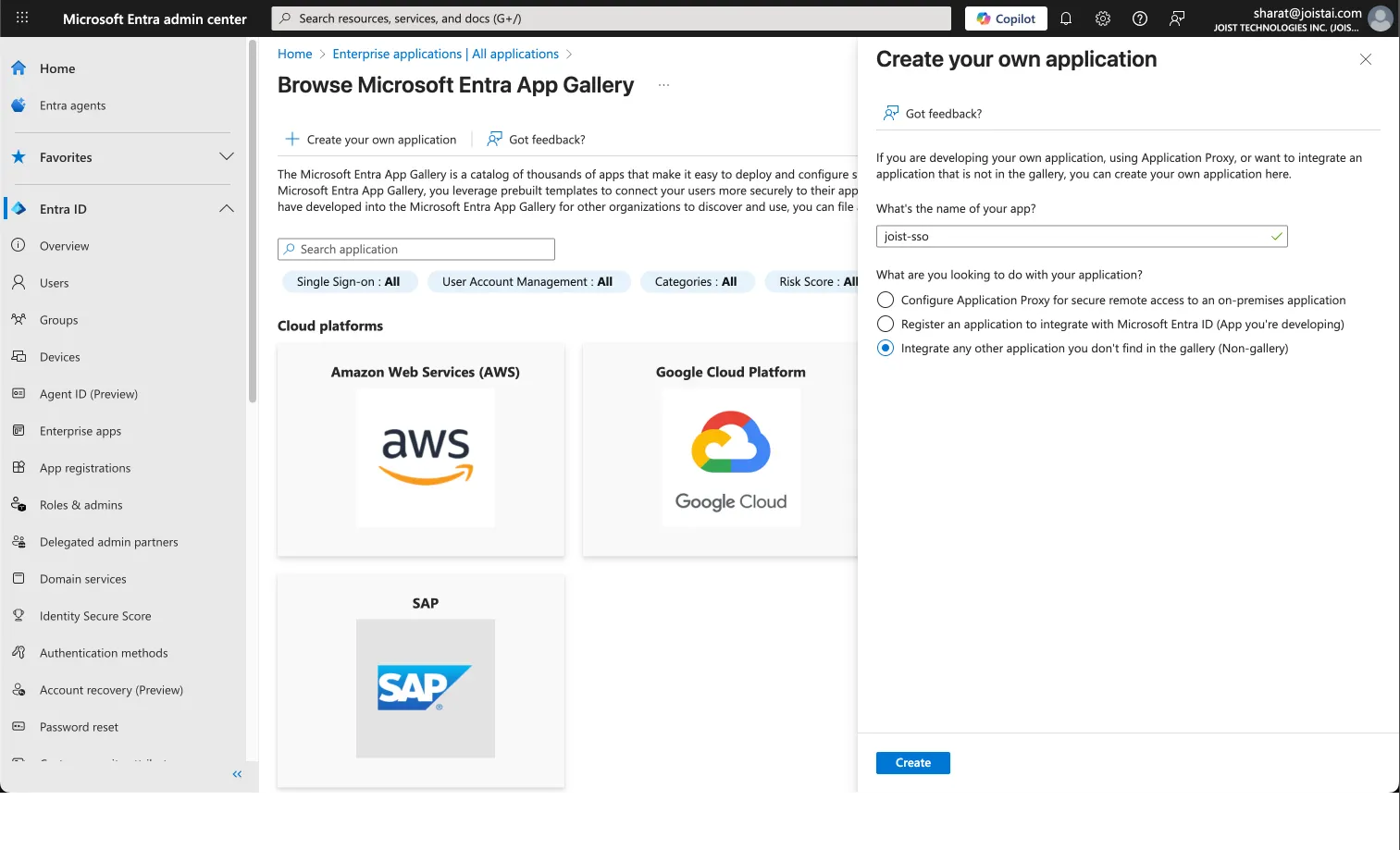
Enter an application name (example:
joist-sso)Under What are you looking to do with your application?, select: Integrate any other application you don't find in the gallery (Non-gallery) under What are you looking to do with your application?
Click Create.
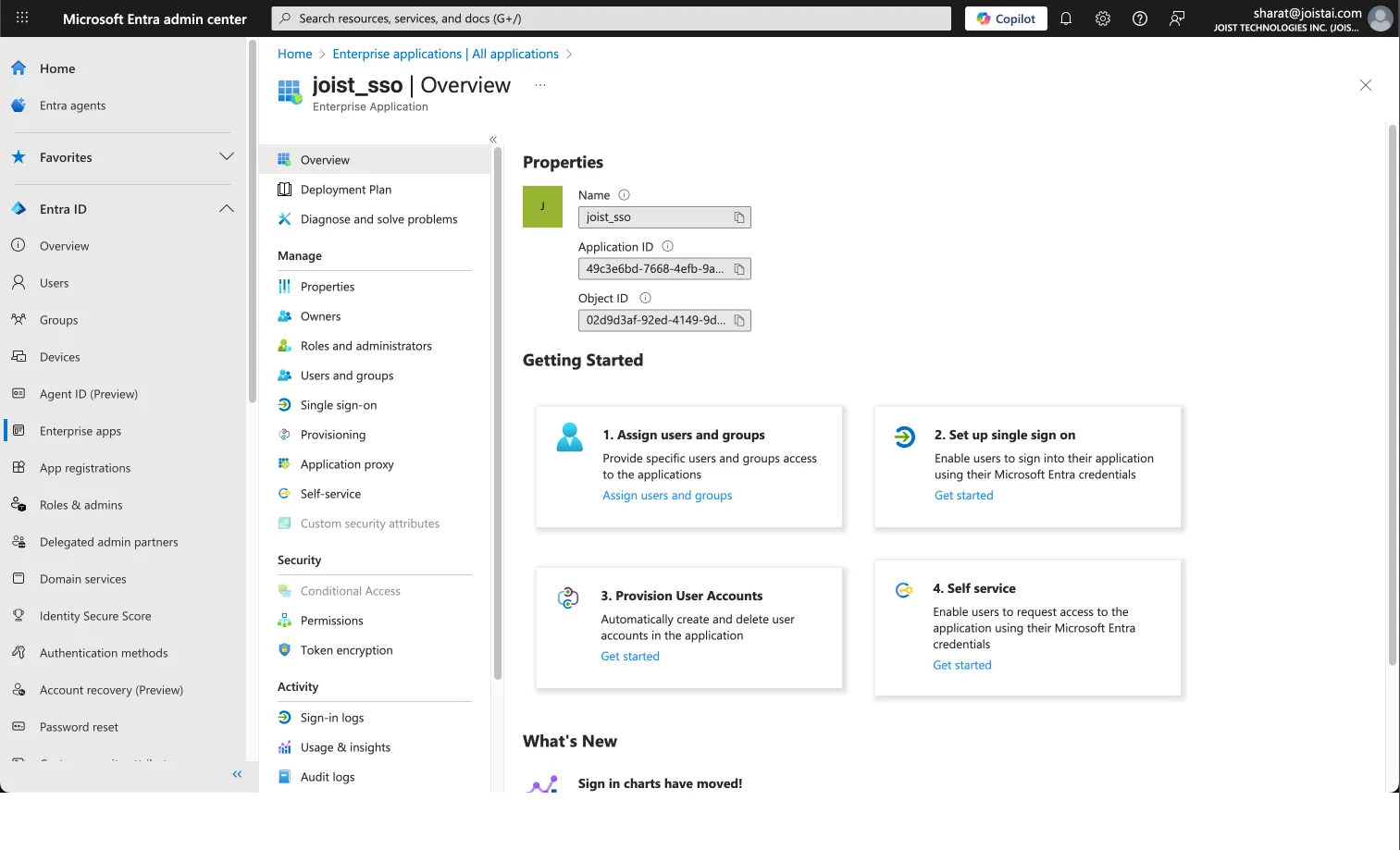
3. Configure Single Sign-On (SAML)
Select "Set up Single Sign-On"
Choose "SAML" as the authentication method.
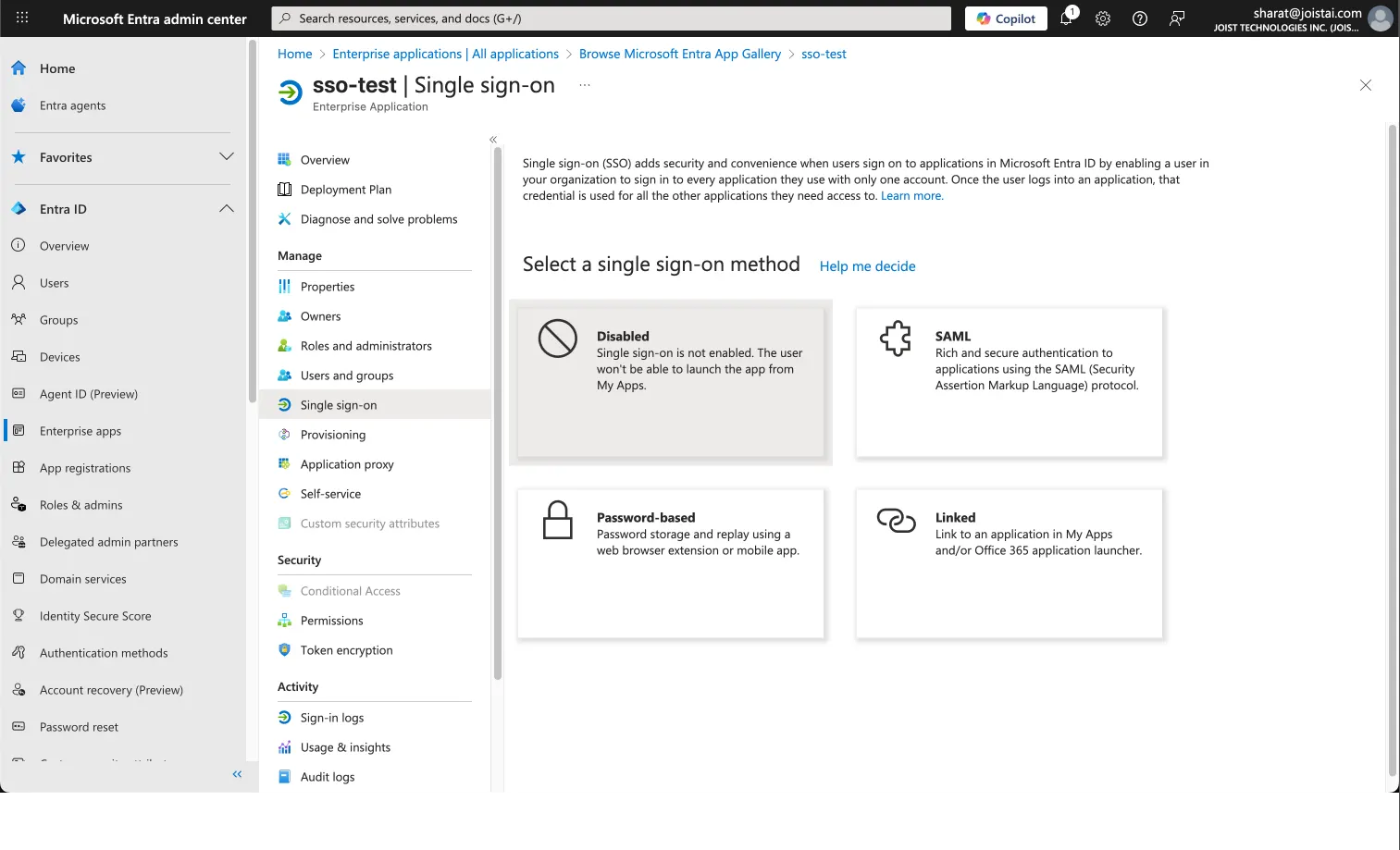
4. Configure Basic SAML Settings
In the “Basic SAML Configuration” section, add the following details:
Identifier (Entity ID): urn:amazon:cognito:sp:us-east-1_Jvc36Bm58Reply URL (Assertion Consumer Service URL): <https://auth.joist.ai/saml2/idpresponse>Sign on URL: https://app.joist.ai
2. Click Save.
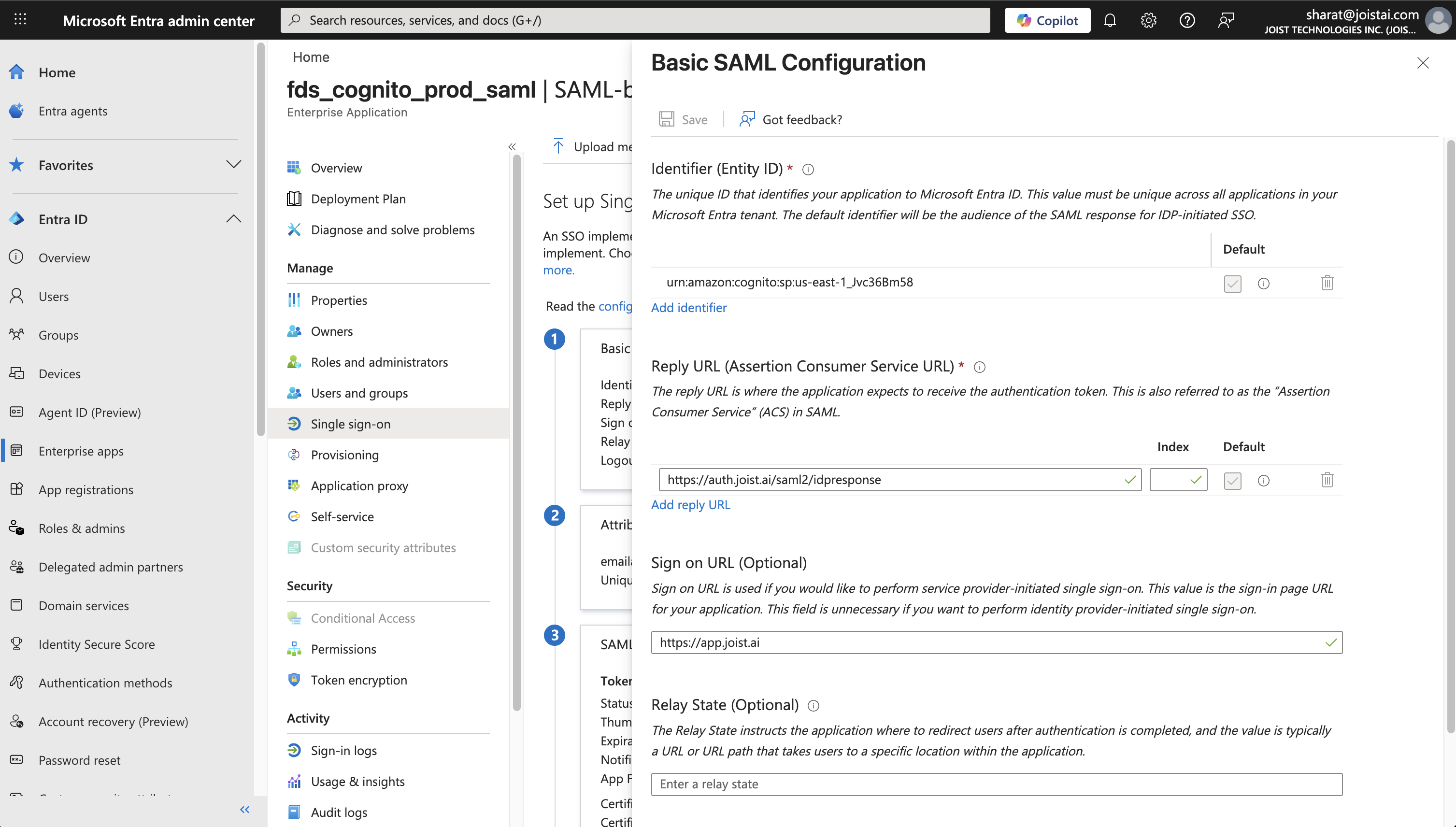
5. Configure Attributes & Claims
Kantiv requires specific SAML attributes to be sent from Entra ID. To claim under "Attributes & Claims", the following attributes are required:
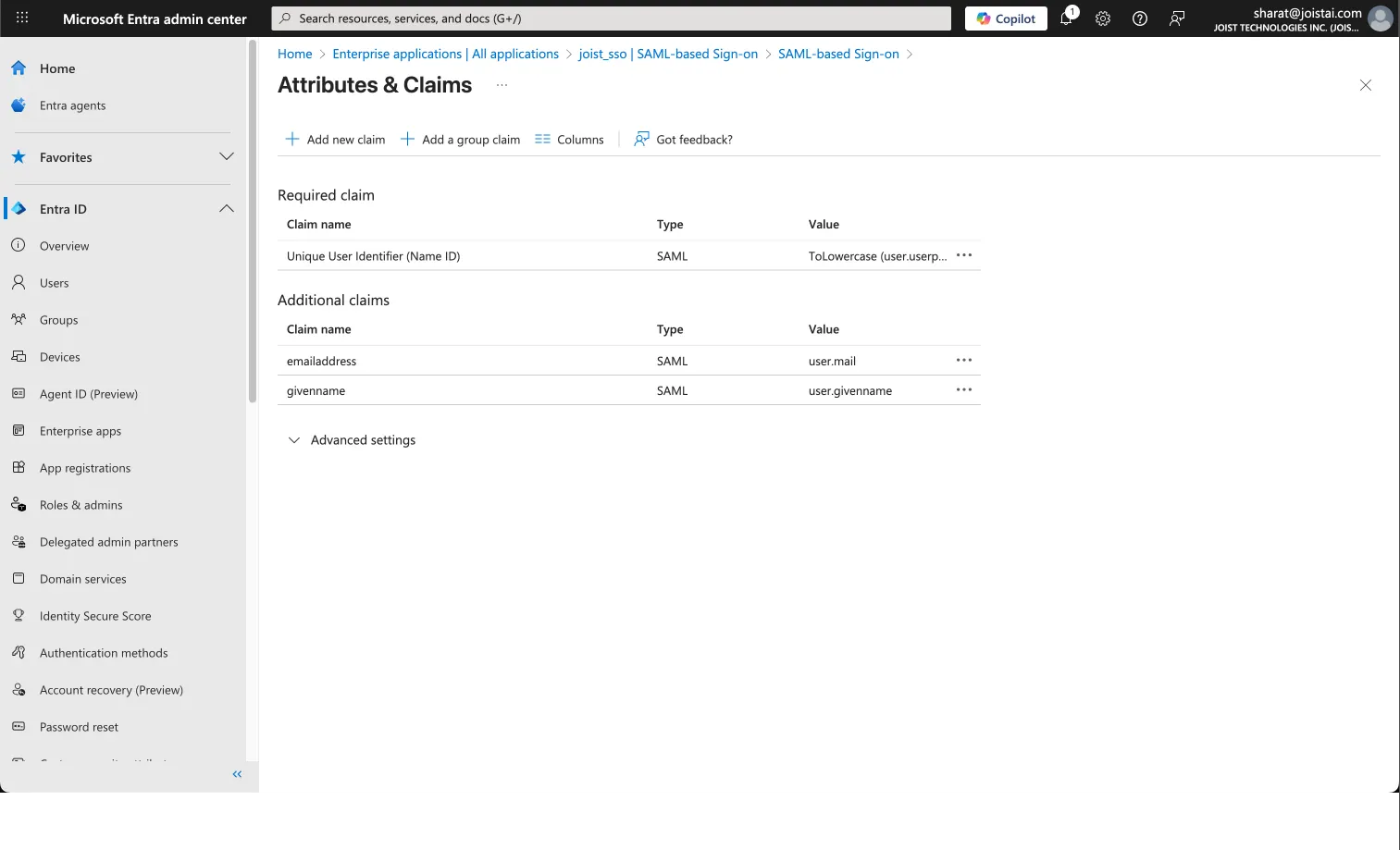
Required Attribute:
A unique User Identifier
Additional Attributes:
emailaddress
given name
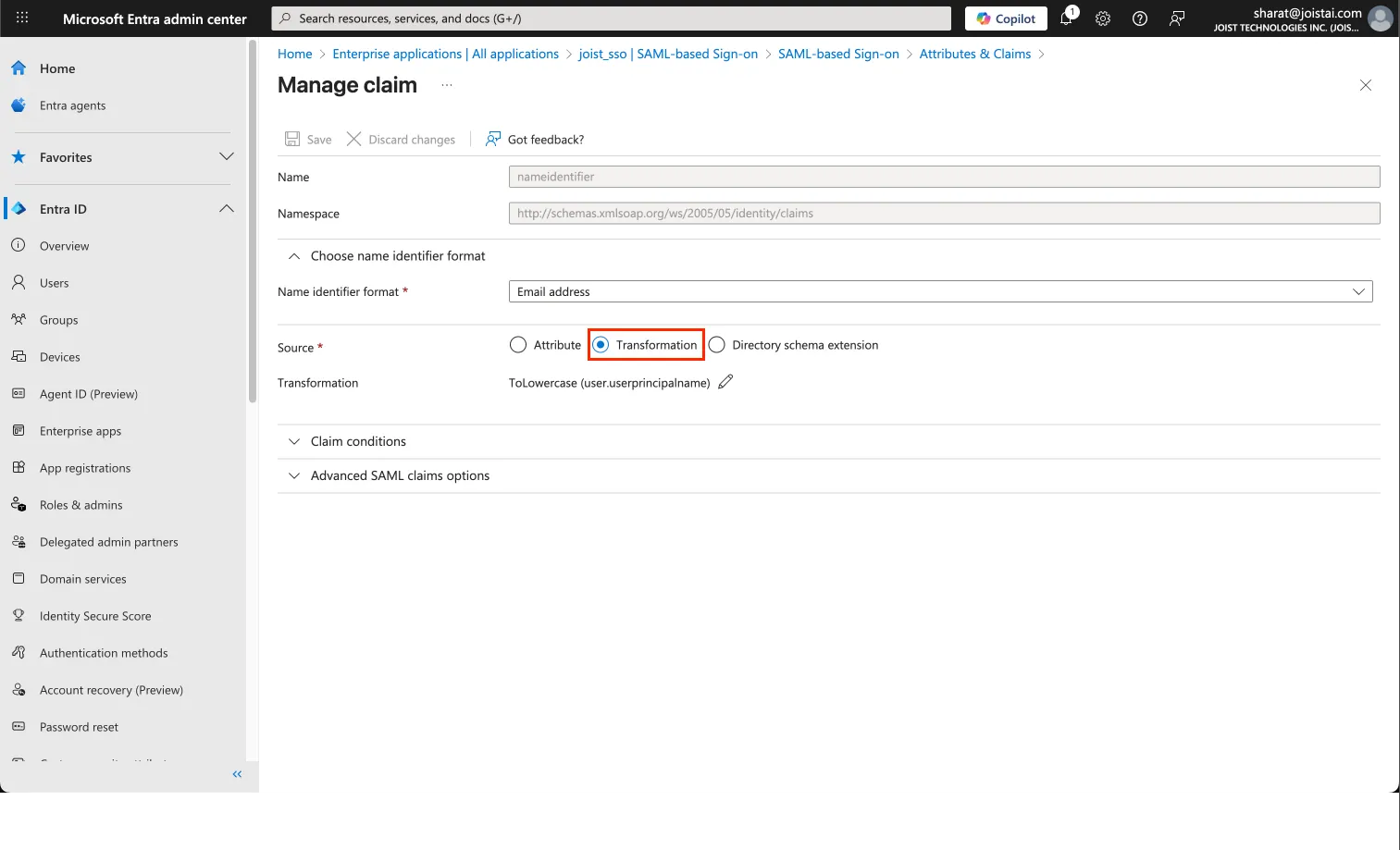
There will be a required claim called Unique User Identifier
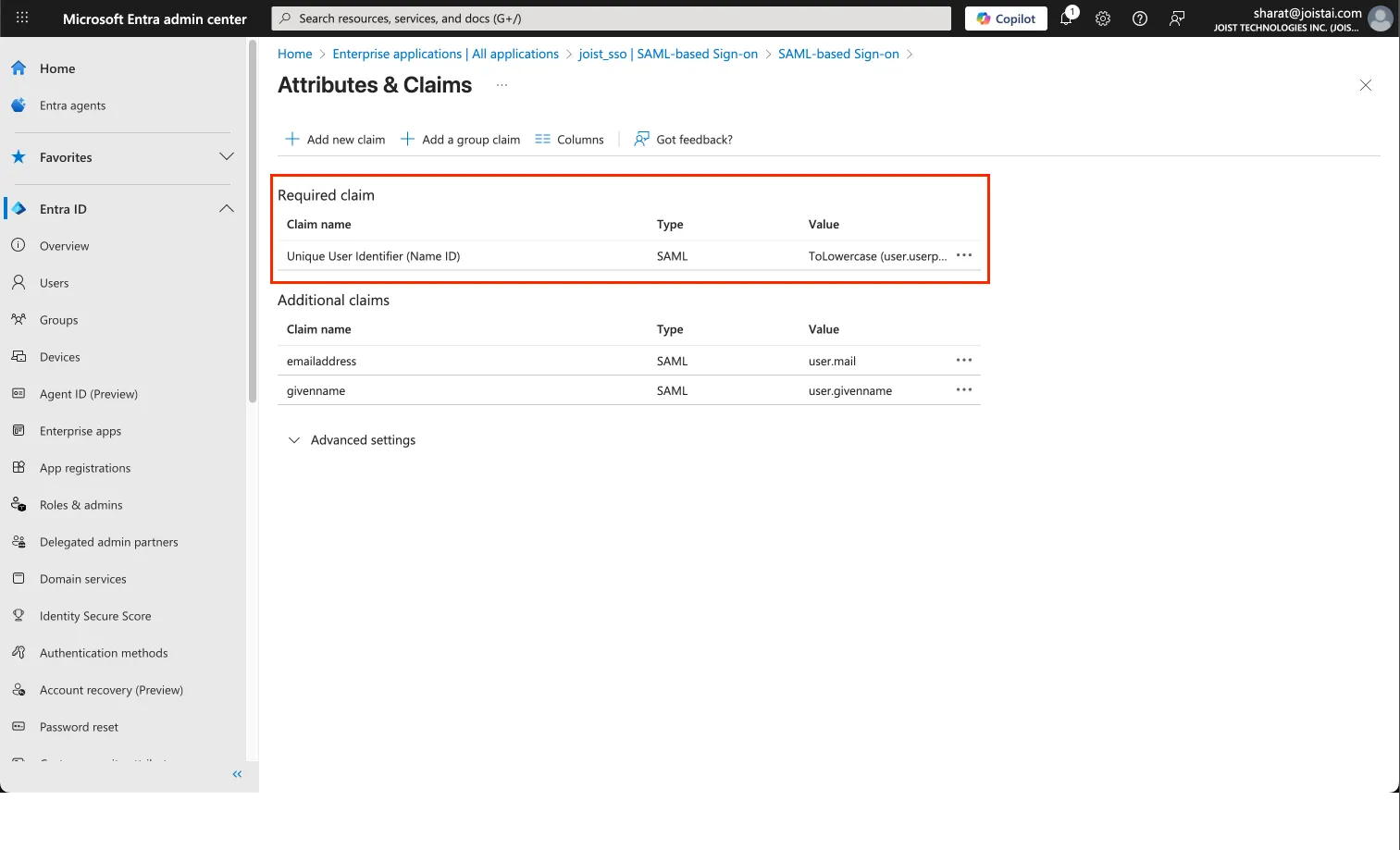
Click on it to Manage claim.
Click on Transformation under Source.
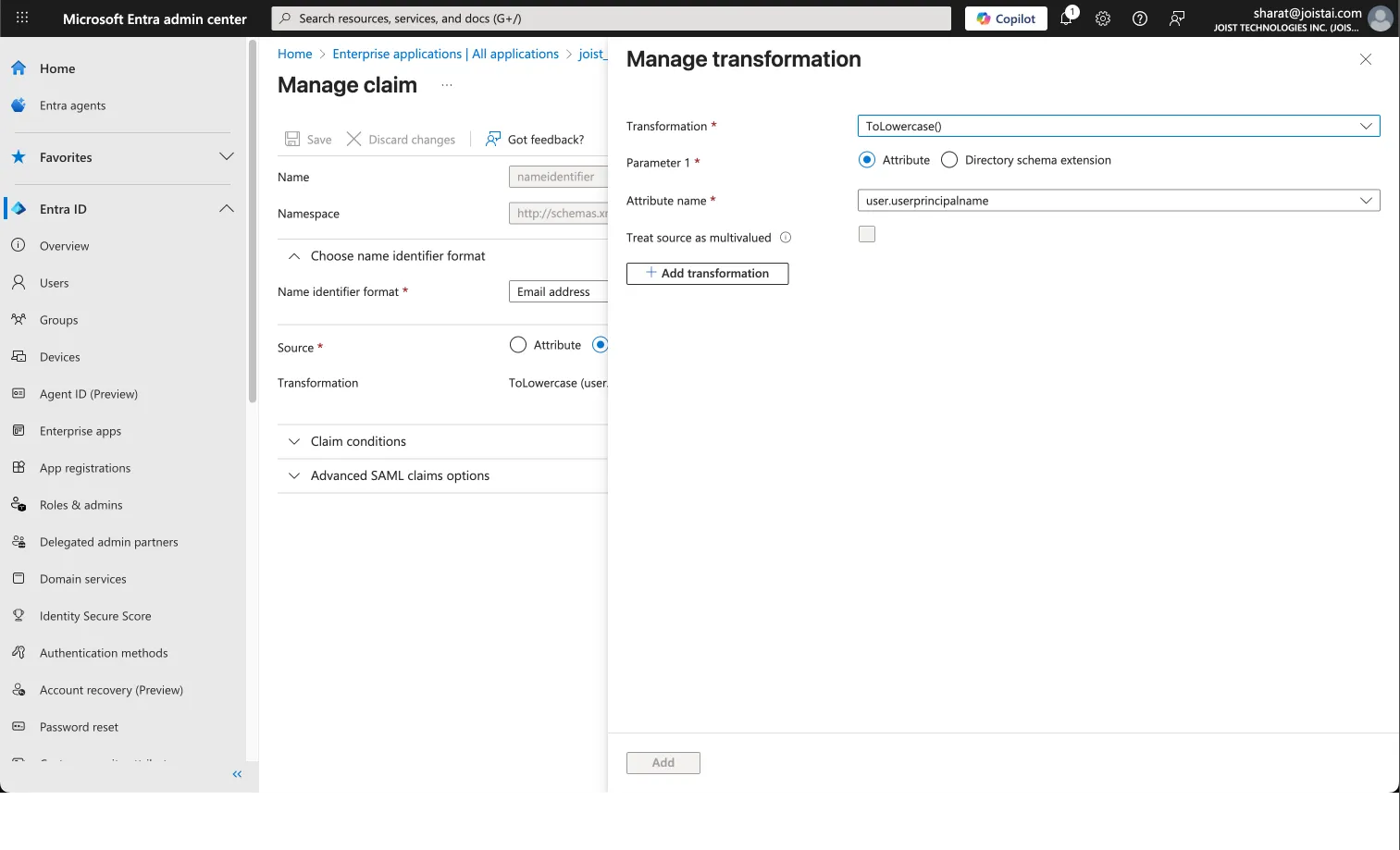
In the side pane, set the following:
Transformation:
ToLowercaseParameter Type:
AttributeAttribute:
user.userprincipalname
Add the following under Additional Claims:
emailaddress
Name:
emailaddressNamespace:
http://schemas.xmlsoap.org/ws/2005/05/identity/claimsSource attribute: The attribute containing the user’s organizational email (e.g.,
user.userprincipalname)
givenname
Name:
givennameNamespace:
http://schemas.xmlsoap.org/ws/2005/05/identity/claimsSource attribute:
user.displayname
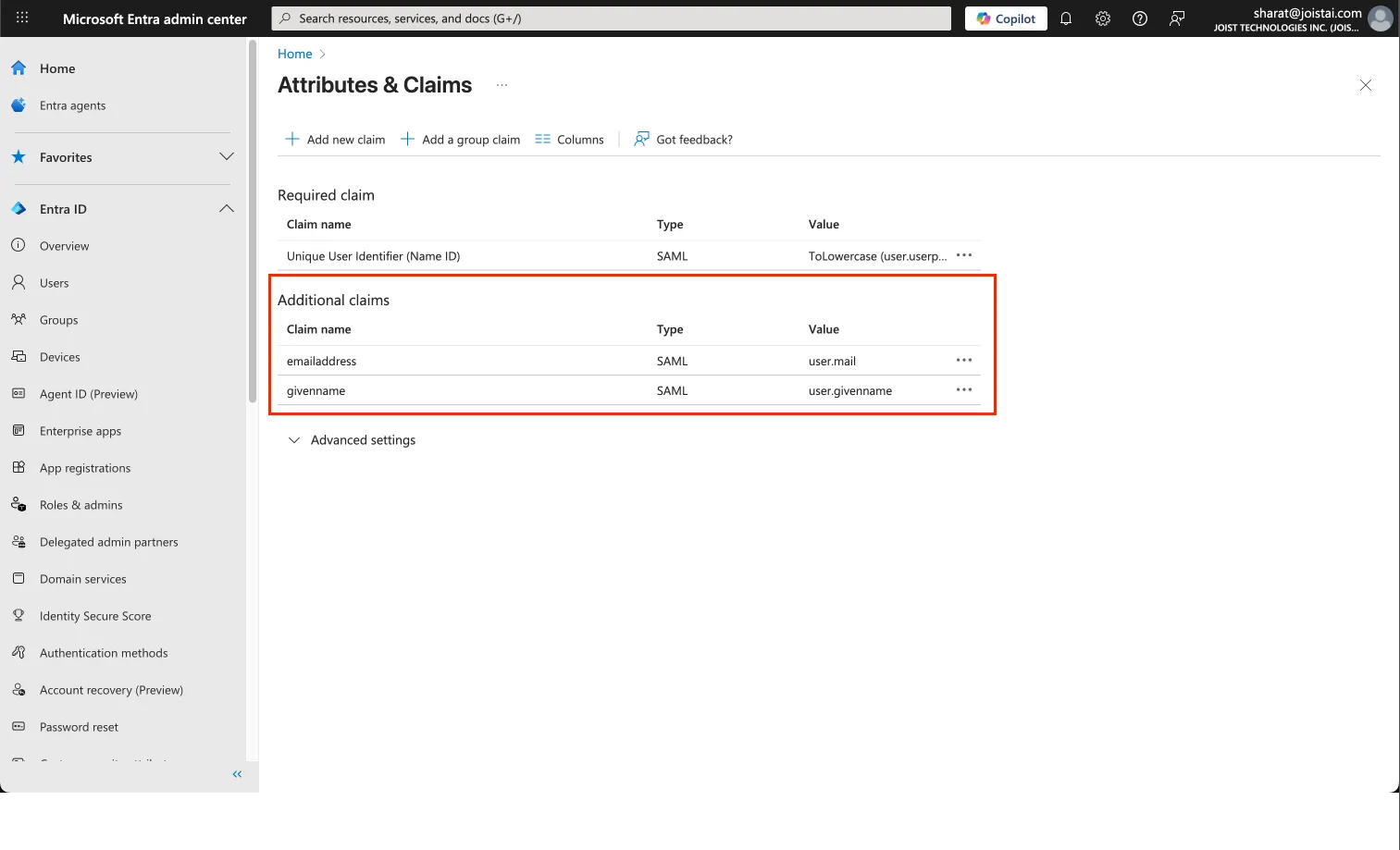
Click Save to apply the changes.
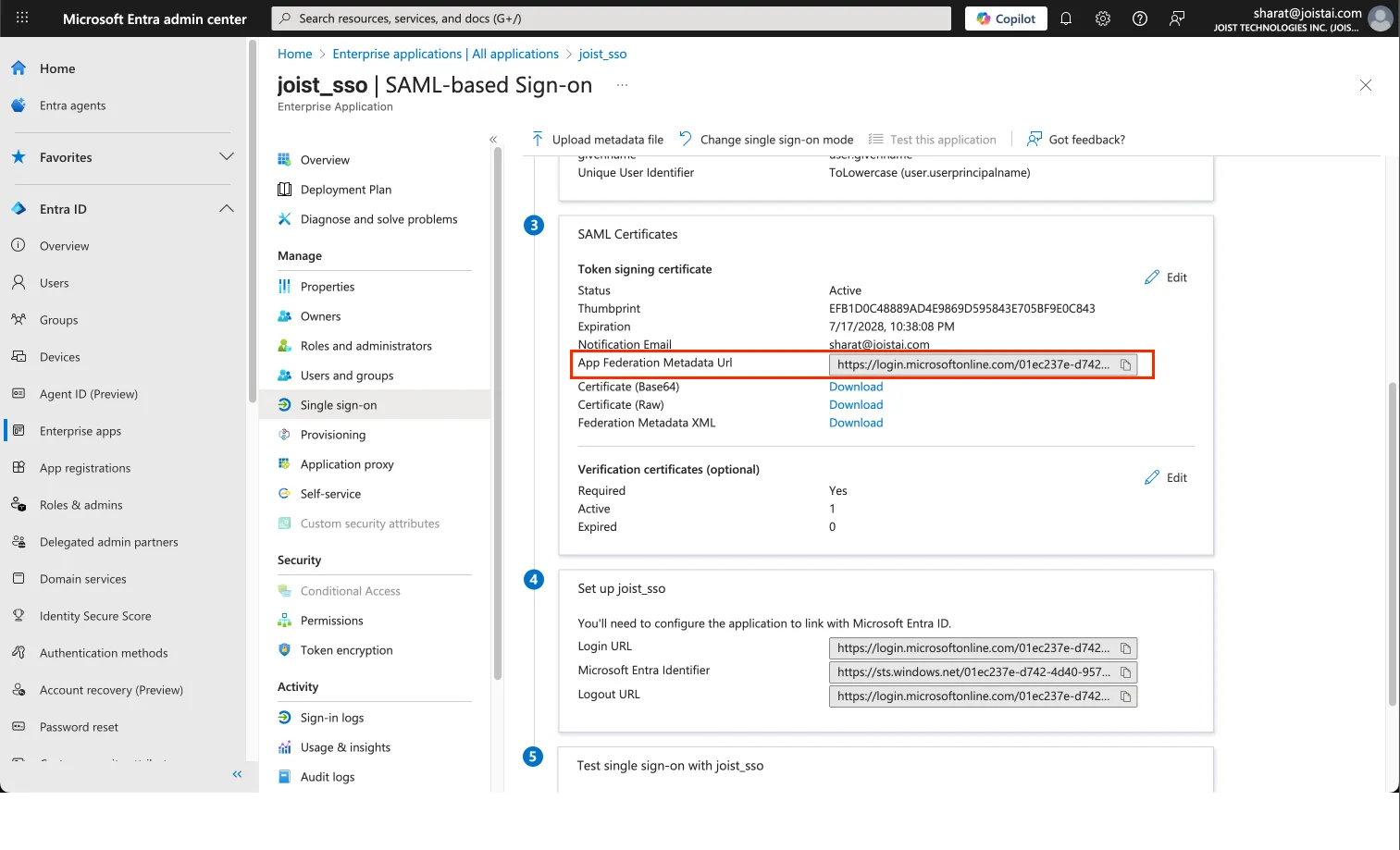
6. Share Federation Metadata with Kantiv
Navigate to the SAML Signing Certificate section.
Copy the App Federation Metadata URL.
Send the following to Kantiv:
The App Federation Metadata URL
Your organization’s Kantiv subdomain
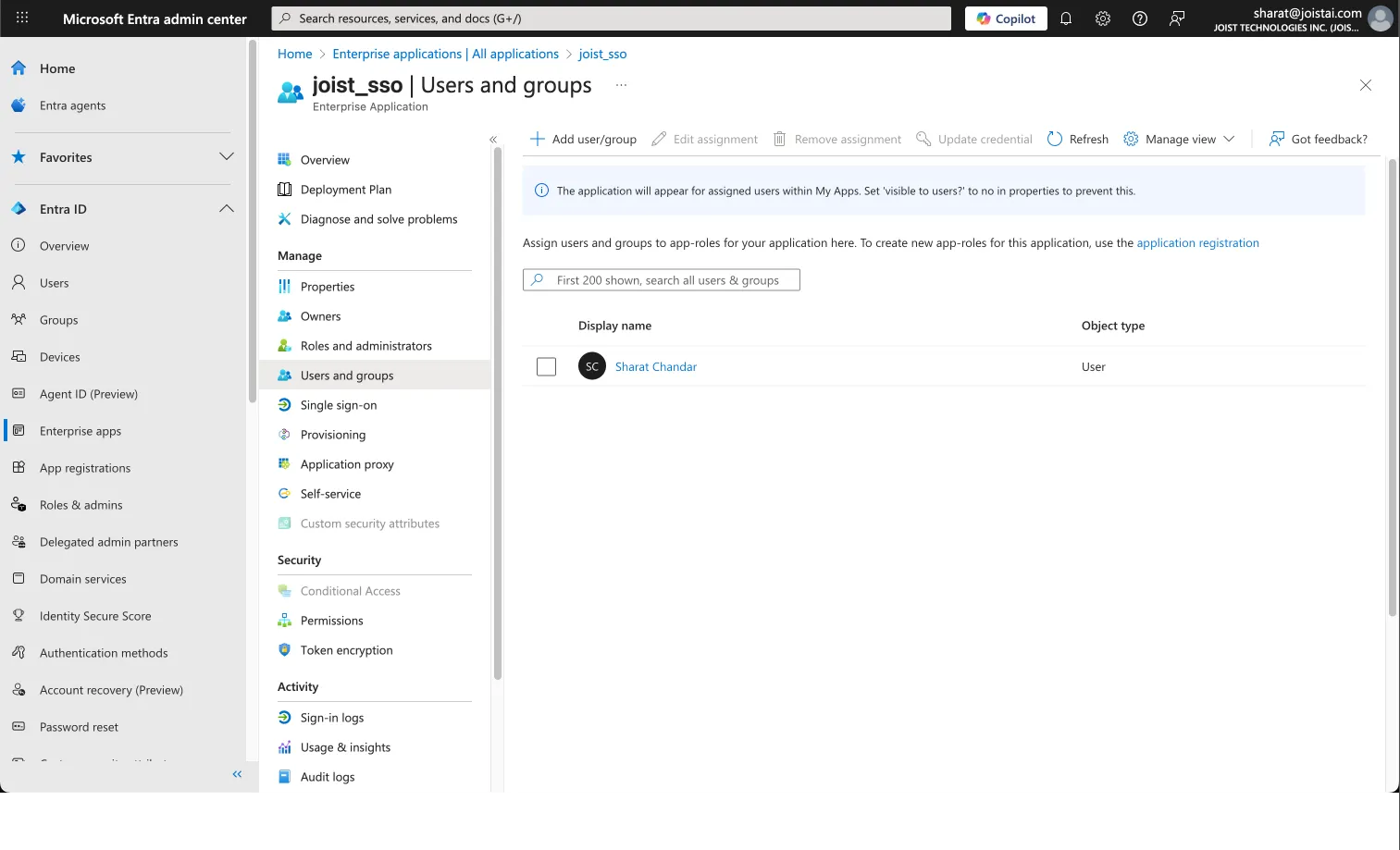
7. Assign Users and Groups
SSO will not work unless users are assigned to the application.
Go to the Users and Groups tab in your Enterprise application.
Assign users directly or assign groups that should have access.
If using group-based access, confirm users are members of the correct group.
Common SSO Issues & Troubleshooting Tips
Even with correct configuration, access issues can occur. The most common causes include:
❌ The user is not assigned to the application
❌ The user is not in the correct group (for group-based assignments)
❌ The email address in Entra ID does not match the email Kantiv expects
If a user sees an “unauthorized” or “app not assigned” error, start by verifying:
User or group assignment
Email attribute mapping
Once SAML SSO is configured in Microsoft Entra ID and the required attributes are mapped, users can sign in to Kantiv using their existing organizational credentials. Be sure to assign users or groups to the Enterprise application and verify email attribute alignment to avoid access issues. If problems arise, reviewing user assignments and group membership will resolve most SSO errors.
You can always find more information on Security and Integrations on our Support Center. Please send any questions or feedback to Support@Kantiv.com.