Google SSO - Add a custom SAML app
Last updated: June 2, 2026
Integrating Google SSO (Single Sign-On) with Kantiv streamlines user authentication, ensuring secure and seamless access for your organization. Follow the steps below to set up the integration.
Prerequisite
Ensure you have Google Workspace Admin Console access to proceed with the setup.
How to Create a Custom SAML App for Google SSO
Access Google Admin Console: Log in to the Google Admin Console using an administrator account.
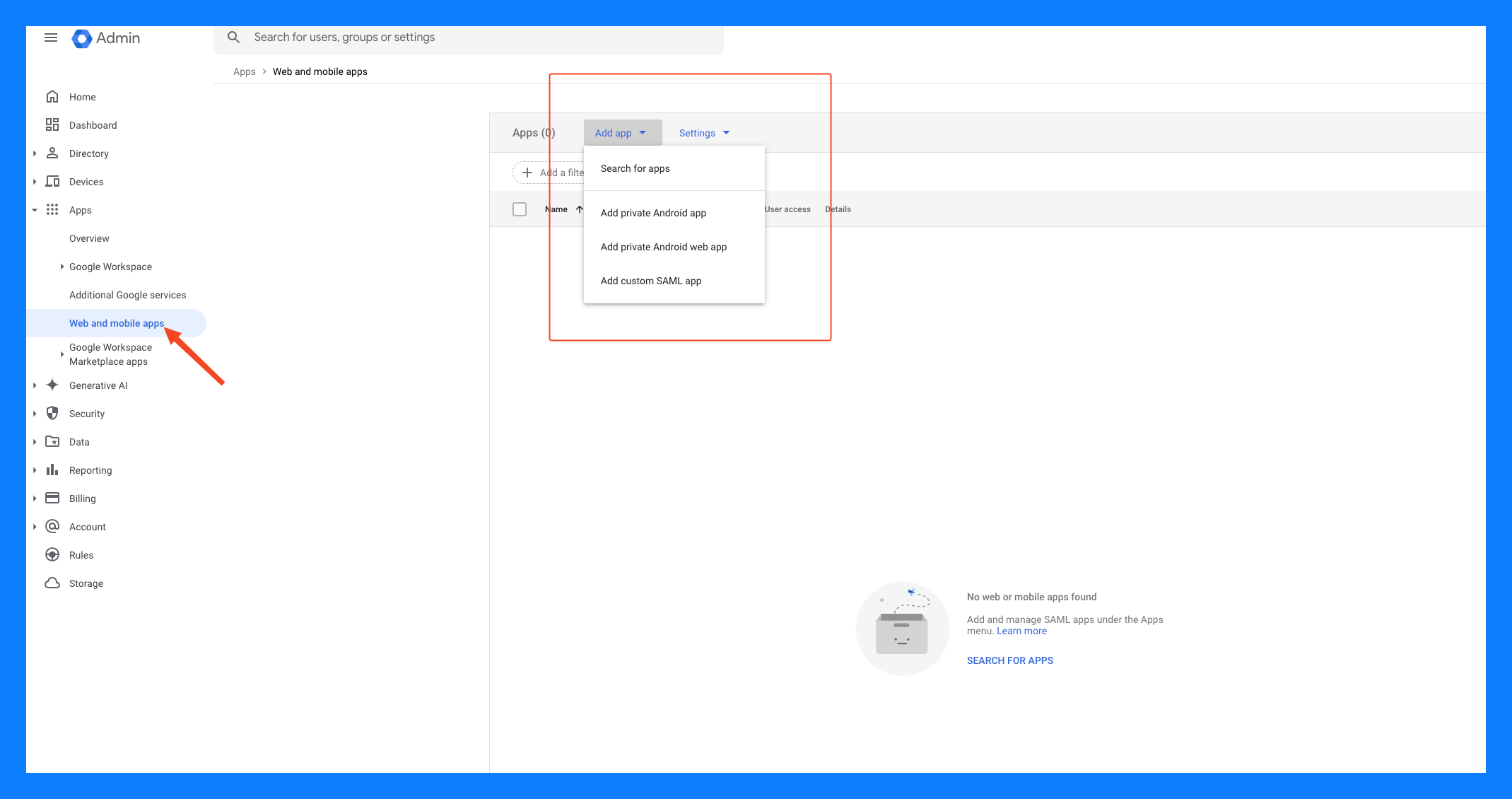
Navigate to Apps: From the Admin Console dashboard, go to Apps > Web and mobile apps.
Add a New App:
Click the Add App button.
Select Add custom SAML app from the dropdown menu.
Follow the onscreen wizard to continue setup:
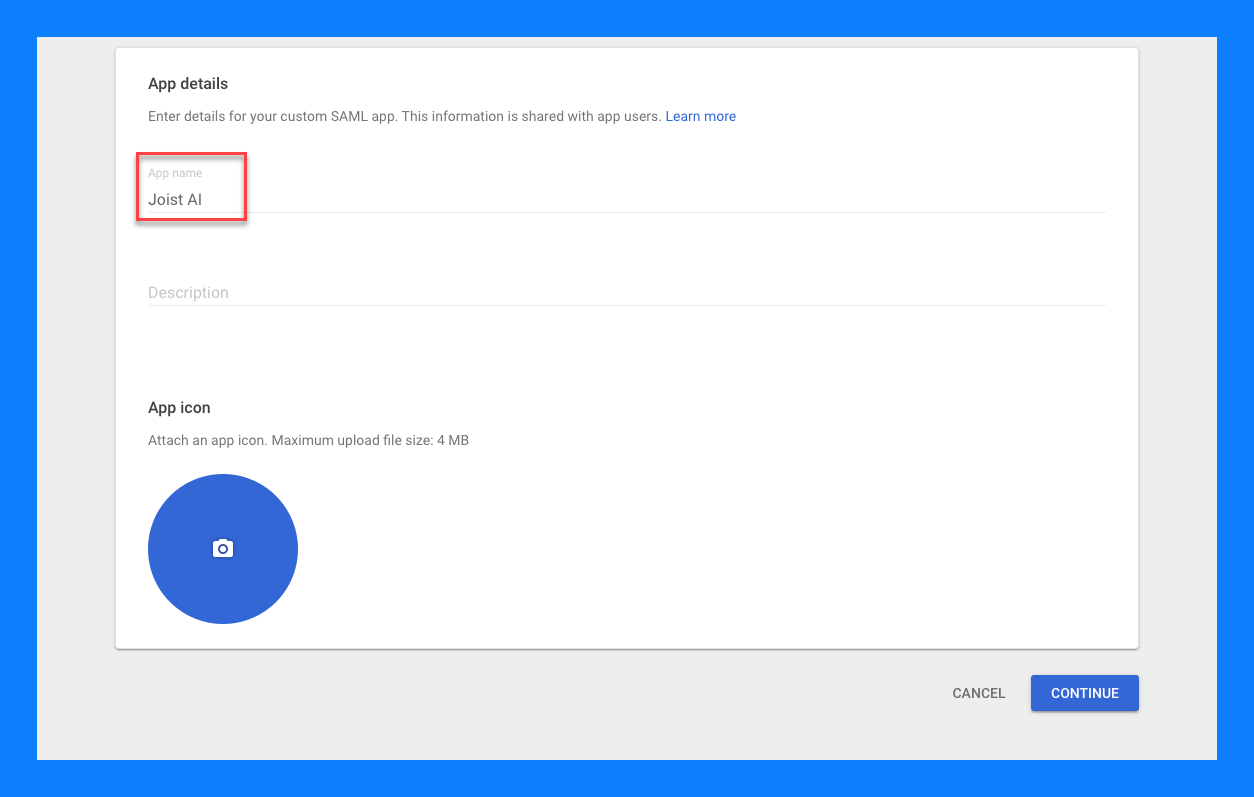
Name Your App:
Provide a name for your app in the App Name field.
Optionally, upload a logo for the app to make it easily recognizable.
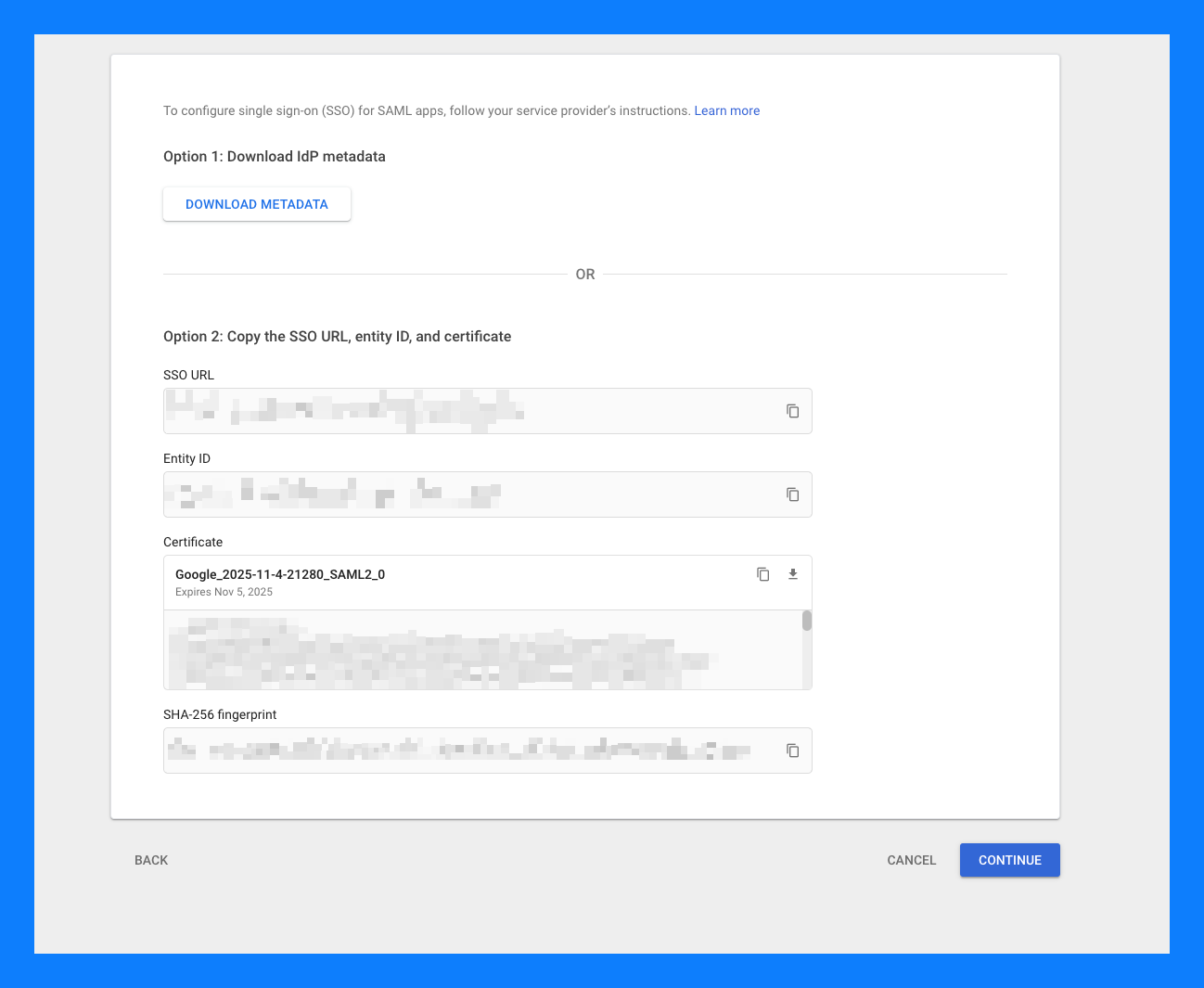
Download the IdP Metadata:
On the Google IdP Information page, download the metadata file. You will need to provide us this file for SSO integration
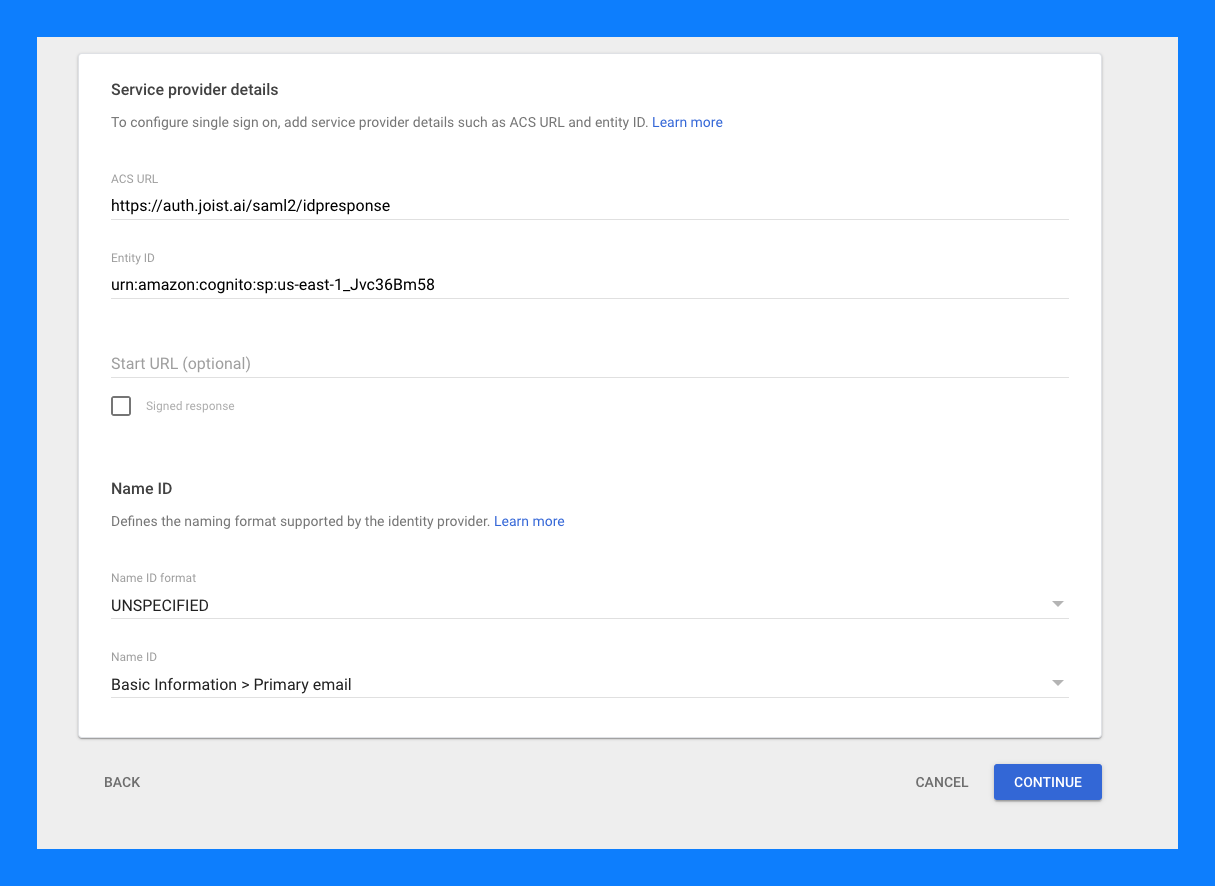
Configure SAML Settings:
On the Service Provider Details page, provide the ACS URL (Assertion Consumer Service URL) as
https://auth.joist.ai/saml2/idpresponseand the Entity ID asurn:amazon:cognito:sp:us-east-1_Jvc36Bm58The Name ID format (
UNSPECIFIED) and Name ID (Primary Email) fields are set to their default values.
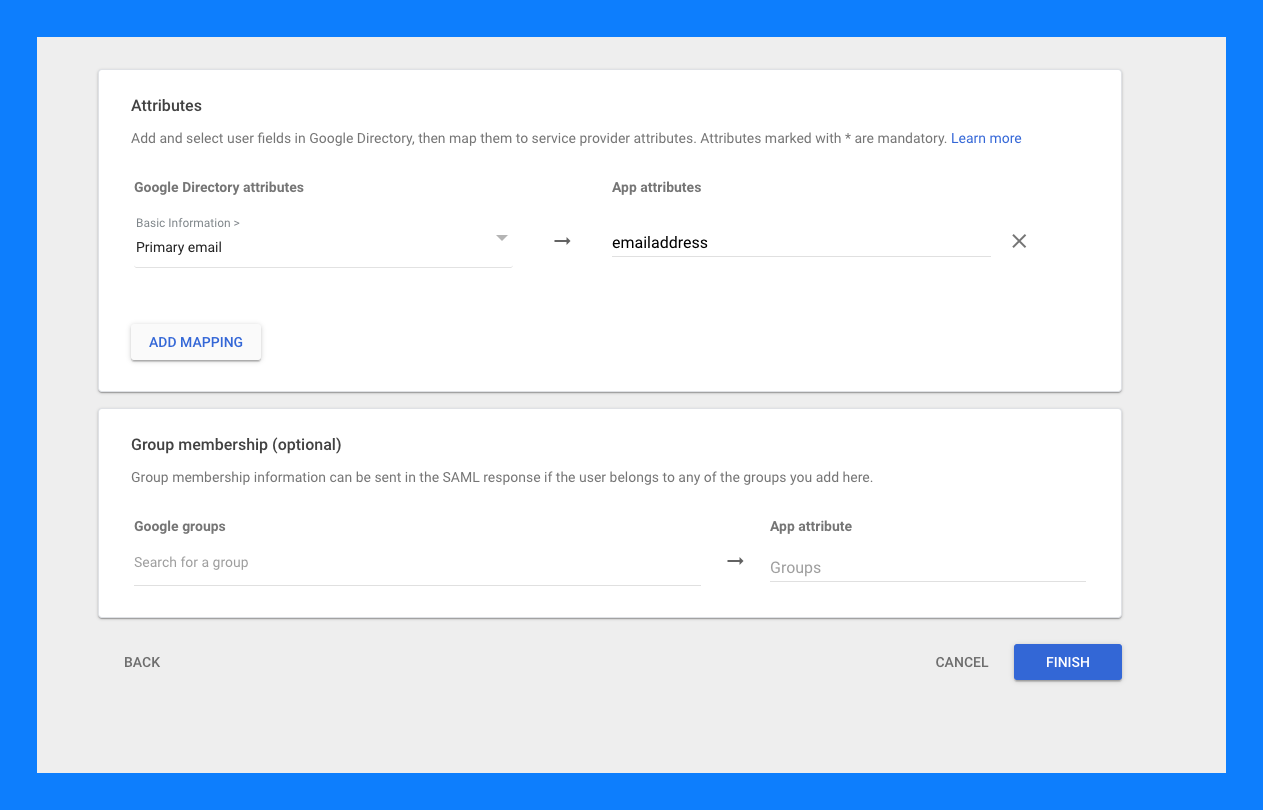
Define Attributes:
On the Attribute Mapping page, map Google Directory attribute
Primary emailto the corresponding attributeemailaddressexpected by Kantiv.
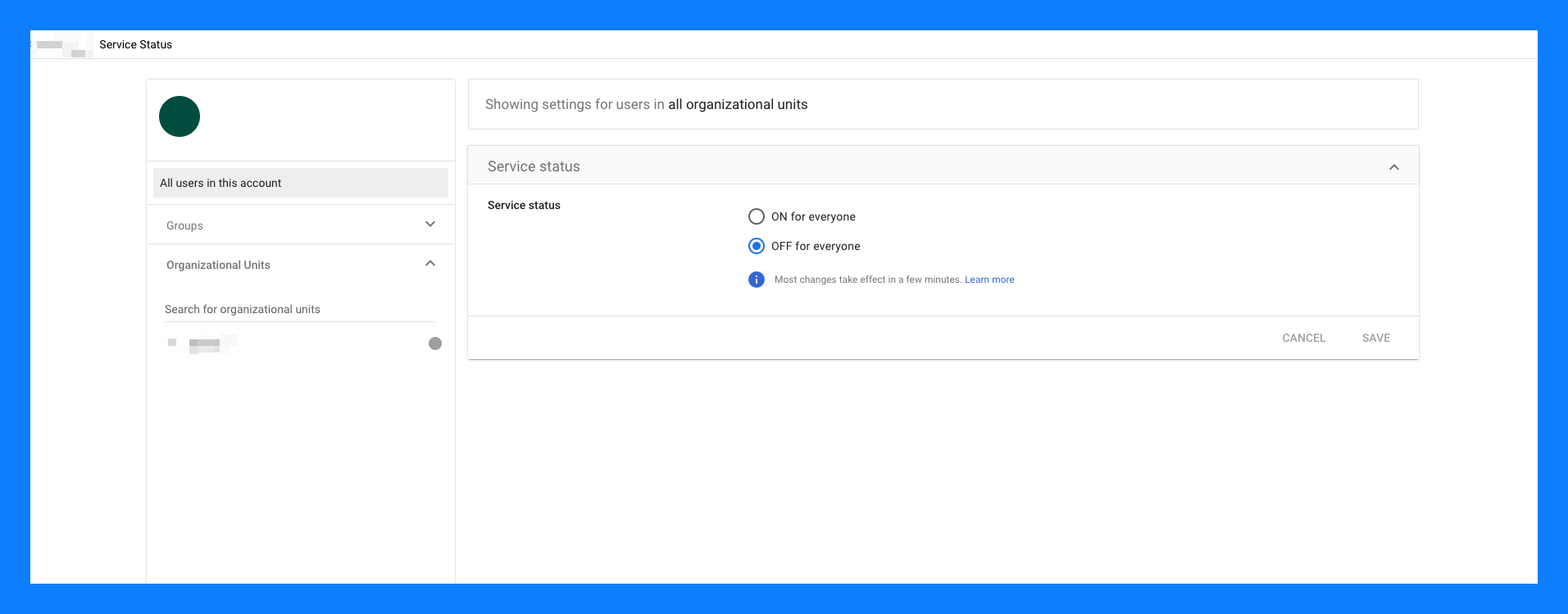
Enable the App for Users:
Once the app is configured, you can enable it for specific Organizational Units (OUs) or for all users from the Application Details page
You will need to provide us with the metadata file that was previously downloaded along with your organization’s subdomain in order for us to enable this SSO integration.
You can always find more information on Security and Integrations on our Support Center. Please send any questions or feedback to Support@Kantiv.com.