Egnyte: API Set-Up Guide
Last updated: June 3, 2026
Currently, our team at Kantiv manages the configuration and maintenance of your integration directly. To establish a new connection or adjust your existing setup, please reach out to Integrations@kantiv.com. These management tools are part of our roadmap and will be available for self-service in a future release.
Overview
This guide walks you through connecting your Egnyte account to Kantiv. Once connected, Kantiv will automatically sync files from your Egnyte file server based on your configured folder and schedule settings.
Step 1: Open Integrations in Kantiv Settings
Go to Settings in the top navigation bar, then click the Integrations tab.
Step 2: Add the Egnyte Integration
Click "+ Add Integration" in the top right corner. A dialog will appear listing available integrations. Select Egnyte.
Step 3: Open the Integration Settings Tab
Click on the newly created Egnyte integration card to open it. Navigate to the Settings tab.
Step 4: Enter Your Egnyte Domain and Connect
In the Egnyte Domain field, enter your company subdomain — for example, enter yourcompany if your Egnyte URL is yourcompany.egnyte.com. Then click "Connect to Egnyte".
Note: You will be redirected to your Egnyte login page to authorize access.
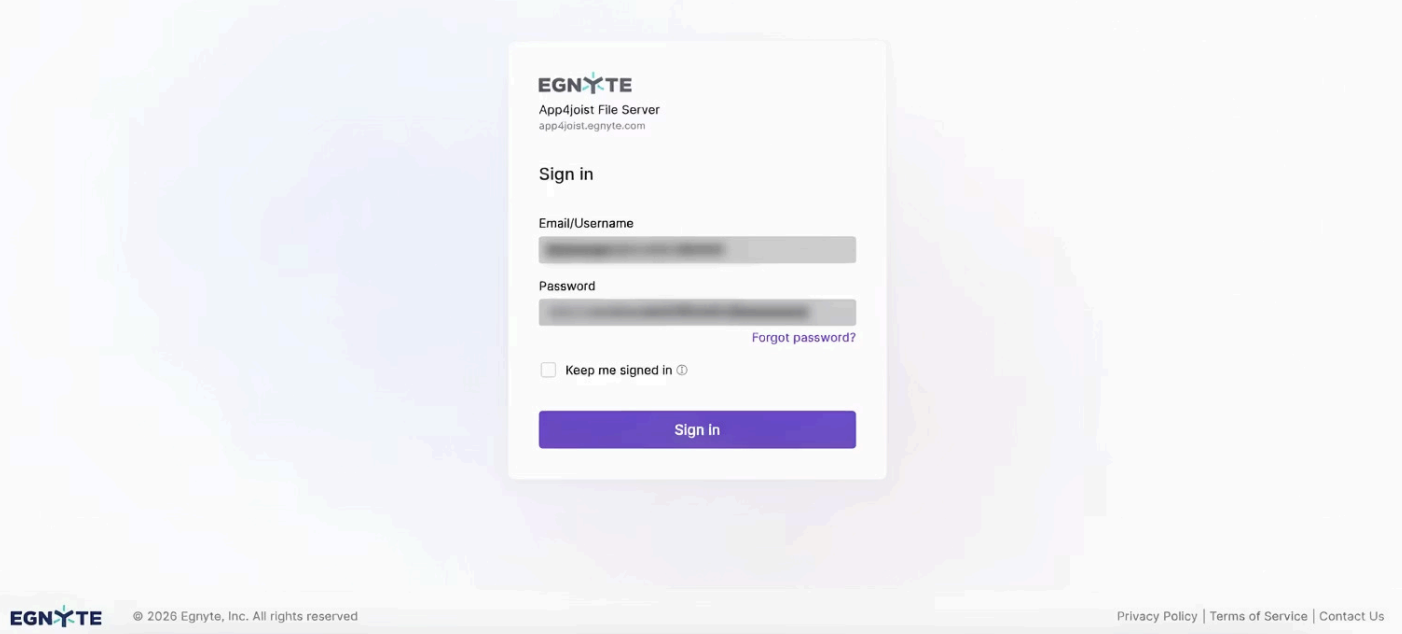
Step 5: Sign In to Your Egnyte Account
You will be redirected to your Egnyte domain login page. Enter your Egnyte credentials (email/username and password) and click Sign In.
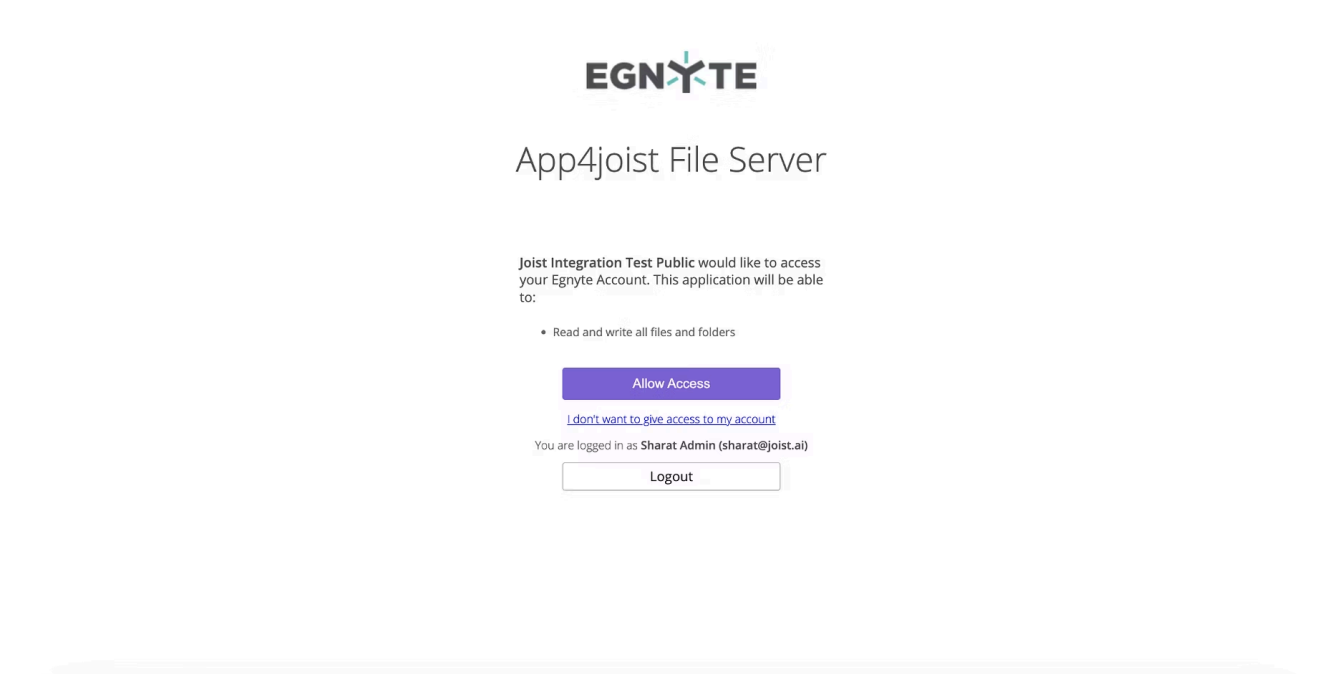
Step 6: Grant Permission to Kantiv
Egnyte will display a permissions page requesting access to your account. The requested permission is: Read and write all files and folders. Click "Allow Access" to proceed.
Step 7: Confirm Successful Connection
You will be redirected back to Kantiv. The Settings tab will display "Status: Connected", confirming the OAuth authentication was successful.
At this point, your Egnyte account is linked. The integration will show as "Inactive" until you complete the remaining configuration steps and activate it.
Step 8: Configure Folder Sync
Scroll down to the Configuration section. Click "Manage Folders" to open the Configure Sync Folders dialog.
In the dialog:
Select "Select All Egnyte Folders" to sync everything, or pick specific folders from the list.
Add File Filters if you want to restrict which file types are synced.
Click "Save Configuration" in the folder dialog when done. Then set the Sync Frequency in the Configuration section.
Step 9: Save and Activate the Integration
Click Save to persist your settings, then click the Activate button at the top right of the integration page to enable syncing.
Setup Complete
Kantiv will now automatically sync files from Egnyte based on your configured folder and schedule settings.
Automatic Syncing - Kantiv will automatically sync files from Egnyte based on your configured folder and schedule settings.
Monitor Activity - You can monitor sync activity under the Activity tab on the integration page.
You can always find more information on Security and Integrations on our Support Center. Please send any questions or feedback to Integrations@Kantiv.com.