FAQ: File Integrations
Last updated: June 26, 2026
Currently, our team at Kantiv manages the configuration and maintenance of your integration directly. To establish a new connection or adjust your existing setup, please reach out to Integrations@kantiv.com. These management tools are part of our roadmap and will be available for self-service in a future release.
In this article, we will go over the Integrations we support, a general overview of functionality, Sync Behavior & File Handling, and additional FAQ questions.
The File Integrations help keep files synchronized and accessible across your file systems and Kantiv, giving teams a centralized way to access approved content without duplicate uploads or manual organization.
Supported File Integrations
Below is a list of supported file Integrations. If you do not see your service listed below, feel free to reach out to Integrations@Kantiv.com to discuss the possibility of an Integration in the Future.
General Overview
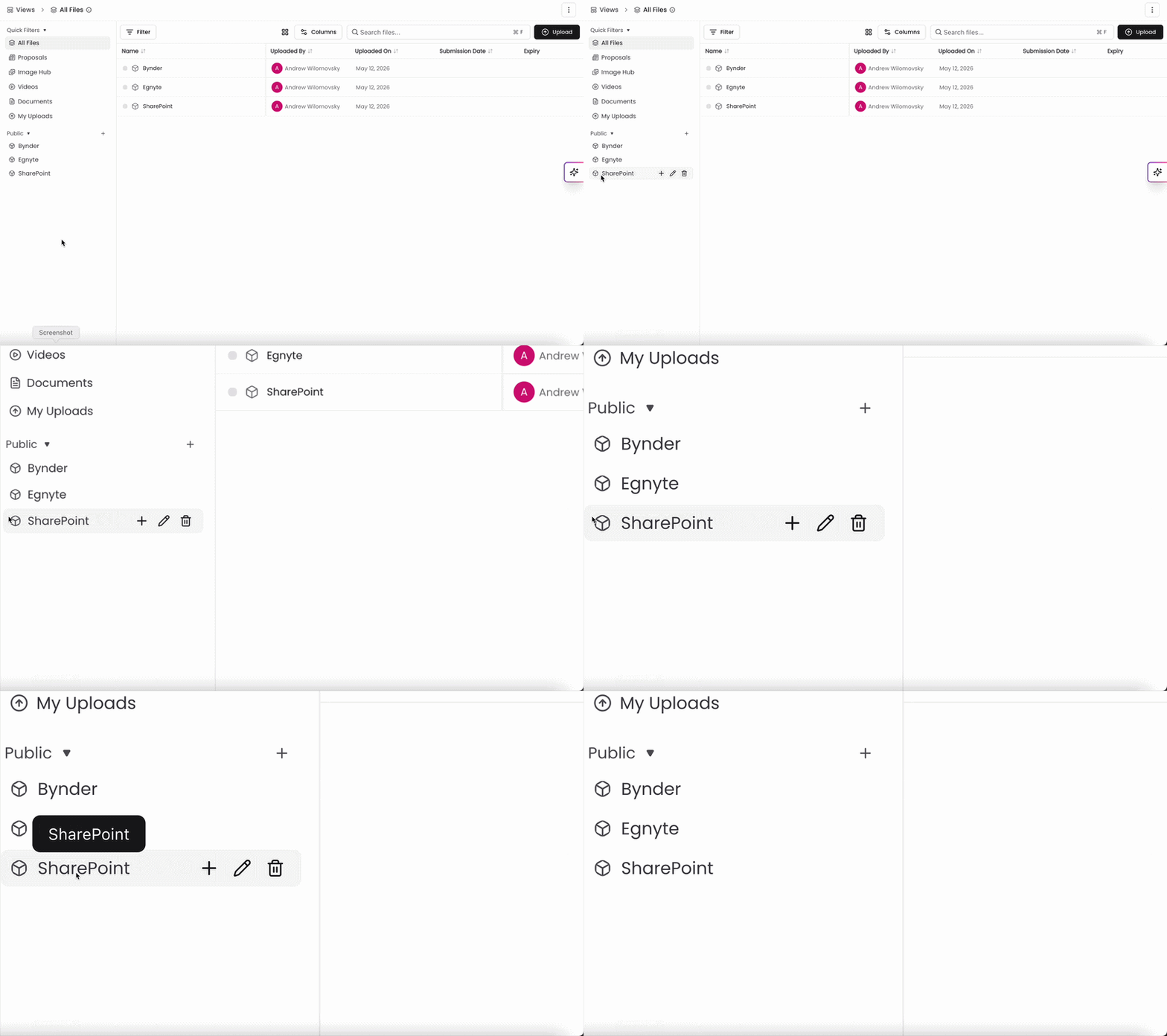
Kantiv’s File integration automatically syncs files and folders from your organization’s file environments into Kantiv, allowing users to access approved content without manually uploading or managing files in multiple systems.
Once enabled for your organization, synced files appear in a dedicated integration collection named after the integration we connected within your Kantiv file library, allowing anyone on your team to access content without manually uploading files.
Accessing File Integration Content
The File Integration collection mirrors the folder structure configured by your organization. For example, if your File System contains:
Projects > 2024 > Contracts
You’ll see the same structure inside Kantiv, just under a new collection with the name of your integration
(Integration Name) > Projects > 2024 > Contracts
Working with Synced Files
Viewing Files
All users in Kantiv can browse, search, and use synced files throughout the platform, just like other files in the library.
Uploading New Files
An integrated file collection is read-only inside Kantiv. The collection reflects content managed in your file system and should not be used for direct file management.
To add or update synced files:
Upload or edit the file in your File System, NOT Kantiv.
Wait for the next scheduled sync.
The updated file will appear automatically in Kantiv.
If a file needs to stay synchronized between your Integration and Kantiv, always manage it in your File System first.
Sync Behavior & File Handling
Kantiv automatically syncs new, updated, and deleted files. Depending on your organization's configuration, updates may take several hours to appear.
Duplicate File Handling - The integration tracks file identity across syncs. Conflicts with non-integration files of the same name are still synced rather than silently overwritten (they just don't get extracted, avoiding duplicate data!).
File Updates - If a file is updated in your integration file system, it's updated in Kantiv at the next sync, not duplicated.
Deletion Handling - Files deleted in your integration file system are removed from Kantiv on the next sync. No manual cleanup required.
File & Folder Sync - Mirrors your integration file system folder/file hierarchy into a "Integration Name" collection visible to all users in your Kantiv account.
Supported File Types
Kantiv supports syncing the following file formats from file Integrations:
Category | Supported Formats |
|---|---|
Documents | PDF, DOCX, DOC |
Presentations | PPTX, PPT |
Spreadsheets/Data | XLSX, XLS, CSV |
Images | JPEG, JPG, PNG |
Video | MP4 |
All other file types will be skipped during sync.
FAQ
Can I rename or move synced files in Kantiv?
Changes made inside the Integration collection may be reverted during the next sync to match the structure in your original File Integration.
Why don’t I see any Integration collection?
Your organization may not have the integration enabled yet, or the initial sync may still be processing. Contact your administrator for assistance.
How long does syncing take?
Sync timing depends on your organization’s configured schedule. In some cases, new files may take up to 24 hours to appear.
Can I map folders in from my Integration to Existing Collections?
At the moment, you cannot; all integration files will appear under a collection named after their integration (SharePoint, Egnyte, Bynder), and files will exist in sub-collections!
You can always find more information on Security and Integrations on our Support Center. Please send any questions or feedback to Integrations@Kantiv.com.