SharePoint Integration: Set-up Admin Guide
Last updated: June 3, 2026
Currently, our team at Kantiv manages the configuration and maintenance of your integration directly. To establish a new connection or adjust your existing setup, please reach out to Integrations@kantiv.com. These management tools are part of our roadmap and will be available for self-service in a future release.
The SharePoint integration allows organizations to automatically sync approved SharePoint sites, libraries, and folders directly into Kantiv, giving users centralized access to organizational content while preserving the folder structure configured in SharePoint. This guide outlines the administrative controls available to configure the integration, manage sync behavior, monitor file activity, and troubleshoot synchronization issues within your organization’s Kantiv environment.
Configuration Requirements
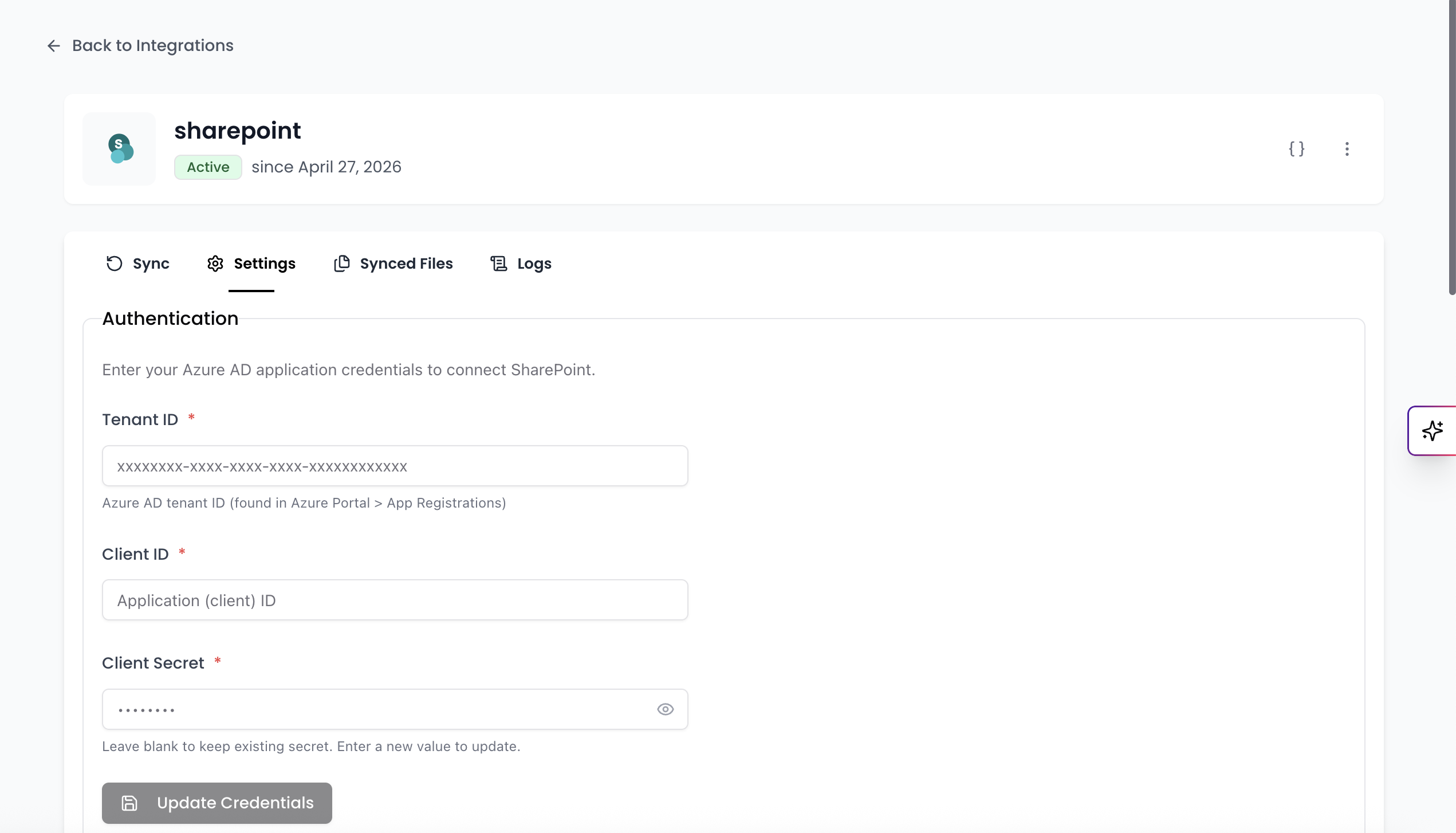
The integration requires an Azure AD app registration with:
Requirement | Details |
|---|---|
Tenant ID | Azure AD tenant GUID |
Client Secret | Generated secret |
Client ID | Azure AD application ID |
API Permissions |
|
Sites.Selected configurations are also supported if required by your organization’s security policies. Just inform the Kantiv Team of the folders and filters you want to use and to which sites!
Sync Scheduling
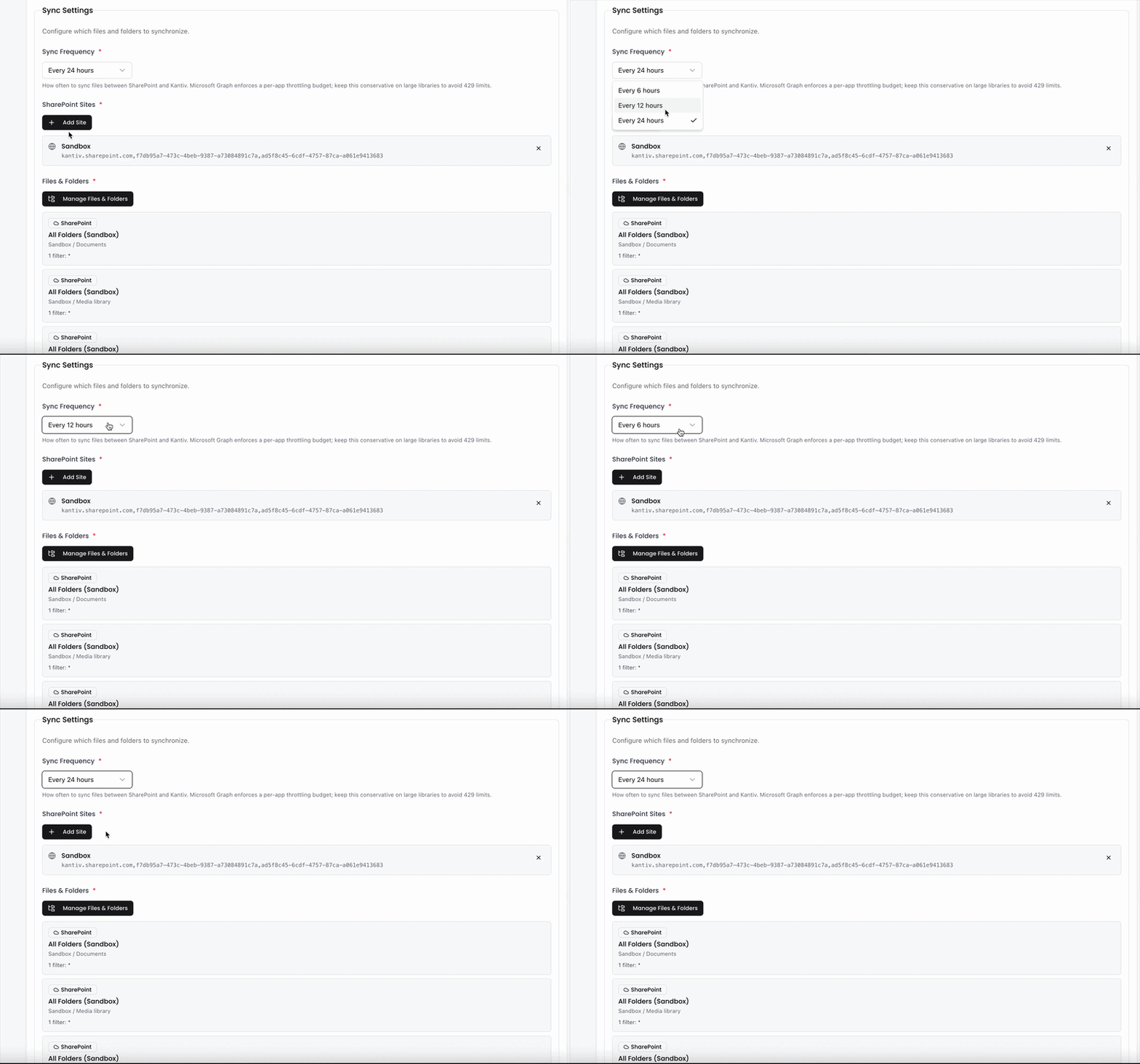
Sync schedules determine how frequently Kantiv checks SharePoint for new, updated, or deleted content.
Sync frequency can be configured to run:
Every 6 hours
Every 12 hours
Every 24 hours
Site & Folder Configuration
Kantiv Team can control which SharePoint content is synced into Kantiv, including:
Site filtering - connect to a specific SharePoint site, not every SharePoint Site under your organization.
Folder filtering - sync only selected folders, not the entire document library. This allows organizations to limit syncing to only relevant content.
File Filtering - sync certain files by file name using exclusion and inclusion rules
Preview Sync
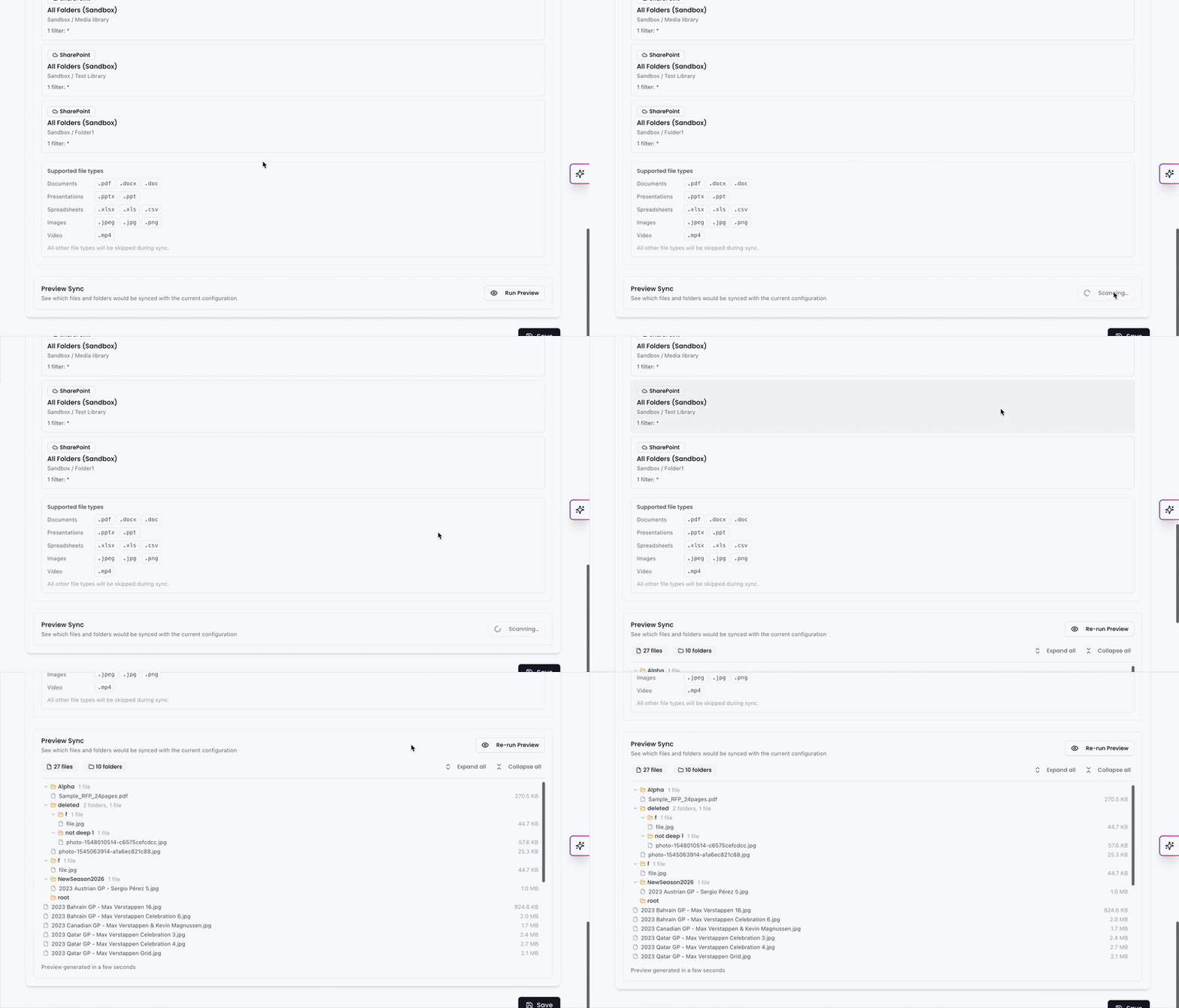
Before enabling a sync connection, admins need to run a preview to validate folder structures and review which files will be imported.
SharePoint Integration Limitations
Current limitations include:
No SharePoint metadata/tag syncing
No two-way sync from Kantiv back to SharePoint
No Controlled Access to Integration Files is Supported
Monitoring & Troubleshooting
Sync Status Monitoring
Admins can review synced files and filter by status, including:
Currently syncing
Deleted
Failed
Logs
Detailed sync logs are available for troubleshooting and support investigations.
Getting Support
Contact Kantiv Support to:
Configure Azure AD credentials
Connect SharePoint to Kantiv
Configure synced sites and folders
Modify sync schedules
Troubleshoot sync issues
The SharePoint integration gives administrators centralized control over how organizational content is synchronized between SharePoint and Kantiv. By managing synced locations, scheduling update intervals, and monitoring integration activity, admins can ensure users always have access to accurate and up-to-date content.
You can always find more information on Security and Integrations on our Support Center. Please send any questions or feedback to Integrations@Kantiv.com.
Currently, our team at Kantiv manages the configuration and maintenance of your integration directly. To establish a new connection or adjust your existing setup, please reach out to Integrations@kantiv.com. These management tools are part of our roadmap and will be available for self-service in a future release..