Submitting a Workspace Pursuit
Last updated: July 15, 2026
As of July 2026, Kantiv has released a new version of Workspaces and Document Analysis. This article covers the new version of Workspaces and articles covering the Legacy version can be found in this collection.
The Submitted stage is the final step in the Pursuit Progress pipeline. It signals that your pursuit is complete — your draft has been reviewed, analyzed, and exported, and you're ready to mark the pursuit as submitted.
Marking a Pursuit as Submitted
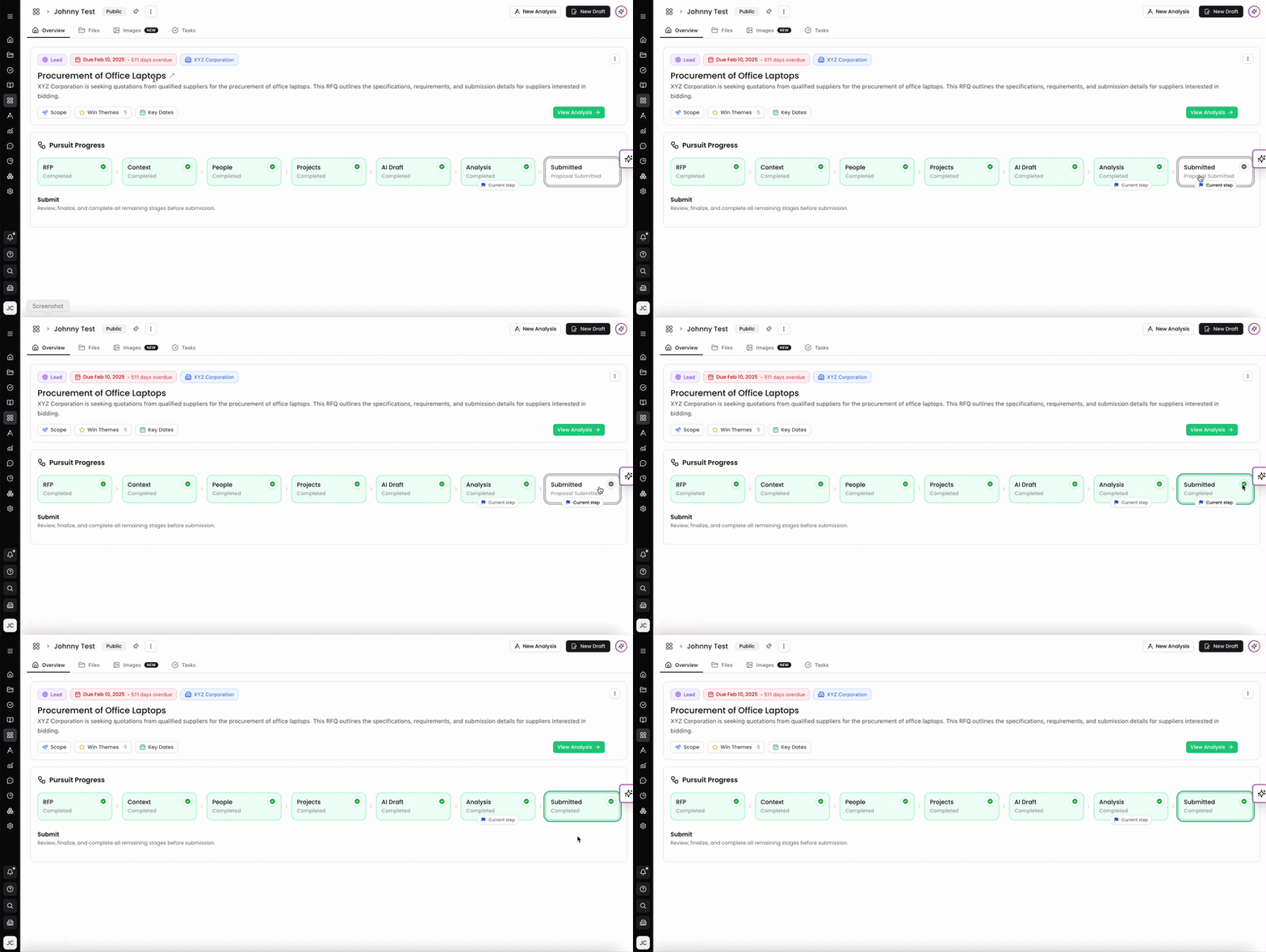
Open your workspace and click Submitted in the Pursuit Progress pipeline.
The Submit section displays the message: Review, finalize, and complete all remaining stages before submission.
Once all prior stages are complete, the Activity tray will show a green 2 tasks complete (or however many tasks your pursuit involved) confirmation.
The Submitted stage is a checklist gate — it confirms that your team has worked through the full pipeline before marking the pursuit done. No additional action is required in the interface once you reach this step.
What to Do Before Marking Submitted
Before moving to the Submitted stage, confirm the following are done:
RFX and any addenda are uploaded in the RFP section
Reference files are added to the Context section
Team members are assigned roles in the People section
Past projects are linked in the Projects section
A Smart Draft has been generated and finalized
Draft analysis and compliance checks have been run and reviewed in the Analysis section
The final draft has been exported as a Word or PDF file
You can always find more information on Workspaces in our Support Center. Please send any questions or feedback to Support@Kantiv.com.