New Workspaces Overview
Last updated: July 15, 2026
As of July 2026, Kantiv has released a new version of Workspaces and Document Analysis. This article covers the new version of Workspaces and articles covering the Legacy version can be found in this collection.
Workspaces are Kantiv's collaborative environment for managing your entire proposal pursuit from start to finish. Each workspace brings together your RFX documents, reference files, team members, past projects, and AI-generated drafts in one place. Your content is organized around a guided pursuit pipeline that takes you from initial upload through to final submission.
What Are Workspaces?
Think of a workspace as the digital equivalent of the proposal folder your team creates every time an RFP lands, but with AI built directly into the workflow. Instead of organizing files in a shared drive and coordinating across email threads and spreadsheets, a workspace centralizes everything: the RFX document, supporting content, team assignments, reference projects, and drafts.
The Pursuit Progress pipeline at the top of each workspace guides you through seven stages:
RFP → Context → People → Projects → AI Draft → Analysis → Submit.
You can create a workspace by uploading an RFX directly from the Dashboard, or by starting fresh from the Workspaces list and attaching files later.
Accessing Workspaces
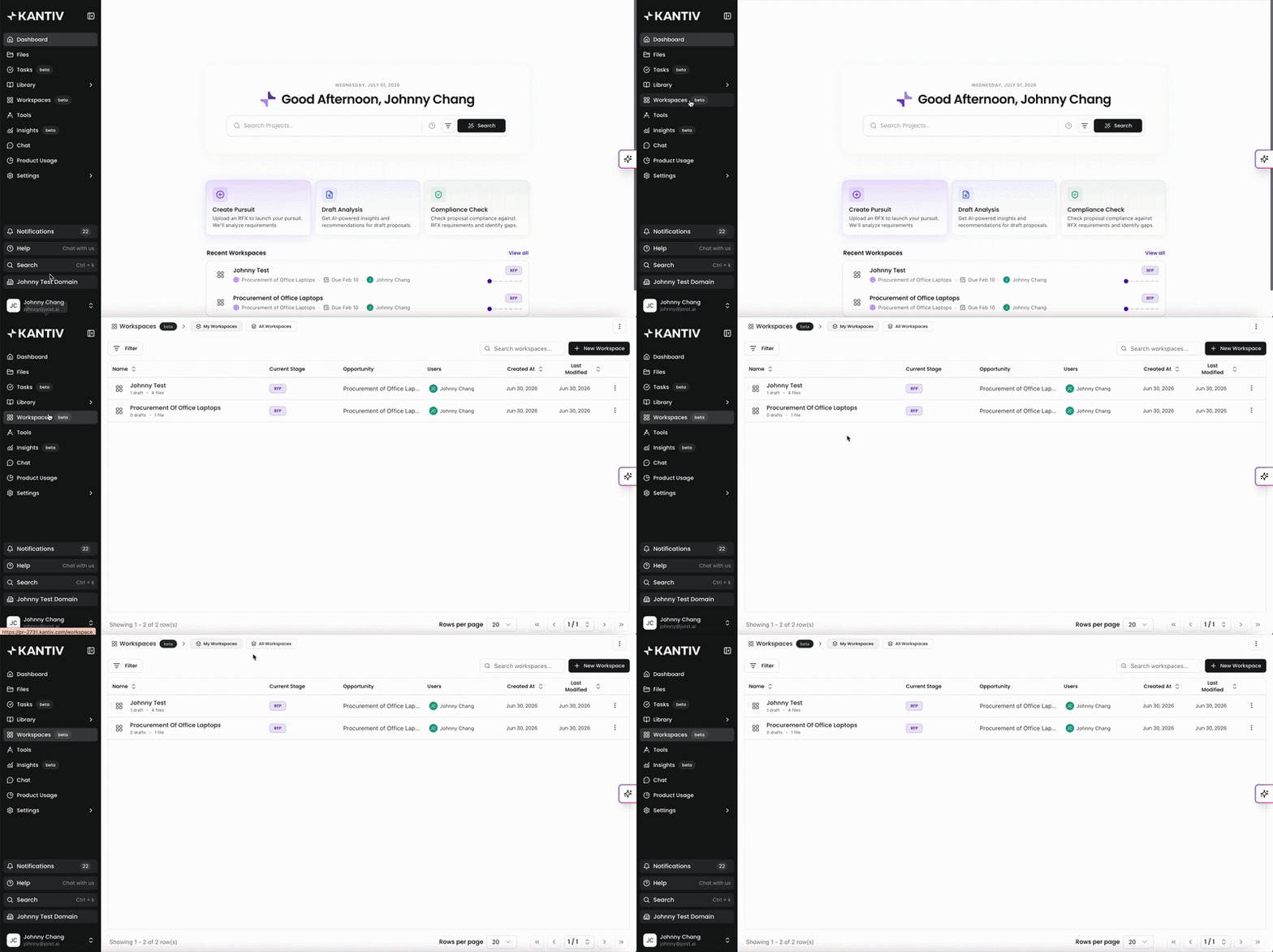
You can access Workspaces from the left navigation menu or by clicking this link.
From here you can create a new workspace, open an existing one, and search or filter your list.
The list displays each workspace's name, current pursuit stage, linked opportunity, team members, creation date, and last modified date.
You can sort by the Name, Created At, and Last Modified tab in ascending or descending order.
Use the My Workspaces and All Workspaces tabs to filter between workspaces you've created and all workspaces you have access to.
Click Filter to filter by additional criteria.
The Pursuit Progress Pipeline
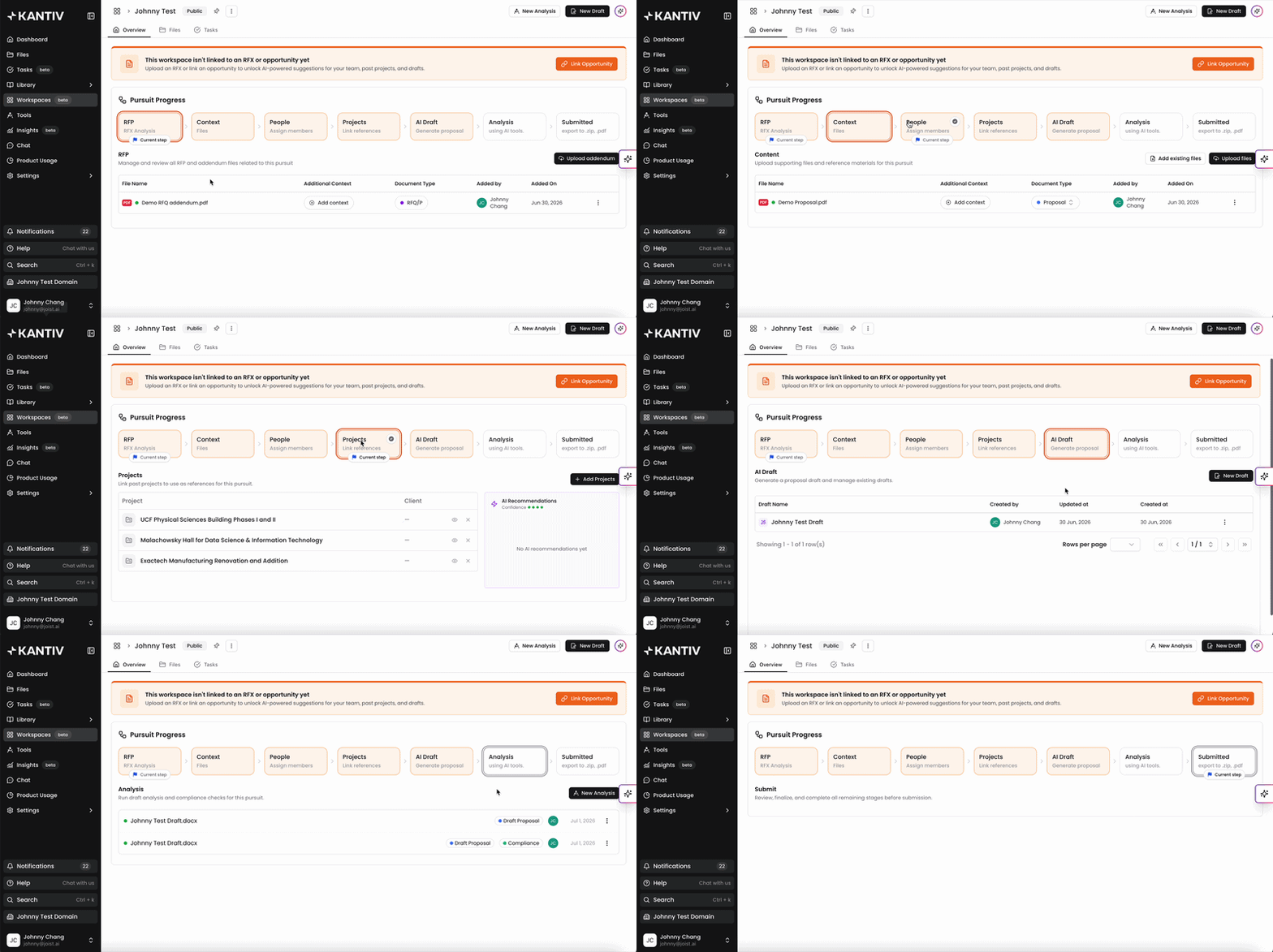
Every workspace includes a Pursuit Progress pipeline with seven stages:
RFP/RFQ: Upload and manage RFX and addendum files
Context: Add supporting reference files
People: Assign team members and roles
Projects: Link past projects as references
AI Draft: Generate your proposal draft
Analysis: Review and analyze with AI tools
Submitted: Mark your pursuit as completed
Your current step is marked with a flag icon. Click any stage to jump to it. You click on the check mark in the bubble to mark a stage as completed. Completed stages appear as green and display a checkmark.
The Activity Tray
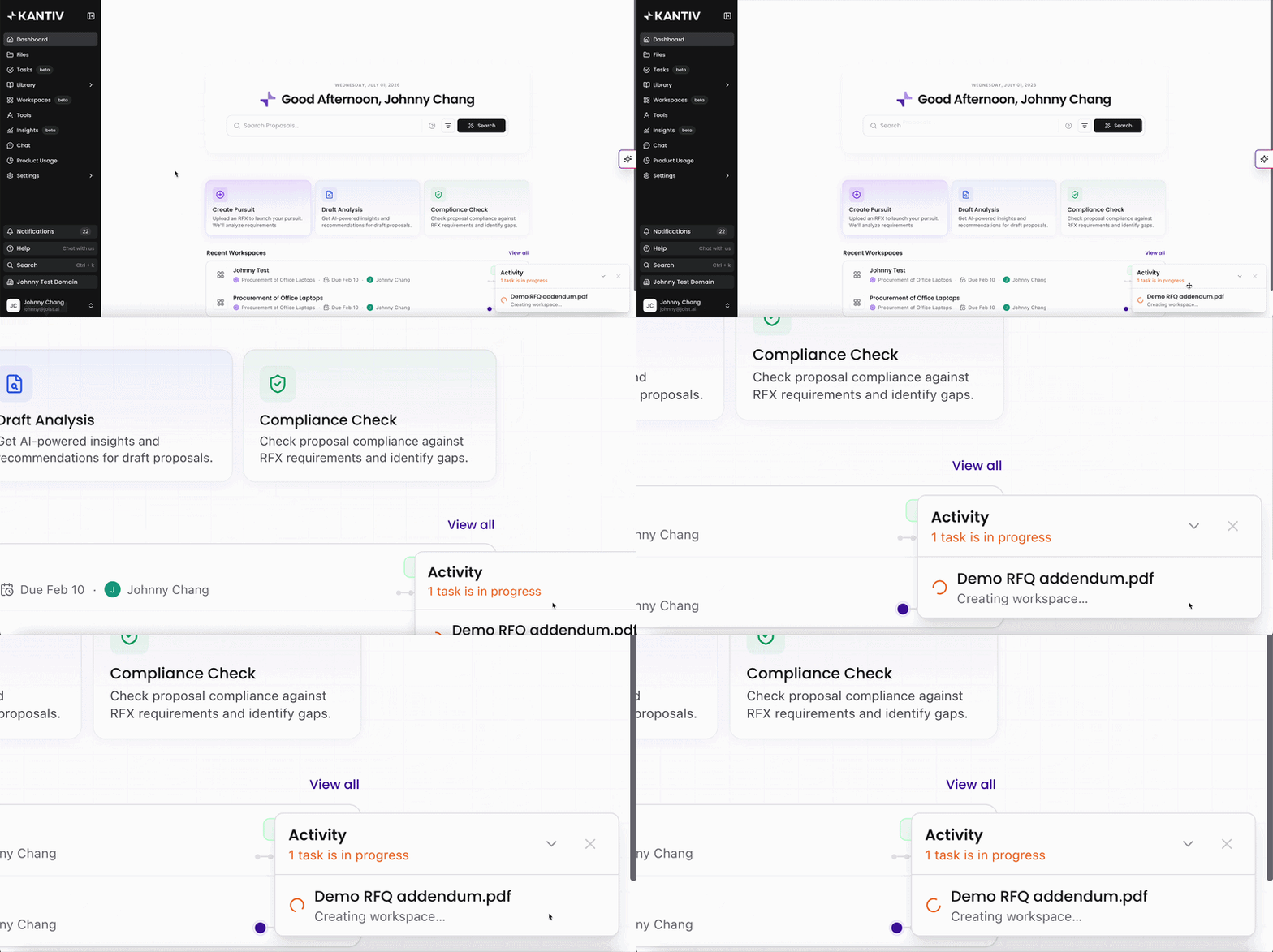
The Activity tray in the bottom right corner of the screen shows the status of the tool runs and workspace creation, and any items that require your review. Click Review next to an item to address it, or dismiss it with the × button.
You can always find more information on Workspaces in our Support Center. Please send any questions or feedback to Support@Kantiv.com.