Invite New Users to your domain
Last updated: June 3, 2026
In addition to SSO login, users can join Kantiv by invitation email. Kantiv makes it simple to invite users to your domain—whether individually or in bulk via CSV—and provide them with access to manage your content and take advantage of all Kantiv has to offer. This article outlines how to invite new users, manage bulk imports, and guide users through accepting their invitations.
Required Settings
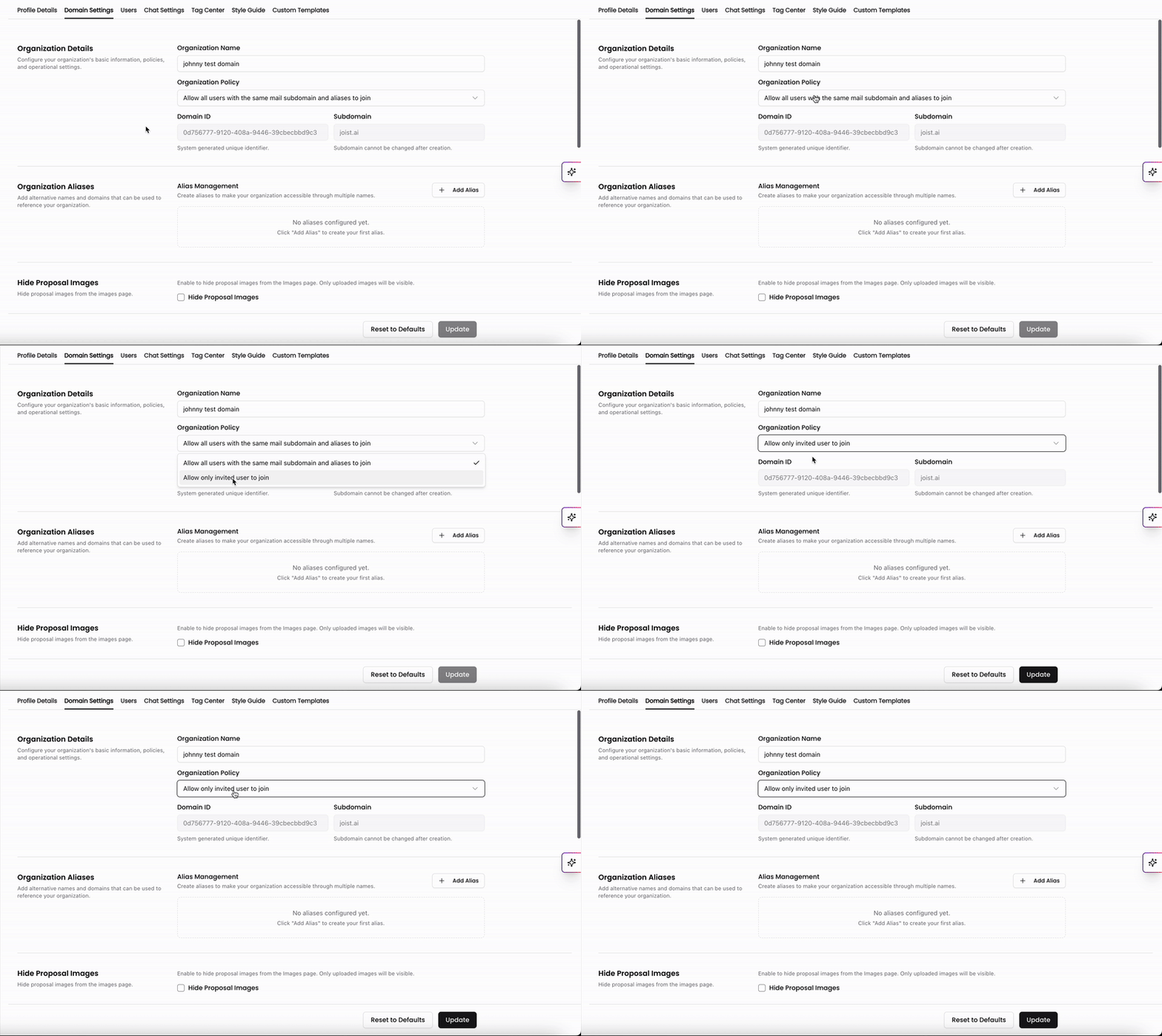
Before inviting users, go to the Domain Settings page and set the organization policy to Allow only invited users to join. This ensures that only approved users—both internal and external—can access your domain.
External Users
Admins can also invite external users, such as partners, clients, or contractors. This enables secure collaboration outside your organization while maintaining full control over access through your invite-only settings.
Inviting New Users
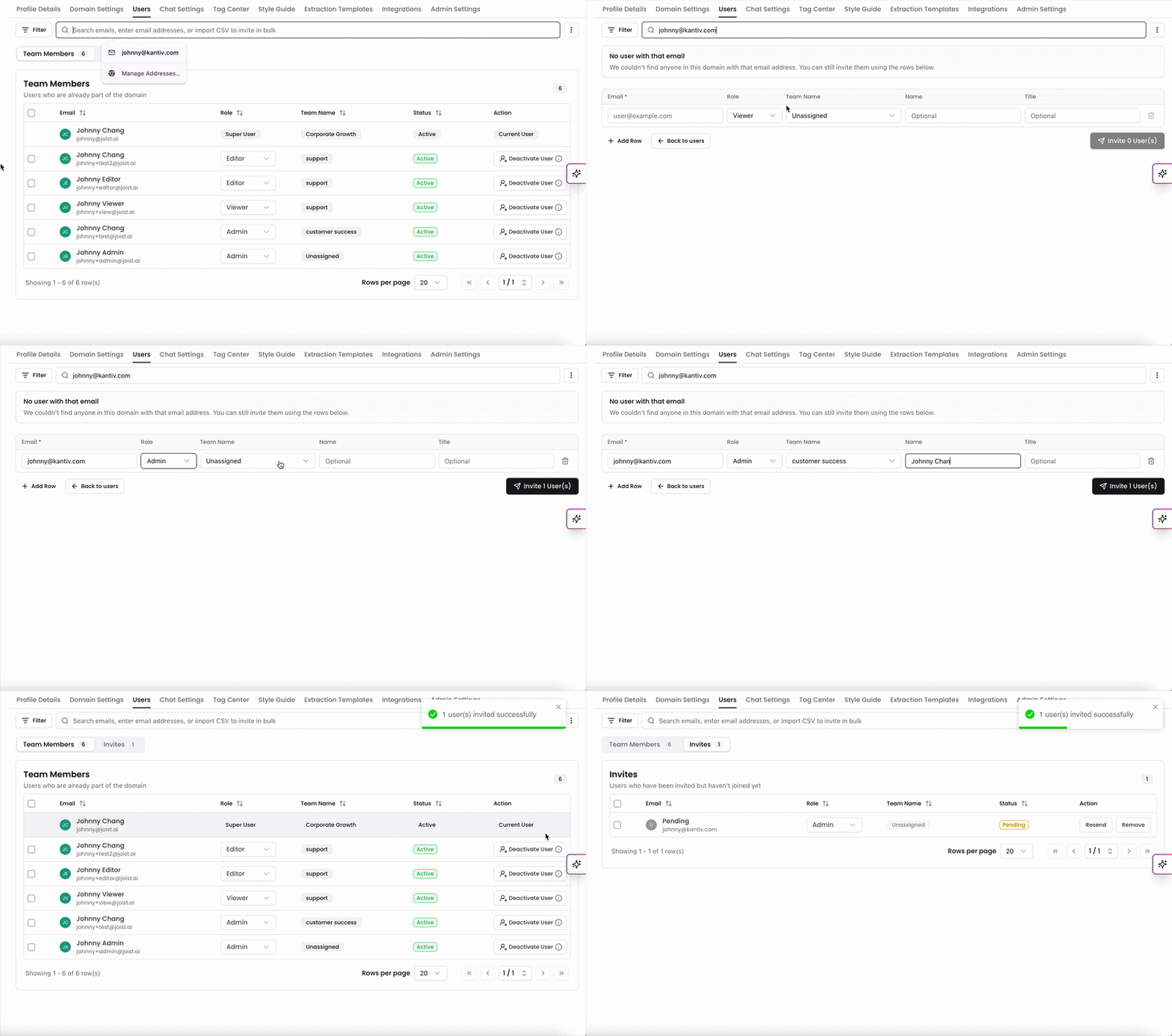
Once your domain settings are configured, you can invite users from the Users page within your settings.
Enter one or more email addresses for the users you’d like to invite.
Press space or enter after each email to add multiple users.
Select the appropriate role for each user.
Click Send Invite to send the invitation email.
You can track invited users in the Invited tab. Users will appear as Pending until they complete the invitation process. You can also adjust roles or remove users from this list if needed.
Bulk User Imports via CSV
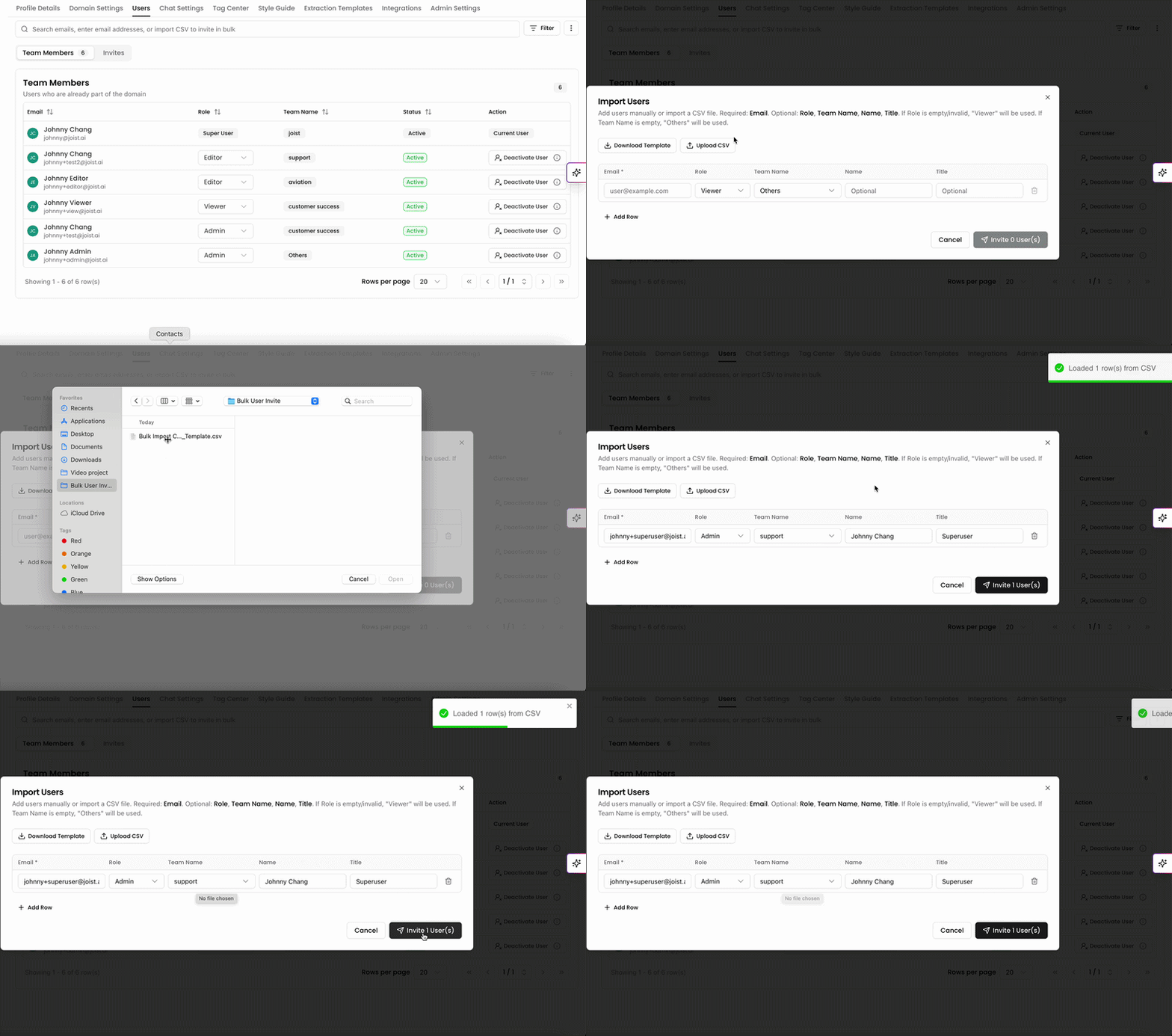
Admins can use the Import CSV option to add multiple users at once, saving time and ensuring consistent setup.
To bulk import users:
Click the three dots in the top right and select Import CSV.
Click Download Template to get a blank CSV file.
Fill out the required fields, including email, role, and team name to ensure users are properly structured upon import.
(Optional) Add Name and Title for additional context.
Click Upload CSV and select your completed file.
Review the populated fields and make any necessary edits.
Click Invite Users to send invitations.
You can download a blank template in the Import CSV window, or by downloading the file below:
You can also export your current user list by selecting Export CSV from the same menu.
Accepting the Invitation
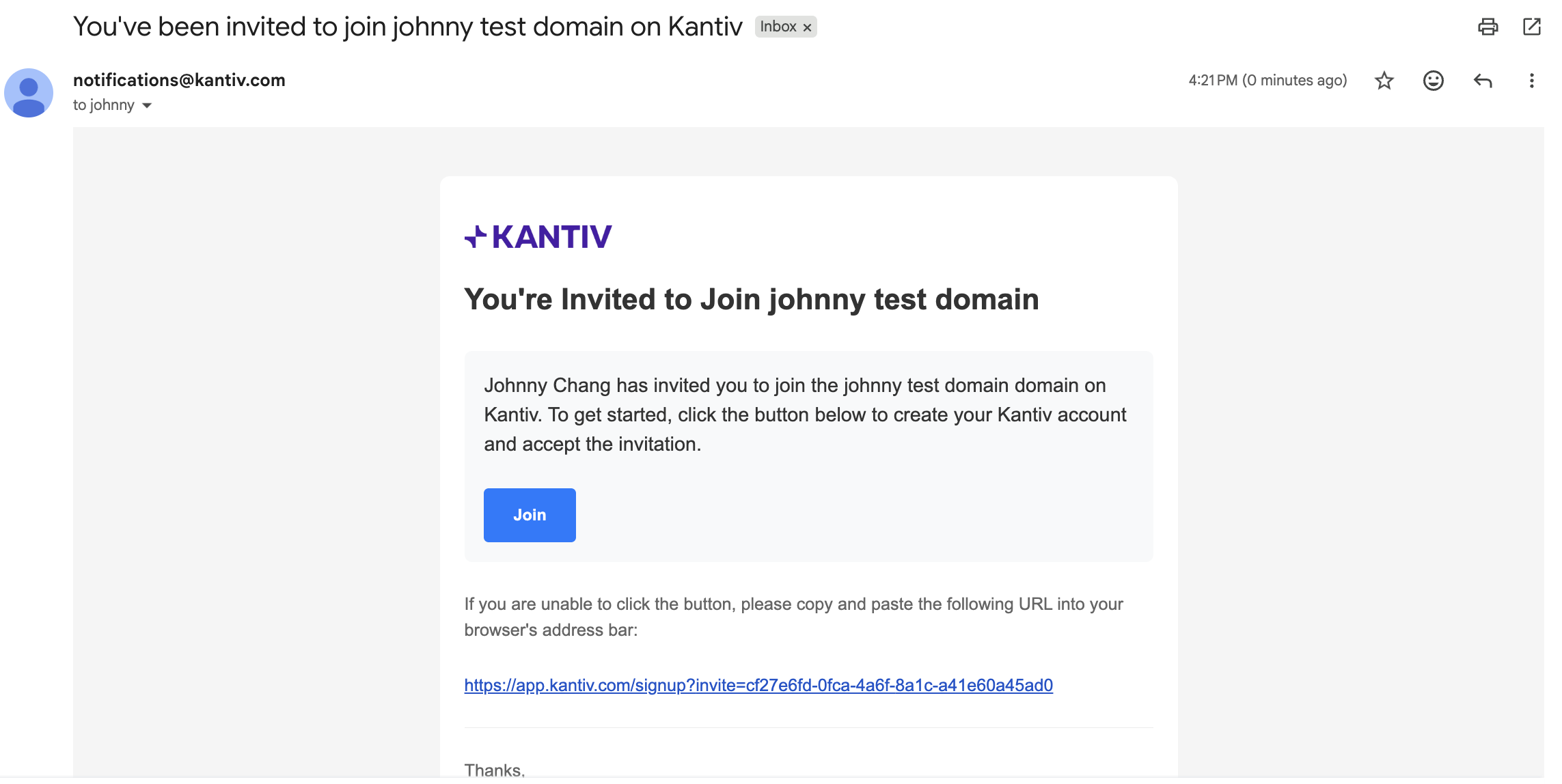
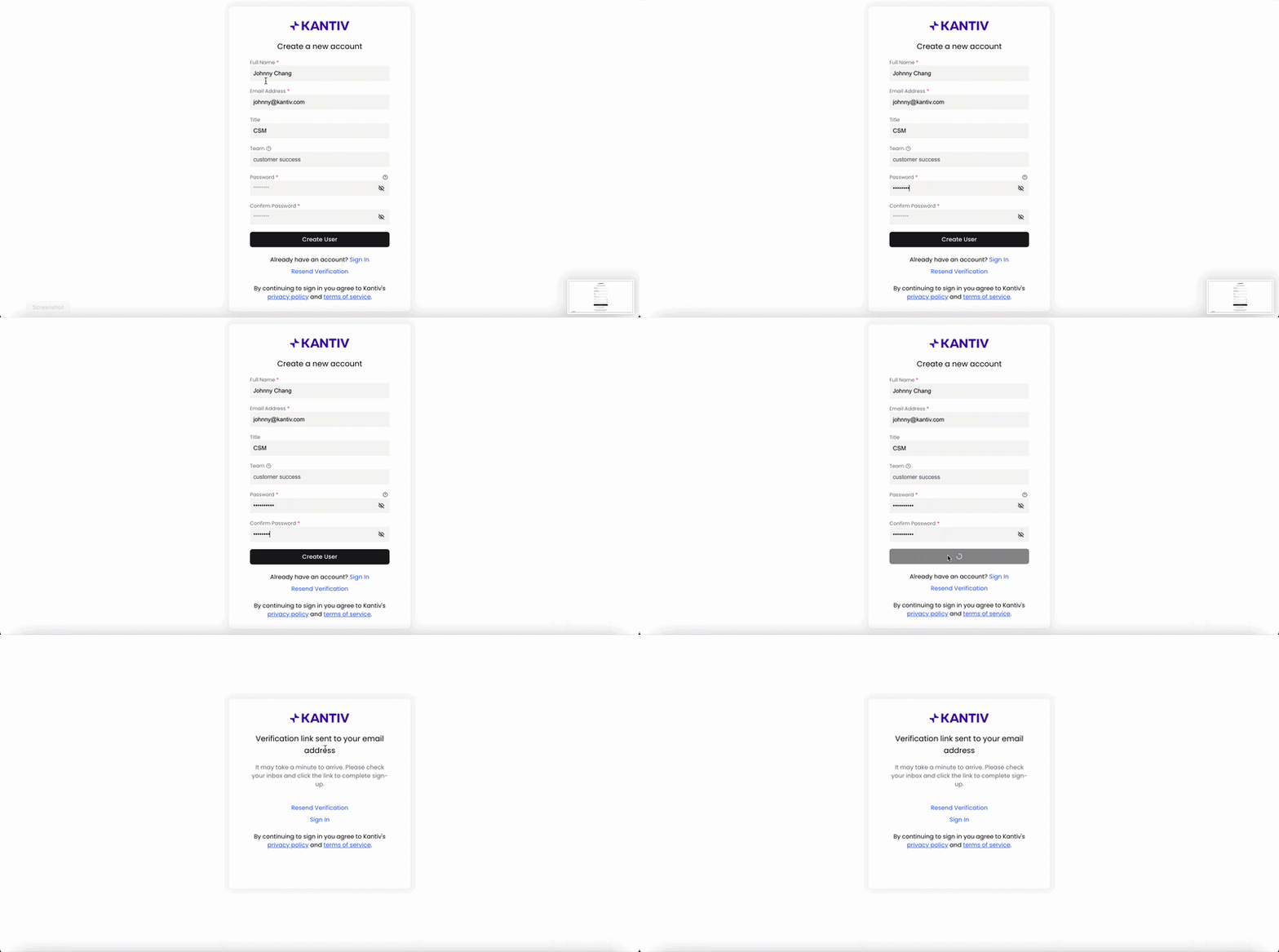
This is an example of what an email invitation will look like in the new user's inbox. Once received, they can click Join to set up their email and password and use that to login.
Important Invitation Email Information
Depending on the email client, the invitation email may land in spam/junk inbox. If the invitation email doesn't show up in your inbox within 4-5 mins, please contact us at support@kantiv.com
The link in the invitation email expires 7 days after it's sent. The invited user must accept the invitation before it expires. If the link does expire, you can remove the user from the list and add them on again to resend the invitation email.
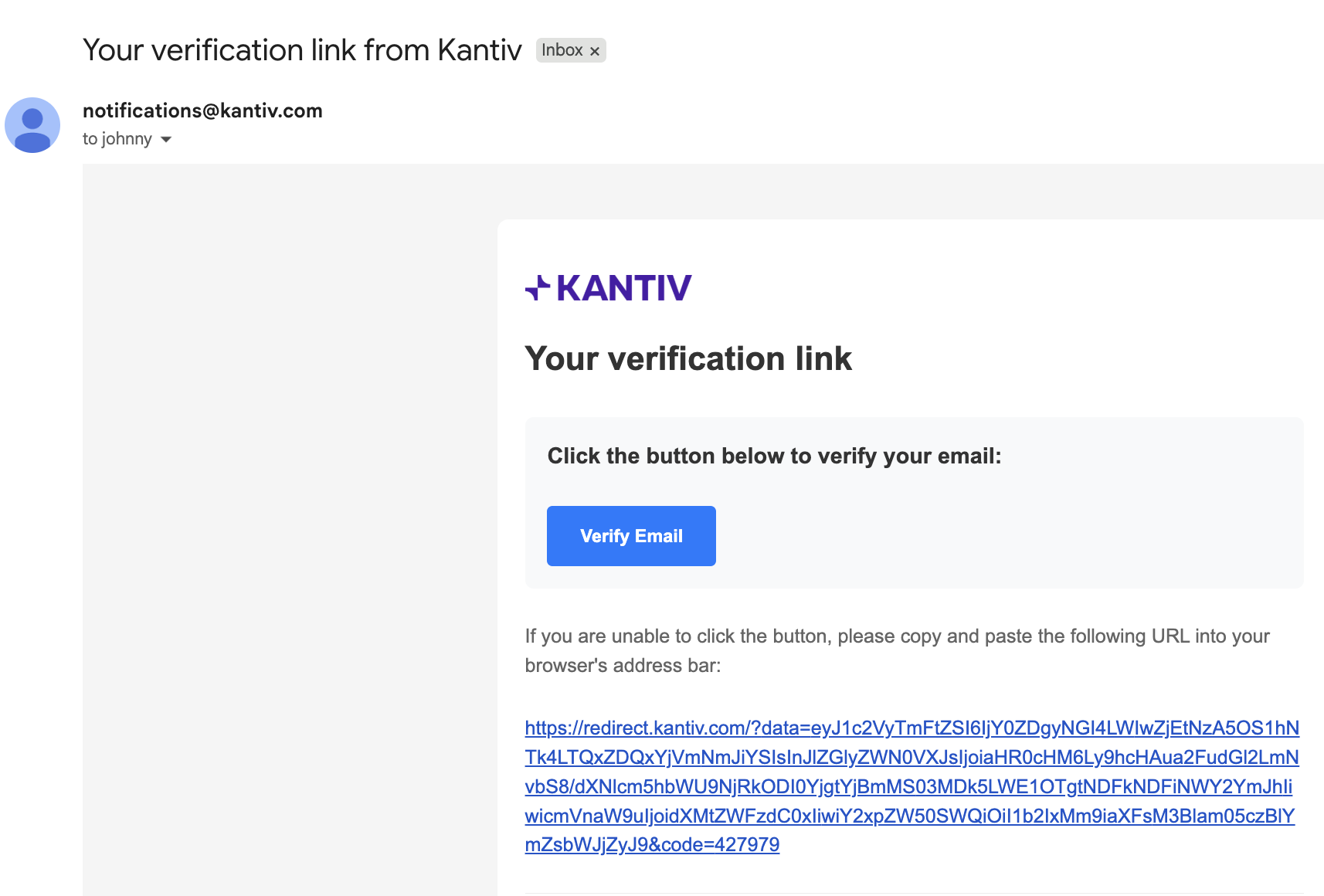
After they enter in their information, they'll receive a follow up email to verify their sign-up. They can click on Verify Email to complete this process.
Joining your Domain
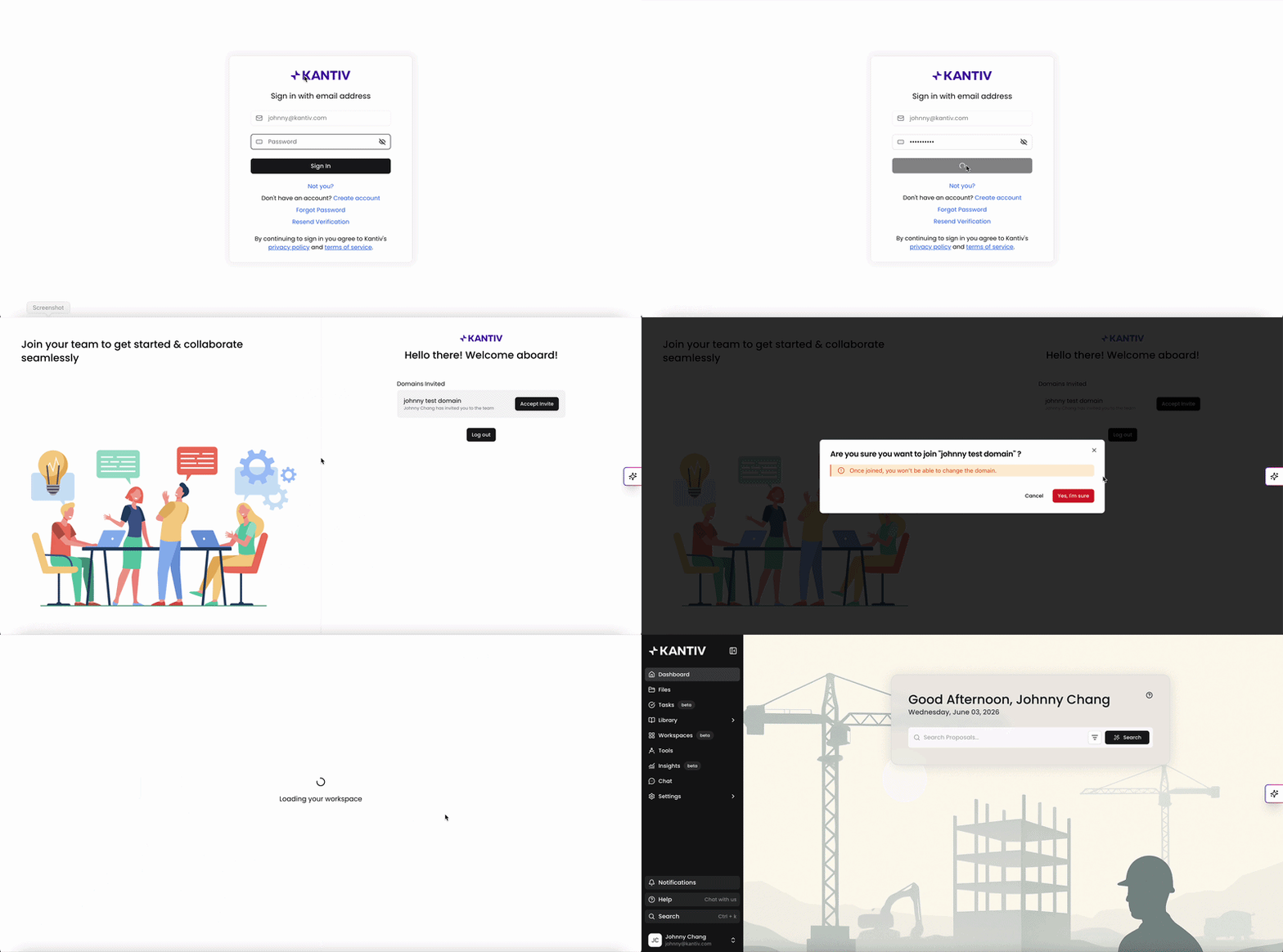
Once the account is verified, users can see a list of domains they can join. In most cases, they'll only see the domain they were invited to. Click Accept Invite to join the domain.
By inviting users individually or through bulk CSV import, you can efficiently scale access to Kantiv while maintaining control over roles and team structure. Ensuring your domain settings are configured correctly and guiding users through the invitation process helps create a smooth onboarding experience. Regularly reviewing invited and active users also helps keep your workspace secure, organized, and up to date as your team evolves.
You can always find more information on Setup and User Management in our Support Center. Please send any questions or feedback to Support@Kantiv.com.