Knowledge Graph: Linked Records in Notes
Last updated: June 11, 2026
Linked Records in Notes lets you connect any note to related People, Projects, Opportunities, and Companies across your Library. When a note is linked to a record, it automatically appears in that record's Notes tab—creating a two-way connection that makes your notes discoverable from every relevant profile.
What are Linked Records in Notes?
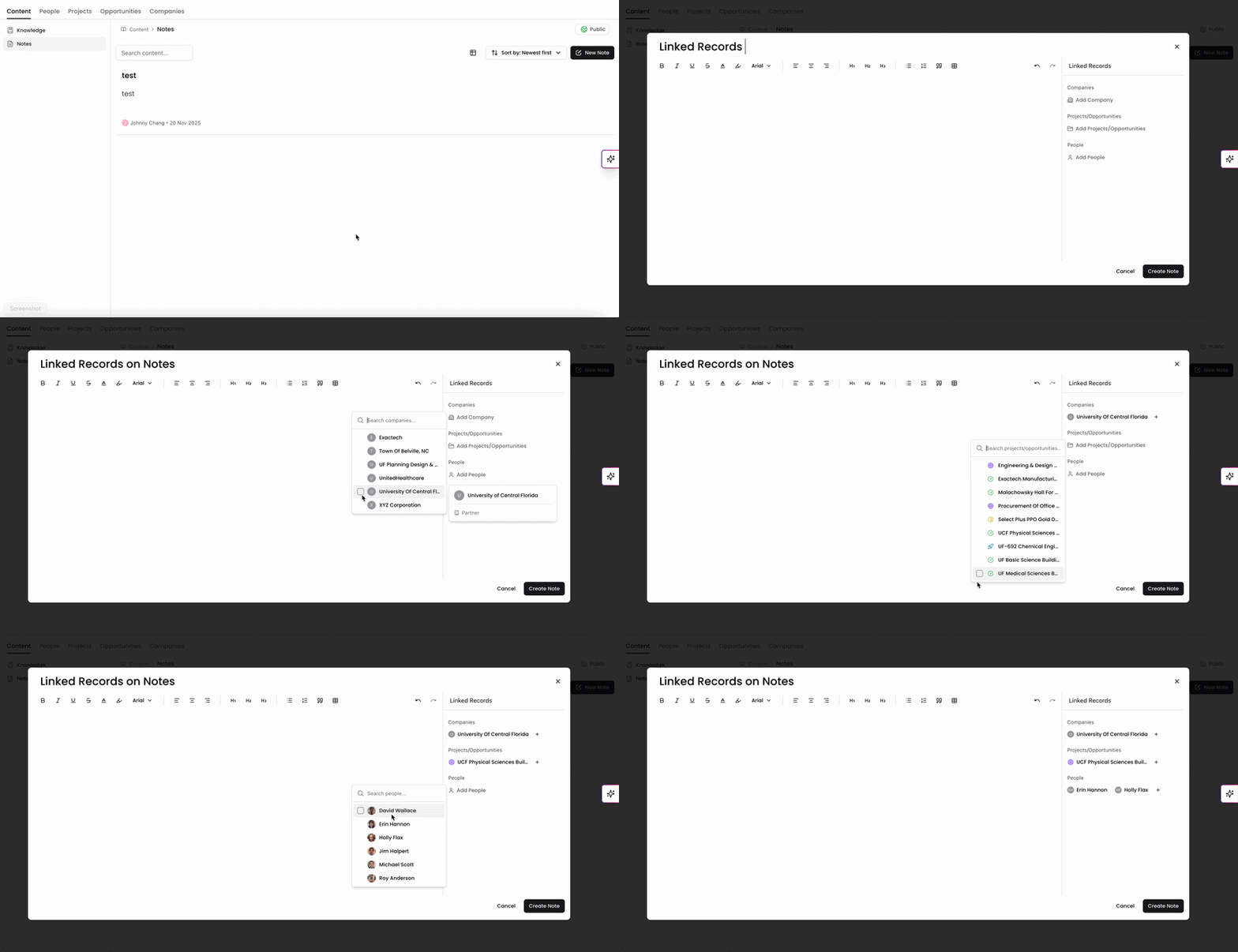
Notes are more useful when they're connected. Instead of adding context in one place and searching for it in another, Linked Records lets you tie a note directly to the People, Projects, Opportunities, or Companies it's about. Any record you link will surface that note in its own profile—so your team can see all relevant notes without leaving the record they're reviewing.
How to Link Records to a Note
There are two ways to link records to a note: through the Linked Records panel, or through @ mentions directly in the note body. Both methods create a connection, but they work differently and have different rules for how they can be removed.
Linked Records Panel
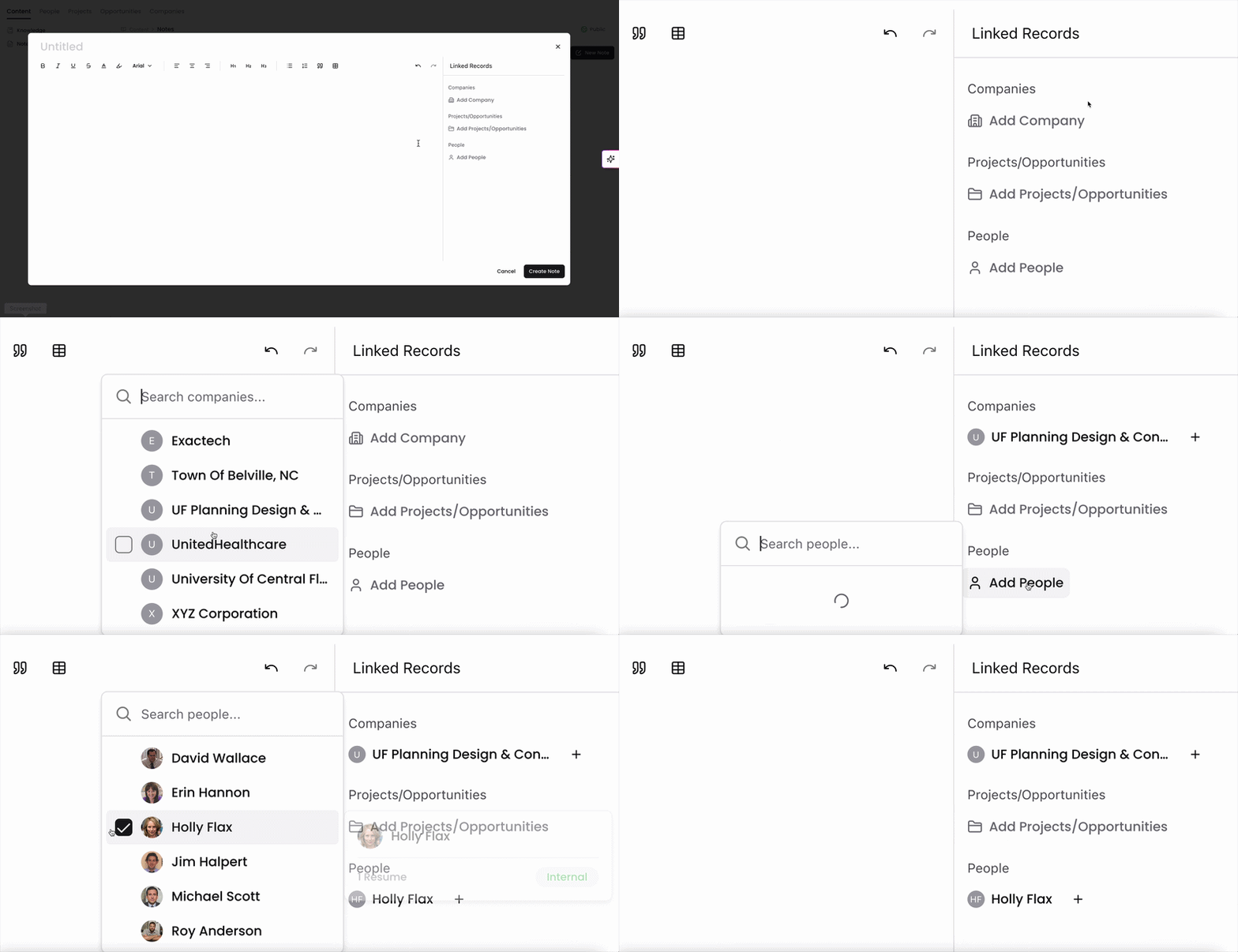
When creating or editing a note, you'll see a Linked Records panel where you can add records directly.
Open a note or create a new one.
In the Linked Records panel, click + Add Record.
Search for and select a Person, Project, Opportunity, or Company.
The record is linked immediately. It will now appear in that record's Library → Notes tab.
To remove a directly linked record, click the remove icon next to the record in the Linked Records panel.
Mentions in the Note Body
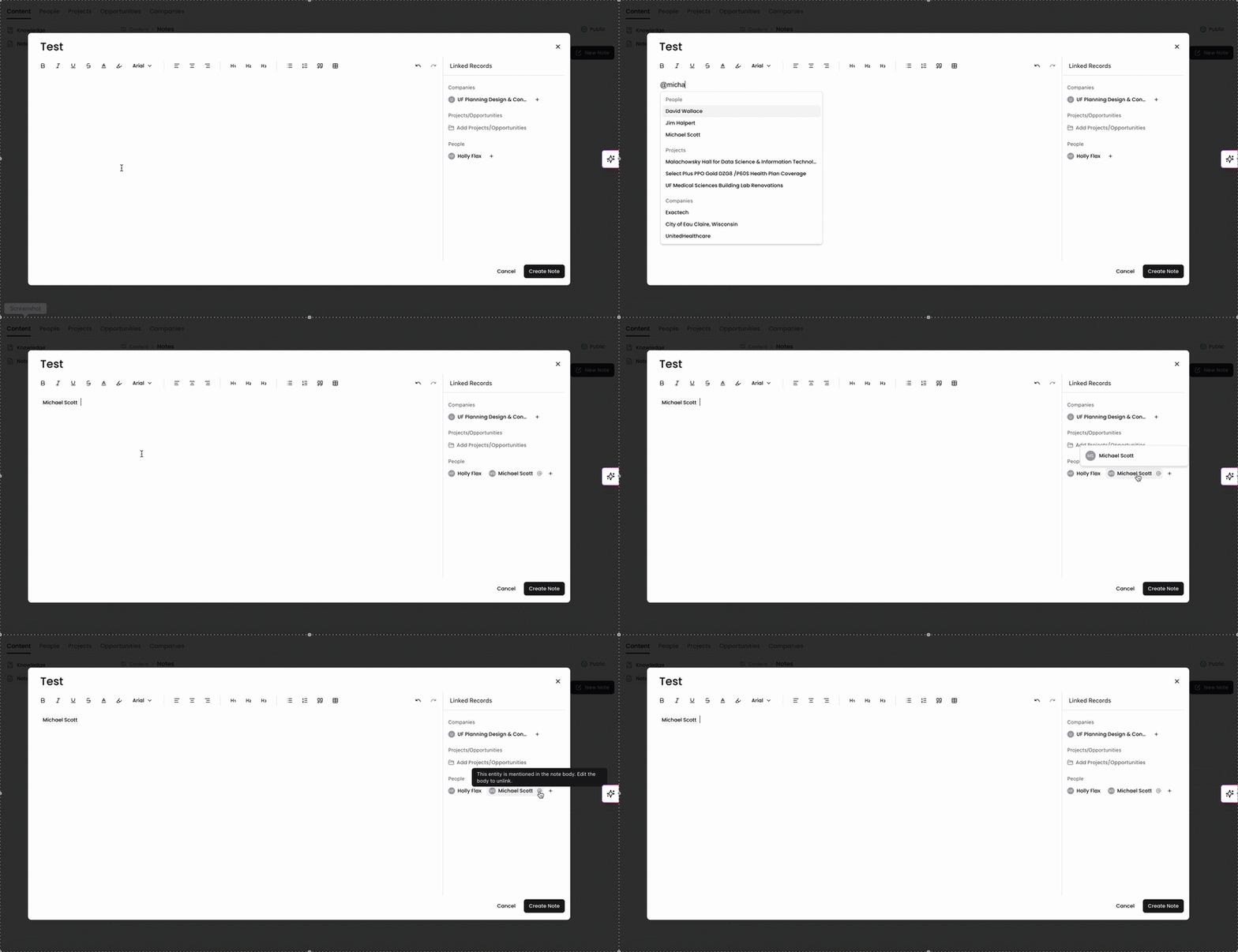
You can also link records by mentioning them directly in the note text.
While writing or editing a note, type @ anywhere in the body.
Select a Person, Project, Opportunity, or Company from the dropdown.
The mentioned entity is automatically added to the Linked Records panel and linked to the note.
Mention-based linked records are marked with an indicator in the Linked Records panel to show they originate from the note body.
Mention-based linked records cannot be removed from the Linked Records panel directly. To unlink a record added via @mention, remove the corresponding @ mention from the note body and save the note.
How Linked Records Work
Once a record is linked to a note—whether through the panel or an @ mention—the connection is two-way:
The linked record appears in the Linked Records panel on the note.
The note appears in the Notes tab on the linked record's profile page.
Linked records are clickable, so you can navigate directly to any associated Person, Project, Opportunity, or Company profile without leaving the note.
Creating Notes from an Entity Profile
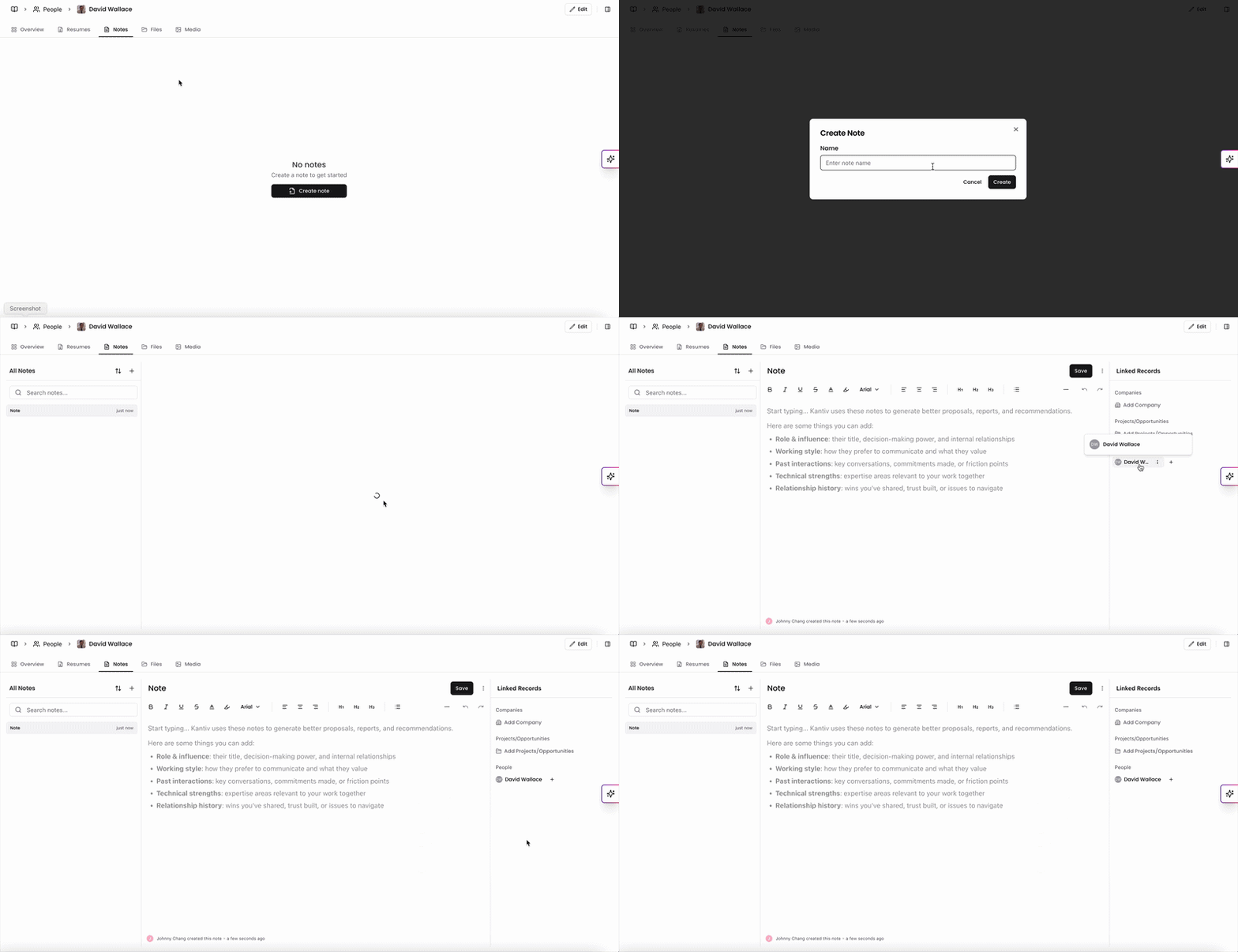
You can create notes directly from the Notes tab within any People, Project, Opportunity, or Company profile.
When you create a note from a record's profile:
The parent record is automatically added as a linked record—no manual linking required.
The connection is established as soon as the note is created.
This is the fastest way to create a note that's already scoped to the right record, especially when taking notes during a pursuit or capturing feedback tied to a specific person or project.
Things to Keep in Mind
A single note can be linked to multiple records across different entity types (e.g., a Person and a Project at the same time).
Removing a linked record from the panel only removes it from that note—it does not affect the record's profile or other notes.
To remove a mention-based linked record, edit the note body and delete the @ mention, then save.
Notes created from an entity profile are pre-linked to that entity but can have additional records linked afterward.
The Linked Records feature turns individual notes into connected context across your Knowledge Graph. Whether you're capturing a meeting summary, logging a decision, or adding background on a pursuit, linking records ensures that information is findable from every profile it belongs to.
You can always find more information on Content Management in our Support Center. Please send any questions or feedback to Support@Kantiv.com.