Knowledge Graph: People
Last updated: June 17, 2026
The People Knowledge Graph is your centralized workspace for managing profile data across your Library. With powerful search and filtering tools, customizable views, bulk actions, and detailed profile pages, you can efficiently organize, update, and review People records in one streamlined interface.
Accessing People
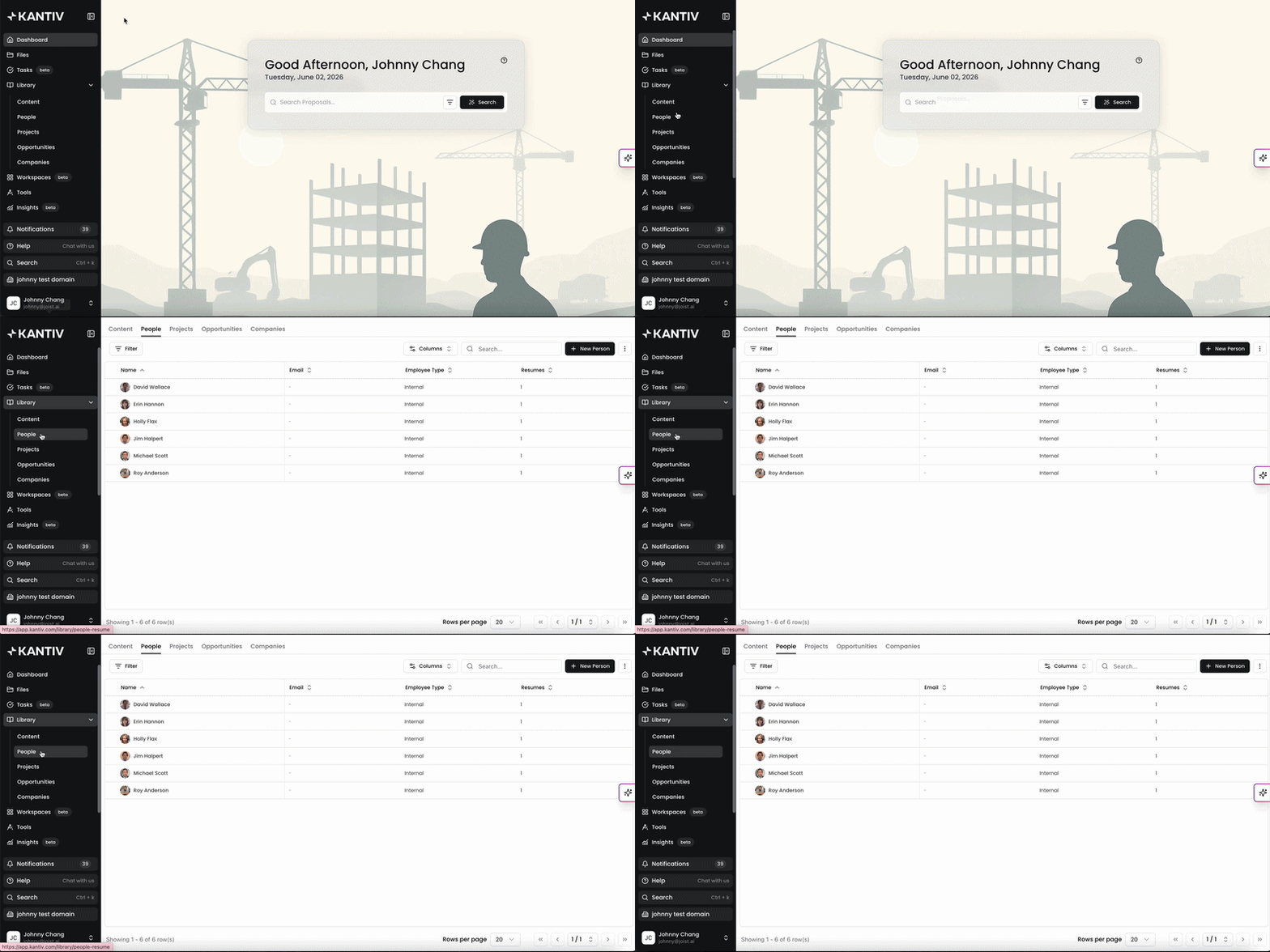
To access People in your Library, click on People under Library in the left-navigation menu. Alternatively, you can go to this link to route directly to People in your Library.
People: Main Page
The People Graph serves as your central hub for viewing, organizing, and managing People profiles. By default, profiles are displayed alphabetically (A–Z). Each row displays the individual’s name and profile image on the left, with associated properties and tags shown to the right.
People Tags
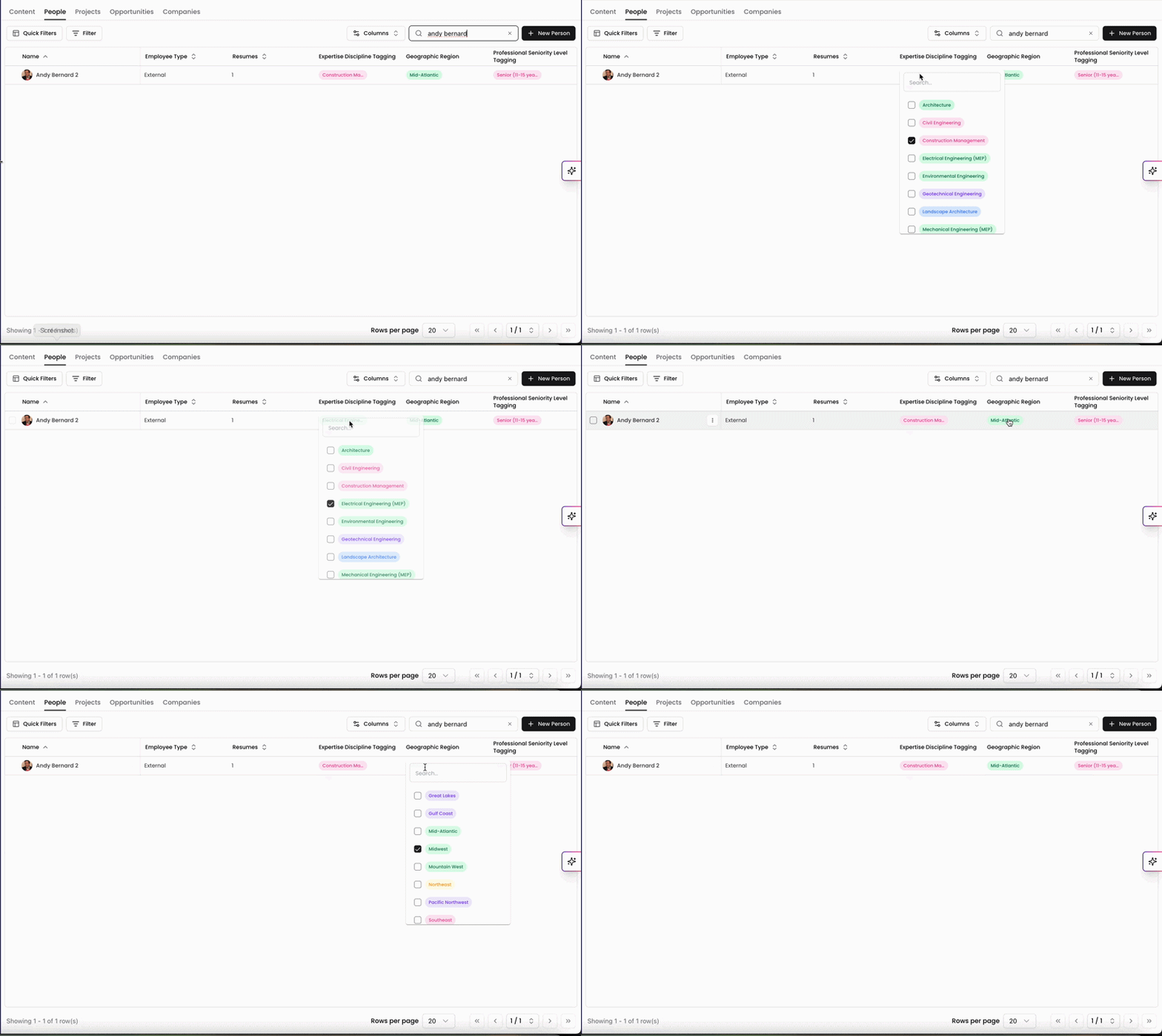
Tags can be applied and updated directly from the Graph without opening individual profiles. Clicking a tag field in the table will display available options within that tag group. Selecting a tag immediately applies it to the profile. This allows you to quickly categorize and organize People at scale.
Search and Filters
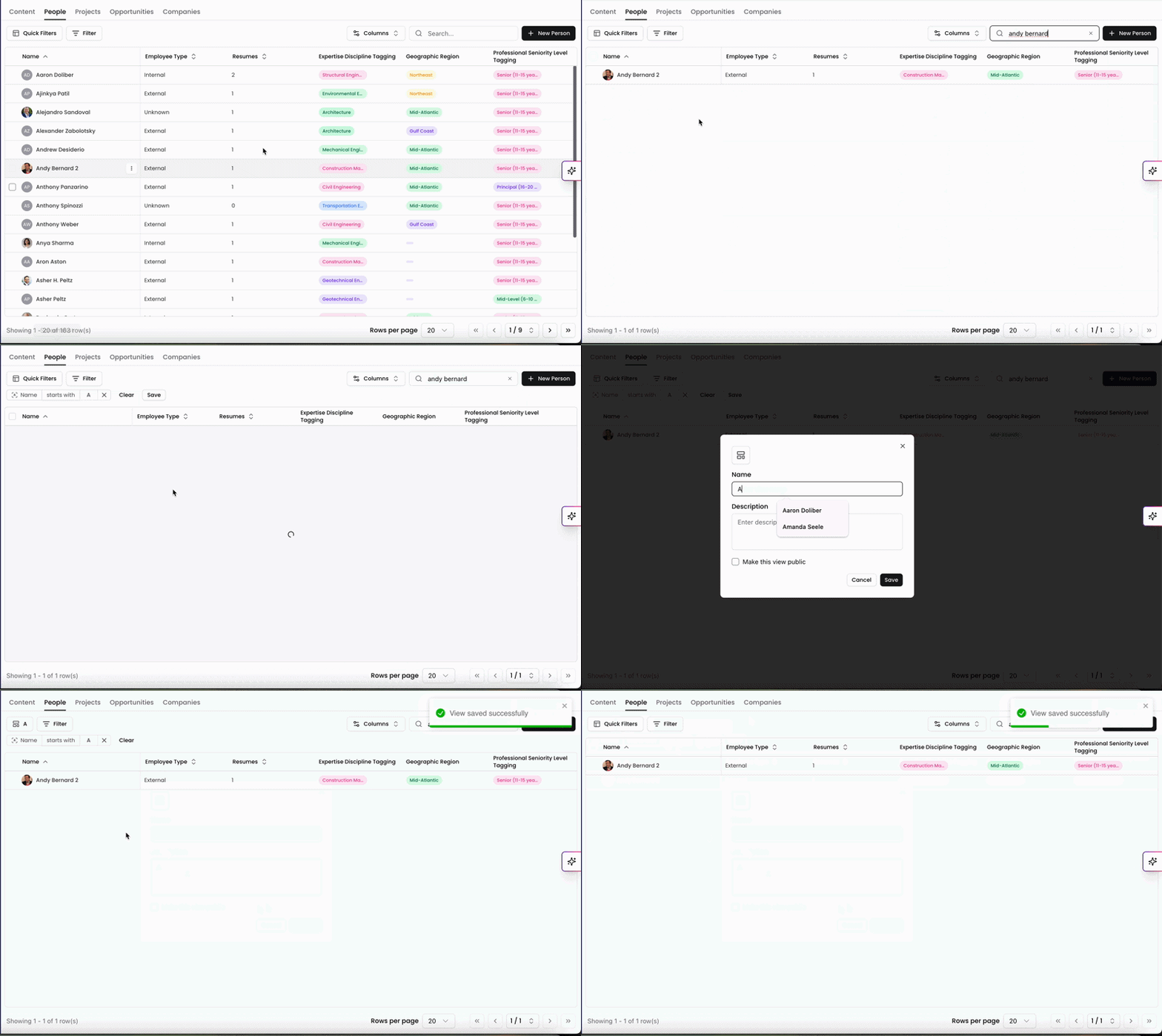
You can use the Search Bar in the top-right corner of any Library page to locate profiles by name. To further refine results, click the Filter icon to apply filters. Available filters are based on the user-generated tags configured for People profiles.
You can use Quick Filters to save and instantly reapply a specific set of filters.
To create a Quick Filter:
Apply your desired filters.
Click Save.
Provide a name and description.
Click Save again.
To use an existing Quick Filter, select it from the Quick Filters menu to automatically apply the saved configuration.
Please note that Quick Filters that are set up in any of the Library pages will only be applicable in Library and not on Chat, Search, or Files.
Customizing Views
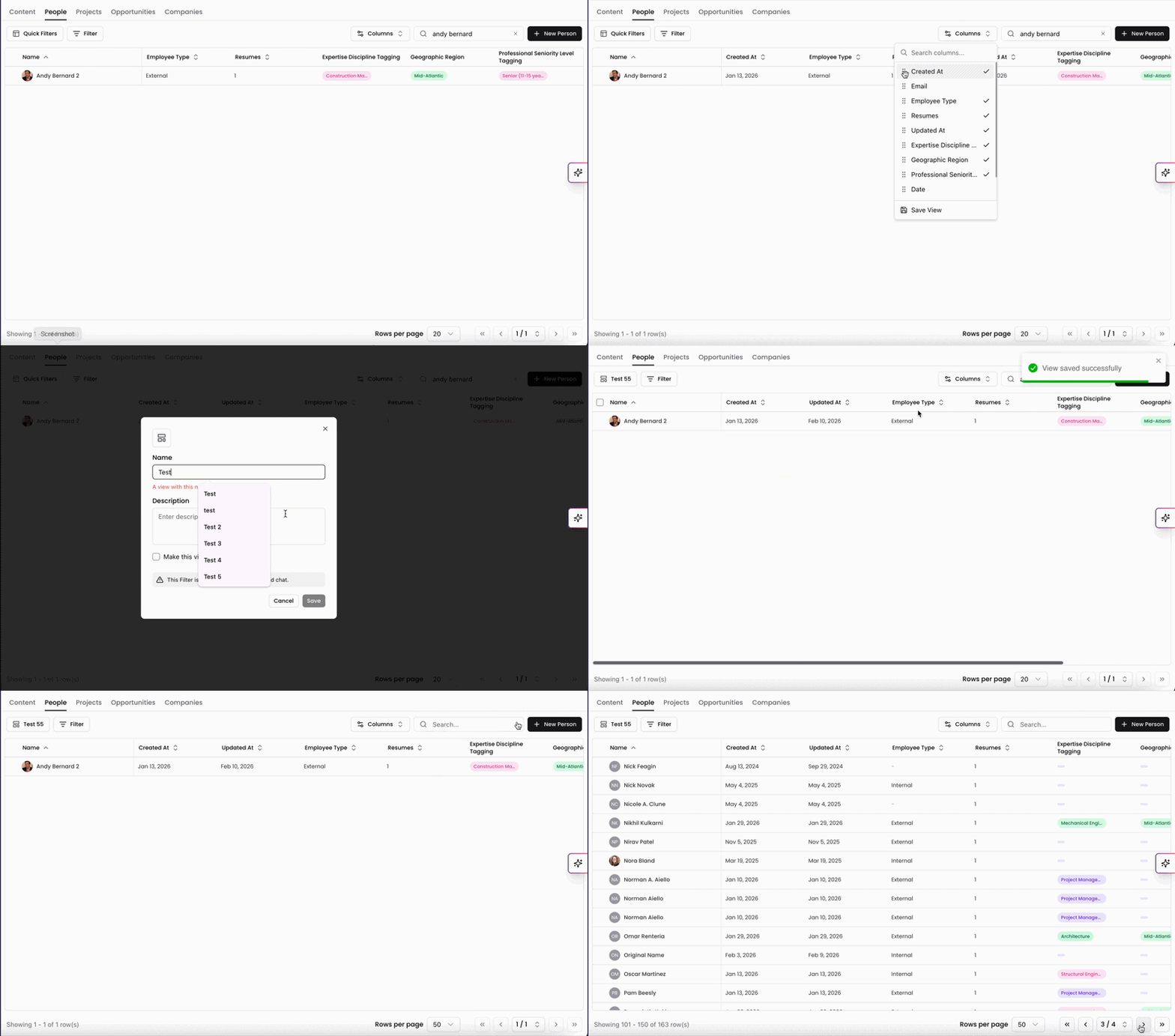
Using the Columns button, you can customize how information is displayed in the Graph.
You can:
Toggle columns on or off
Reorder columns via drag and drop
Sort by any column (ascending or descending)
At the bottom of the table, you can:
Adjust the number of rows displayed
Navigate between pages
This flexibility allows you to tailor the Graph to your workflow.
Actions Menu
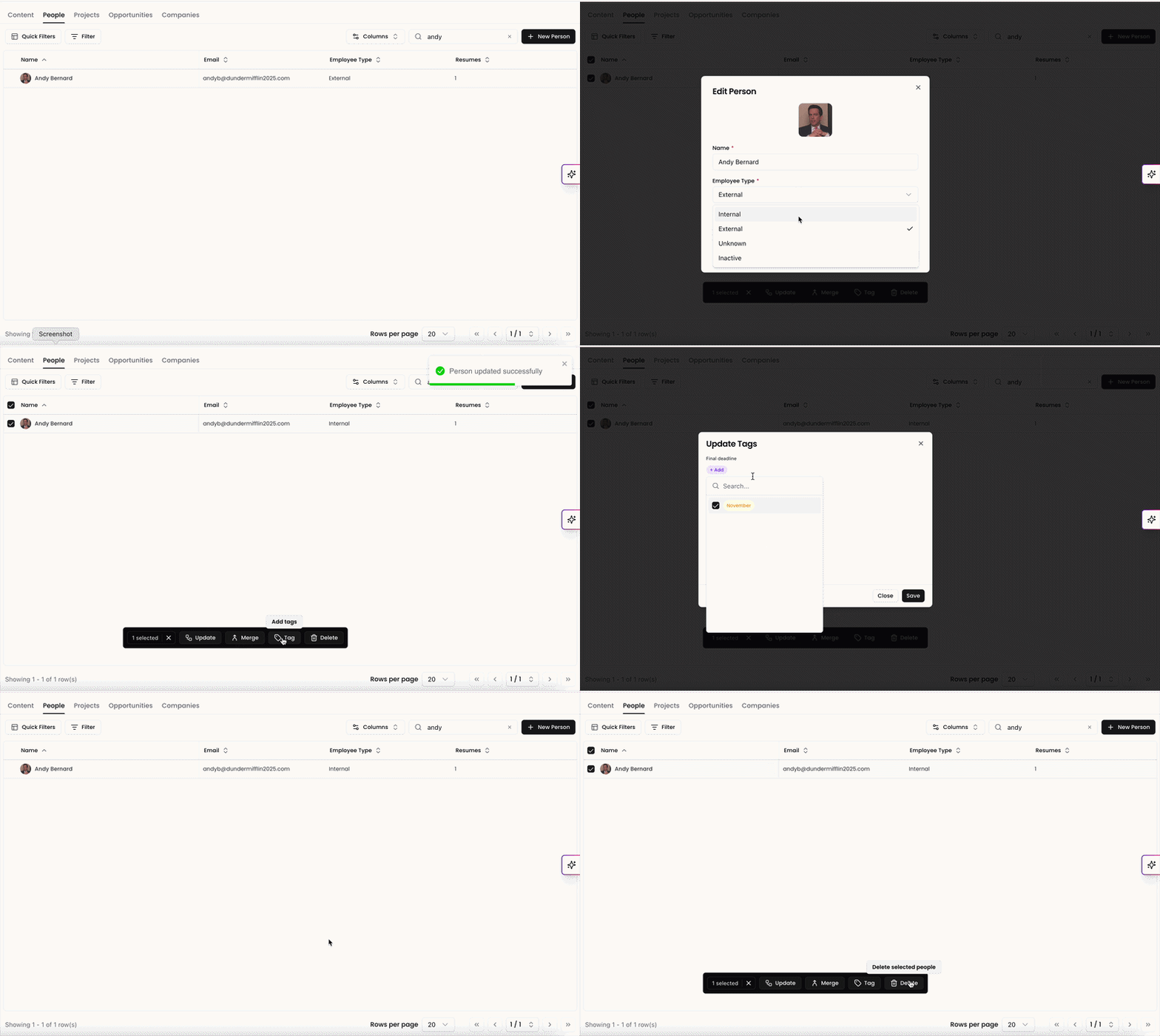
Selecting one or more profiles using the checkbox on the left activates the bulk Actions bar.
From here, you can:
Update properties
Merge profiles (when multiple are selected)
Update tags
Delete profiles
People profiles are automatically generated when files are uploaded. To manually create a profile, click + New Person in the top-right corner.
People Profile Page
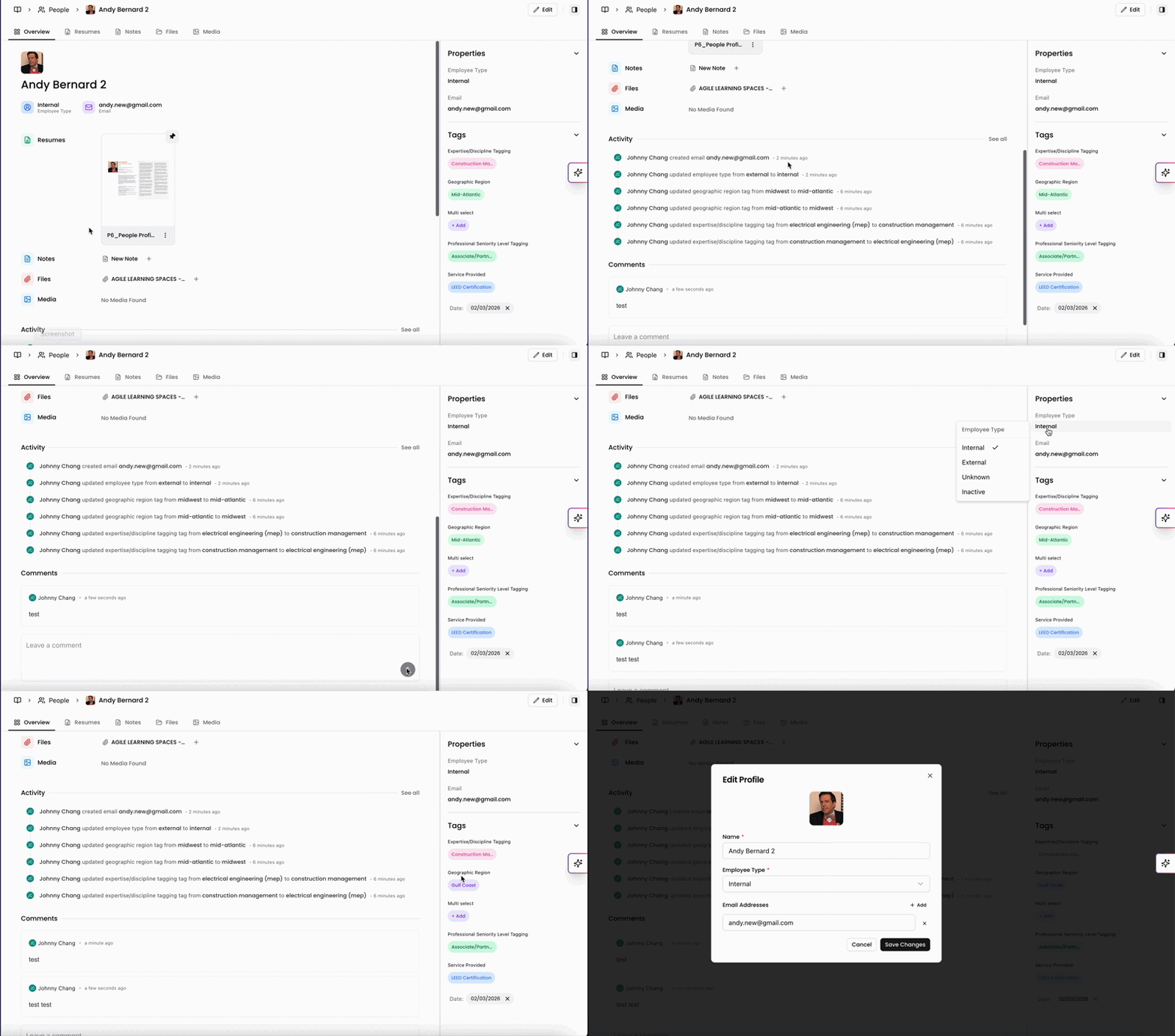
Clicking into a profile opens its detailed view.
The Overview page provides a snapshot of key information, including activity history and edit tracking (who made changes and when), along with any comments associated with the profile.
On the right-hand panel, you can:
View and toggle properties
Edit the associated email
Update tags
Click Edit in the top-right corner to modify properties, change the email, or update the profile picture.
Resumes, Notes, Files, and Media
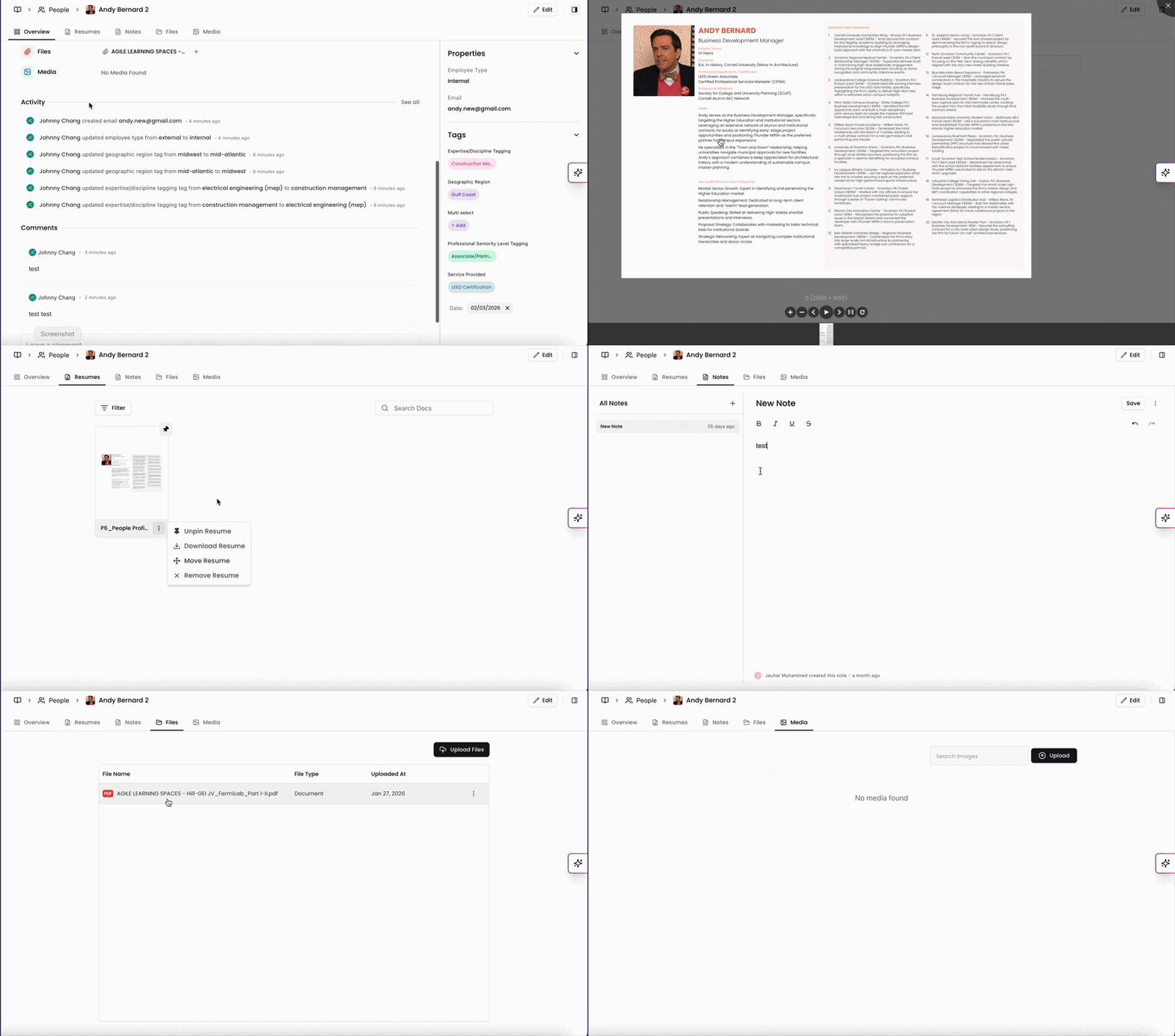
You can toggle between tabs at the top of the page to view Resumes, Notes, Files, and Media.
Resumes: All resumes associated with this profile will be available to view. You can pin, download, and remove a resume in the profile, or move the resume to another profile if it's linked incorrectly.
Notes: Add internal notes for future reference. Notes added here also appear in the main Notes section within the Content page.
Files: All non-resume files associated with the profile appear in this tab. You can upload files directly to the profile, and they will also populate in the Files section of the main menu.
Media: All images and assets associated with this profile can be found here.
Pinning tells Kantiv which resume to prioritize. When that person is pulled into a Workspace or proposal, the pinned resume is the one Kantiv uses as the source for generating their bio or résumé content.
Linked Records in Notes: When creating or editing a note, you can now link it to related People, Projects, Opportunities, or Companies. Any entity linked to a note will automatically display that note within its own Library → Notes tab, creating a two-way connection.
There are two ways to link a record to a note:
Linked Records panel: Add records directly from the panel when creating or editing a note. These can be removed from the panel at any time.
@ mentions: Type @ in the note body and select a record from the dropdown. Mention-based linked records are marked with an indicator and cannot be removed from the panel directly. To unlink them, remove the @ mention from the note content and save.
You can also create notes directly from a Person's profile. When you do, the person is automatically added as a linked record.
Linked records are clickable, letting you quickly navigate to the associated profile from within the note.
The People Knowledge Graph provides a flexible and comprehensive system for managing profile data within your Library. With customizable views, powerful filtering tools, bulk actions, and detailed profile pages, you can efficiently organize and maintain accurate People records in one centralized location.
You can always find more information on Content Management in our Support Center. Please send any questions or feedback to Support@Kantiv.com.