Building the Prompt Library
Last updated: July 16, 2026
The Prompt Library helps you work faster and more consistently by giving you a single place to manage the prompts you use most. Whether you’re saving personal prompts, using shared prompts across your organization, or applying pre-built Kantiv prompts, the Prompt Library makes it easy to reuse proven prompts in Chat and standardize AI-powered workflows.
What is a Prompt Library?
The Prompt Library is a centralized place to save, organize, and reuse AI prompts. It helps reduce repetitive prompting and ensures more consistent, high-quality outputs by allowing you to store commonly used prompts, share standardized prompts across your organization, and access pre-built Kantiv prompts.
The Prompt Library includes:
My Prompts: Your personal collection of reusable prompts, organized with tags for easy access.
Shared Prompts: Organization-wide prompts (managed by admins) used to standardize common tasks and workflows.
Kantiv Prompts: Pre-built, ready-to-use prompts created by Kantiv for common use cases.
Accessing Prompt Library
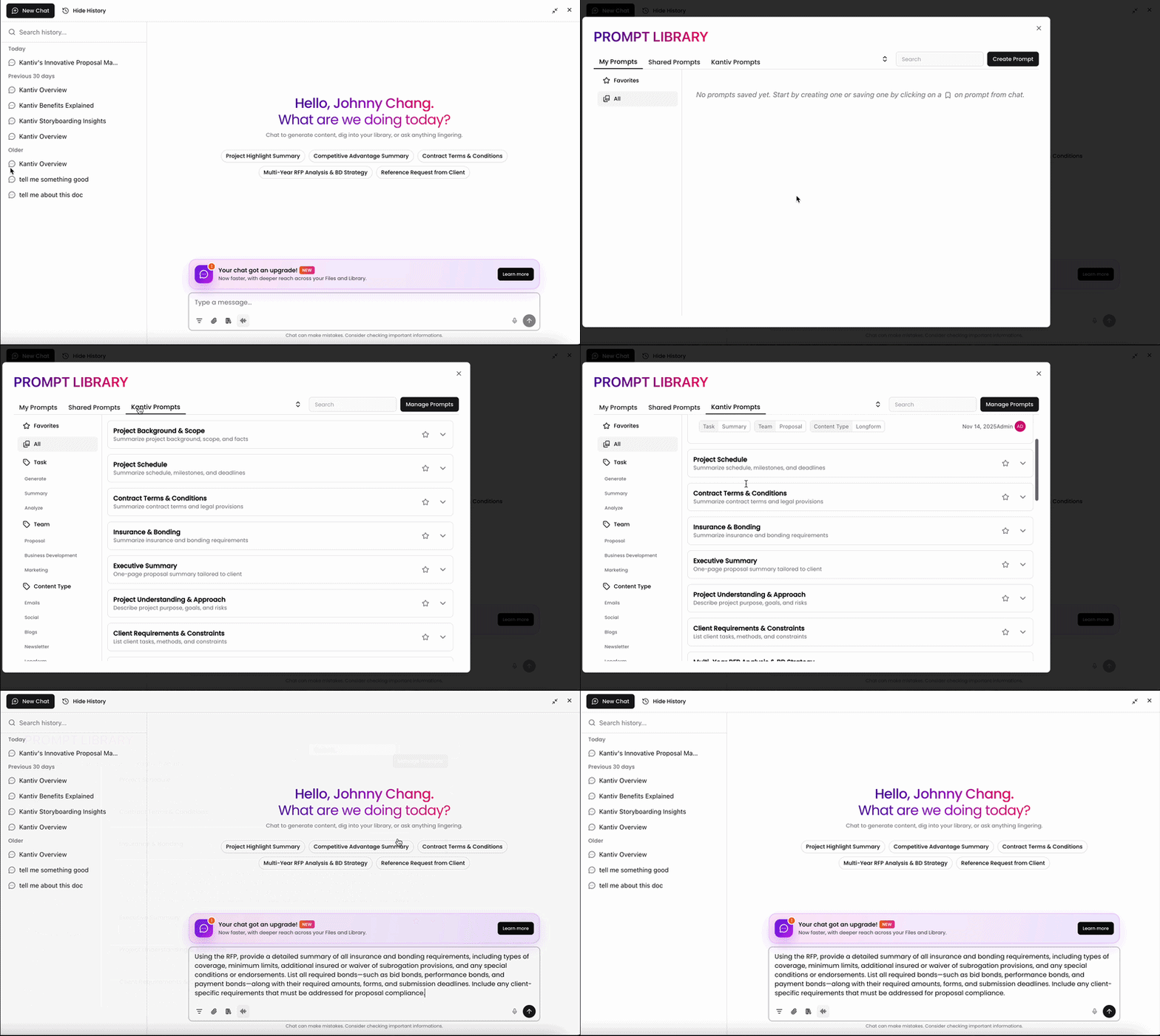
To access your prompt library, click on the book icon in your chat window. This will pop up a window with tabs for My Prompts, Shared Prompts, and Kantiv Prompts. In this window, you can create new prompts under My Prompts and manage Shared Prompts for your organization.
My Prompts
My Prompts is your personal library of commonly used prompts in Chat. You can store prompts that you'd like to use again in other instances and organize them by tags in your prompt library.
Adding to My Prompts
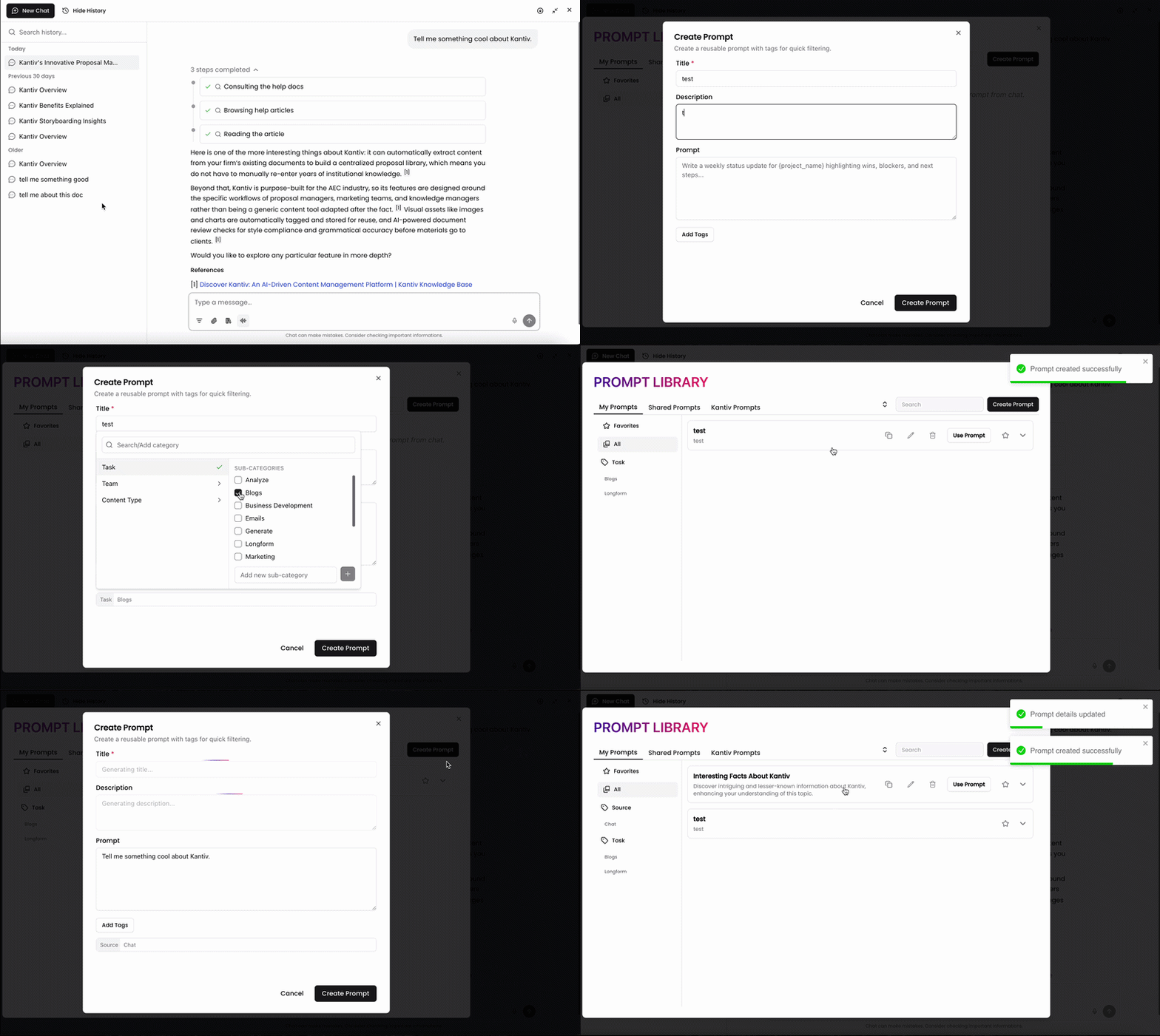
You can add new prompts to My Prompts in two ways.
To add a new prompt to My Prompts from scratch:
When viewing My Prompts in the prompt library, click Create Prompt.
Enter in the title, description, and prompt.
Apply tags to help organize your prompt.
Click Create Prompt.
To add a new prompt to My Prompts from an existing Chat:
Hover over the prompt you'd like to add to your library.
Click the Bookmark icon.
AI will pre-fill the sections from your prompt. Spot check to ensure accuracy.
Add or edit tags as needed.
Click Create Prompt.
Your newly created prompt will now populate in My Prompts for you to save for later use. Prompts will be organized by the tags associated.
Applying My Prompt to a New Chat
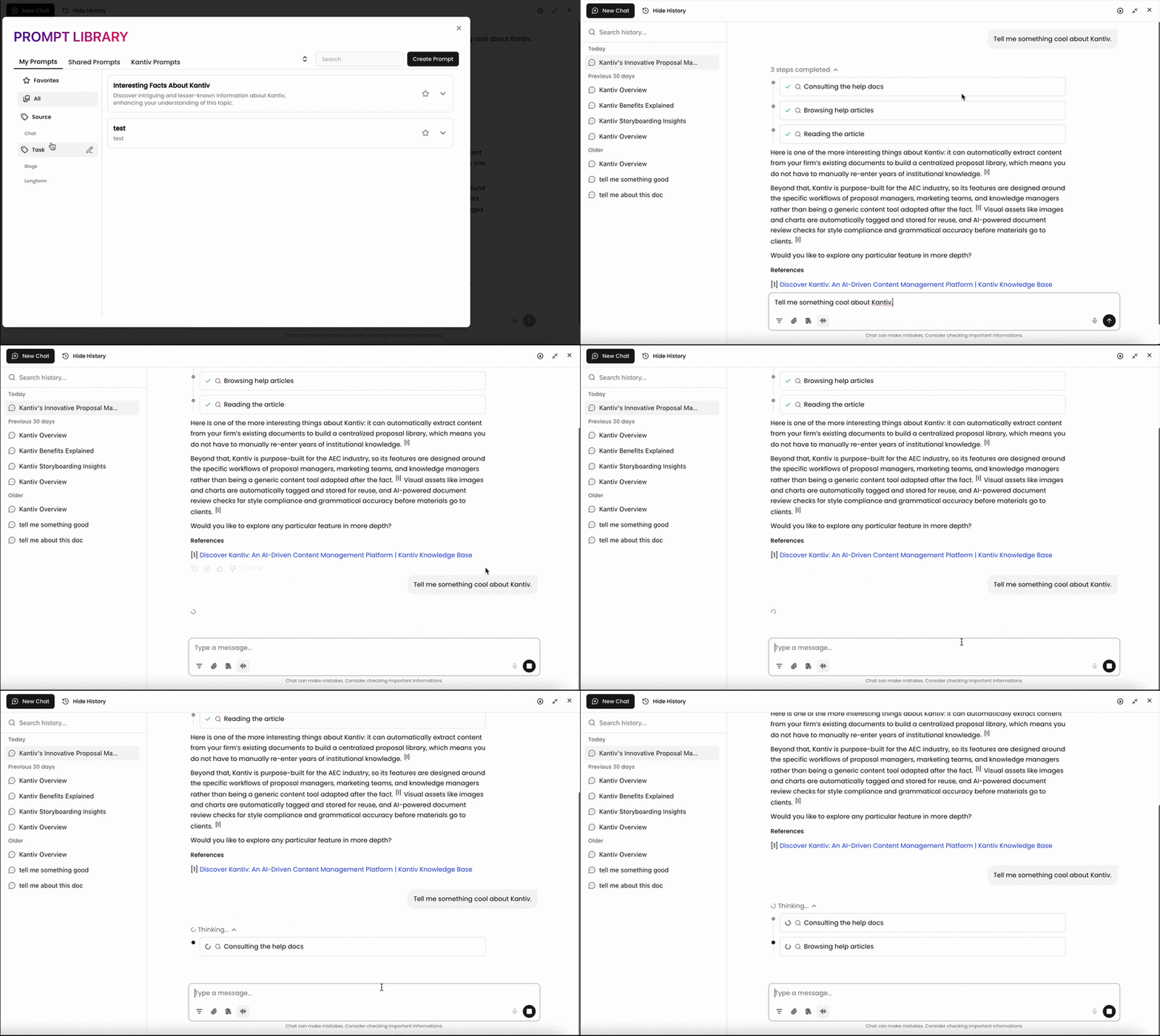
When viewing your prompt in the prompt library, hover over the prompt you'd like to use. Click Use Prompt to apply the prompt to chat. The chat window will autofill with the prompt for you to send for a response.
While hovering, you can also copy the prompt text, edit the prompt in your library, and delete the prompt from your library. You can also click the star icon to add your prompt to your favorites, which can be accessible by clicking Favorites on the left.
Shared Prompts
In your prompt library, Shared Prompts are organization-based prompts created to standardize tasks like generating project summaries, cover letters, or technical writeups. Shared Prompts are accessible to your team and can be customized to suit specific needs.
Currently, only admins have access to set up Shared Prompts. Users with the viewer and editor role can use Shared Prompts but cannot generate them for your organization.
Accessing Shared Prompts
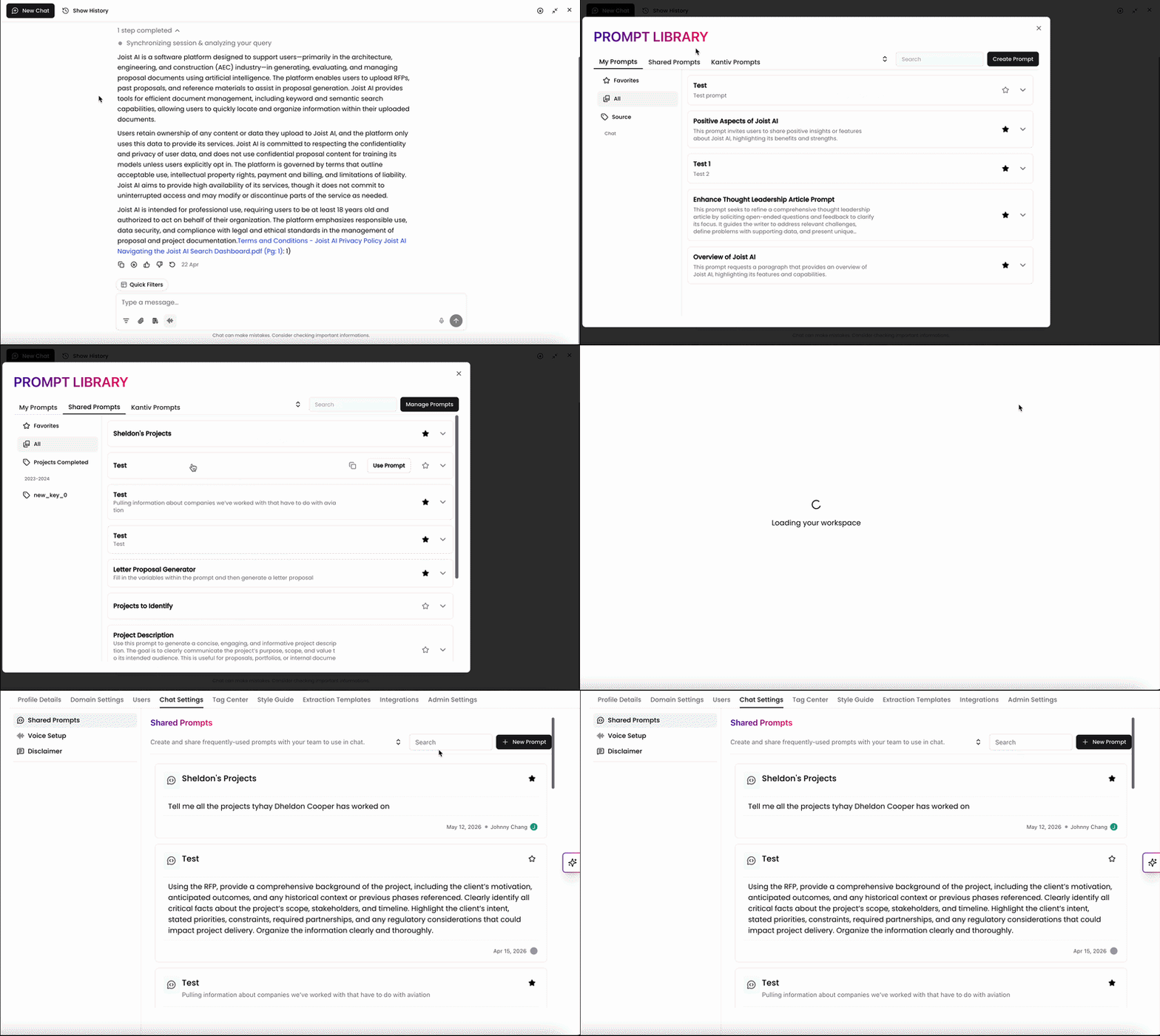
In your prompt library, click the Shared Prompts tab at the top of the window to access your Shared Prompts. If you are an admin, you can click Manage Prompts to navigate directly to Chat Settings in the Settings page.
Adding and Managing Shared Prompts
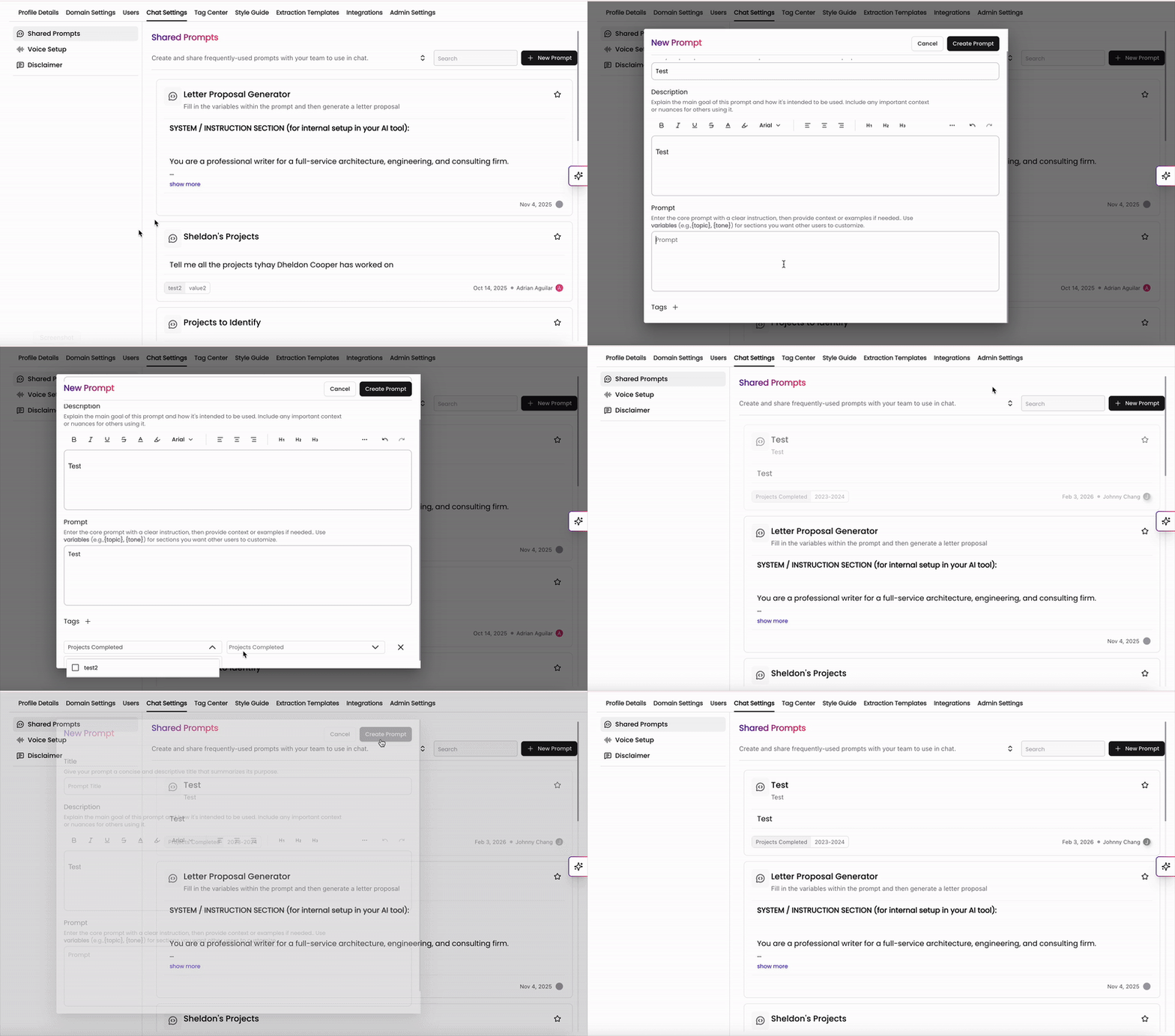
In Chat Settings, Admins can create new prompts and edit or delete existing prompts. All additions and changes made will be applied for all users in your organization when they access the prompt library.
To add a new Shared Prompt:
Click +New Prompt to generate a New Prompt window.
Fill out the title, description, and prompt fields.
Apply tags to organize your prompt.
Click Create Prompt at the top of the page.
Your new prompt will now populate in the Shared Prompts section of your prompt library.
To edit an existing prompt, hover over the prompt you'd like to edit and click the edit icon. In the prompt window, make edits as needed and click Update Prompt when complete. To delete an existing prompt, hover over the prompt you'd like to delete and click the trash can icon. In the pop up window, confirm to delete the prompt.
Applying Shared Prompt to a New Chat
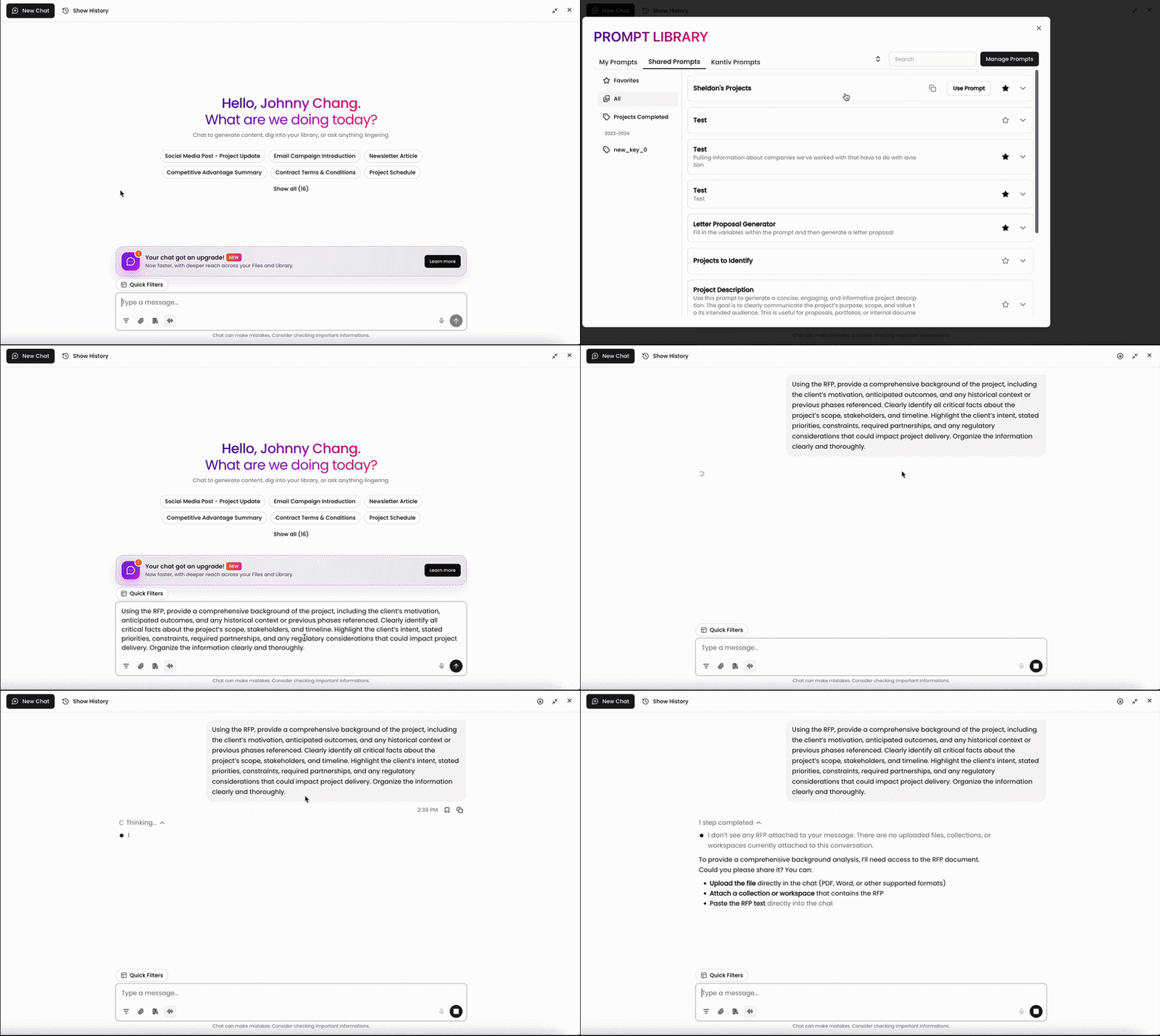
Applying a Shared Prompt works the same way as applying a prompt from My Prompts. When viewing a Shared Prompt in the prompt library, hover over the prompt and click Use Prompt to apply it to Chat. The chat window will autofill with the prompt so you can send it for a response.
While hovering, you can also copy the prompt text or click the star icon to add the prompt to your favorites.
Kantiv Prompts
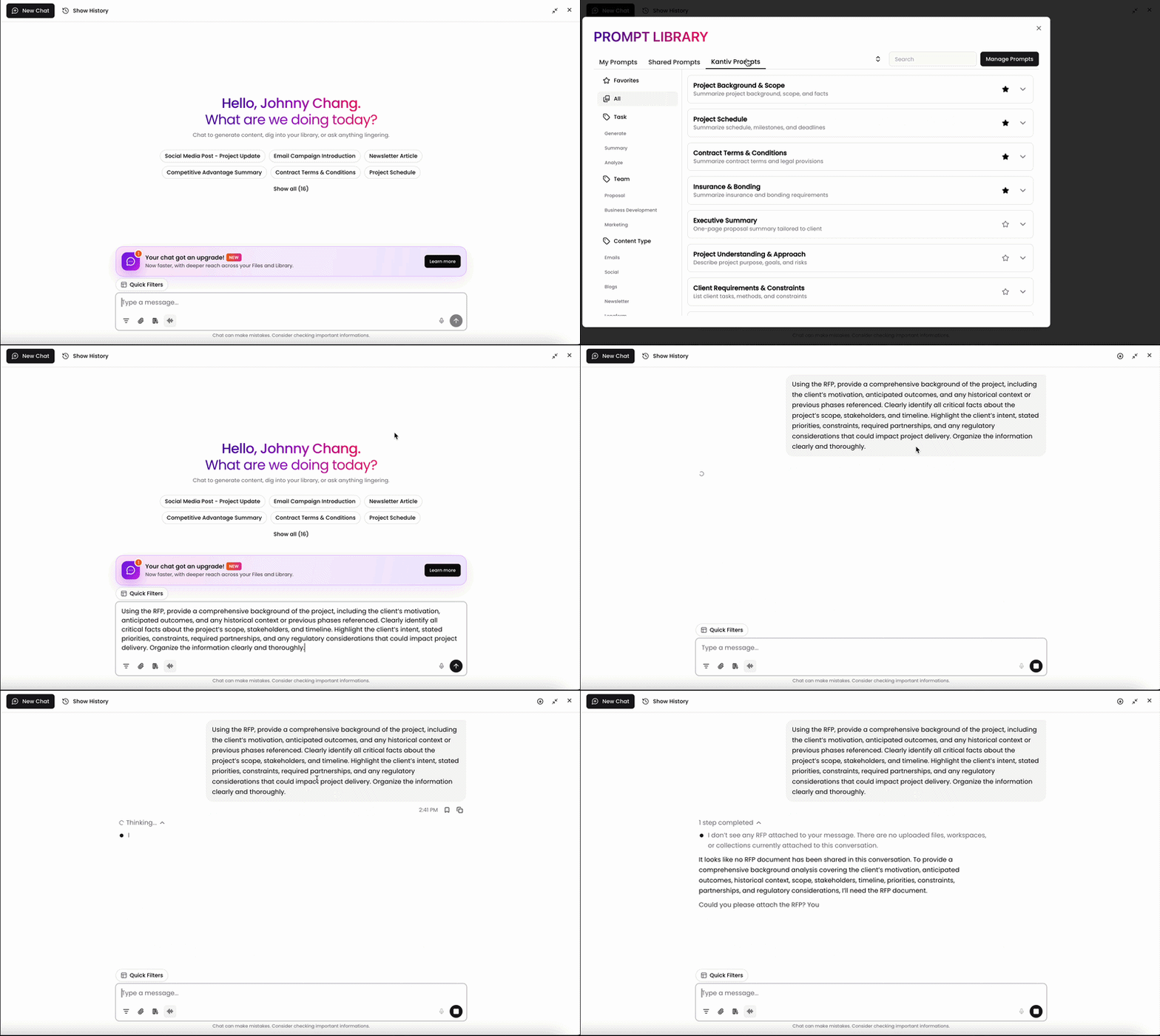
Kantiv Prompts are prompts that Kantiv AI has pre-built into your prompt library. They contain commonly used prompts with tags pre-applied that can be applicable to your organization depending on the use case. You can apply them in Chat to generate responses or use them as starting points when building your own prompts in My Prompts or Shared Prompts.
Because Kantiv Prompts are pre-generated in your prompt library, the title, description, prompt, and tags cannot be edited.
Best Practices for Prompt Library
To get the most value out of your Prompt Library, follow these best practices:
Be Clear and Specific: Write prompts with clear instructions to avoid confusion.
Use Variables: Incorporate placeholders like {client} or {topic} to make prompts adaptable.
Tag Strategically: Assign relevant tags for easier navigation and retrieval.
Update Regularly: Review and refine prompts periodically to keep them relevant.
The Prompt Library helps teams reuse effective prompts, standardize AI workflows, and maintain consistent results across Chat. By organizing personal, shared, and Kantiv-built prompts in one place, users can quickly apply trusted prompts and reduce repetitive work.
You can always find more information on Search and Chat in our Support Center. Please send any questions or feedback to Support@Kantiv.com.