Kantiv Chat: A Guide to Getting Started
Last updated: July 16, 2026
Kantiv's Chat interface is designed to help users quickly access tools for generating new content, exploring existing knowledge, and managing chat sessions. This guide explains how to use Kantiv’s intuitive chat interface to generate, refine, and explore content effectively. Follow these steps to navigate the platform and maximize its potential.
Accessing Chat
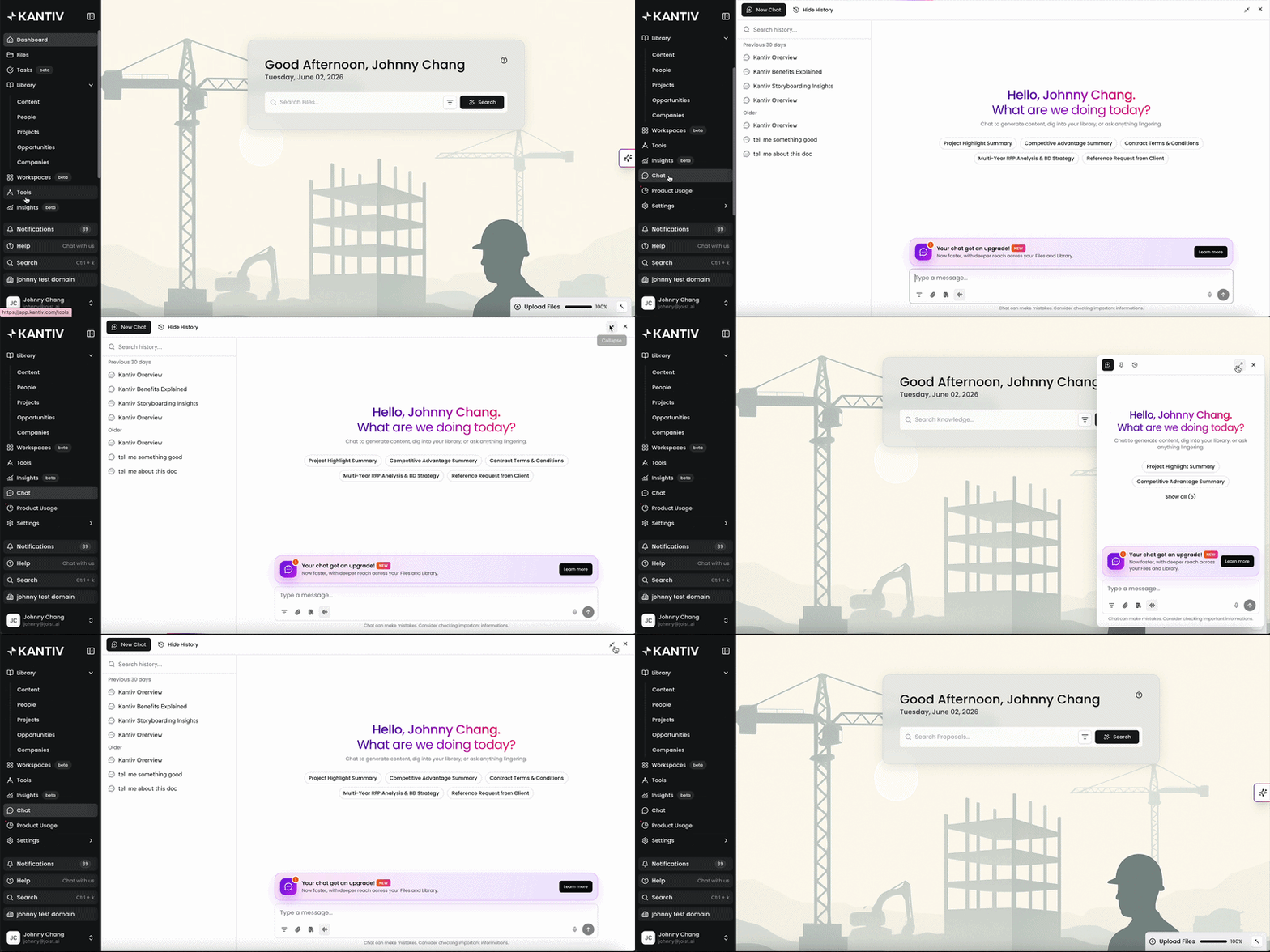
To access Chat, click on Chat in the left menu. Alternatively, you can click on the chat widget button on the right side of the page. You can also move the chat widget button and hook it to any edge around the page. The chat page can be expanded in full screen or collapsed to a smaller pop up window to fit your workflows.
Starting a New Chat
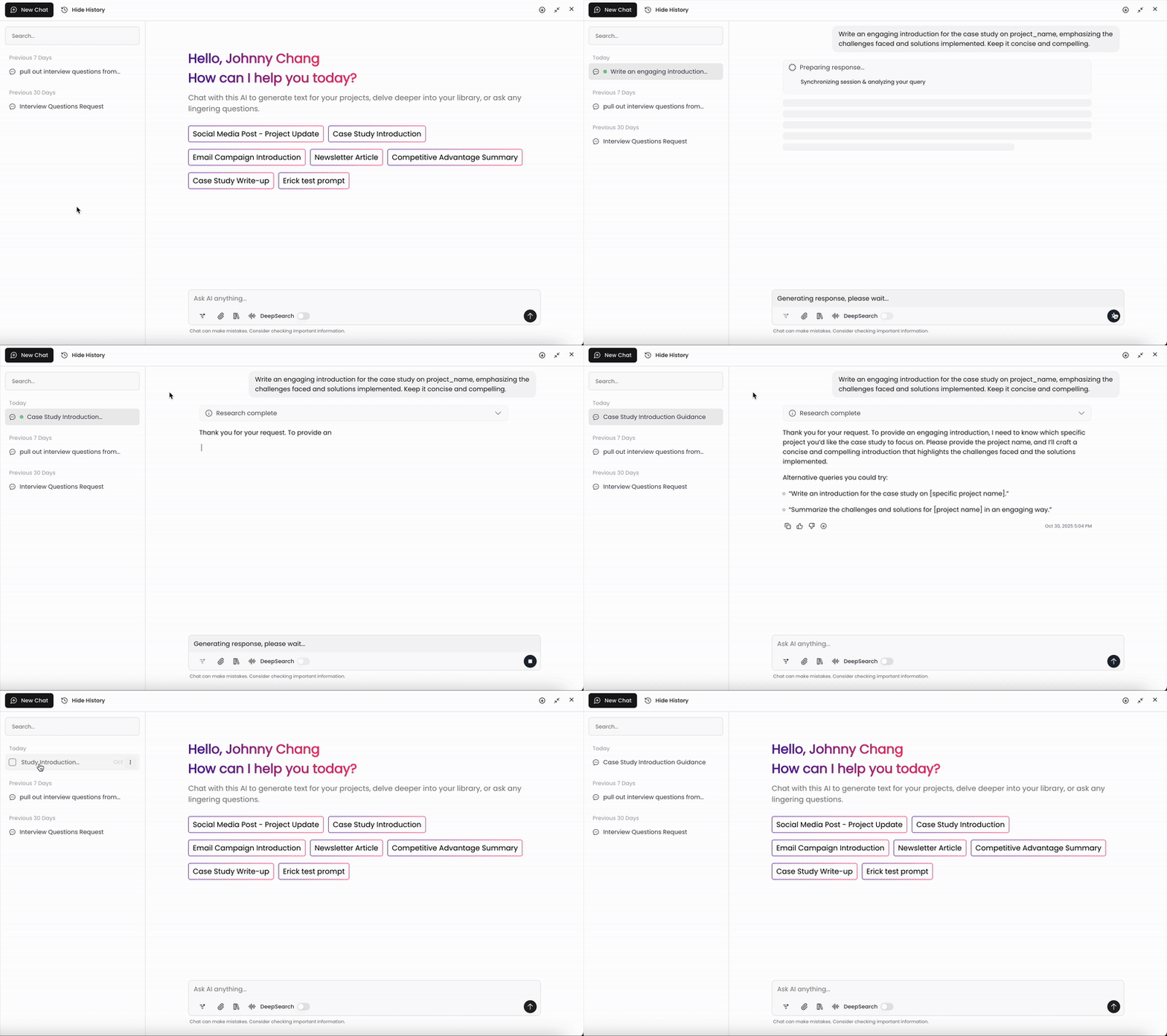
When you first open Chat, it will be blank with suggested prompts for you to begin a new chat session. You can select one of these prompts or begin writing your own prompt in the textbox.
To start a new chat session when you're in an existing session, click New Chat on the top left.
Using Chat Dictation
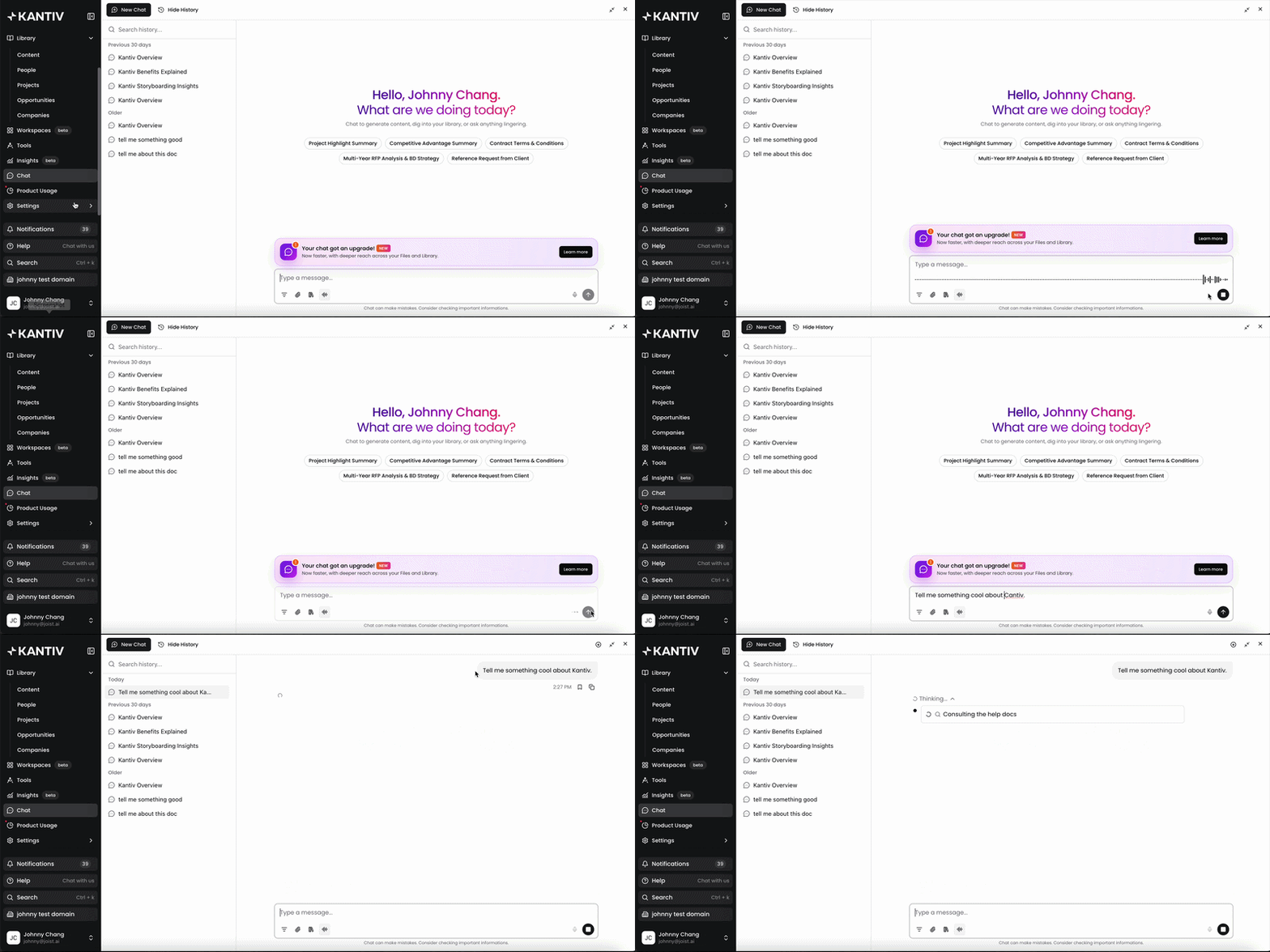
If you prefer to verbally enter your prompt into the textbox, you can use the Chat dictation feature to capture your prompt. Click the microphone icon to activate Chat dictation and speak into your microphone to capture the prompt. Our system will transcribe your speech into text and then you can send your prompt through Chat to receive a response.
Please note that you'll need to approve Kantiv to access to your microphone on your browser to use the Chat dictation feature.
Chat History and Search
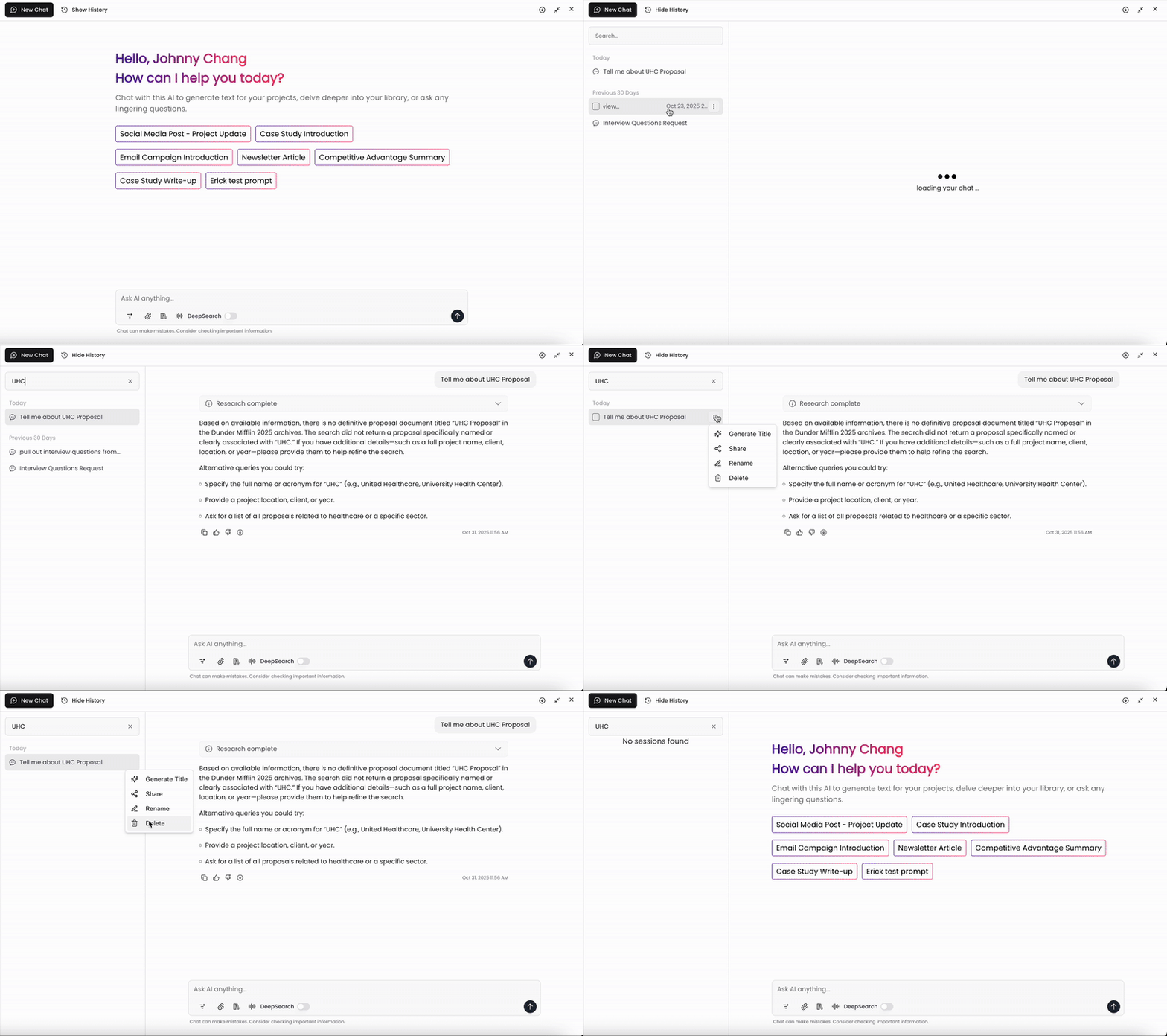
Each Chat session is saved and stored within the Kantiv platform for you to return back to. This enhances continuity and context of your conversations. You can view the prompts and responses from the session, continue the conversation, and share the thread with others. You can also search through your chat history using the search bar on the top left.
You can access menu options by clicking on the three dots to the right of each chat session. Here, you can rename a chat session or use AI to generate a title, delete the session from your history, or share the chat session with another user.
Sharing Chat Sessions
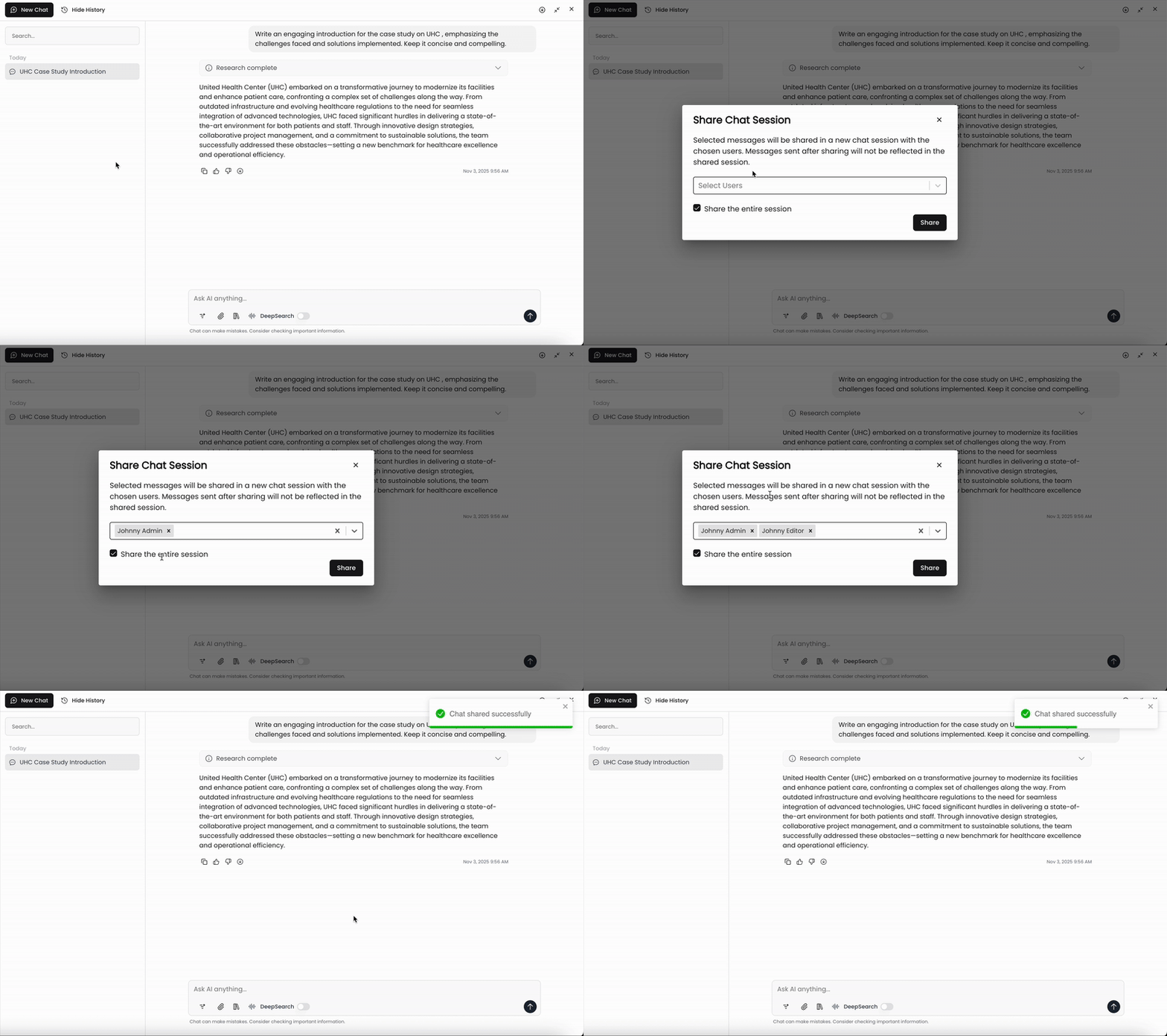
As Chat sessions are saved and stored, you can share your chat session with other users. This feature helps you collaborate better with your team and enhances team productivity and communication.
For more information on Sharing Chat, check out this article.
Filtering and Attaching Files to Chat
Applying Filters to Chat
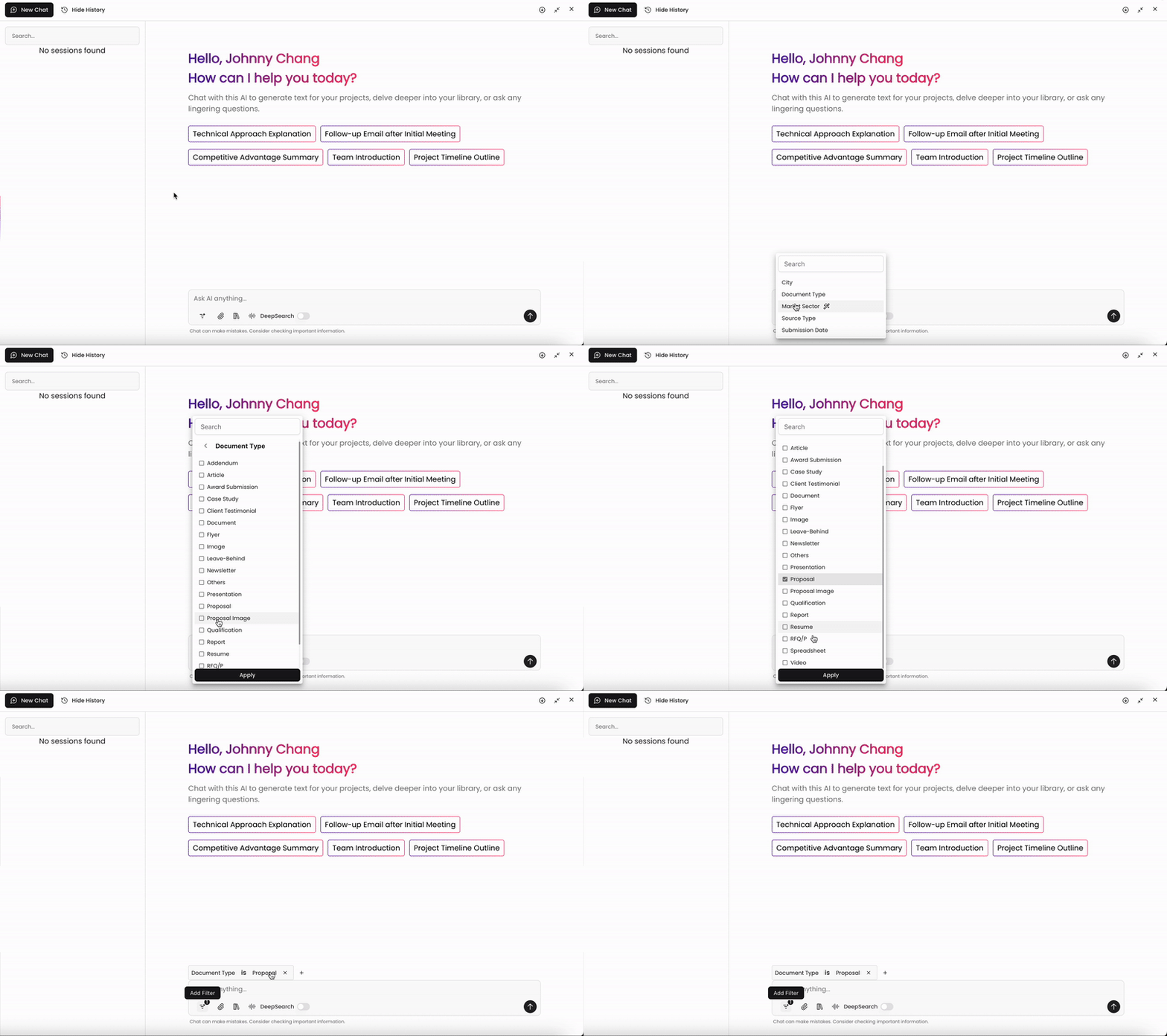
You can add filters generated from your library and files to refine your chat responses.
Click the Add Filter button to populate your tag list
Select the tags to filter by, and click Apply.
Your chat responses will only pull items from your files and library that have this tag associated.
Quick Filters
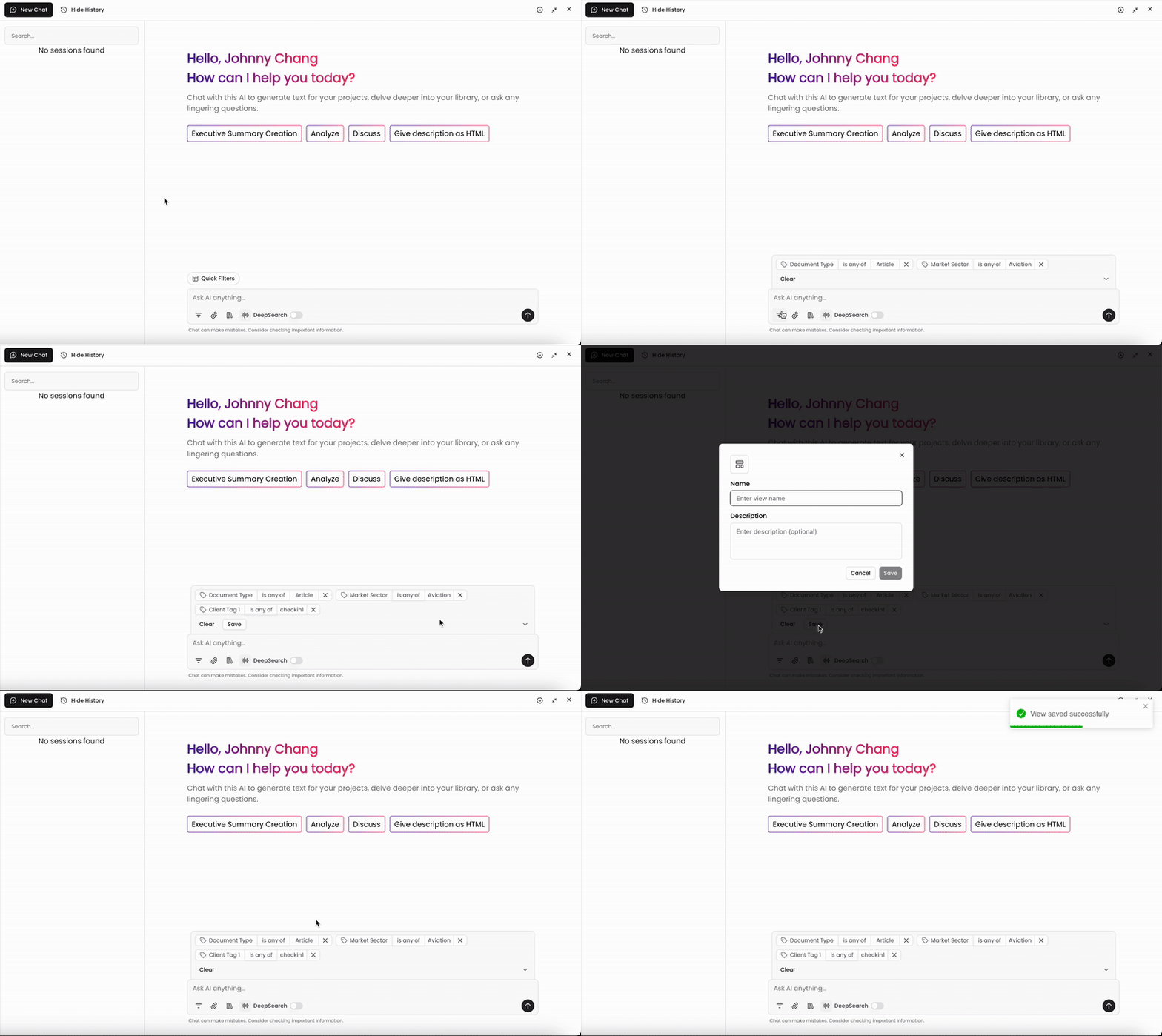
If you have Quick Filters set up on your account, you can also apply them in Chat to pull up documents that fall under a specific set of Filters. This will save you a few steps of having to click through and set multiple filters when you can apply them all at the same time.
To generate a new Quick Filter in Chat, click Save after you’ve selected a set of filters in Chat. If you have existing Quick Filters in Chat, click Quick Filters and select from your list of Quick Filters to automatically apply the set of Filters into your Chat prompt. Please note that if a Quick Filters has inapplicable filters in it, you will only see the applicable filters added onto the prompt.
You can also add additional filters to the Chat prompt to include additional files and if you'd like to save this as a new Quick Filter, click Save. You can now use this Quick Filter again for future Chat prompts.
Attaching Files to Chat
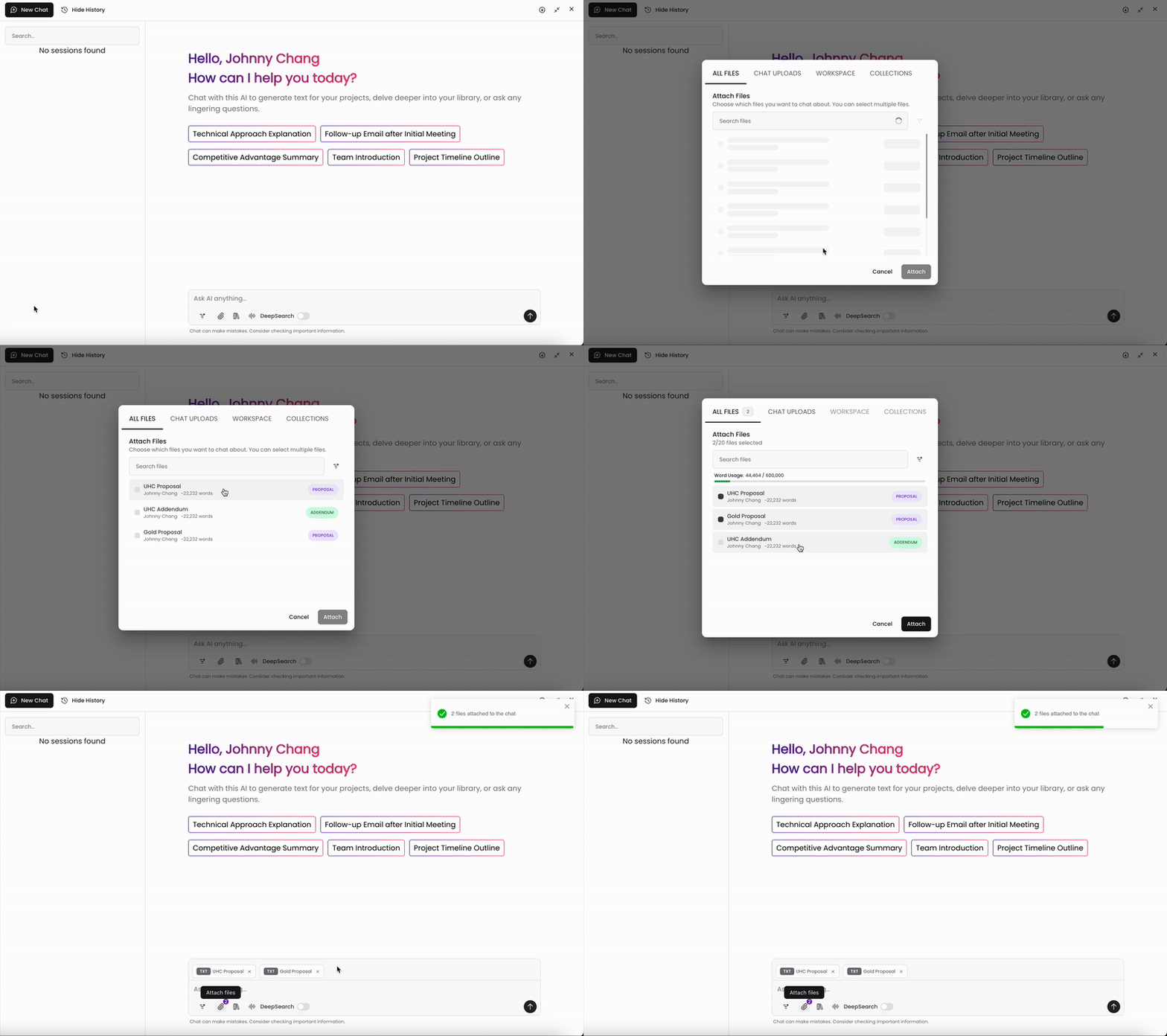
You can attach specific files from your library, previous Chat uploads, workspaces, or collections to further refine your chat responses.
Click the Attach Files button and select your source to view your list of files in a pop-up window.
You can use the tabs at the top of the window, search, and filter to narrow your file library and find the files you'd like to attach.
Select your files and click Attach.
You can attach up to 10 documents, 1 workspace, and 3 collections in a single Chat session. Chat reads your question and decides whether to focus on the attachment or pull from your broader workspace. No detaching required.
Prompt Library
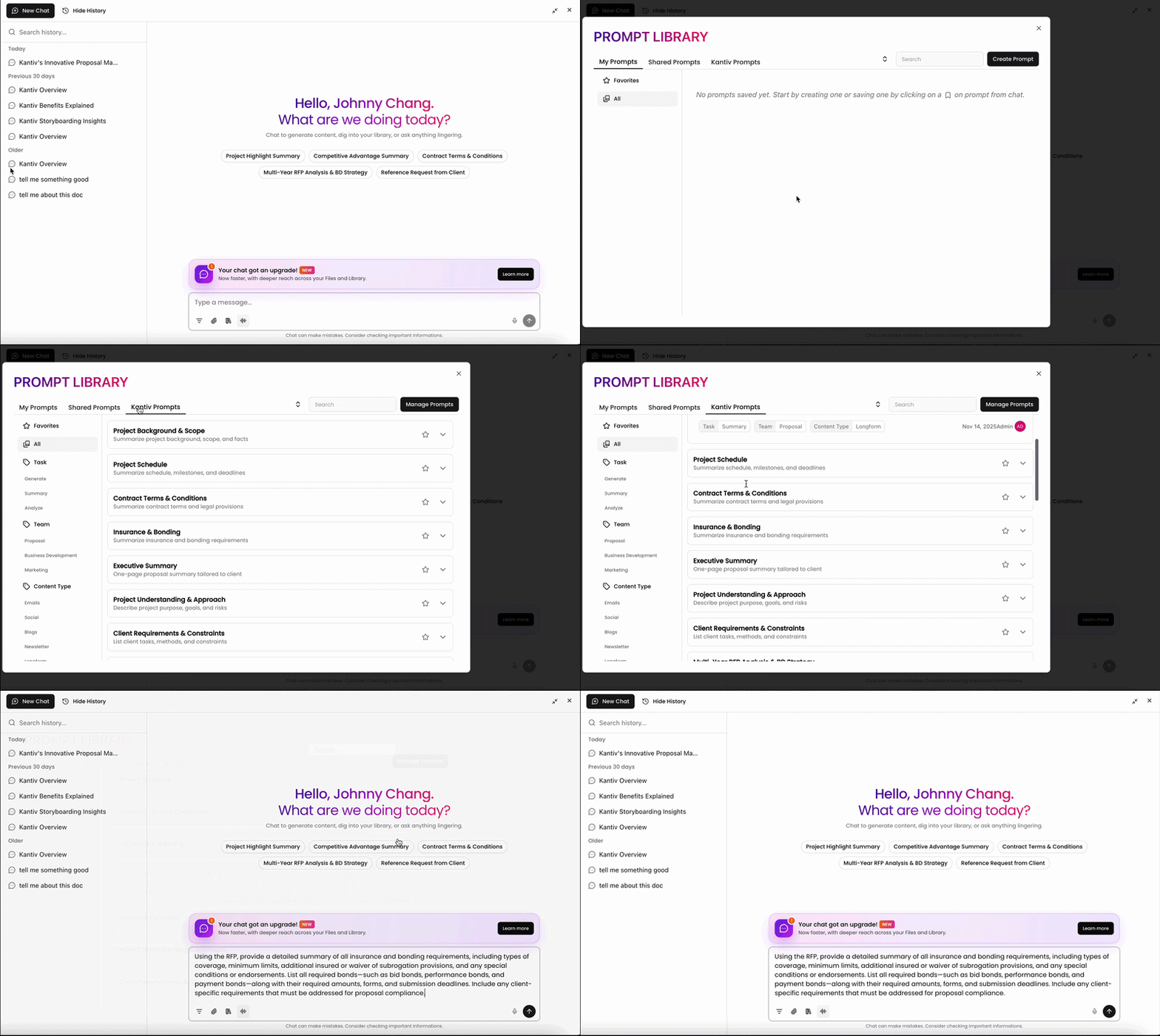
You can store and access your saved, shared, and frequently used prompts in Chat to generate consistent, accurate content. Shared Prompts can be configured in the chat settings page.
For more information on your Prompt Library and Shared Prompts, check out this article.
Voice Configuration
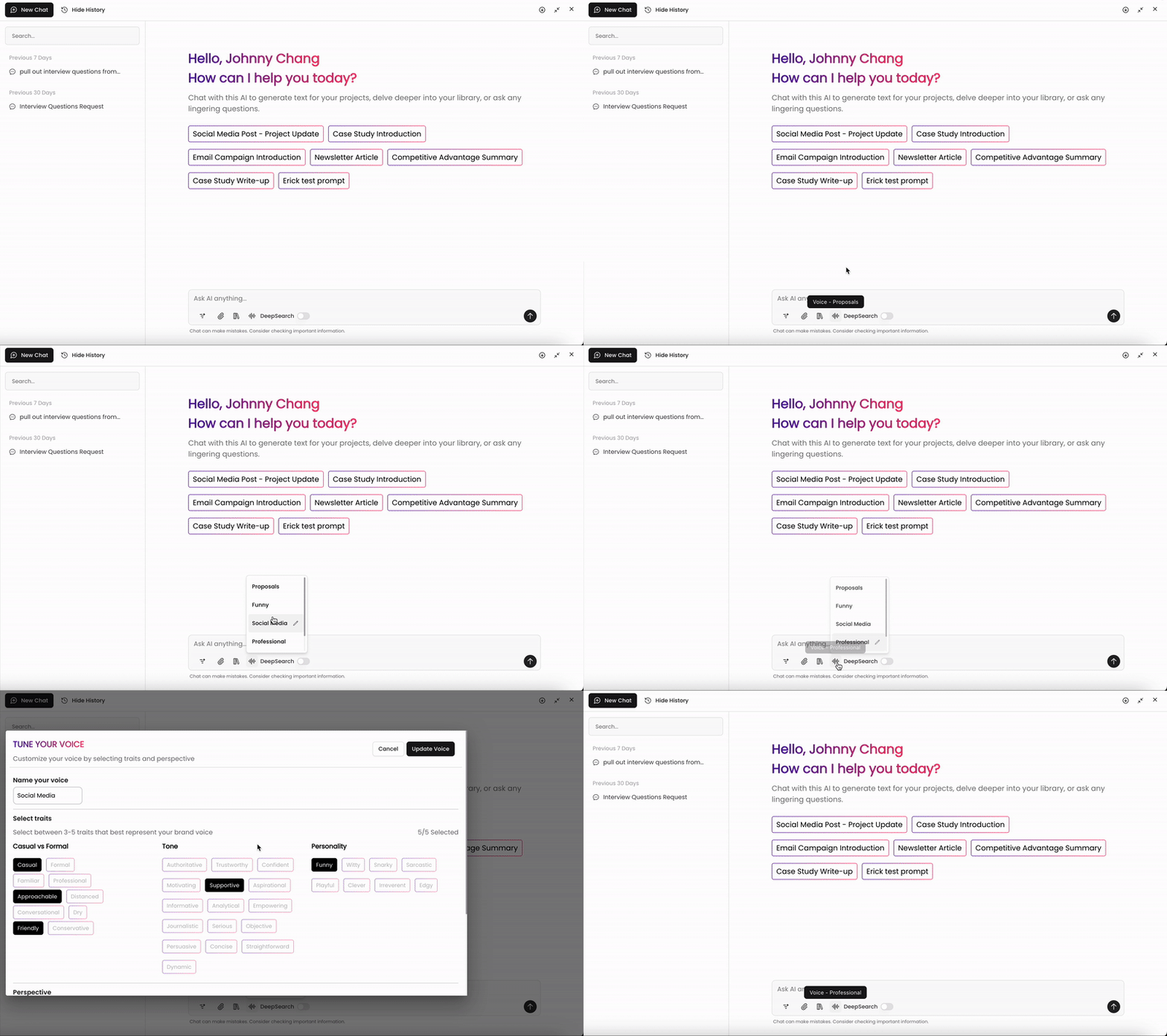
In Chat, you can select voice settings that can be used across your team to generate responses that follow specific traits with tone, personality, and writing styles. These voice settings can be set up in your chat settings page.
For more information on voice settings, check out this article.
Deep Search
In previous versions of Chat, users could toggle on Deep Search to provide more in-depth answers for your queries. Deep Search is now built into Chat automatically adjusts search depth based on what you ask,
Best Practices with Chat
Be Specific: When asking questions or generating content, use clear and detailed prompts. Chat handles search depth on its own, so focus on asking the right question rather than which mode to use.
Explore Chat History: Revisit previous conversations to save time and avoid duplicating work.
Use Feedback: Provide thumbs-up or thumbs-down feedback to help Kantiv improve.
By familiarizing yourself with these features, you can seamlessly integrate Kantiv into your workflows and get the most out of its powerful AI-driven capabilities. For additional support, visit the Help Center or contact our team.
Chat is a powerful tool in Kantiv that streamlines communication and boosts efficiency. Whether you’re starting new chats, revisiting past ones, or adjusting your view, these tips will help you make the most of it. With built-in memory for context and continuity, it’s an essential resource for effective collaboration.
You can always find more information on Search and Chat in our Support Center. Please send any questions or feedback to Support@Kantiv.com.