Adding People and Projects to Workspaces
Last updated: July 15, 2026
As of July 2026, Kantiv has released a new version of Workspaces and Document Analysis. This article covers the new version of Workspaces and articles covering the Legacy version can be found in this collection.
The People and Projects stages of the Pursuit Progress pipeline let you build out your pursuit team and link relevant past work directly to your workspace. Both are available from the workspace Overview once your workspace is created, and both support AI-powered recommendations once an RFX is linked.
Adding People
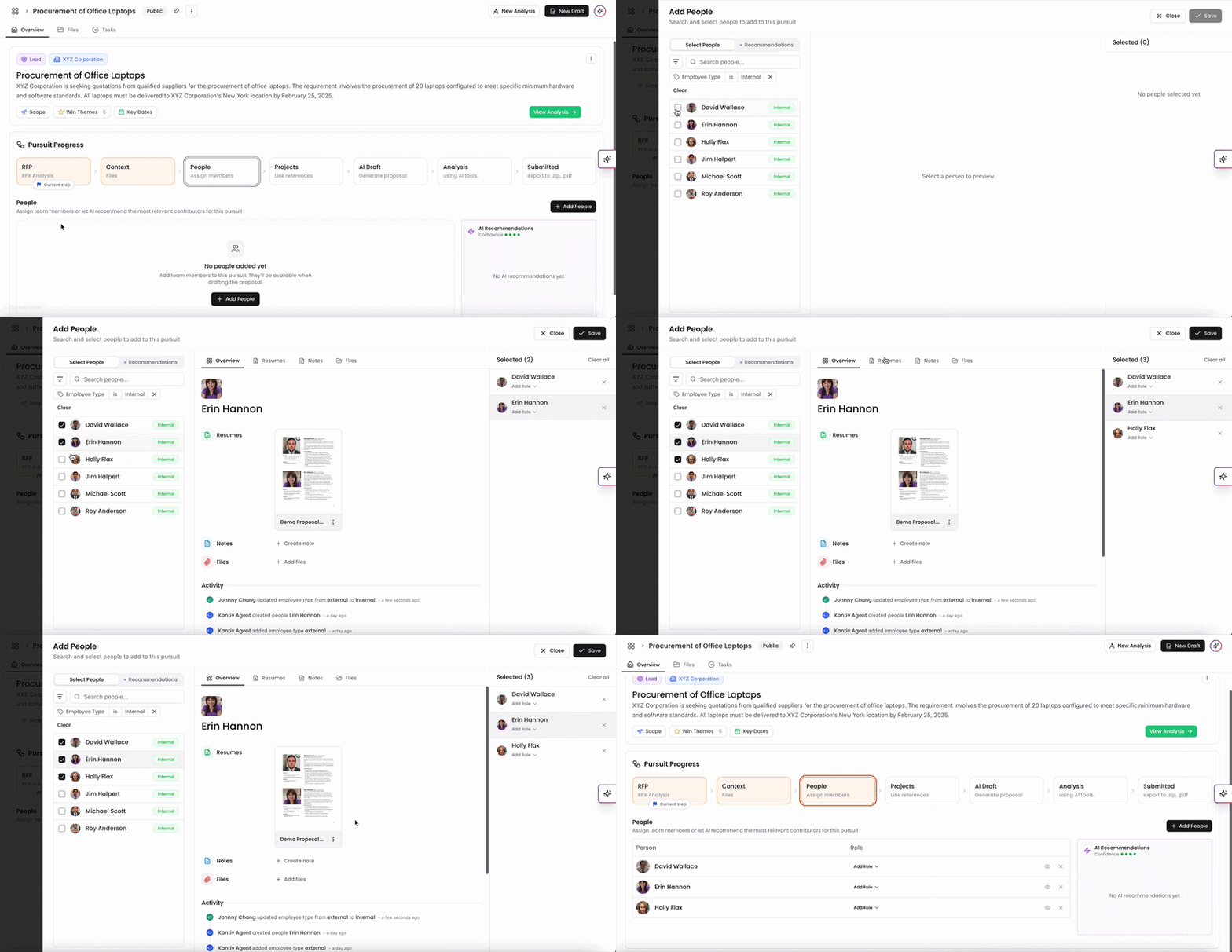
Open your workspace and go to the Overview tab.
In the People section, click + Add People.
The Add People screen opens. Use the Select People tab to browse your people profiles manually, or click Recommendations to see AI-suggested team members based on your RFX content.
Browse or search the list. Click on any person's name to preview their profile on the right — the preview shows their Overview, Resumes, Notes, Files, Activity, and Integration data (if applicable).
Check the box next to each person you want to add. Selected people appear in the Selected panel on the right.
To assign a role, click Add Role next to a person's name and select from the list. Available roles include Project Architect, Project Manager, Construction Manager, Structural Engineer, MEP Engineer, Civil Engineer, Interior Designer, BIM Coordinator, Cost Estimator, Site Supervisor, Sustainability Consultant, Building Services Engineer, Landscape Architect, Quality Control Manager, Safety Manager, Document Controller, and others. You can type to search for a specific role.
Click Save when you're done.
Added team members appear in the People section of the Overview, with their name, assigned role, and options to view their profile (eye icon) or remove them (× icon).
The Recommendations tab shows AI confidence scores for suggested team members. Recommendations are generated once your RFX has been scanned.
Adding Projects
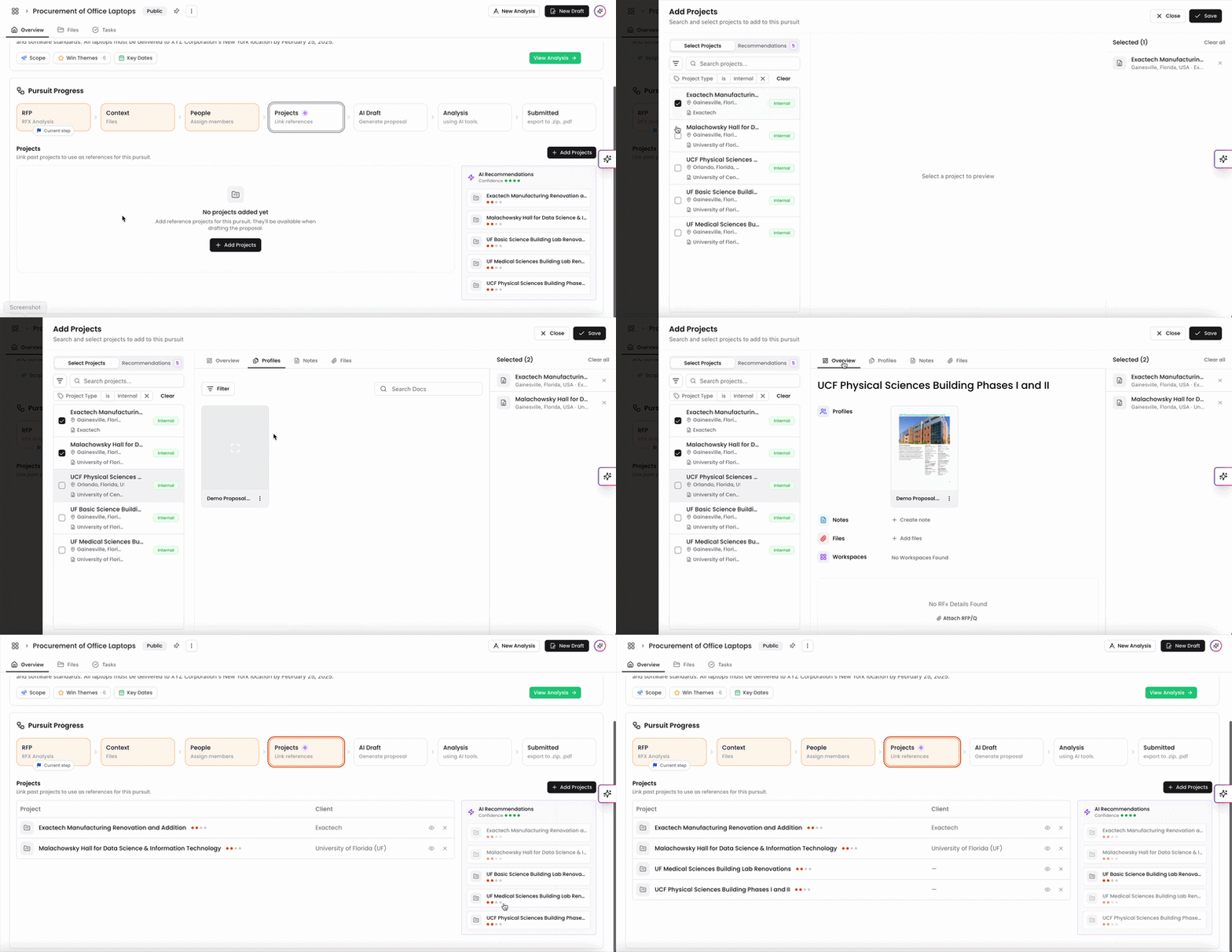
In the Projects section of the Overview, click + Add Projects.
The Add Projects screen opens. Use the Select Projects tab to browse your project library, or click Recommendations to see AI-suggested past projects relevant to this pursuit.
Browse or search the list. Each project shows its name, location, and client. Click a project to preview it on the right — the preview includes tabs for Overview, Profiles, Notes, and Files.
Check the box next to each project you want to link. Selected projects appear in the Selected panel on the right.
Click Save when you're done.
Linked projects appear in a table in the Projects section showing the project name and client. Use the eye icon to view a project's details or the × icon to remove it from the workspace.
Linked projects are used as reference material when generating AI drafts — the more relevant the projects you link, the more tailored your generated content will be.
Removing People or Projects
To remove a team member or linked project, click the × icon to the right of their row in the relevant section.
You can always find more information on Workspaces in our Support Center. Please send any questions or feedback to Support@Kantiv.com.