Running a Draft Analysis
Last updated: July 15, 2026
As of July 2026, Kantiv has released a new version of Workspaces and Document Analysis. This article covers the new version of Workspaces and articles covering the Legacy version can be found in this collection.
Draft Analysis is an AI-powered tool that checks your draft for grammar, style, and strategic quality. It's one of two analysis tools available from the New Analysis button in the Analysis section of your workspace Overview — the other being Compliance, which checks your draft against a specific RFX (see Running a Compliance Check).
Starting a Draft Analysis from a Workspace
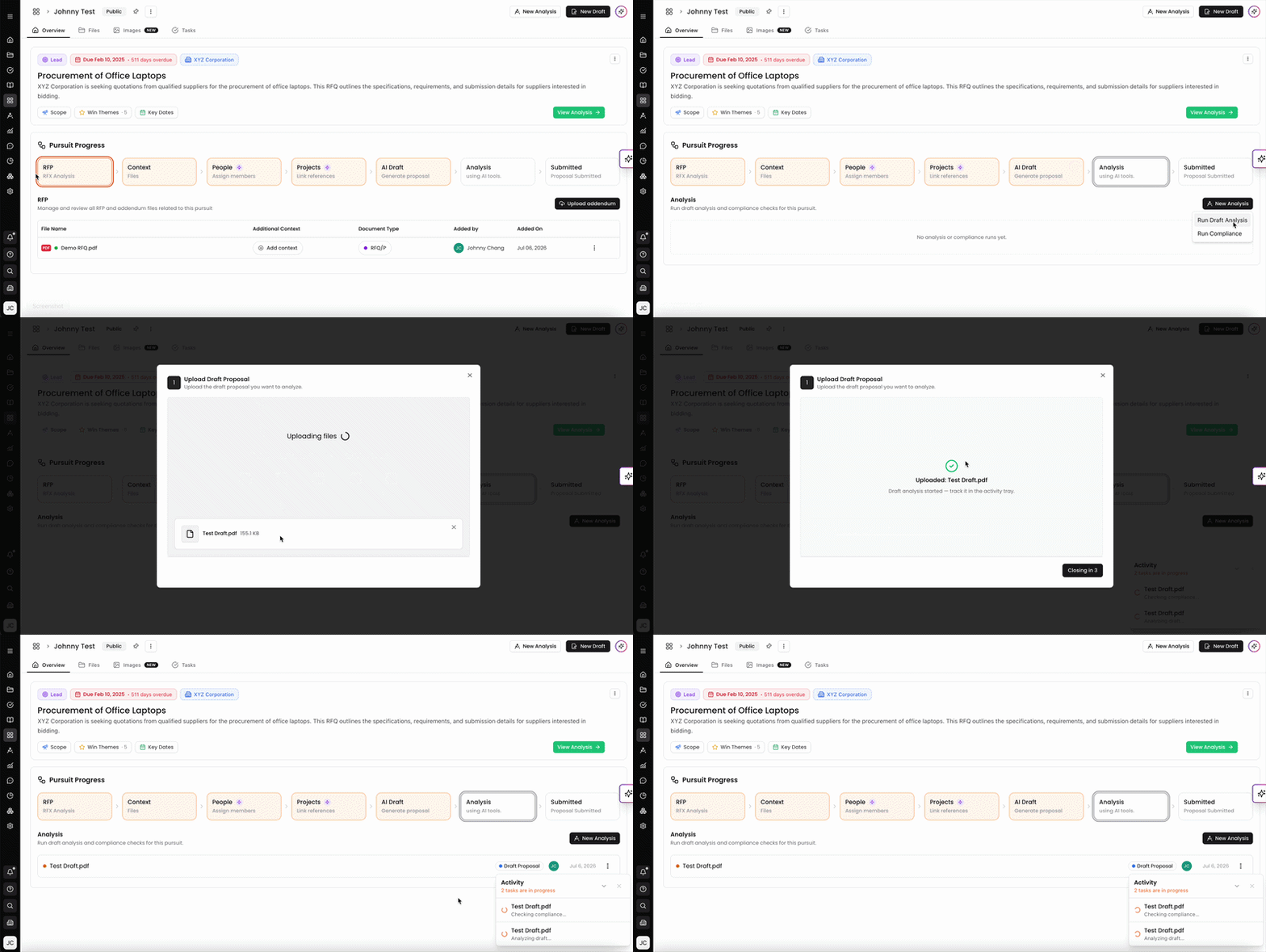
Open your workspace and click Analysis in the Pursuit Progress pipeline, or scroll to the Analysis section on the Overview tab.
Click New Analysis in the top right of the Analysis section.
From the dropdown, select Run Draft Analysis.
The Upload Draft Proposal dialog opens. Upload your draft using one of the following:
Drag and drop the file into the upload area
Click browse files to select from your device
Click My Device, Google Drive, Box, Dropbox, or OneDrive to import from a connected source
Supported file types: .pdf, .docx, .doc
A progress bar shows upload status. Once complete, you'll see a green checkmark and the message Draft analysis started — track it in the activity tray. The dialog closes automatically.
Your draft appears in the Analysis list with a Draft Proposal label. The Activity tray shows Analyzing draft... while processing. Click the file in the list once it's ready to open the analysis viewer.
Starting a Draft Analysis from the Dashboard
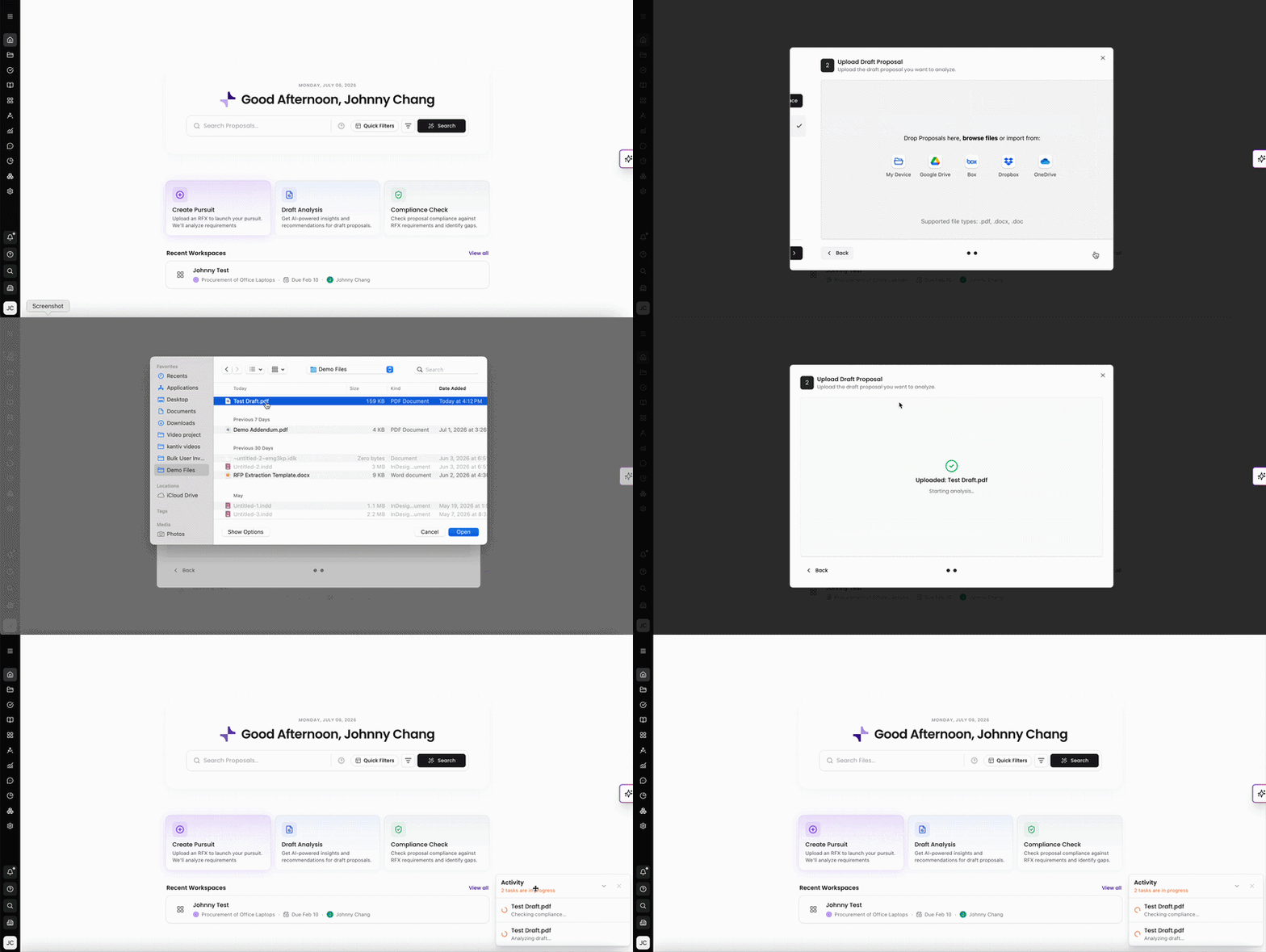
In addition to starting a Draft Analysis from within a workspace's Analysis section, you can launch one directly from the Dashboard.
From the Dashboard, click the Draft Analysis quick-action card.
Select Workspace: Choose the workspace this run should be associated with. Search or browse the list, use the My Workspaces and All Workspaces tabs to switch between your own and your organization's workspaces, and Sort to reorder it. Click + New workspace to create one on the fly instead. Select a workspace and click Next.
Upload Draft Proposal: Upload your draft using one of the following:
Drag and drop the file into the upload area
Click browse files to select from your device
Click My Device, Google Drive, Box, Dropbox, or OneDrive to import from a connected source
Supported file types: .pdf, .docx, .doc
Once your file is selected, the upload begins automatically. When it completes, you'll see a green checkmark and the message Draft analysis started — track it in the activity tray. The dialog closes automatically after a brief countdown.
Track progress in the Activity tray in the bottom right corner of the screen.
Use Back at any point in the dialog to return to the previous step.
The Draft Analysis Viewer
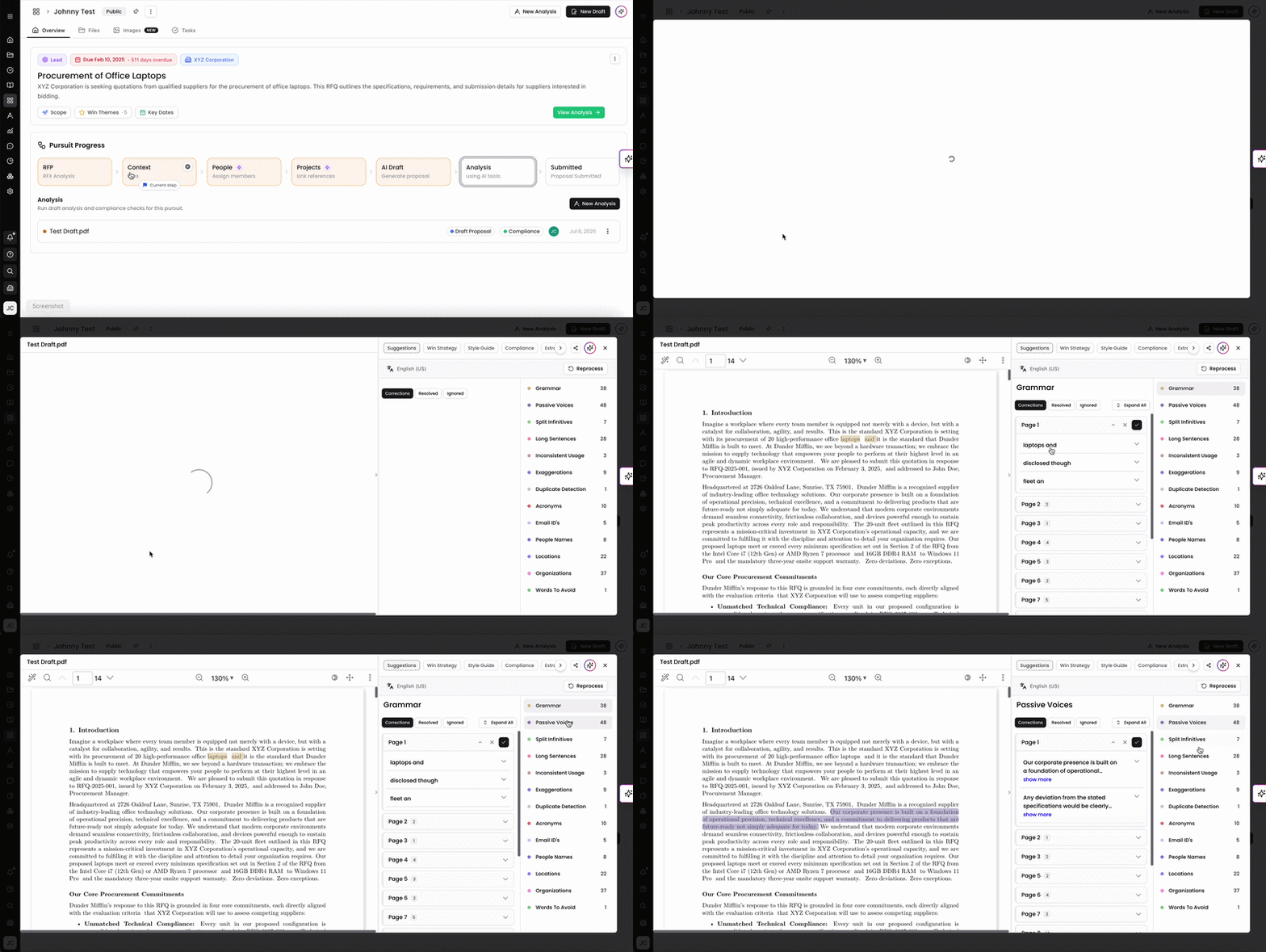
The analysis viewer opens full-screen with your document on the left and an analysis panel on the right. At the top of the panel are four tabs: Suggestions, Win Strategy, Compliance, and Extraction Templates. A language selector (English (US)) and a Reprocess button are available at the top of the panel. Use the arrow navigation in the document toolbar to move between pages.
This same viewer opens compliance results — the Compliance tab is covered separately in Running a Compliance Check.
Suggestions
The far right of the panel shows a categorized list of all issues found in the draft, with a count next to each category. Categories include Grammar, Passive Voices, Split Infinitives, Long Sentences, Inconsistent Usage, Exaggerations, Duplicate Detection, Acronyms, Dates, Email IDs, Contact Numbers, Currency Values, People Names, and Locations.
Click any category to view its issues. Issues are grouped by page number, each expandable to show:
The flagged text in context
An explanation of the issue
A Suggested Replacement with the corrected version
A copy icon to copy the suggestion
A ✓ button to accept the correction and mark it Resolved
A × button to dismiss it and mark it Ignored
Use the Corrections, Resolved, and Ignored filter tabs to track your review progress. Click Expand All to open all issues at once.
Win Strategy
The Win Strategy tab provides a strategic assessment of your draft. It includes:
Coherence — an analysis of your proposal's logical structure and key issues to address
Brand Message — a summary of your firm's positioning as read from the draft, with percentage scores for attributes such as Reliability, Proven Track Record, and Transparent Practices
You can always find more information on Workspaces in our Support Center. Please send any questions or feedback to Support@Kantiv.com.