Running a Compliance Check
Last updated: July 15, 2026
As of July 2026, Kantiv has released a new version of Workspaces and Document Analysis. This article covers the new version of Workspaces and articles covering the Legacy version can be found in this collection.
A compliance check compares your draft proposal against an RFX document and surfaces any requirements your draft doesn't fully address. It's accessible from the New Analysis button in the Analysis section of your workspace Overview, alongside Draft Analysis (see Running a Draft Analysis).
Starting a Compliance Check from a Workspace
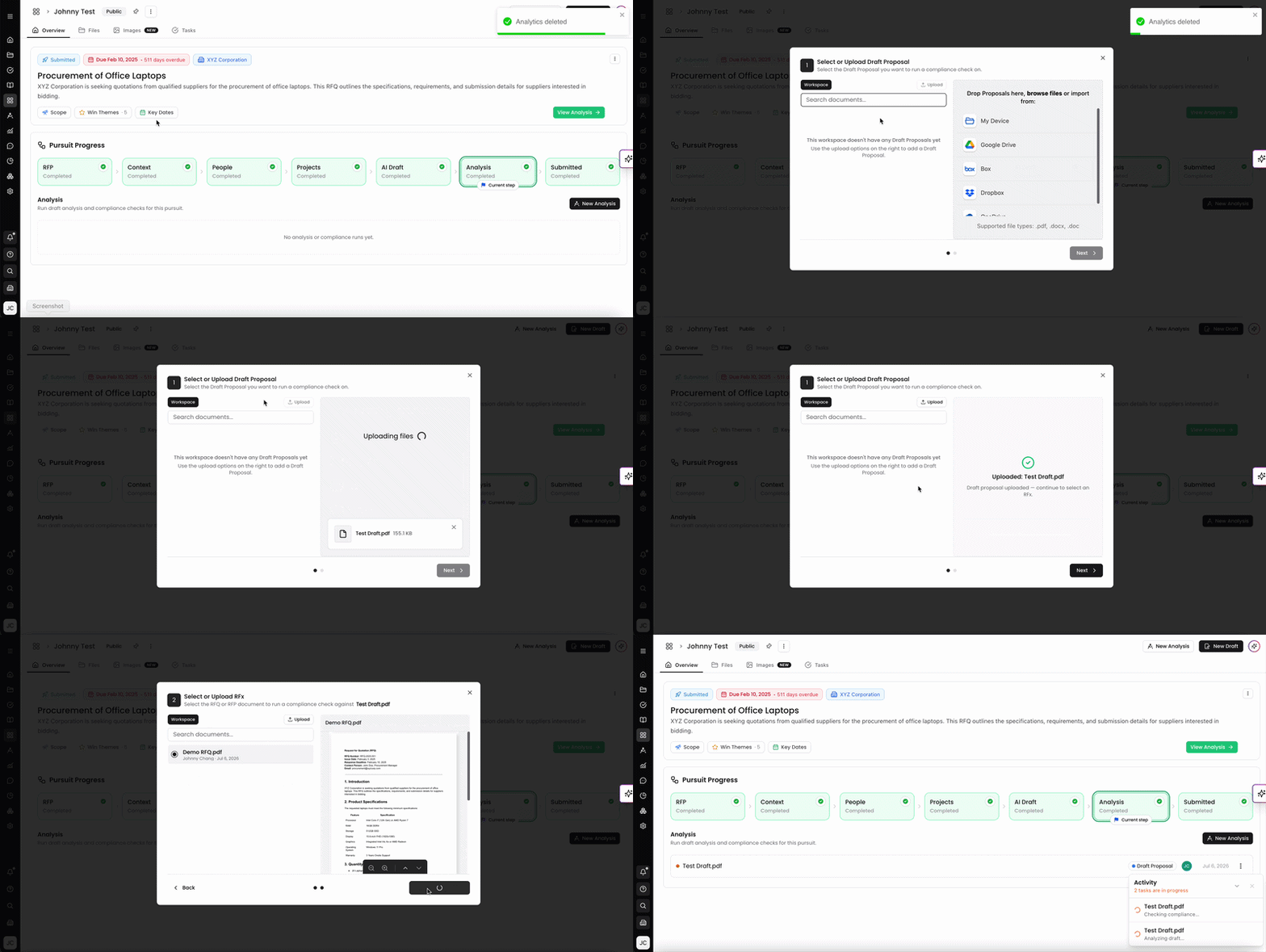
Click New Analysis and select Run Compliance from the dropdown.
Select or Upload Draft Proposal: Choose your draft from your workspace files, or click Upload to add a new file. Selecting a file shows a preview on the right. Click Next when ready.
Select or Upload RFx: Choose the RFX document to check compliance against, from your workspace files or via Upload. A preview of the RFX appears on the right. Supported file types: .pdf, .docx, .doc. Click Check Compliance to begin.
The Activity tray shows Checking compliance... while processing. When complete, a notification confirms Your RFx Analytics Compliance analysis is ready for review.
The results appear in the Compliance tab of the analysis viewer, showing all 11 (or however many) requirement items grouped by compliance status.
Pulled apart this one too. Same Dashboard shortcut pattern, but for compliance checks it's a 3-step flow (needs both a draft and an RFx):
Starting a Compliance Check from the Dashboard
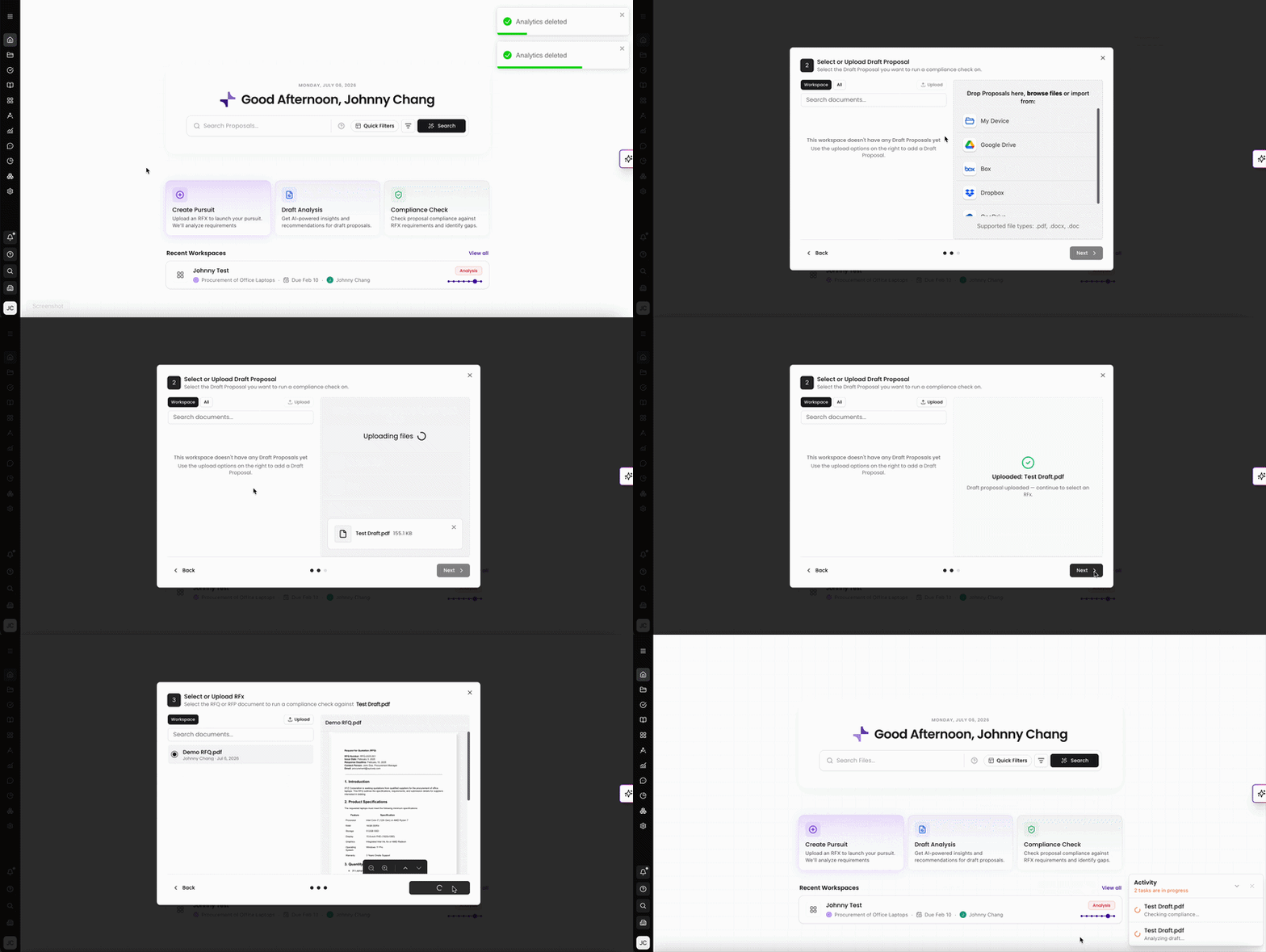
In addition to starting a compliance check from within a workspace's Analysis section, you can launch one directly from the Dashboard.
From the Dashboard, click the Compliance Check quick-action card.
Select Workspace: Choose the workspace this run should be associated with. Search or browse the list, use the My Workspaces and All Workspaces tabs to switch between your own and your organization's workspaces, and Sort to reorder it. Click + New workspace to create one on the fly instead. Select a workspace and click Next.
Select or Upload Draft Proposal: Choose the draft you want to run a compliance check on. Use the Workspace tab to pick from Draft Proposals already in the selected workspace (searchable via the field above the list), or the All tab to browse your wider library. To add a new file instead, drag and drop it into the upload area, click browse files, or import from My Device, Google Drive, Box, Dropbox, or OneDrive. Supported file types: .pdf, .docx, .doc. Click Next once your draft is selected or uploaded.
Select or Upload RFx: Choose the RFQ or RFP document to check compliance against, using the same Workspace browsing or upload options as Step 2. Selecting a document shows a preview on the right with zoom and page navigation controls.
Click Check Compliance to begin.
The dialog closes and the check runs in the background — track its progress in the Activity tray in the bottom right corner of the screen.
The Compliance Tab
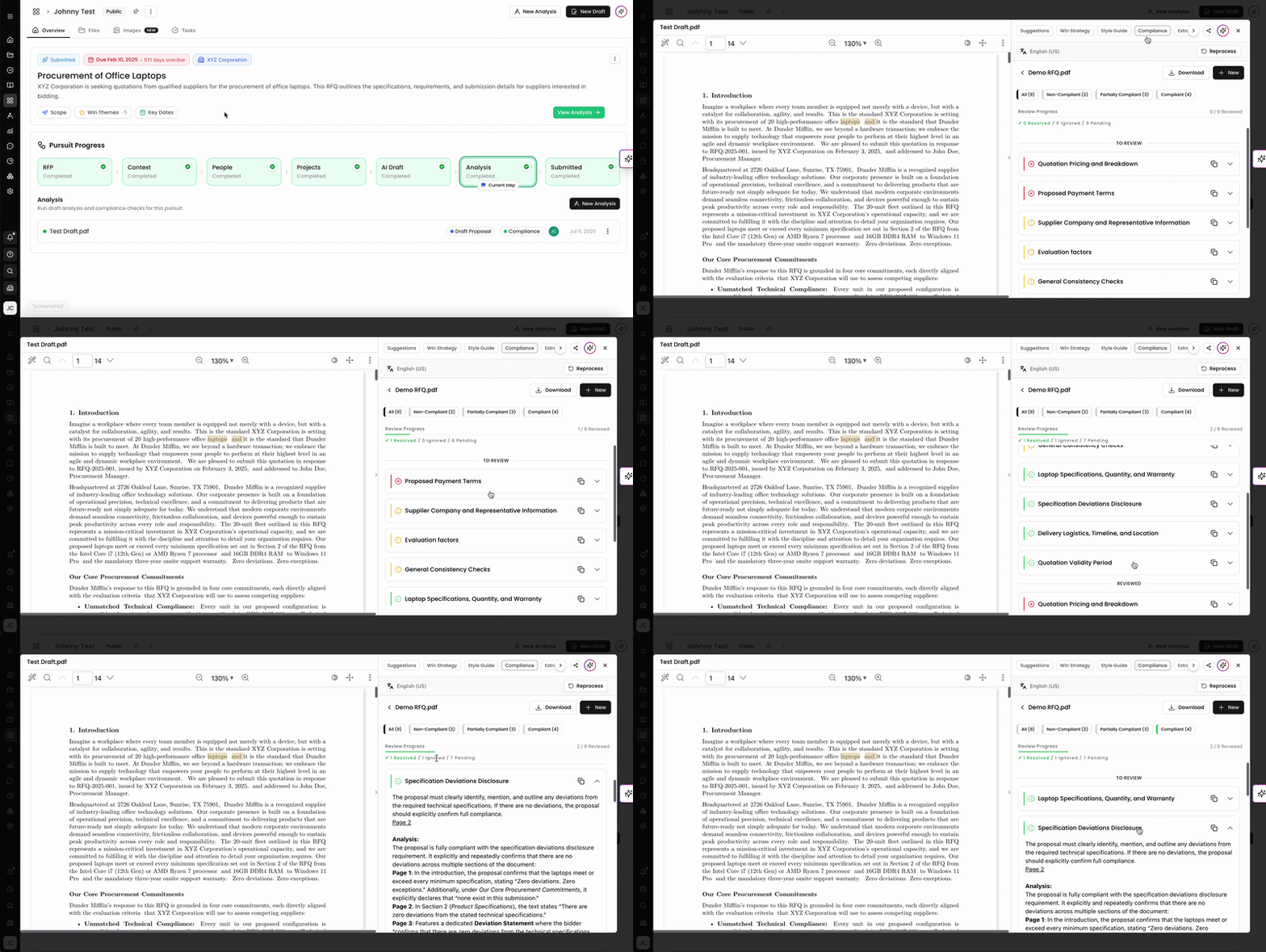
The Compliance tab appears in the same analysis viewer used for Draft Analysis (see Running a Draft Analysis) and shows the results of your compliance check. Results are organized into requirement items, each marked as Compliant, Partially Compliant, or Non-Compliant. Use the filter tabs at the top to view all items or filter by status. A Review Progress counter tracks how many items are Resolved, Ignored, or still Pending.
For each requirement item, expand it to see the analysis detail, source citations, and two action buttons: ✓ Resolve to mark it as addressed, and − Ignore to dismiss it. Use the Download button to download the compliance report, or + New to run a new compliance check.
You can always find more information on Workspaces in our Support Center. Please send any questions or feedback to Support@Kantiv.com.