User Roles, Teams, and Deactivated Users
Last updated: July 14, 2026
Kantiv uses role-based access to ensure users have the appropriate level of permission based on their responsibilities. Currently, there are three roles available—Admin, Editor, and Viewer—each designed to support different workflows and levels of access across the platform. In addition to defining roles, Kantiv also provides tools for organizing users into teams and analyzing product usage by team or individual. This article breaks down what each role can do, outlines key permissions, and explains how to assign and manage users, teams, and access within your organization.
Role Definitions
In Kantiv, we have three roles currently: Admin, Editor, and Viewer. Each role provides a different level of access to the platform as shown in the table below.
Role | Primary Responsibilities | Key Permissions |
Admin | -Full control over the platform. -Manage user access, configure system settings, and oversee all features. | -Add or remove users. |
Editor | -Focus on content creation and editing. -Broad access to tools for content management -Limited administrative rights. | -Upload and edit content. |
Viewer | -Read-only access -Ideal for stakeholders who need to review content without making changes. | -Use analytics, RFx documents, and workspaces. |
Access Levels and Permissions by User Type
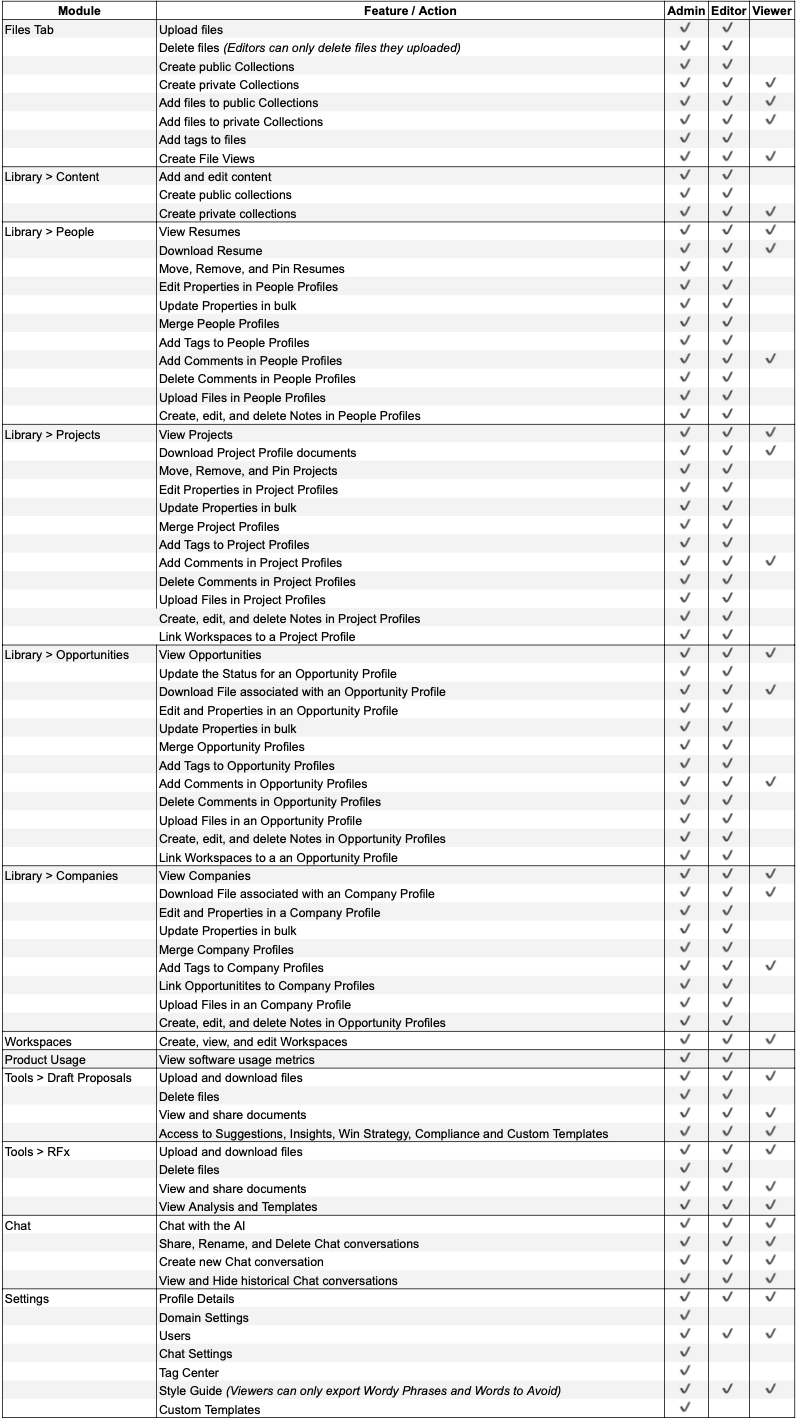
To expand and view a larger version of this table, click here.
How to Assign Roles
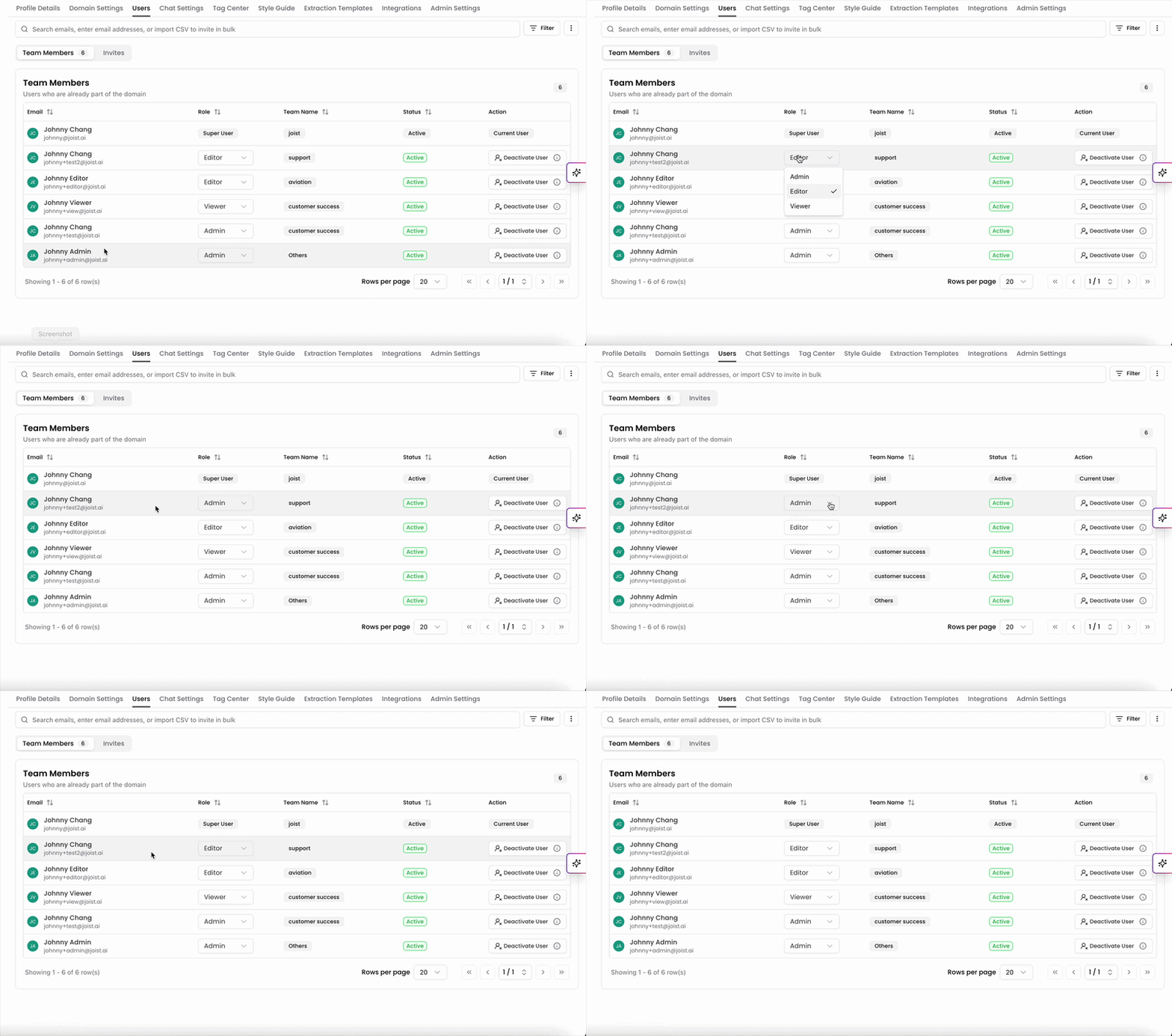
Roles can be assigned or edited at any point in the Users page.
In the Users page, click the dropdown menu in the roles column.
Select the role you'd like to edit.
Changes will be saved immediately and your users will see the changes upon refresh.
Team Management
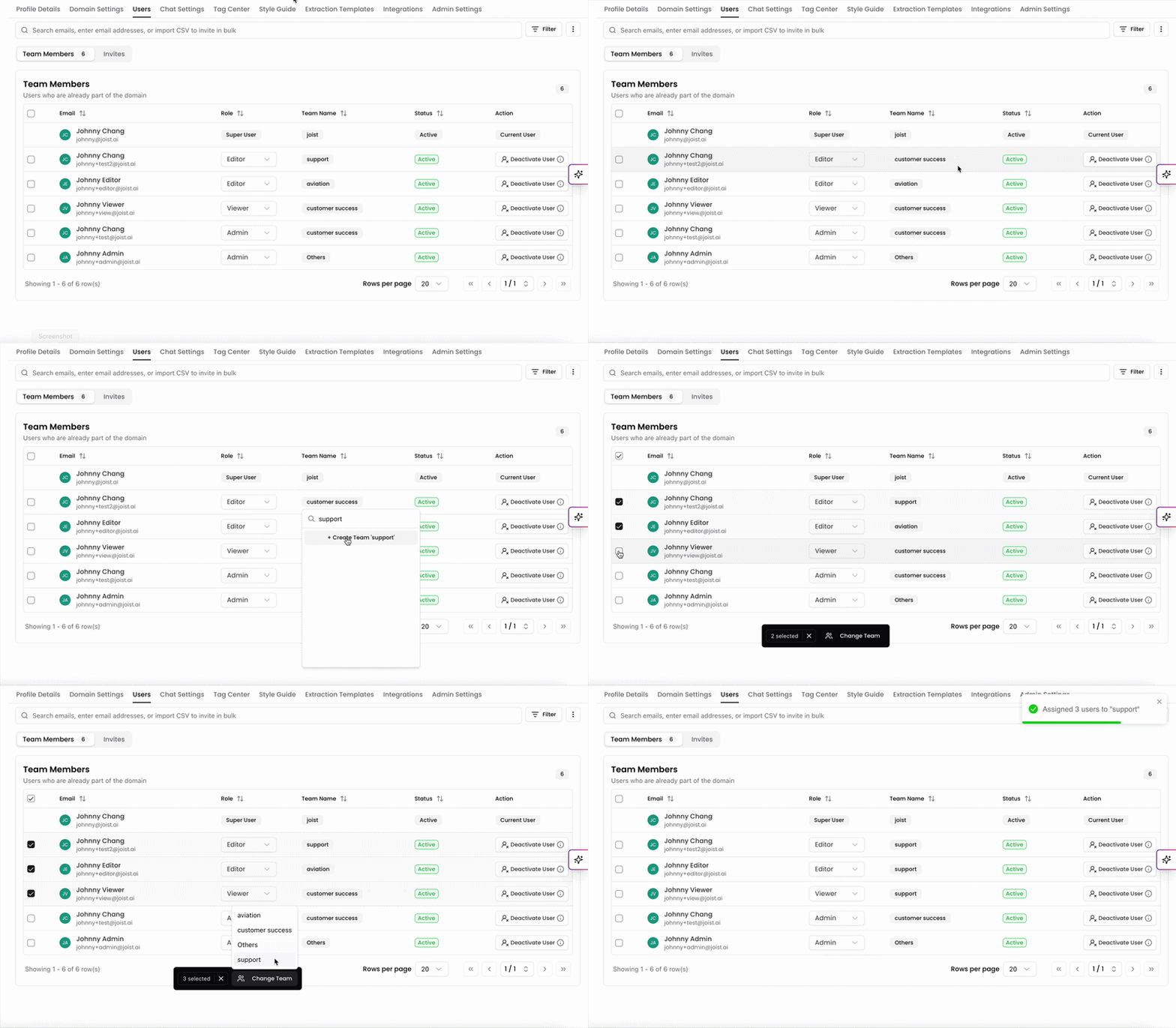
Admins can create, assign, and edit team names directly from the table in the Users page. Admins can click on the team name to select a team from the list, or create a new team name. Admins can also hover over an existing team name in the list and click the pencil icon to edit the team name.
If all members from a team are removed, that team will automatically be deleted from the team list in the team dropdown. Admins can add the team back on by creating a new team name.
Users can also make team edits in bulk by clicking the checkboxes to the left of the names. Click Change Team in the black bar that populates and select the team to assign the users to.
If no team is assigned, users are automatically set under “Unassigned" as the team name. Admins can assign the user onto a team to resolve that.
Team-based Insights in Product Usage
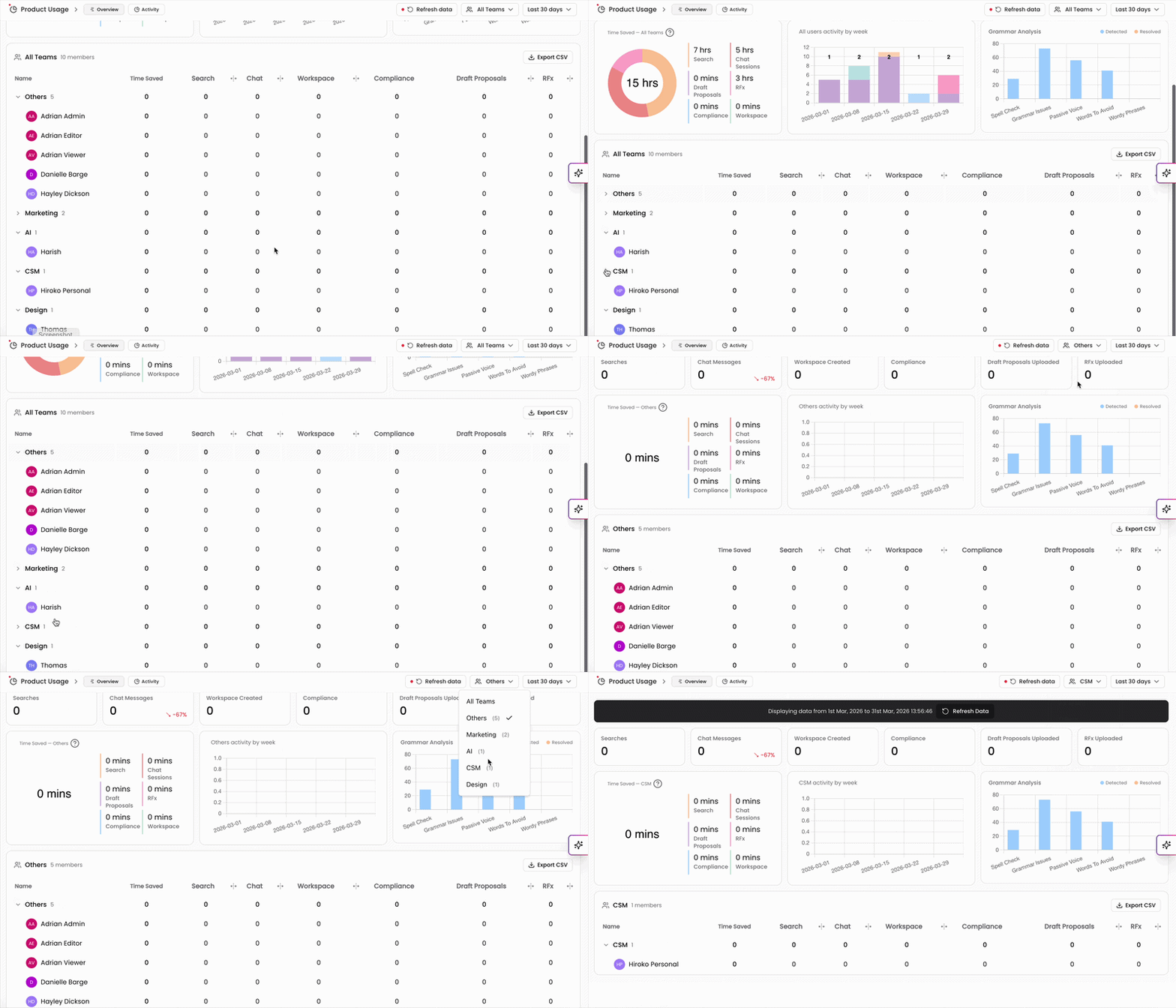
In the Product Usage page, data can be displayed and filtered by team. You can view insights on how often users use different features of the Kantiv platform, and the data can be organized by team. You can expand each team to view the users within it and see the usage on a team level and on an individual level.
On the top right of the Product Usage page, you can filter by team to only display usage data for certain teams. By default, all teams will be selected but you can click the dropdown menu to select a specific team to view their usage data.
Active and Inactive Users
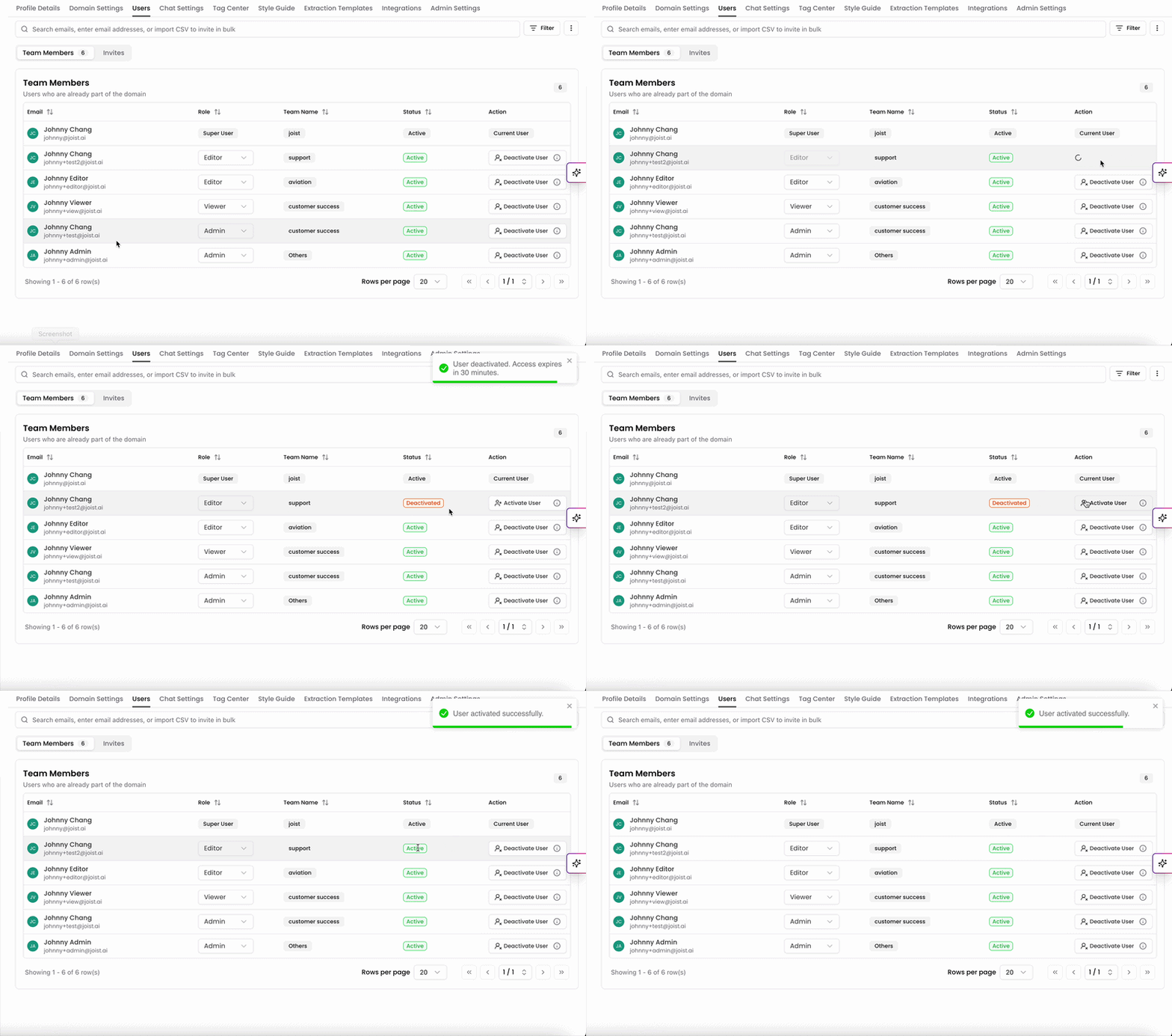
On the Users page, you can mark a user as active or deactivated.
Active users can login to Kantiv and access features of the platform according to their role type.
Deactivated users are unable to to login to Kantiv and access the domain their email is associated with.
To activate or deactivate a user, toggle the setting in the action column when viewing the Users page. Once deactivated, access expires 30 minutes after toggling. Please note that only admins have access to deactivate users.
Currently we are unable to delete users from a domain due to historical data that may be associated with their user profile. If you have a teammate who leaves your organization, best practice is to deactivate them so they lose access to your domain.
Best Practices
Assign the Admin role sparingly to ensure controlled access.
Use the Editor role for team members who actively create or edit content.
Use the Viewer role for stakeholders who need access to review materials but do not require editing capabilities.
Regularly review user status to manage active and deactivated users effectively.
Deactivate users who no longer require access to maintain security and prevent unauthorized activity.
Structure teams based on how your organization operates (e.g., by department, region, or function) to make collaboration and reporting more meaningful.
As responsibilities shift, review both role assignments and team structures to ensure access and organization stay aligned with current workflows.
By leveraging roles, team management, and user activity insights, you can maintain a secure, organized, and transparent workflow in Kantiv. Assigning the right level of access, structuring users into teams, and regularly reviewing product usage helps ensure your organization stays efficient, informed, and aligned as you scale.
You can always find more information on Setup and User Management in our Support Center. Please send any questions or feedback to Support@Kantiv.com.