Joist AI Companion - Chat
Last updated: January 29, 2026
Chat in the Joist AI Companion brings AI-powered writing and insights directly into Adobe InDesign, allowing you to generate, refine, and apply content without disrupting your creative workflow. This article walks through how to use Chat within the Companion, apply responses directly to your InDesign files, and take advantage of features like filters, prompt libraries, and voice profiles to produce on-brand, context-aware content more efficiently.
Using Chat in the Joist AI Companion
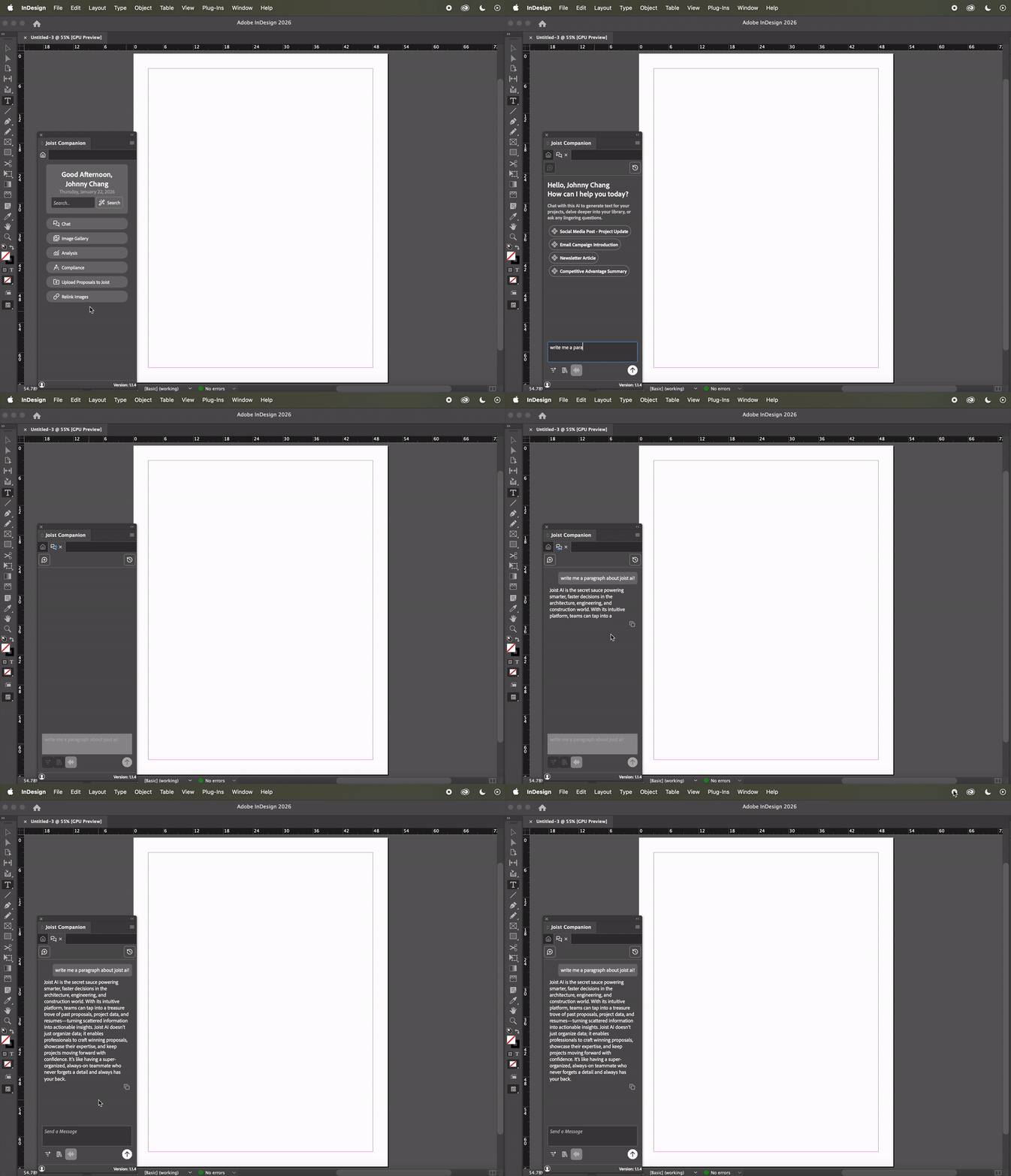
Chat in the Joist AI Companion functions similarly to Chat in the App. To access Chat:
Click Chat in the Joist AI Companion.
Enter your prompt. You can also apply filters, configure voice settings, or select from your prompt library.
Send your prompt through and receive your chat response.
Applying your Chat Response to your InDesign File
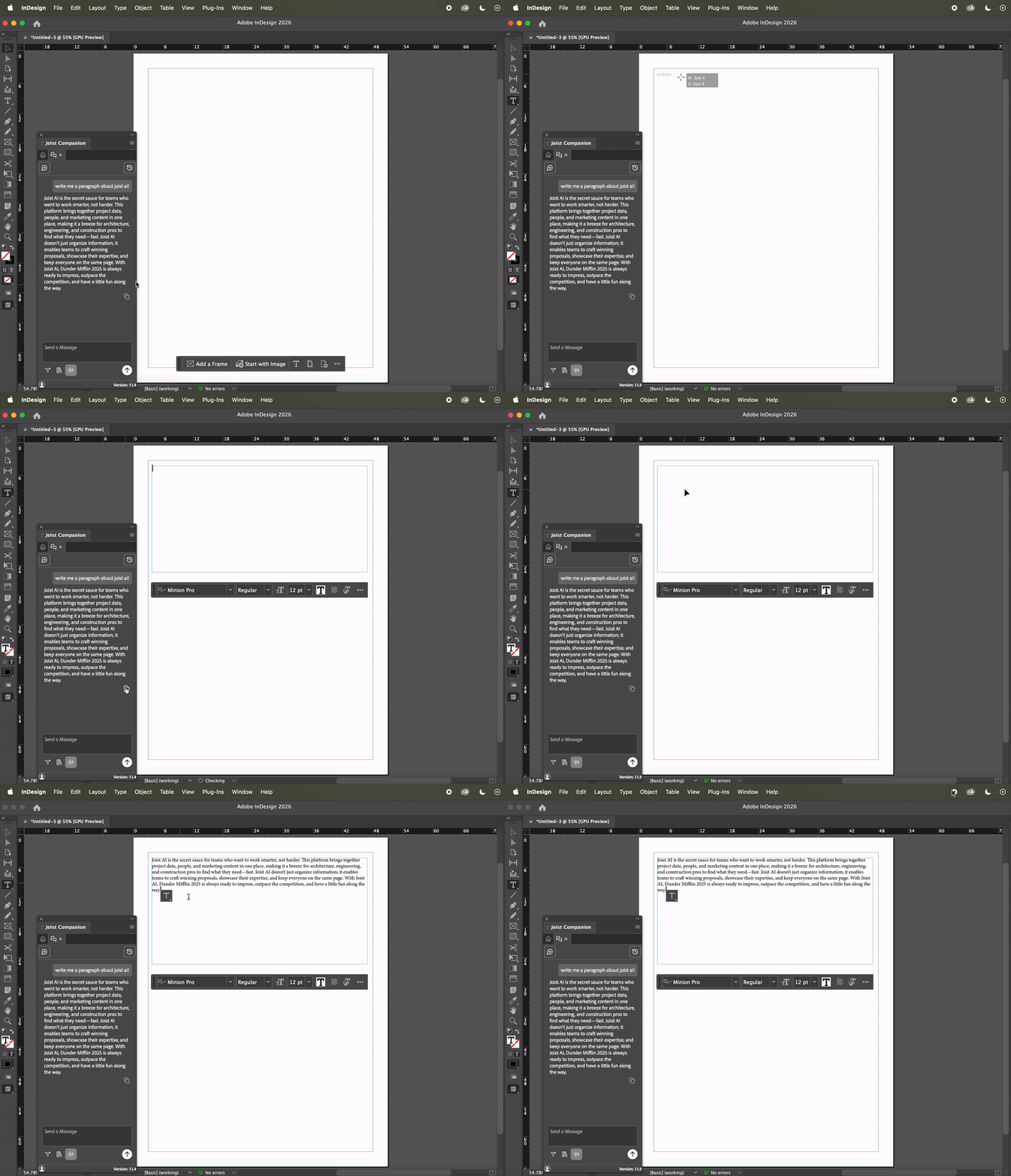
Within InDesign, you can take your Chat responses and add them directly to your file.
Create a Text Box: Click the T icon in your toolbar and then drag a window within your file. You can create the text box to fit accordingly for your document.
Copy Response: In the Joist AI Companion, click the copy icon underneath the chat response.
Paste Response: Paste your chat response in the text box. You'll want to make adjustments to ensure the text box fits the response accordingly.
By using the Chat feature in the Joist AI Companion, you can add AI-generated responses directly to your documents without having to leave the application and switch between windows!
Joist AI Companion Chat Features
Apply Chat Filters
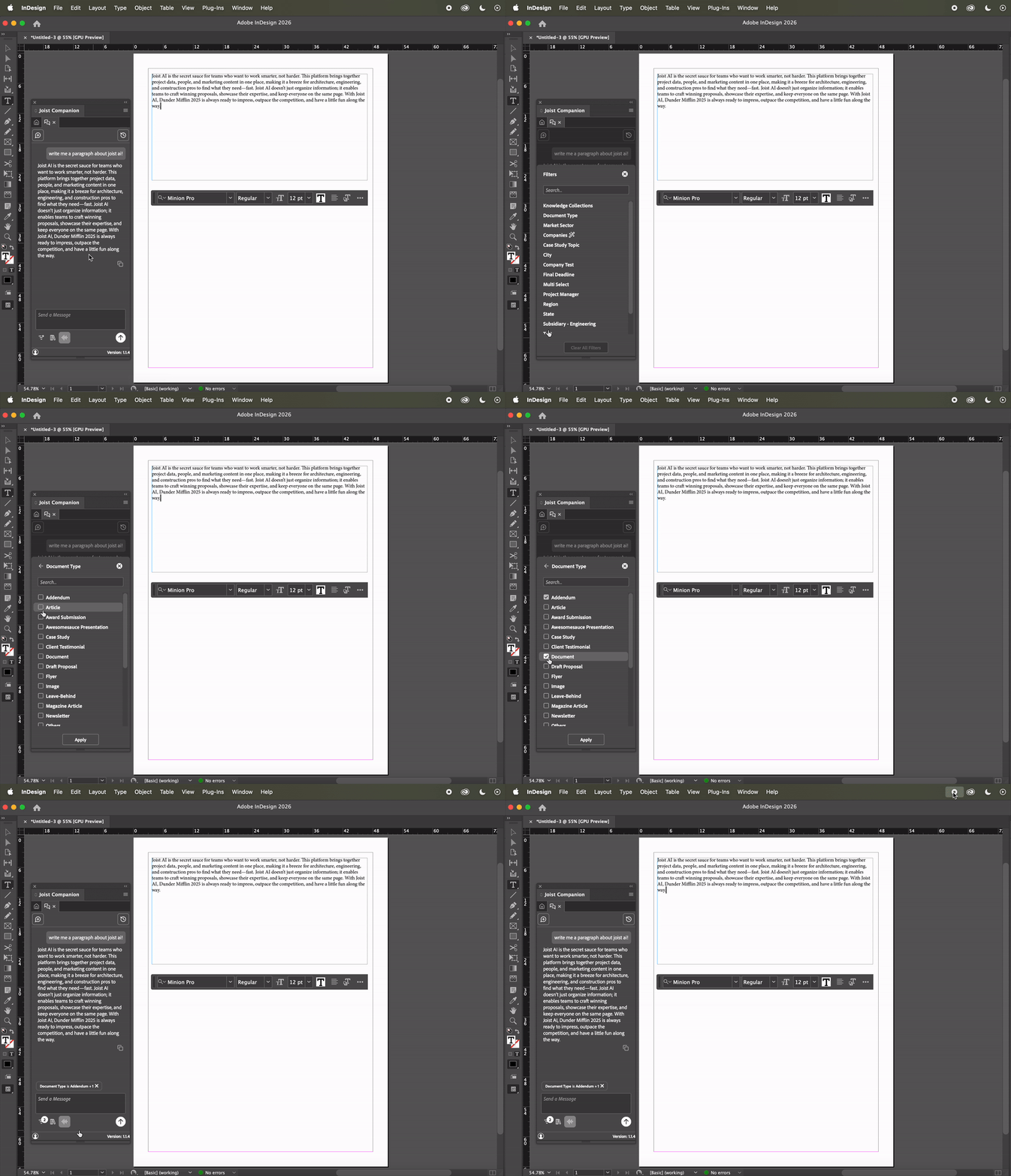
Much like the web platform, you can apply filters based on the Tags in your account. This will filter your Chat responses to only pull from data and files in your library associated with the selected Tags.
To apply filters:
Click the Filter Icon on the bottom left of the Chat window.
Select your Tag group and select the tags you'd like to apply.
Click Apply at the bottom.
At this time, the Joist AI Companion does not support attaching files onto Chat. To utilize this feature, you can use Chat in the web platform.
Accessing your Prompt Library
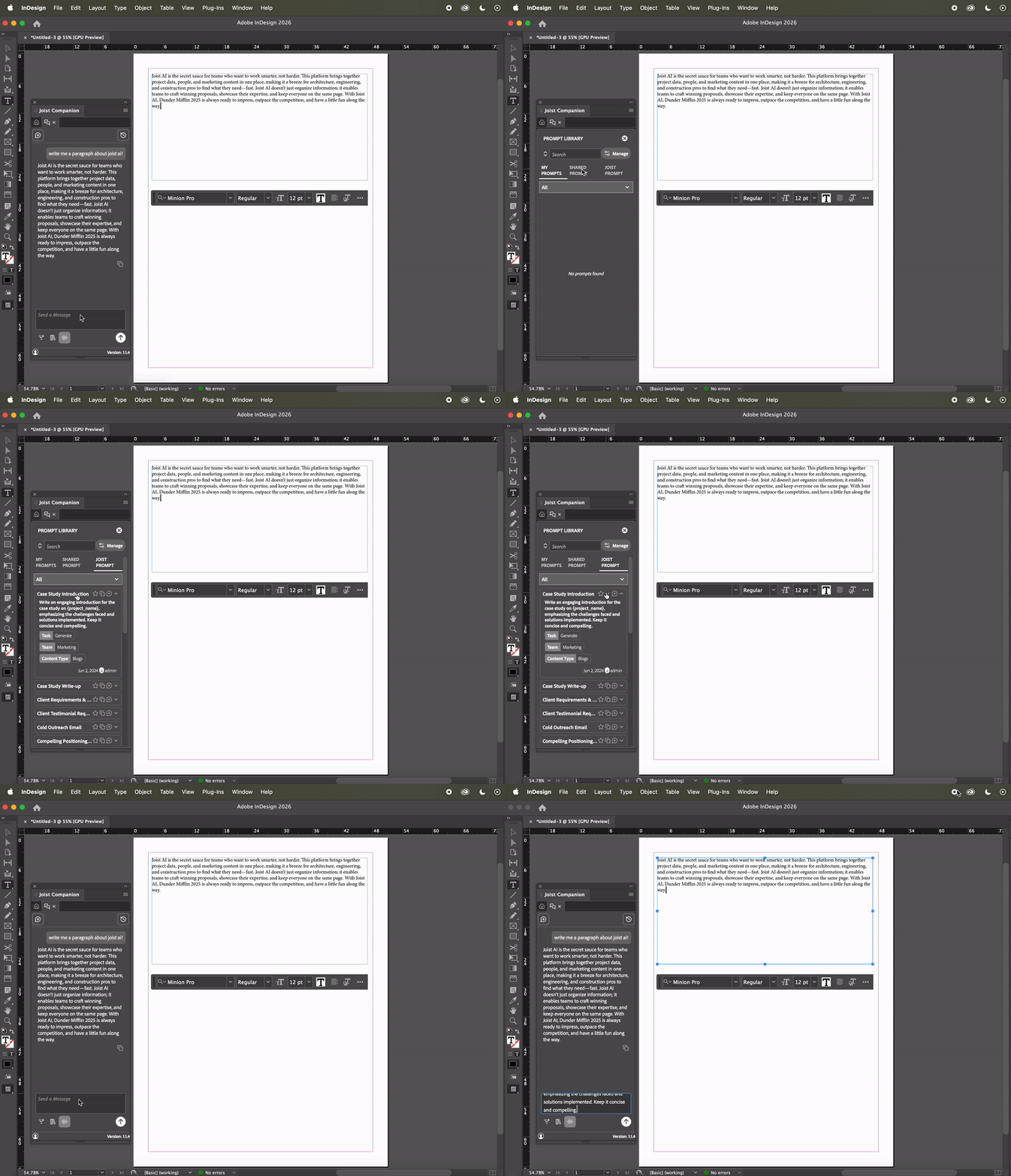
If you have prompts set up in your prompt library on the web platform, you can access the same prompt library in the Joist AI Companion. Chat pulls in prompts that are set up under My Prompts, Shared Prompts, and built-in Joist Prompts. You can click into the prompts set up in your account to expand and view them, and you can easily apply them in your Chat window.
Within each entry in your prompt library, you can:
Click the Star Icon to favorite the prompt.
Click the Copy Icon to copy the prompt and paste into your Chat window.
Click the Plus Bubble Icon to automatically apply the prompt into your Chat window.
You can also search through your prompts using the search bar at the top of the page, and filter using the dropdown menu to find prompts with specific tags.
Click Manage at the top right of the window to be redirected to Shared Prompts in the Settings page on the web platform. For more information on your Prompt Library, check out this article.
Set a Voice Profile
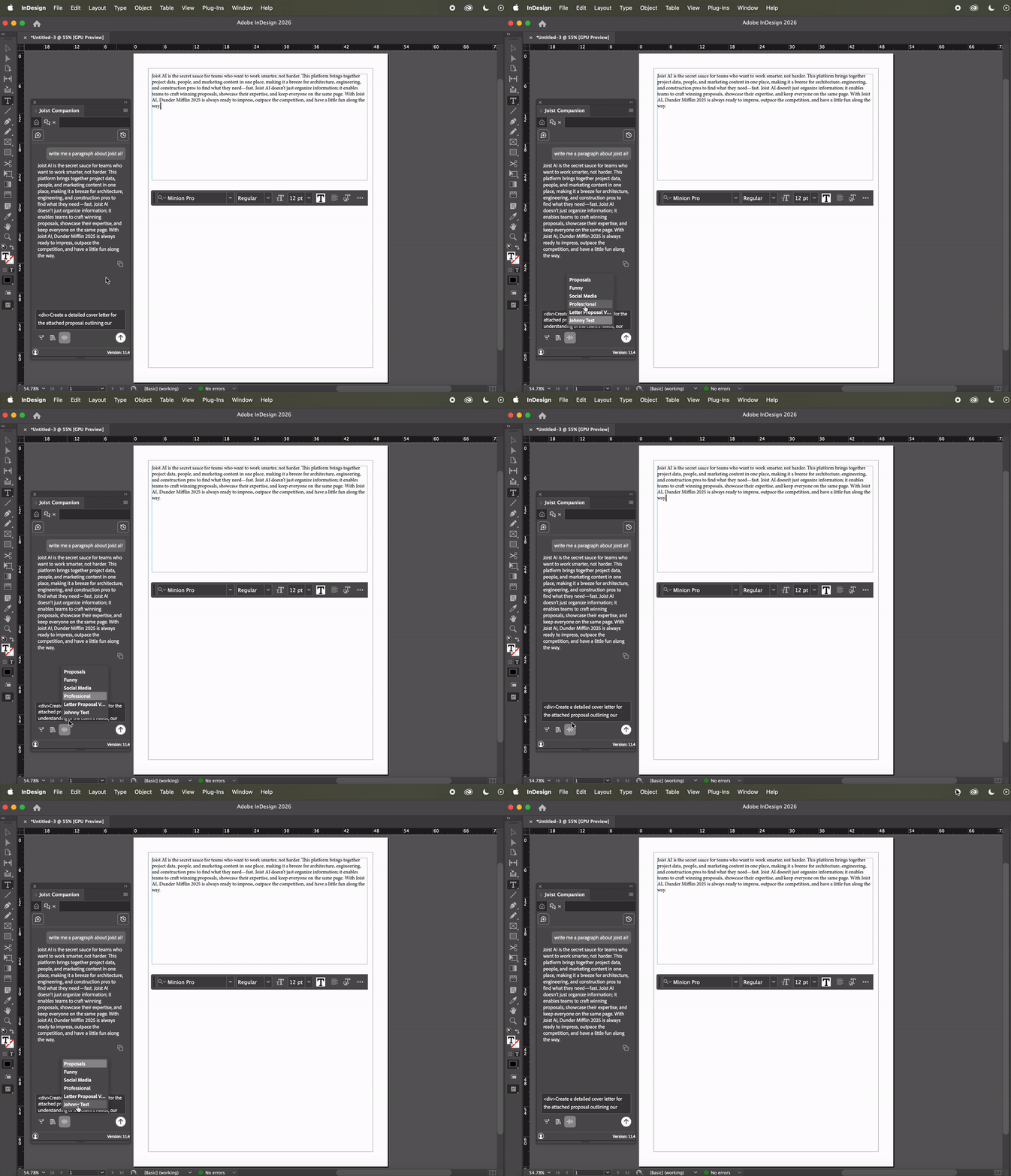
If you have voice profiles set up on your account, you can apply different voice profiles to Chat in your Joist AI Companion. Much like Chat in the web platform, you can alter the tone and personality of your Chat responses.
To set voice profiles:
Click the Voice Icon on the bottom of the window.
Select the voice profile you'd like to apply to your Chat.
Voice profiles cannot be created or edited in the Joist AI Companion. You can generate them in the web platform and select them in Chat in the Joist AI Companion.
For more information on setting up Brand Voice Profiles, check out this article.
Chat in the Joist AI Companion empowers you to create, refine, and apply AI-generated content without leaving Adobe InDesign. By leveraging filters, prompt libraries, and voice profiles, you can produce consistent, on-brand content and move from idea to execution faster—while staying fully within your design workflow.
You can always find more information on Security and Integrations on our Support Center. Please send any questions or feedback to Support@Joist.AI .