Joist AI Companion - Image Gallery
Last updated: January 29, 2026
The Image Gallery in the Joist AI Companion gives you instant access to your Joist AI image library directly within Adobe InDesign, making it easy to find, preview, and place approved visuals without breaking your workflow. This article walks through how to access images and collections, organize assets for faster use, and apply images to your InDesign files—helping you maintain visual consistency and move from design to delivery more efficiently.
Accessing Image Gallery and Collections
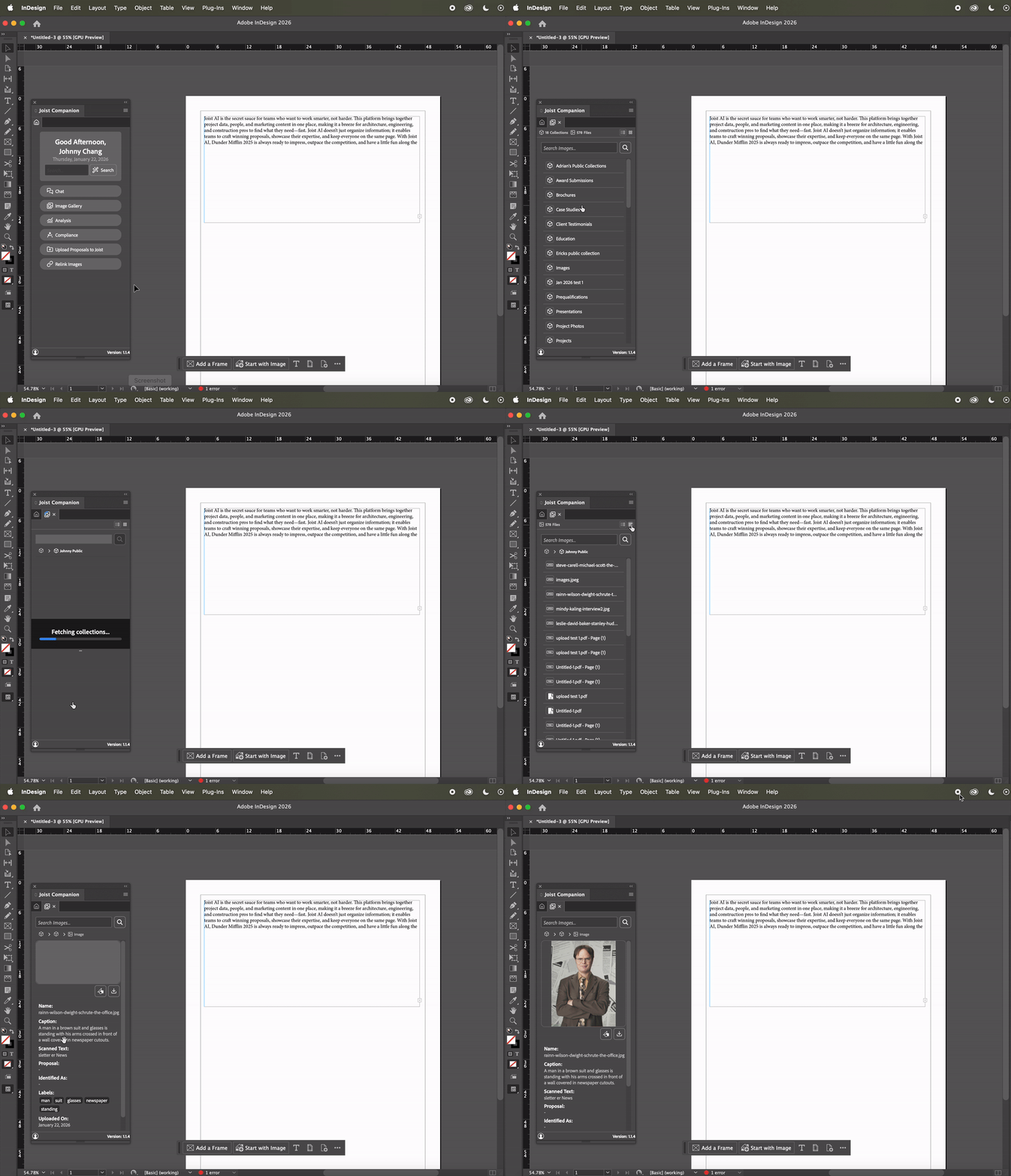
The Joist AI Companion accesses your file library in InDesign, allowing you to have your images handy while simultaneously building your InDesign file. If you have the images you need for your document added in your Joist AI account, this feature gives you quick access to assets from your library to streamline your workflows and maintain consistency across your projects.
For best results, we recommend creating a specific collection containing the images you'd like to use in your InDesign file prior to using the Joist AI Companion for easy access to your images.
To look up images in the Joist AI Companion,
Click Image Gallery on the main menu. You'll see the files, images, and collections that exist within your Joist AI account, with collections brought to the top of the list.
Select the image, or the collection containing the image(s) you'd like to use.
Pro-Tip: Toggle from list view to tile view using the list and tile icons on the top right to view the image rather than the file name.
If you've selected a collection, select the image you'd like to use.
The window will display the image itself, the file name, a description of the image, and any tags or labels associated with the image. From here, you can apply the image to your InDesign file.
Applying Images to your InDesign File
There are two ways to apply the image to your InDesign file from the Joist AI Companion: Drag and Drop and within an Image Box.
Drag and Drop
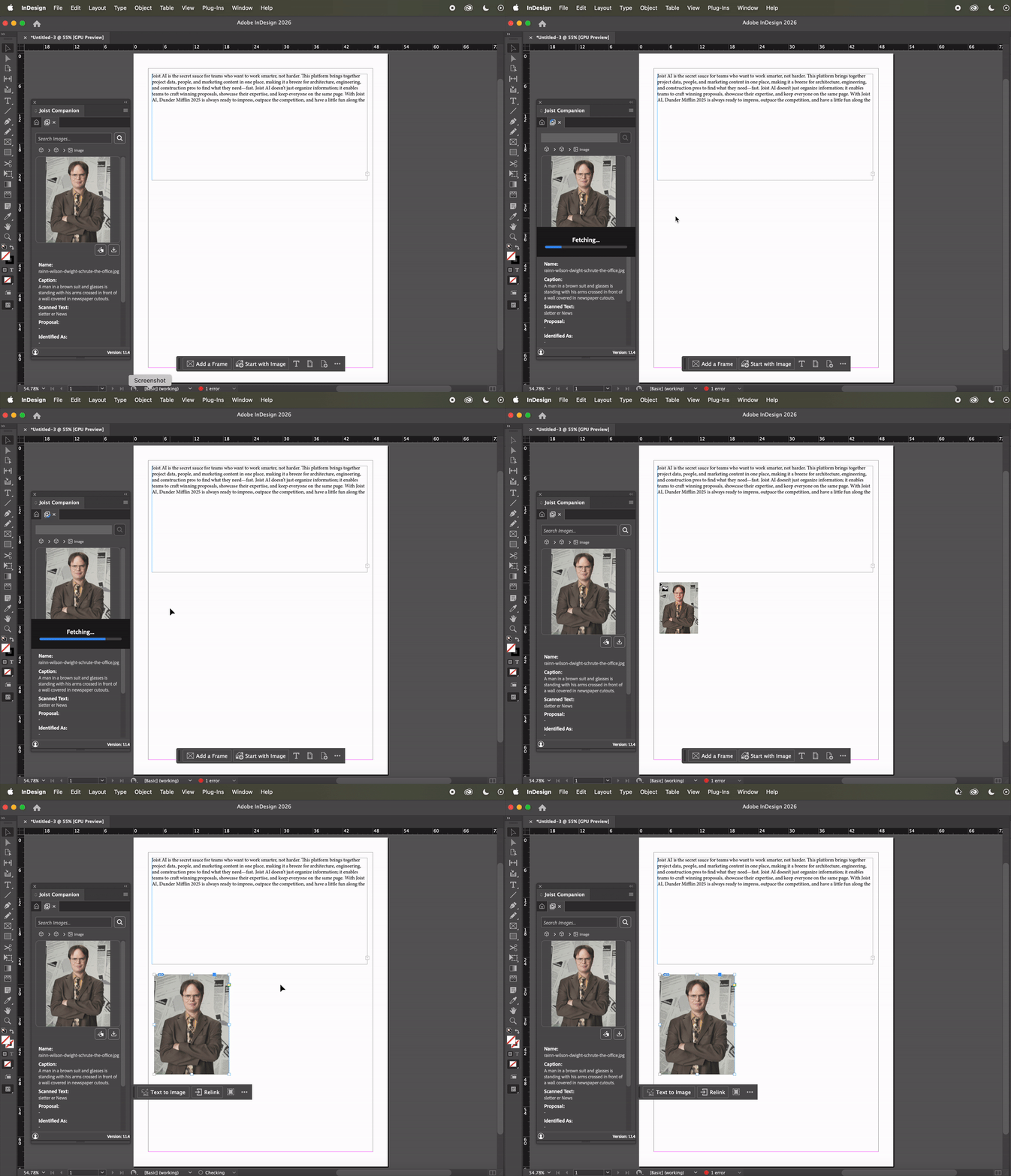
When viewing the image in the Joist AI Companion, click and drag the file onto your InDesign file. The Joist AI Companion will load the image and you can click within the InDesign file where you'd like to place the image in the file. You can adjust and reposition the file to your preference.
Image Box
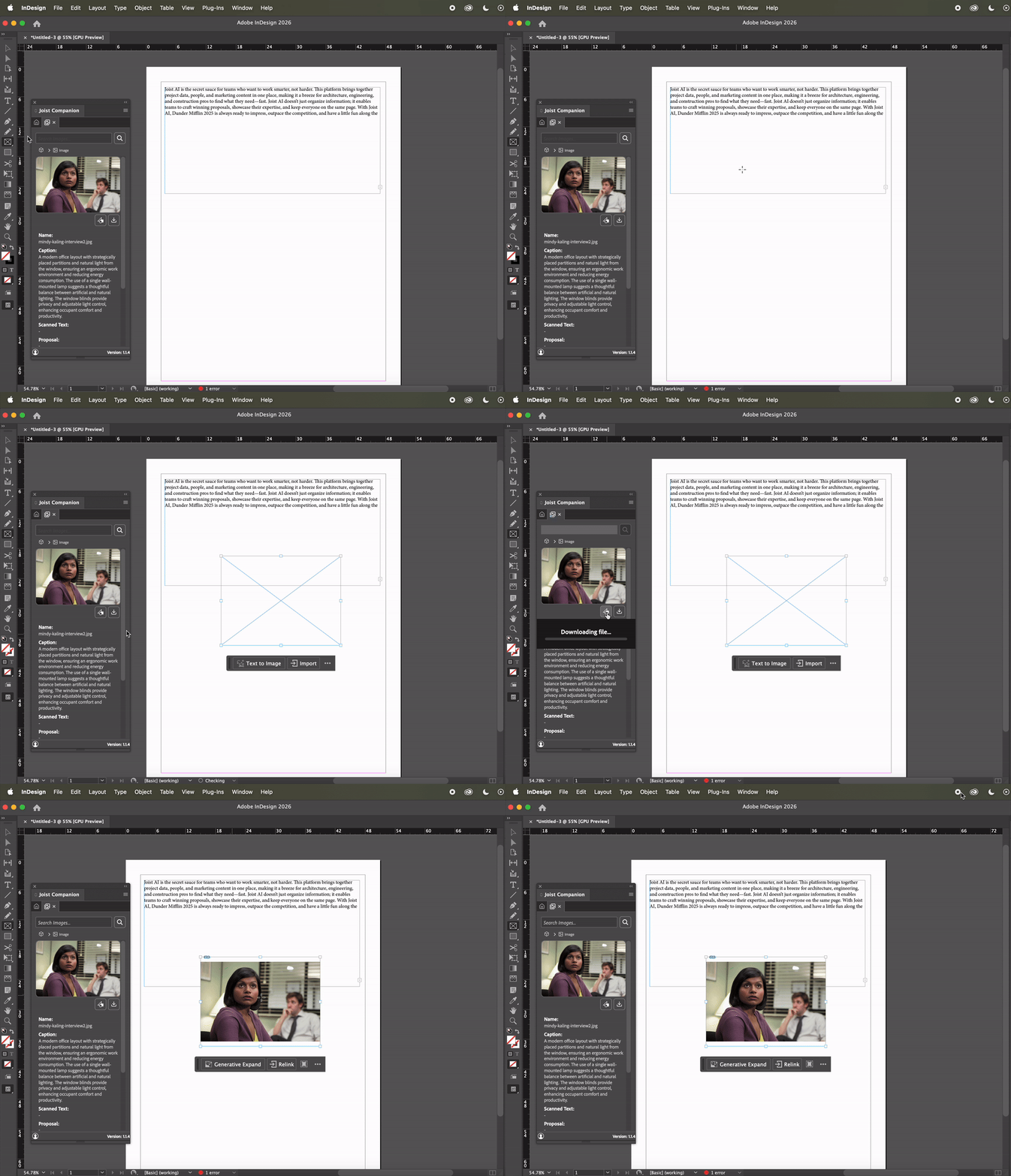
In the InDesign toolbar, set your cursor to the Rectangle Frame Tool. Create a rectangular frame in your InDesign file where you'd like to place the image. Once applied, click the Shapes Icon underneath the image in the Joist AI Companion to download and fit the image within the rectangular frame. From there, you can adjust and reposition the image to your preferences.
The Image Gallery in the Joist AI Companion makes it easy to access and place approved visuals directly within Adobe InDesign. By organizing images into collections and using flexible placement options, you can build visually consistent documents faster—while keeping your entire design workflow in one place.
You can always find more information on Security and Integrations on our Support Center. Please send any questions or feedback to Support@Joist.AI .