Joist AI Companion - Compliance Checks
Last updated: January 29, 2026
Compliance checks in the Joist AI Companion help you evaluate your InDesign documents against RFx requirements directly within your design workflow. By comparing your draft to an analyzed RFx file, you can quickly identify gaps, understand alignment, and prioritize revisions before submission. This article explains how to run Compliance checks, interpret compliance results, and download reports—so you can confidently deliver responses that meet client expectations.
Running Compliance Checks with the Joist AI Companion
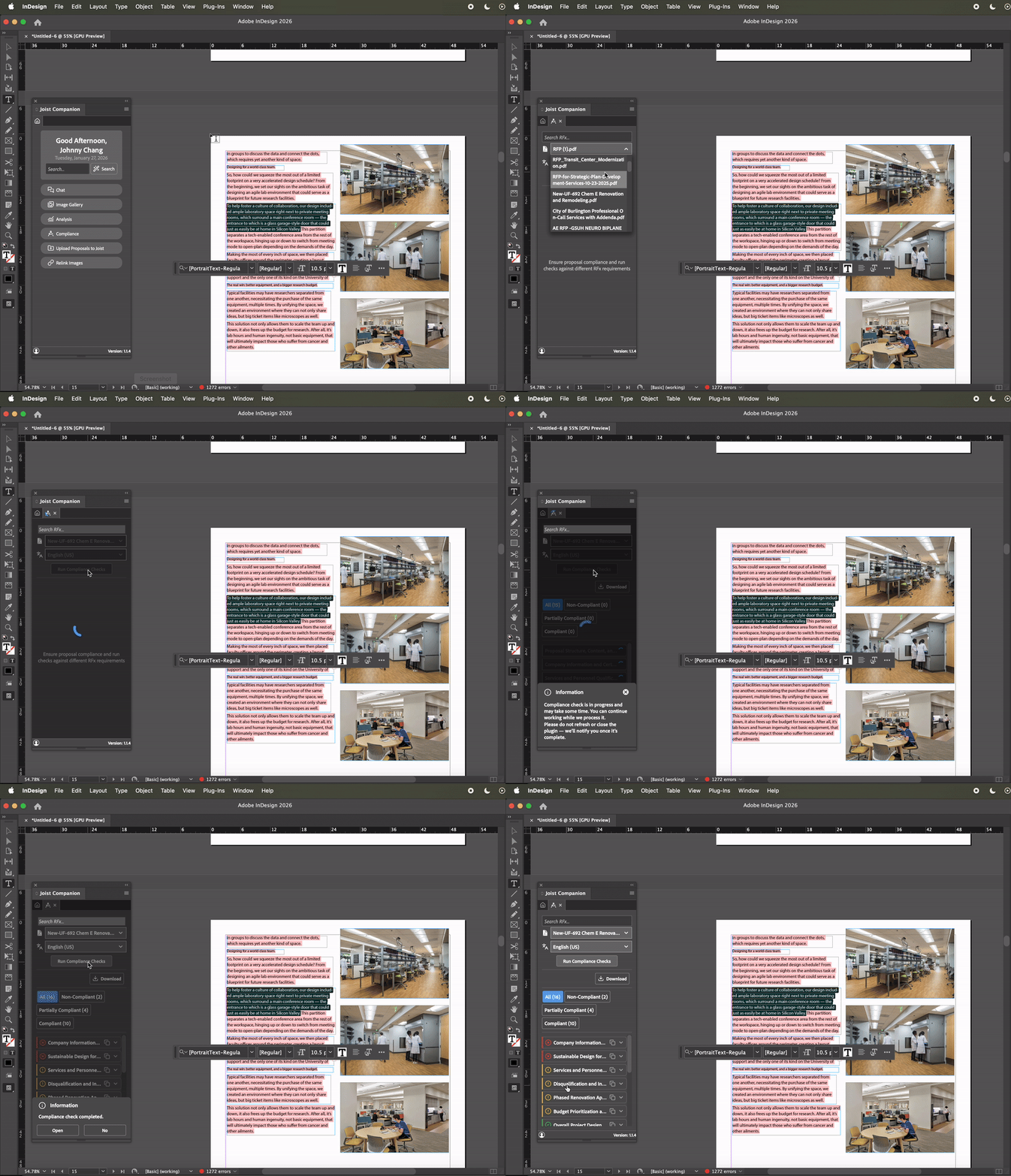
In the Joist AI Companion, click Compliance to run your InDesign file against an RFx file. In this window, you can select the RFx file from the list and optionally select the language for the Compliance check. Alternatively, you can also search for your RFx file using the search bar at the top of the window. When you're ready to proceed, click Run Compliance Check.
RFx files will populate after they've been run through RFx analysis in the Tools page on the Web Platform. If you don't see your RFx file in the list and you've run it through RFx analysis prior, you may need to log out of the Joist AI Companion and then log back in.
Compliance check time varies depending on the file size and amount of content in your document. Once complete, the compliance report will be listed and automatically categorized into subsections.
Understanding Compliance Checks
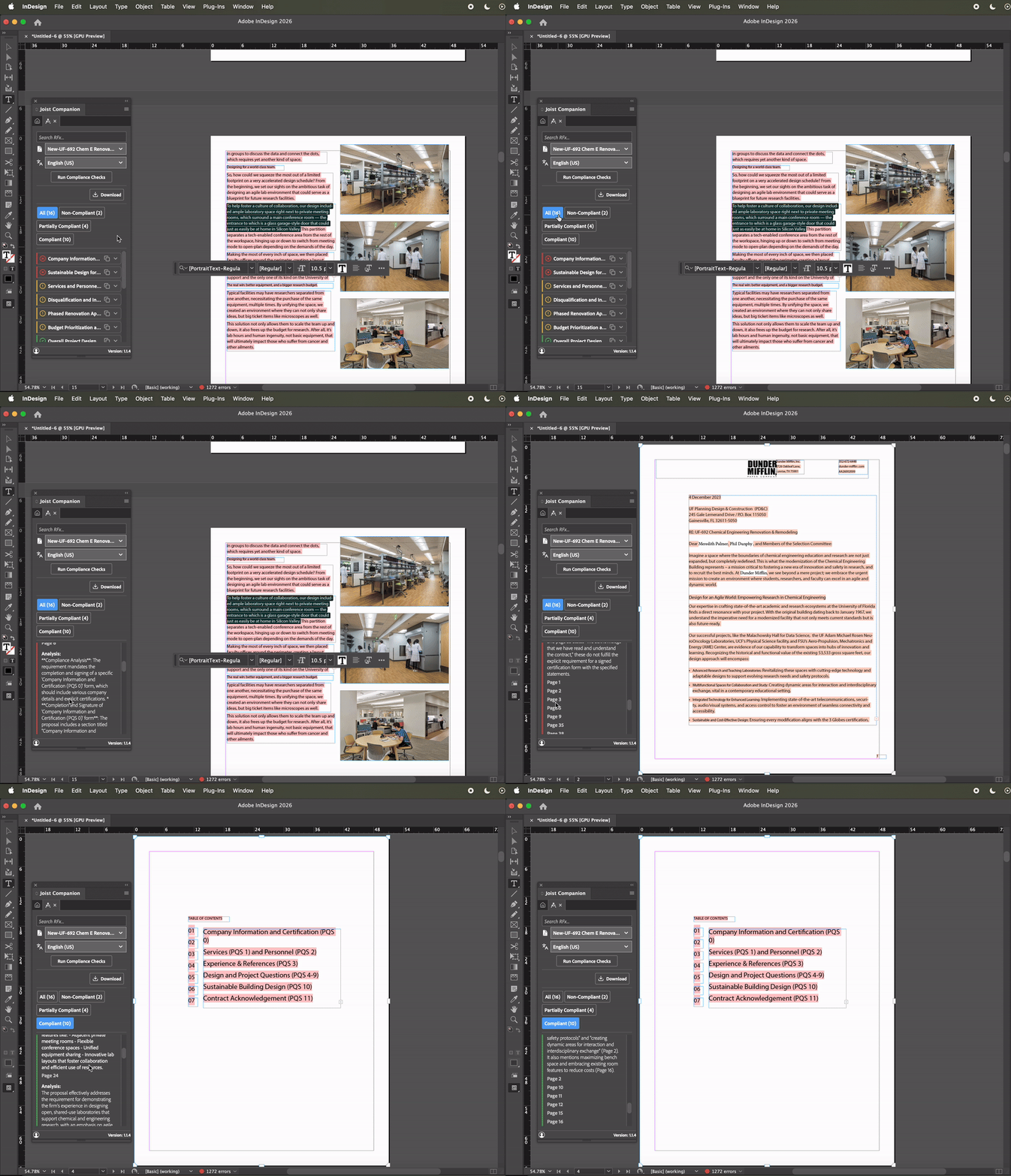
The Compliance report helps you quickly understand how well your response aligns with RFx requirements and where revisions are needed. Each subsection is automatically organized and color coded so you can assess compliance status at a glance.
Subsections are categorized as follows:
Non-Compliant (Red): Non-Compliant subsections indicate areas that do not meet the requirements of the RFx and require attention. These sections should be revised in the Draft Proposal to address missing or unmet requirements.
Partially Compliant (Yellow): Partially Compliant subsections indicate areas that partially meet RFx requirements but may be missing details or clarity. These sections may require refinement or additional content to fully meet expectations.
Compliant (Green): Compliant subsections indicate areas that meet the requirements of the RFx.
You can use the filters at the top of the Compliance window to display only Non-Compliant, Partially Compliant, or Compliant subsections. Click into any subsection to view detailed feedback and references, and select the page numbers to jump directly to the corresponding sections in your document.
Downloading Compliance Checks
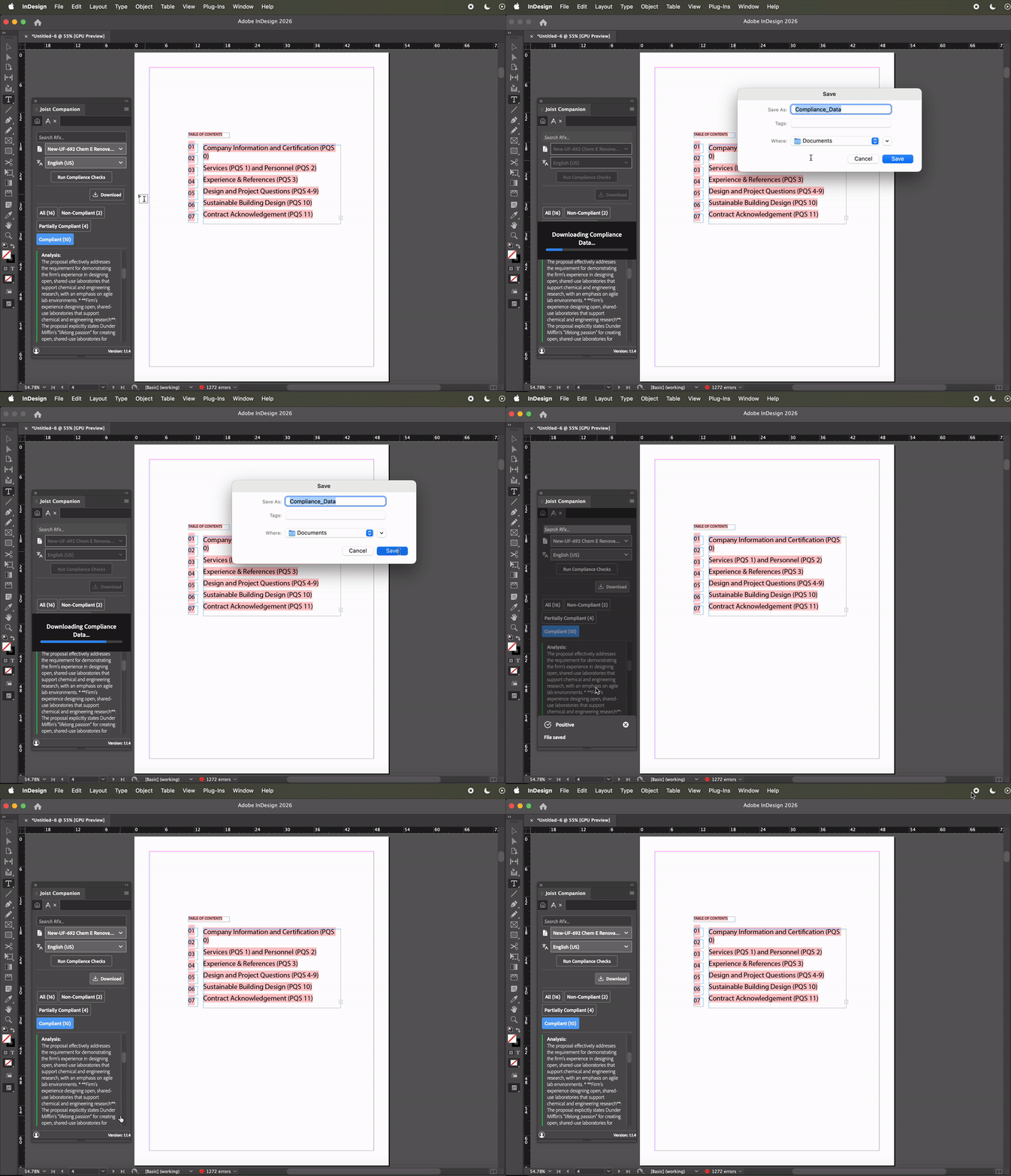
You can save and download your Compliance check as a TXT file by clicking Download. This saves the Compliance report onto your device for you to send out as needed.
Compliance Checks in the Joist AI Companion help you validate your responses against RFx requirements directly within Adobe InDesign. By reviewing compliance results, addressing gaps, and exporting reports as needed, you can reduce risk, streamline revisions, and submit stronger, more confident responses.
You can always find more information on Security and Integrations on our Support Center. Please send any questions or feedback to Support@Joist.AI .