Joist AI Companion - Upload Document to File Library
Last updated: April 16, 2026
The Joist AI Companion makes it easy to send your completed InDesign files directly to the Joist web platform without leaving your design workflow. Whether you’re preparing a proposal for review or organizing files for collaboration, uploading your document to the File Library ensures it’s properly stored, tagged, and ready for use across your team. This article walks through how to upload your document from InDesign, configure upload settings, and ensure your file appears correctly in the Joist File Library.
Requirements
Currently only Admins and Editors have access to upload documents from the Joist AI Companion to the web platform. Users with viewer access do not have access to upload files.
Uploading Your Document to the File Library
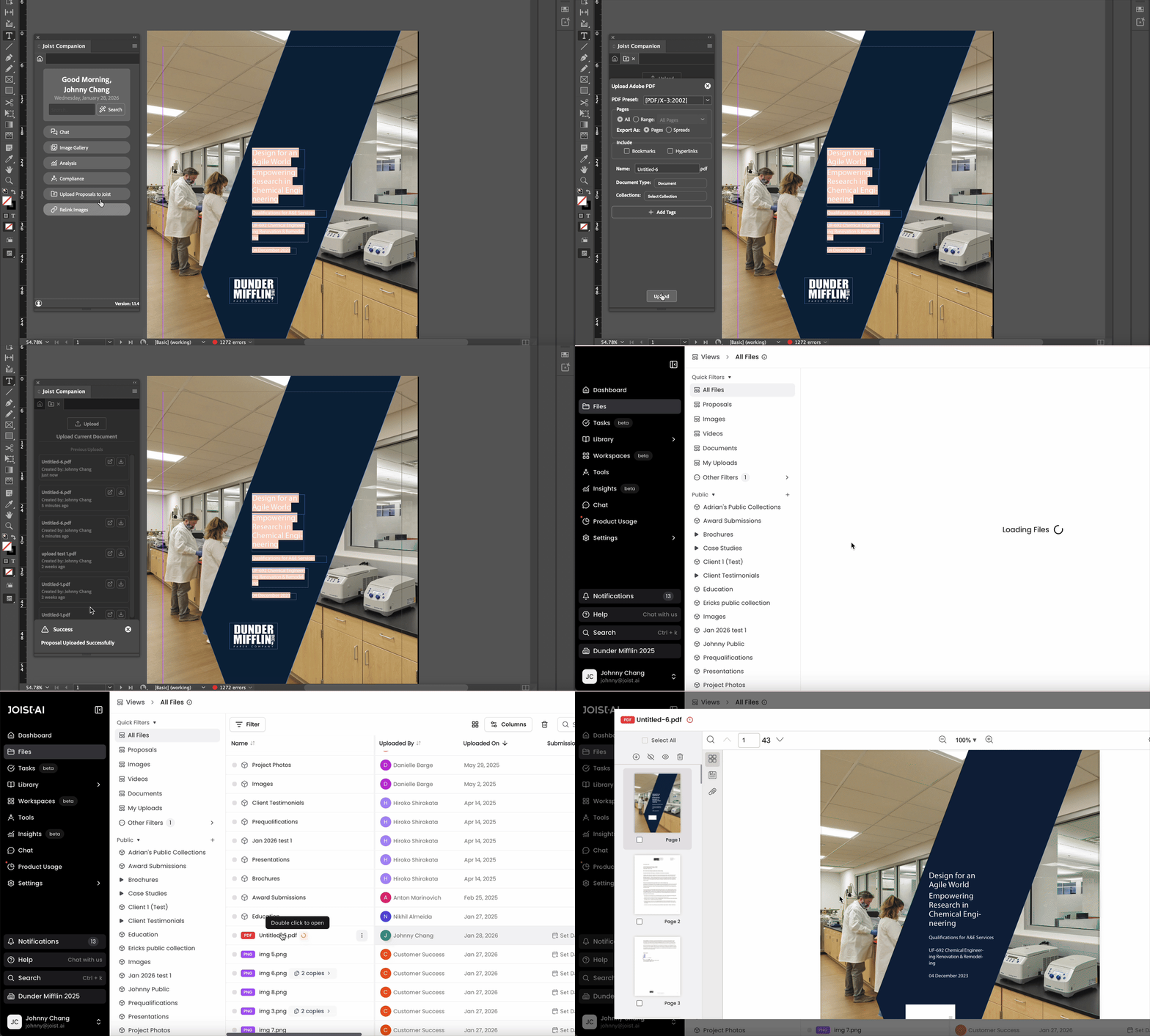
Once your InDesign file is complete, you can upload it directly to the Joist web platform using the Joist AI Companion. While most workflows move content from the web platform into the Joist AI Companion, this feature allows you to send completed files back to the web platform when your document is ready.
To upload your file onto the web platform:
Click Upload Proposals to Joist in the Joist AI Companion.
Click Upload at the top of the window.
Configure and toggle upload settings. More details on these settings can be found below.
Click Upload at the bottom of the window.
Your file will begin uploading and once complete, it will appear in the Files page on the web platform.
Upload Settings
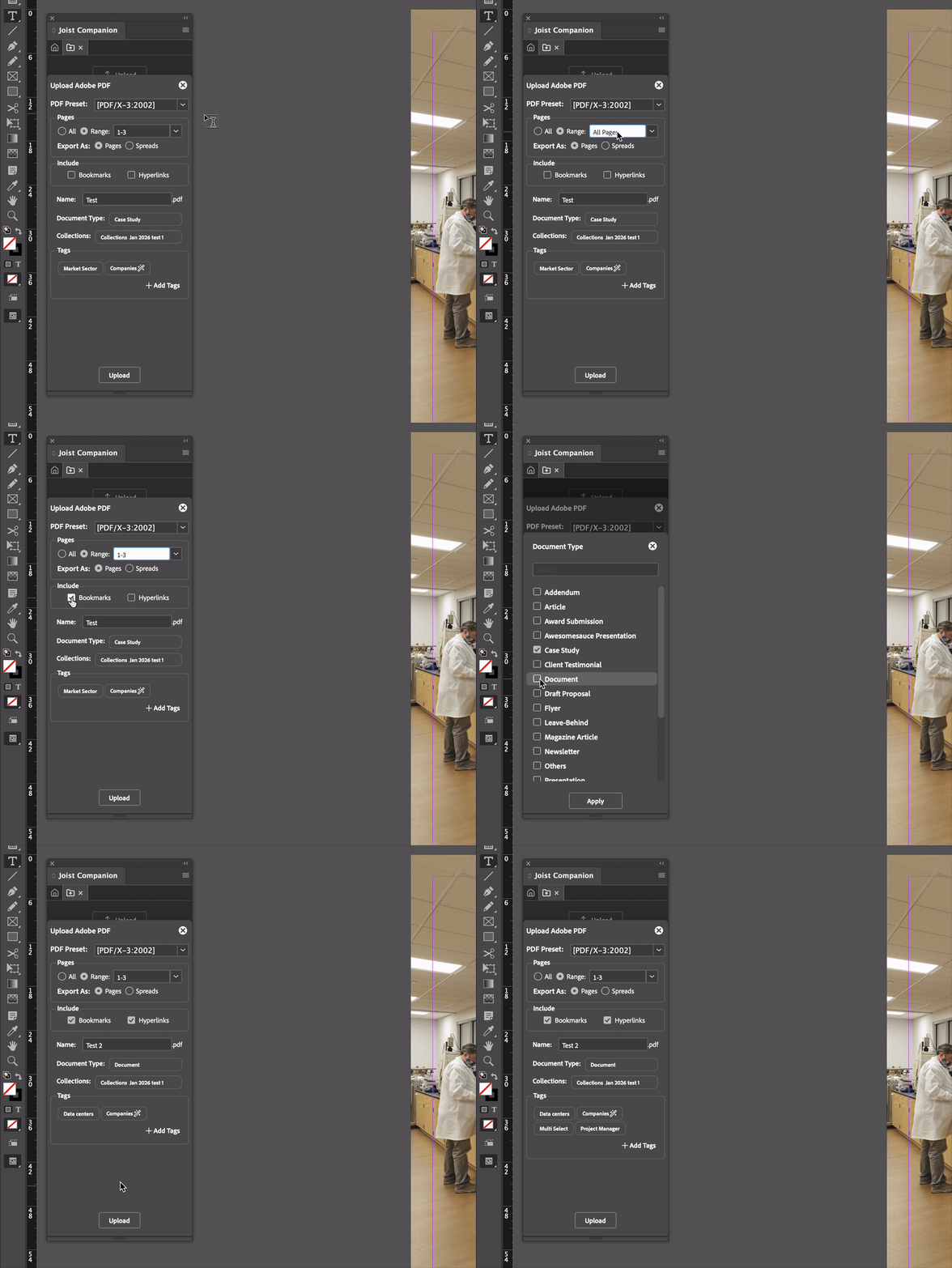
Before uploading, you can customize how your document appears and is categorized in the File Library using the settings below.
PDF Preset: Select the PDF format for your document with InDesign's built-in presets. More information on these presets can be found in this third-party article.
Pages: Select all pages or a range of pages to upload to your file library.
Export As: You can upload your document as pages or as a spread.
Include Bookmarks and Hyperlinks: Toggle to include bookmarks and hyperlinks in your uploaded document.
Name: Customize the name of your document.
Document Type: Set the document type tag for your upload.
Collections: Adds the document to a Collection within your file library.
Tags: Set tags for your document within the tag groups configured on your account. Select your tag groups first and then select the tags within each group.
Once you've toggled the upload settings for your document, you can proceed with uploading your file to your Joist library. Alternatively, you can upload the document without configuring these settings in the Joist AI Companion and update the document tags and settings within the web platform.
Uploading documents through the Joist AI Companion streamlines the process of moving files from InDesign to the Joist web platform. By configuring upload settings, applying tags, and selecting export options upfront, you can keep documents organized, reduce manual steps, and ensure files are ready for collaboration across your team.
You can always find more information on Security and Integrations on our Support Center. Please send any questions or feedback to Support@Joist.AI .