Joist AI Companion - Analysis Tools
Last updated: January 29, 2026
Much like the Draft Proposal analysis feature on the Tools page in the web platform, the Analysis Tools in the Joist AI Companion allow you to run document analysis directly within Adobe InDesign. This built-in review helps you refine language, improve clarity, and strengthen overall quality without leaving your design environment. In this article, you’ll learn how to run analysis, review suggested improvements, and apply edits directly to your file so you can confidently deliver polished, client-ready documents.
Running Analysis on a Document
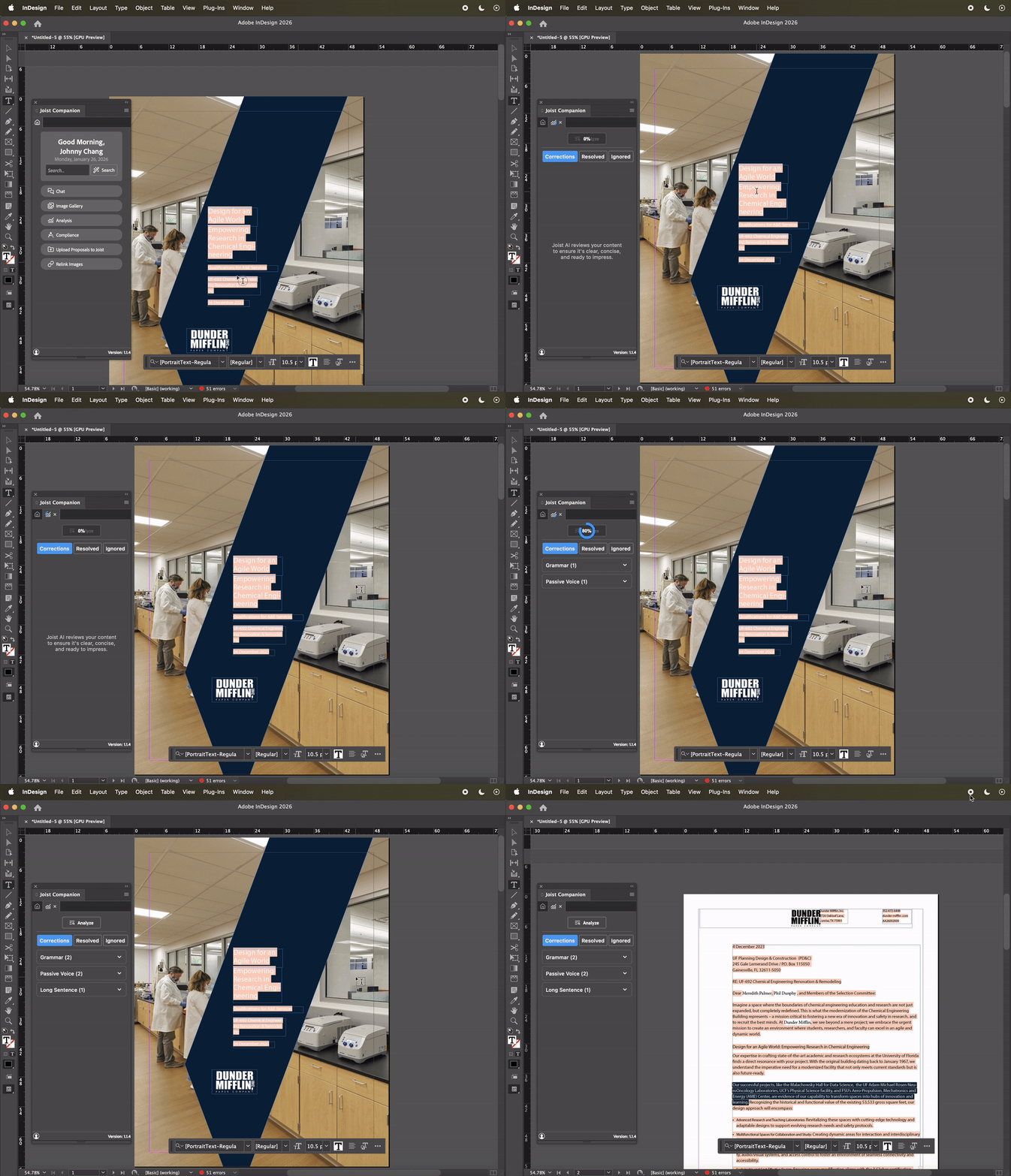
In the Joist AI Companion, click Analysis to begin document analysis. This will automatically run the analysis on your document to detect the same grammar and spelling errors, passive voice usage, and other instances with feedback to help improve your document.
Analysis time varies depending on the file size and amount of content in your document. You can track the progress of document analysis with the percentage wheel at the top of the window.
If analysis does not run automatically when using this tool, you can click Analyze at the top of the window to manually run analysis on your document.
Once complete, suggested improvements for your document can be viewed in list format in the window.
Viewing and Applying Edits via Analysis
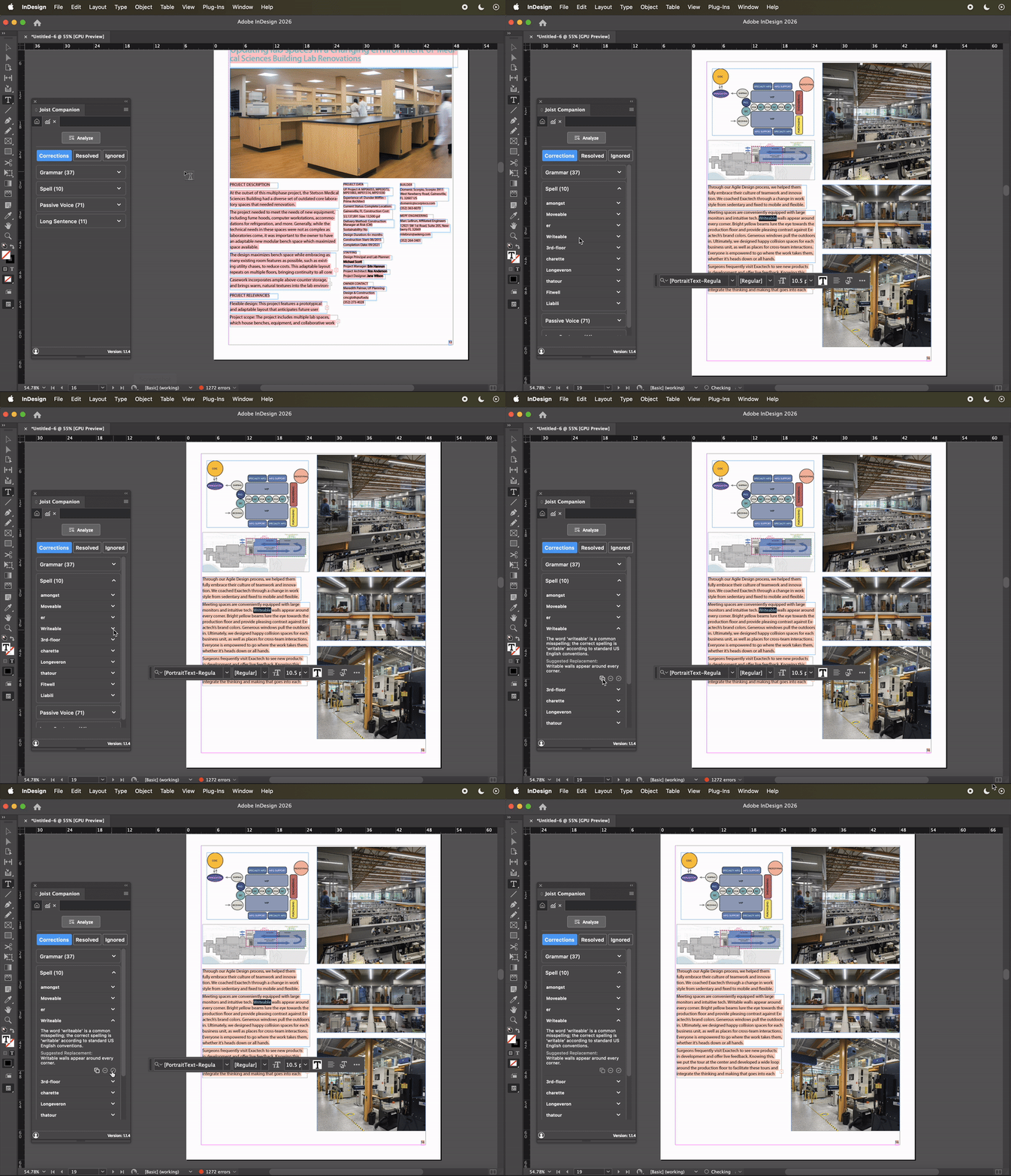
Suggested improvements are organized into clear categories, making it easy to review and apply changes directly to your document. You can expand each category to view the specific instances identified during analysis.
Depending on the type of improvement, the text will be highlighted on a color-coded basis:
Highlight Color | Improvement Type |
Light Red | Grammar Check |
Pink | Spell Check |
Green | Passive Voice Detection |
Blue | Long Sentence |
Orange | Split Infinitives |
When you select an instance, you’ll be taken directly to the corresponding location in your InDesign file, where the flagged text is selected in black. Each instance includes a brief explanation of why it was flagged, along with a recommended replacement to help improve the document.
From the bottom right of each expanded instance, you can take one of the following actions:
Copy the suggested replacement to paste manually
Ignore the suggestion if no change is needed
Accept and apply the suggestion to automatically update the document
Once a suggestion is accepted and applied, it is moved from the Corrections tab to the Resolved tab. If a suggestion is ignored, it is moved to the Ignored tab. You can access both tabs at the top of the Analysis window at any time to review resolved or dismissed items.
The Analysis Tools in the Joist AI Companion make it easy to review, refine, and finalize documents directly within Adobe InDesign. By applying suggested improvements in place, you can streamline revisions, maintain quality, and confidently deliver client-ready work—without disrupting your design workflow.
You can always find more information on Security and Integrations on our Support Center. Please send any questions or feedback to Support@Joist.AI .