Adding New Tasks
Last updated: June 3, 2026
Creating new Tasks in Kantiv is quick and flexible, allowing you to add assignments from multiple areas within the platform. Whether you’re working from the Task page, a specific Workspace, or directly within a Storyboard, Kantiv makes it simple to generate new Tasks, fill in key details, and keep your team aligned across projects.
Task Page
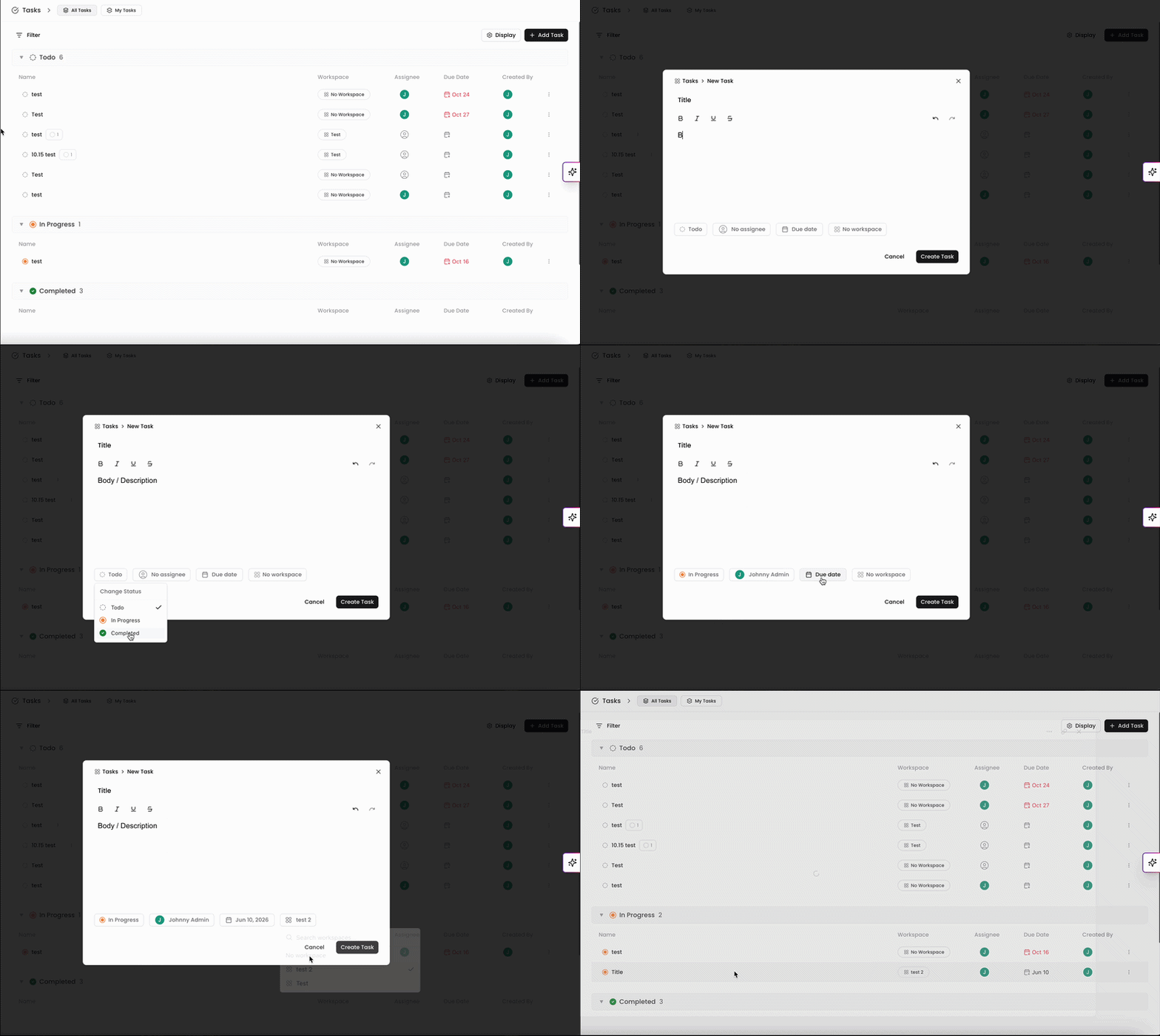
When viewing the Task page, you can generate a new Task by clicking + Add Task on the top right of the page. After filling out the details of the Task, it will show up under the appropriate category on this page.
Workspaces
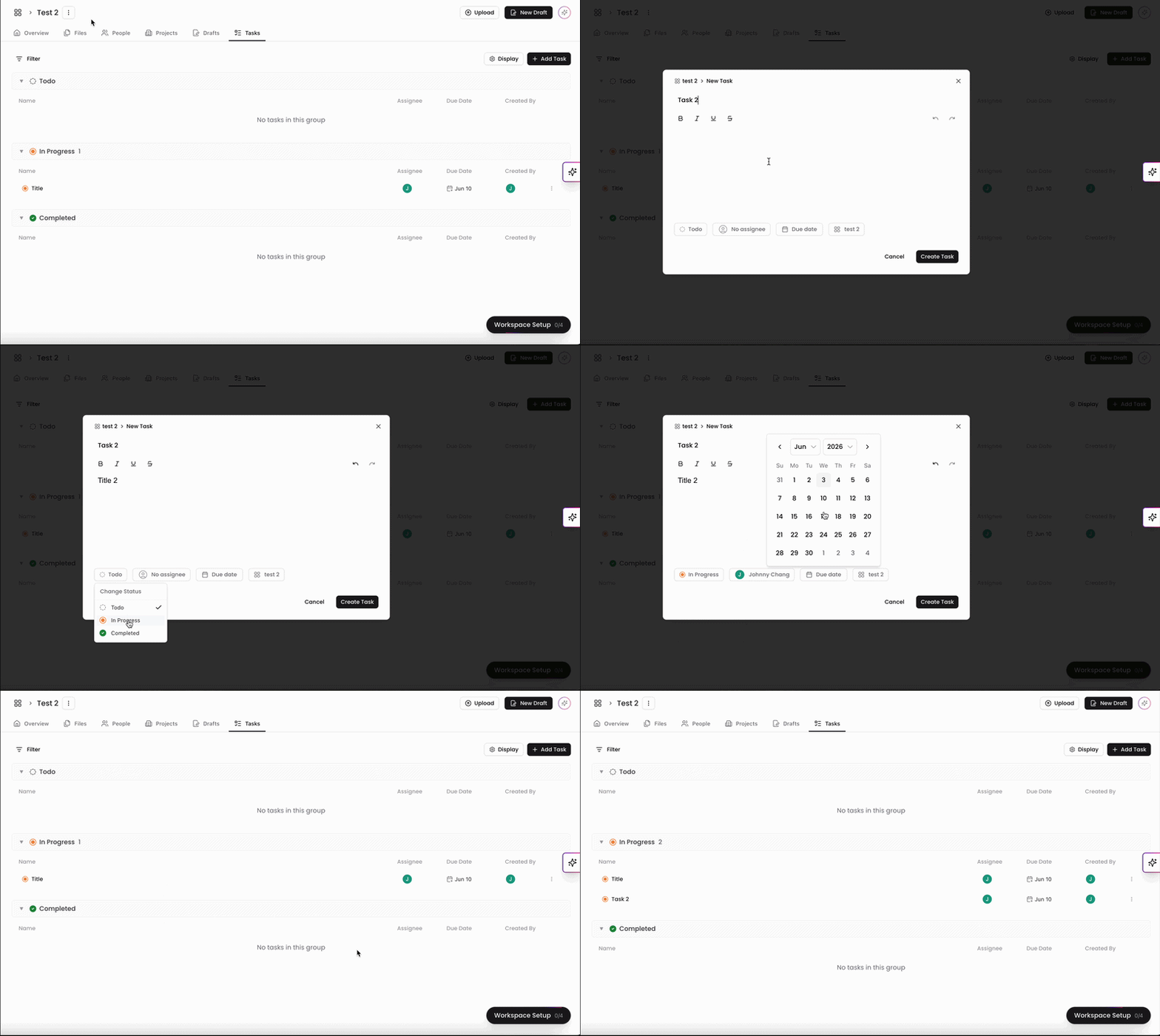
When in the Workspaces tab, you can add a new Task within the Task section of a specific workspace.
Open a Workspace.
Click the Tasks tab at the top of the page.
Click +Add Task and fill out the details of the Task.
Click Create Task at the bottom
Once the Task has been created, it will populate in this page, as well as within the Tasks menu. Please note that the Workspace will automatically be listed with whichever Workspace you created this Task for.
Storyboards
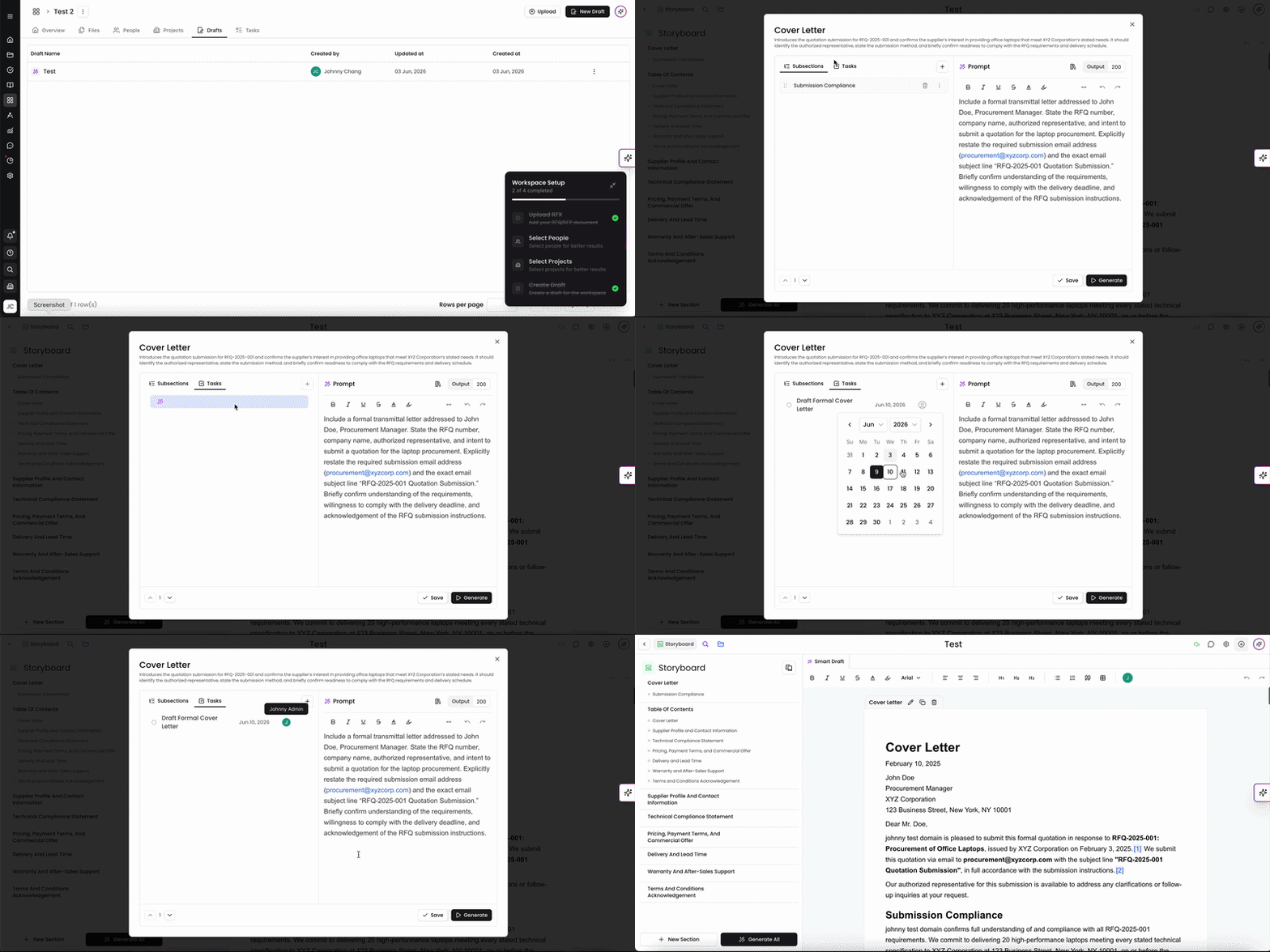
When viewing a draft within one of your Workspaces, you can generate new Tasks within a Storyboard listed on the left hand side. Tasks generated in this manner automatically utilize AI to fill out the title and details of the task, but you can also manually edit the details
Open a Workspace.
Click the Drafts tab at the top of the page and then click into one of your existing drafts.
Hover over one of your Storyboards on the left hand side and click the edit icon.
Click Tasks at the top of the window.
Click + Task on the top right. AI will generate a task here, but you can also manually fill out the details of the task.
Click Save at the bottom.
Once the Task has been created, it will populate in this page, as well as within the Tasks menu. Please note that the Workspace and the Storyboard will automatically be listed with whichever Workspace and Storyboard you created this Task for.
You can always find more information on Tasks in our Support Center. Please send any questions or feedback to Support@Kantiv.com.