Sorting and Filtering Tasks
Last updated: June 3, 2026
Keeping Tasks organized is simple with Kantiv's sorting, grouping, and filtering tools. Whether you want to see who’s working on what, track progress, or focus on upcoming deadlines, these options let you customize your Task view and stay on top of your work.
Grouping Tasks
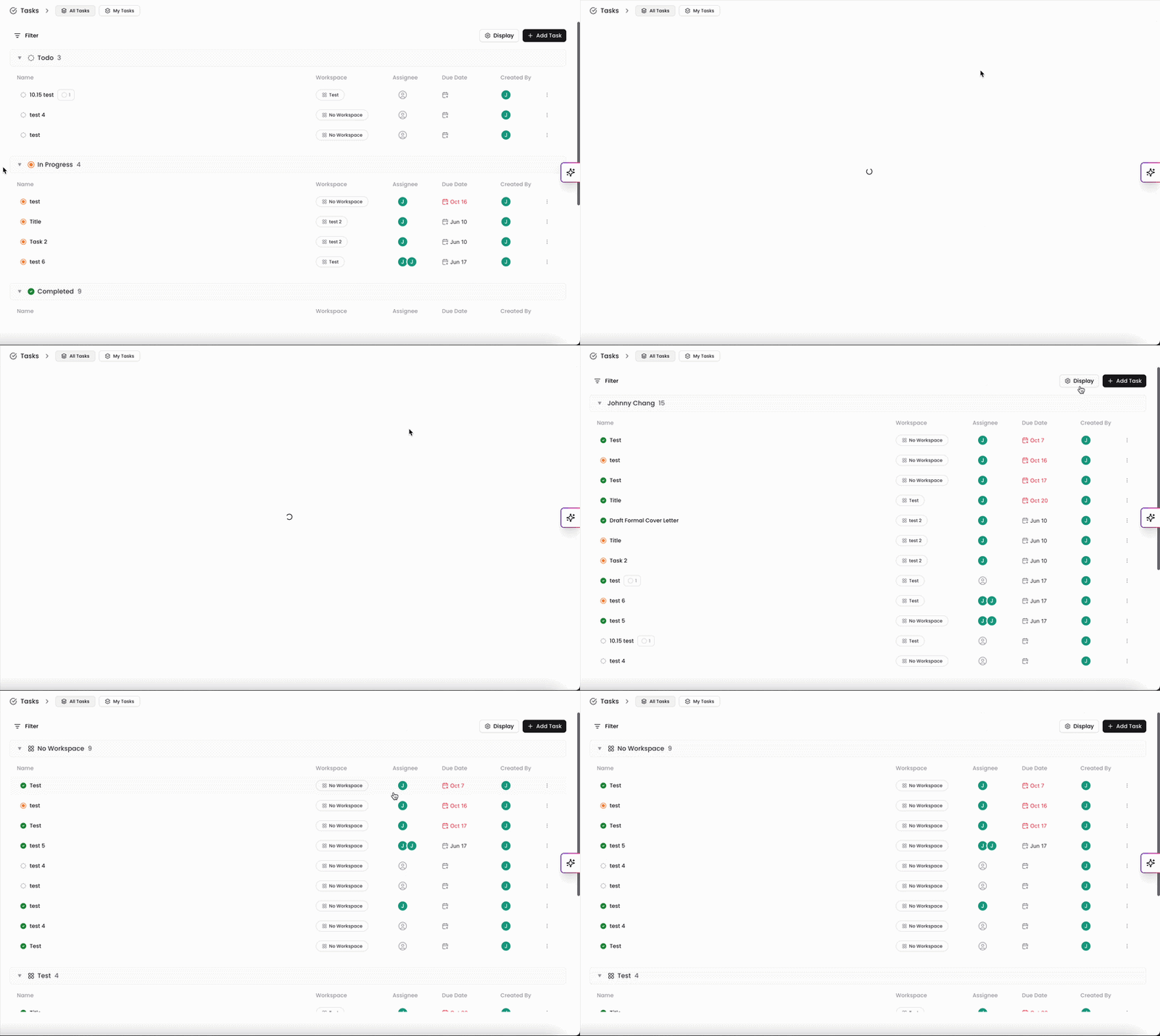
You can group your Tasks together from the filters you have set within your list of Tasks. Click Display on the top right to access your grouping settings, hover over Group By, and select from the following options.
Status (default): Group your Tasks by Todo, In Progress, and Completed. This view is helpful to see what Tasks haven't begun, which are being worked on, and which are completed.
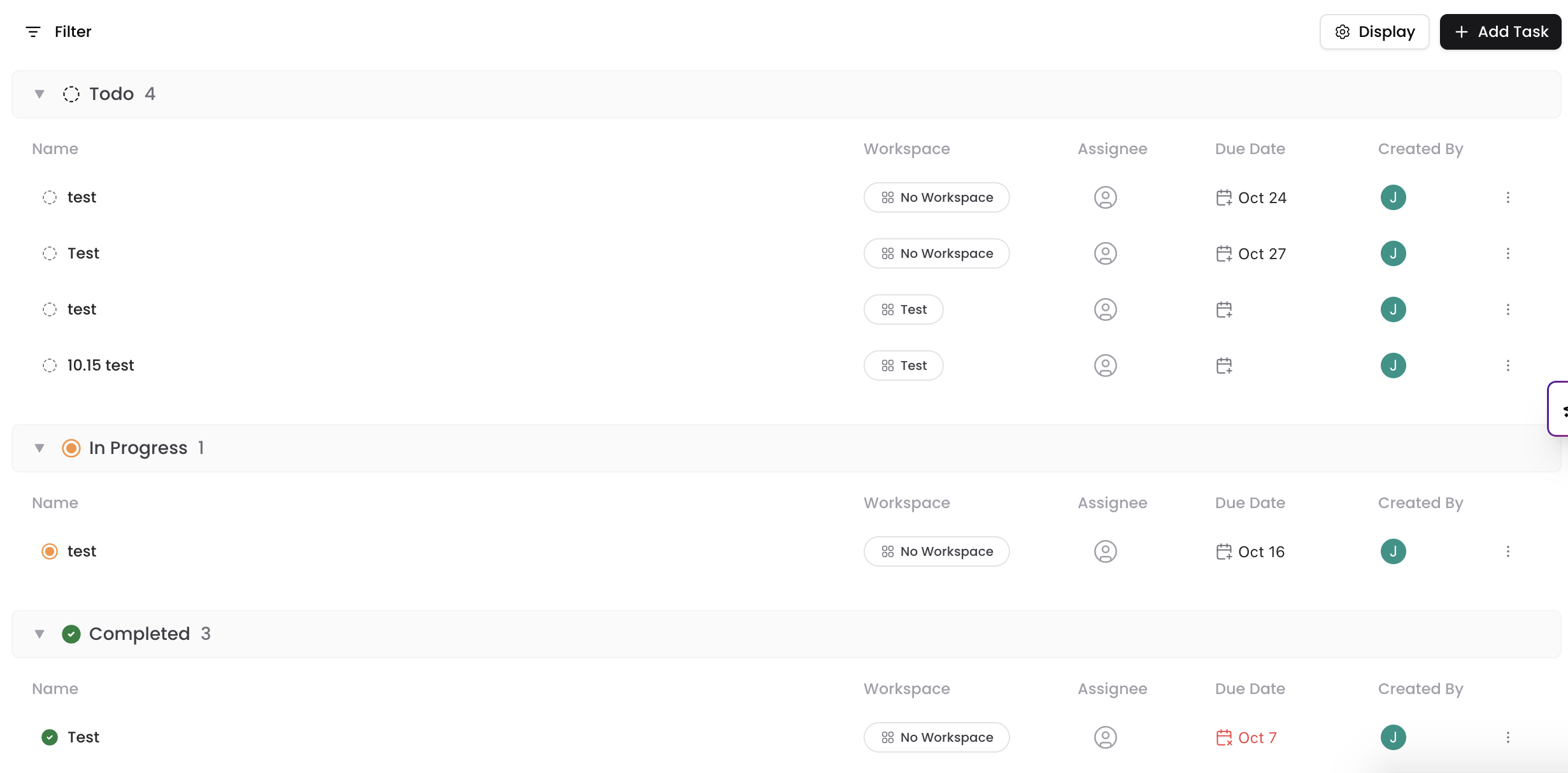
Assignee: Group your Tasks by the user listed as the assignee. This view is helpful to see which Tasks each user has completed and what they're working on.
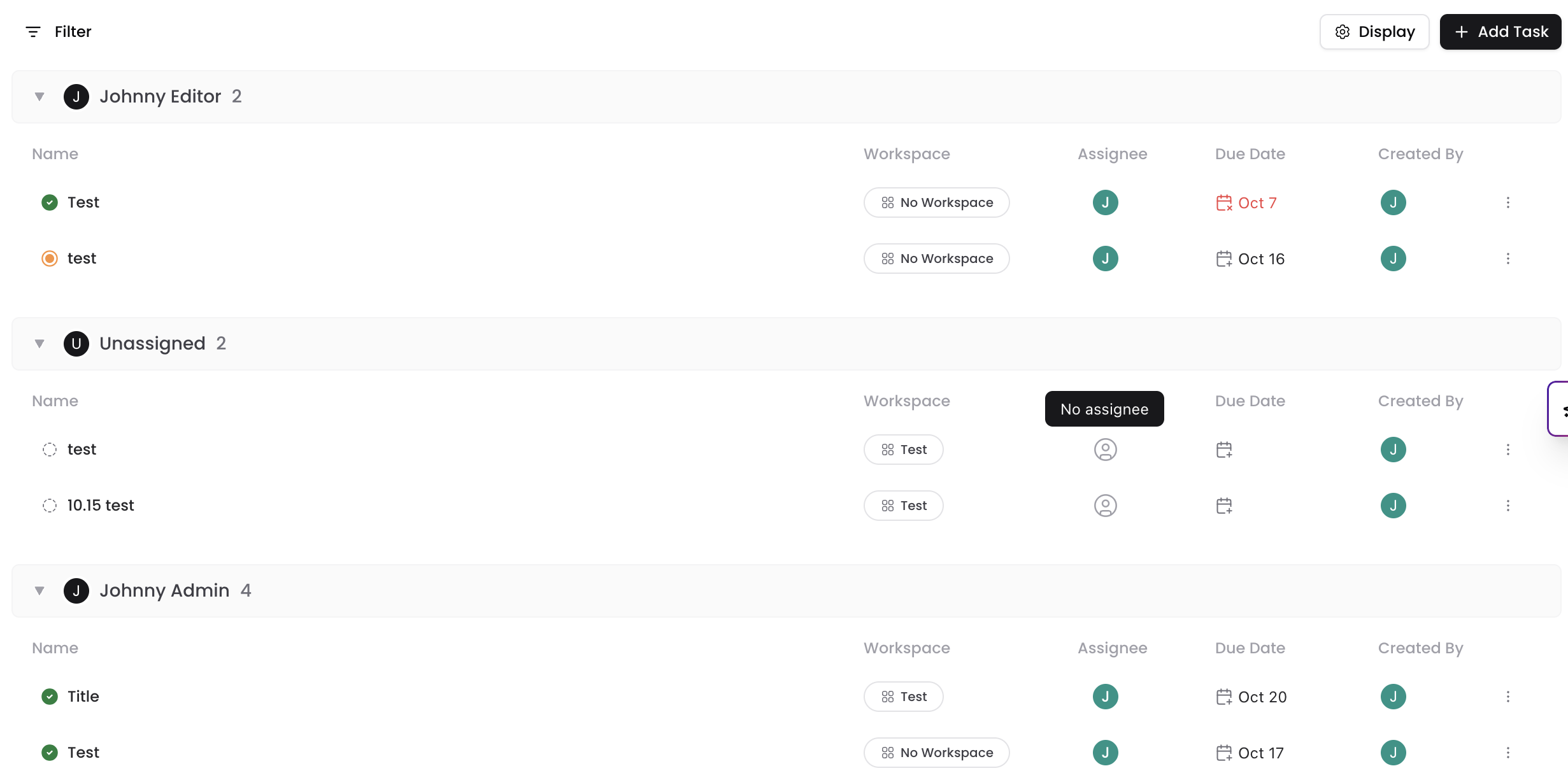
Created By: Group your Tasks by who created the Task. If you have multiple users creating Tasks in Kantiv, this view is helpful to see the completion progress of each of the assignments a user has created.
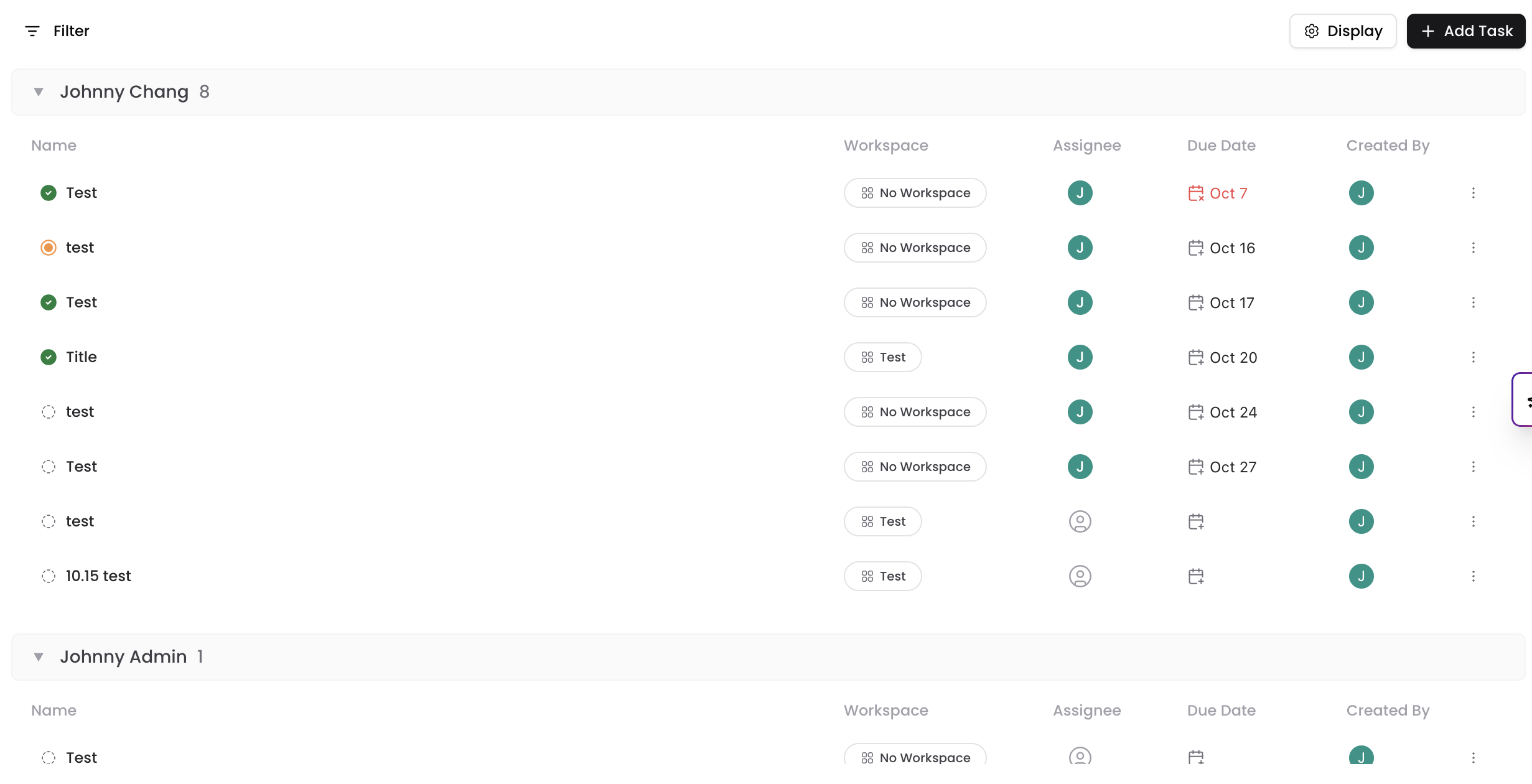
Workspaces: Group your Tasks based on the Workspaces they're associated with. This view is helpful to see the completion progress of the tasks within each Workspace.
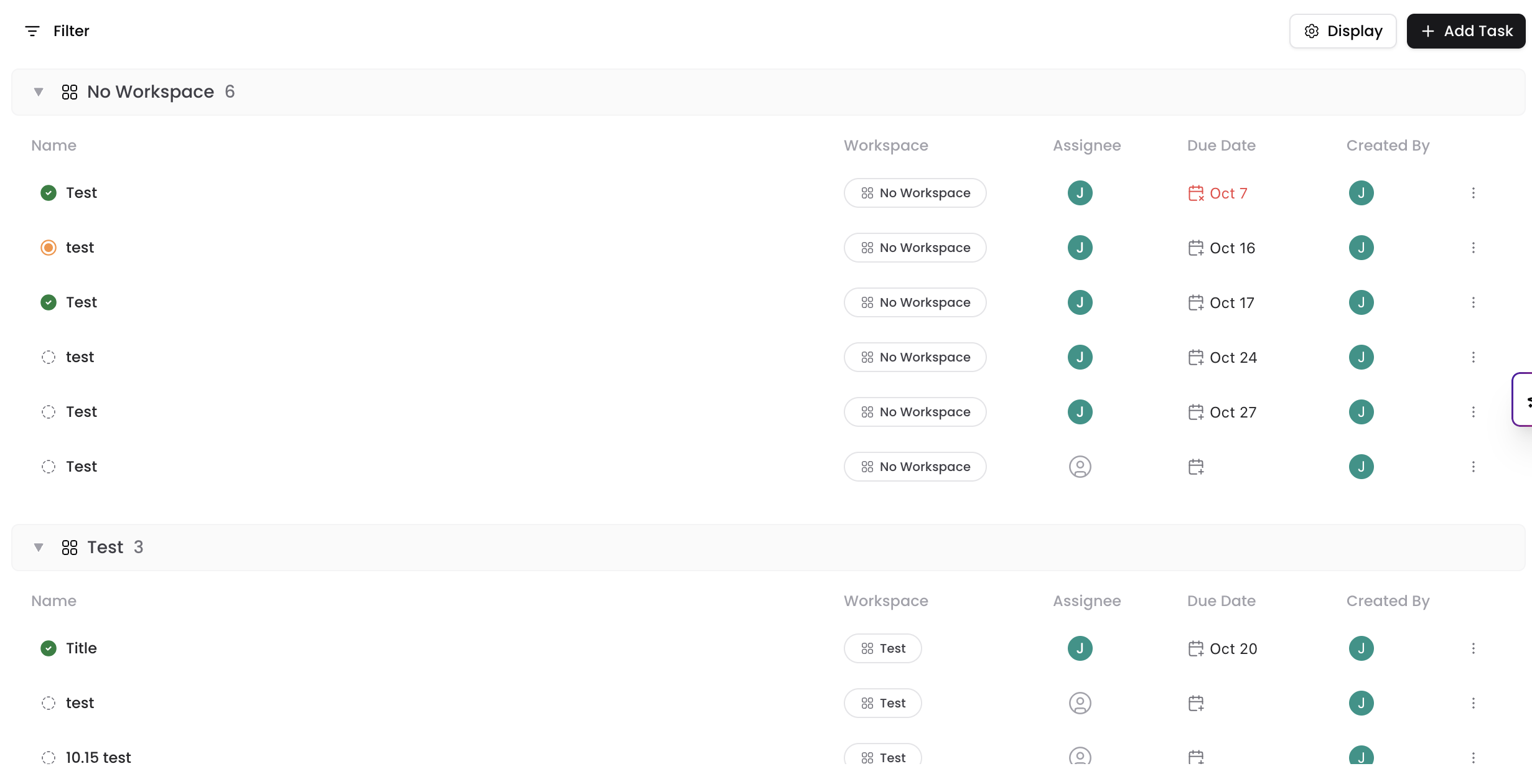
Sorting Tasks
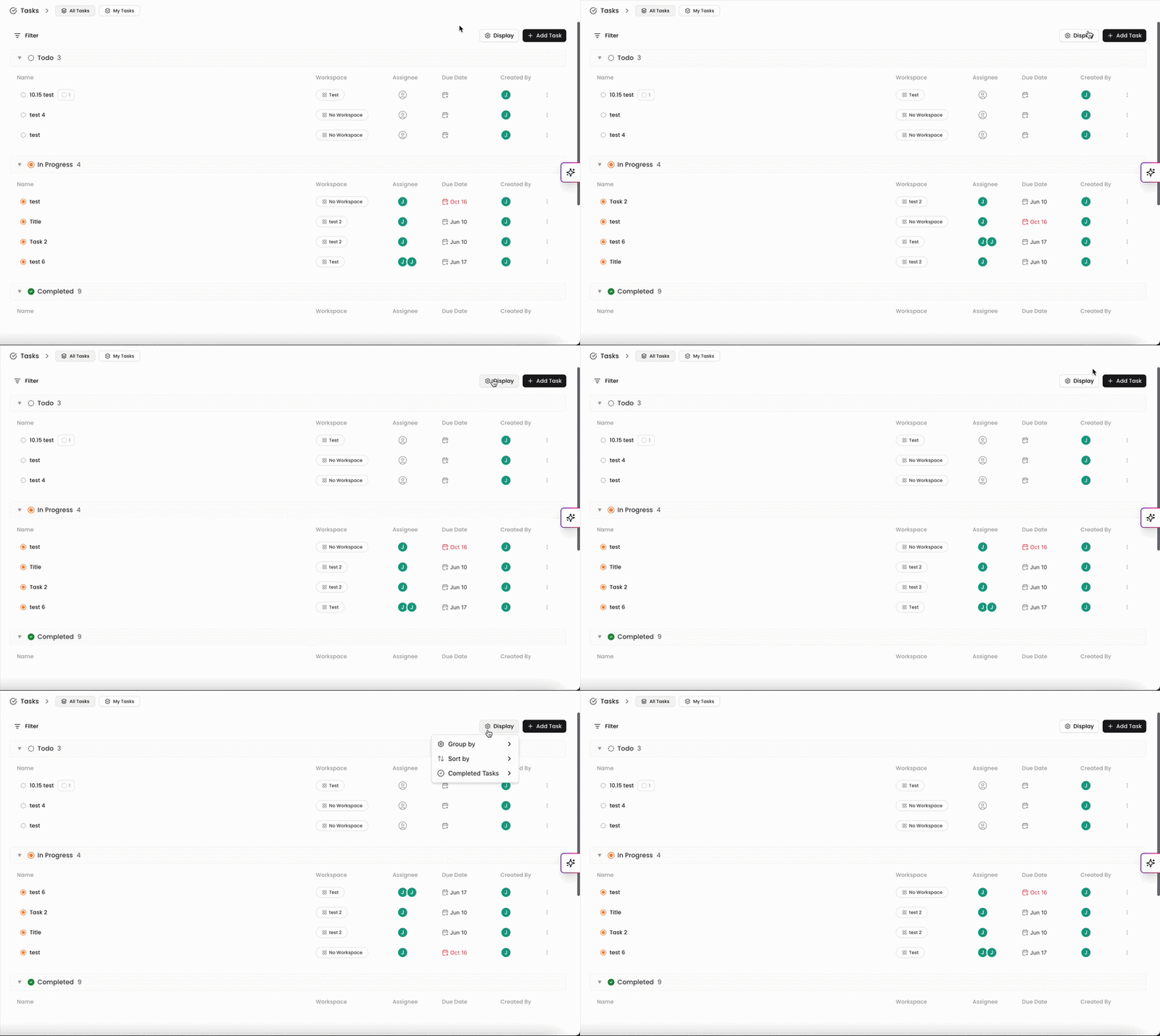
In the Task Menu, you can sort and organize your Tasks to view them. To sort your tasks, click Display on the top right, hover over Sort By, and select one of the options in the list.
You can sort your Tasks by:
Due Date
Title (A-Z)
Created Date
You can also sort your Tasks in ascending or descending order. Toggle between these by clicking Ascending or Descending in the list.
Filtering Tasks
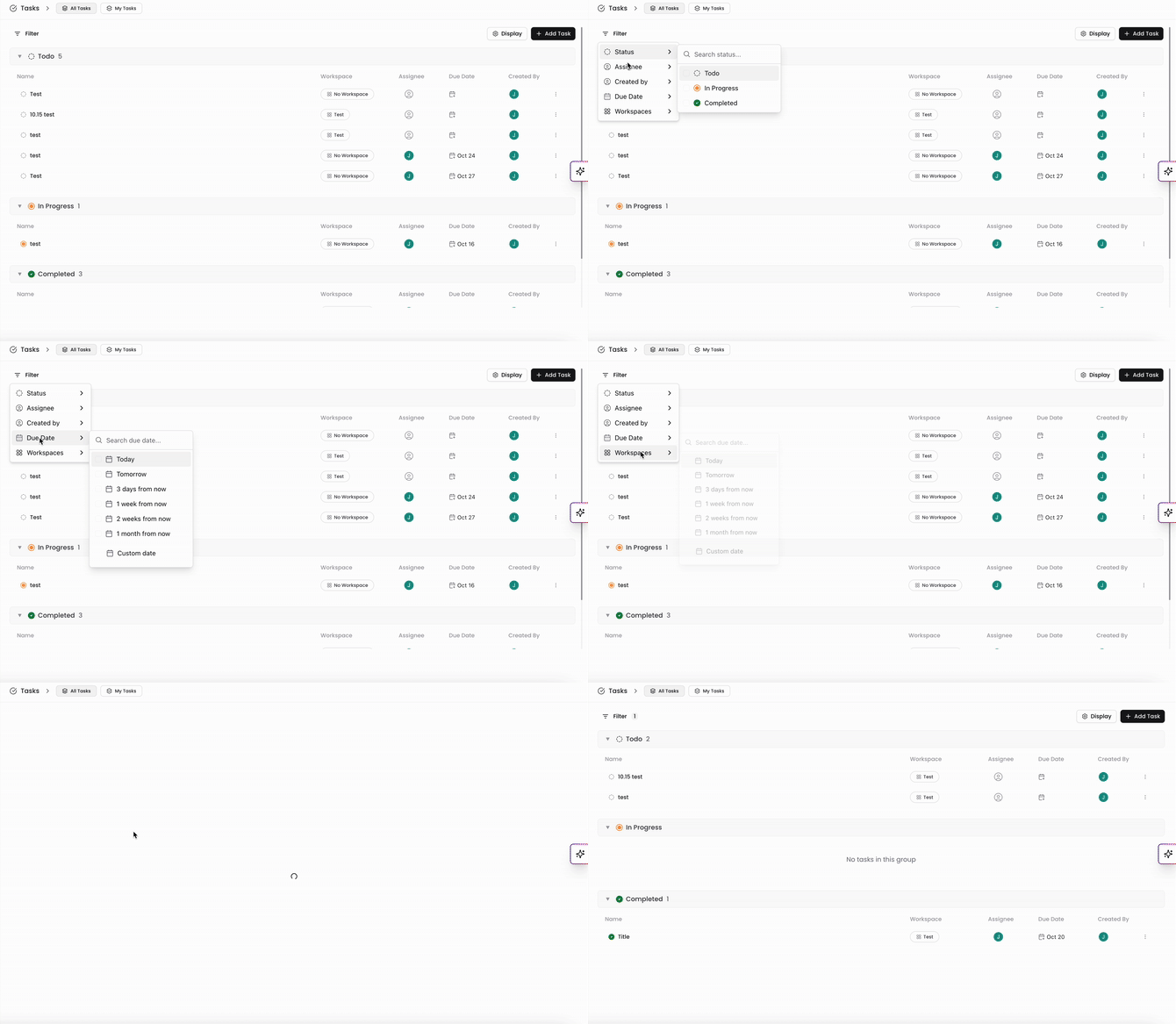
To hone in on a specific set of Tasks, you can filter which Tasks show up in the Task Menu. Toggle your filters by clicking Filter on the top left of the page.
You can filter by
Status (Todo, In Progress, Completed)
Assignee
Created By
Due Date (Using a preset date filter or a custom date)
Workspaces
To remove all filters, click Clear Filters in the list.
You can always find more information on Tasks in our Support Center. Please send any questions or feedback to Support@Kantiv.com.