Task Statuses and Fields
Last updated: June 3, 2026
Tasks in Kantiv are flexible and easy to manage, helping you stay organized from start to finish. Each Task can have a status, assignee, due date, and Workspace association, giving you a complete picture of progress and accountability. You can update details, track deadlines, and ensure your projects stay on schedule.
Task Statuses
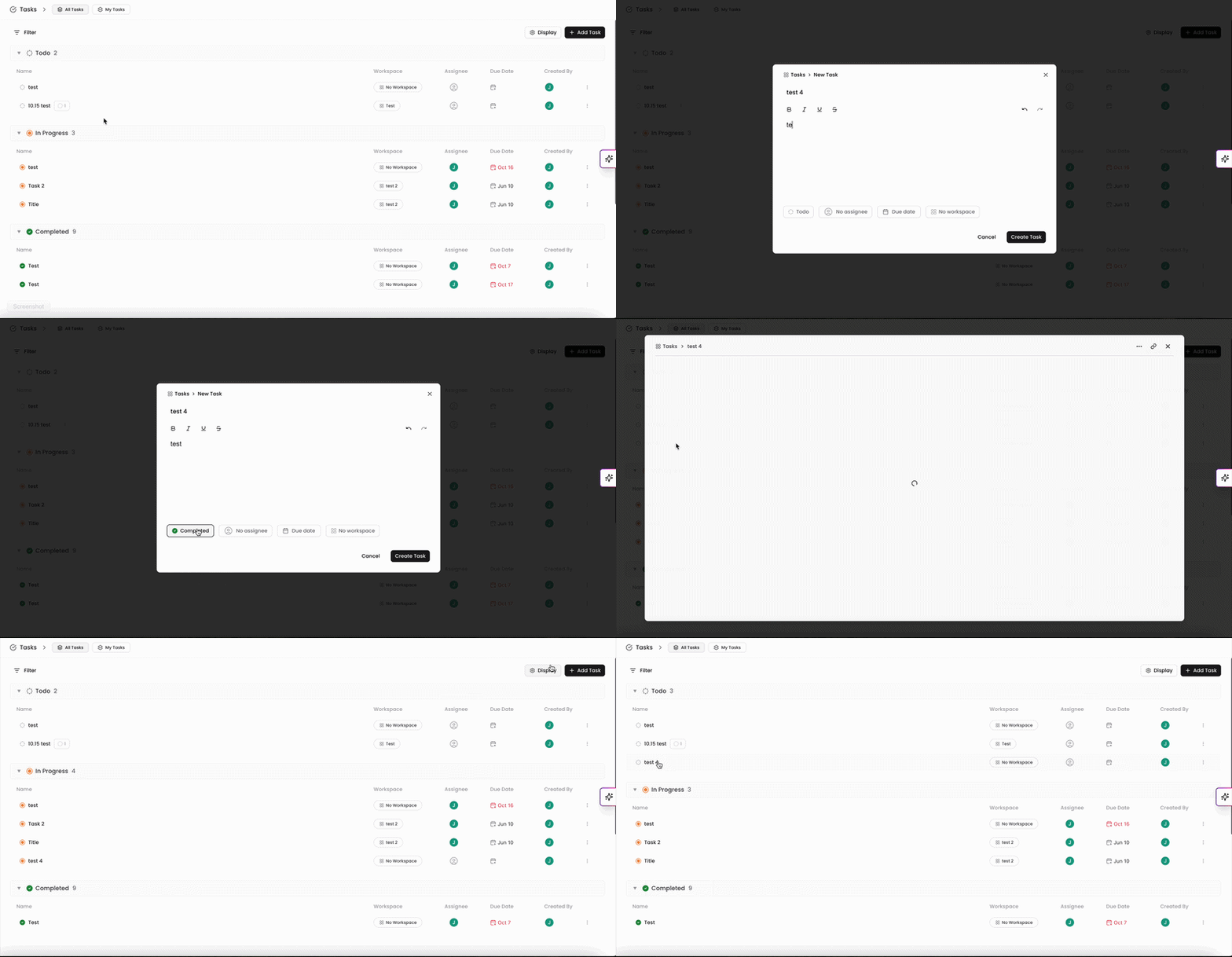
You can set a Task to one of three statuses in Kantiv:
Todo
In Progress
Completed
When creating a new bug, Tasks are defaulted to the Todo status but you can set the status to In Progress or Completed retroactively in the New Task window.
You can update the status of a Task by clicking into an existing Task and updating the status in the status field.
Alternatively, when viewing your Task menu, you can click the bubble to the left of the Task name to open the status selector. From there, you can select the new status your Task should be set to.
Assignee
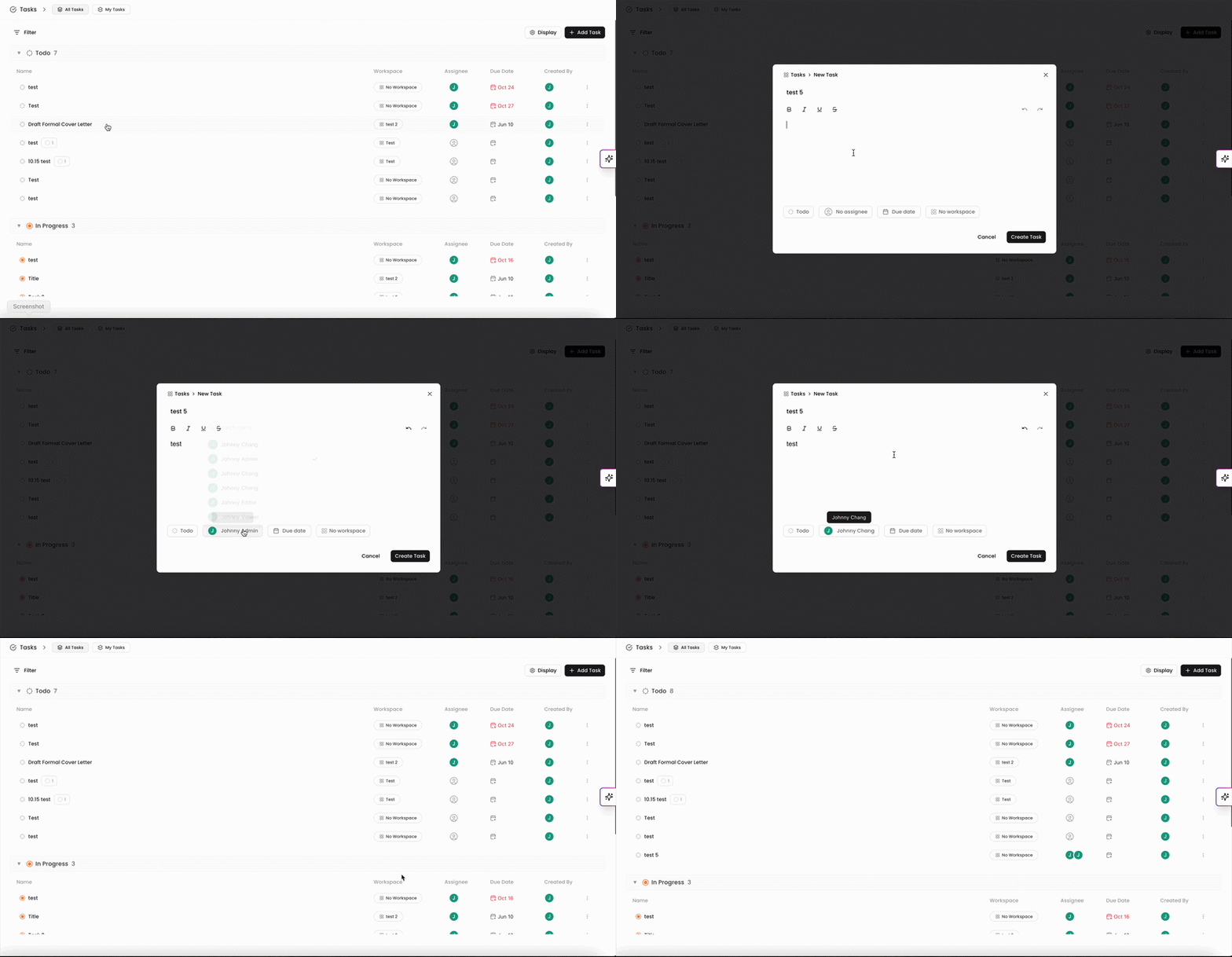
Task can be left unassigned, assigned to a specific user, or assigned to multiple users.
When creating a new Task, click on the assignee field (defaulted to No assignee). Select the user(s) to assign this Task to.
Alternatively, you can select the assignee in the Task menu by clicking on the assignee icon within the assignee column. From there, select the user(s) to assign this Task to.
If you have Tasks assigned to you, you can toggle your view and only see Tasks assigned to you. Click on My Tasks at the top of the page to view all Tasks assigned to you. To toggle back and view all Tasks in your account, click All Tasks at the top of the page.
Due Date
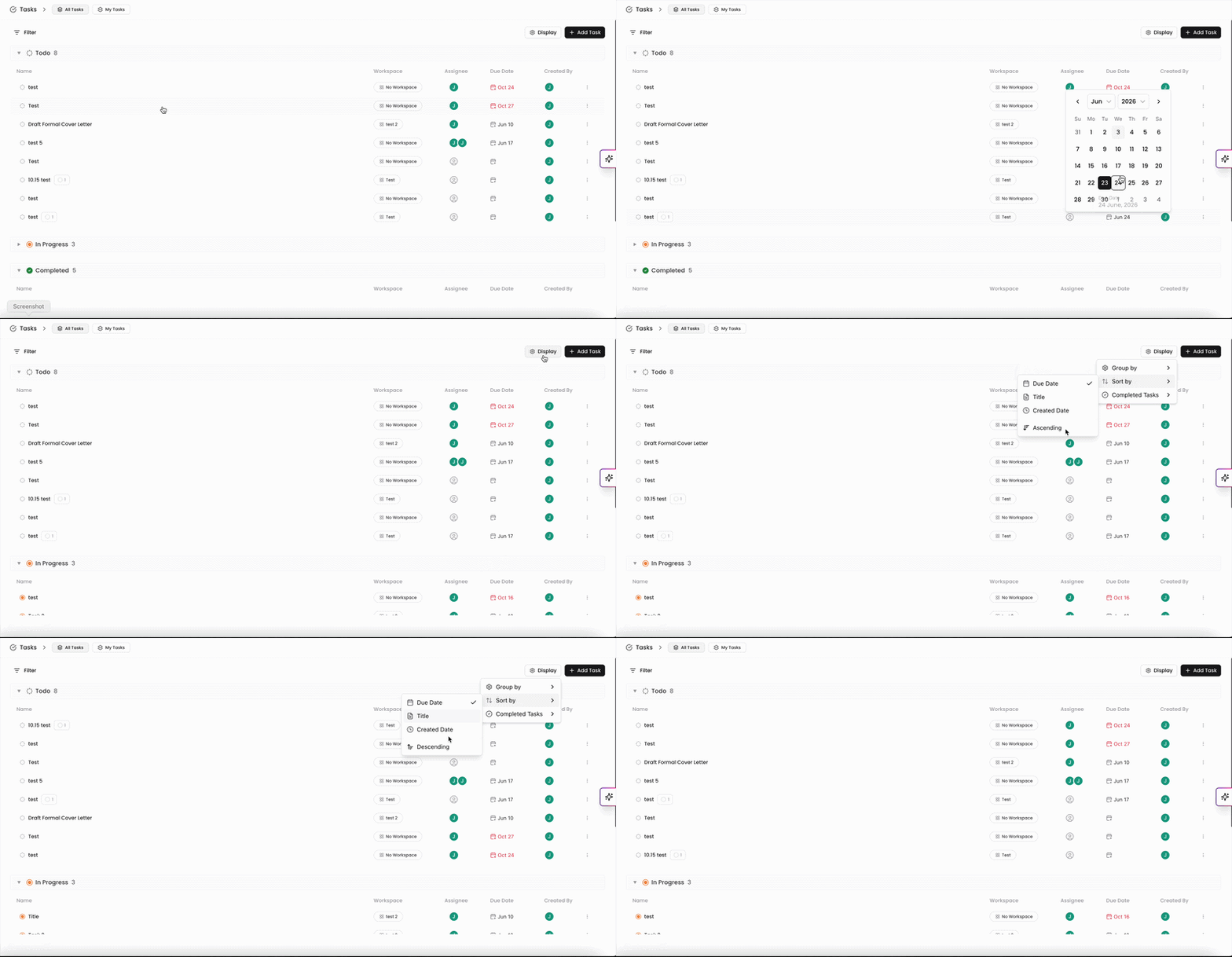
Each Task can have a due date set based on the expected completion date for the assignment. Due dates can be set and used to manage all Tasks in your account to ensure that your project is on track for completion.
Due dates can be set in the Task window. When creating a new Task, click on the due date field to populate a calendar. By default, no due date will be selected but you can select the due date by clicking on a date in the calendar. You can also select the due date in the Task menu by clicking on the due date in the column. This will populate the calendar again for you to select the new due date.
You can view the due dates for your Tasks in the Task menu. All Tasks that are past due will show up with the due date in Red text indicating that they require attention. You can also sort your Tasks by the due date to view the Tasks in chronological due date order in ascending or descending order.
Workspaces
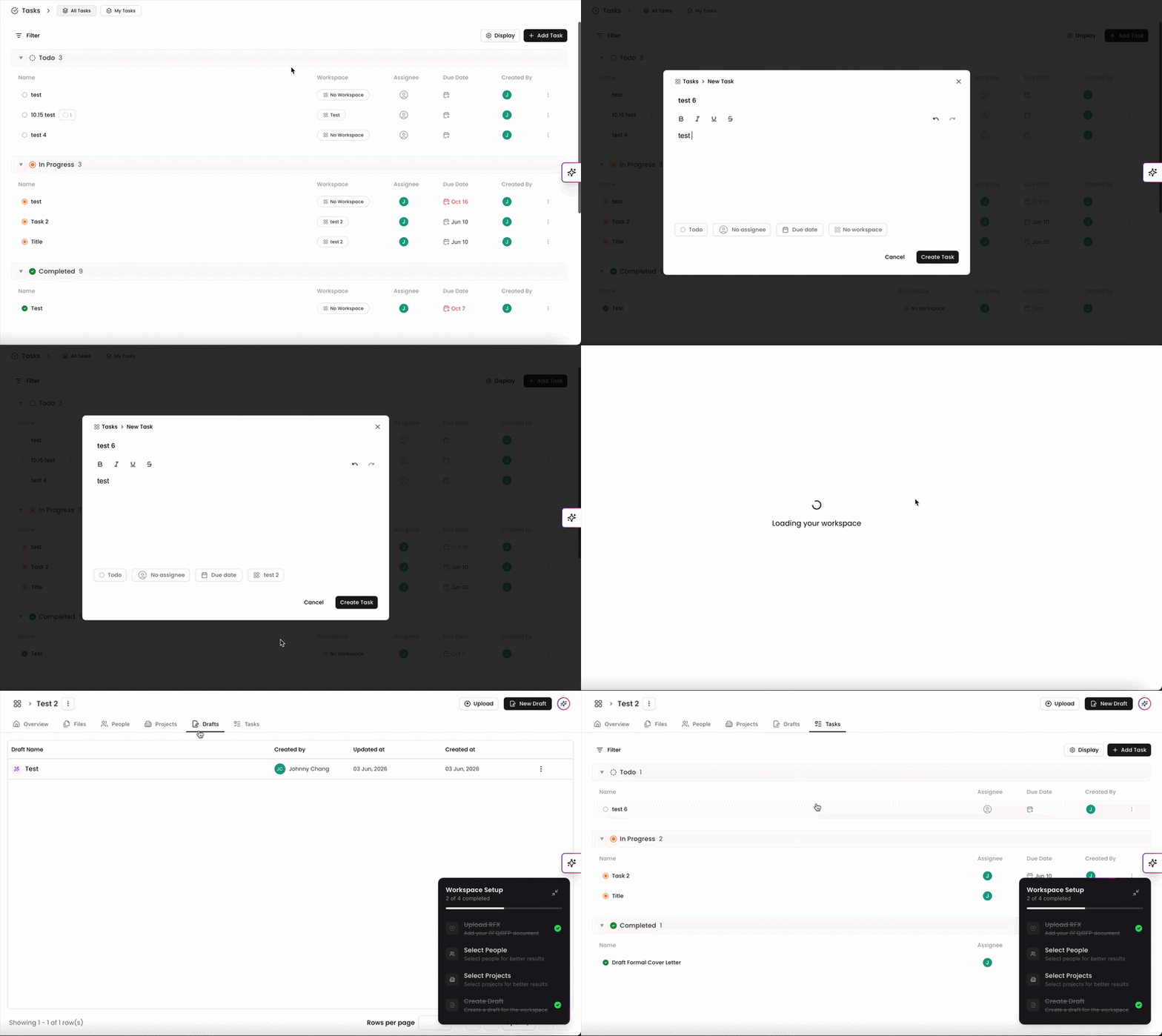
You can also assign a Task and associate it with an existing Workspace.
When creating a new Task, click on the Workspaces filter and select a Workspace to link this Task to. Alternatively, you can create the task in the Workspace directly and it will populate in the Task menu with the Workspace linked.
In the Task menu, you can easily navigate to the selected Workspace by clicking on the Workspace in the list. From there, you can view the newly created Task by clicking the Task tab at the top of the page.
Editing Statuses and Fields
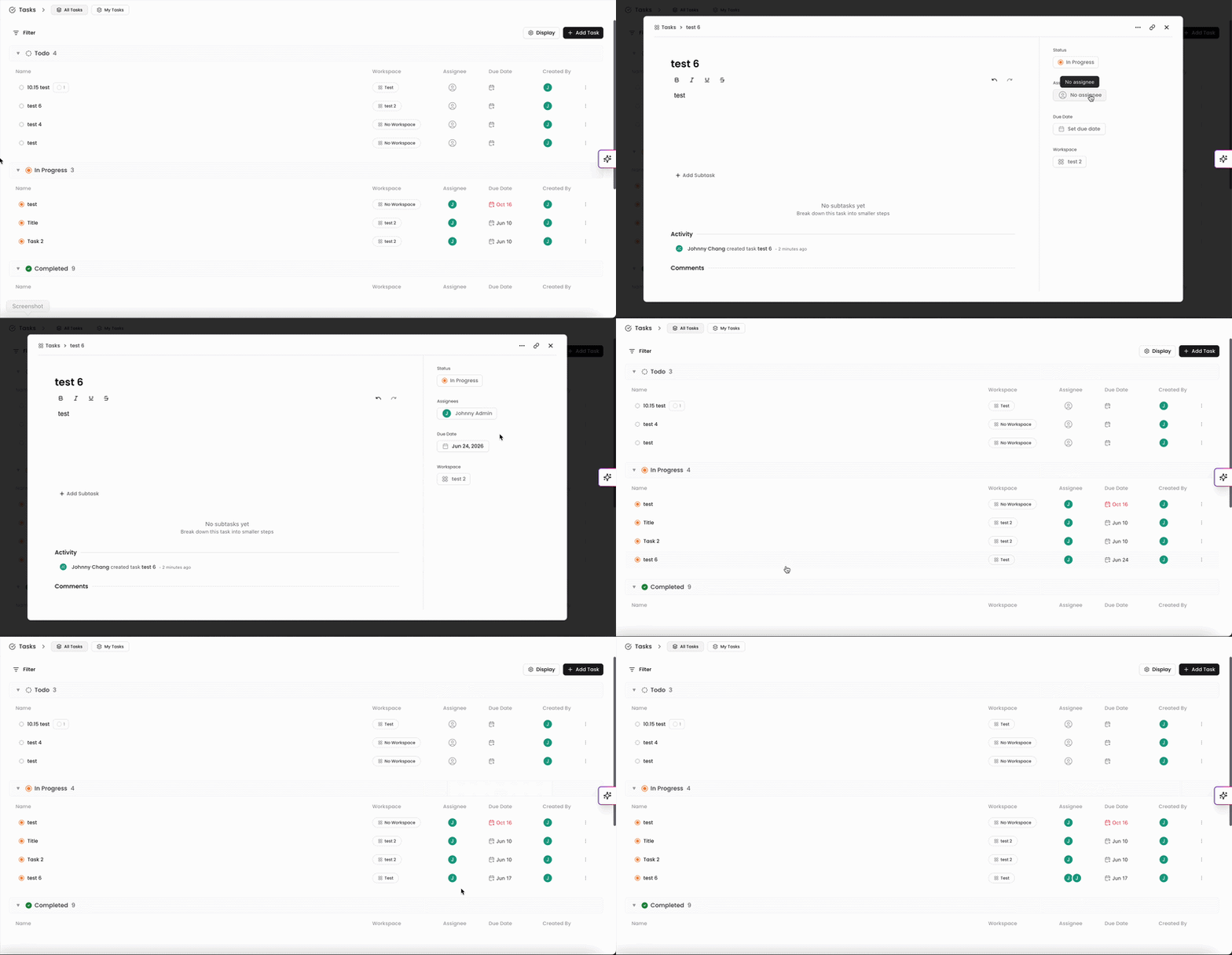
After the Task has been created, you can click into the Task and edit the statuses and fields in the menu on the right hand side. Alternatively, you can also edit the status, assignee, and due date in the Task menu by clicking on the icons in the columns.
You can always find more information on Tasks in our Support Center. Please send any questions or feedback to Support@Kantiv.com.