Subtasks
Last updated: June 3, 2026
Subtasks in Kantiv help you break larger assignments into smaller, manageable steps. By adding Subtasks within a main Task, you can organize complex work, track progress more effectively, and ensure every part of a project moves forward smoothly.
Generating Subtasks
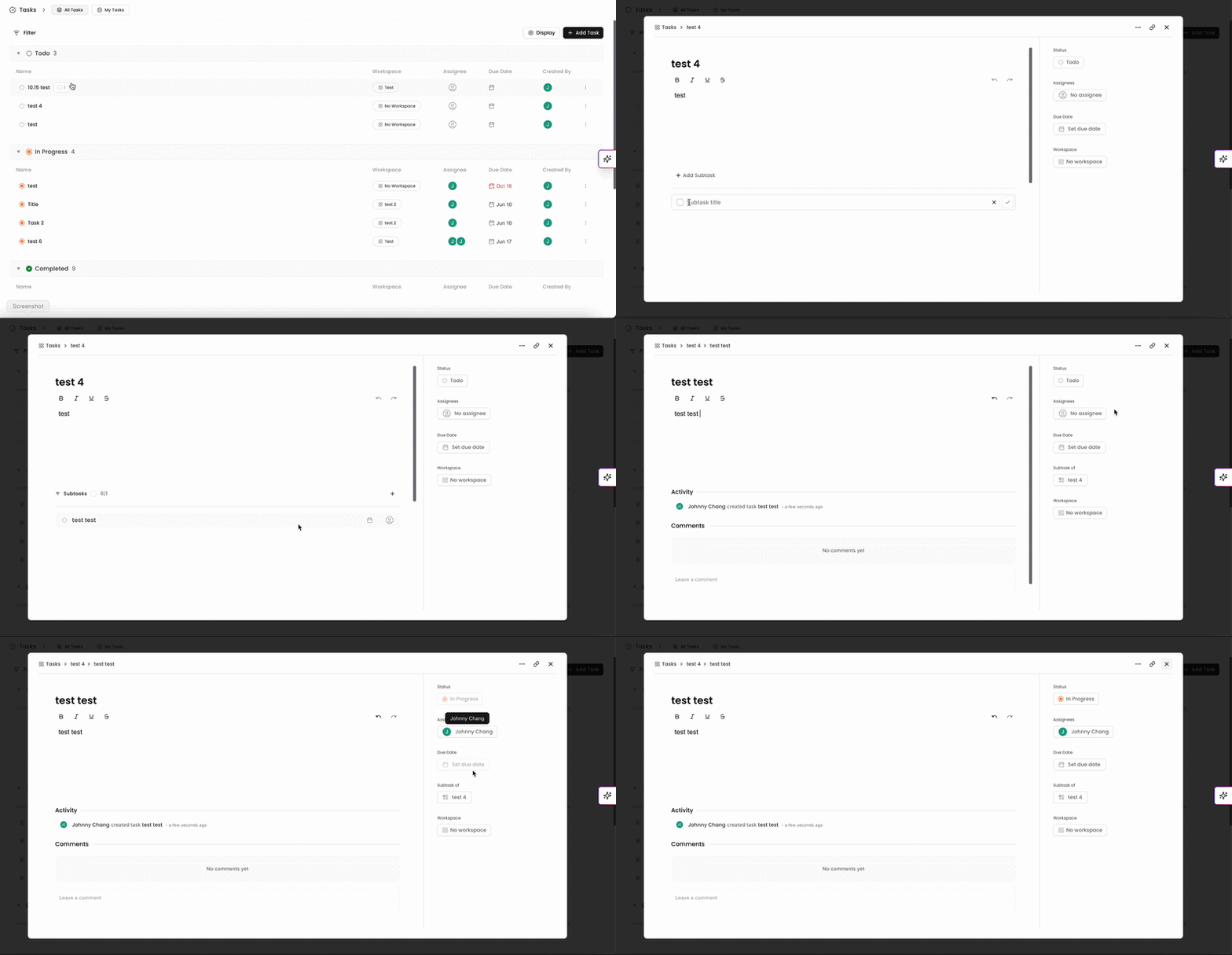
When viewing a Task, you can add a Subtask under the body/description.
Click +Add Subtask and give the Subtask a title.
Click the checkmark to save.
Click into the Subtask to give it a Body/Description and adjust statuses and fields on the right hand side.
This Subtask will now populate next to the original Task in the Task menu. You can click on the icon next to the Task to view the Subtasks associated with it.
You can always find more information on Tasks in our Support Center. Please send any questions or feedback to Support@Kantiv.com.