Workspaces Overview
Last updated: July 15, 2026
As of July 2026, Kantiv has released a new version of Workspaces and Document Analysis. This article covers the legacy version of Workspaces and articles covering the new version can be found in this collection.
Workspaces in Kantiv are collaborative digital environments designed to streamline your proposal creation process and eliminate writer's block. In Workspaces, you can build documents with integrated AI-powered chat and search capabilities that allow you to access your content library directly while writing. You can also upload RFPs, reference documents, and past proposals to create focused, AI-assisted drafts. Workspaces provide the tools and context you need to efficiently collaborate with your team and generate high-quality proposal content.
What Are Workspaces?
Workspaces serve as your team’s central hub where drafting, collaboration, and AI agents converge into one powerful environment. Think of Workspaces as the digital equivalent of the traditional proposal folder—but supercharged with AI capabilities that understand your content, track changes, and facilitate real-time collaboration.
Every time teams receive an RFP, they typically create a folder or team channel and start organizing RFPs, agendas, capture plans, pursuit plans, compliance metrics, and drafts. Workspaces digitizes this familiar workflow while adding intelligent automation that makes the entire process more efficient and effective.
Accessing Workspaces
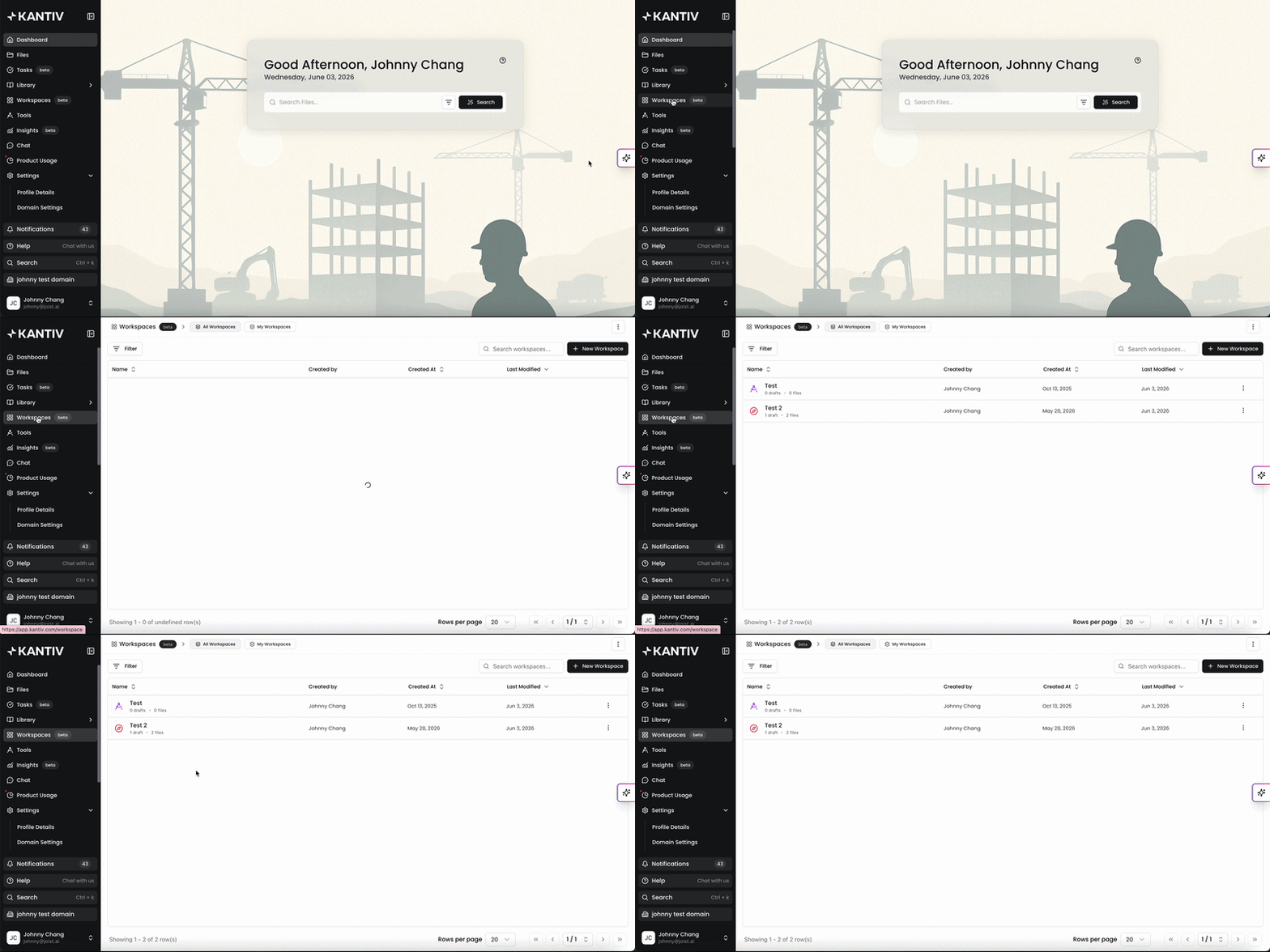
You can access Workspaces in the left navigation menu. Click Workspaces to access Workspaces.
Alternatively, you can Click here to access Workspaces.
On the Workspaces page, you can create a new workspace, make edits and export an existing workspace, and search and filter through your list of workspaces.
Creating a New Workspace
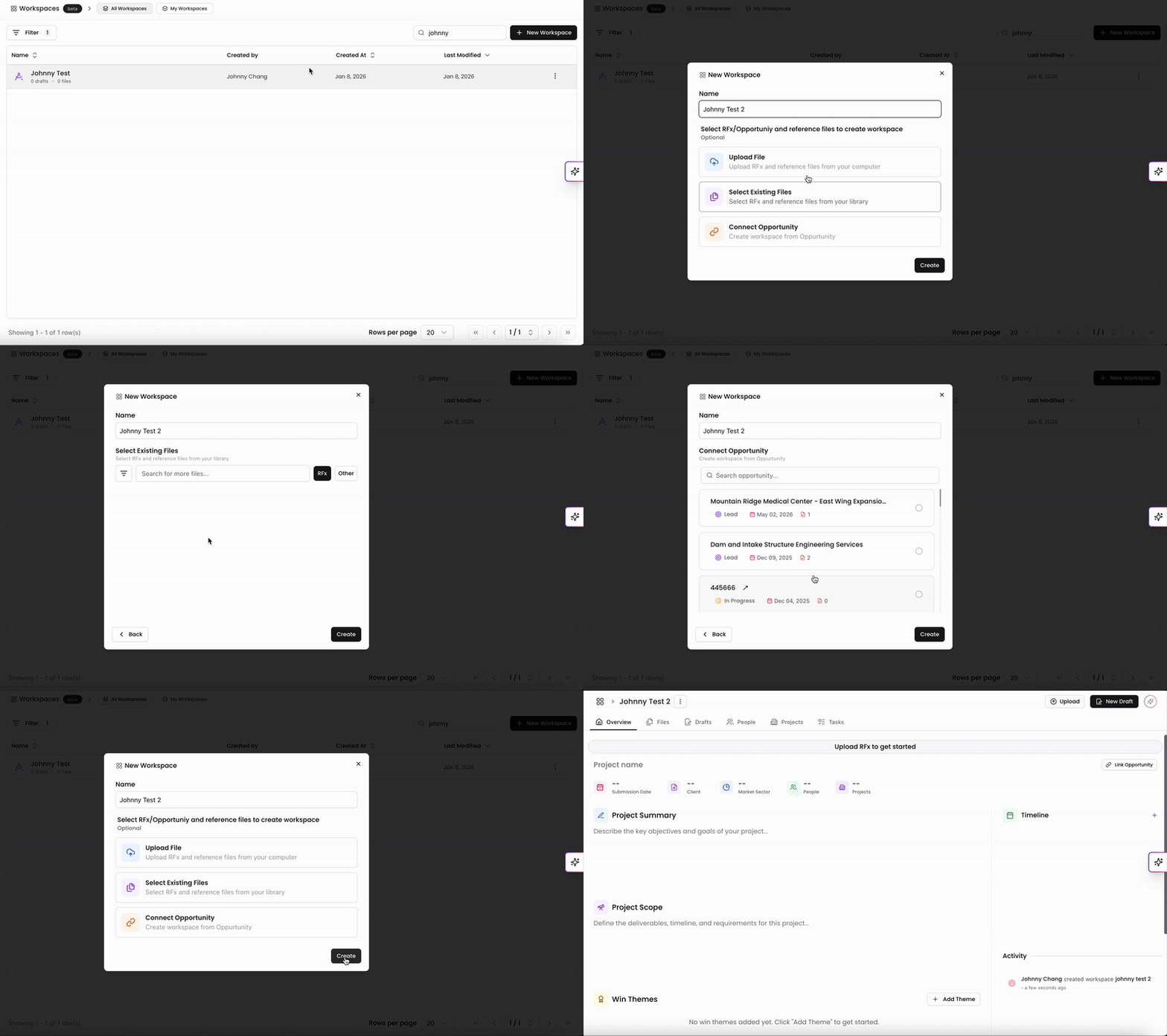
To create a new Workspace
Click + New Workspace on the top right.
Name your Workspace.
Optionally, select the RFx/Opportuniy and reference files to create your Workspace.
You can either upload an RFx file from your device, select existing files from your library, or connect an Opportunity in your library.
Click Create.
You'll be routed to your new Workspace in the Overview page. If you've uploaded or linked an RFx document or Opportunity when creating the Workspace, the Overview page will autofill with data. For newly uploaded files, you may not see the Overview page filled out initially as the file is processing (as indicated by the Scanning Icon), but once complete, you'll see the information extracted and filled. Otherwise, all fields will be blank initially for you to get started with generating content for these fields.
Editing an Existing Workspace
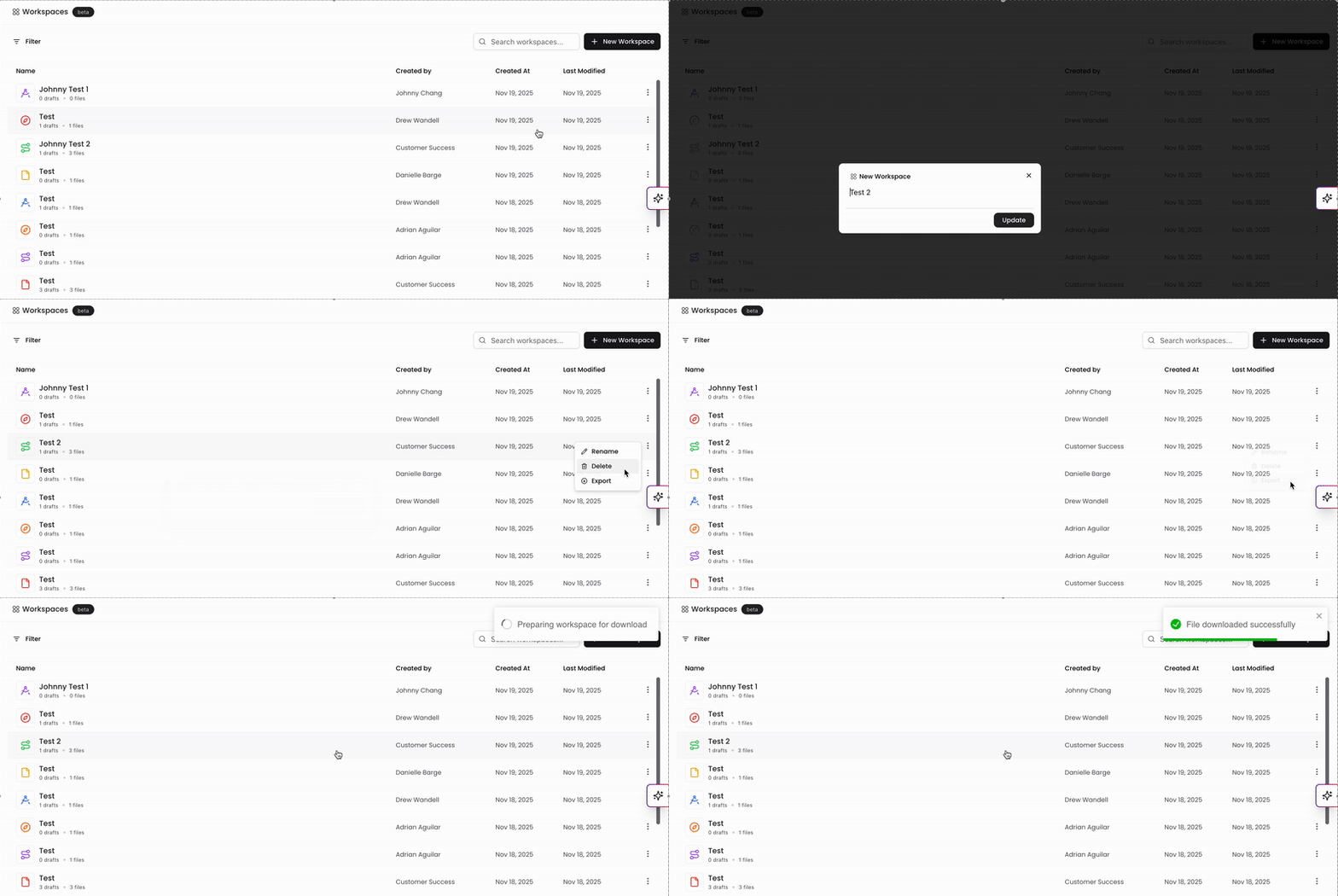
On the Workspaces page, you can make edits to an existing Workspace in the list. Click on the Workspace you'd like to access and you'll be taken to the Overview page for that Workspace.
When viewing your list of Workspaces, you can click on the three dots to the right to rename, delete, or export your Workspace. Workspaces will be exported as a .ZIP file. Please note that Workspaces require at least one file attached or one draft in order to export.
Searching and Filtering Workspaces
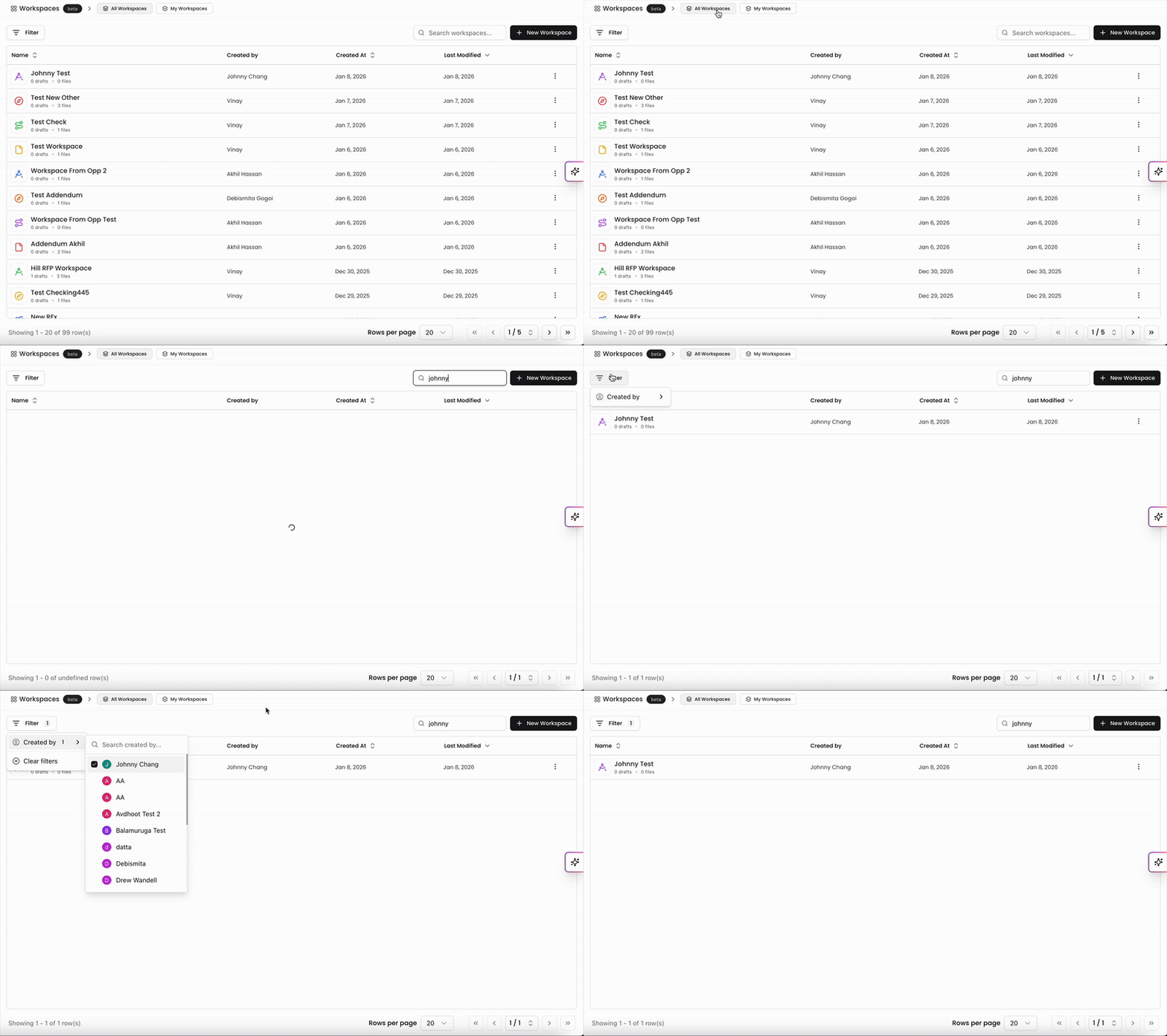
You can search and filter through your Workspaces to easily access what you're looking for. Use the search bar on the top right to look up your Workspace via name and the results that match will appear in the list. On the top left, you can filter by Created By to look up Workspaces created by a specific user. To look up Workspaces you've created, you can quickly filter and click My Workspaces at the top of the page.
You can also easily sort by any of the columns within the list by ascending or descending order. Click on the column to sort accordingly. By default, the Workspaces will be sorted by Last Modified in descending order.
You can always find more information on Workspaces in our Support Center. Please send any questions or feedback to Support@Kantiv.com.