Adding Files to a Workspace
Last updated: July 15, 2026
As of July 2026, Kantiv has released a new version of Workspaces and Document Analysis. This article covers the legacy version of Workspaces and articles covering the new version can be found in this collection.
Adding files to a Workspace in Kantiv helps you organize key project documents and unlock AI-powered insights. By uploading RFx materials and other supporting files, you give the Workspace the context it needs to generate accurate suggestions and streamline your proposal-building process. This article will serve as a guide on how to upload files and use it to generate Workspace overview content.
Adding Files and Auto-Generated Suggested Content
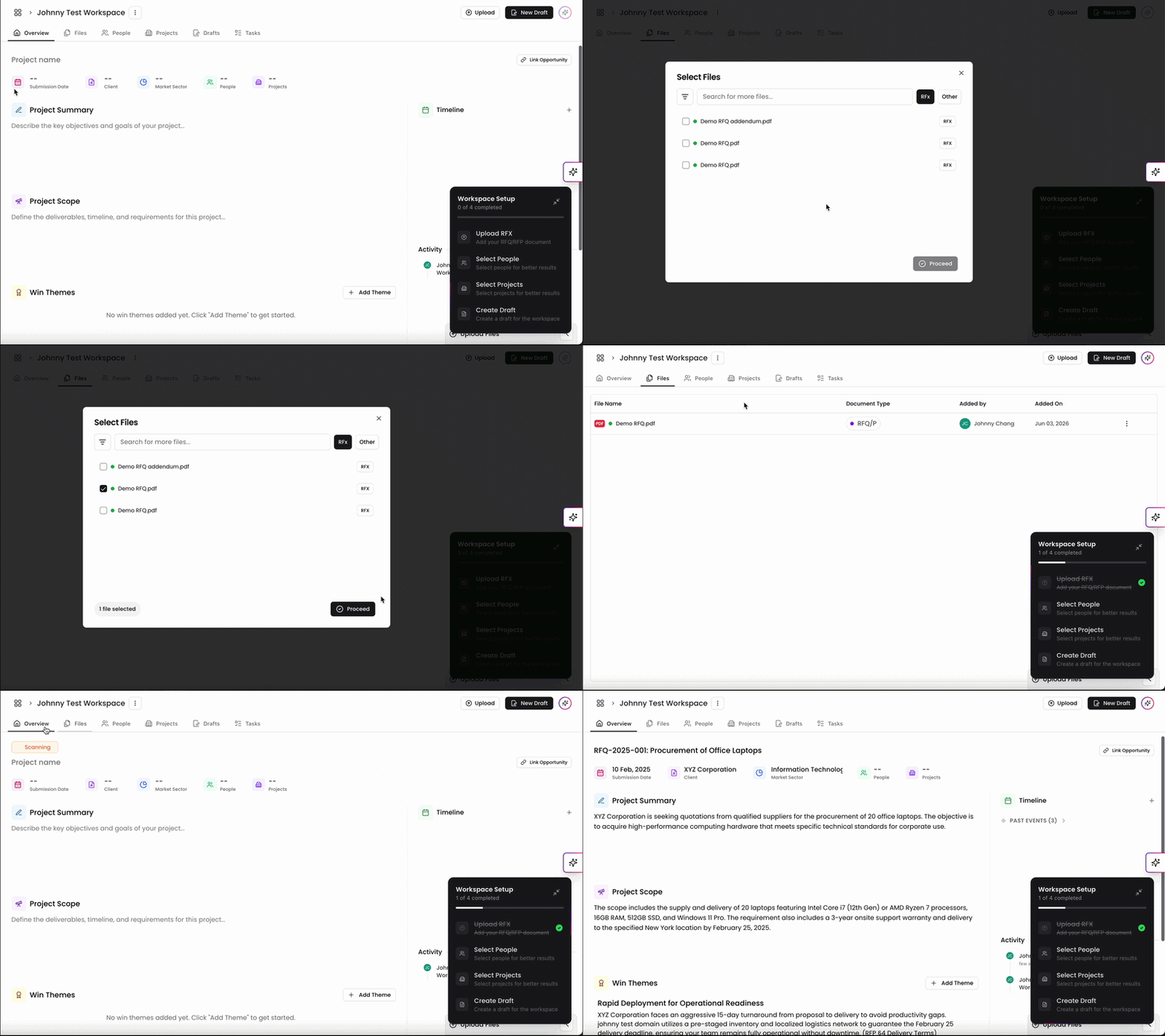
In the Files tab, you can easily upload RFx and other files onto the Workspace. You can upload files that already exist in your library, or upload new ones directly into the Workspace.
When selecting existing files, best practice is to upload the RFx file associated with the project, but you can upload other files as well too. The pop up window will automatically filter the RFx files for you to select and upload onto the Workspace. All other files can be accessed by clicking Other Files at the top. You can also search and filter in this window to find exactly what you're looking for.
Click on the boxes to the left of the file name to select them. Once you're redy to upload, click Add File at the bottom right of the window.
Your files will now be listed on this page. If you need to upload additional files, you can click Upload on the top right.
Once your RFx file is added onto your Workspace, you can return back to the Overview page for auto-generated content updates. The updates pull from the RFx document to generate information into the specific categories on the page, which saves you steps to fill in the fields. These categories include:
Project Name
Submission Date, Client, and Market Sector
Project Summary, Project Scope, and Win Themes
Timeline
These updates will be added on automatically, and you can also edit any of the content at any time once they're applied on.
File Actions
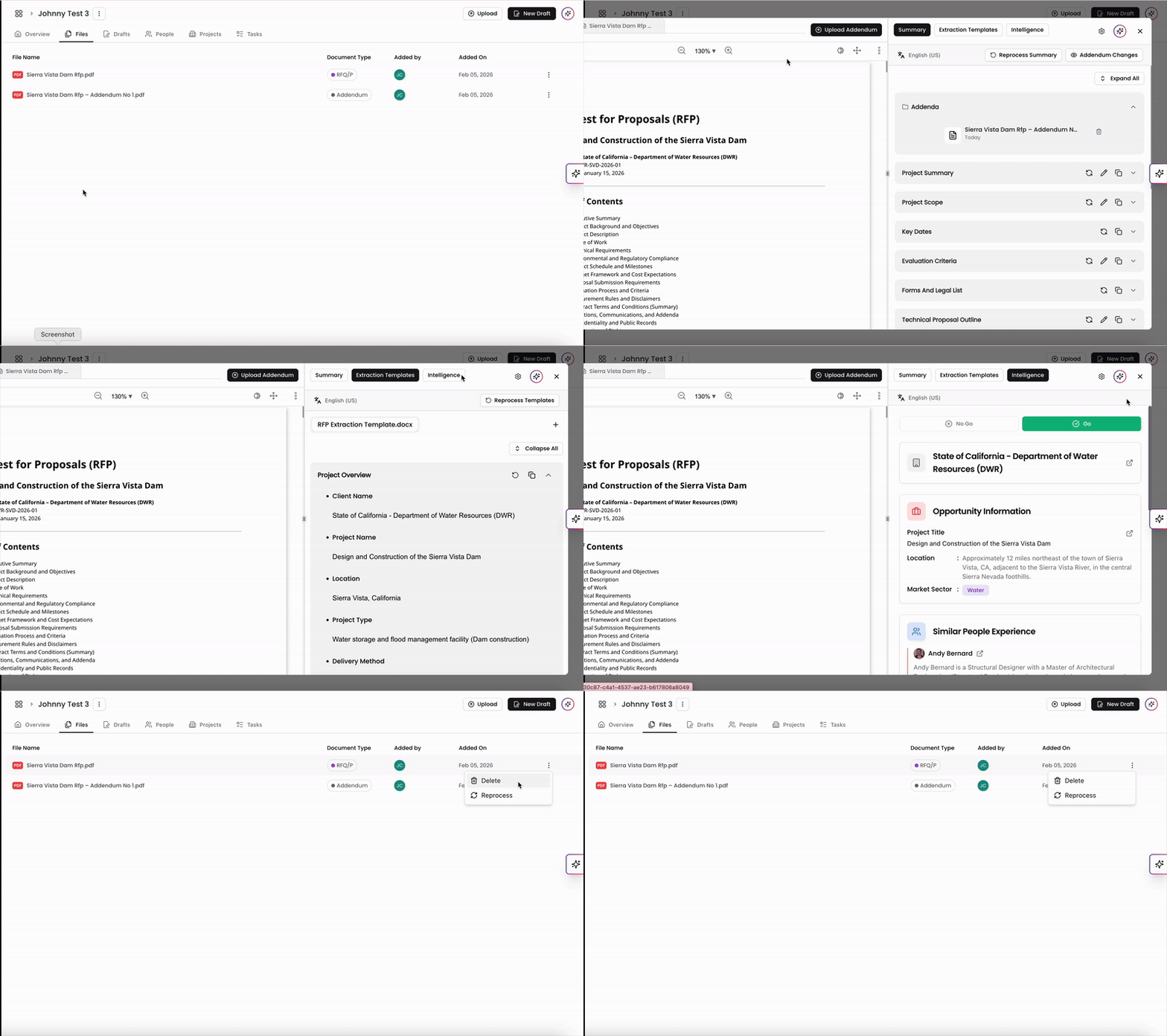
Once the file is uploaded, you have a few actions you can take in the Files page.
To view the file, click on it in the list. You can view RFx Insights the same way you could in the Tools page. For more information, check out this article.
In the Files page, click on the three dots to the right of the file. Here you can remove the file from the Workspace, or reprocesss the RFx insights if needed.
The Files tab in Workspaces makes it simple to upload and manage RFx documents and supporting materials, whether pulled from your library or added fresh. Once uploaded, Kantiv uses these files to auto-populate key fields with suggested content and provide quick access to RFx insights. With tools to view, reprocess, or remove files as needed, this section keeps your Workspace organized and ensures you always have the most relevant information at hand.
You can always find more information on Workspaces in our Support Center. Please send any questions or feedback to Support@Kantiv.com.