Creating Smart Drafts
Last updated: July 15, 2026
As of July 2026, Kantiv has released a new version of Workspaces and Document Analysis. This article covers the legacy version of Workspaces and articles covering the new version can be found in this collection.
Creating a draft in Kantiv is a guided, flexible process that allows you to build high-quality proposal content using the sources, insights, and team information already in your Workspace. Kantiv makes it easy to assemble the right inputs and customize your settings. This ensures every draft begins with the context, structure, and style you need to produce a polished, professional proposal.
This article will guide you through how to create a Smart Draft powered by AI.
Create Draft
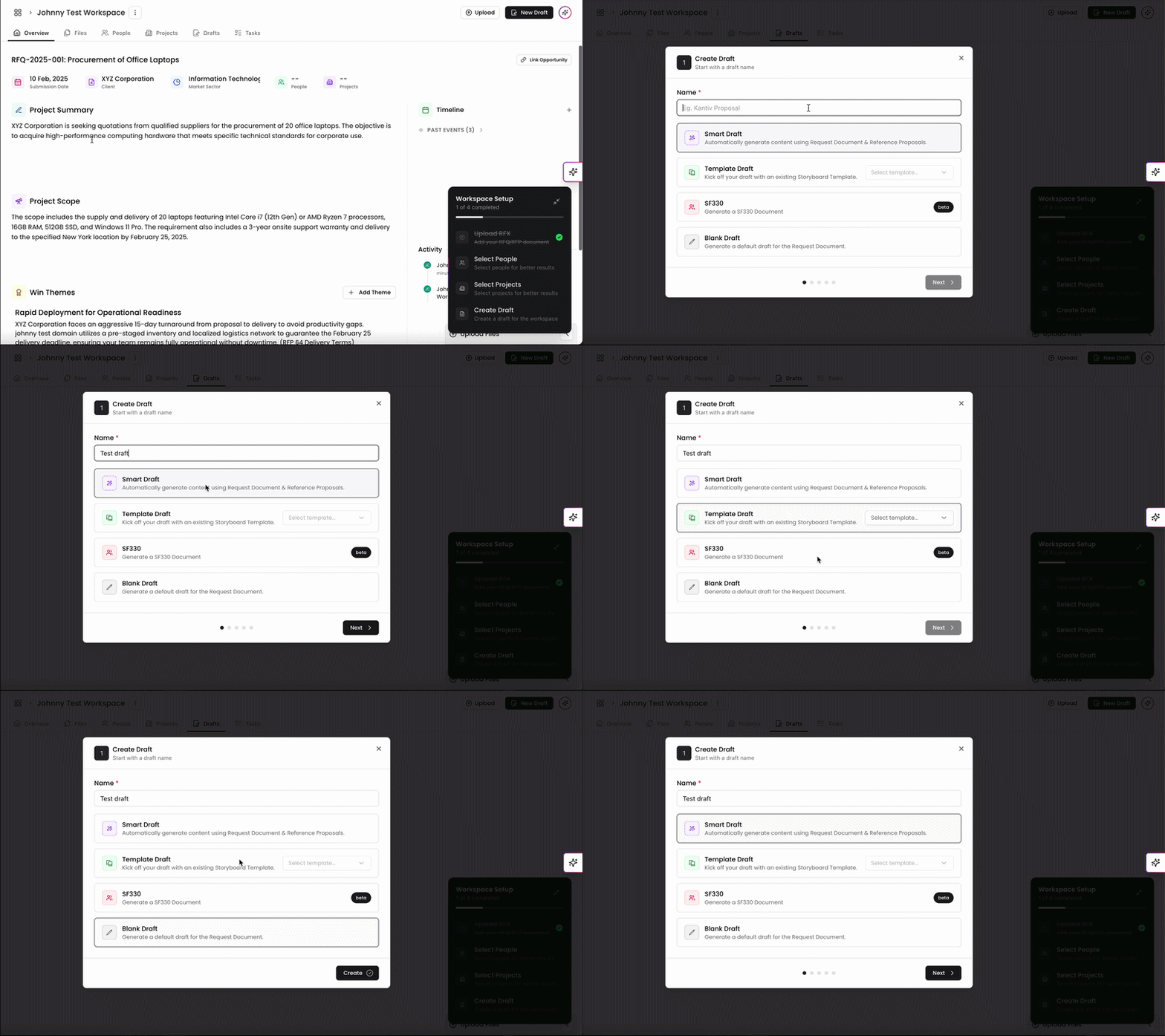
Let's get started creating your draft! To kick off this process in your Workspace:
Click New Draft on the top right of the page. This will populate a window to create your draft.
Name your draft.
Select the draft format best suited for your draft.
Smart Draft: Automatically generate content using AI and your RFx documents and reference proposals.
Letter Proposal: Generate a letter proposal using your RFx file and files within a collection.
Template Draft: Use an existing storyboard template from a previous draft.
Please note that storyboard templates are separate from custom templates in your setting page.
Blank Draft: Create a draft that does not draw from any existing content.
For this guide, we will focus specifically on Smart Drafts. Once complete, click Next to proceed.
Smart Draft Workflow
Select Request Document
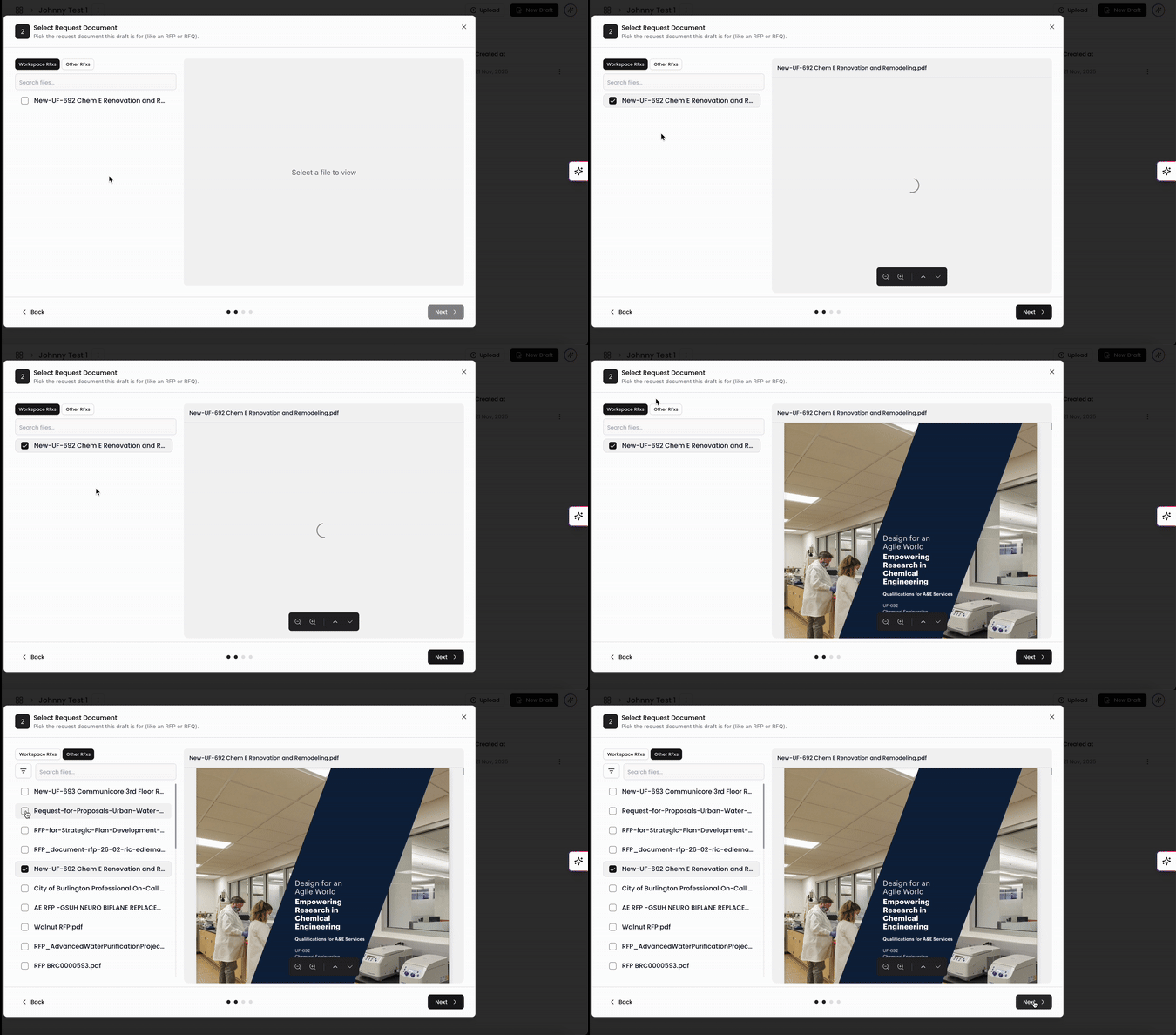
After you've selected Smart Draft, you can select your RFx documents to pull from. If you have RFx files added to your Workspace, they will show up in the list. If you'd like to select RFx files that haven't been added in your Workspace, click Other RFxs and select from the list.
Once complete, click Next to proceed.
Reference Proposals
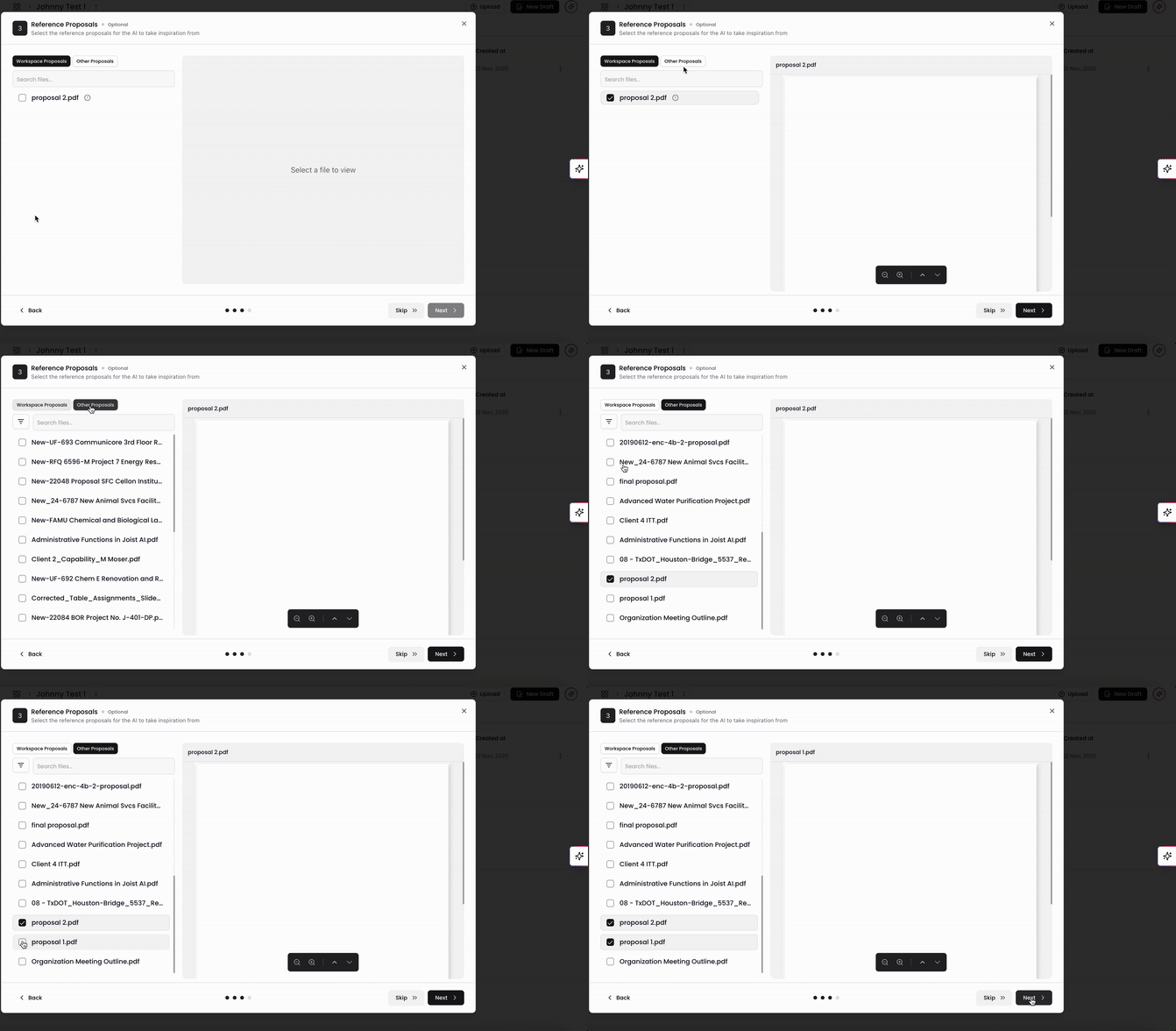
Next, you can include proposals to reference for your AI to take inspiration from. Like RFx files, if you have them added on your Workspace, they will show up in the list by default. If you'd like to select other proposals from your file library, you can click Other Proposals and select from the list.
Once complete, click Next to proceed. This step is optional and if you would not like to include a reference proposal, click Skip >> to proceed.
People and Projects
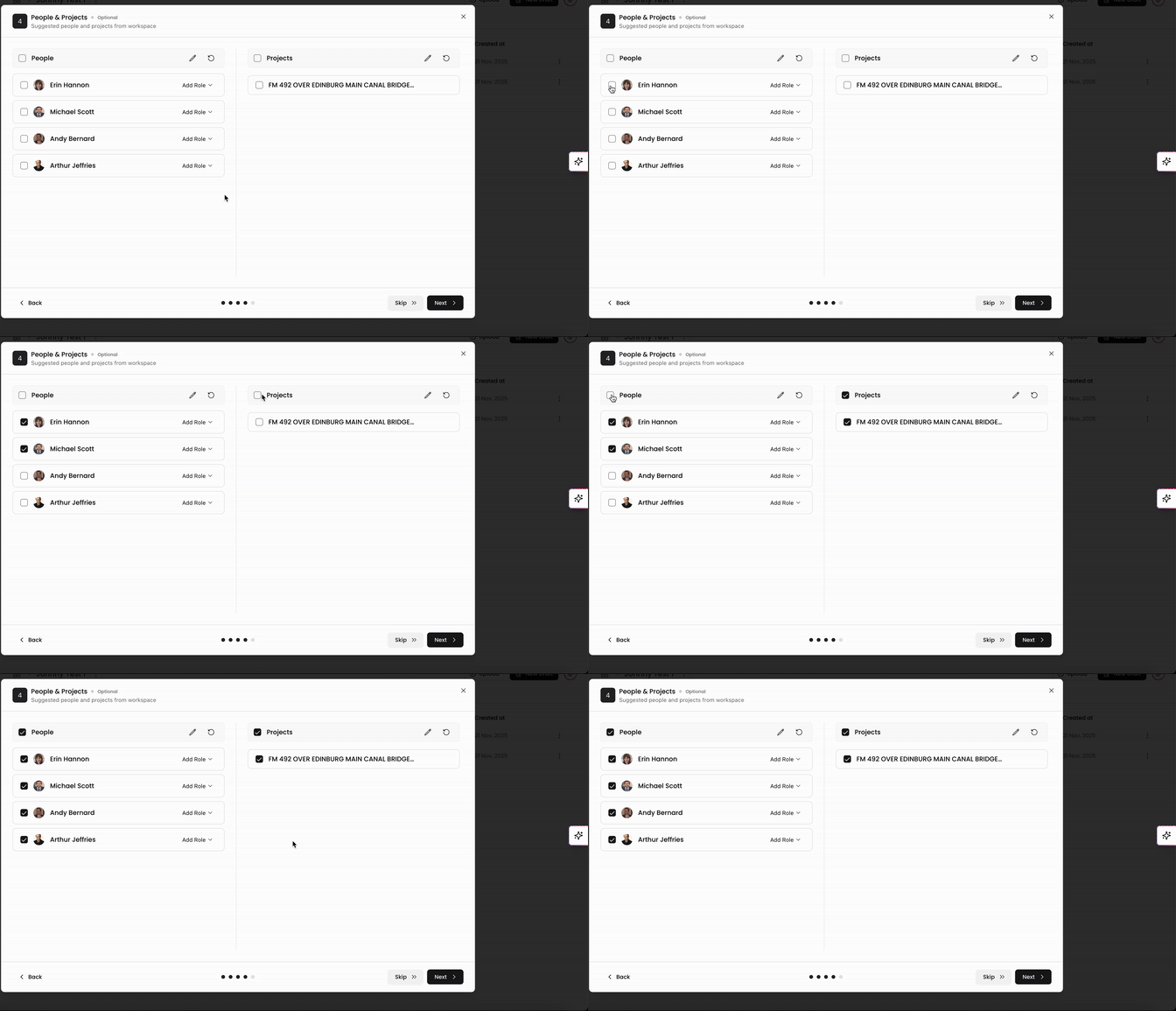
Here you can select people and projects to reference and pull from into your draft. If you've already added people and projects to the workspace, they will populate here in the list.
You can click the edit buttons at the top of the columns to navigate to either the people and projects page and make additions if needed. To refresh the list, click the refresh buttons at the top of the columns.
Once complete, click Next to proceed. Like reference proposals, this is also an optional step so you can also click Skip >> to proceed.
Advanced Settings
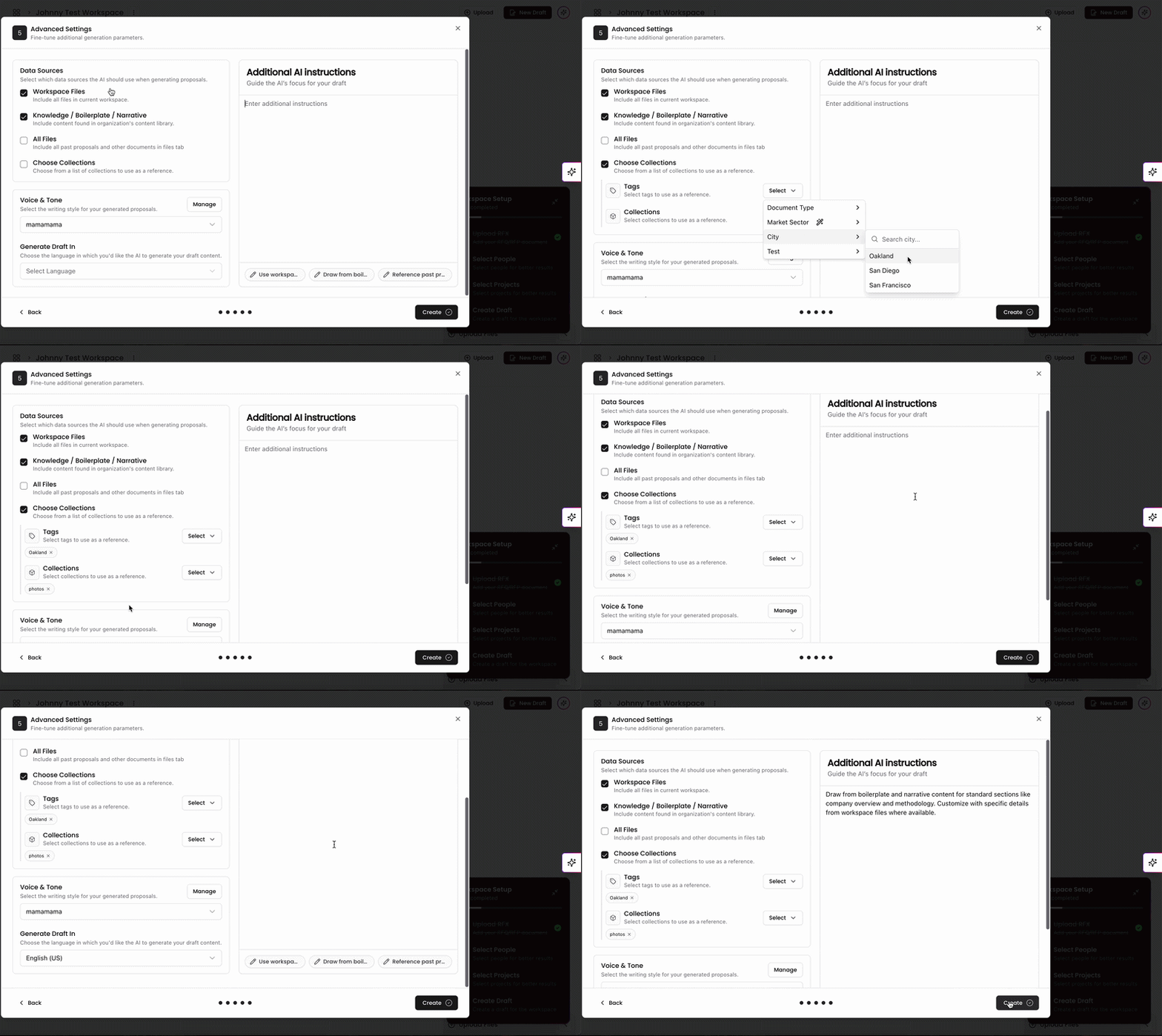
In the last step of the process, you can fine tune additional settings to personalize the draft.
Data Sources: Select which data sources the AI should use when generating drafts. You can toggle on/off Workspace files, knowledge and boilerplate content, all files, and collections (files containing specific tags and belong to specific collections)
Voice and Tone: Select the writing style for your draft. This list will pull from your voice options in your chat settings page.
Language: Select which language you would like to generate your draft in.
Additional AI Instructions: Free text space to give AI guidelines and directions to generate your draft with.
Once complete, click Create on the bottom right to begin generating your draft!
Generate Draft
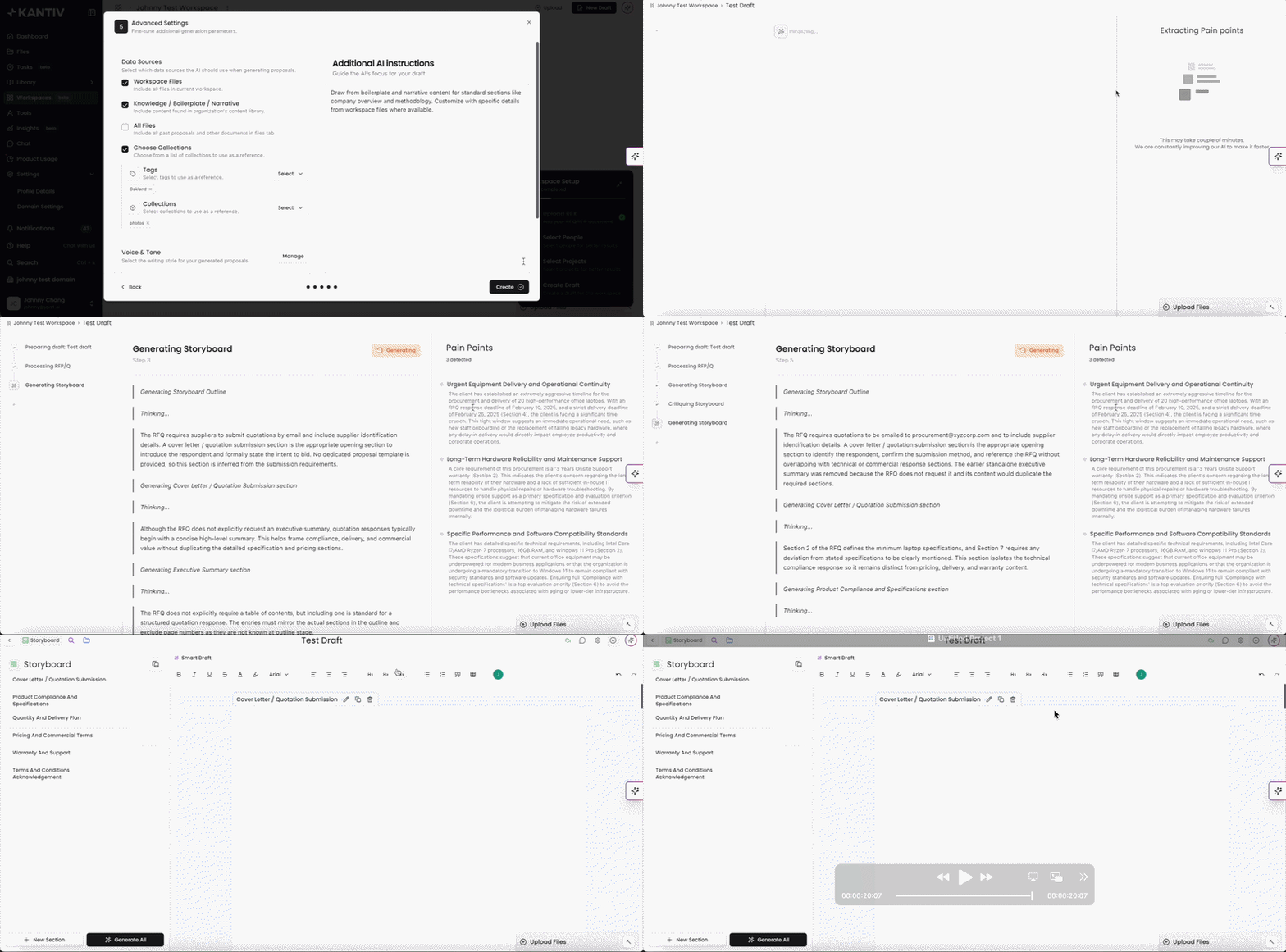
Here you'll see our AI in action as it pulls your RFx analysis, reference proposals, people, and projects to generate storyboards, build your outline, and format your draft. As the Ai goes through each of the steps, the data will populate on the right side until you reach the end of the list. You'll be directed to the draft page with your storyboard outline listed on the left and working space on the right. From here, you're ready to start generating content!
For details on how to build your smart draft and generate content, check out this article.
Smart Drafts in Kantiv give you a powerful, structured way to generate high-quality proposal content with minimal effort. By pulling from your RFx documents, reference proposals, people, and projects—along with your selected voice, tone, and data sources—Smart Drafts create context-aware storyboards and polished written content that align with your goals. With flexible settings and optional steps at every stage, Smart Drafts streamline the proposal-building process while giving you full control over the inputs that shape your final document.
You can always find more information on Workspaces in our Support Center. Please send any questions or feedback to Support@Kantiv.com.