Adding People and Projects to Workspaces
Last updated: July 15, 2026
As of July 2026, Kantiv has released a new version of Workspaces and Document Analysis. This article covers the legacy version of Workspaces and articles covering the new version can be found in this collection.
Adding people and projects to your Workspace helps you build richer, more accurate proposal drafts by keeping all relevant team members and past work examples close at hand. Within the People and Projects tabs, you can pull in records from your library, search and filter for specific matches, or use AI-recommended suggestions based on your attached RFx. This ensures that when you begin generating content, your Workspace is already populated with the right expertise and project history to support a strong, tailored proposal.
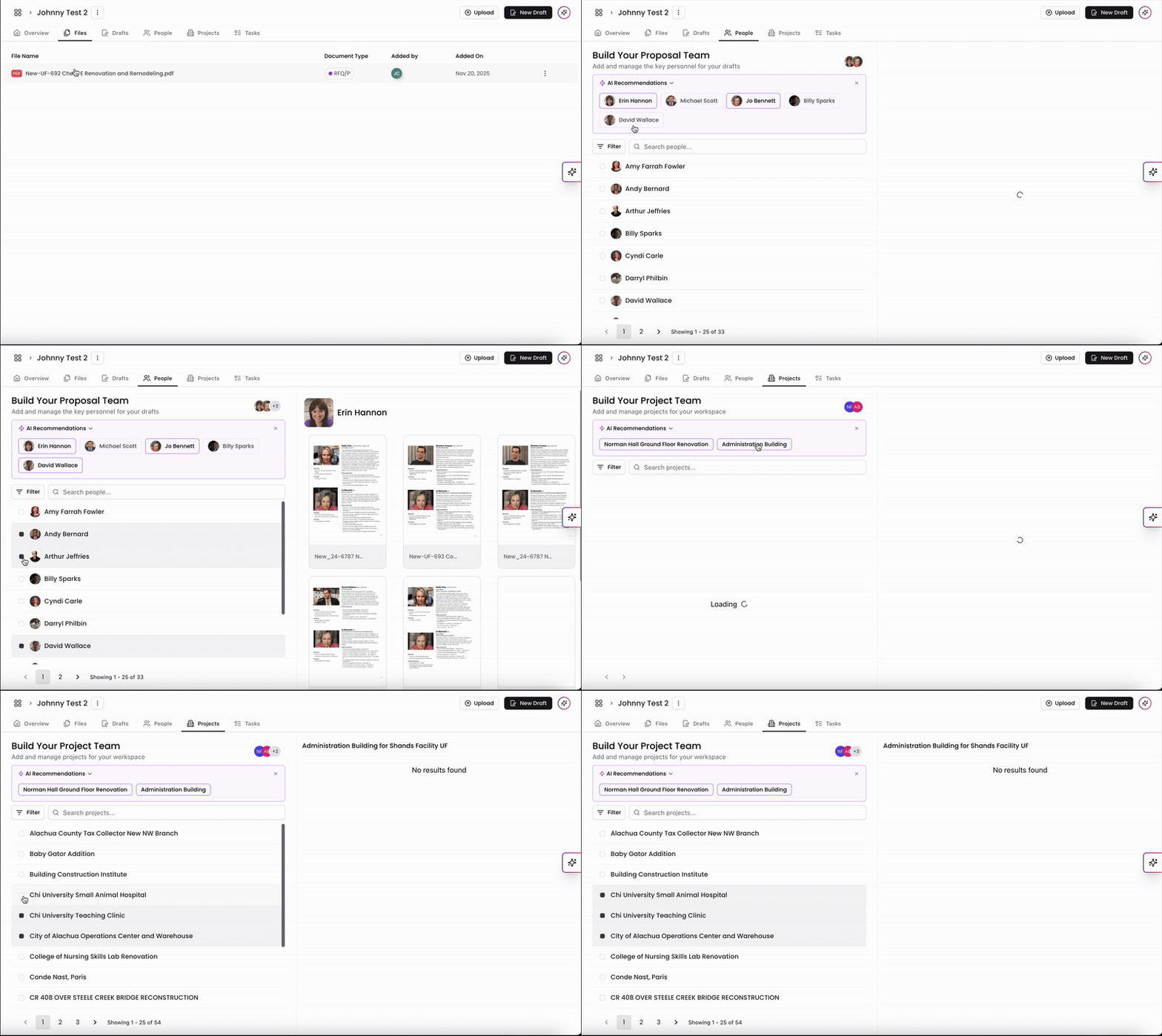
Adding People to Workspace
Click on the People tab to access your people list from your library. You can click on individuals in the list to add onto the Workspace. If you already have an RFx file attached, our system will provide AI recommendations for people that have been pulled from your RFx file. They can be found above your people list and you can click them to add them onto your Workspace.
You can also search and filter to find specific people in the list and add them onto the Workspace.
Adding Projects to Workspace
Similarly to people, click on the Project tab to access your project and opportunity list from your library. You can click on the projects to add onto the Workspace. If you already have an RFx file attached, our system will provide AI recommendations for projects that have been pulled from your RFx file. They can be found above your project list and you can click them to add them onto your Workspace.
You can also search and filter to find specific projects in the list and add them onto the Workspace.
Why add People and Projects to your Workspace?
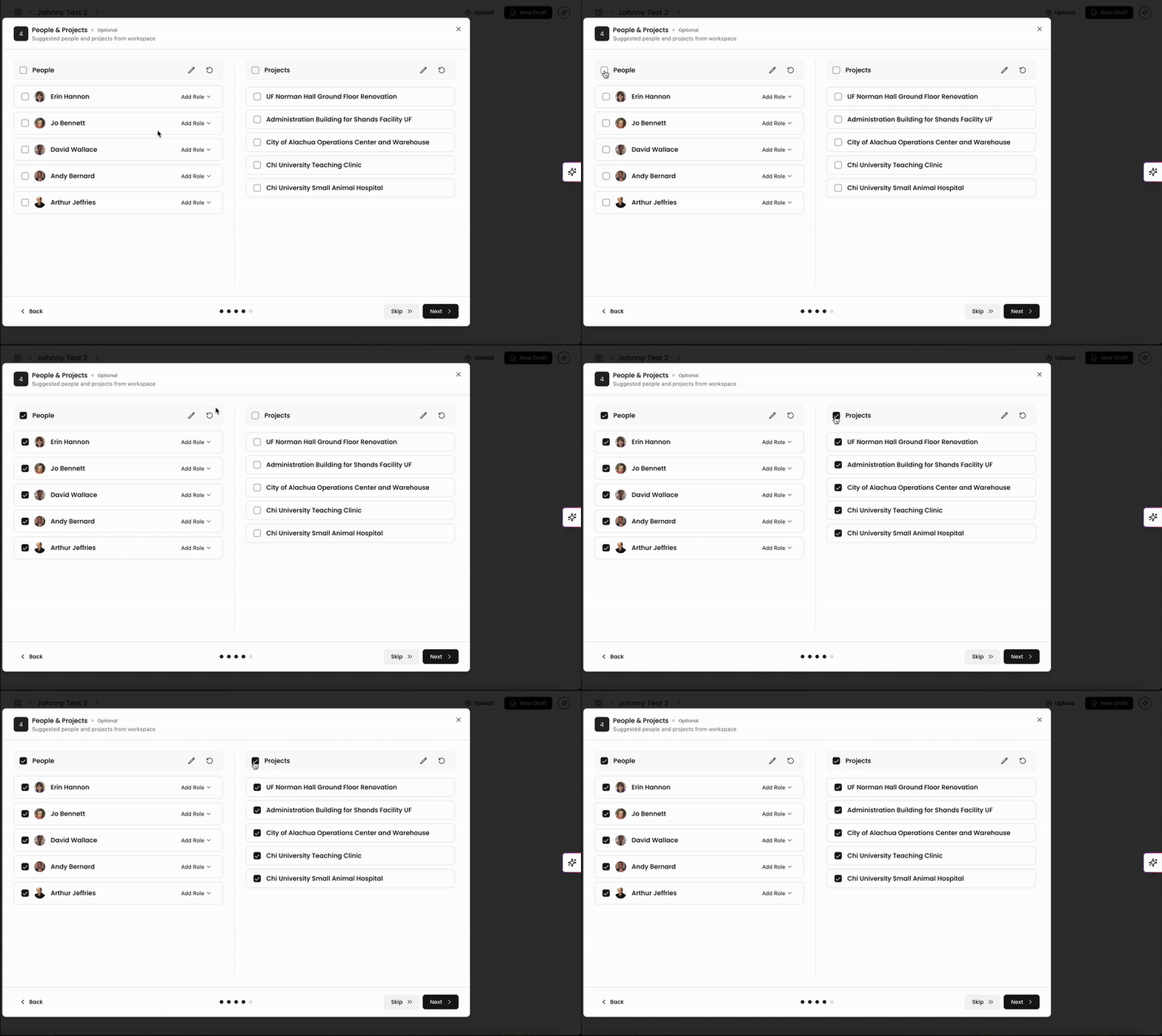
When you're generating your drafts in Workspaces, one of the steps of the setup process asks for people and projects to include on your draft. When you have them added onto the workspace beforehand, you can have them handy to select when you get to this step!
Adding people and projects to your Workspace ensures all the key context—team expertise, relevant experience, and past project data—is readily available as you generate proposal drafts. Whether you select records manually or use AI-recommended suggestions based on your RFx, Workspaces makes it easy to assemble the right supporting information. This setup streamlines the drafting process and helps you produce stronger, more accurate proposal content with less effort.
You can always find more information on Workspaces in our Support Center. Please send any questions or feedback to Support@Kantiv.com.