Private Workspaces
Last updated: July 15, 2026
As of July 2026, Kantiv has released a new version of Workspaces and Document Analysis. This article covers the new version of Workspaces and articles covering the Legacy version can be found in this collection.
By default, workspaces in Kantiv are Public, meaning everyone in your organization can find and access them. Making a workspace Private restricts visibility to only you and the people you explicitly invite, which can be useful for sensitive pursuits, early-stage work you're not ready to share broadly, or bids where you need tighter control over who's involved.
Any Kantiv user can create a private workspace or change an existing workspace's privacy setting.
For more on what each role can access across the platform, see User Roles, Teams, and Deactivated Users.
Making a Workspace Private at Creation
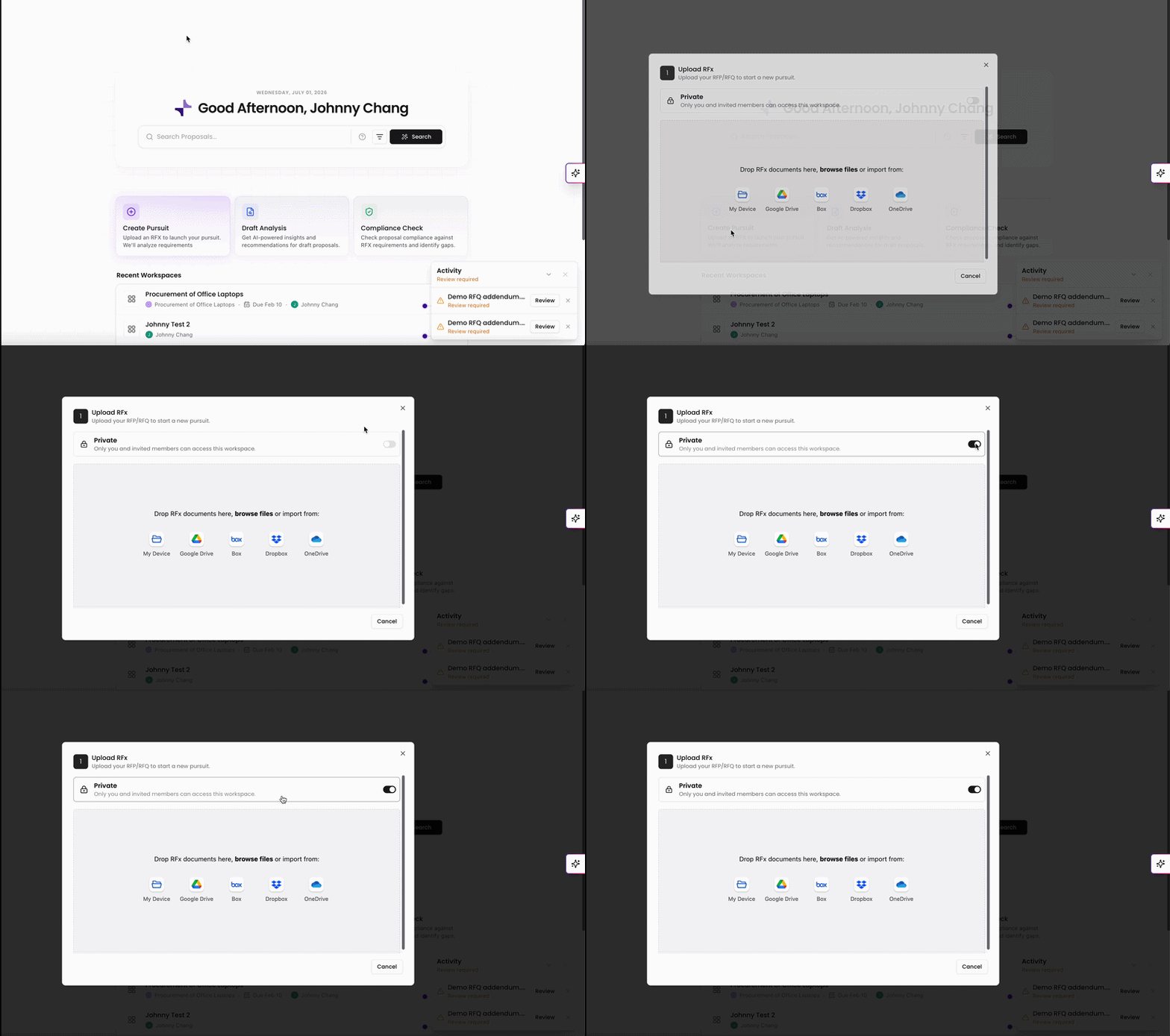
When creating a new workspace either via Create Pursuit on the Dashboard or + New Workspace from the Workspaces list, toggle Private on in the creation dialog before clicking Create. The toggle is off by default.
Once created, the workspace header will display Private instead of Public.
Changing Privacy on an Existing Workspace
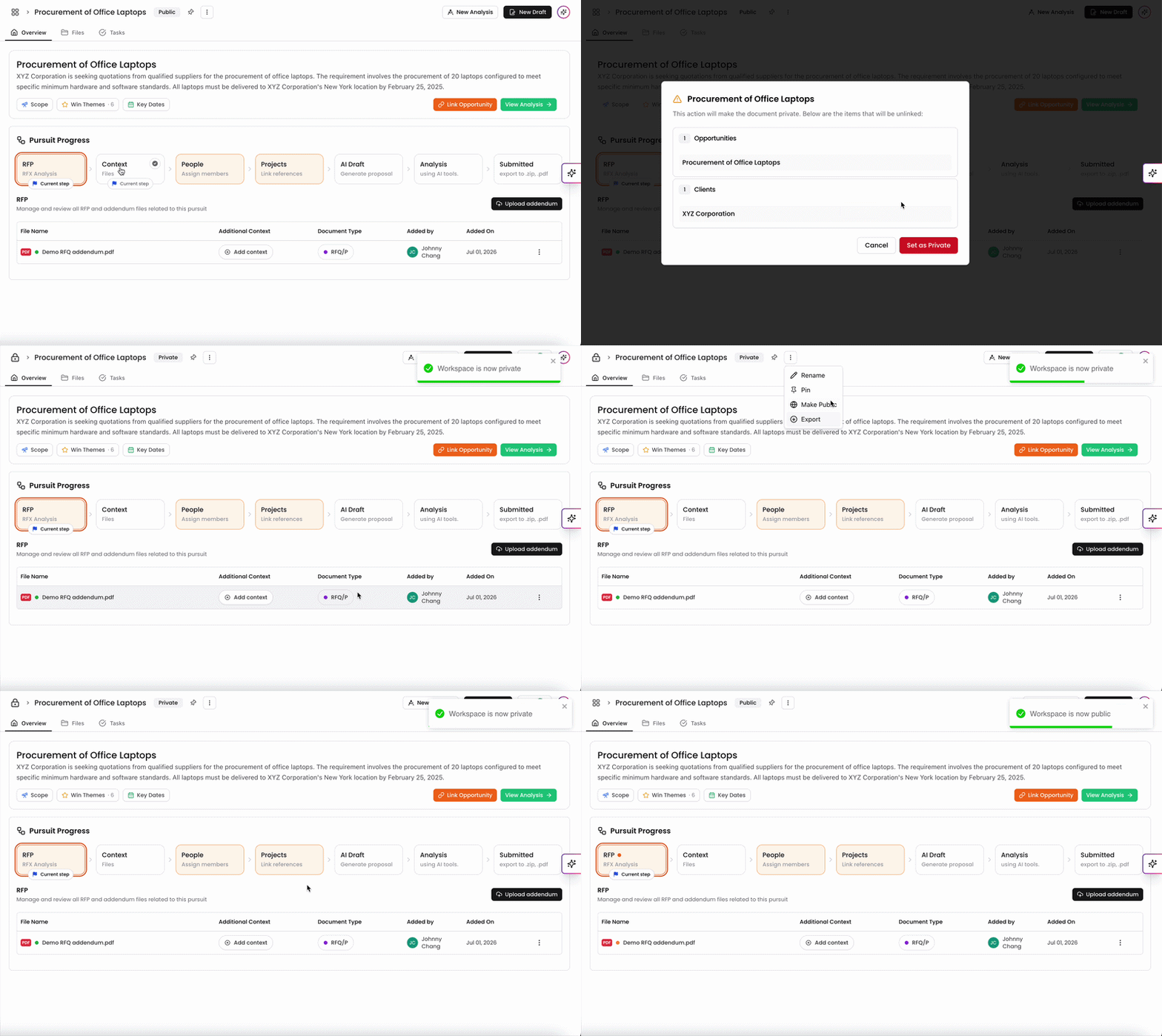
You can change a workspace's privacy setting at any time after creation.
Open the workspace and click the ⋮ (three dots) menu at the top of the Overview page, next to the workspace name.
Toggle Private on or off.
The change takes effect immediately. The workspace header updates to reflect the new setting.
Note: Switching a workspace from Private back to Public makes it visible to your entire organization immediately — including all its files and drafts. Make sure this is intentional before toggling.
Inviting Members to a Private Workspace
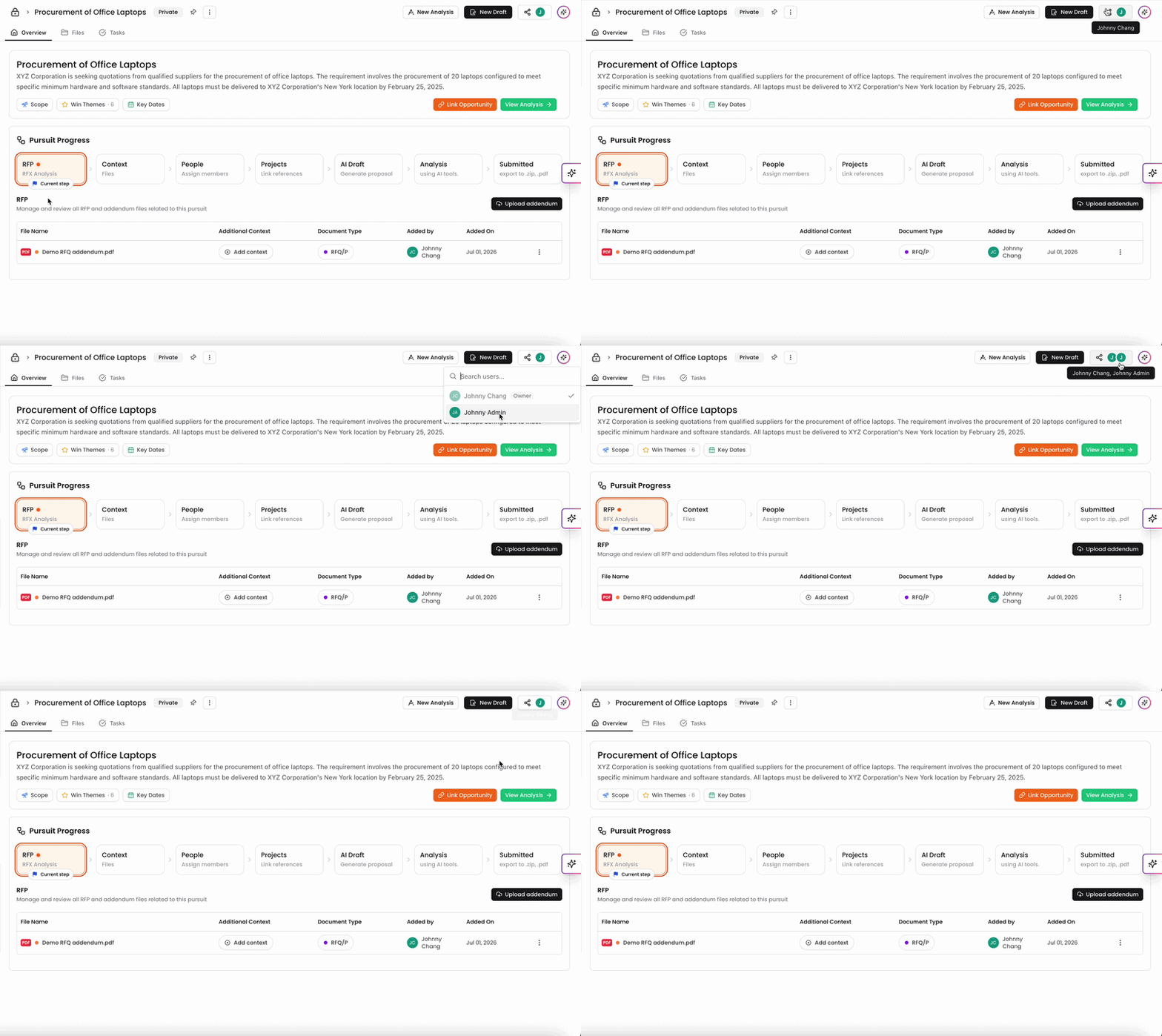
Once a workspace is private, others in your organization can't find or access it unless you invite them directly.
Open the private workspace.
Click the Share icon in the workspace header.
Search for and select the colleagues you want to invite.
Confirm to grant them access.
Invited members can view and collaborate in the workspace according to their own role permissions. To remove someone's access, return to the menu and remove them from the list.
You can always find more information on Workspaces in our Support Center. Please send any questions or feedback to Support@Kantiv.com.