Compliance Checks on Draft Proposals
Last updated: June 2, 2026
Ensuring your proposal fully meets every requirement in an RFP or RFQ is essential to staying competitive and compliant. With Kantiv’s Compliance Check tool, you can automatically analyze your draft proposal against the solicitation document to identify gaps, confirm alignment, and strengthen your response. This guide walks you through how to generate, interpret, and act on your compliance reports to improve accuracy and efficiency in your proposal process.
Starting a Compliance Check
There are two ways to generate a Compliance Check, via the tools page and within the Draft Proposal. For best results, have the RFx and Draft Proposal uploaded and processed in the Tools page prior to running the Compliance Check.
Via Tools Page
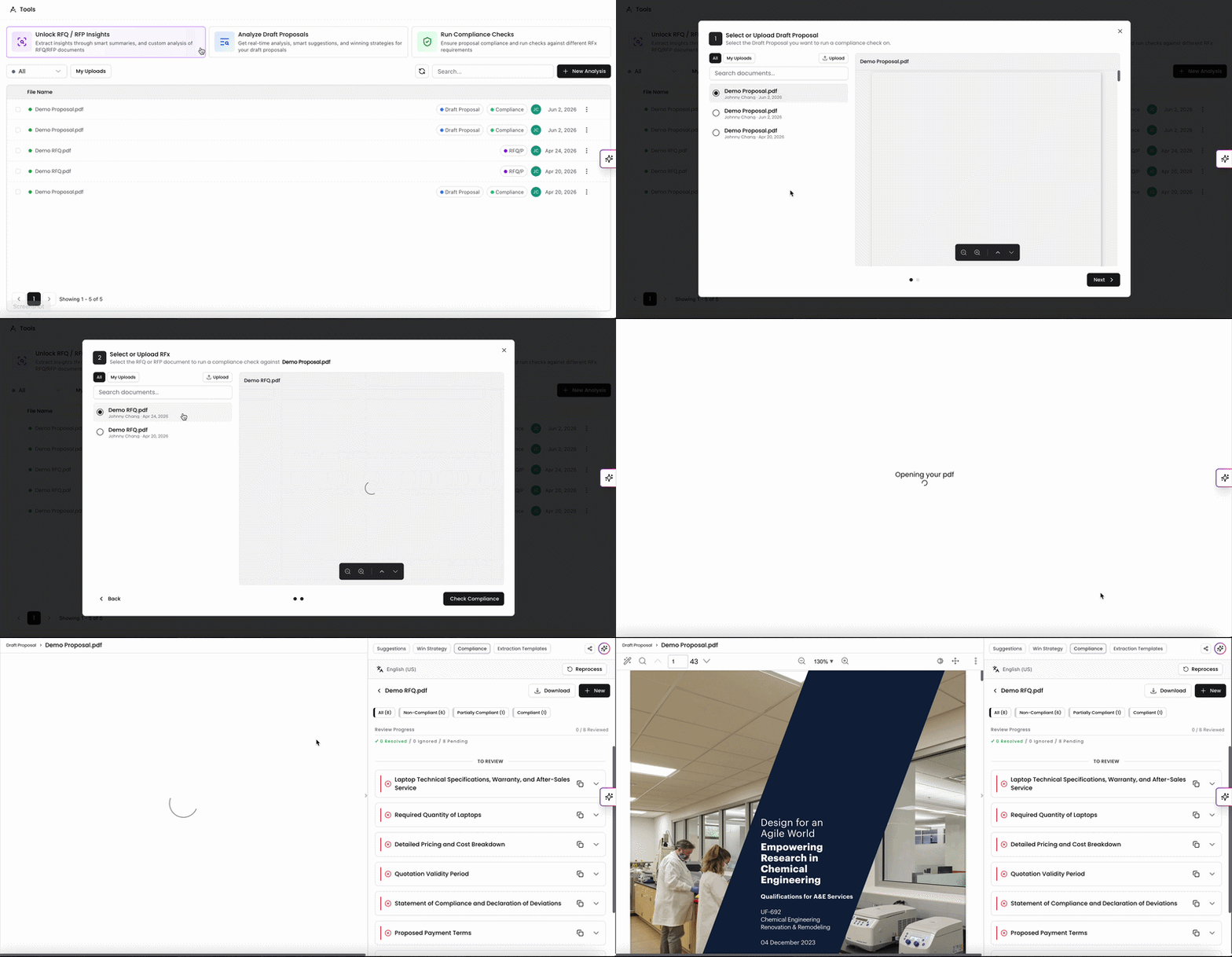
On the Tools page, click Run Compliance Checks on the top of the page.
Select the Draft Proposal you'd like to run a Compliance Check on.
This lIst will populate from the Draft Proposals already in your account. f you don't have any Draft Proposals uploaded, you can upload one on this page.
Click Next.
Select the RFx to analyze the Draft Proposal with from the list.
This list will populate the RFx files already in your account. If you don't have any RFx files, you can upload a new RFx here.
Click Check Compliance. Our system will begin analyzing your document against the RFx to generate a detailed compliance report.
This process can take a few minutes to complete.
Within Draft Proposal
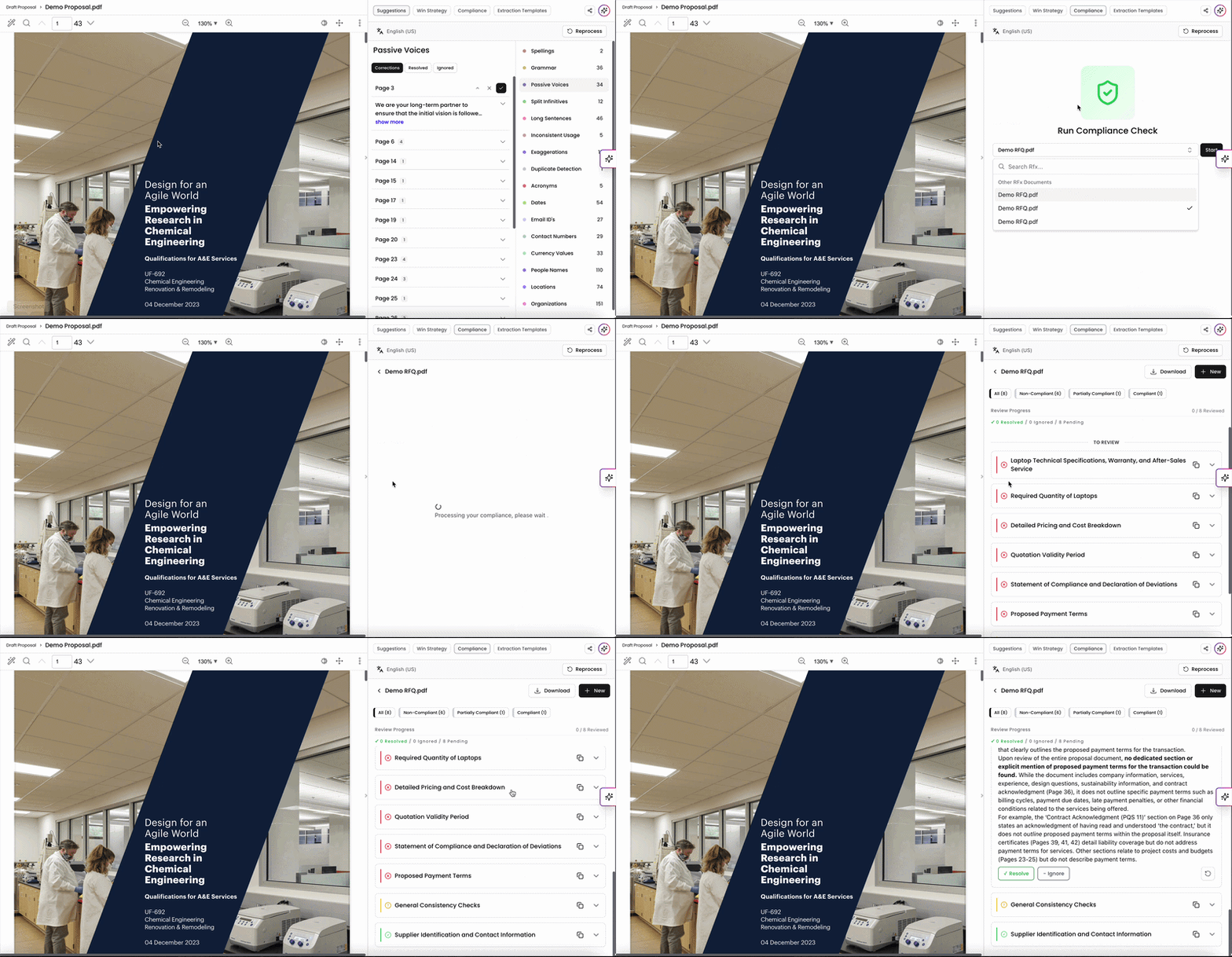
While looking at the Draft Proposal, click on the Compliance tab in the top menu.
Select an RFx from the dropdown list.
This list will populate the RFx files already in your account. If you don't have any RFx files, you can upload a new RFx here.
Click Start to begin processing. Our system will begin analyzing your document against the RFx to generate a detailed compliance report.
This process can take a few minutes to complete.
Understanding your Compliance Check
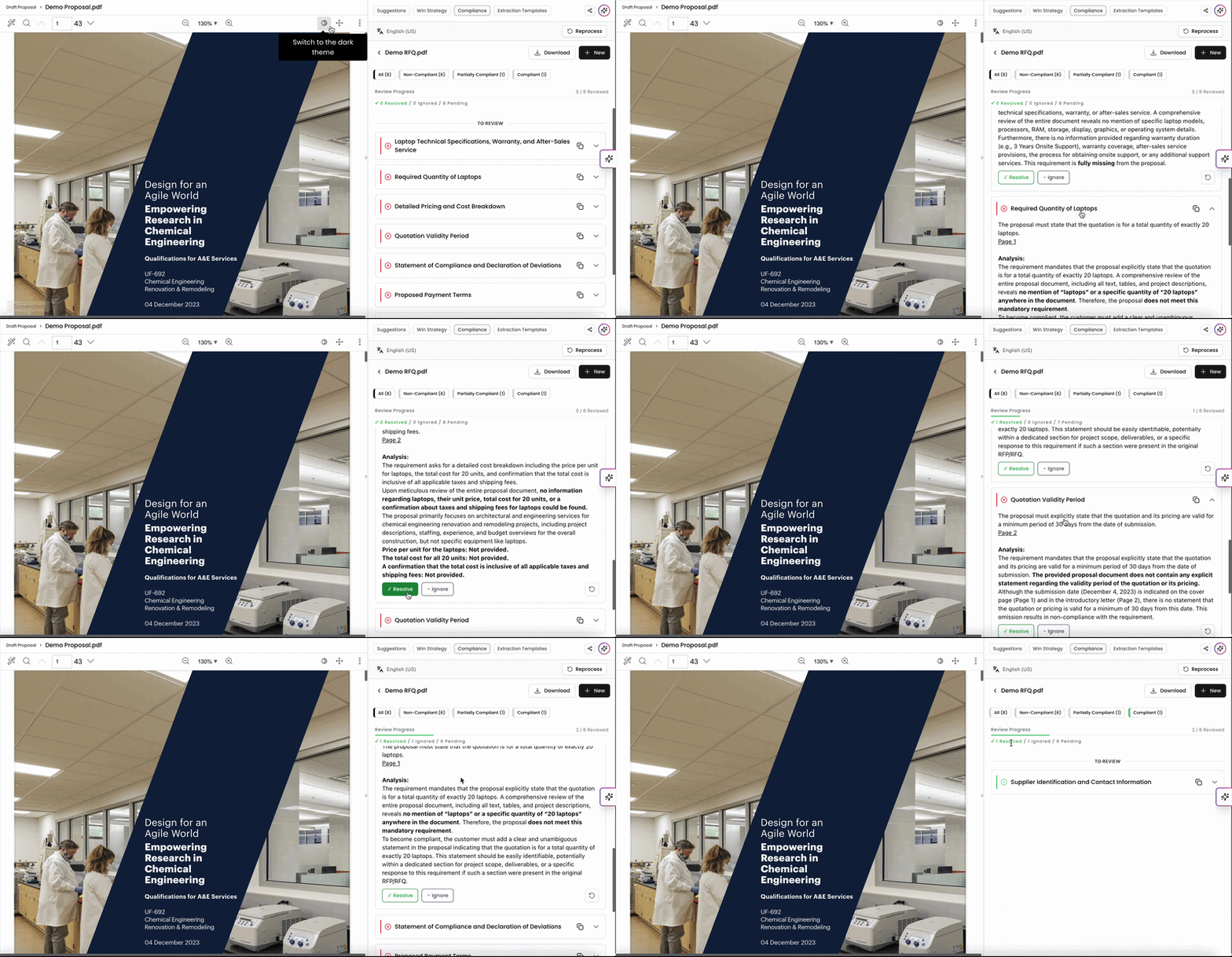
The compliance report will highlight areas where your response aligns with the RFx requirements, missing or incomplete sections that need attention, and suggestions for improving compliance. The subsections in the Compliance Check are automatically generated and include the proposal requirements, analysis of how aligned your Draft Proposal is with the RFx, and sources of where the information is being drawn from.
Subsections are automatically categorized and color coded as Non-Compliant (Red), Partially Compliant (Yellow), and Compliant (Green).
Non-Compliant subsections indicate areas that don't meet the requirements of the RFx. You'll want to take the areas need improvement and require attention in the Draft Proposal and make revisions.
Partially Compliant subsections indicate areas that slightly miss the mark and don't fully meet the requirements of the RFx. With these, you'll also want to make revisions in the Draft Proposal.
Compliant subsections indicate areas that meet the requirements of the RFx.
You can filter among these by clicking the filter tab at the top of the Compliance section.
Resolving and Ignoring Compliance Sections
When the Compliance Check is completed, each section will be set as pending as part of your review progress. At the bottom of each Compliance section, you can mark it as Resolved or Ignored, which will remove the pending status of that section and place it in a resolved or ignored status. These reviewed sections will filter to the bottom of the list under Reviewed and ignored sections will have a strikethrough the text.
If you need to move a Compliance section back to pending, click on a reviewed section and click Undo.
Compliance Check Actions
Downloading Compliance Check
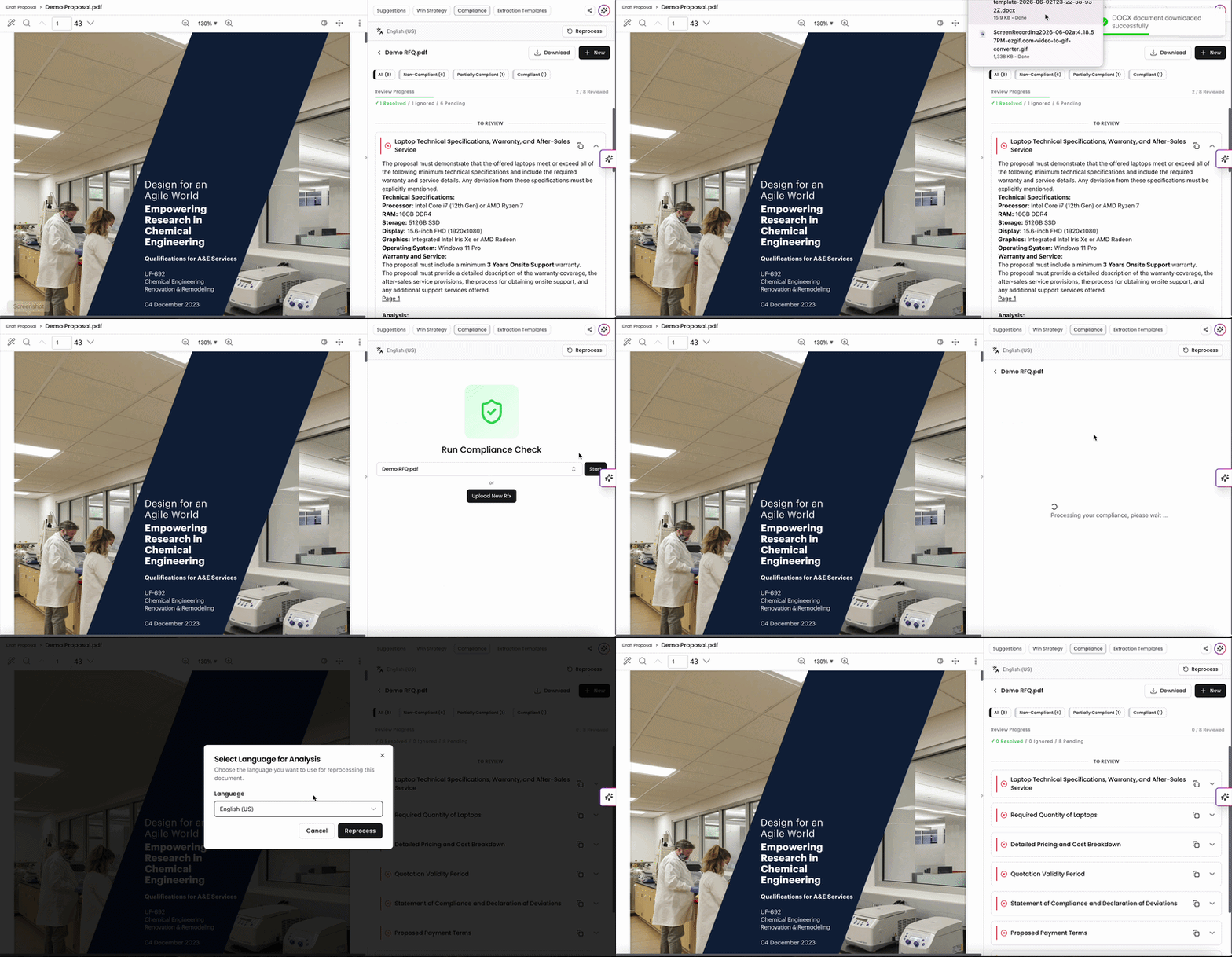
You can download a copy of the Compliance Check with the details included in all subsections. Click Download on the top right to download a .DOCX file.
Running a New Compliance Check
Need to run the Draft Proposal against another RFx file? Click +New to run a new Compliance Check. Here, you can also view your Compliance Check history across all RFx files the Draft Proposal has been analyzed with.
Reprocessing an existing Compliance Check
If for any reason you need to redo the Compliance Check against the RFx, you can click Reprocess on the top right to reprocess the Draft Proposal. You can also generate a Compliance Check in a different language if needed too.
Why Use Compliance Reports?
Proposal teams typically use this tool as:
First-line defense: Reviewing the draft before internal team discussions to identify gaps and compliance issues.
Final check: Ensuring the document is error-free and compliant before submitting it to the client.
By following these steps, you can streamline the compliance process and allow your team to focus on crafting strategic and impactful proposals. Compliance Checks help you save time, ensure adherence to RFx requirements and reduce the risk of disqualification, and enhance your proposal quality by focusing on strategic messaging.
Kantiv’s Compliance Check streamlines the proposal review process by automatically comparing your draft against RFx requirements, highlighting areas that need attention, and confirming where you’re fully aligned. By using this tool, your team can save time, minimize errors, and submit stronger, more compliant proposals with confidence.
You can always find more information on Tools and Document Analysis in our Support Center. Please send any questions or feedback to Support@Kantiv.com.