Building and Running Extraction Templates
Last updated: June 23, 2026
Extraction Templates in Kantiv help you streamline document analysis and maintain consistency across projects. Whether you’re extracting structured data from RFx files, analyzing Draft Proposals for compliance, or summarizing key information from uploaded documents, Extraction Templates make it easy to automate and standardize your workflow. This guide walks you through how to upload, customize, and apply templates to get the most out of your document insights.
Accessing Extraction Templates
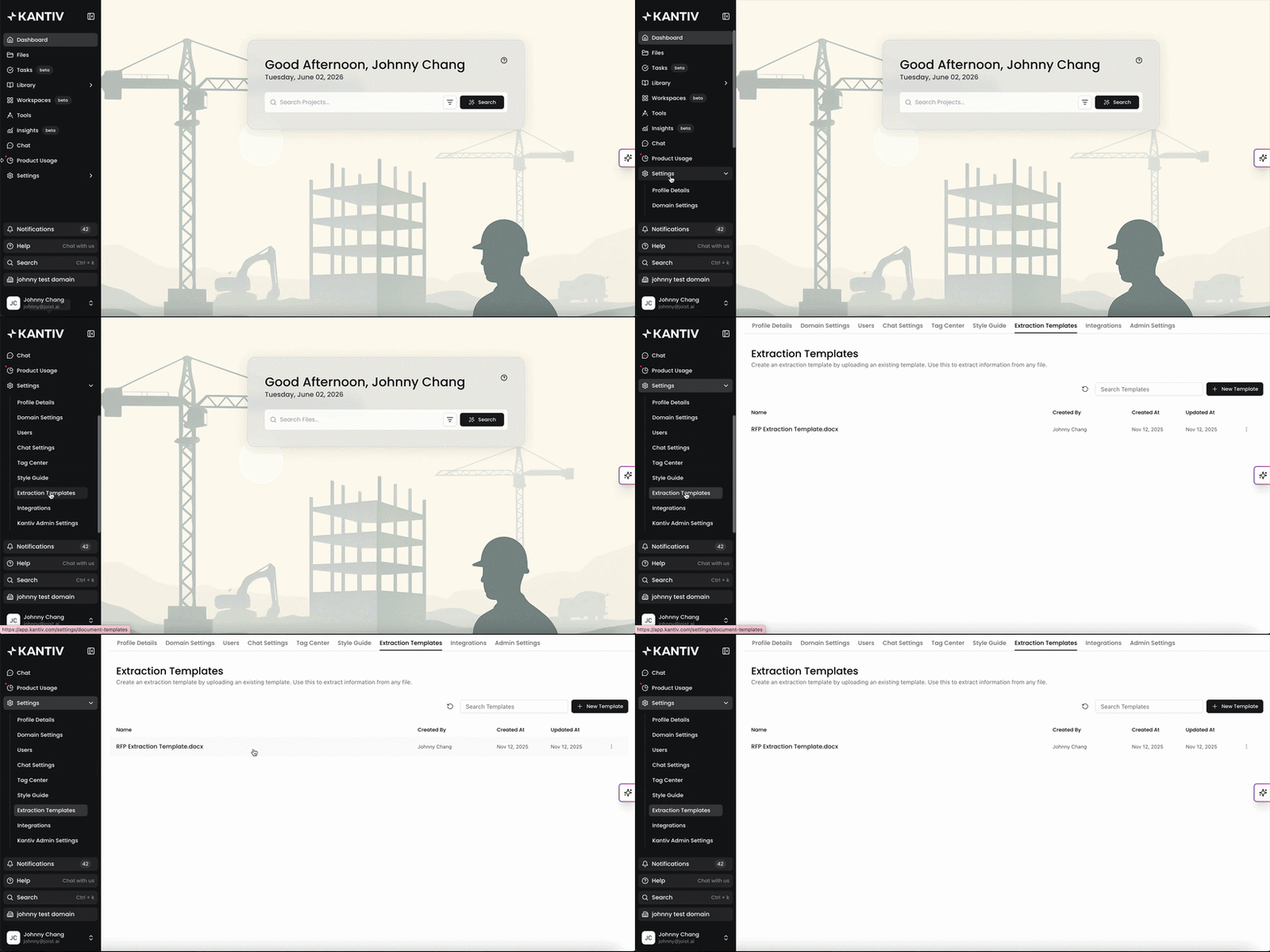
You can access your Extraction Templates in your settings menu. Click Settings in the menu and then click Extraction Templates.
Alternatively, you can Click here to access the Extraction Templates menu.
Uploading Extraction Templates
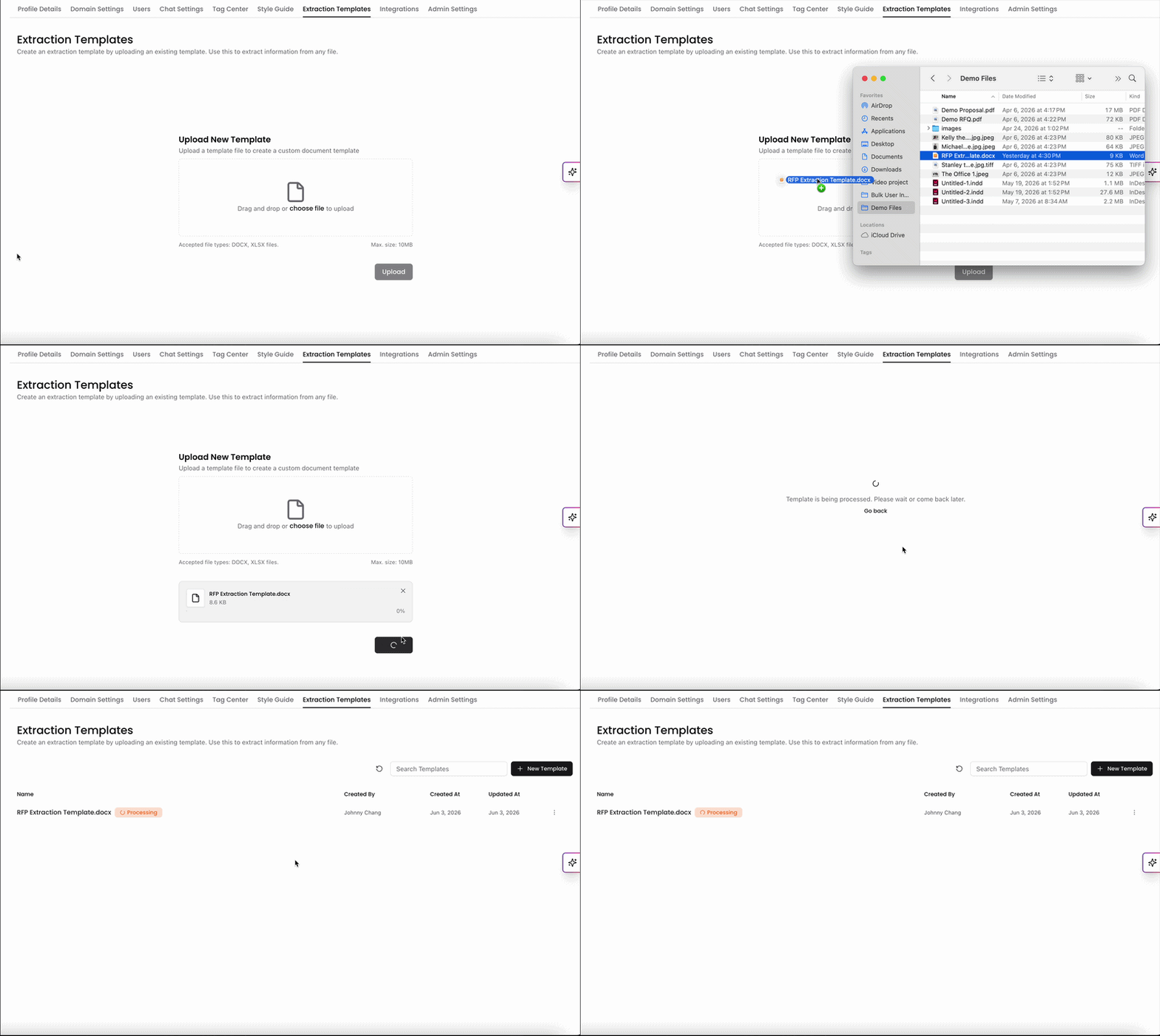
In the Extraction Templates page, click on +New Template on the top right to start the process.
Select your document and then click Upload on the bottom right.
Acceptable file types: DOCX, XLSX files
Maximum file size: 10MB
Your document will begin processing and converting into a document with a structured format. This should only take a few minutes at most. Once complete, it will be saved as a draft for you to make revisions and customize it.
Customizing your Template
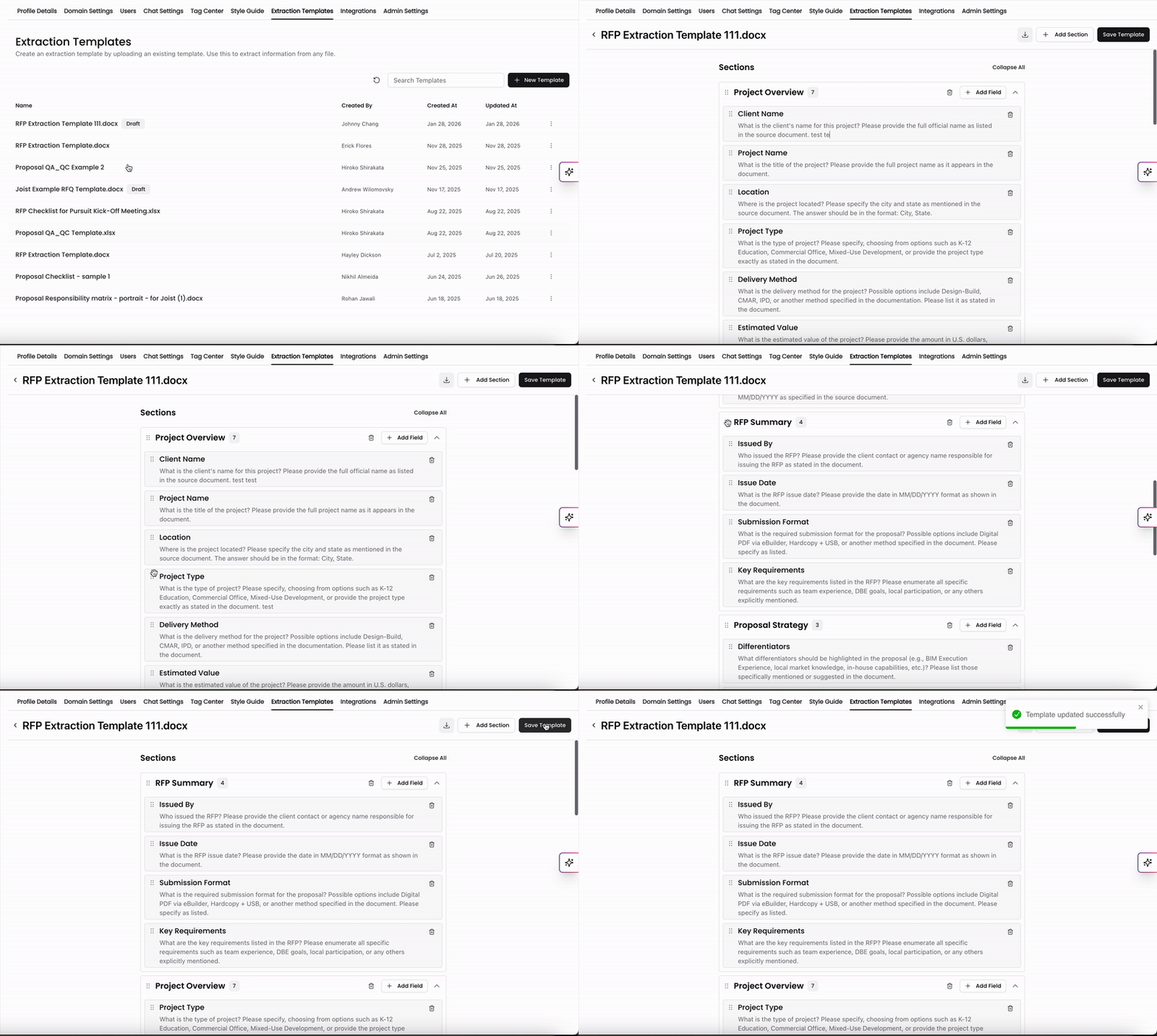
Once your file has finished processing, you can jump in and make edits to the template. Our AI will pull items from your document, generate descriptions, and organize them into sections and fields for edits and revisions.
Some of the edits you can make on this page include:
Add new sections using the +Add Section button on the top right.
Add new fields within a section by clicking +Add Field.
Reorder the sections and fields in the templates.
Edit the section name or the description.
The description determines what data gets pulled when you run the Extraction Template against a document. Be sure to include clear, specific prompts in each field to guide accurate data extraction.
Delete fields and sections in the template.
Once you're satisfied with the format of the template, click Save Template on the top right.
You must save the template in order to use it. Without it, your template will remain a draft and you won't be able to select it when running it against your documents.
This structure helps Kantiv understand your document and enables intelligent autofill when used in workflows. Once your template is finalized and saved, you can put it to use directly within your document analyses.
Running Extraction Templates
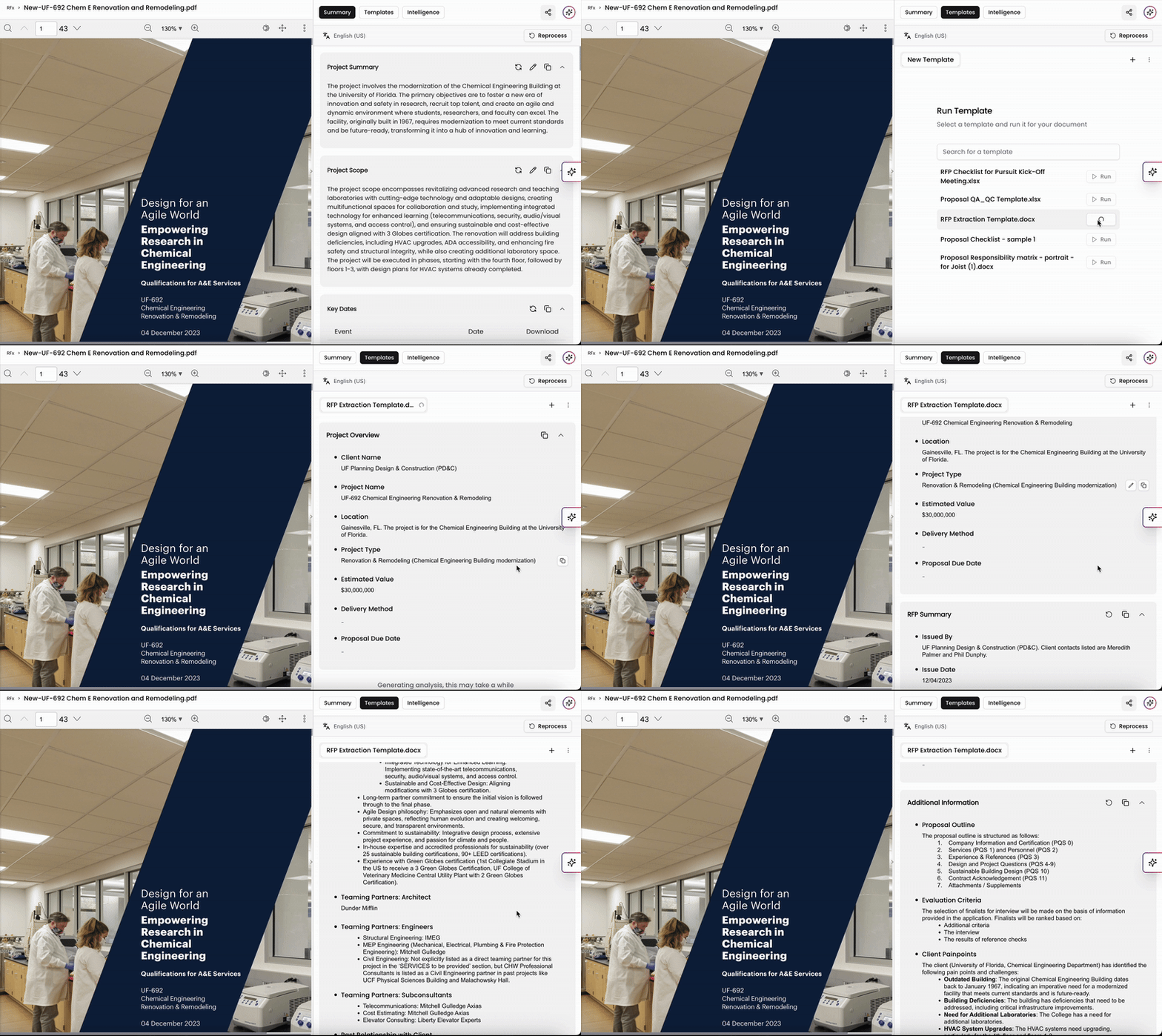
Once your Extraction Template is saved, you can now run it against your RFx insights and Draft Proposals in the Tools page.
When viewing your RFx Insights or Draft Proposal Analysis, click on the Templates tab at the top right of the page.
Click Run next to the template you'd like to use against the file. Results will begin processing.
If you don't see your new Extraction Template listed, check to see if it's still in the Draft status. If so, save the template and it will populate in the list.
Once the analysis is complete, you can view the extracted relevant data populated in the fields.
Extraction Template Actions
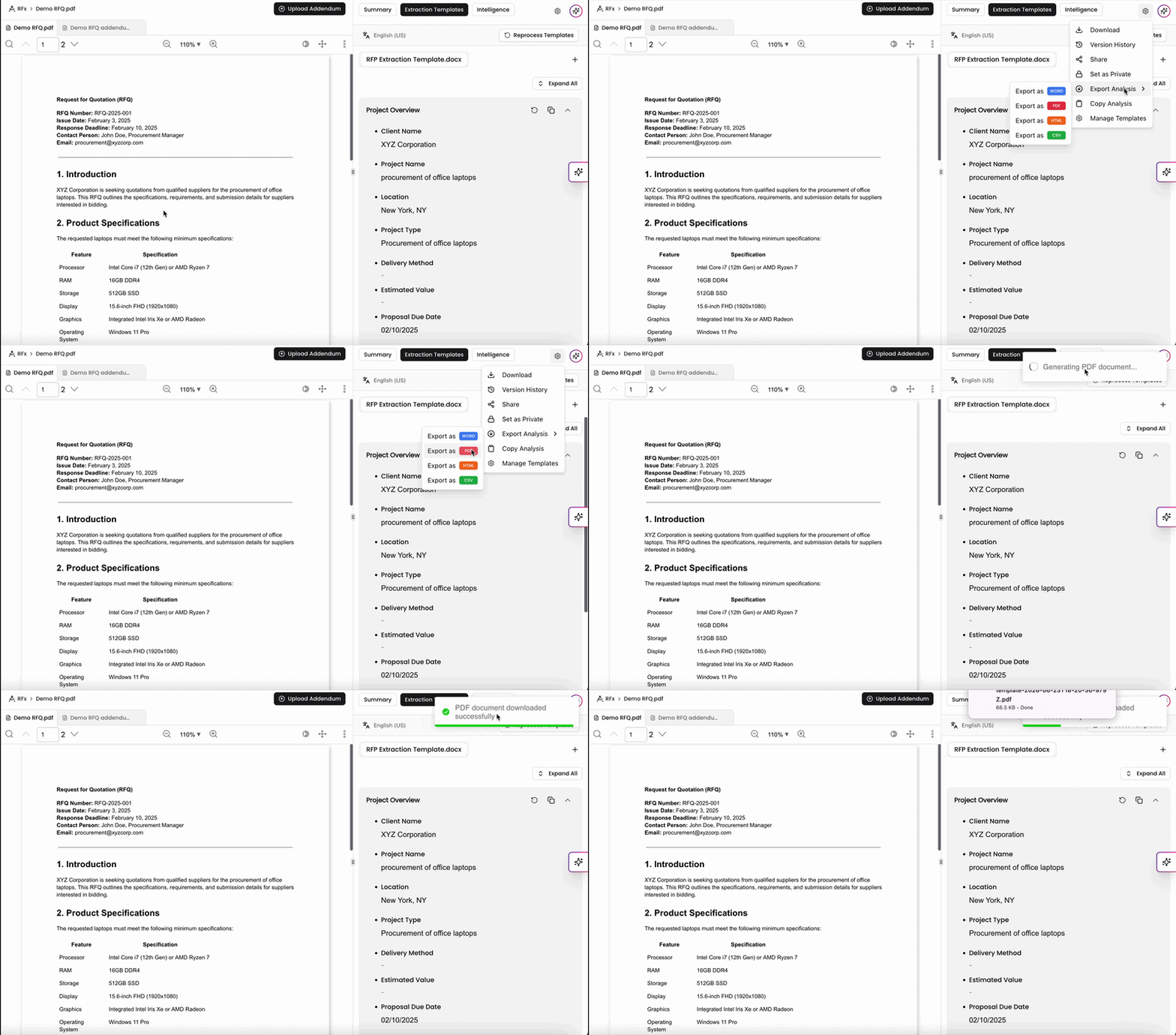
Downloading Extraction Template Analysis
You can download a copy of your Extraction Template Analysis. This can be exported as a PDF, DOC, or HTML file.
Run Another Template
If you have another Extraction Template you'd like to run your document against, you can perform that alongside your existing analysis. Click the + on the top right to open a new tab and run another Extraction Template analysis. You can toggle between both analyses by clicking the tabs with the Extraction Template name.
Why use Extraction Templates?
By setting up templates, your team can:
Save time on repetitive formatting
Ensure consistent branding and structure
Auto-extract critical data from PDFs and DOCs in one click
Extraction Templates empower your team to extract meaningful insights, maintain consistent formatting, and automate repetitive tasks across your documents. By creating structured templates tailored to your workflows, you can save time, improve accuracy, and ensure every analysis aligns with your organization’s standards.
You can always find more information on Tools and Document Analysis in our Support Center. Please send any questions or feedback to Support@Kantiv.com.