Addendum Support for RFx Insights
Last updated: June 2, 2026
Addendum support in RFx Insights helps you keep your RFx analysis current as new information is released. You can upload and manage addenda alongside the original RFx, quickly see what’s changed, and ensure insights and related features reflect the most up-to-date information.
Uploading Addenda to RFx Insights
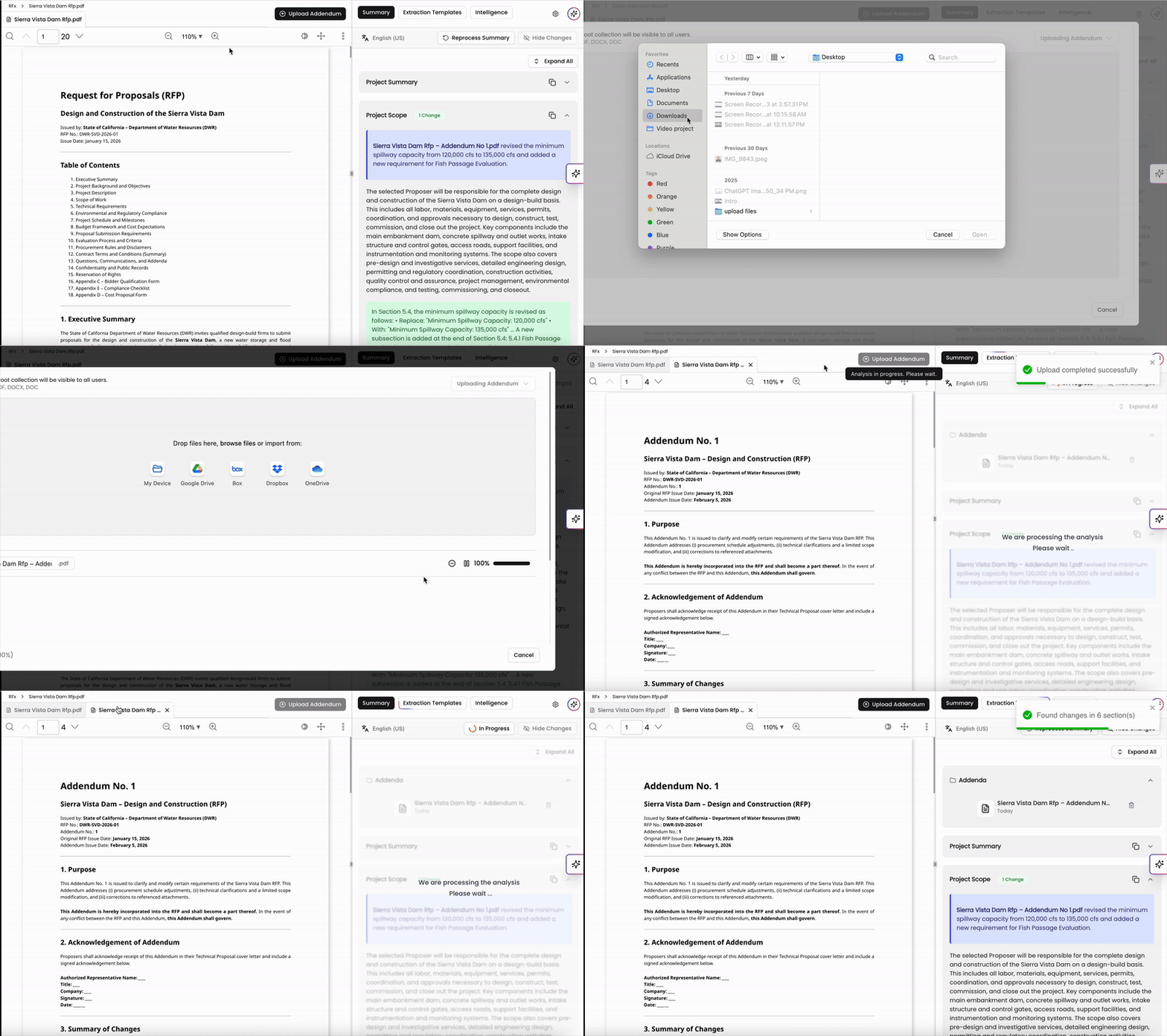
When viewing your RFx insights, you can upload an addendum via the Upload Addendum button at the top of the page. Select your addendum to upload and once complete, you can view insights on the right side. At the top of the page, you can toggle between your addendum tab and RFx tab to view the documents.
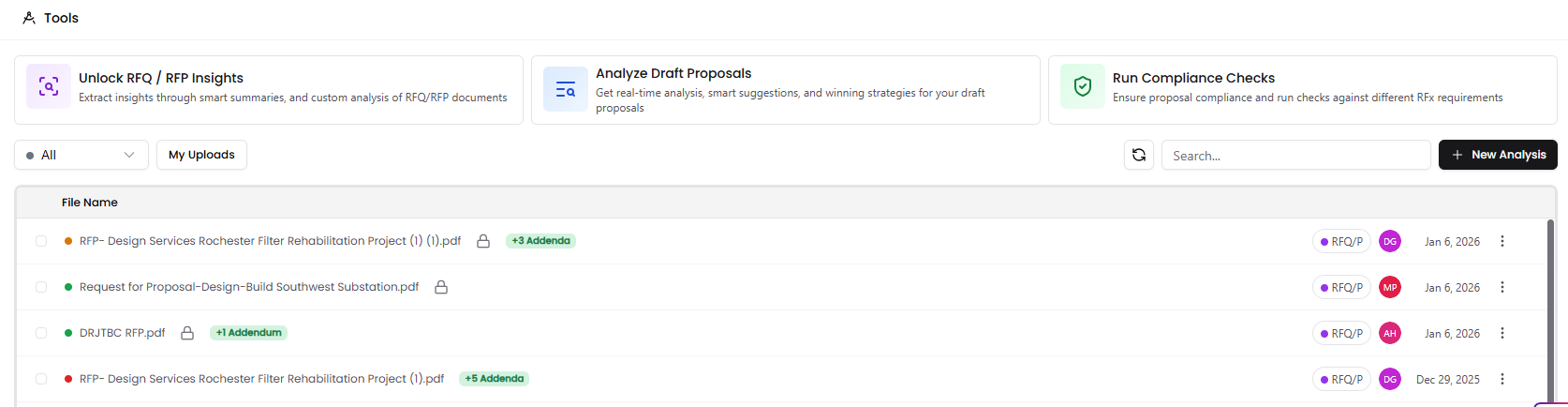
RFx files in the Tools page will now be shown with a badge on the list page denoting if they have added addenda. This will also include the number of addenda added onto the file.
You can upload up to 10 addenda to an RFx. Maximum file size for the addendum is 250 MB and compatible file types include PDF, DOC, and DOCX.
Removing and Deleting an Addendum
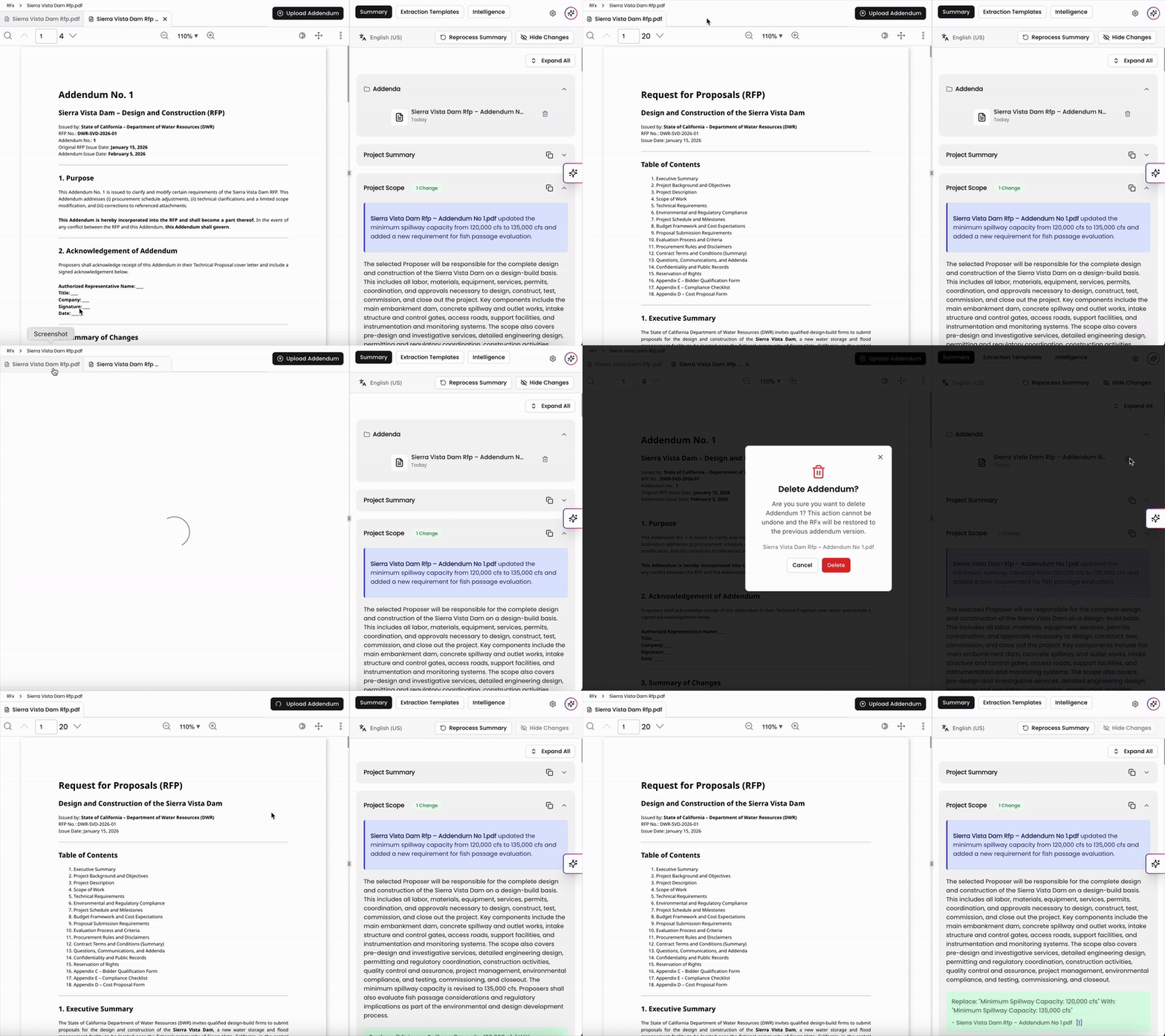
Addendum tabs can be removed from above the PDF viewer by clicking on the X on the tab. This will only close the tab and the addendum can be reopened from the Addenda section on the right that lists out all addenda linked onto the RFx file.
To fully delete an addendum, click the trash can icon next to the addenda in the summary section. If needed, you can reupload the addendum onto the RFx file via the Upload Addendum button at the top of the page.
Viewing Addendum Changes
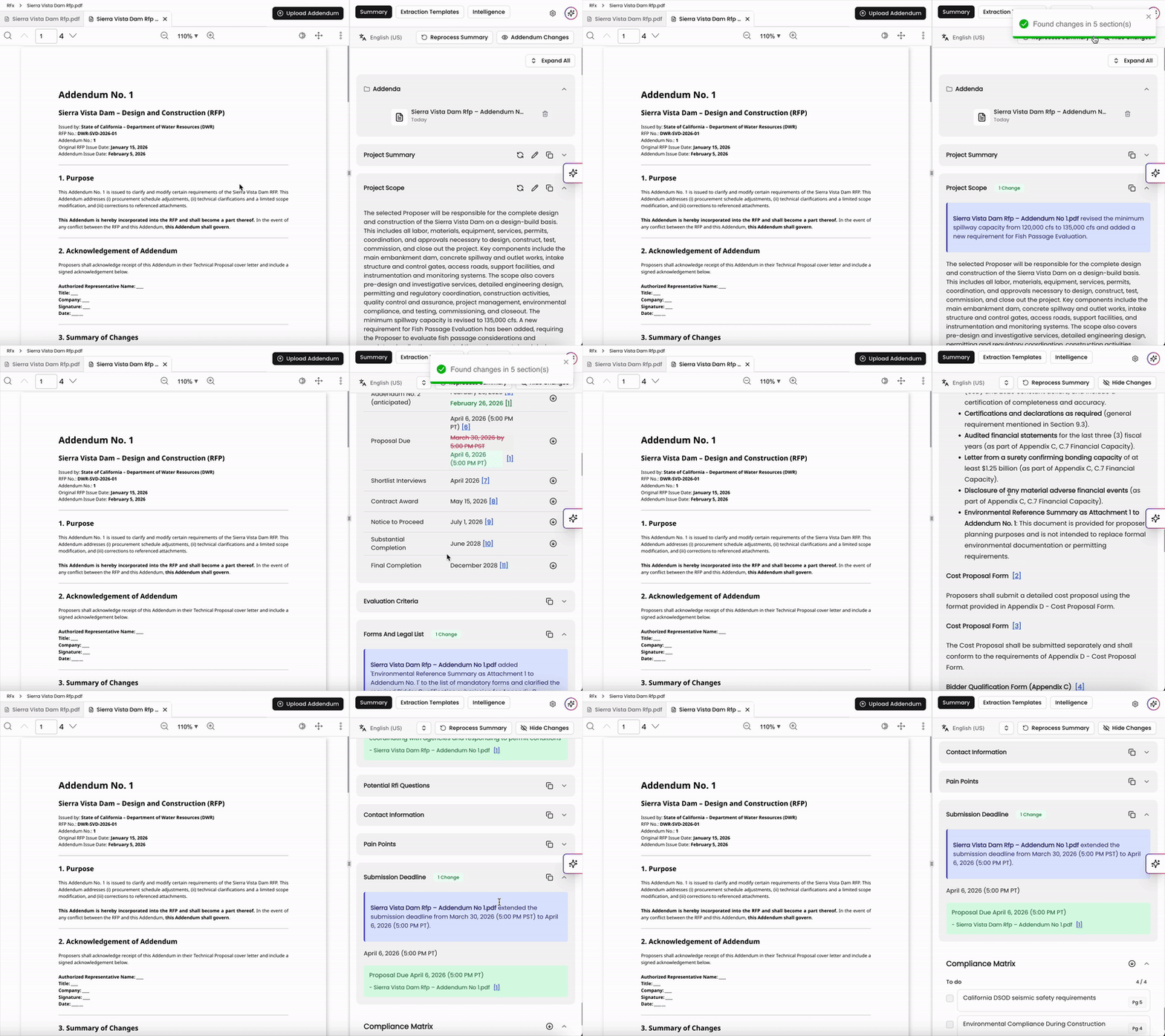
After an addendum is added, click on the Addendum Changes button in the Summary to apply and view updates. The sections with updates will have a badge to indicate the changes applied from the addendum. You can click into each section to expand and view the changes.
At the top of the expanded section, you can find a summary of the changes highlighted in a purple window. Individual updates can be found at the bottom of the section in a green window. If there is an exact match inside the paragraph, the new changes will show up right below it.
Please note that for the Key Dates section, older dates will be striked-through in red and updated dates will be displayed in green.
Addenda in Version History
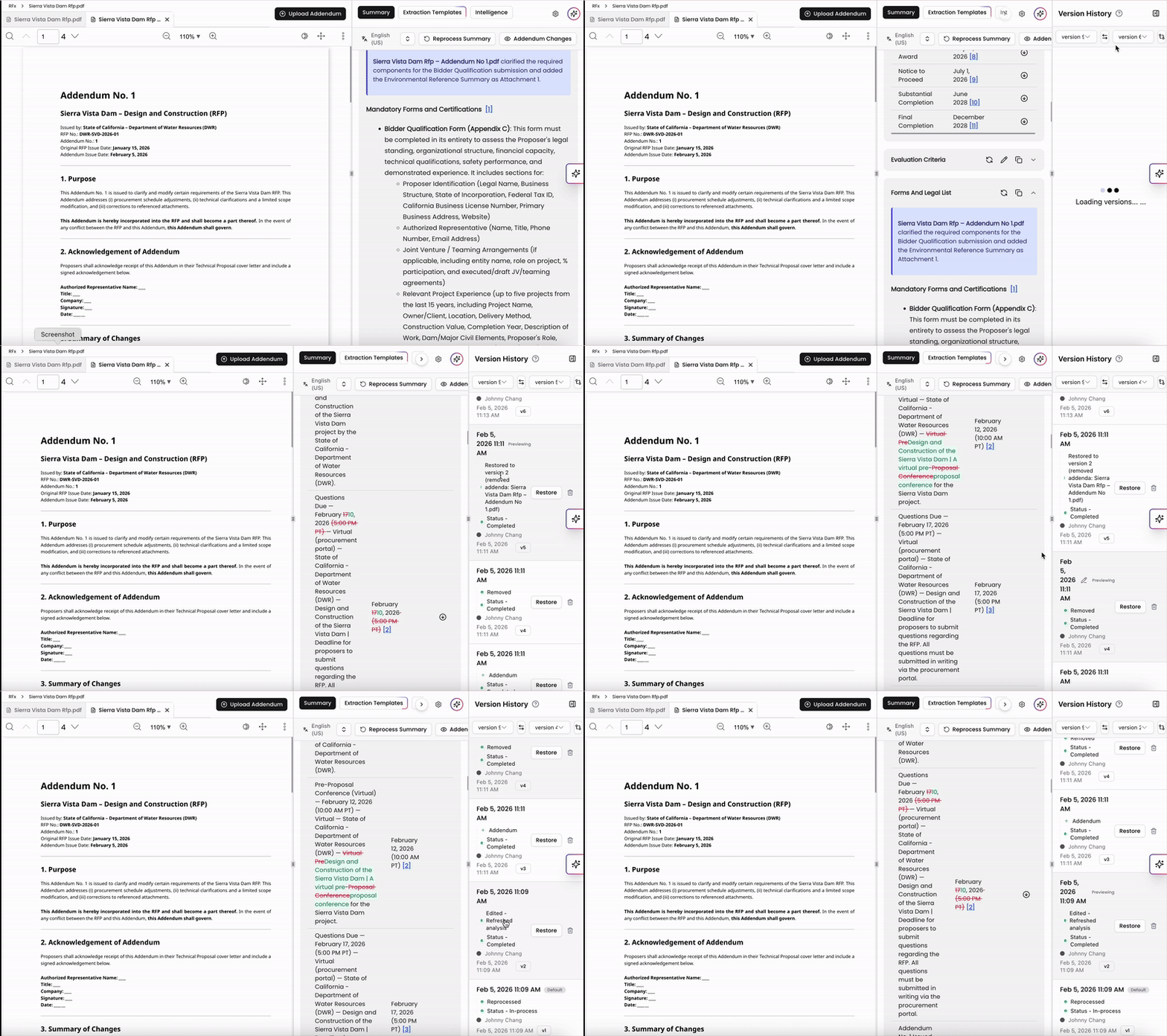
When viewing version history for an RFx file, addenda added will generate a new version for the historical data.
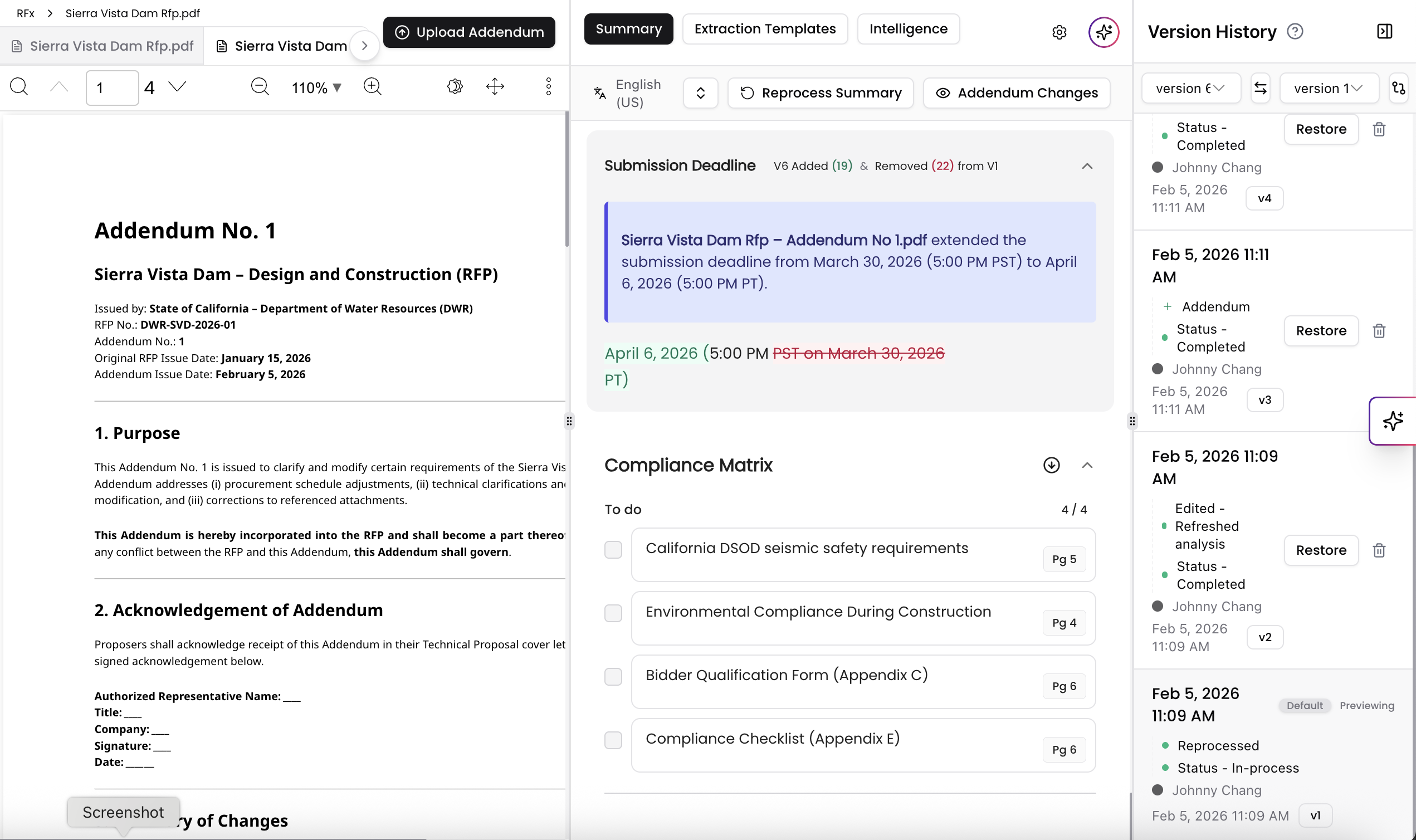
Click on one of the entries in the version history to view the changes made in the summary page. Items with a red strike-through indicate elements removed and items in green indicate new additions in the next version. You can revert back to former versions of the RFx file by clicking Restore.
Addenda and Other Features
Extraction Templates and Compliance
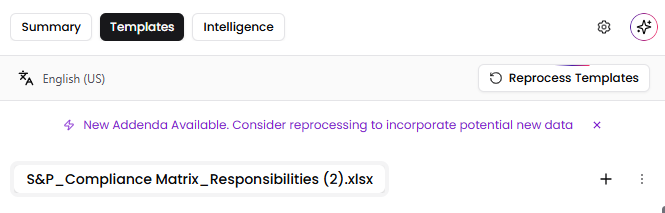
Extraction Templates and Compliance Checks will include attached addenda while processing. If there are already run templates or compliance available, users will be notified that new potential information might be available and will be prompted to reprocess their Extraction Template or Compliance Check when viewing the file.
Opportunities
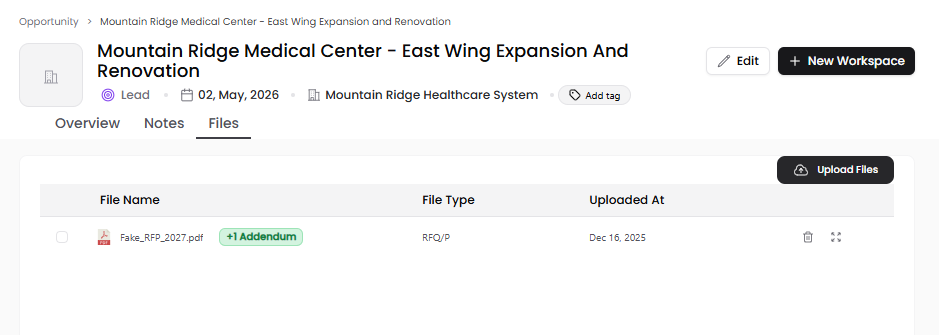
Opportunities connected to an RFx file with an addendum attached will show the number of addenda linked next to the RFP in the Files section. Clicking on the file will open the RFx viewer via Tools page.
Workspaces
When creating a Workspace from an opportunity that is connected to an RFP with addenda, all associated files will be carried over to the Files section in the workspace. When adding an RFx file to a workspace, all linked addenda will also be carried over.
Please note that adding addenda after uploading the RFx into workspace will not automatically add those addendum.
Chat
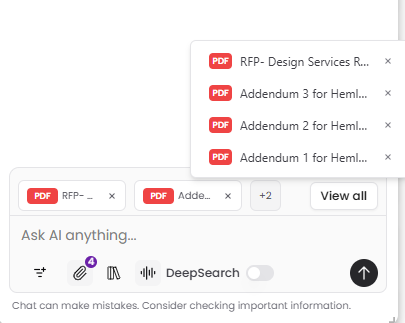
When using Chat, if you attach an RFP file with an addendum to your prompt, all linked addenda will attach onto your prompt.
Addendum support in RFx Insights makes it easy to incorporate updates into your RFx analysis without losing context or history. By uploading and managing addenda directly within the RFx, you can clearly track changes, maintain accurate insights, and ensure related features like version history, templates, compliance, opportunities, workspaces, and chat always reflect the latest information.
You can always find more information on Tools and Document Analysis in our Support Center. Please send any questions or feedback to Support@Kantiv.com.