Applying Tags to Files and Filtering via Tags
Last updated: June 2, 2026
Tags make it easier to organize and find your files in Kantiv. Learn how to tag documents during upload, update tags for existing files, and search by name or tag for faster results.
Tagging During Upload
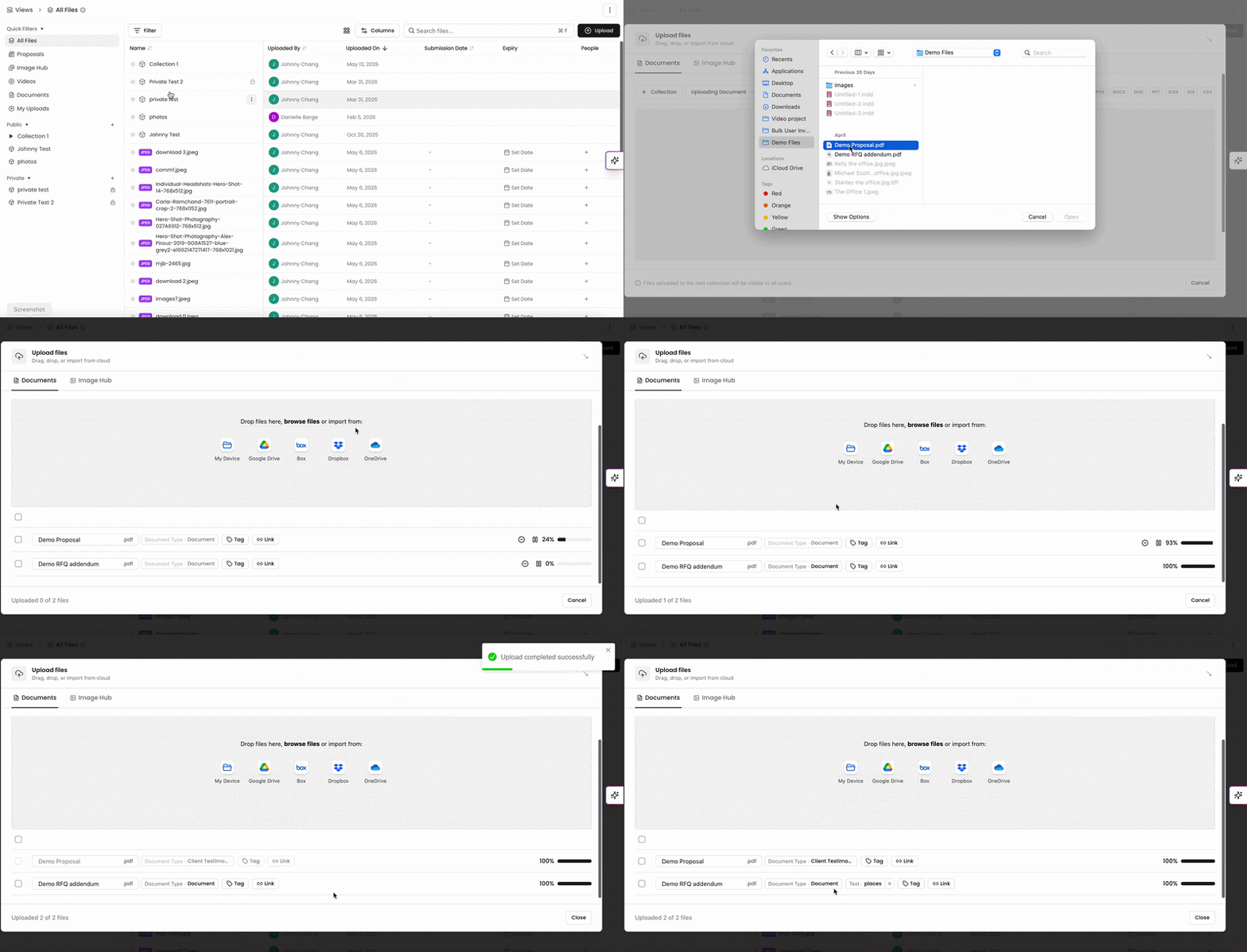
Adding tags while you're uploading files is a good way to ensure your new files have tags assigned from once they're added on. To add tags while you're uploading files:
On the Files page, click Upload. Once you've selected your file(s), click on "Add Tags"
Select which tag groups you'd like to add to these files.
Assign the tags. You can assign them individually, or in bulk.
To assign tags in bulk, click the boxes to the left your files, and then assign tags on one of the files in the list. This will apply the tag to all of the files selected in the list.
Click Close once uploading and tagging is complete
Tagging Existing Files
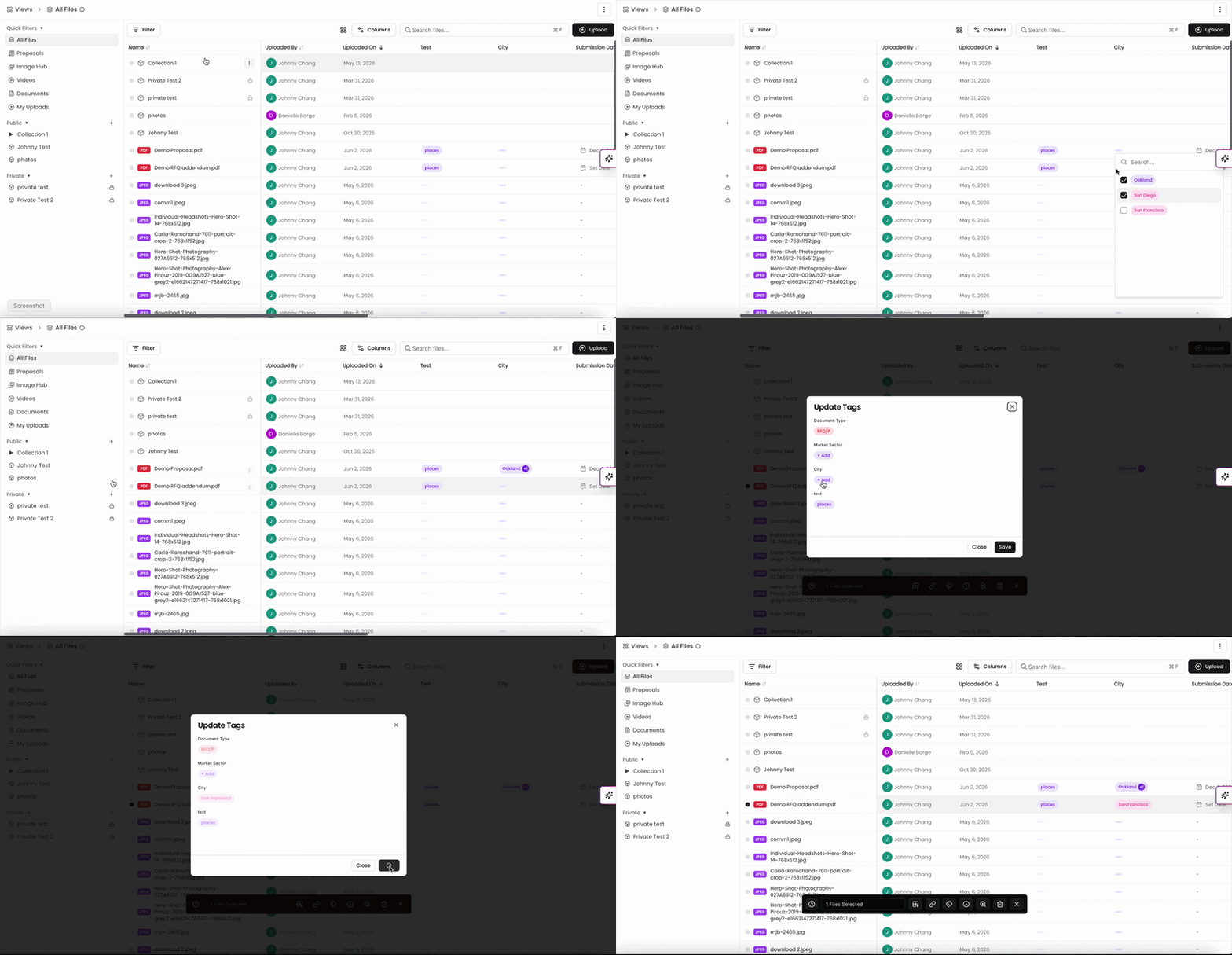
You can add and edit tags on files after they're uploaded as well. This is beneficial for spot-checking in a list view to ensure your tags are assigned correctly. There are two ways to add and edit tags in the files page:
Locate the file and click on the tag in the column of the tag to add/edit. This will populate a dropdown menu where you can select the tags to apply to the file.
Click the box to the left of the file to populate a black menu in the middle of he page. Click the tag icon to open the right hand menu. Select the tags you'd like to apply to the file and save.
This method is best if you'd like to add/edit tags onto files in bulk.
Filtering by Tag
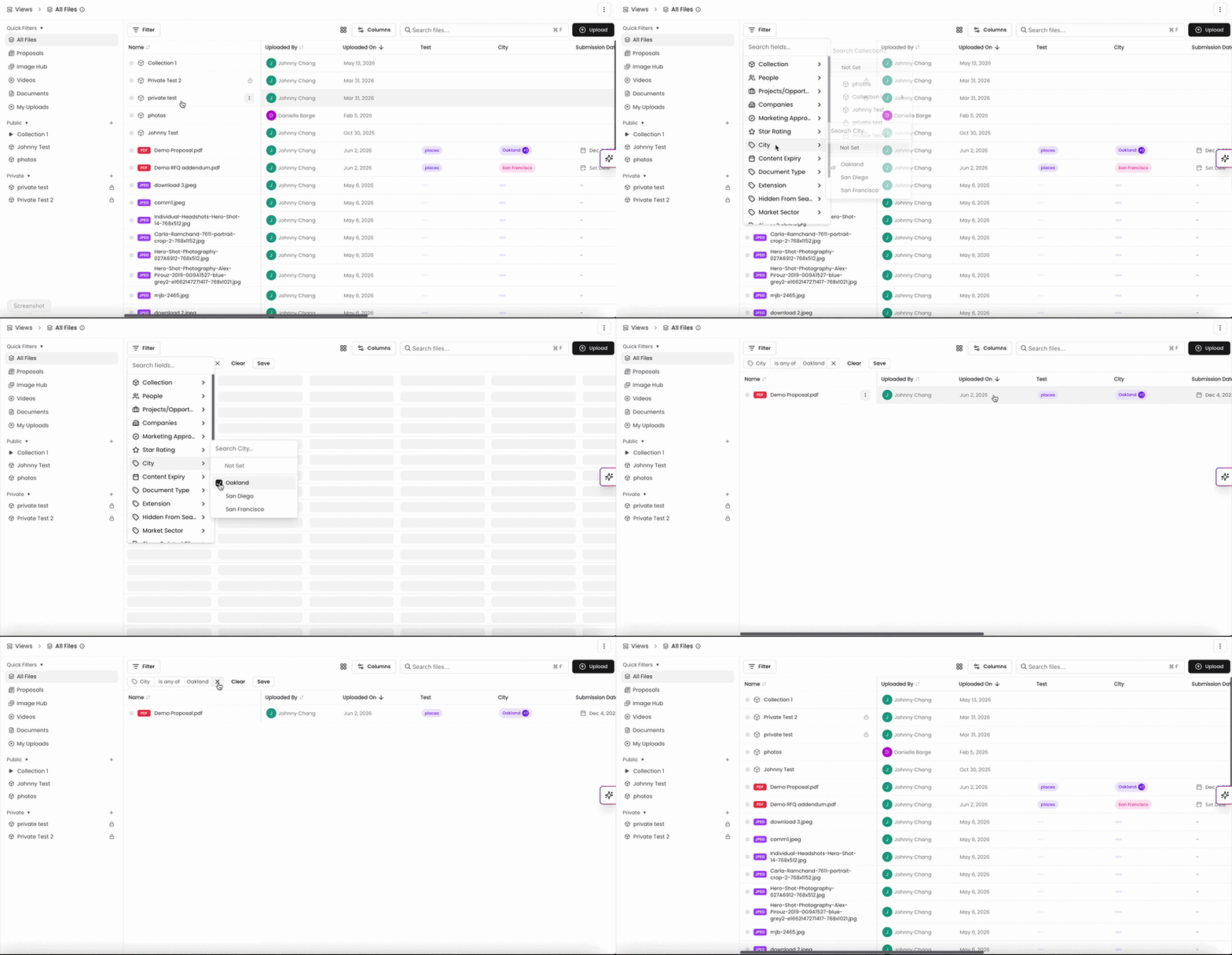
When your files have tags added, you can filter results on this page by tags. To filter by tags:
Click "Filters" on the top right.
Select the tag group and the tags you'd like to filter.
Click Apply.
You can also add or adjust your filters by clicking into the current filter(s) on the top left. To clear filters, click "clear filter" on the top right.
You can always find more information on Content Management in our Support Center. Please send any questions or feedback to Support@Kantiv.com.