Tag Center: Managing Your Tags for Better Content Organization
Last updated: June 2, 2026
Tags in Kantiv allow you to organize and categorize content efficiently, enhancing searchability and collaboration across teams. The Tag Center is your central hub for managing all tags — you can add, edit, merge, and delete tags to keep your content neatly categorized and easily searchable. By using tags effectively, you can segment your content by client, document type, market sector, or any other custom values relevant to your business.
What Are Tags?
Tags are metadata labels assigned to files, documents, or other content in Kantiv. They group content based on attributes like Client, Market Sector, or Region, enabling quick filtering and streamlined organization.
Benefits of Using Tags
Quick File Retrieval: Tags make searching for specific content faster and more precise.
Efficient Organization: Group files logically by project, client, or region.
Improved Collaboration: Ensure all team members can access relevant files with ease.
Simplified Management: Easily update and manage tags as your content library grows and evolves.
Accessing the Tag Center

You can access the Tag Center from your settings menu. Click Settings in the navigation menu, then click Tag Center.
Alternatively, you can click here to go directly to the Tag Center.
Tag Center Menu Options
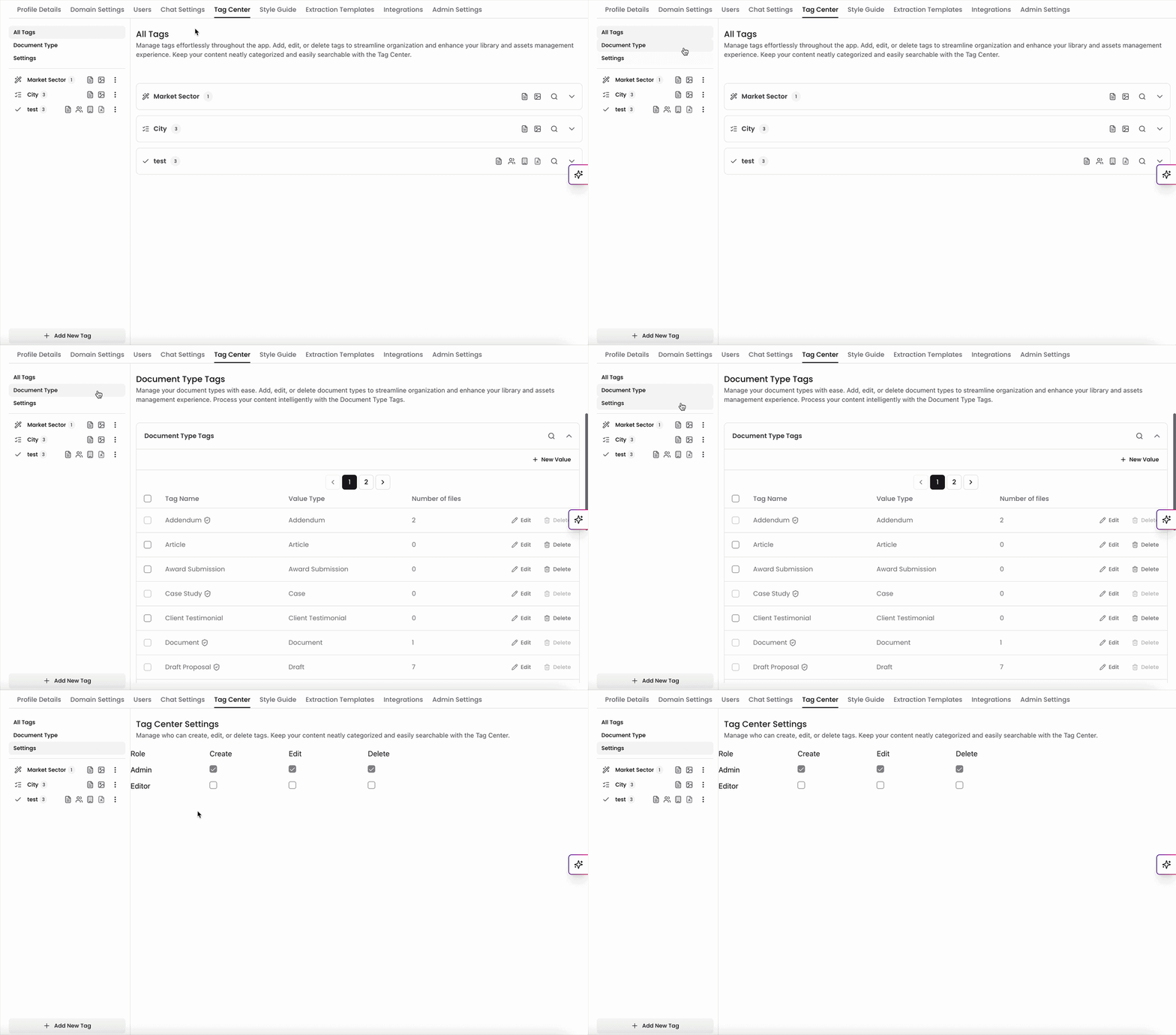
The Tag Center has three default menu options: All Tags, Document Type, and Settings. You can toggle between these on the top left-hand side of the page.
All Tags
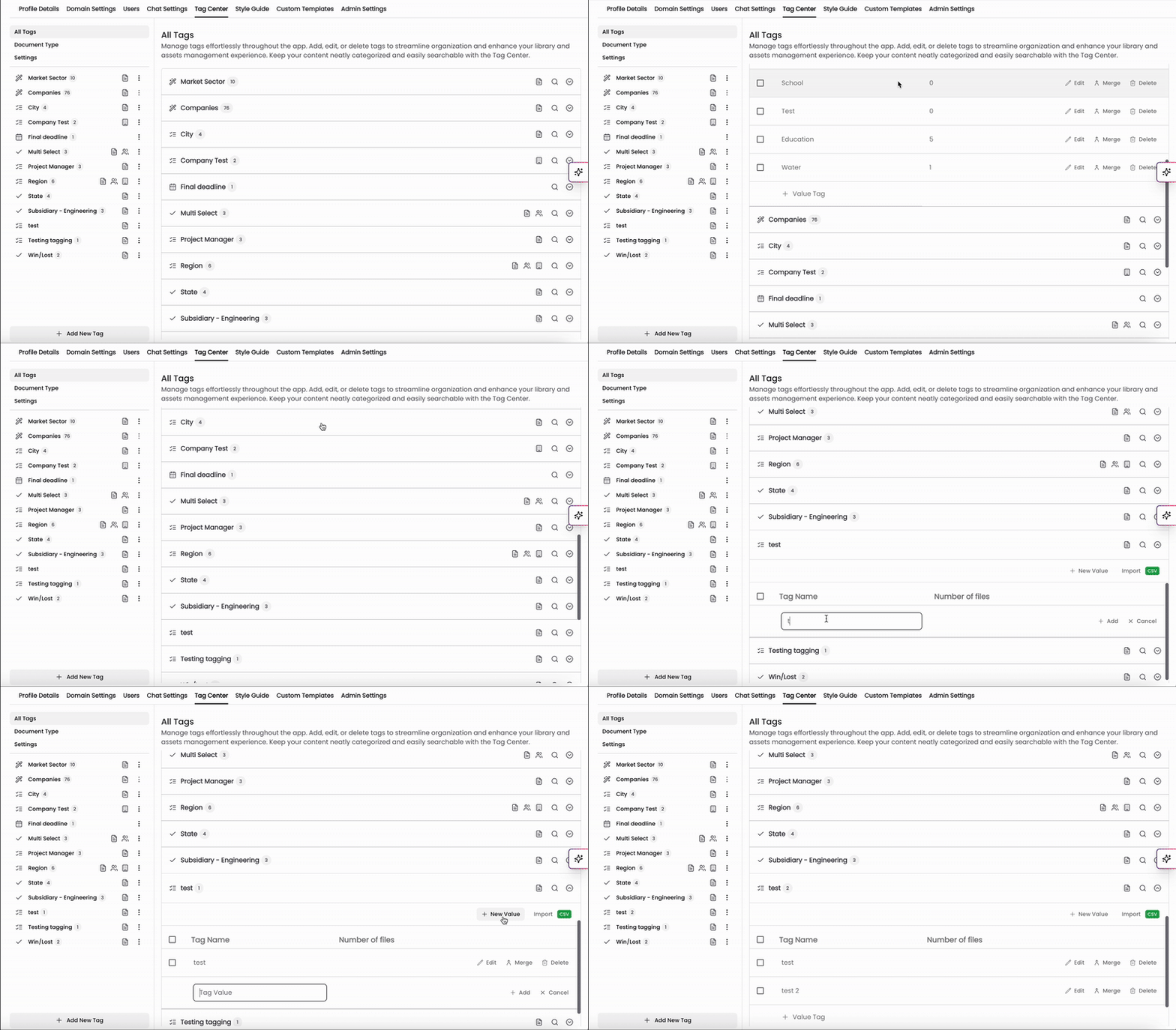
The All Tags menu contains a list of all your tags organized into groups. On this page, you can:
View tag groups and expand them to see individual tags within each group
Add new tags and tag groups, and edit, merge, or delete existing ones
Import tags in bulk via CSV
To navigate to All Tags, go to Settings > Tag Center > All Tags.
Document Type
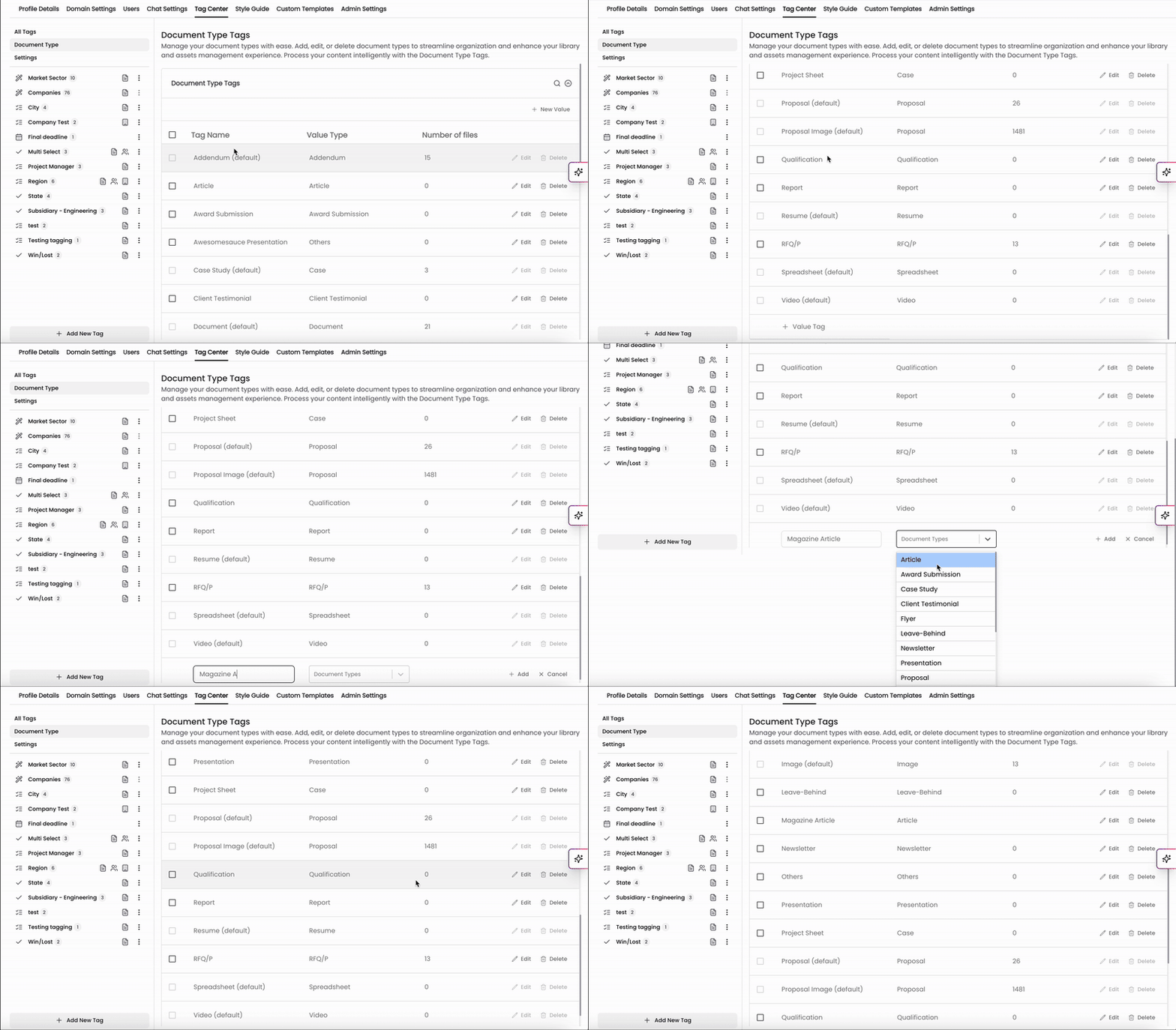
In the Document Type menu, you can manage all document types applied to your uploaded files. This helps the system categorize documents automatically when they're uploaded.
Note: Your Kantiv account comes with document types pre-installed by default, and some cannot be removed from the list.
For more information, see Adding a New Document Type.
Settings
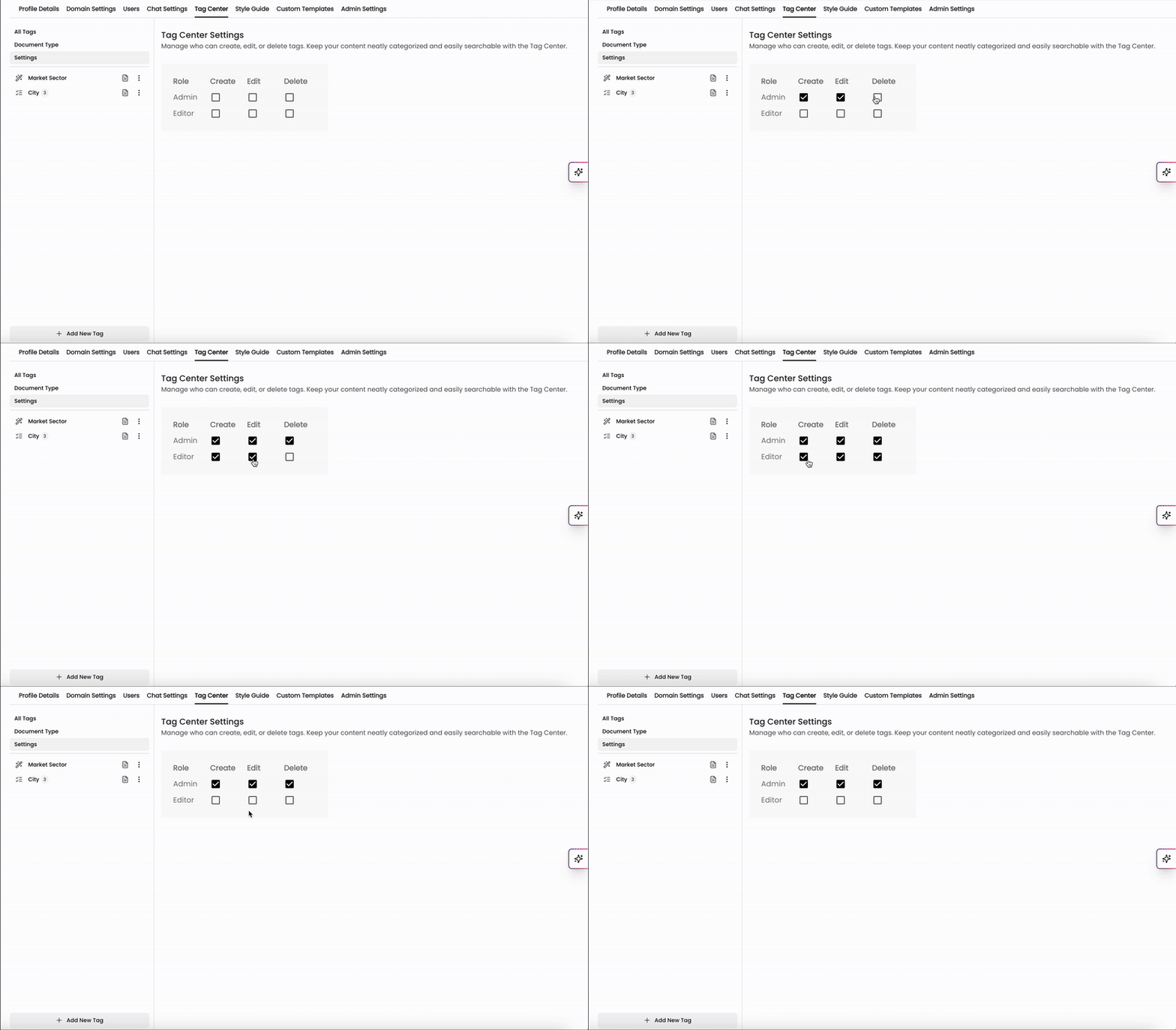
In the Settings page, you can manage who can contribute to the Tag Center. Toggle the Create, Edit, and/or Delete permissions to give or restrict access for Admins or Editors in your organization.
For more information on roles, see Understanding User Roles in Kantiv.
Adding, Editing, and Deleting Tags
Creating a New Tag
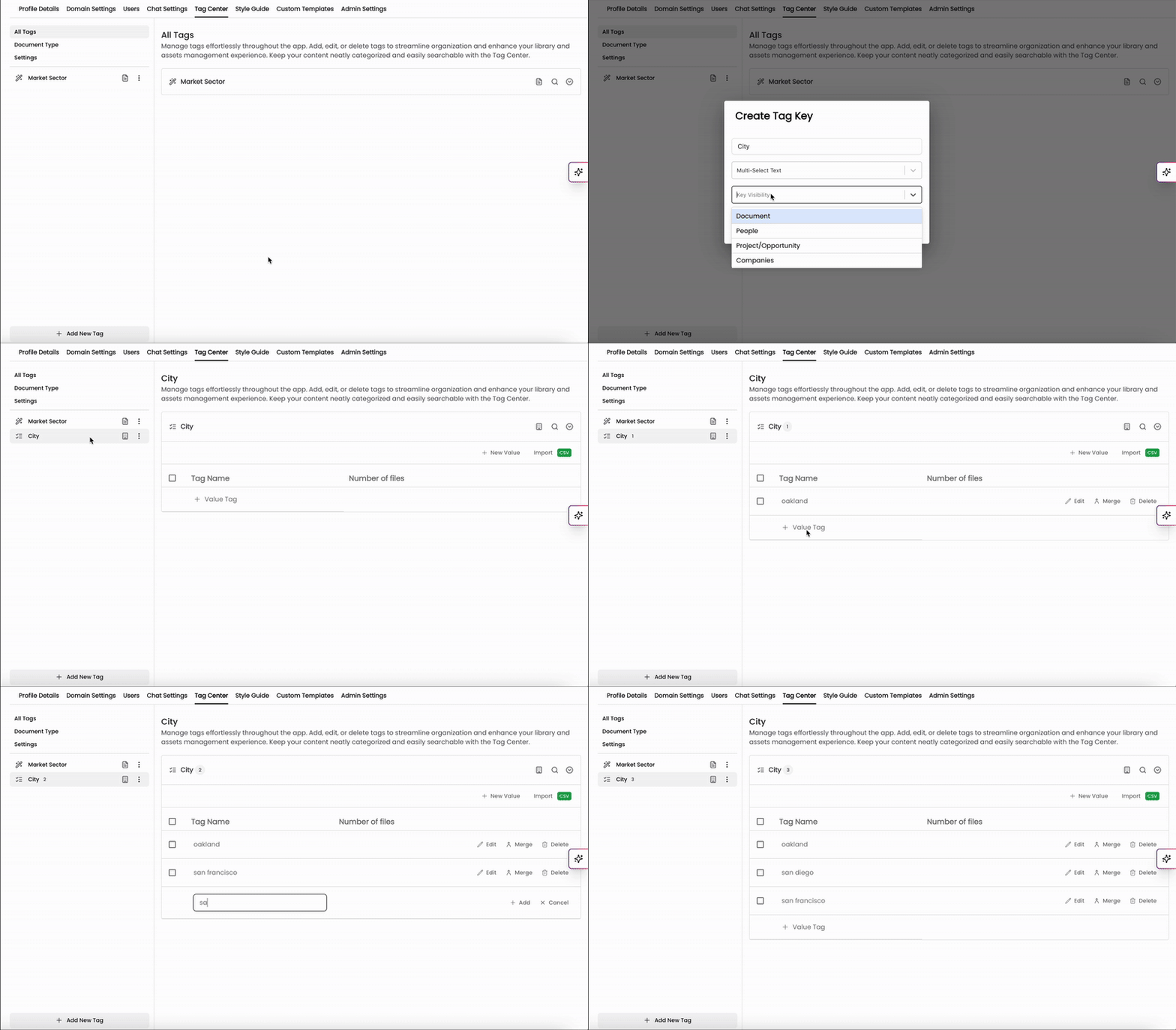
You can generate a new tag group in the Tag Center to add to your library.
Click "+Add New Tag" to create a new tag group.
Name your tag.
Select the tag category attribute type (single or multi-select text, date, or URL).
Select where the tag will appear: documents, people, projects/opportunities, or companies.
Click Create to start using your new tag immediately.
Add tag values manually or via CSV:
Select your new tag group on the left-hand side.
To add tags manually, click "+New Value", enter the tag name, and click "+Add" to save.
To add tags in bulk, click Import CSV to upload a file.
Editing Existing Tags
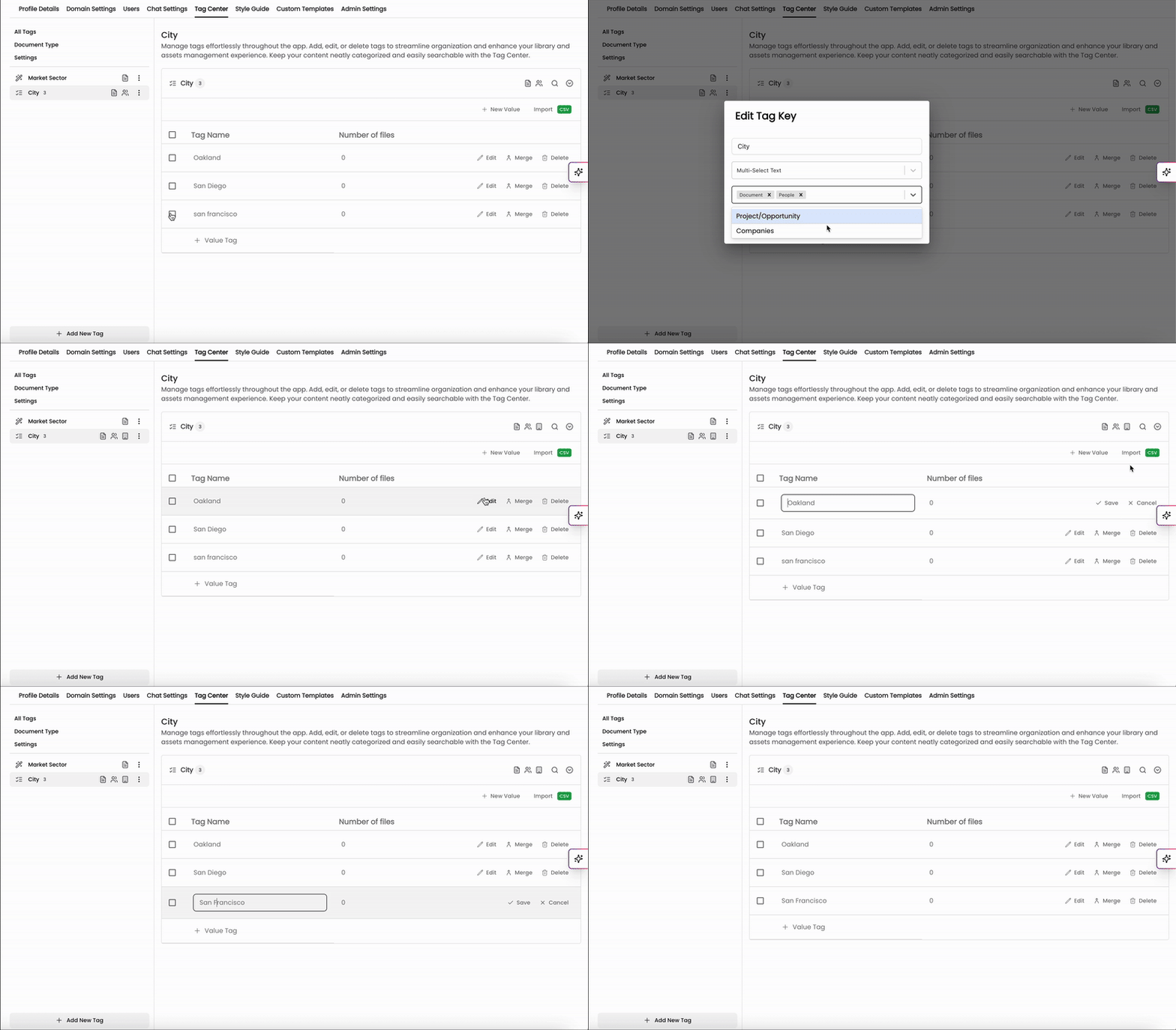
To update a tag group:
Click the three dots to the right of the tag group, then click Edit.
Update the tag's details.
Save changes to apply the updates.
To update an individual tag within a group:
Click Edit to the right of the tag.
Edit the tag name.
Click Save.
Merging Tags
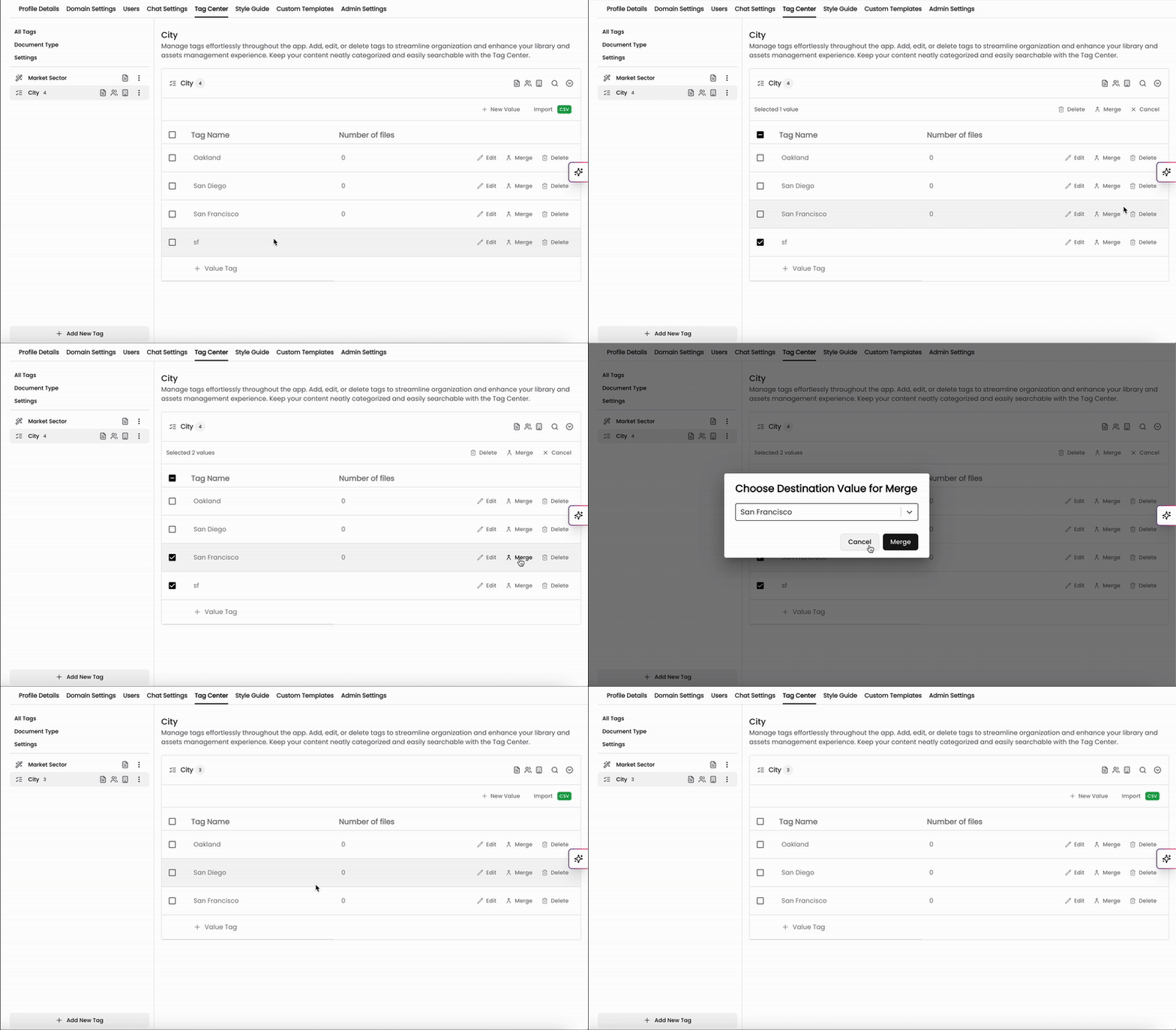
If you have multiple tags that represent the same thing, you can merge them to consolidate your library and avoid duplication.
Click Merge on the right side of the tags to be merged.
At the top of the list, click Merge.
Select the destination value for the tags to combine into.
Click Merge.
Deleting Tags
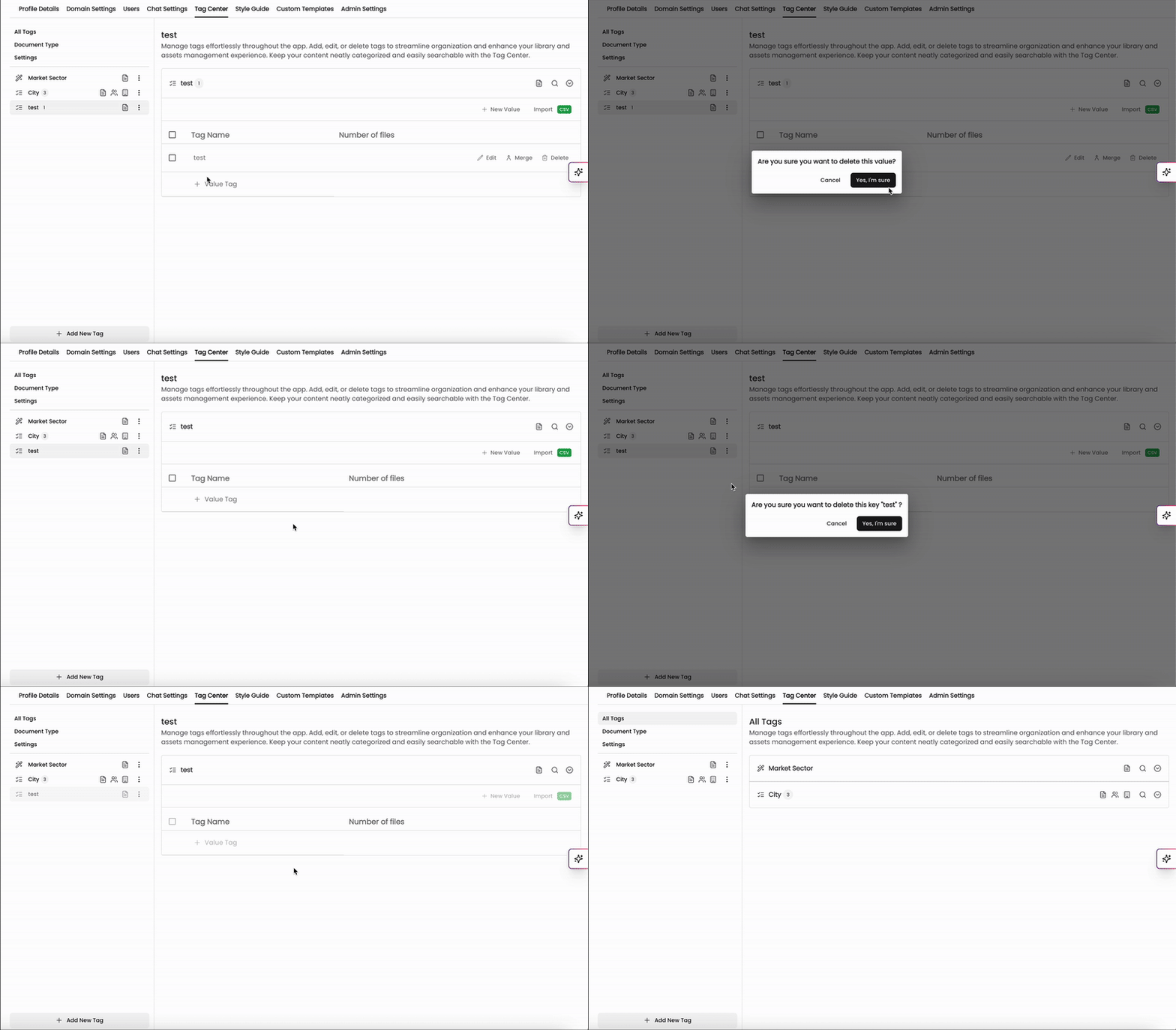
To delete an individual tag:
Click Delete to the right of the tag.
Confirm.
To delete a tag group:
Click the three dots to the right of the tag group, then click Delete in the dropdown menu.
Confirm.
Best Practices for Tag Management
General Practices
Standardize Tags: Use consistent naming conventions across all tags.
Review Regularly: Periodically audit, clean up, and merge duplicate tags.
Train Your Team: Educate users on tagging policies and best practices.
Utilize CSV Imports: For large-scale updates, use the bulk import feature.
Tag Granularity
Different organizations structure their files and tags differently depending on their size and team complexity. More departments and cross-functional teams generally benefit from more granular tagging. More tags and collections make it easier to:
Filter information across teams.
Surface files by type, purpose, or department.
Support more complex workflows.
Commonly Used Tags
Two core tag groups are nearly universal for AEC firms:
Market Sector
Service
Be sure to set these tag groups up so your uploads receive these tags automatically!
For more information, visit our Support Center or send questions and feedback to Support@Kantiv.com.