Adding Files to your Library
Last updated: July 16, 2026
One of the first steps before accessing all Kantiv has to offer is filling your file library with documents and marketing material. Our system provides an easy experience to upload, process, and organize your files.
Uploading Files
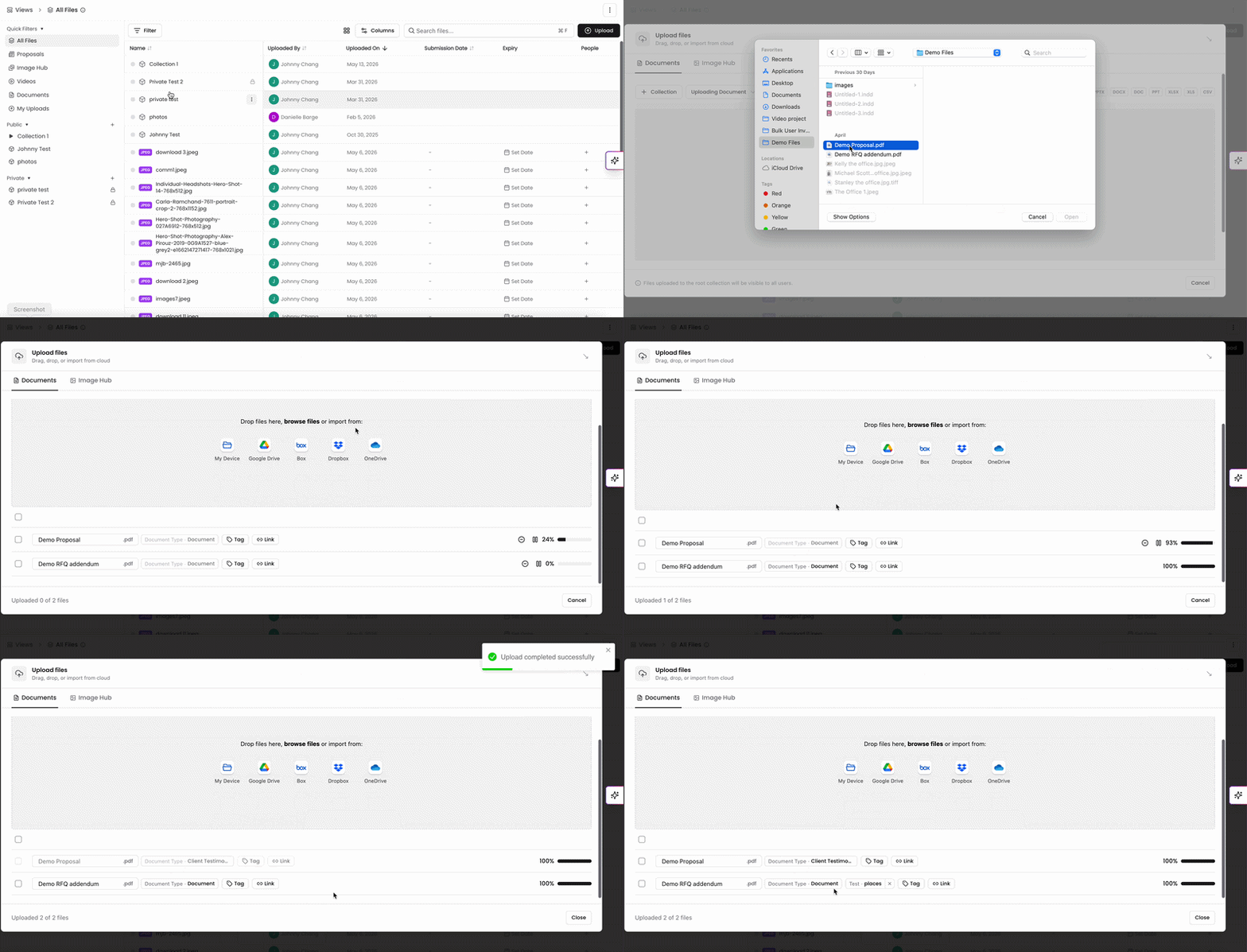
On the Files page, click Upload in the top-right corner to open the upload menu. From here, you'll see some options to configure and set for your new additions.
At the top of the Upload page, you can select the document type your uploads will be categorized and processed as.
By default, your files will be set as document, but you can select a different option and adjust this as needed.
If you're uploading files of different document types, you'll be able to assign document types individually once the files are uploaded.
You can also select which collections you'd like to house the files in.
Once these are selected, you can drag and drop files into the box to upload, or browse and select files saved onto your device.
We also offer services to upload files via Google Drive, Box, Dropbox, and OneDrive.
Your uploaded files will populate below in a list.
You can configure the document type individually here.
You can also assign tags for your documents at this time. For more information on assigning tags while uploading, check out this article.
When you're finished uploading and assigning your tags, click close to exit the upload menu.
Once your files are uploaded and processed, they are ready to view and use in the Kantiv platform!
For more information on managing files, collections, and navigating through your Kantiv library, check out this article.
Recommended Default Setup
A simple starting structure that works for most companies includes:
Three primary collections
Proposals
RFQs
Resumes
Two core Tag groups
Market Sector
Service
For the primary collections, you can also generate sub-collections for more granularity in your file organization.
You can always find more information on Content Management in our Support Center. Please send any questions or feedback to Support@Kantiv.com.