Managing Files and Collections in your Library
Last updated: June 2, 2026
The Files section in Kantiv is your central hub for storing, organizing, and accessing all project-related content. From proposals to images and videos, this feature ensures everything is structured and easily retrievable. This article will provide steps on how to upload and categorize your files and navigate around your library.
Before viewing your files, be sure to have files added and uploaded in your Kantiv library. Check out this article for steps on how to add files.
The left navigation panel provides shortcuts to specific content types. Here you can find your file categories and public and private collections for easy access. This functions similarly to your folder library in your laptop / computer.
File Categories
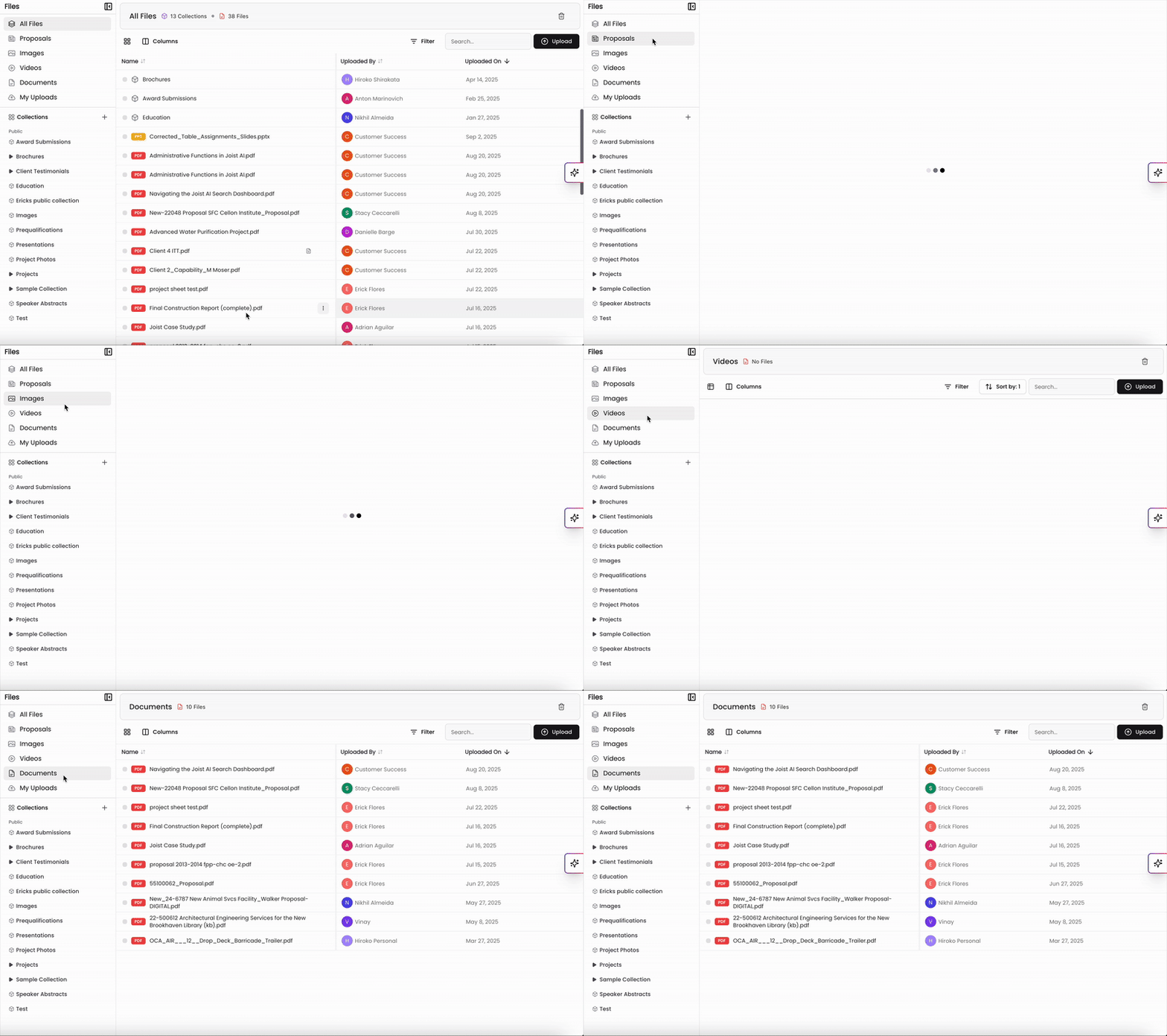
File categories are available by default and can will be listed on the top above your collections. You can browse through specific types of files here:
All Files: Displays all uploaded content.
Proposals, Images, Videos, and Documents: Quickly access categorized content.
My Uploads: View files uploaded by you.
Collections
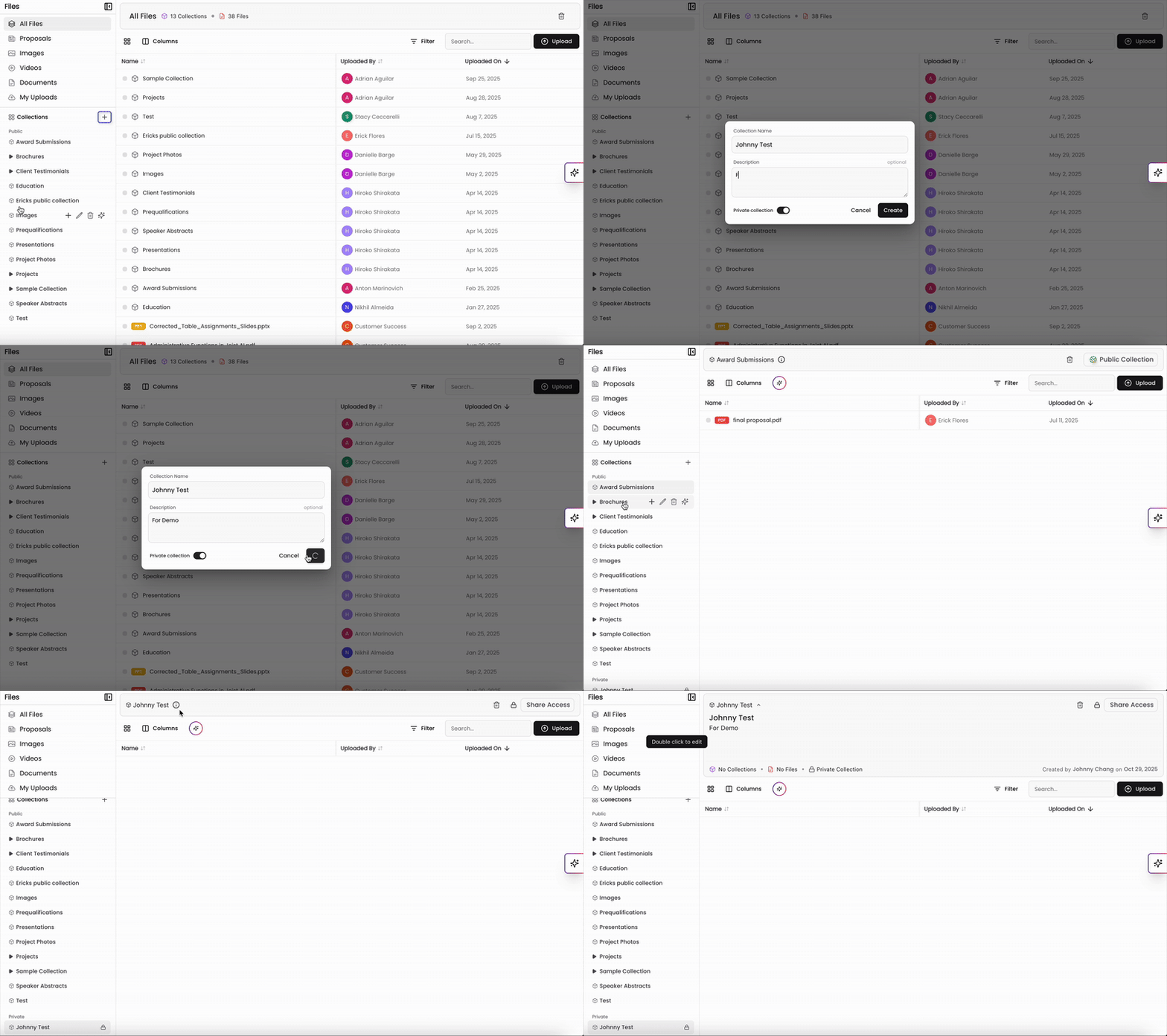
Collections in Kantiv are flexible, customizable spaces that let you group and manage related documents—such as proposals, resumes, project sheets, and marketing materials—based on pursuits, clients, market sectors, or any workflow you define. They function like smart, user-controlled folders that enhance organization, streamline collaboration, and support secure handling of sensitive or NDA-restricted content. With powerful search, filtering, and retrieval, Collections help teams quickly surface the exact materials they need while keeping everything structured and aligned with internal processes.
Creating and Organizing Collections
Collections appear beneath the default file categories. To create a new Collection:
Click the + next to Collections.
Name your collection, add an optional description, and choose whether it’s public or private.
Within any Collection, you can create subcollections for further organization—similar to nested folders on your computer.
Collaboration and Permissions
Kantiv supports flexible collaboration within Collections:
Share collections with selected teammates or keep them private.
Admins can manage and delete public collections, as well as configure permissions for users.
Viewers can create private collections, upload documents, and share them with others.
For more information on private Collections, check out this article:
📄 Public and Private Collections
Chat with Collections
When using Kantiv's chat feature, you can select a specific collection to "chat against." This means the AI will only reference documents within that collection, enabling focused research, content generation, or compliance checks.
Filtering and Searching
Collections integrate with Kantiv’s advanced filtering tools, letting you quickly surface the right content using:
Tags
Metadata
Collection-based filters
This makes it easy to locate resumes, past project sheets, proposal components, or any other material relevant to your workflow.
Collections Best Practices
Every file type should have its own dedicated collection. This helps users quickly locate what they need without sorting through unrelated content. A simple starting structure that works for most companies includes:
RFQs stored within an RFQ collection
Proposals stored within a Proposals collection
Resumes stored within a Resumes collection
In each of these sections, you can expand with sub-collections for more granularity.
Keeping file types in separate collections maintains clarity while reducing clutter. In addition to collection-level organization, files—especially RFQs—can be tagged for extra context, such as:
Document type
Market sector
Service category
This enables granular filtering while ensuring everything still lives in the correct high-level collection. For more information on managing tags, check out this article.
Search and Filter
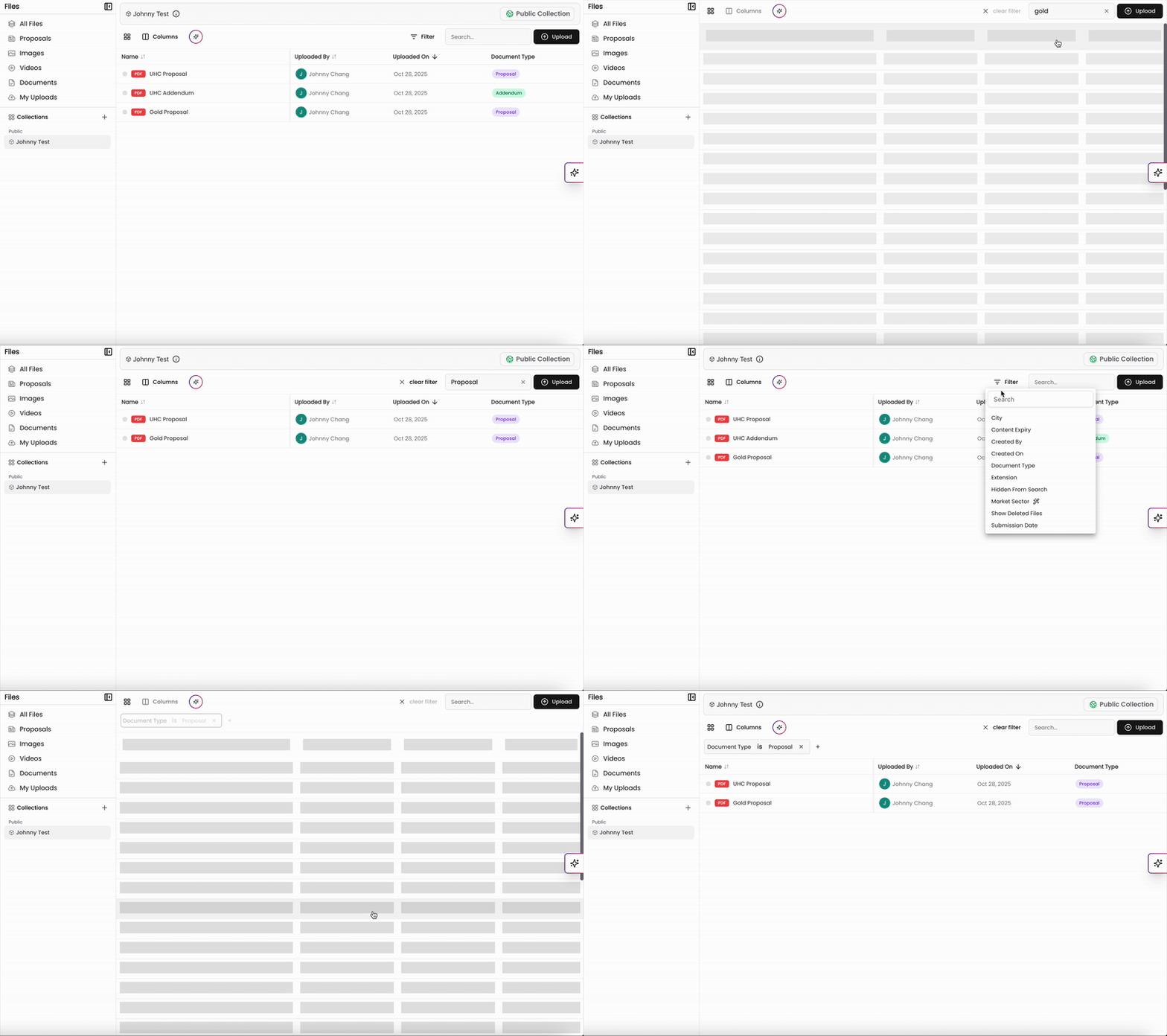
You can use the Search Bar on the top right to locate files and collections by name. You can also apply filters by clicking the Filter Icon to narrow results. You can filter based on criteria like:
Market Sector
Client
Uploaded By
Upload or Submission Date
Document Type
Any user-created tag groups
Quick Filters
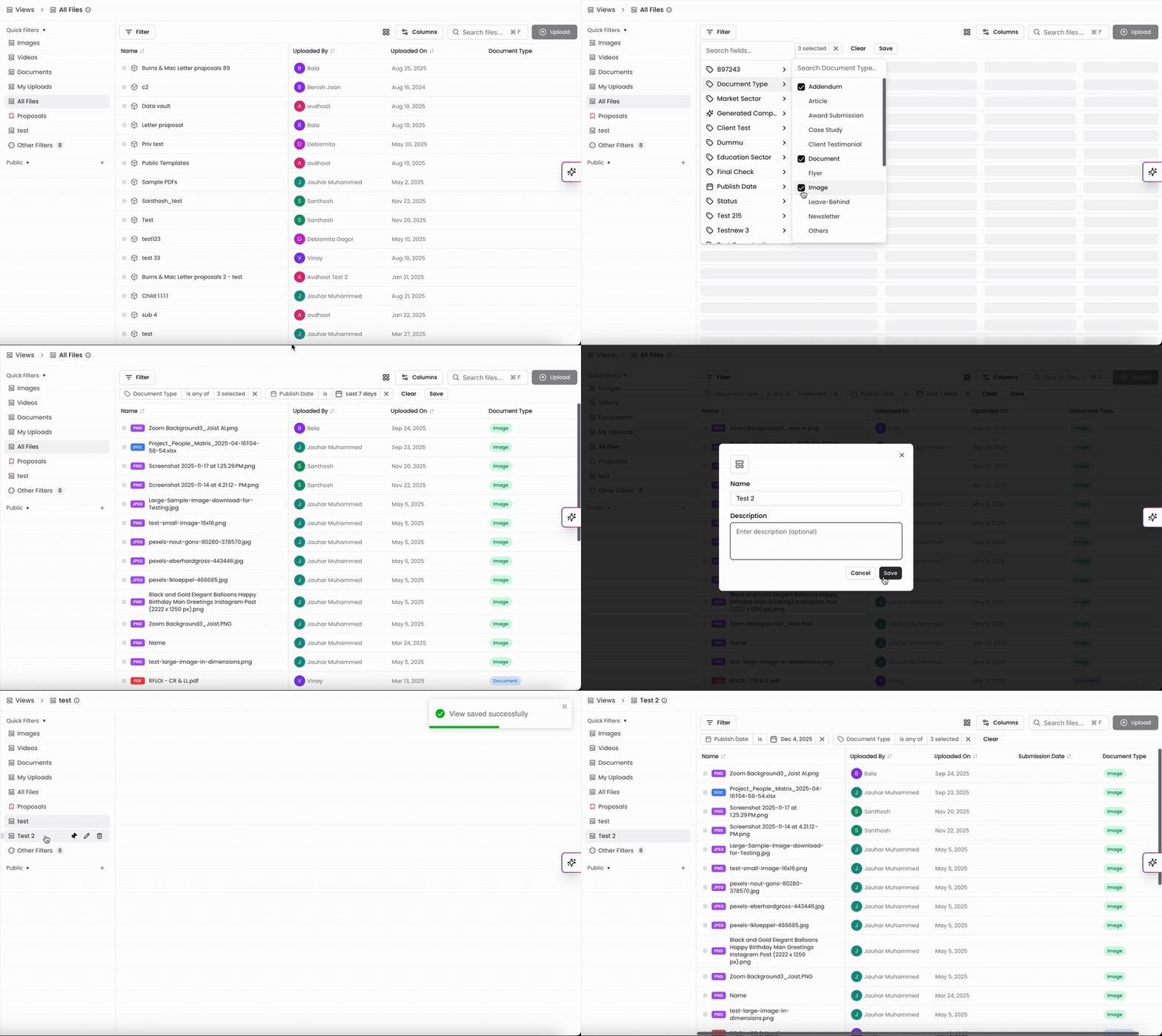
If you have a set of filters you use often and would like to save it for future use, you can save your filters as a new Quick Filter. This allows you to personalize your view and makes searching through your files efficient as you can quickly return to your preferred file view setup without re-creating the same filters each time. In addition to filters, you can also toggle columns displays and sorting preferences within the Quick Filter.
Once you have your preferences set, you can click Save in the filter bar to create your view. Give your view a name and a description and if you're an admin, you can also make this a shared view by toggling the box for Save for All Users. Click Save on the bottom right to finalize your new Quick Filter.
Your new view will populate on the left menu under Quick Filters and you can also reorder your Quick Filters by dragging them in order in this list. Most Quick Filters can be selected in Search and Chat as well, providing a seamless experience across features on the Kantiv platform. When applicable, they will appear in your list of Quick Filters on both Search and Chat.
Quick Filters can also be applied to Collections. When viewing a Collection, apply your filters and save the filter set as a Quick Filter. The resulting view will show the filters set along with the Collection name at the top of the page. Please note that this Quick Filter only appears in Files and Search and does not appear in Chat.
File Actions
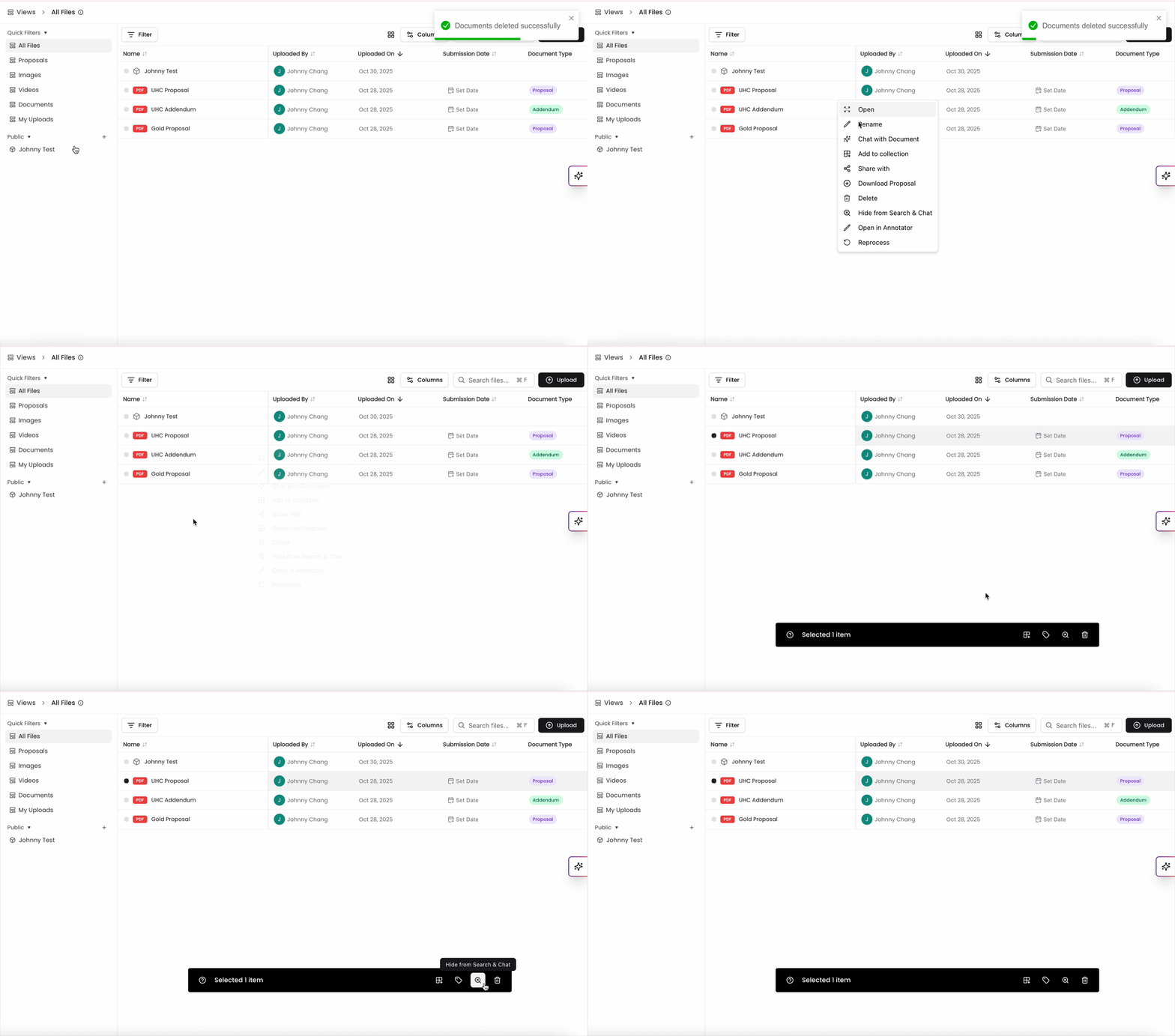
Click the three-dot menu next to any file for these options:
Open: View the file directly in Kantiv.
Rename: Change the file name.
Chat with Document: Attach the file to a new chat.
Add to Collection: Organize the file into a custom or shared collection.
Share with: Set the access to public or private and give specific users access.
Download: Save a local copy of the file.
Delete: Remove files no longer needed.
Hide from Search and Chat: Prevent the file from showing up in search or being attached in chat.
Open in Annotator: View the file in the PDF annotator.
Reprocess (Admins and Editors only): Run your file through our AI processing again to regenerate tags and insight. For more information, see Reprocesing Files below.
Remove from Collection (if applicable): Remove the article from the collection it's housed in
You can also click the box to the left of the file to populate a black bar with some actions. You can add it to a collection, add tags, hide from search and chat, or delete the file.
Reprocessing Files
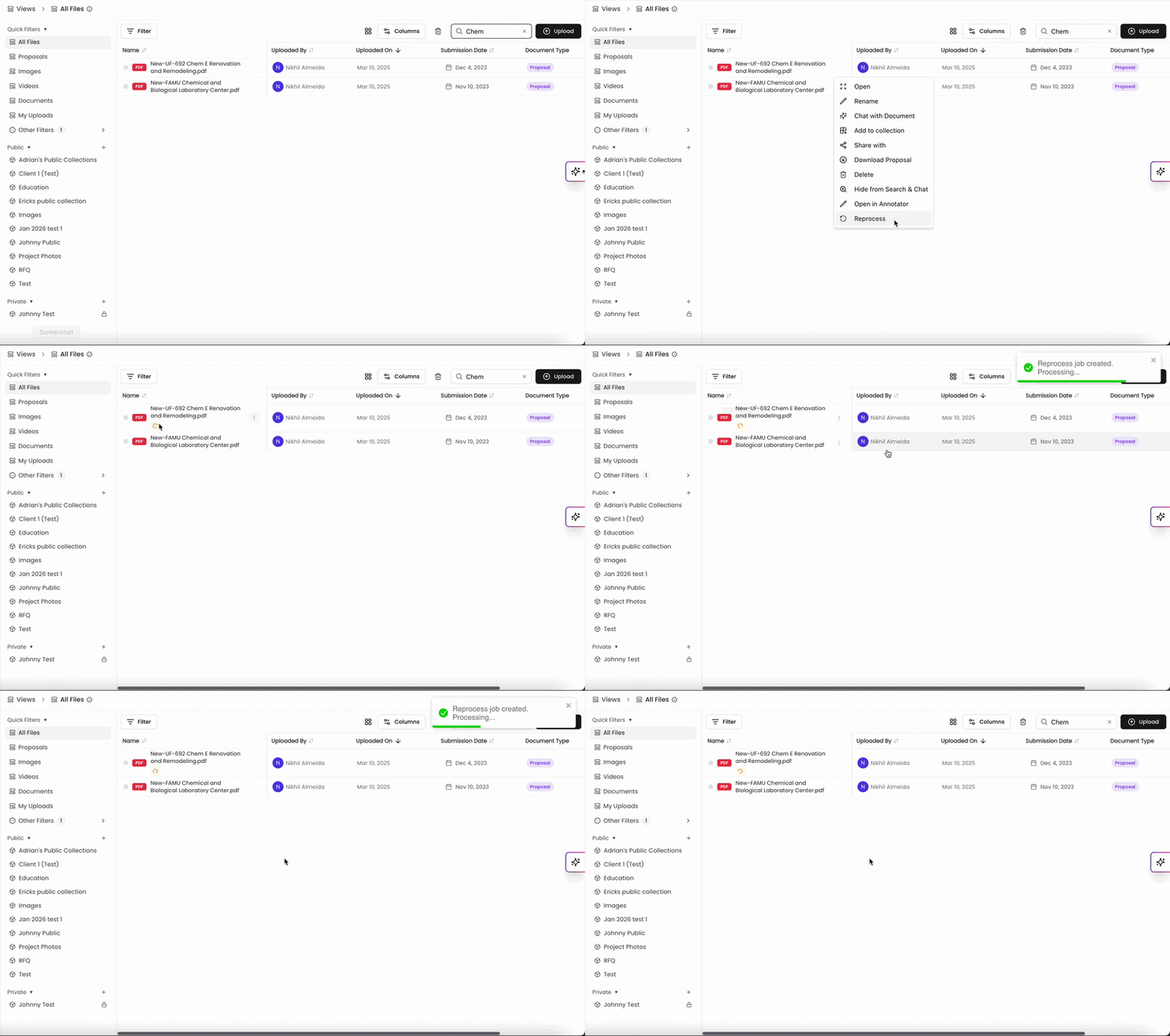
Within your File actions, you can reprocess your files and run it through our AI processing again. This can help you regenerate tags and insight for the file if there are any issues upon the first process. Also, if a file doesn't process correctly upon uploading or gets stalled while processing, you can reprocess this file to run it through.
Only Admins and Editors have access to reprocess files. Also, reprocessing files may remove any added comments, tags etc. on that file.
Managing File Views
Customizing Columns
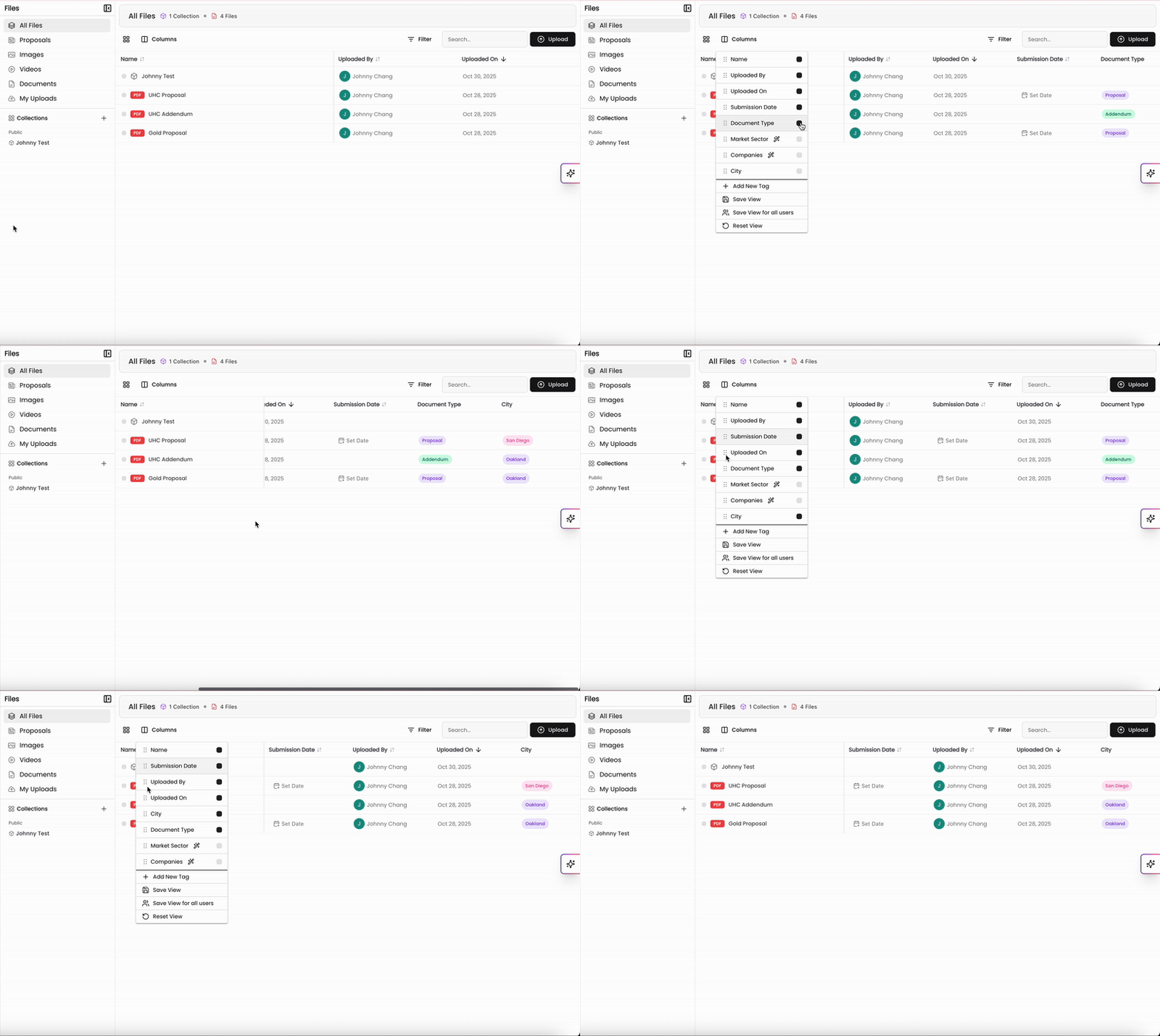
You can click columns on the top of the page to configure which details and tags show up in the file list.
Add or Remove Columns: Toggle the box in the list to adjust which columns are visible in the list.
Reorder Columns: Drag and drop columns using the dots to the left to arrange them in a preferred order.
Saving and Resetting Views
In the columns menu, you can save your customized view for yourself or for all users (admin permissions only). You can also reset the table to the default view by selecting Reset View from the menu.
Previewing Files
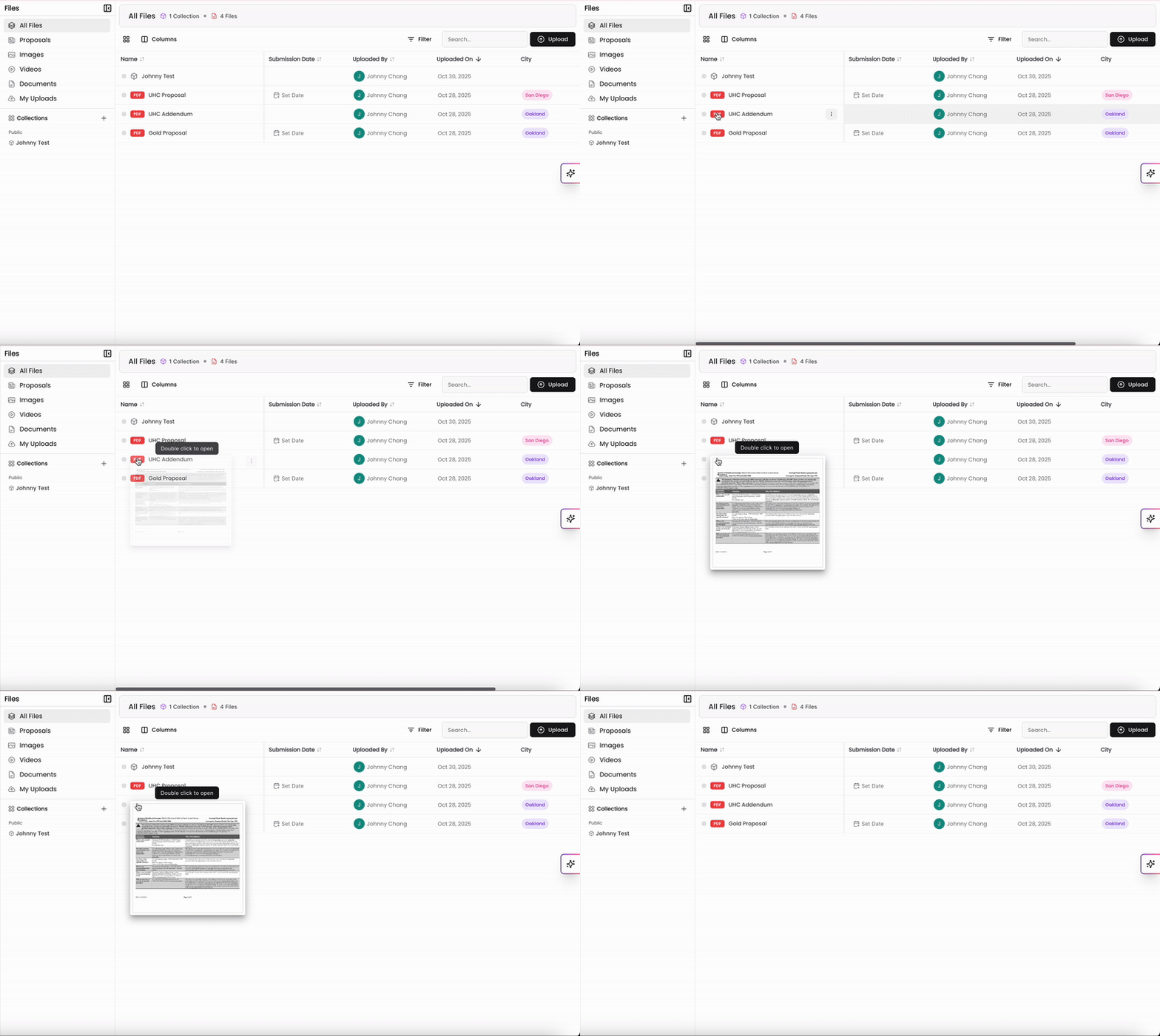
Hover over a file to see a quick preview, making it easy to verify contents without opening the file.
Best Practices
Organize with Collections: Group files into relevant collections to streamline access.
Use Filters: Narrow down results for faster retrieval, especially in large datasets.
Preview Before Opening: Save time by verifying files through quick previews.
Update Metadata: Keep file information up to date for easier searchability.
With Kantiv’s Files feature, managing your content becomes simple and efficient. By leveraging its tools and best practices, you can focus on productivity and collaboration.
You can always find more information on Content Management in our Support Center. Please send any questions or feedback to Support@Kantiv.com.