Image Hub: Media Tab
Last updated: June 2, 2026
The Media tab gives you a centralized place to view and manage images directly within your records. Instead of switching between tools or searching across folders, you can access all images with a project, person, opportunity, or company in one place. With the ability to upload, view, and work with images in context, the Media tab helps your team stay efficient and keeps the right visuals tied to the work they support.
What is the Media tab?
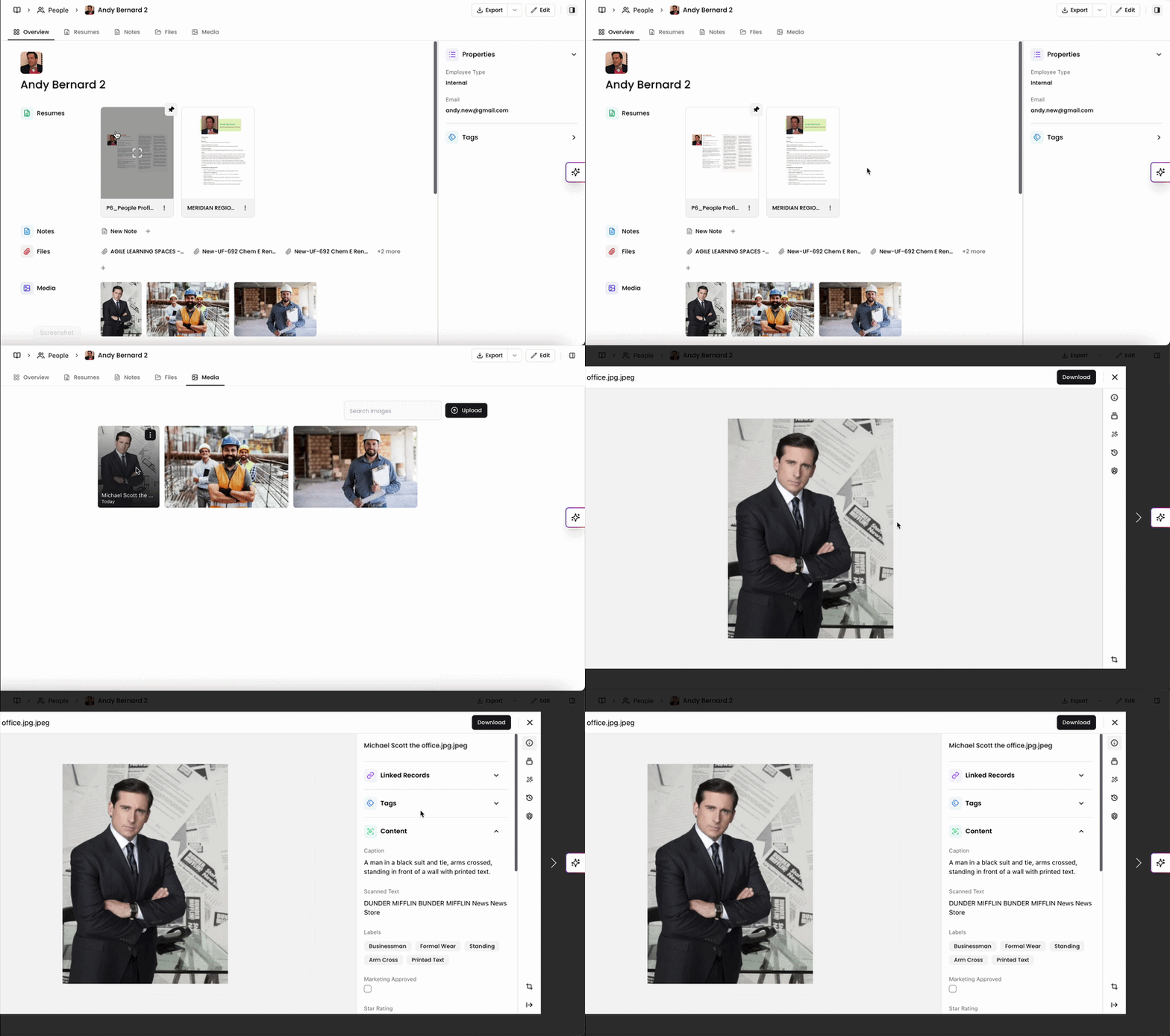
The Media tab appears within profiles within your Projects, People, Opportunities, and Companies. Images linked to your records will automatically display within this tab. In each media tab, you can view all associated images, upload new images directly, and quickly access your images while working.
Upload images from the Media tab
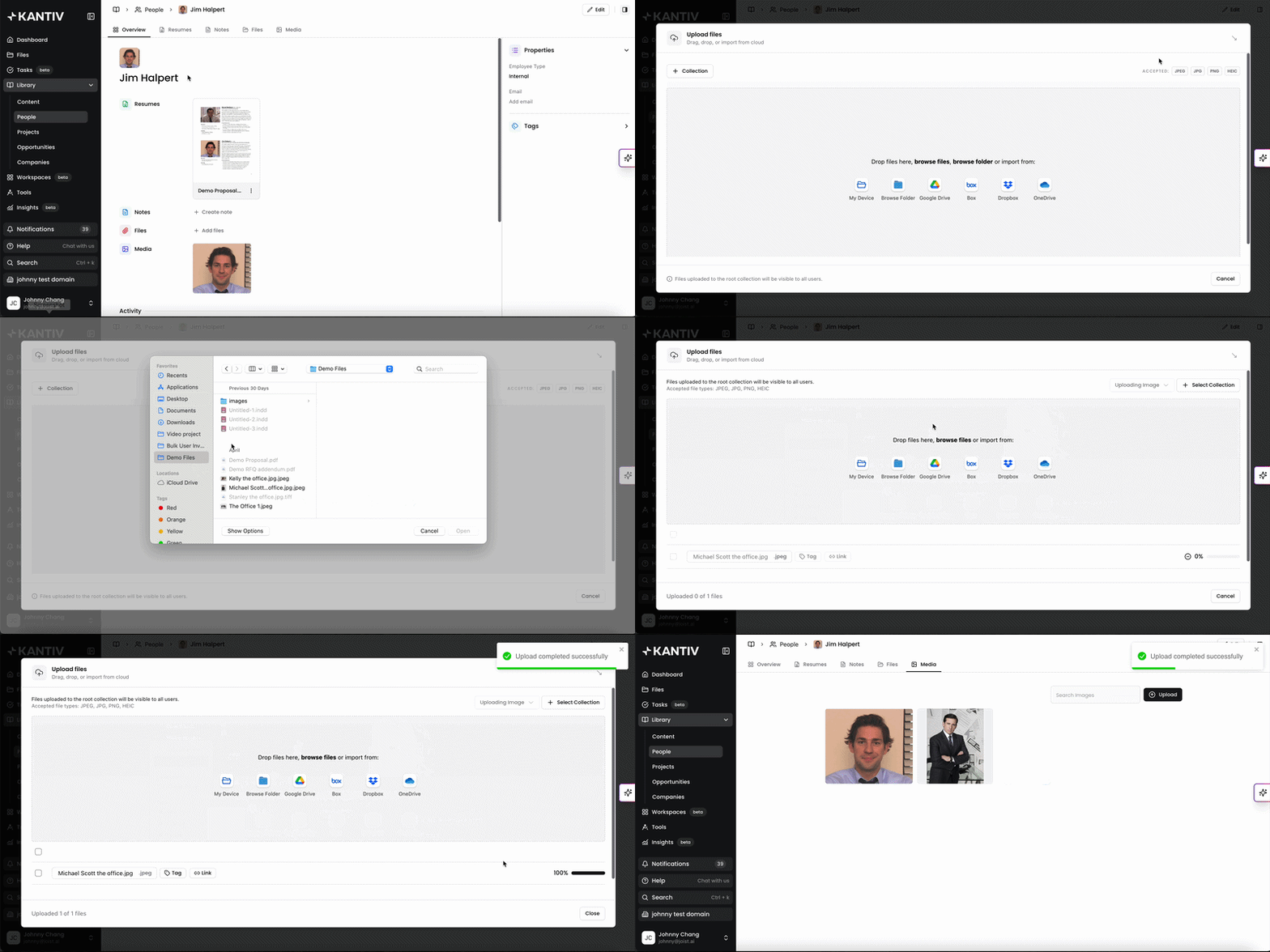
To upload via the Media tab,
Navigate to the Media tab within a profile of your library and click Upload to add photos.
Select the Image you'd like to upload, or drag and drop the file from your browser to the upload box.
If you would like to upload a folder of images, you can select or drag/drop the folder into the upload box.
You'll receive a notification once the images have uploaded and you can click Close to exit out of the upload window.
The Media tab keeps your images connected to the work they belong to, making it easy to find and manage visuals without leaving your workflow. By uploading and accessing images directly within your records, your team can stay organized, move faster, and ensure the right assets are always available when they’re needed.
You can always find more information on Content Management in our Support Center. Please send any questions or feedback to Support@Kantiv.com.