Image Hub: Upload and Organize Images
Last updated: June 10, 2026
Uploading images to Image Hub is fast and flexible, whether you’re adding a few files or an entire folder. With built-in organization tools like folder mapping, tagging, and record linking, you can upload and structure your images in one step—so they’re immediately searchable and ready to use.
Image Upload Support
You can upload images in Image Hub from either the Files tab or the Media tab within a profile of your Library (People, Person, Opportunity, or Company). Please note that uploading from the Media tab will automatically associate images with that record.
Image Hub supports the following image formats:
JPEG, JPG, PNG, HEIC, TIFF, HEIF
Note: TIFF support currently covers single-image TIFF files. Broader TIFF format support is actively being evaluated.
Unsupported file types will be skipped during upload.
Upload Images via Files
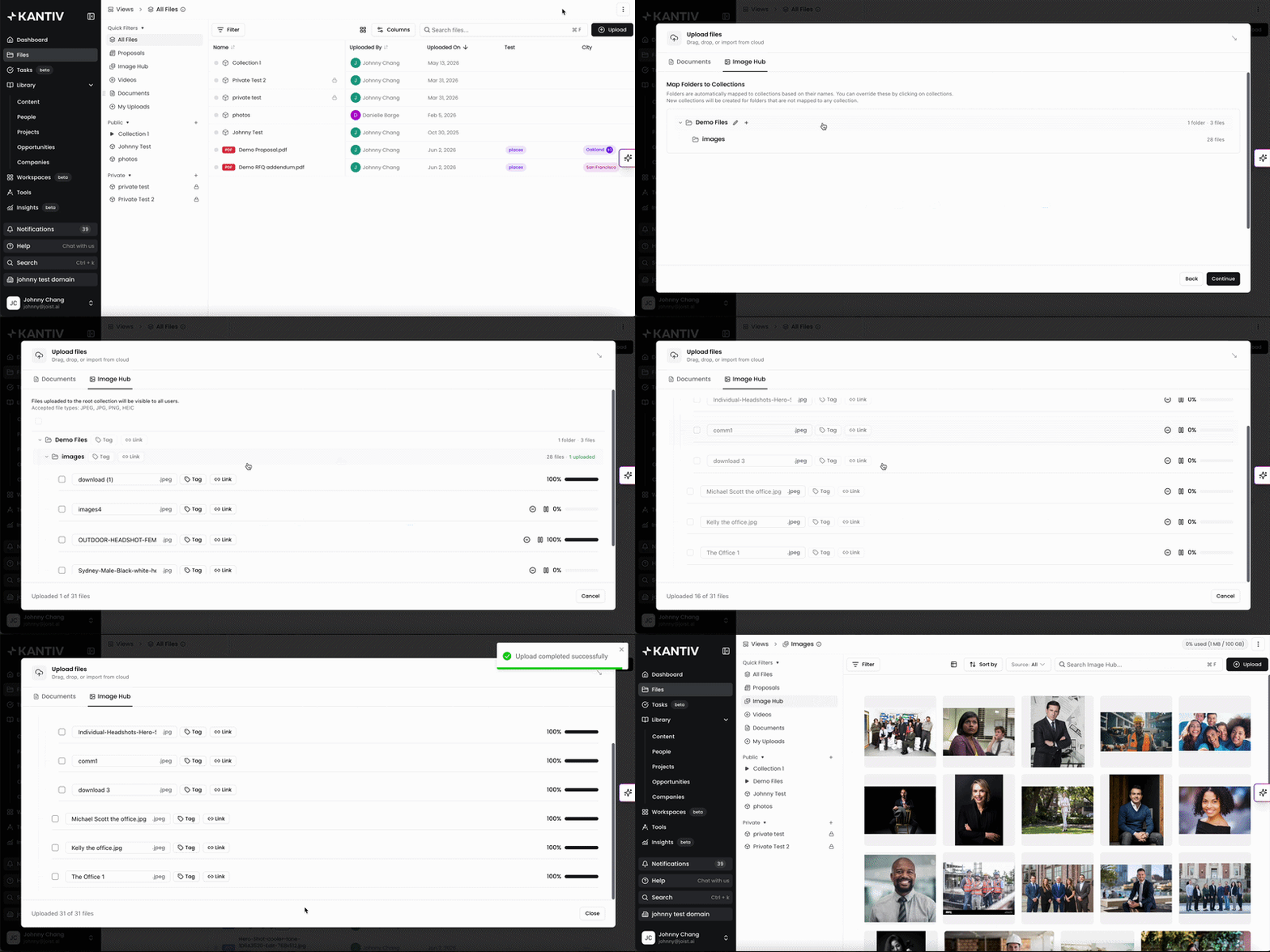
Using Image Hub, you can upload images individually or upload full folders at the same time.
Navigate to the Files tab and click Upload on the top right.
Select the Image you'd like to upload, or drag and drop the file from your browser to the upload box.
If you would like to upload a folder of images, you can select or drag/drop the folder into the upload box.
(Optional) Add tags or link records to your images.
You'll receive a notification once the images have been uploaded, and you can click Close to exit out of the upload window.
When uploading a folder, Image Hub will automatically detect supported image files in the folder and begin uploading
Upload Images via Media
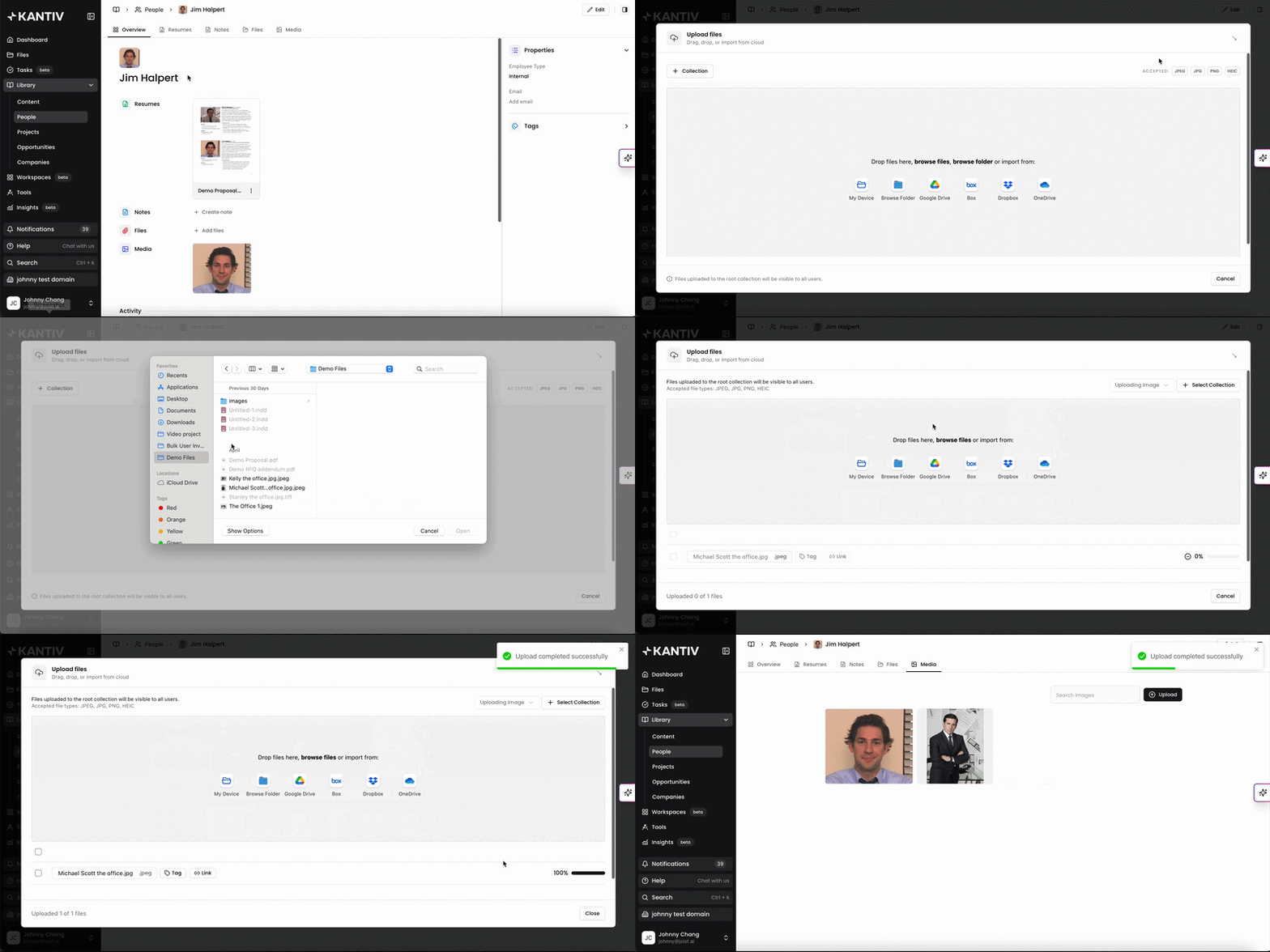
When viewing a profile in your Library, you can upload images via the Media tab at the top.
Navigate to the Media tab within a profile of your library and click Upload to add photos.
Select the Image you'd like to upload, or drag and drop the file from your browser to the upload box.
If you would like to upload a folder of images, you can select or drag/drop the folder into the upload box.
You'll receive a notification once the images have been uploaded, and you can click Close to exit out of the upload window.
Organize images during upload
Image Hub allows you to organize images as you upload them, saving time later.
Map folders to collections
Select an existing collection or create a new one
All uploaded images will be automatically organized into that collection
Tagging and Linked Records
You can apply tags to images and link images onto profiles in your library. For more information, check out this article.
📄 Image Hub: Tagging, Search, and Filters
Uploading and organizing images in Image Hub can be done in a single step. Whether you’re adding a few files or an entire folder, built-in tools like tagging, collections, and record linking ensure your images are structured, searchable, and ready for your team to use.
You can always find more information on Content Management in our Support Center. Please send any questions or feedback to Support@Kantiv.com.