Project and Opportunity Statuses
Last updated: June 2, 2026
Project statuses provide a clear view of where awarded work stands within your firm’s portfolio. By keeping statuses up to date, you ensure accurate reporting, organized records, and clear visibility into active, paused, and completed work. This article explains each Project status, when to use it, and how to update it.
Understanding Project and Opportunity Statuses
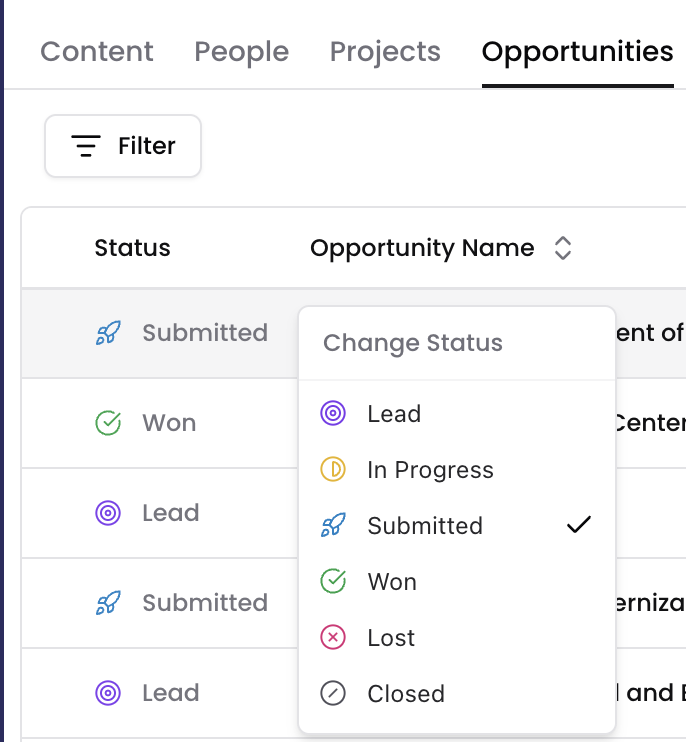
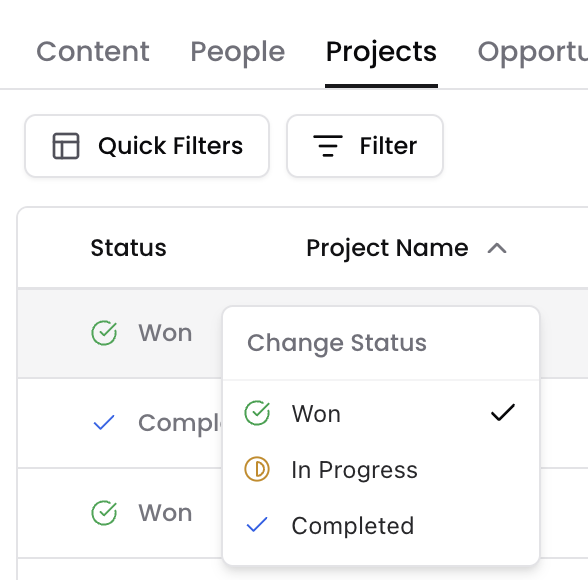
In Kantiv, work begins as an Opportunity. Once an Opportunity is marked as Won, In Progress, or Completed, it transitions to the Projects page and becomes part of your firm’s project portfolio.
Project statuses reflect the current state of awarded work.
Project and Opportunity Status Definitions
Status Name | Description |
Lead | A potential opportunity that has been identified but has not yet been submitted. This status is used for early-stage pursuits such as upcoming RFPs or RFQs, opportunities under evaluation, and prospects your team is considering bidding on. Use Lead when tracking a potential pursuit before formally submitting a response. |
In Progress | The project is actively underway. Team members are engaged, deliverables are being developed, and work is progressing according to scope. |
Submitted | A proposal has been submitted to the client, and you are awaiting a decision. This status means your team has completed and delivered the submission, the award decision is pending, and no contract is confirmed yet. Use Submitted once the proposal is officially delivered. |
Won | The contract has been awarded to your firm, but active project work has not yet begun. This status confirms secured work while indicating execution has not started. When an Opportunity is marked as Won, it transitions into a Project and becomes part of your firm’s active portfolio. At this stage, work may not have started yet — it simply confirms the award. |
Lost (Opportunities only) | The opportunity was not awarded to your firm. Use Lost when the client selects another firm. Closed and Lost opportunities remain in your system for historical tracking and win/loss analysis but do not transition into Projects. |
Closed (Opportunities only) | The opportunity was awarded to another firm or is no longer active. Use Closed when the pursuit is no longer active or the opportunity is no longer viable. |
Completed (Projects only) | All project work has been finalized and delivered. The project is officially closed and remains in your portfolio as historical experience. |
How to Change Project Statuses
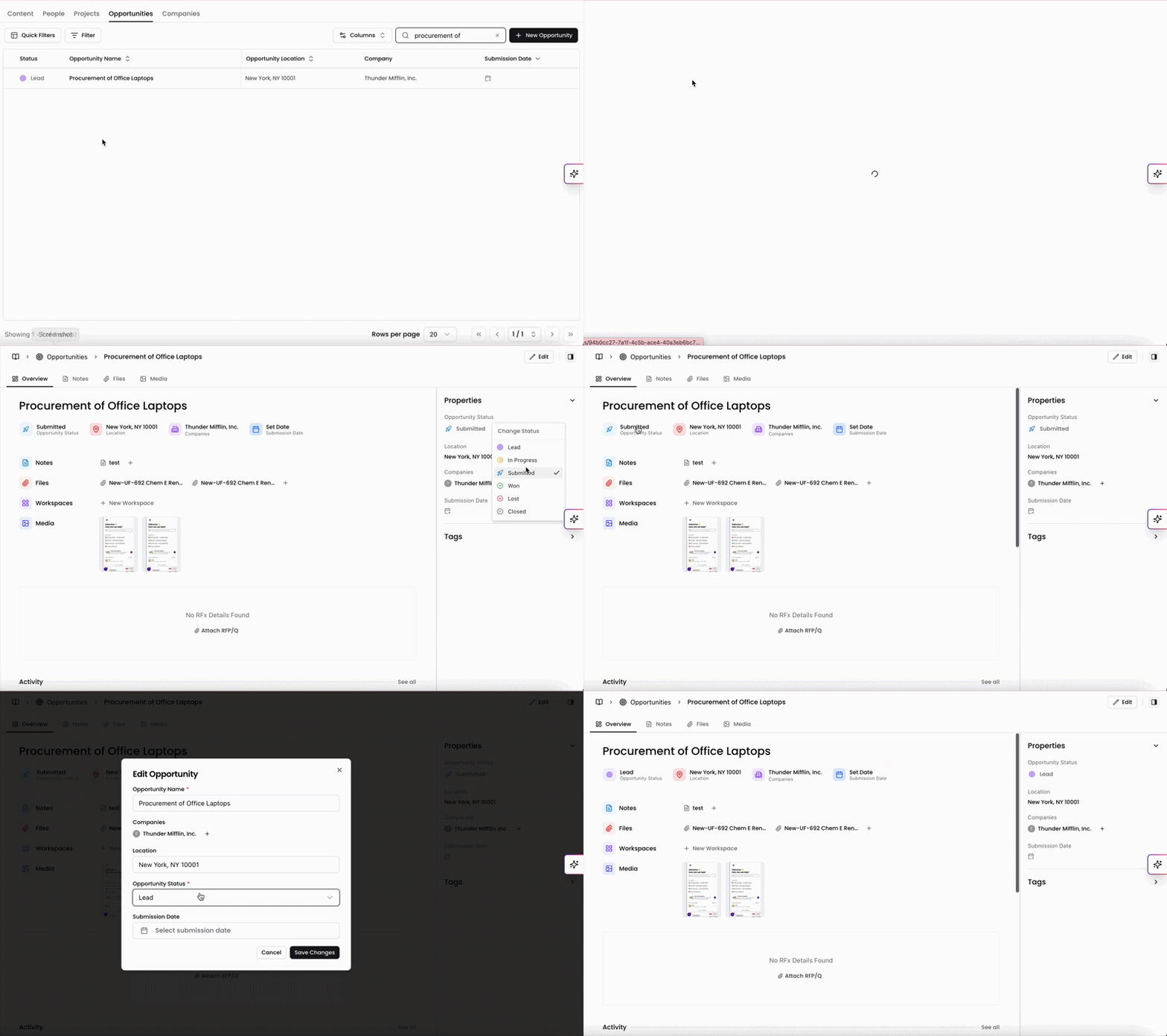
You can update project statuses directly from the Projects page or within an individual Project profile.
From the Knowledge Graph
Locate the project you want to update.
Click on the status in the table to populate the dropdown menu.
Select the appropriate status.
From Within a Project or Opportunity Profile
Open the profile.
Under Properties on the right-hand side, click on the status to populate the dropdown menu.
Select the appropriate the status.
Your changes will immediately update the project’s status across the system.
Best Practices
Keep statuses current. Update projects as soon as their phase changes to maintain accurate reporting.
Use “Won” thoughtfully. Only mark a project as Won once the award is confirmed.
Close projects promptly. Move completed work to Completed to keep active project lists clean.
Preserve historical accuracy. Use On Hold or Cancelled rather than deleting records to maintain a reliable project history.
Maintaining accurate project statuses ensures your portfolio reflects real-time activity and supports clearer reporting, forecasting, and decision-making across your firm.
You can always find more information on Content Management in our Support Center. Please send any questions or feedback to Support@Kantiv.com.