Knowledge Graph: Exporting CSV
Last updated: June 2, 2026
The Export CSV feature in the Knowledge Graph allows Admins to extract and work with their data outside of the platform. Users can generate CSV files directly from the People, Projects, Opportunities, and Companies pages, exporting records along with selected tag columns for reporting, analysis, or sharing with external tools.
By selecting specific columns and accessing past exports through Export History, teams can quickly generate structured datasets whenever they need them.
Accessing Export Menu
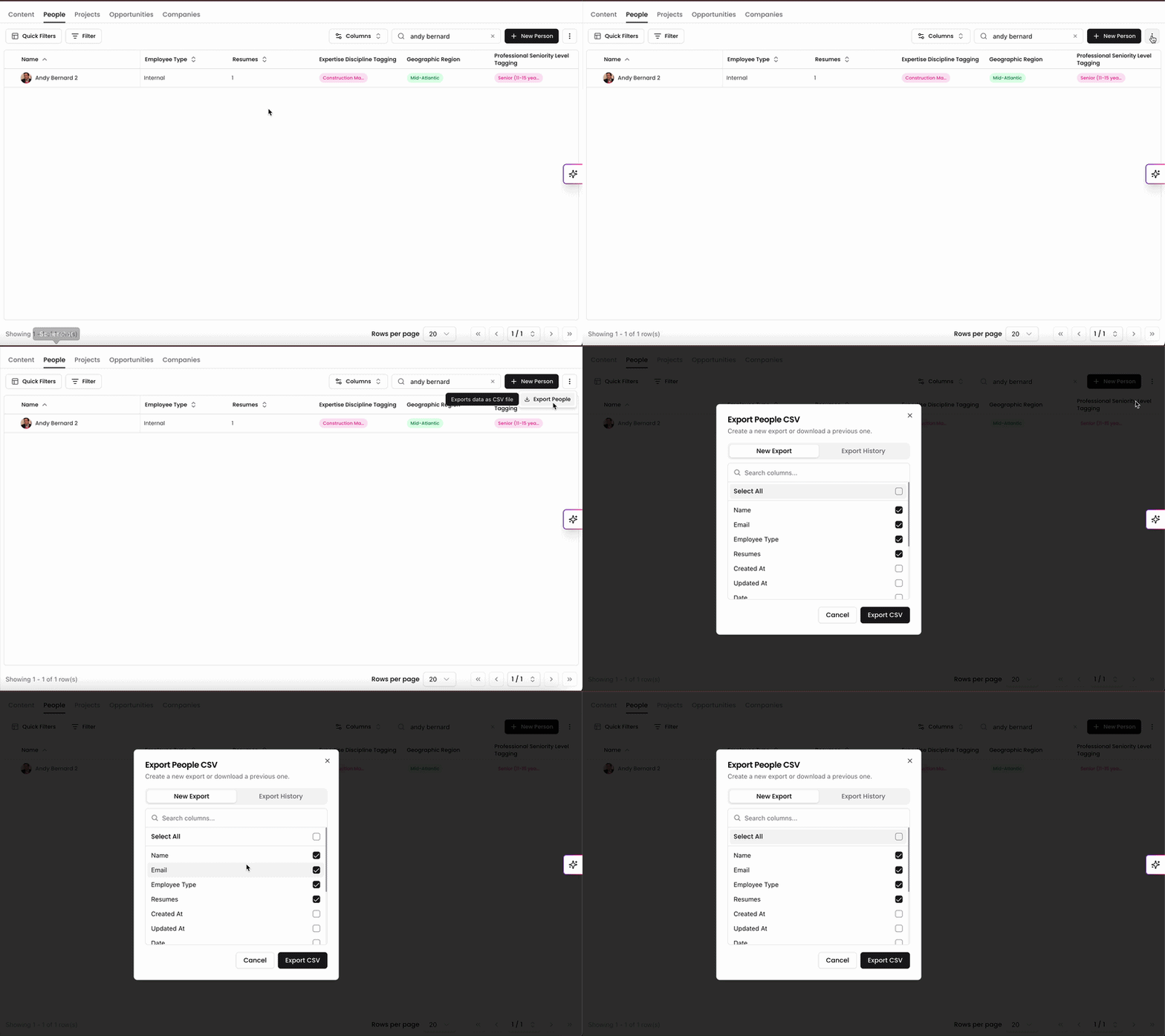
On the People, Projects, Opportunities, or Companies page, users will see a three-dot menu in the top-right corner of the table. Click the menu and select Export to open the Export Window.
Only Admins can access the Export CSV feature. If you do not see this option, check your role permissions or contact an Admin at your organization.
Selecting Columns for Export
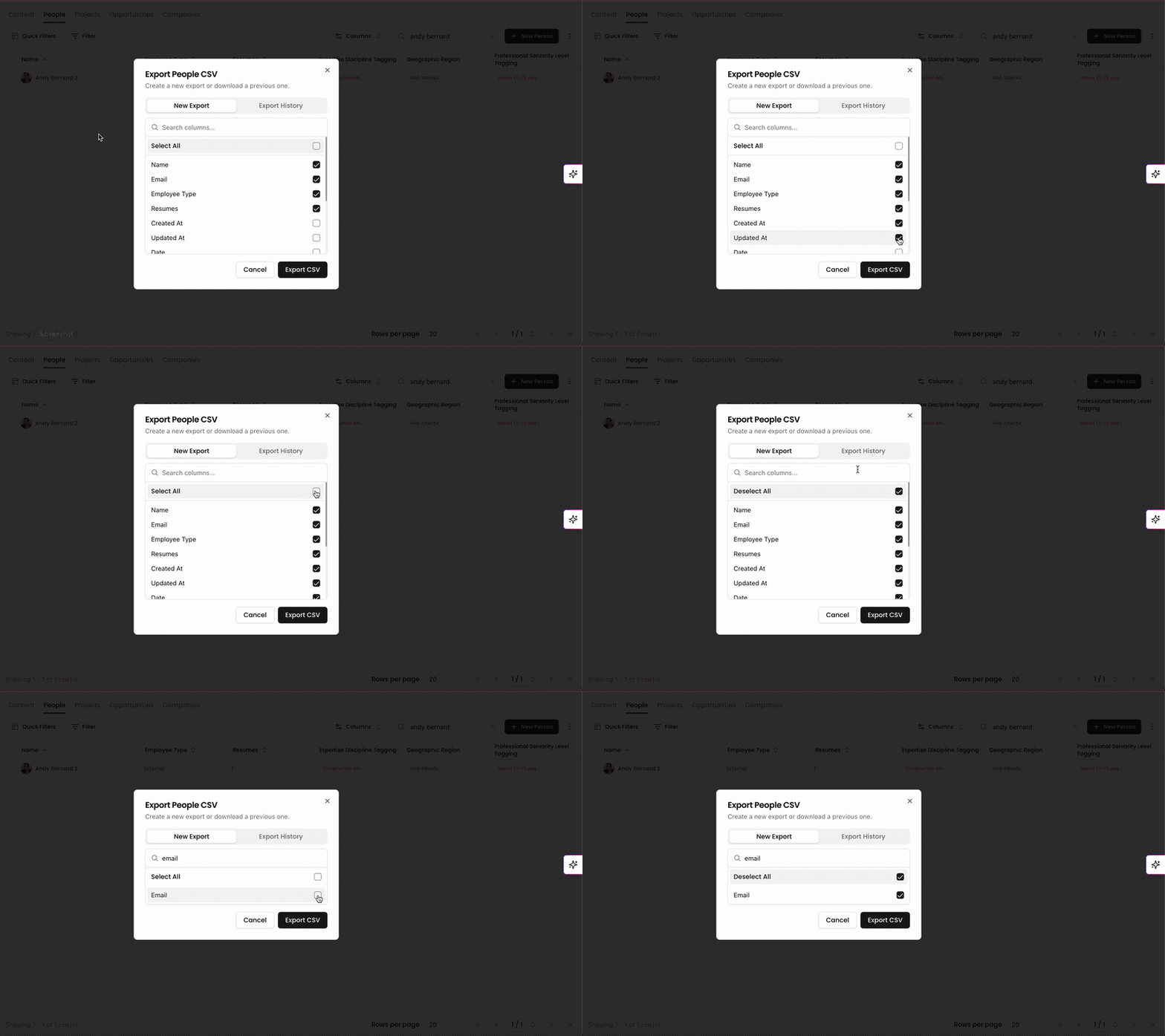
In the Export Window, you can choose which columns from the table you want to include in your CSV file. These columns correspond to the tags available within each Knowledge Graph page.
You can:
Select individual columns by checking the box next to each field
Click Select All to include every available column
Use the search bar at the top of the list to quickly find specific columns
Exporting your CSV
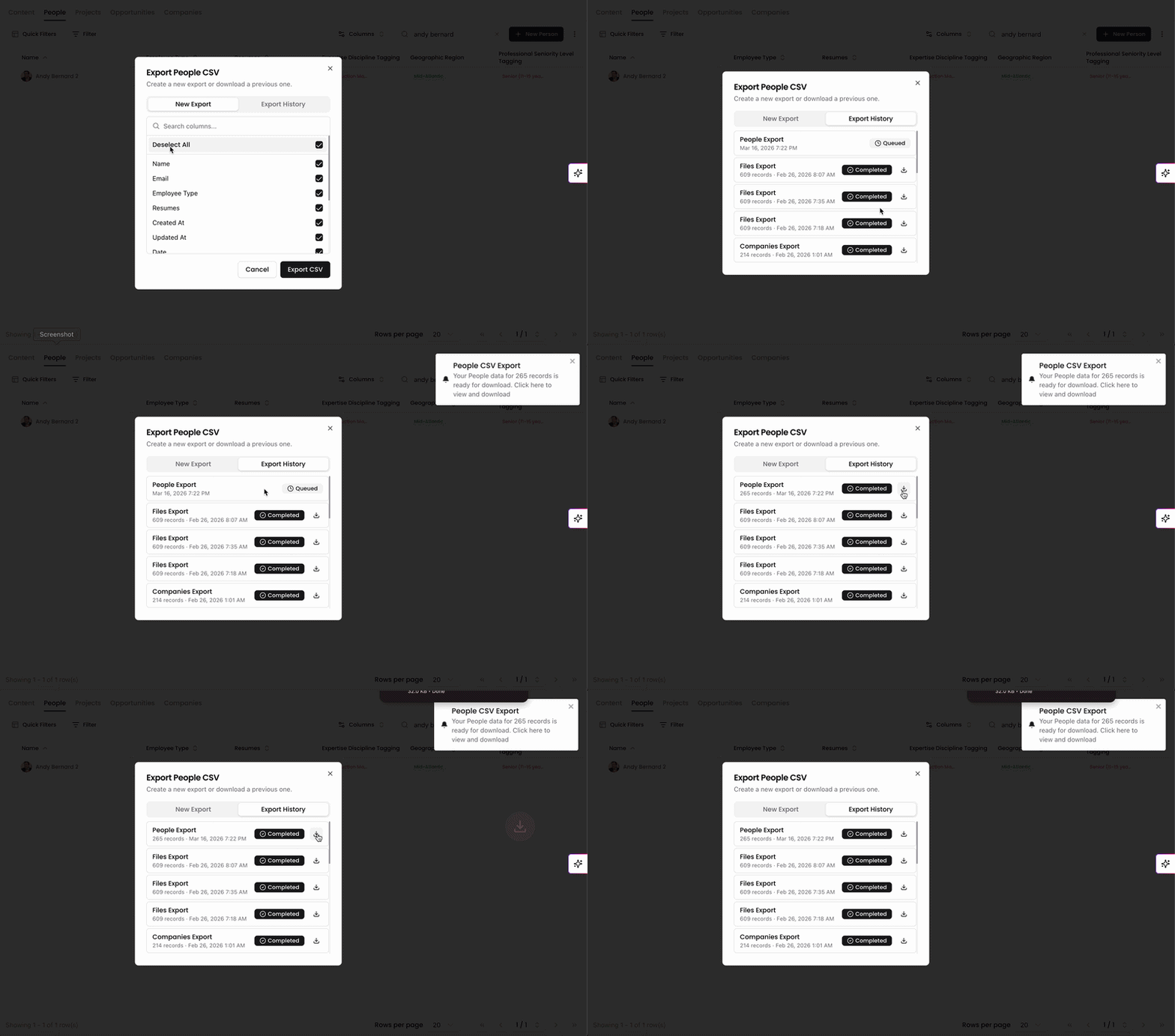
Once your columns have been selected, click Export CSV to begin generating your file.
You will see a notification in the top-right corner confirming that the export has started. The export will also appear in the Export Window with a status of Queued while it is being processed.
When the export is complete:
You will receive another notification in the top-right corner.
The export status will update to Completed.
Click the Download icon to download the CSV file to your device.
Export History
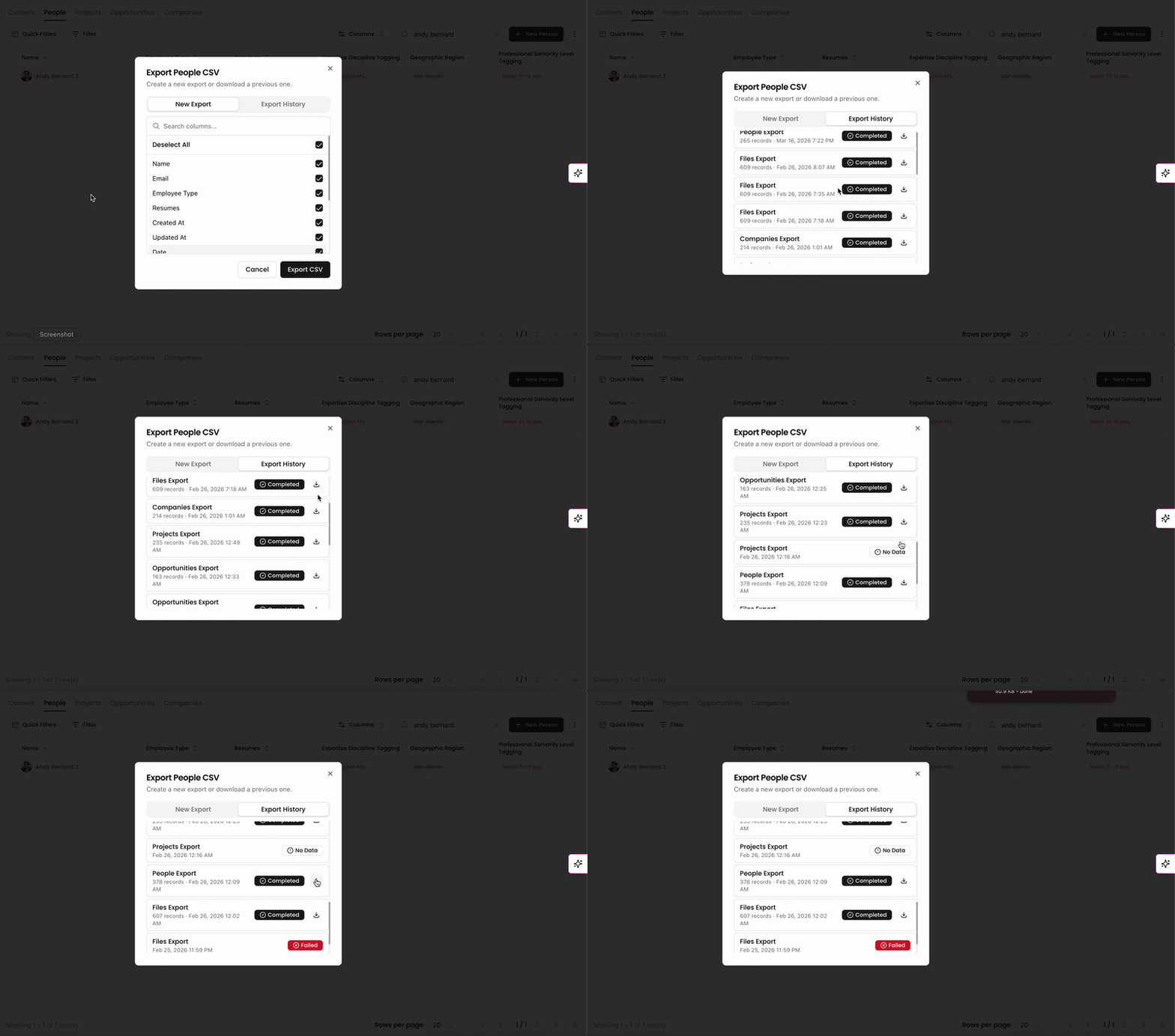
Kantiv stores your previously generated CSV files in the Export History section of the Export Window. This allows you to revisit and download past exports at any time.
Each export entry includes:
The number of records included in the file
The date and time the export was generated
To download a previous export, simply click the Download icon next to the file.
The Export CSV feature provides Admins with a convenient way to download and analyze Knowledge Graph data outside of Kantiv. By exporting selected columns and accessing past exports through Export History, teams can easily work with their data in spreadsheets, reporting tools, or other external systems.
You can always find more information on Content Management in our Support Center. Please send any questions or feedback to Support@Kantiv.com.