Search Overview
Last updated: July 16, 2026
The Search feature in Kantiv helps you quickly find the information you need across projects, documents, people, and more. With flexible filters and tabs, you can refine your results to locate specific content or explore related resources—all from one central dashboard.
Accessing Search
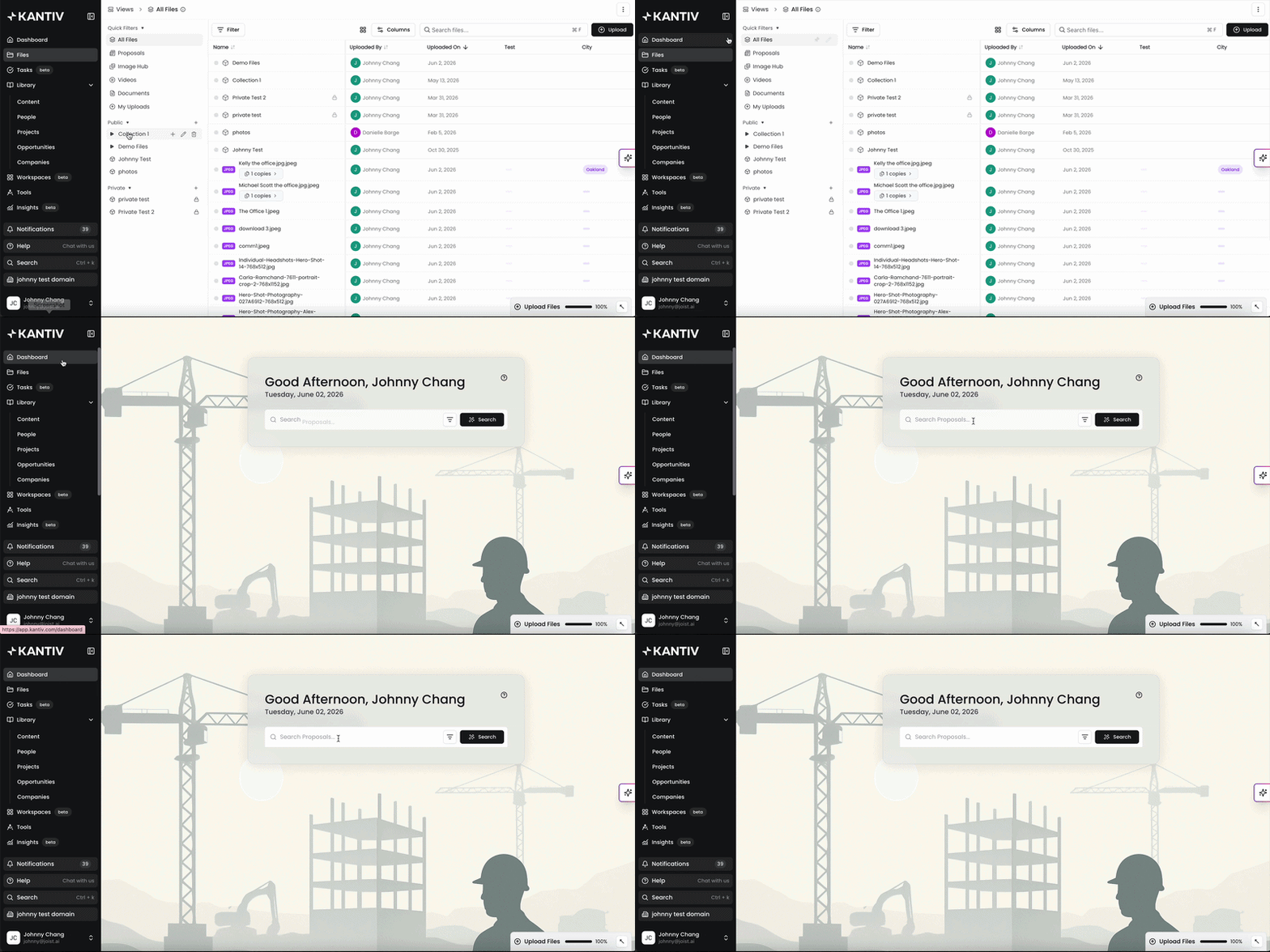
In the main menu, click on the Dashboard tab to access search. Alternatively, you can click on this link to reach the page directly.
Using Search

Type your desired keyword(s) into the search bar. Click on Search or hit Enter to start your search.
💡Don’t know what to search for?
Try searching for projects, topics, locations, or people.
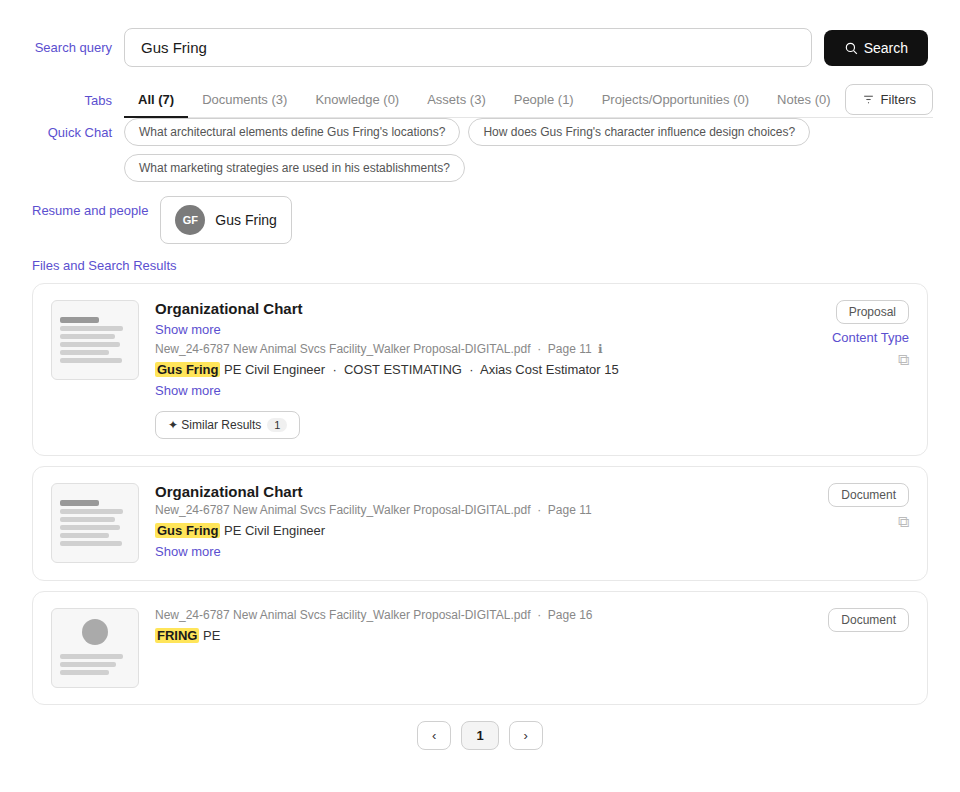
Your search results will populate in the list. You can use the search bar again at the top to edit your search query. In addition to files and knowledge content, Search will populate quick chat prompts for easy access, resumes, and specific people associated.
Note: In the search results, boilerplate knowledge content will populate at the top for quick access.
Refining Search Results
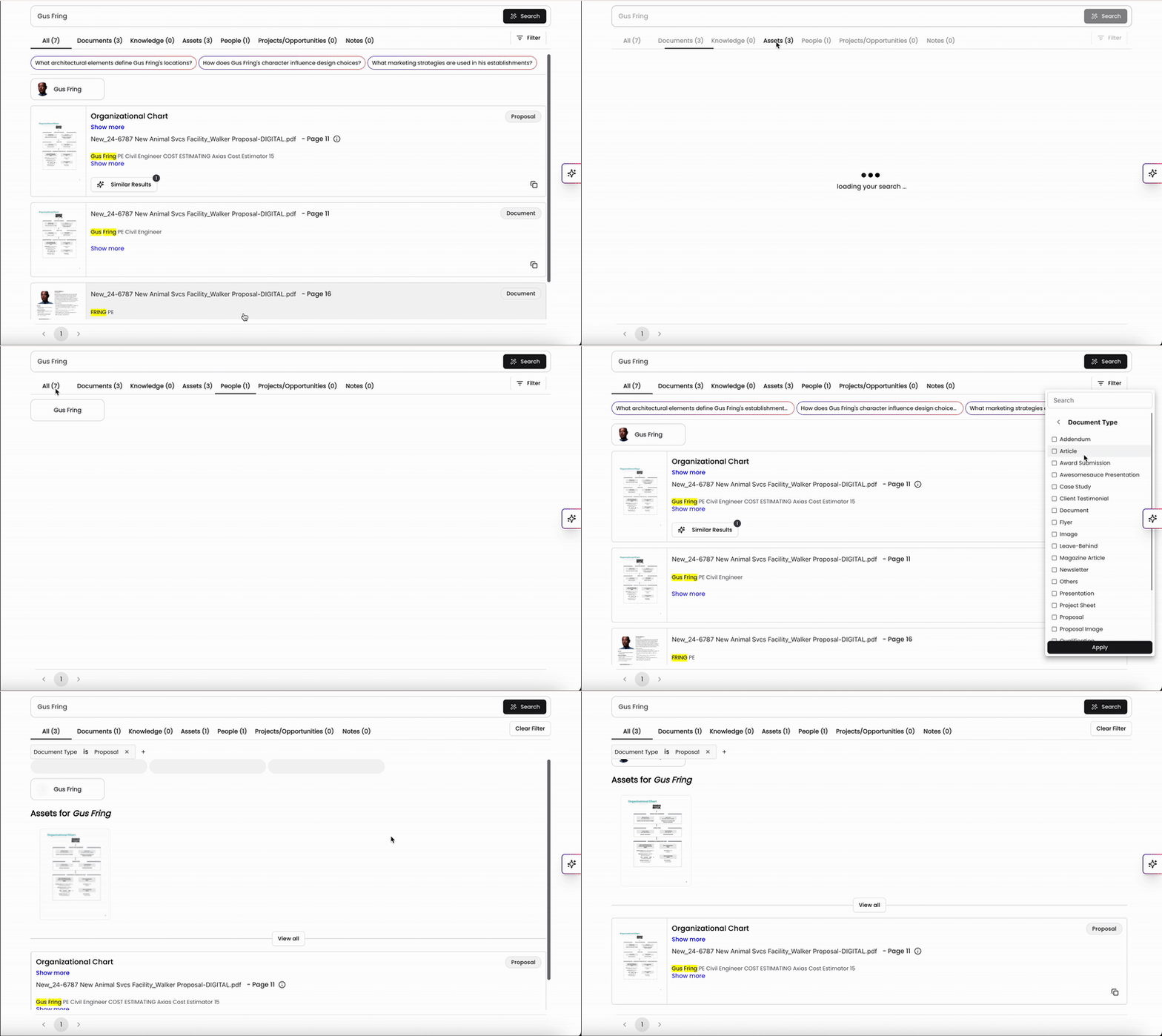
After entering your search, by default, you will see All search results from documents, knowledge, assets, people and project profiles, and notes. You can narrow down your search results using tabs and filters located at the top.
Click your preferred Source/Tab: Proposals, Knowledge, Assets, etc.
Click on the Filters Icon
Click on your preferred Filter(s): Document Type, Client, Market Sector, etc. – and select options from the dropdown menu.
Click on + Add Filters to access additional Key-Value Tag Filters used by your company
Quick Filters
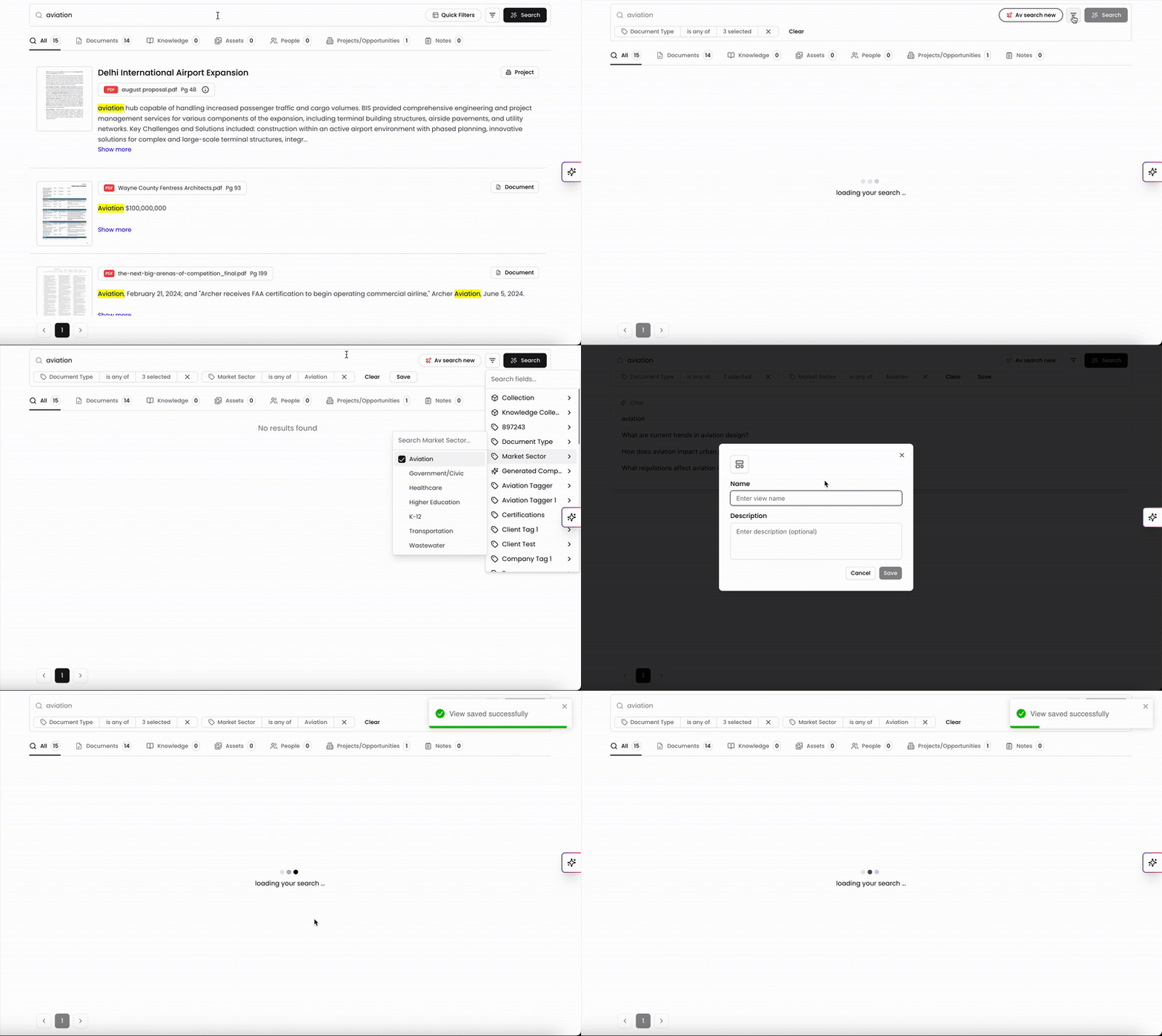
If you have Quick Filters set up on your account, you can also apply them in Search to pull up documents that fall under a specific set of Filters. This will save you a few steps of having to click through and set multiple filters when you can apply them all at the same time.
To generate a new Quick Filter in Search, click Save after you’ve selected a set of filters. If you have existing Quick Filters in Search, click Quick Filters and select from your list of Quick Filters to automatically apply the set of Filters into your Search query. Please note that if a Quick Filters has inapplicable filters in it, you will only see the applicable filters added onto the Search query.
You can also add additional filters to the Search query to include additional files and if you'd like to save this as a new Quick Filter, click Save. You can now use this Quick Filter again for future Search queries.
Advanced Search
Read about our advanced search options and learn how to optimize your search experience
Search Suggestions
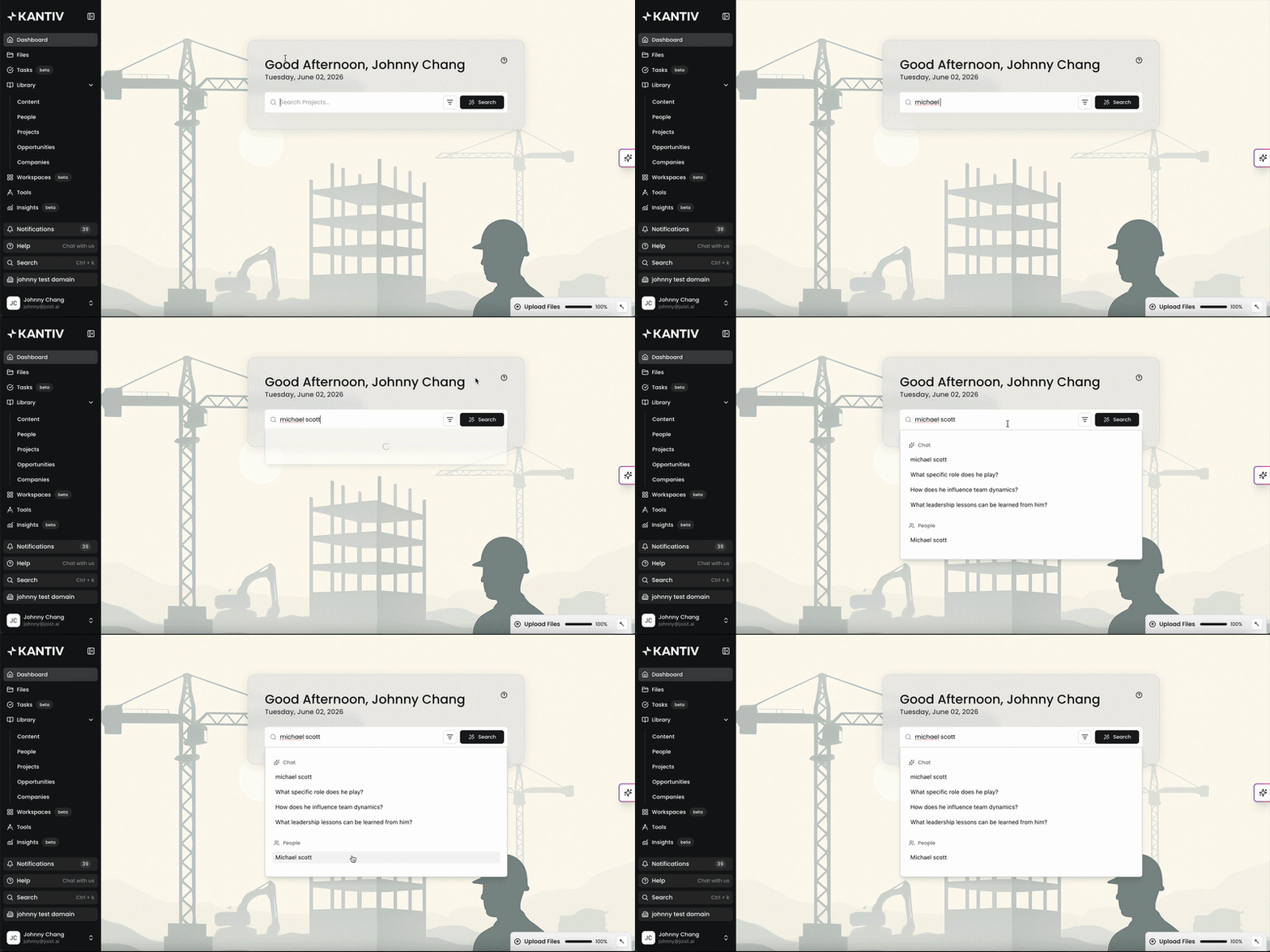
When you start typing in the search bar, Kantiv will display a dropdown with multiple suggestions from various blocks. This enhancement aims to streamline your search experience by providing instant, relevant results.
Currently, the search suggestions will show results from:
Resume library
File names
Boilerplates
Client names
Past search history
Improving Your Search Experience
Saves Time: This feature helps you instantly see relevant suggestions which means you find what you need faster without having to type out full search terms.
Improves Accuracy: With suggestions drawn from multiple sources, you’re more likely to find exactly what you’re looking for, reducing the need for repeated searches.
Enhances Productivity: Quick access to previous searches and commonly used files or terms helps you stay focused on your work, minimizing interruptions.
This feature will significantly enhance your efficiency and make your interactions with Kantiv smoother and more intuitive.
Search in Kantiv makes it easy to find the information you need—whether it’s a project, document, or teammate. By using filters, tabs, and advanced options, you can refine your results and access relevant content quickly. Mastering Search helps you save time, stay organized, and work more efficiently across the platform.
You can always find more information on Search and Chat in our Support Center. Please send any questions or feedback to Support@Kantiv.com.