Storyboards, Search, and Files in Workspaces
Last updated: June 2, 2026
Storyboards, Search, and Files are the core tools that make Workspaces in Kantiv a powerful environment for drafting and refining proposals. These features give you full control over your document outline and structure, allow you to pull information from your content library in seconds, and make it easy to reference supporting files—all without ever leaving your Workspace. Together, they streamline writing, enhance collaboration, and help you build polished, data-informed drafts with confidence and efficiency.
Storyboards
Storyboards in Kantiv are visual representations of a sequence of events or steps which are used to outline and organize ideas for your draft. In each storyboard generated, you have a handful of actions you can perform which range in impact on your draft. At a high level, you can:
Add, reorder, or delete storyboard sections
View edits and revert to previous version histories
Make edits to subsections, provide additional AI instructions, and assign tasks
Autogenerate content for your draft
Add, Reorder, and Delete Storyboard Sections
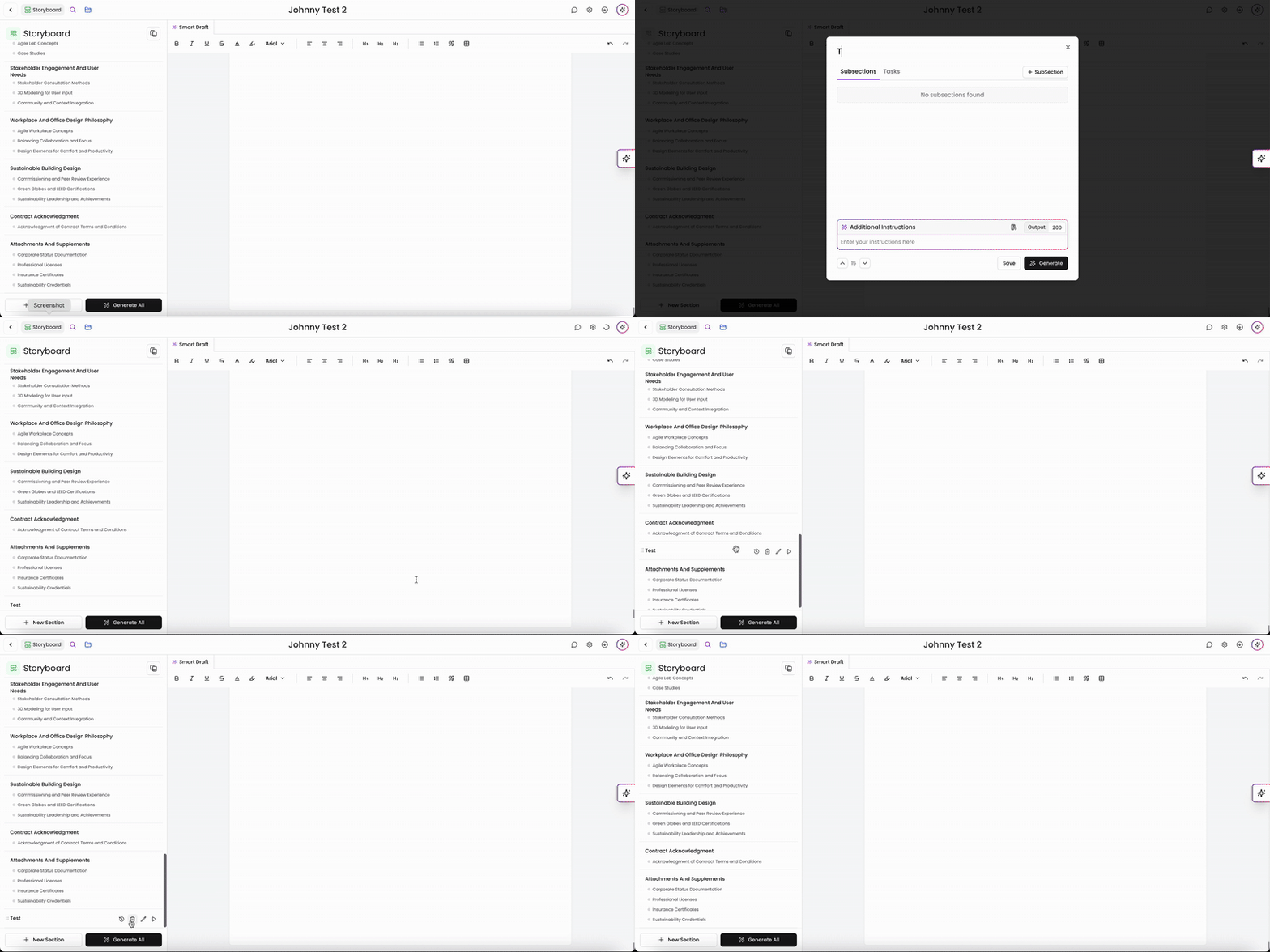
You can add a new storyboard section to your list by clicking +New Section on the bottom left. Here, you can select an empty section, project section, or people section. This will open a new window for you for you to name your new section, add subsections, projects, or people (respectively), and provide instructions for the AI to follow when generating content. Once you're ready to add this onto your storyboard, click Generate on the bottom right.
By default, our AI will automatically place storyboard sections in a default order. You can drag and drop the storyboard sections to reorder them to your preference. This saves automatically once you drop them in place.
If you need to delete a storyboard section, you can click on the trash can icon in the storyboard and delete. Please note you cannot undo this action and this storyboard section will be permanently deleted from your draft.
View Storyboard Version History
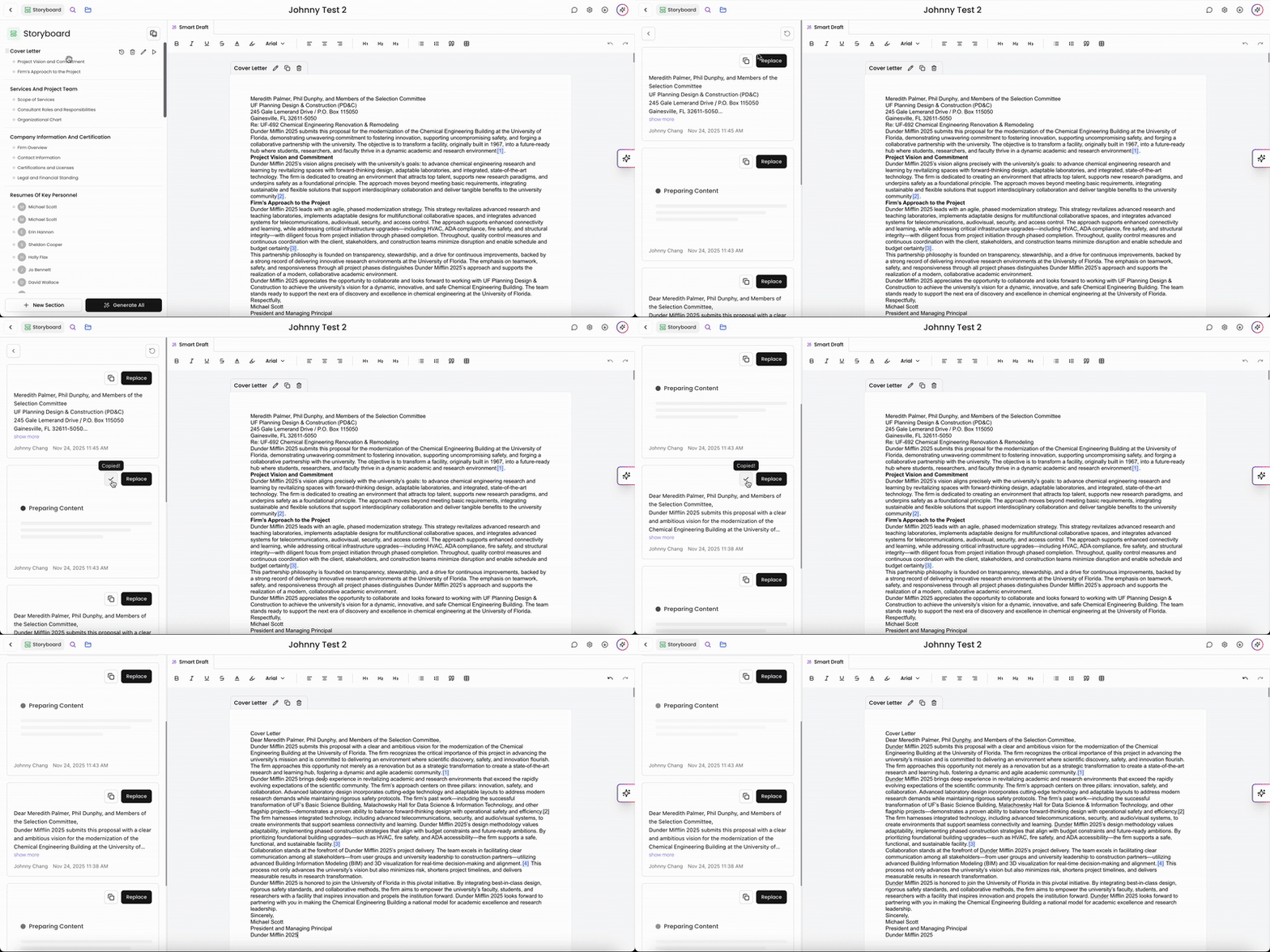
Each edit made within a storyboard is logged in the storyboard version history. You can view the version history by clicking the history icon within the storyboard. This will list each version and edit made. Within each edit, you can copy the content or replace existing content with it.
Edit Storyboard and AI Instructions
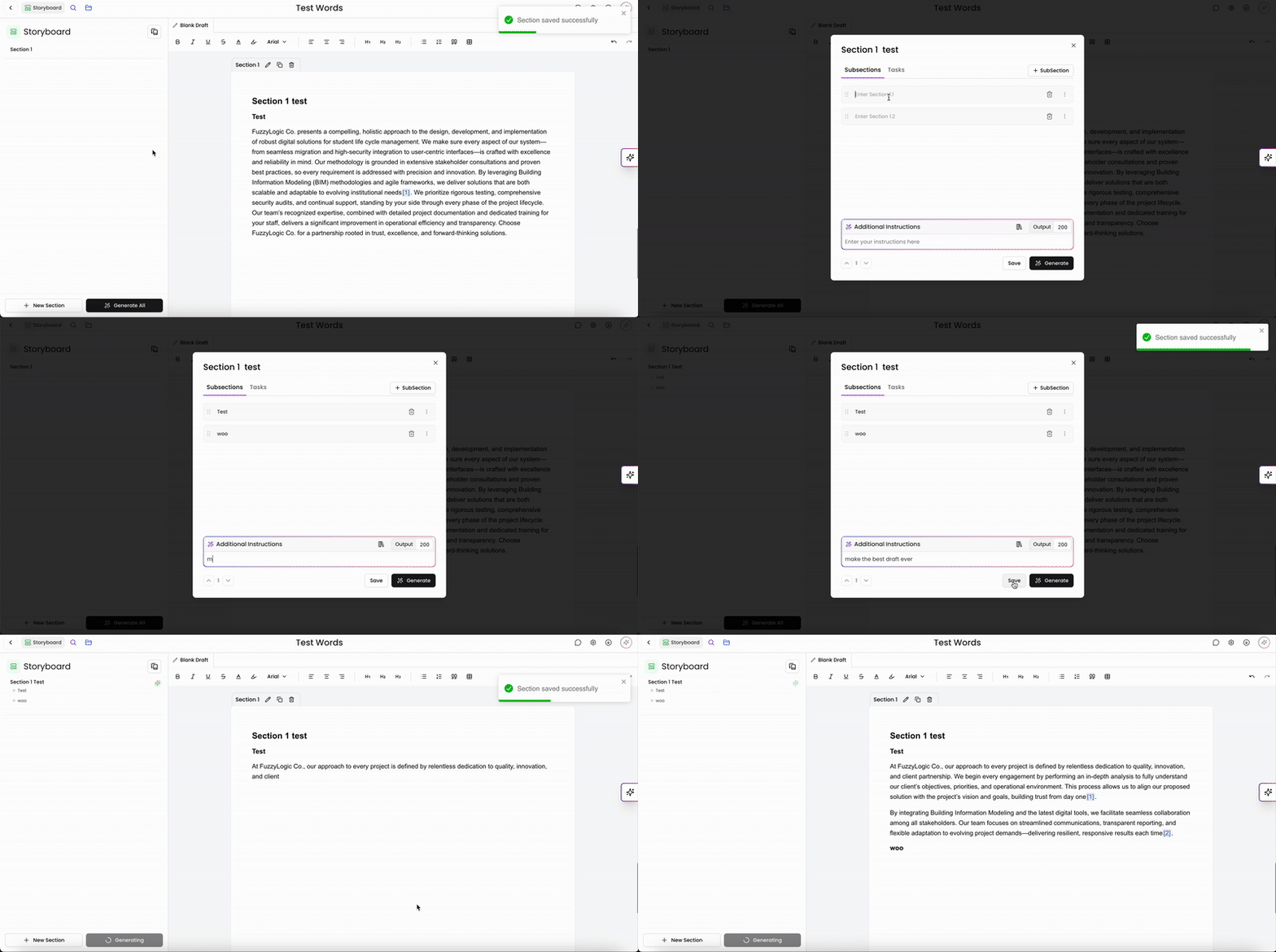
You can make backend edits to the storyboard by clicking on the edit button within the storyboard. Here, you can rename your storyboard and subsections, delete or add new subsections, assign tasks, and provide instructions for the AI to follow when generating content. Once complete, you can save changes and/or immediately begin generating new content with these new settings.
For more information on assigning tasks within the storyboard, check out this article.
Autogenerate Content
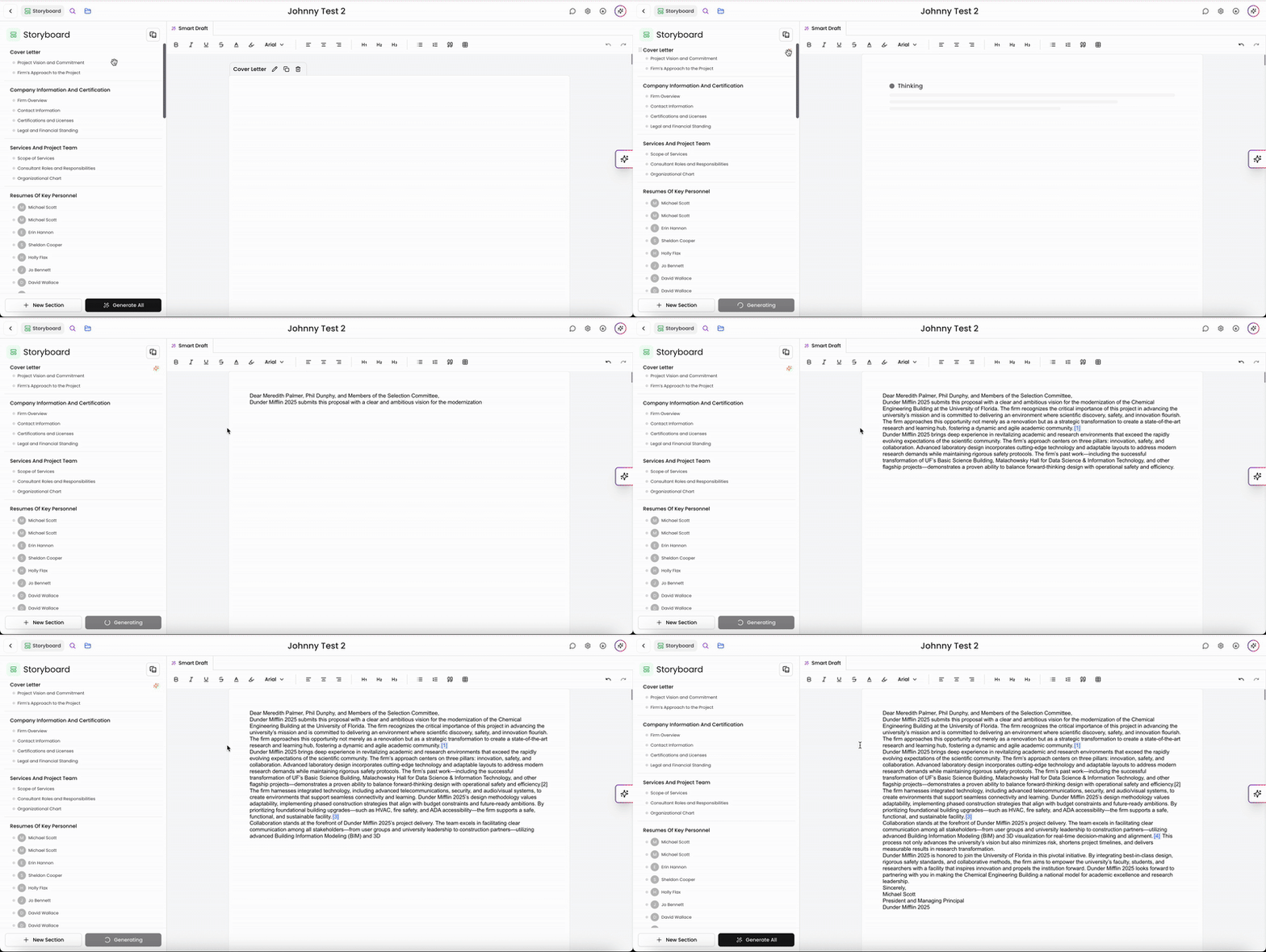
Autogenerate content allows users to quickly generate text or data based on predefined templates or AI-driven suggestions. You can generate sections of your storyboard one at a time by clicking on the play button in the storyboard.
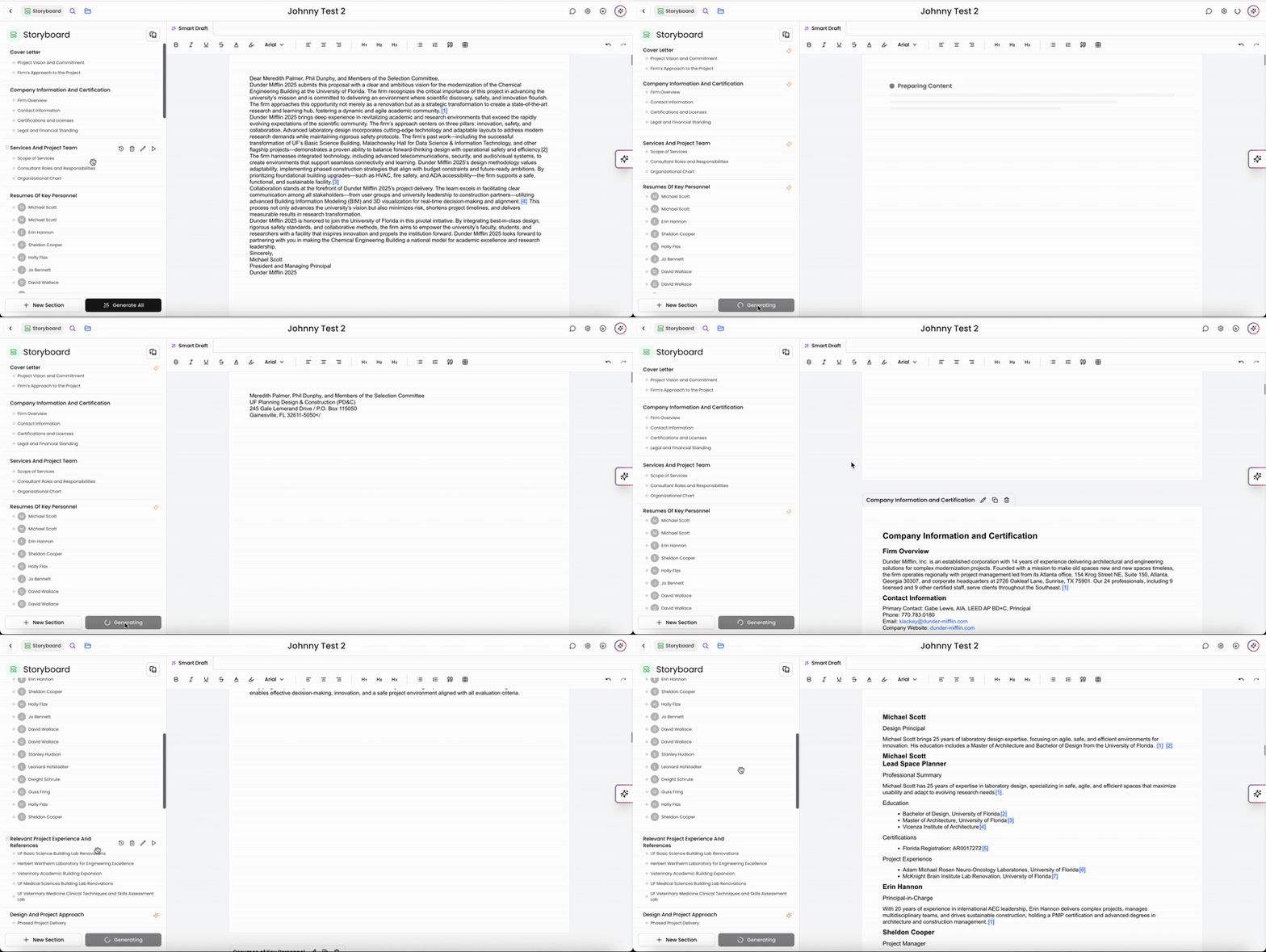
Alternatively, you can generate sections of all storyboards at once by clicking Generate All at the bottom.
By leveraging this feature, you can save time and streamline your workflow effectively.
Save your Storyboard as a Template
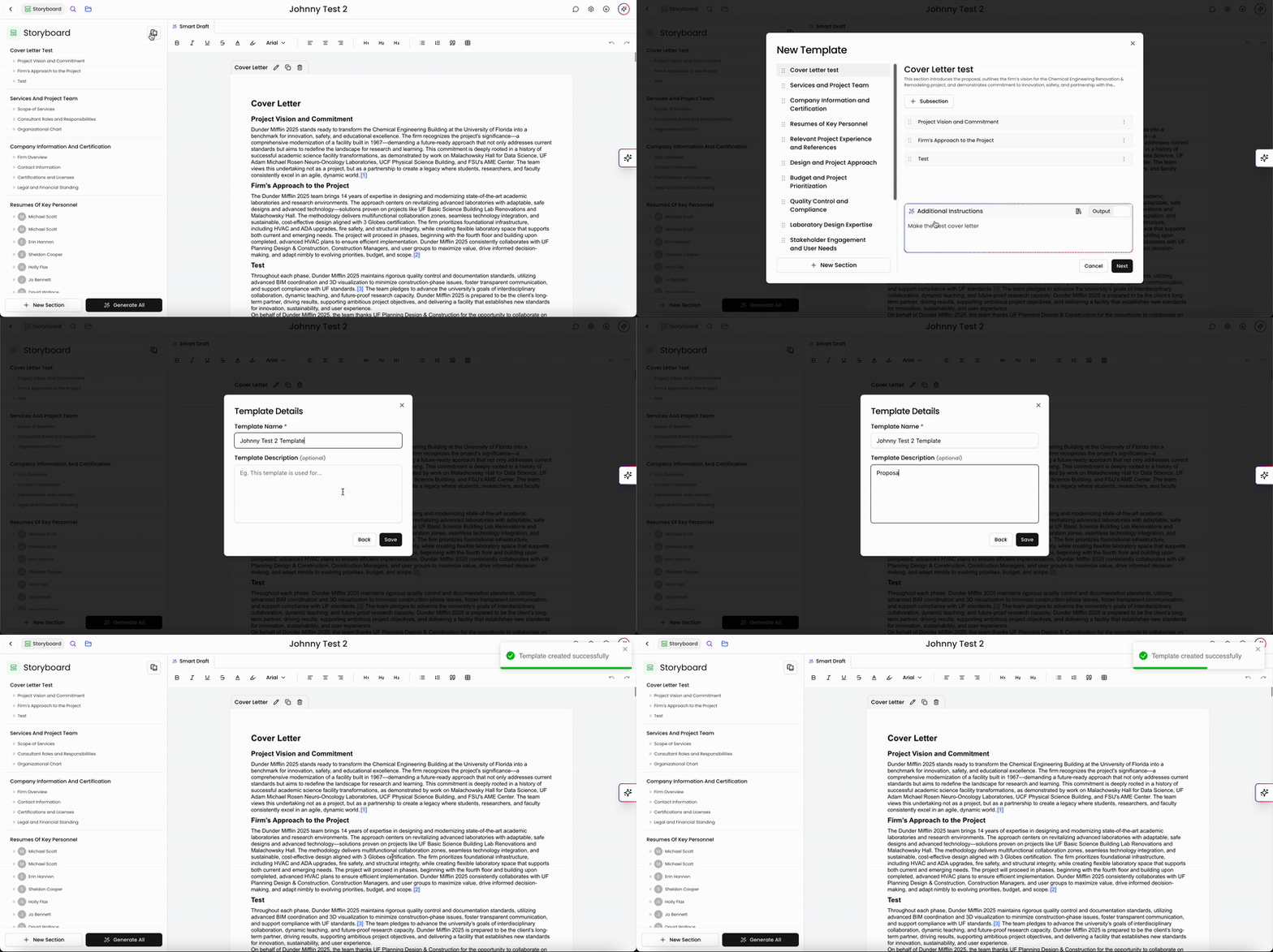
If you like the Storyboard our AI generated and would like to use it again for a future draft, you can save it as a template and store it within your account. Click on the Save as Template button on the top right of the Storyboard menu to save this. You can edit and reorder the Storyboard sections and AI instructions. Give your template a name and description and then click Save to finish creating your template.
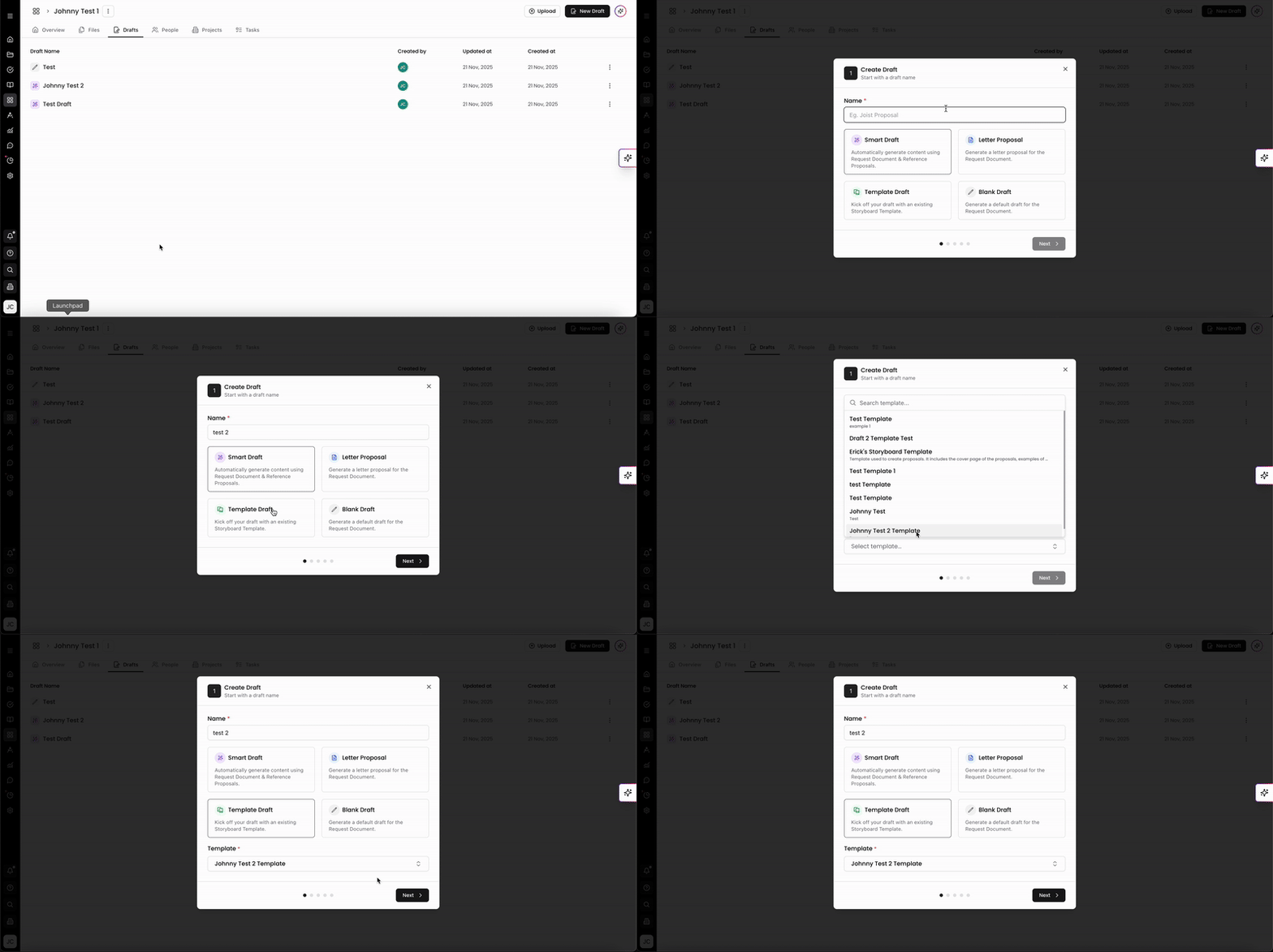
When creating a new draft, you can select your template in the first page. Click Template Draft and select your template from the dropdown list to get started.
Storyboard Best Practices
Check your Storyboard structure before generating content: As our AI generates your Storyboards and subsections, edit and reorganize them to ensure your draft has a solid foundation. You can also use descriptive section titles and clear AI instructions to guide more accurate outputs.
Regenerate Content Strategically: Update one section at a time when making revisions. This keeps changes focused and prevents overwriting content you already like.
Leverage Version History for Iterations: If you’re experimenting with different direction or tone, rely on storyboard version history to compare versions or restore earlier content instead of redoing work.
Search in Workspaces
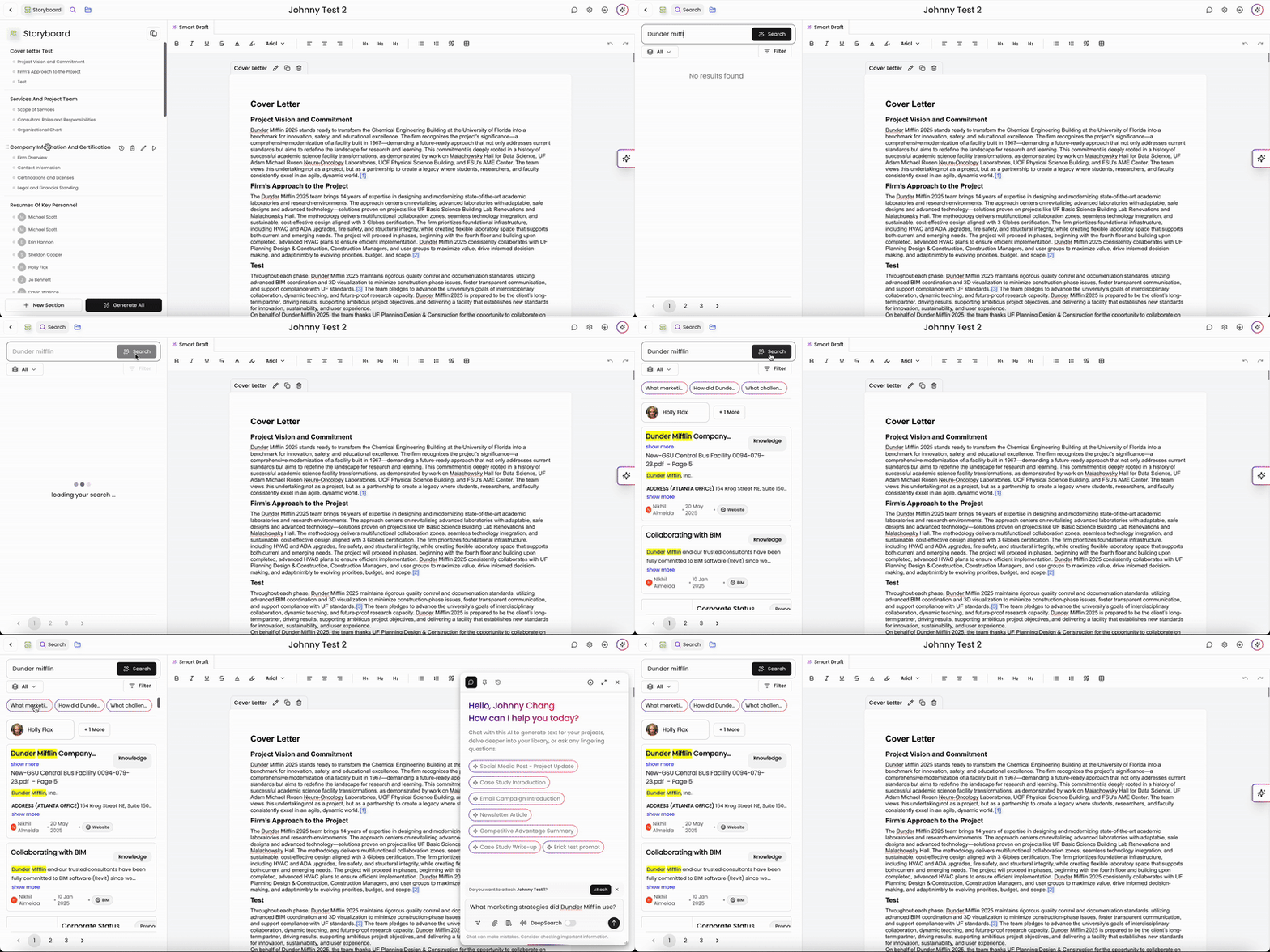
You can access the Search feature within your draft to look through your files and pull data for your draft. Click on the Search button at the top left of the page to access this feature.
With Search, you can
Pull and copy/paste data from your Knowledge content, files, and library.
Filter by file type and tags to pull specific information.
Use autogenerated chat prompts to run queries and generate content.
Having Search handy within drafts makes pulling data and running chat queries convenient and efficient. This allows you to work on your draft and run other Kantiv functions all in one place without having to toggle between pages within the platform.
Files in Workspaces
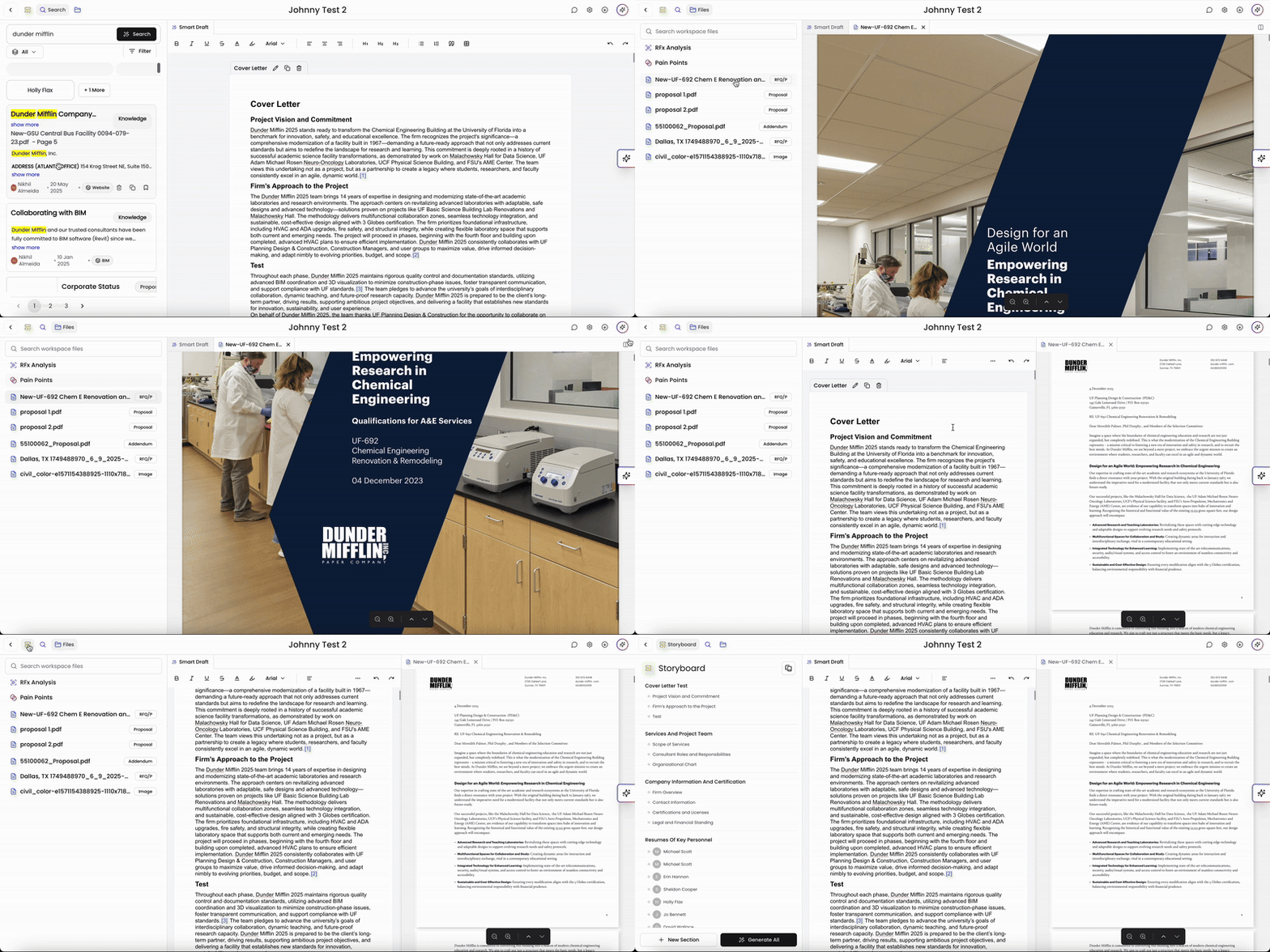
In the Files tab, you can easily access the RFx documents, past proposals, and images you've added onto your Workspace. Your files will appear in the list and you can click on them to open and view it.
Your file will appear in a separate tab from your draft and you can toggle between the file and the draft by clicking the tab at the top of the page. Alternatively, you can view the draft and the file side by side by clicking the window button on the top right. From there, you can also toggle back to the storyboard tab to have your storyboard on the left, the draft in the middle, and the file on the right. This is an optimal view that gives you all three important sections of your Workspace all in one place.
Storyboards, Search, and Files work together to create a seamless drafting experience in Workspaces. Storyboards let you structure, edit, and generate content with AI support, while Search brings your entire library—knowledge, files, and tagged content—directly into your drafting flow. The Files tab rounds it out by giving you instant access to RFx documents, proposals, and reference materials. Together, these tools help you write faster, stay organized, and build stronger, more informed proposal drafts.
You can always find more information on Workspaces in our Support Center. Please send any questions or feedback to Support@Kantiv.com.