Image Hub: Tagging, Search, and Filters
Last updated: June 2, 2026
Tagging, search, and filters are what make Image Hub truly powerful. Instead of digging through folders or guessing file names, you can quickly find the exact images you need by organizing them with tags, linking them to relevant records, and using flexible search tools. Whether you’re managing a small set of assets or a large image library, these features help your team stay organized, reduce manual effort, and surface the right visuals exactly when you need them.
Tagging Images and Linked Records
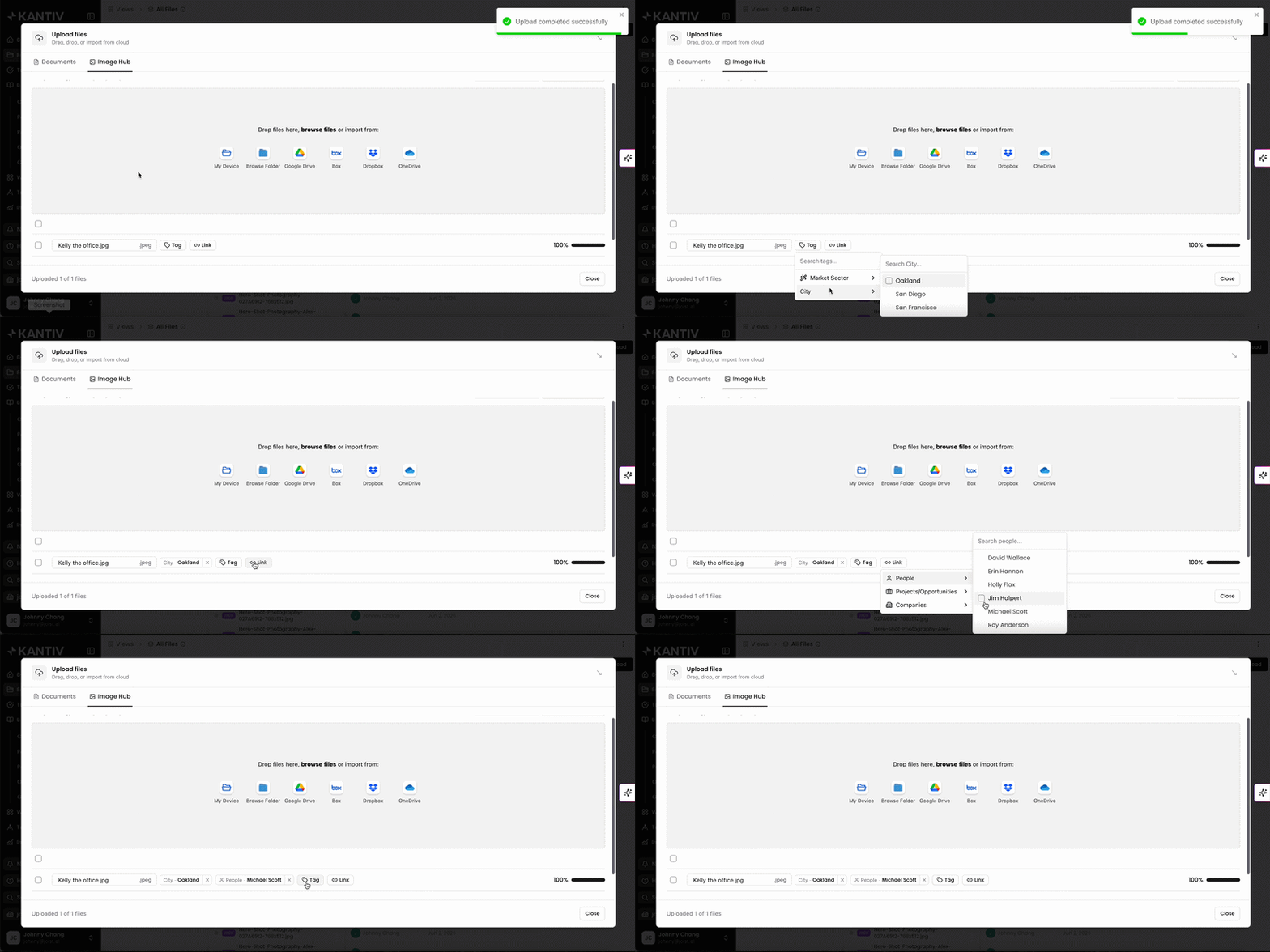
You can tag images to provide detailed descriptions that help organize and categorize your content effectively. Tags can be added at different stages to ensure flexibility and accuracy, including:
During the upload process
After the images have been uploaded
Additionally, Image Hub can automatically generate tags using AI to:
Quickly tag large batches of images
Reduce manual work
When uploading images, you can select records to link tags to, applying the selected link to all images in the current upload batch. This feature streamlines the tagging process by ensuring that images are consistently associated with relevant records, improving organization and accessibility.
Why linking matters
Maintains clear organization by associating images with their relevant context
Enhances searchability, making images easier to locate when needed
Ensures visuals are displayed in the appropriate locations for your team’s workflow
What are linked records?
Linked Records associate an image with People, Projects, Opportunities, and Companies. This allows images to appear automatically in relevant Media tabs.
Check out this article for more information on Linked Records.
Search for images
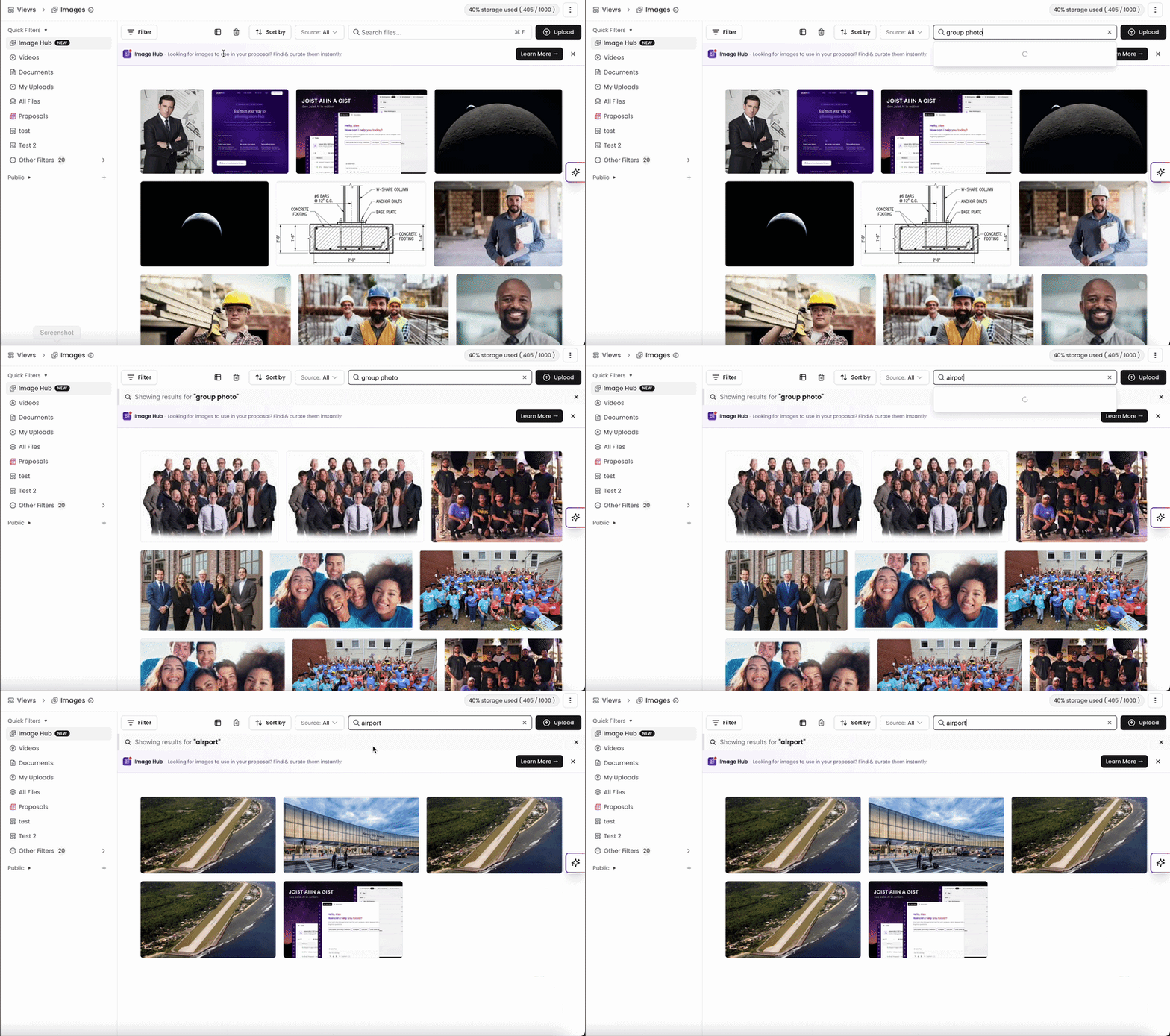
You can search for images using the following methods:
Keywords: Enter specific words or phrases related to the image content to quickly find relevant images. With Image Hub, our system does it automatically.
Tags: Use predefined or custom tags assigned to images to filter and locate images by category or theme.
Associated records: Search images linked to particular records or entries within the system for contextual relevance.
Filter images
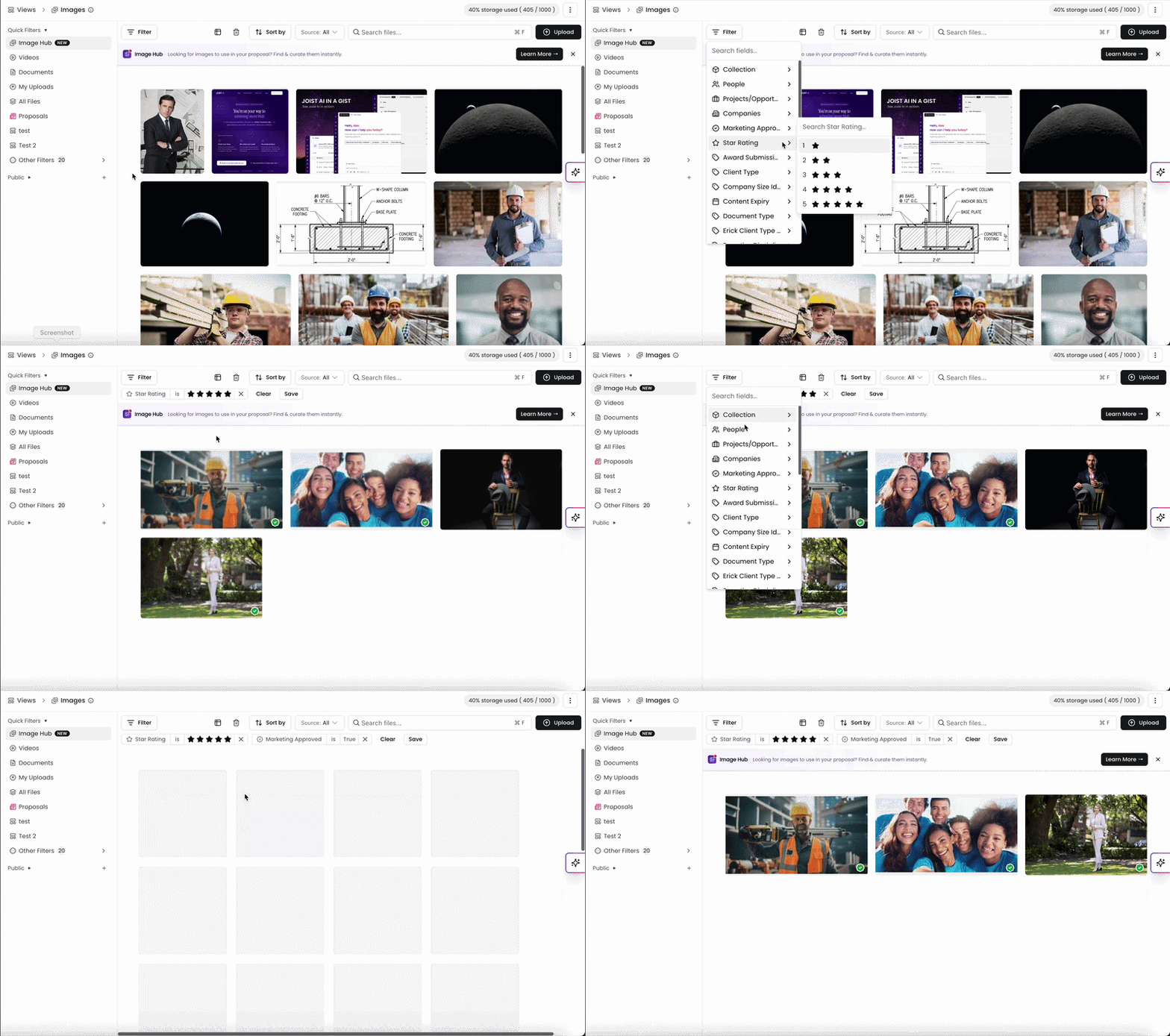
In Image Hub, you can use filters to narrow results by:
Tags: Select specific tags to display only items associated with those tags, helping you focus on relevant content.
Approval status: Filter results based on their approval state, such as approved, pending, or rejected, to manage workflow efficiently.
Star rating: Choose items according to their star ratings to quickly identify top-rated content.
By using tags, linked records, and filters together, Image Hub transforms how your team organizes and finds images. A well-structured library not only saves time but also ensures the right visuals are easy to access and use across your workflows. With consistent tagging and smart search practices, your team can quickly locate high-quality, relevant assets without unnecessary effort.
You can always find more information on Content Management in our Support Center. Please send any questions or feedback to Support@Kantiv.com.